Skip to content
Back to template gallery
Salesforce
Salesforce

How to import new Accounts into SFDC

A ready-made, step-by-step walkthrough. Preview every step below — then make it your own in seconds.

Sales & Customer Success
16 steps 6 min Community template
1

Navigate to your Salesforce account

Navigate to your Salesforce account

2

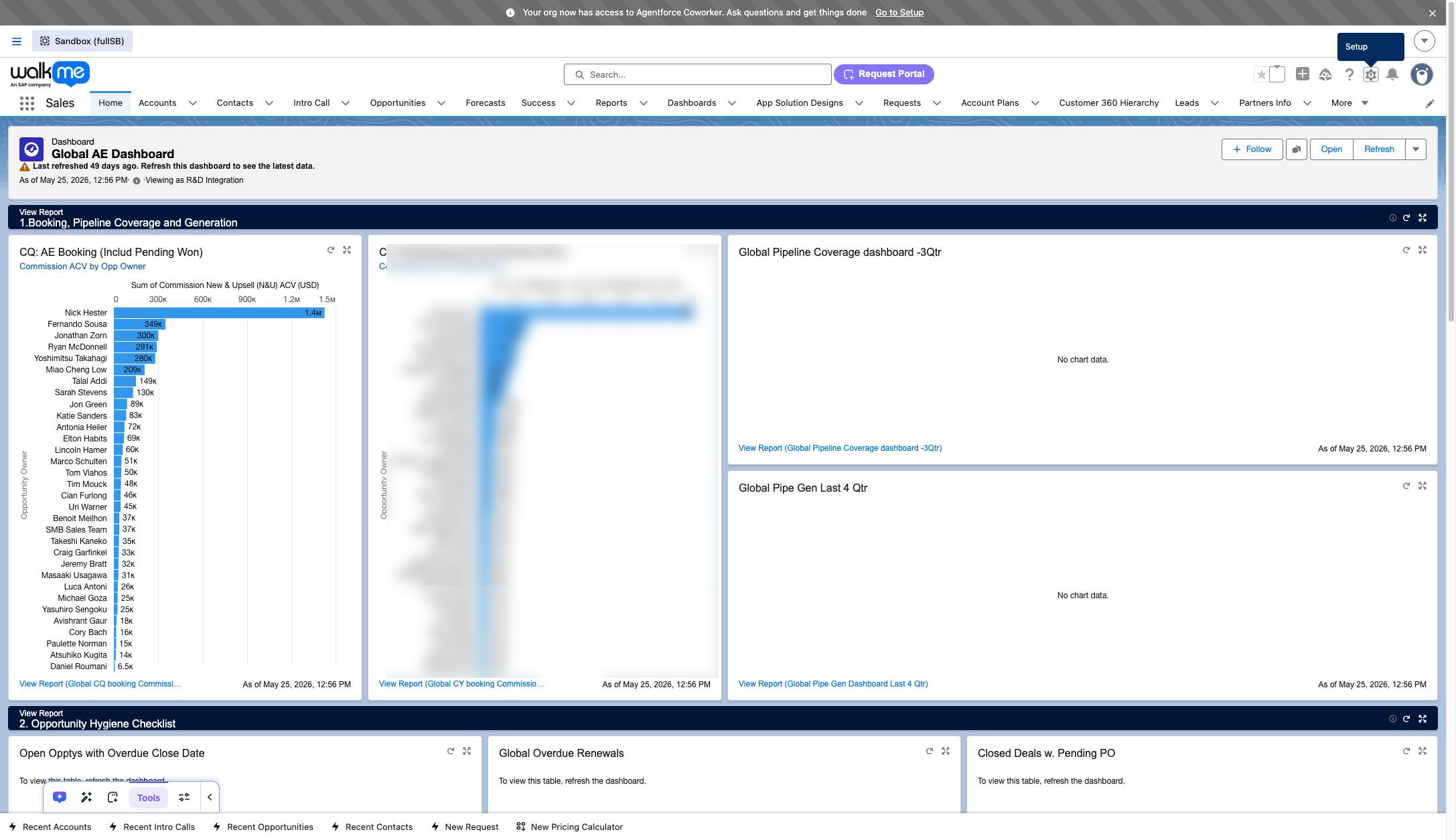
Click the Setup icon

Click the gear icon in the top right header to open the setup menu.
www.salesforce.com
Click the Setup icon
3

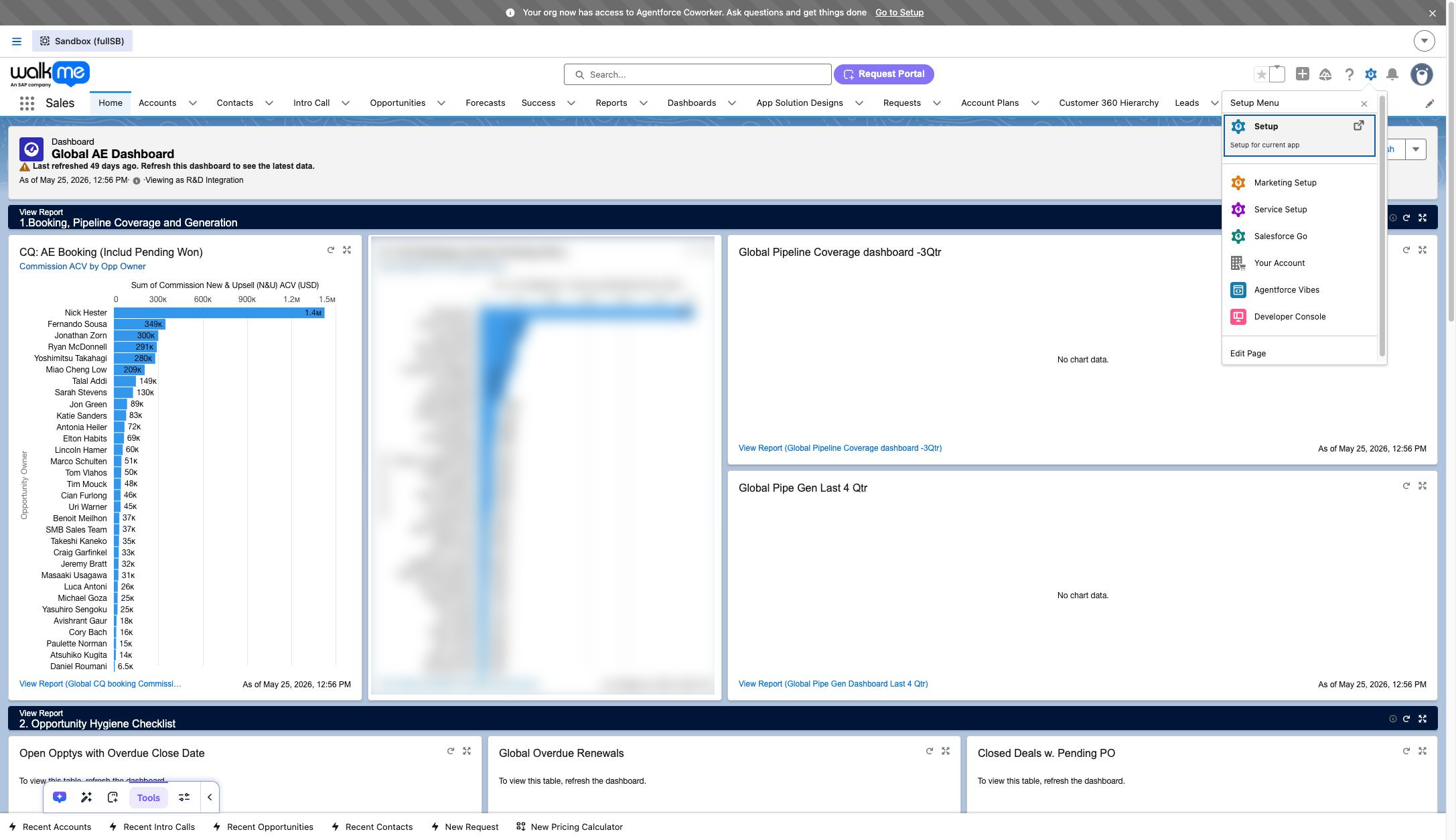
Click the Setup option

Click the Setup option in the Setup Menu dropdown to open the configuration page.
www.salesforce.com
Click the Setup option
4

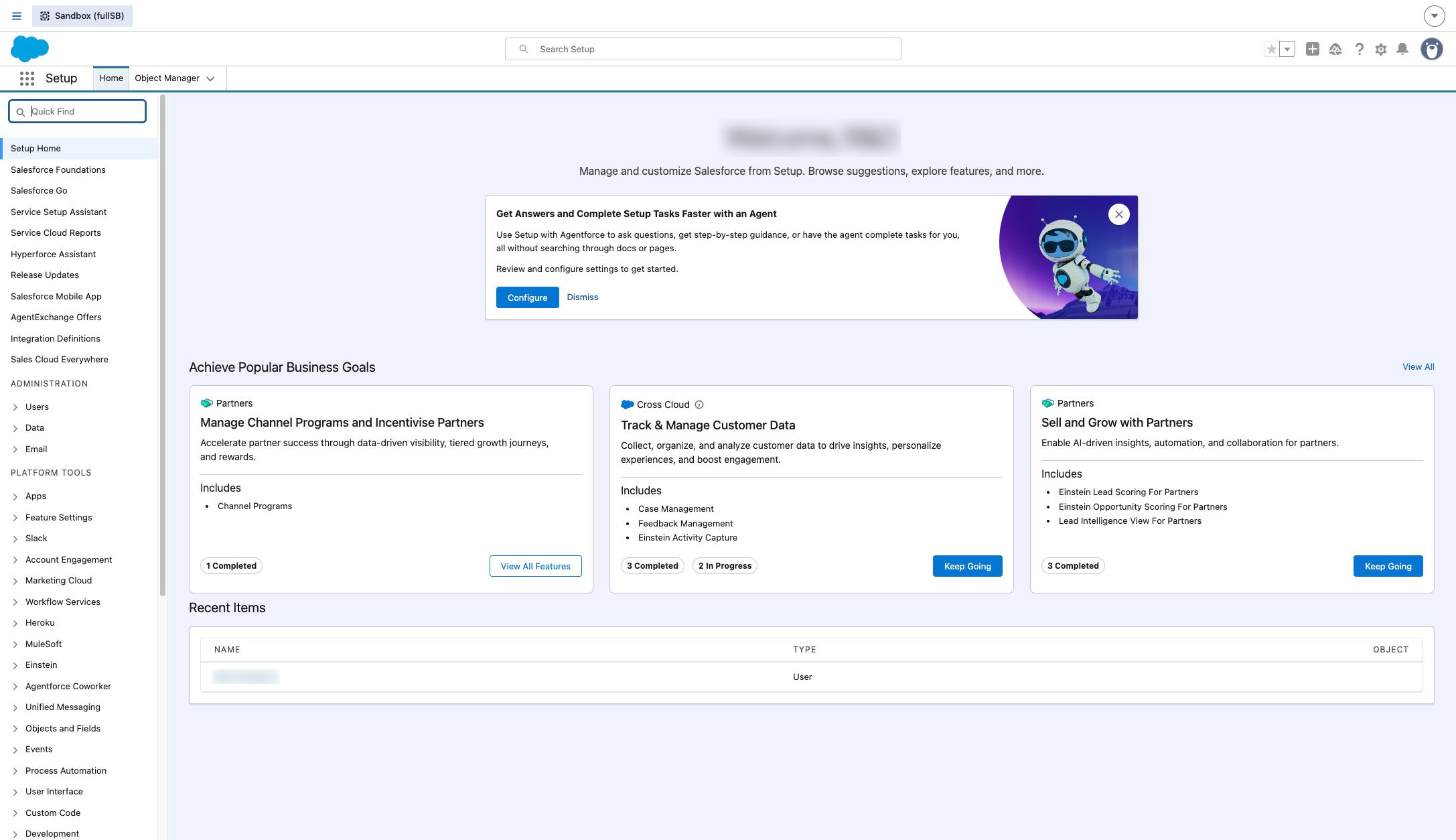
Click in "Quick Find" input field

Click in "Quick Find" input field

www.salesforce.com
Click in "Quick Find" input field
5

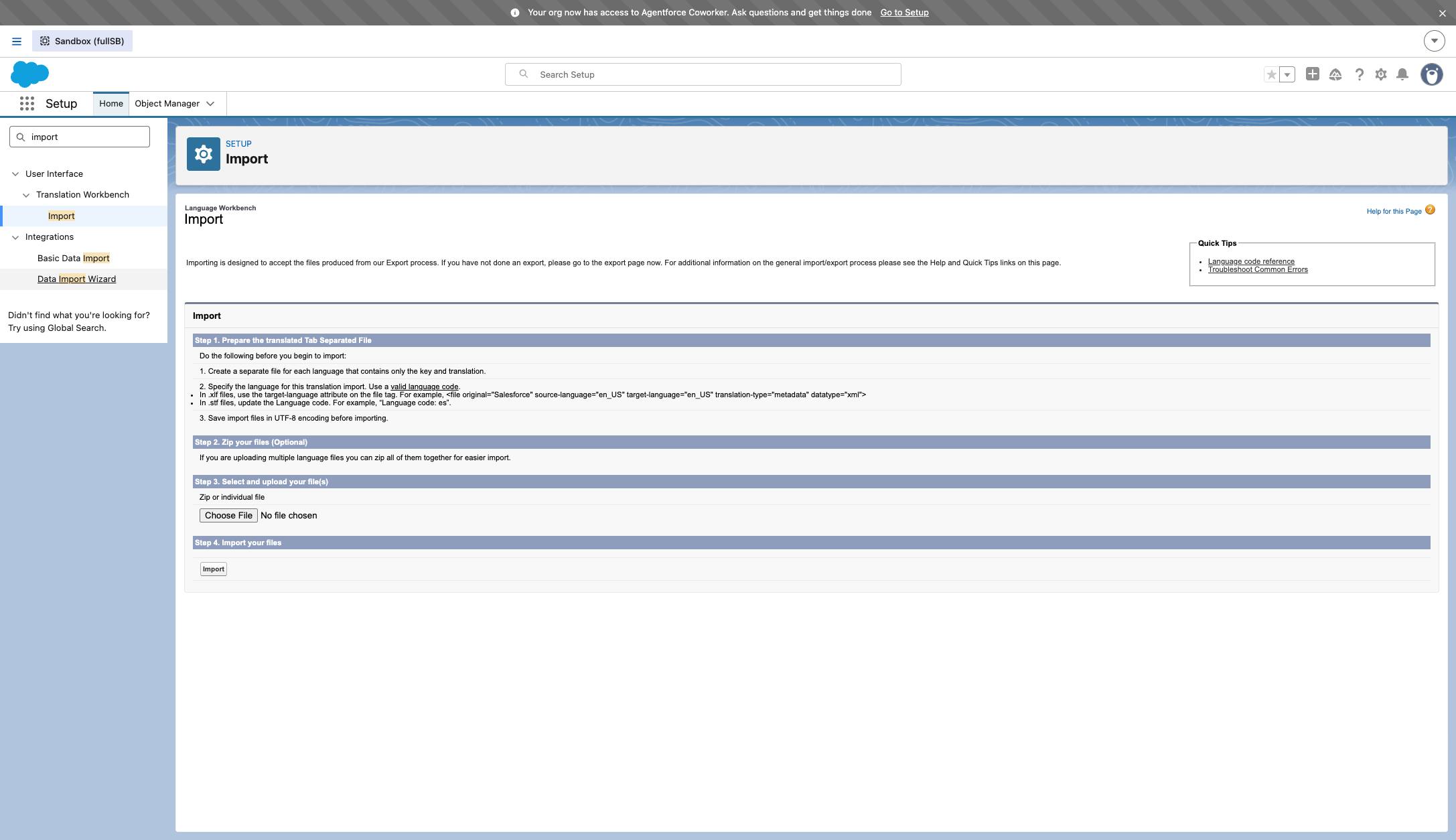
Type "import"

Type "import"

6

Click "Data Import Wizard"

Click "Data Import Wizard"
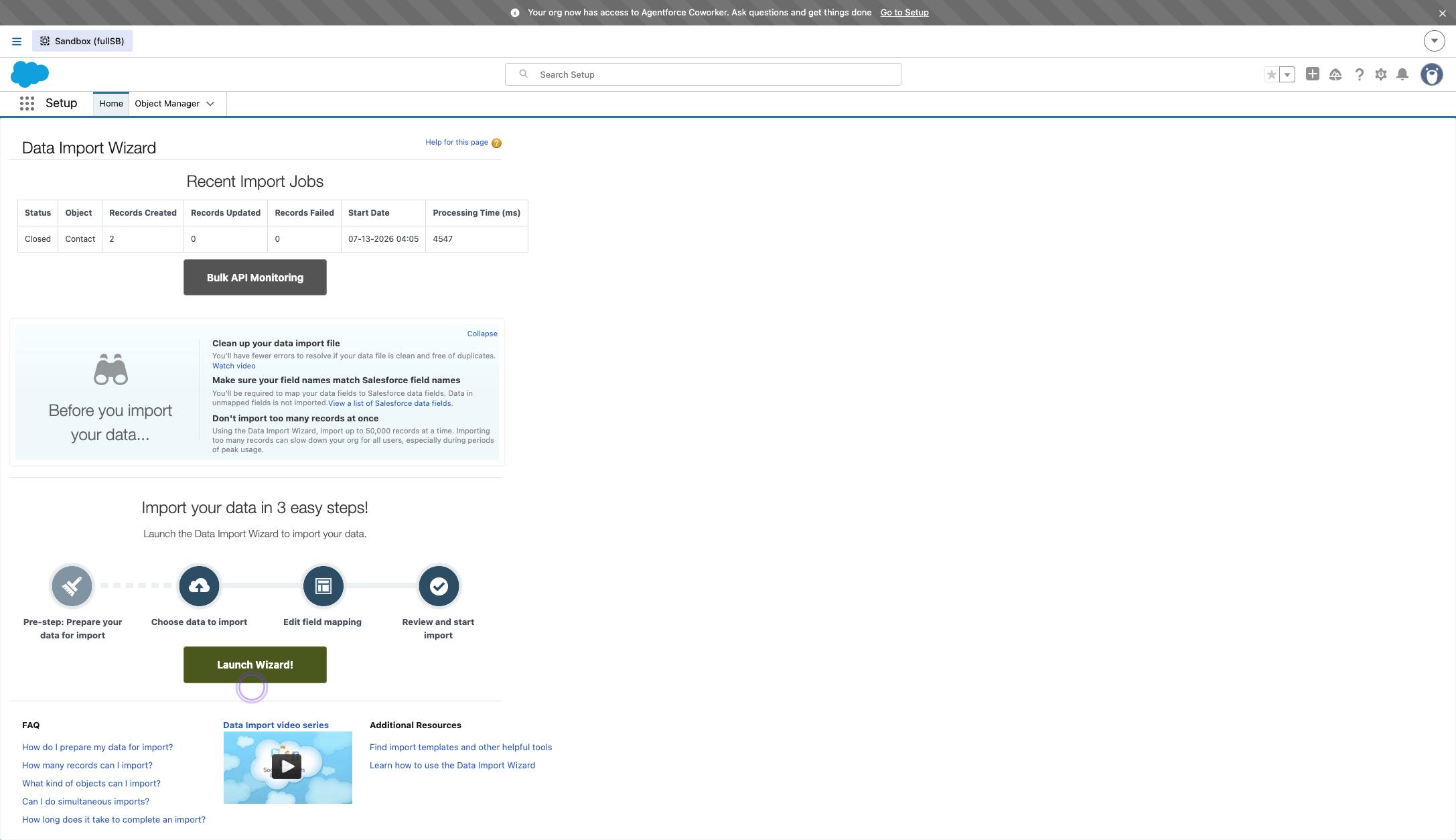
www.salesforce.com
Click "Data Import Wizard"
7

Click "Data Import Wizard"

Click "Data Import Wizard"

www.salesforce.com
Click "Data Import Wizard"
8

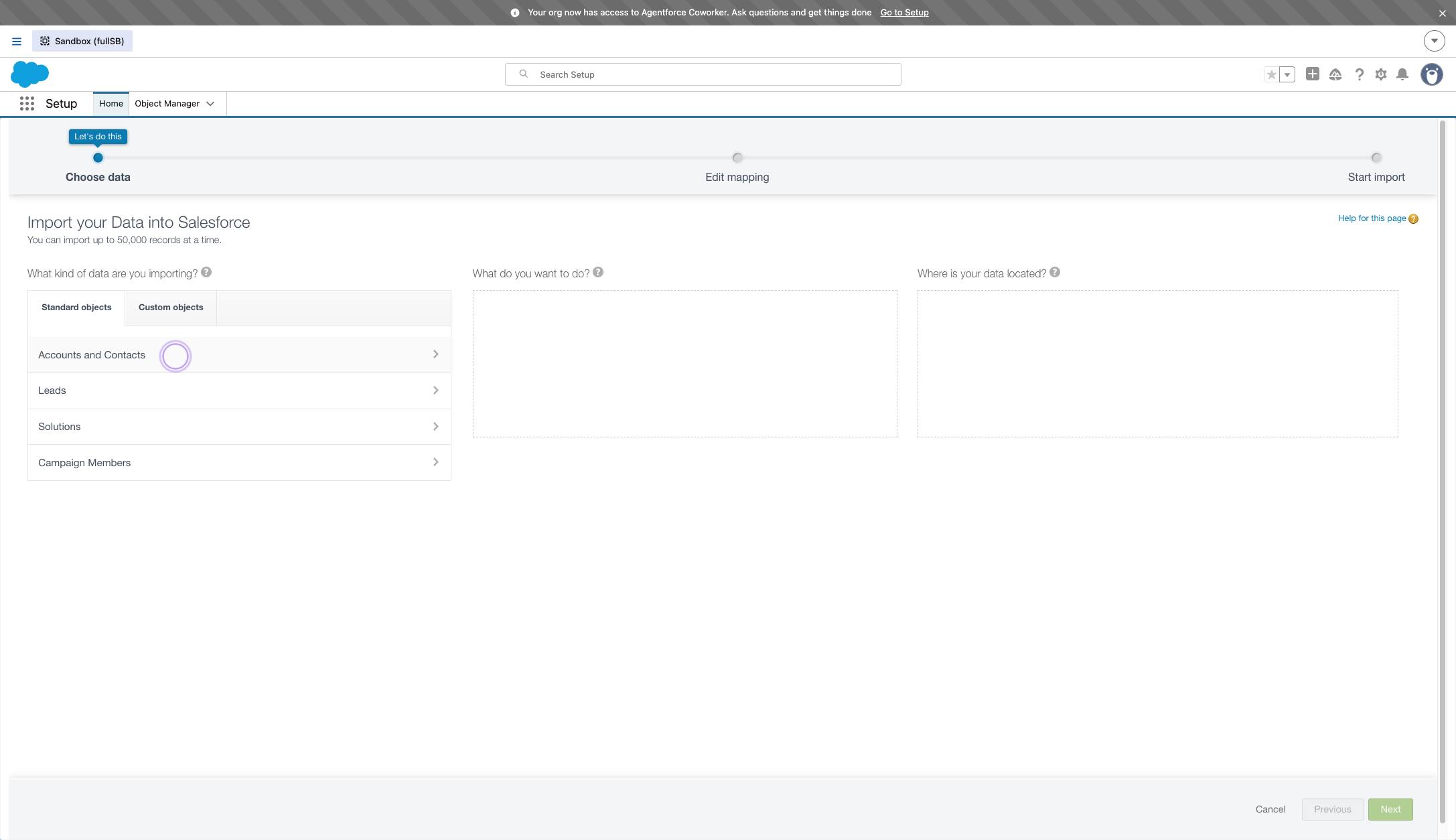
Click "Accounts and Contacts" link

Click "Accounts and Contacts" link

www.salesforce.com
Click "Accounts and Contacts" link
9

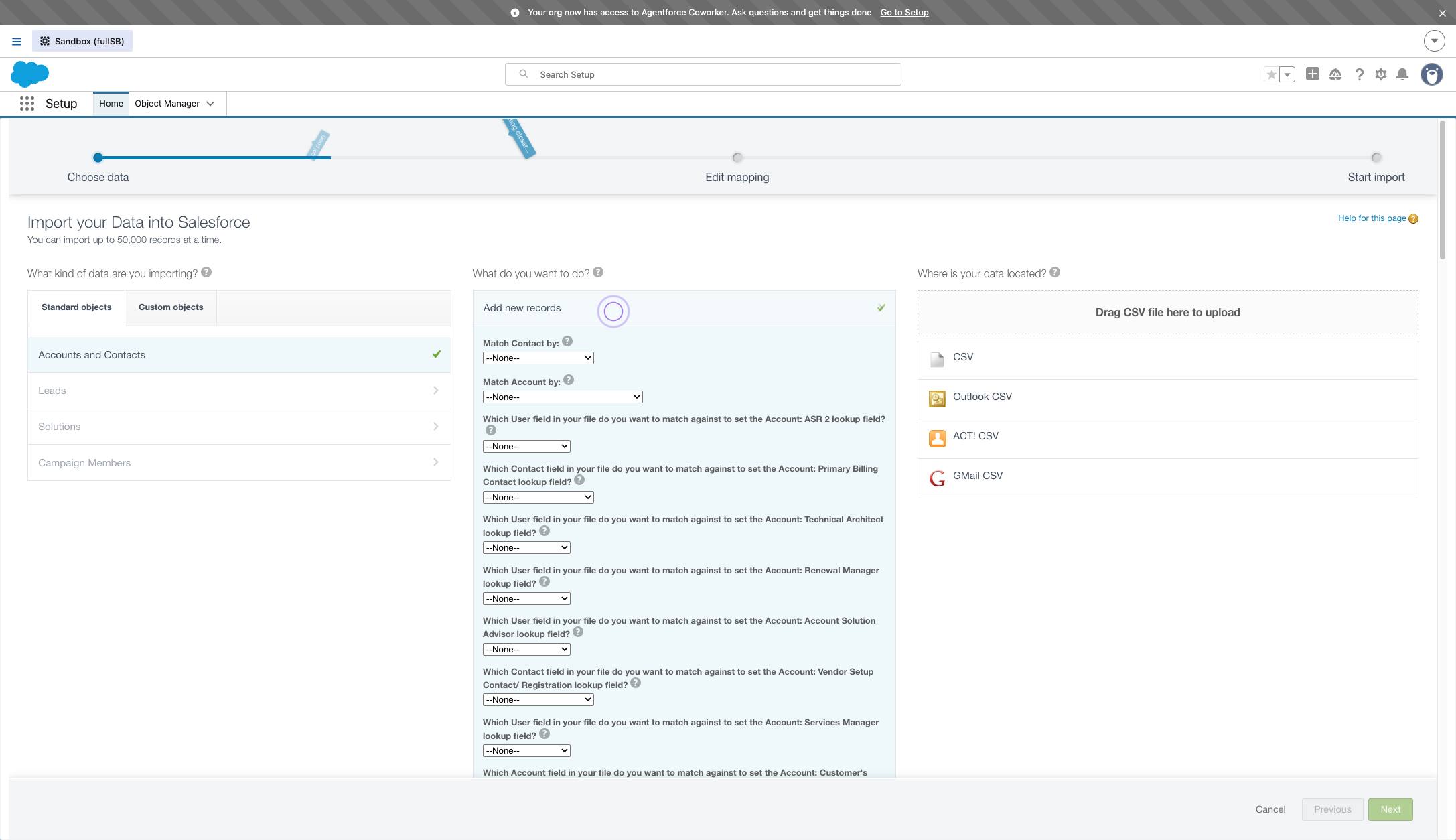
Click "Add new records" link

Click "Add new records" link

www.salesforce.com
Click "Add new records" link
10

Click this dropdown and select "Name"
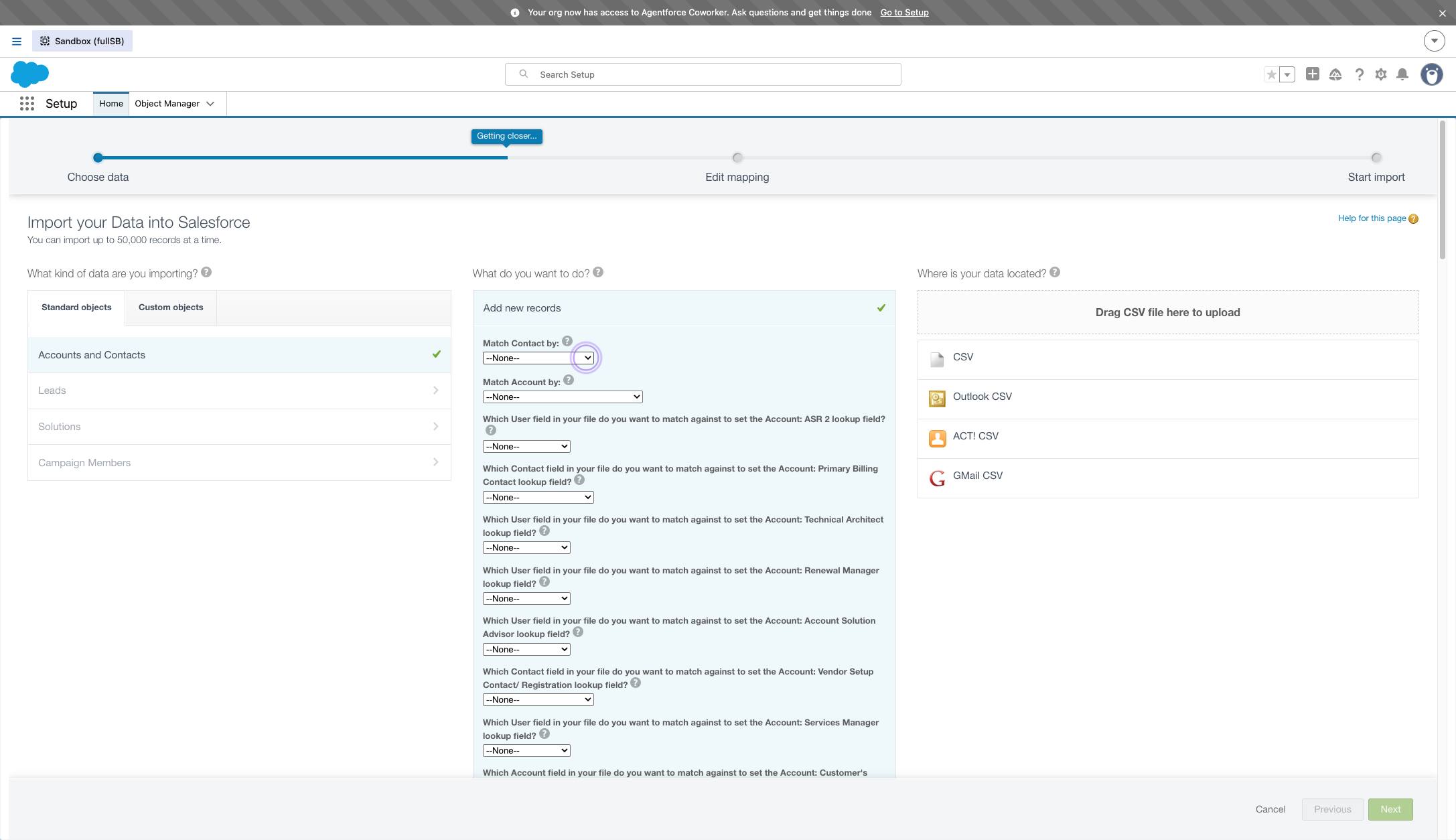
Click this dropdown and select "Name"

www.salesforce.com
Click this dropdown and select "Name"
11

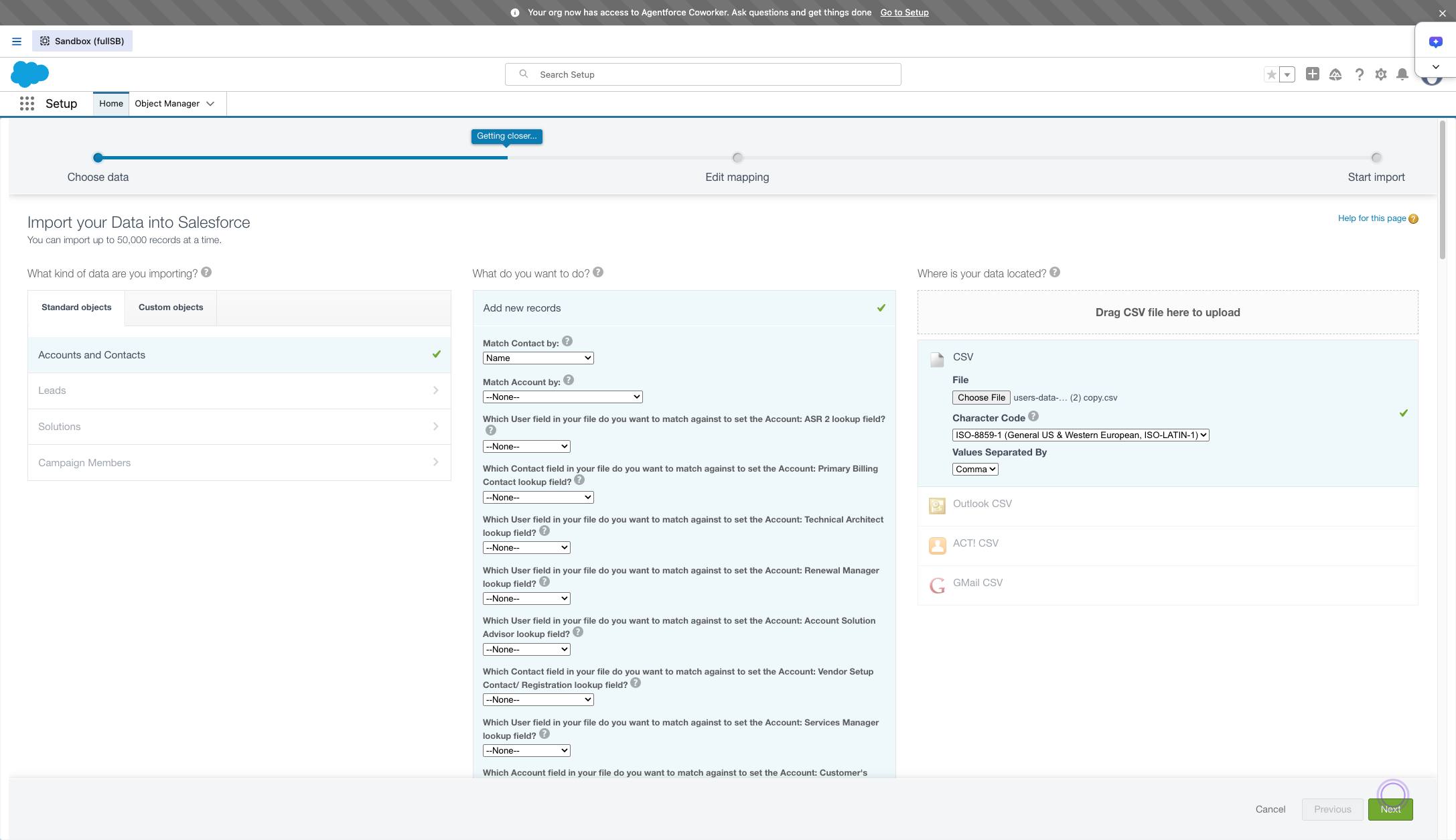
Click "Next"

Click "Next"

www.salesforce.com
Click "Next"
12

Heads Up! For you to map your accounts that aren't already in SFDC please make sure your csv. has a column in it with your name. SFDC will assign the Account owner from this field.

Heads Up! For you to map your accounts that aren't already in SFDC please make sure your csv. has a column in it with your name. SFDC will assign the Account owner from this field.

13

Your CVS list will have the fields you are trying to import into SFDC.
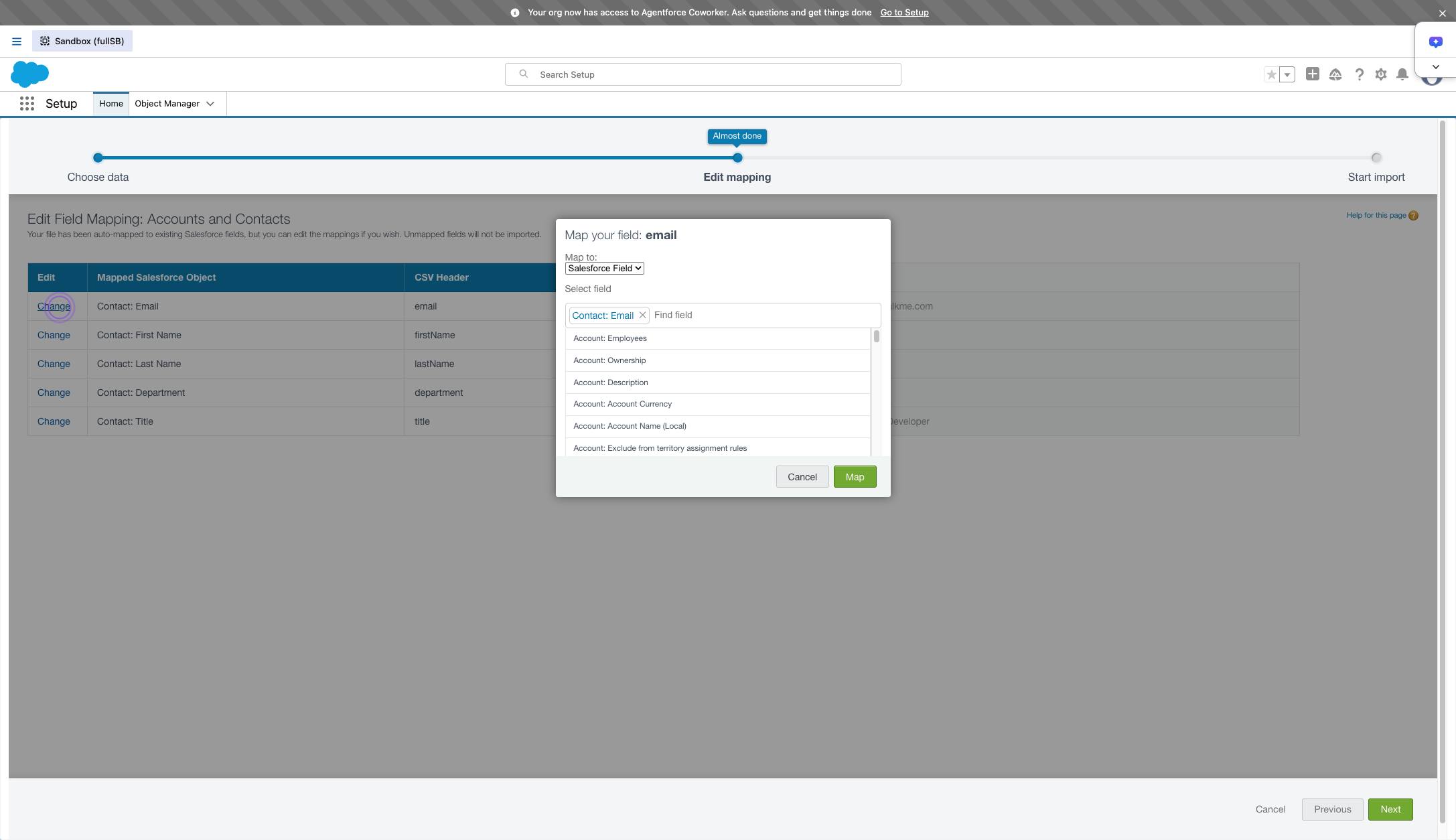
Your CVS list will have the fields you are trying to import into SFDC.

www.salesforce.com
Your CVS list will have the fields you are trying to import into SFDC.
14

Once you have all your field you want to map click "Next"
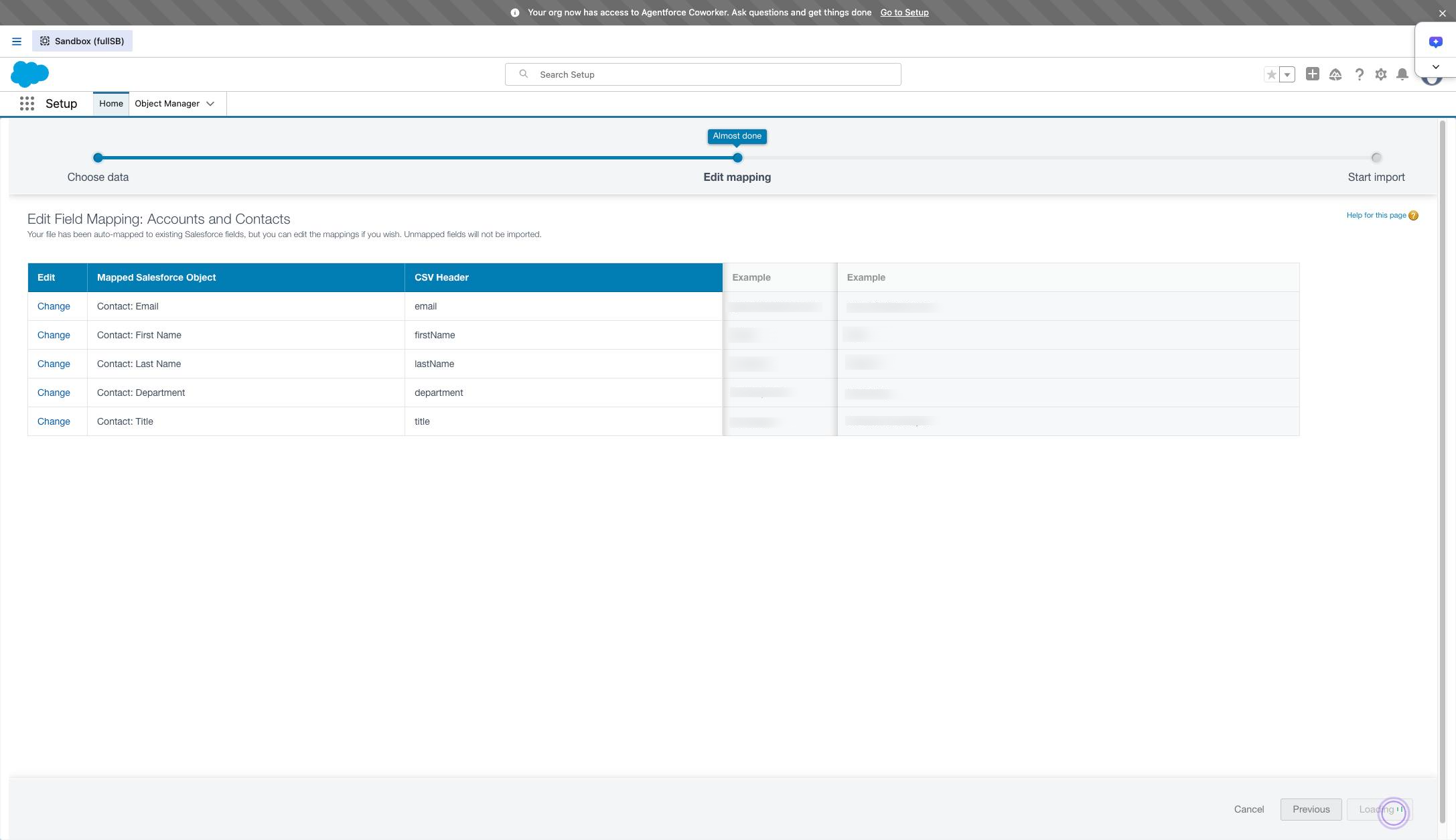
Once you have all your field you want to map click "Next"

www.salesforce.com
Once you have all your field you want to map click "Next"
15

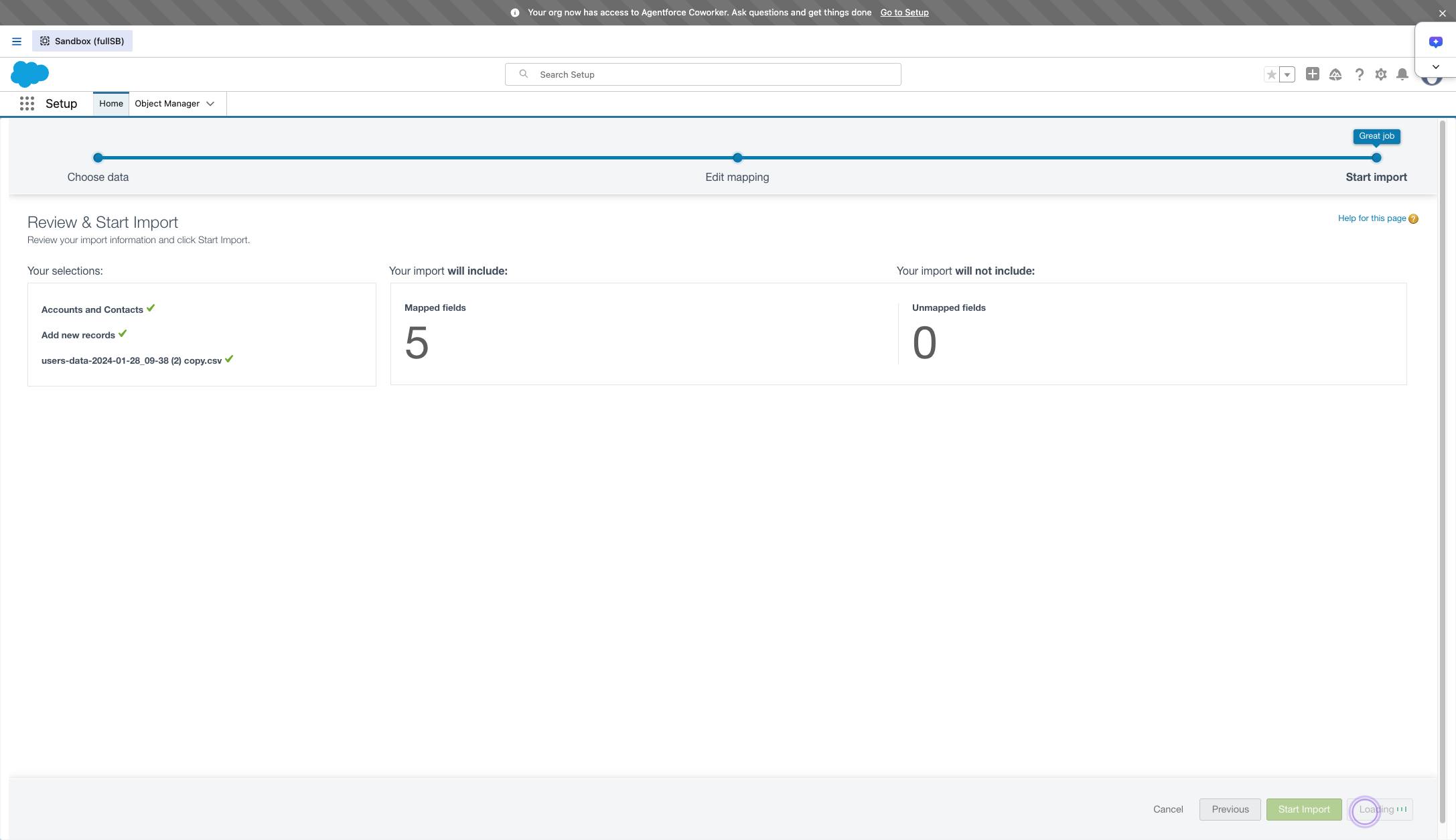
Click "Start Import"

Click "Start Import"

www.salesforce.com
Click "Start Import"
16

Once you hit ok you should see the details of the upload. It's important to see how many accounts were added and how many failed.
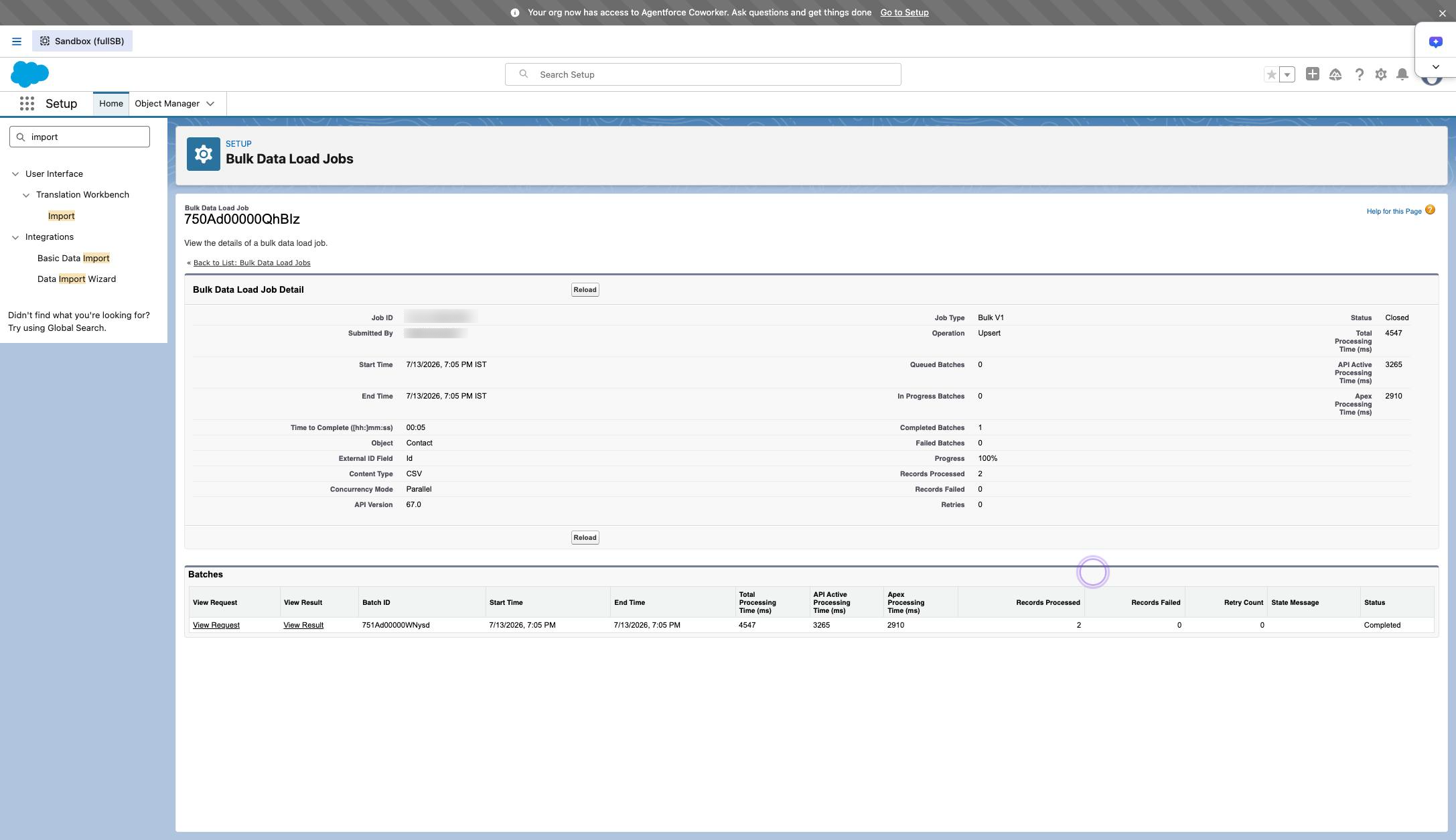
Once you hit ok you should see the details of the upload. It's important to see how many accounts were added and how many failed.

www.salesforce.com
Once you hit ok you should see the details of the upload. It's important to see how many accounts were added and how many failed.

Make this walkthrough your own

Duplicate this template, swap in your own screens, and share it with your team. Free to start — no credit card.