1
Freeze the Top Row
Freeze the Top Row

Learn how to freeze rows and panes in Excel to keep your headers and key data visible while scrolling. This step-by-step guide will walk you through freezing the top row and locking panes at a specific selection.
Freeze the Top Row
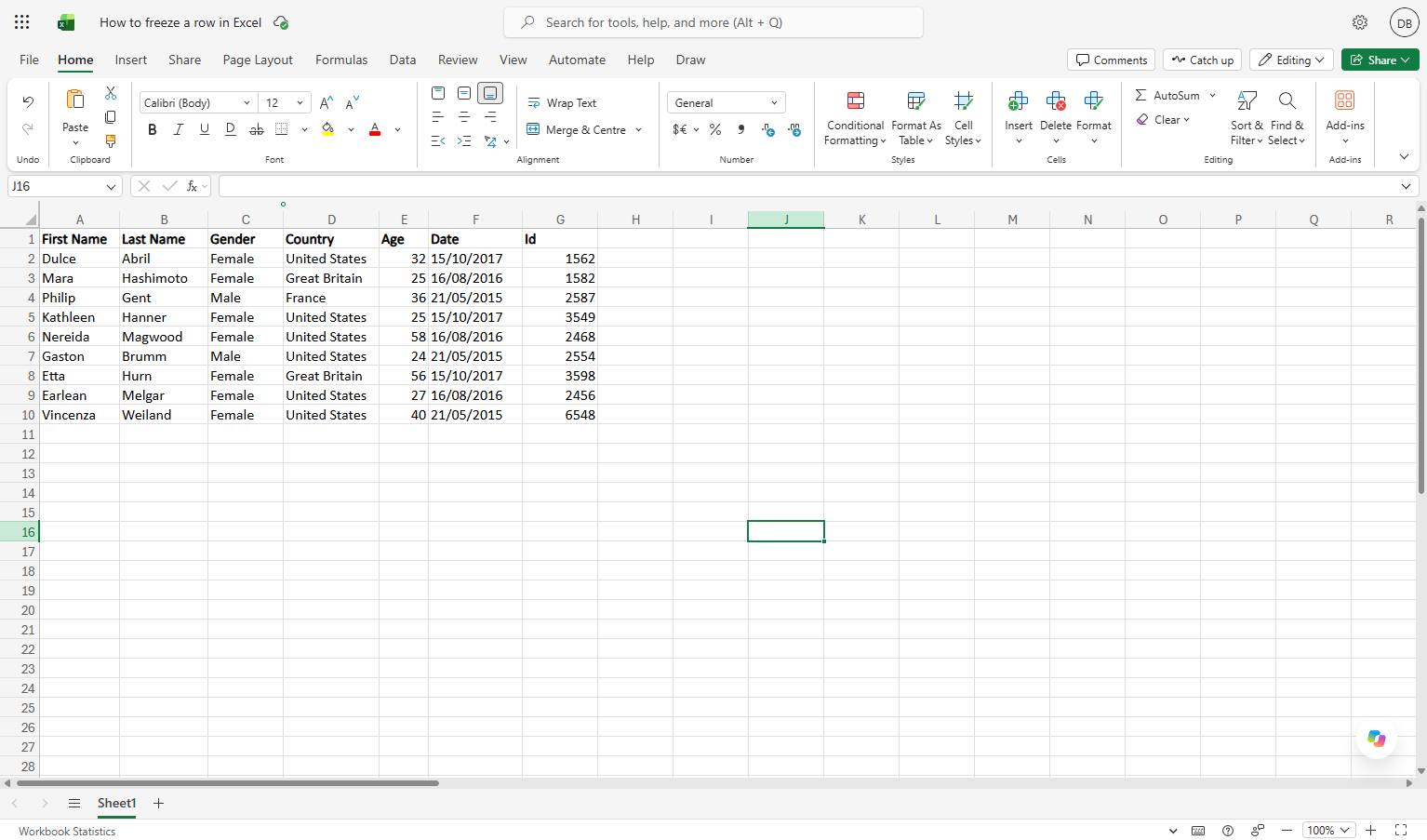
Navigate to the Excel document to begin learning how to freeze a row.
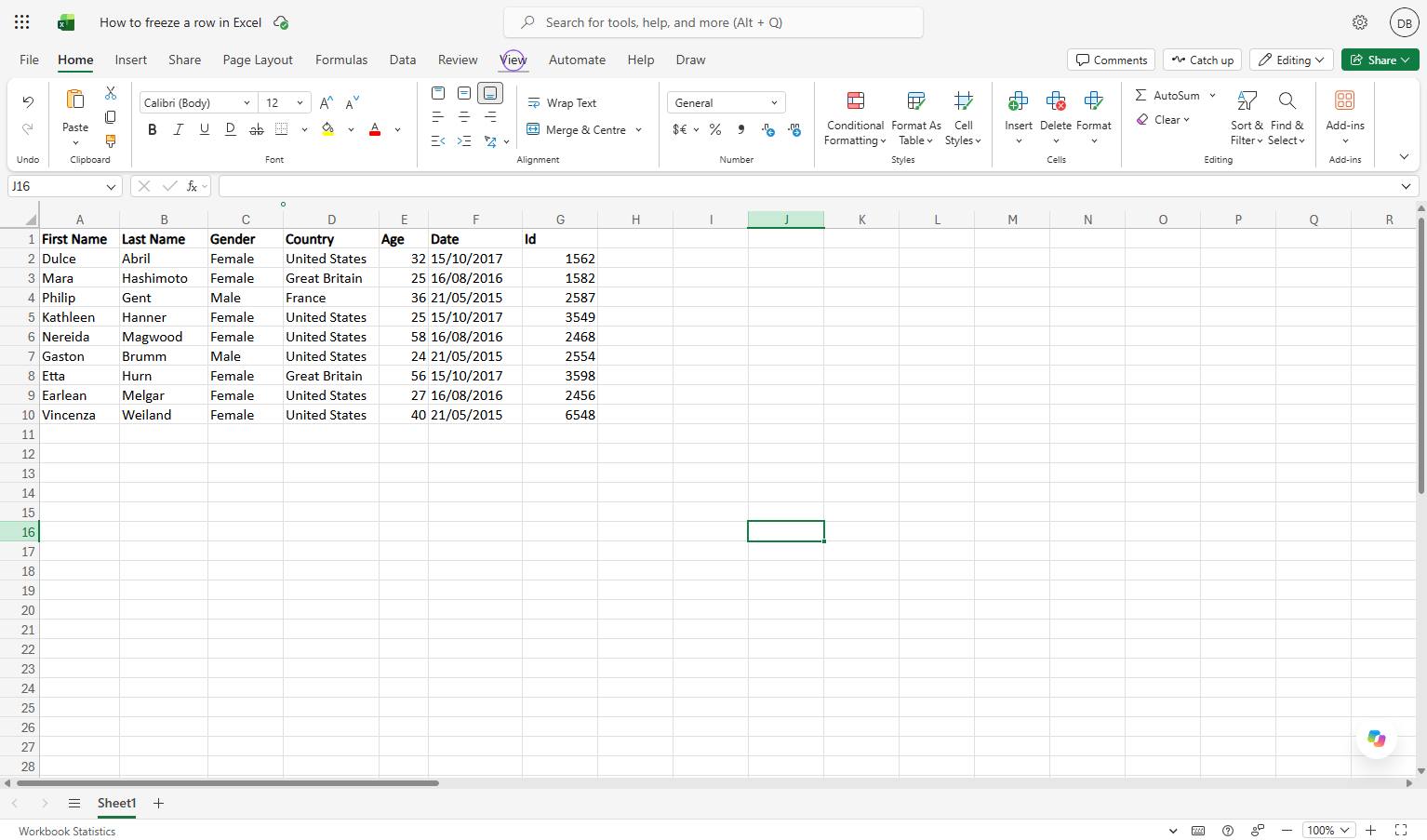
Click the View tab in the top ribbon to access view-related options.
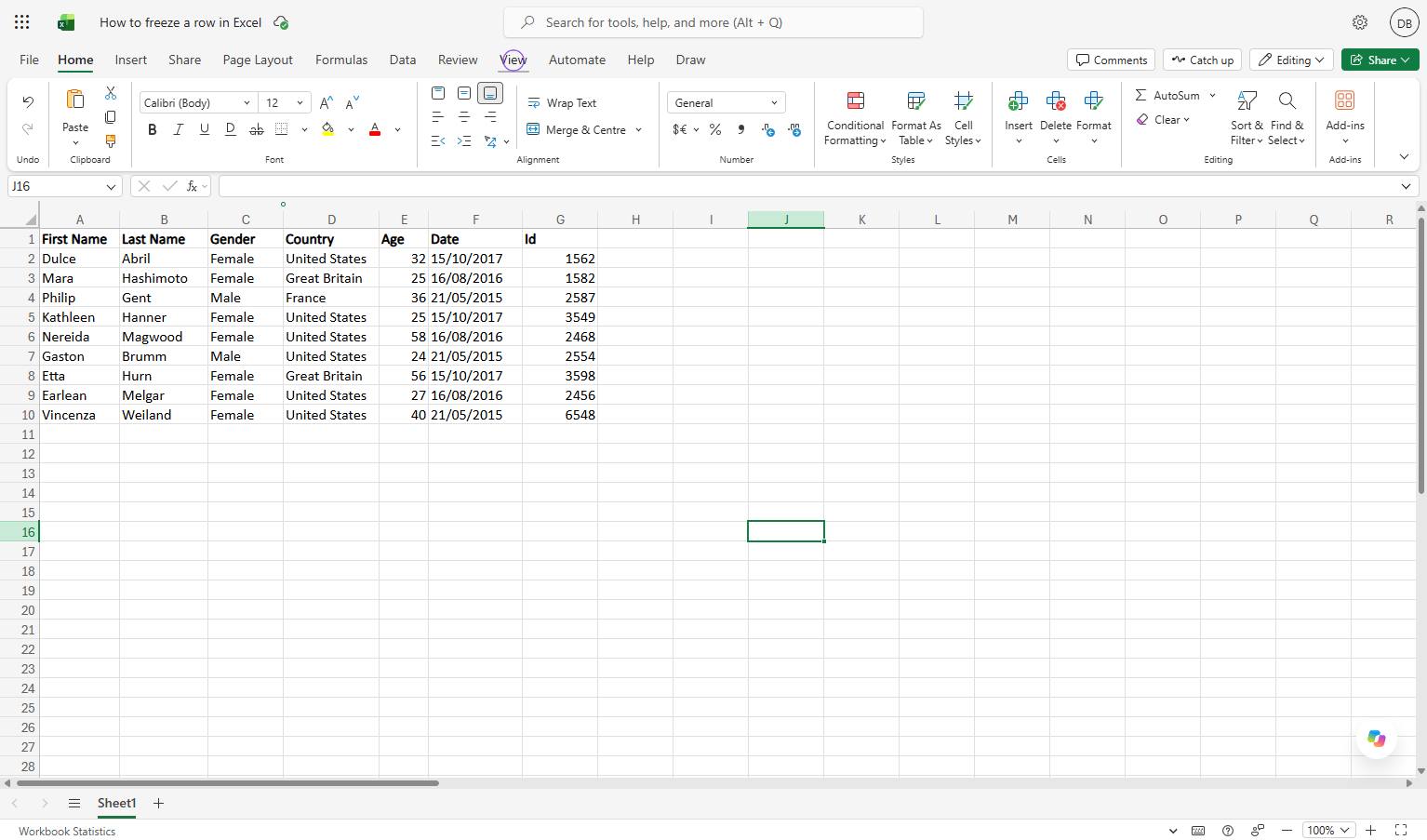
Click the View tab in the top ribbon to access view-related options.
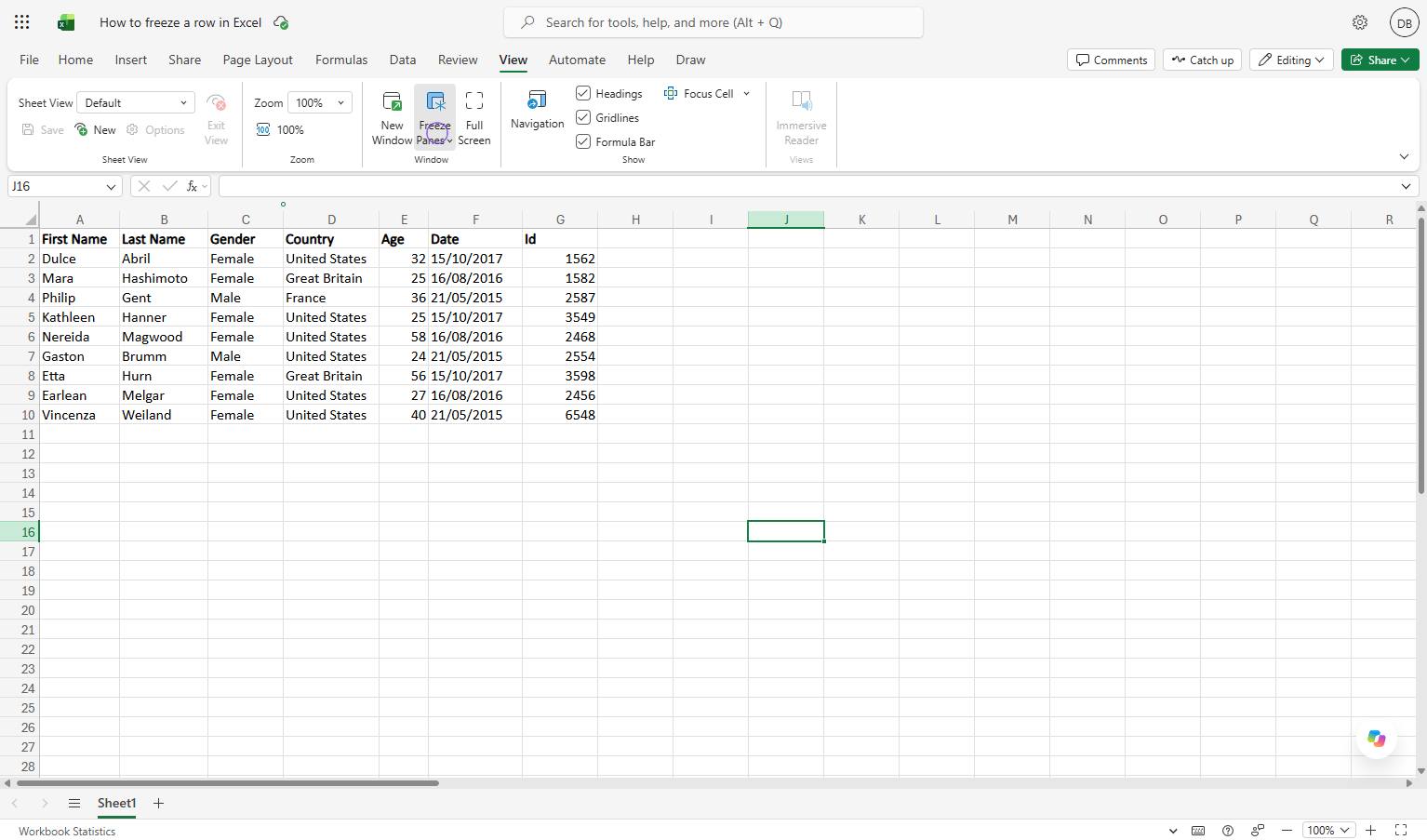
Click the Freeze Panes button in the View tab's Window group to open the dropdown menu.
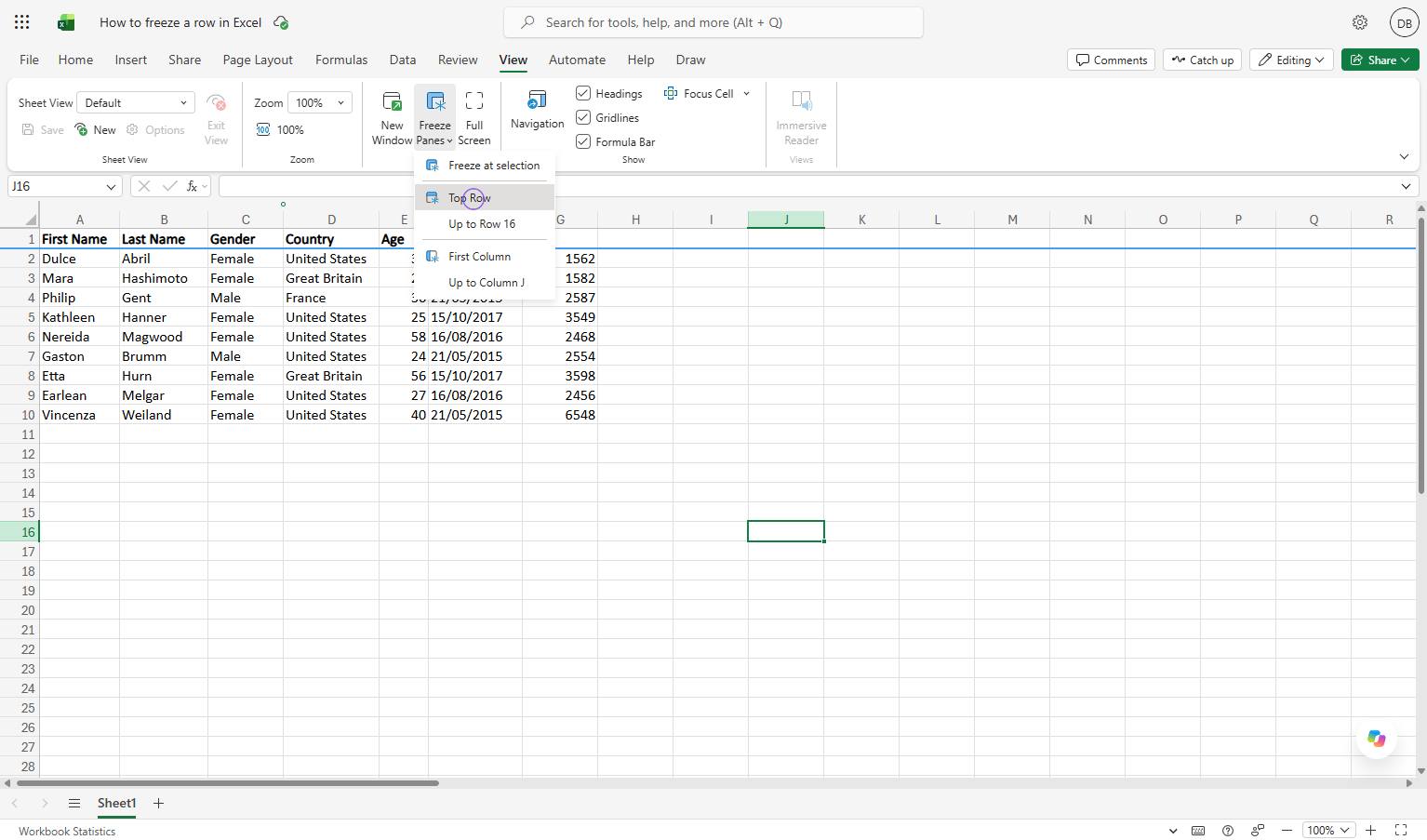
Click the Top Row option in the Freeze Panes dropdown menu to freeze the first row of your spreadsheet.
Freeze Multiple Rows
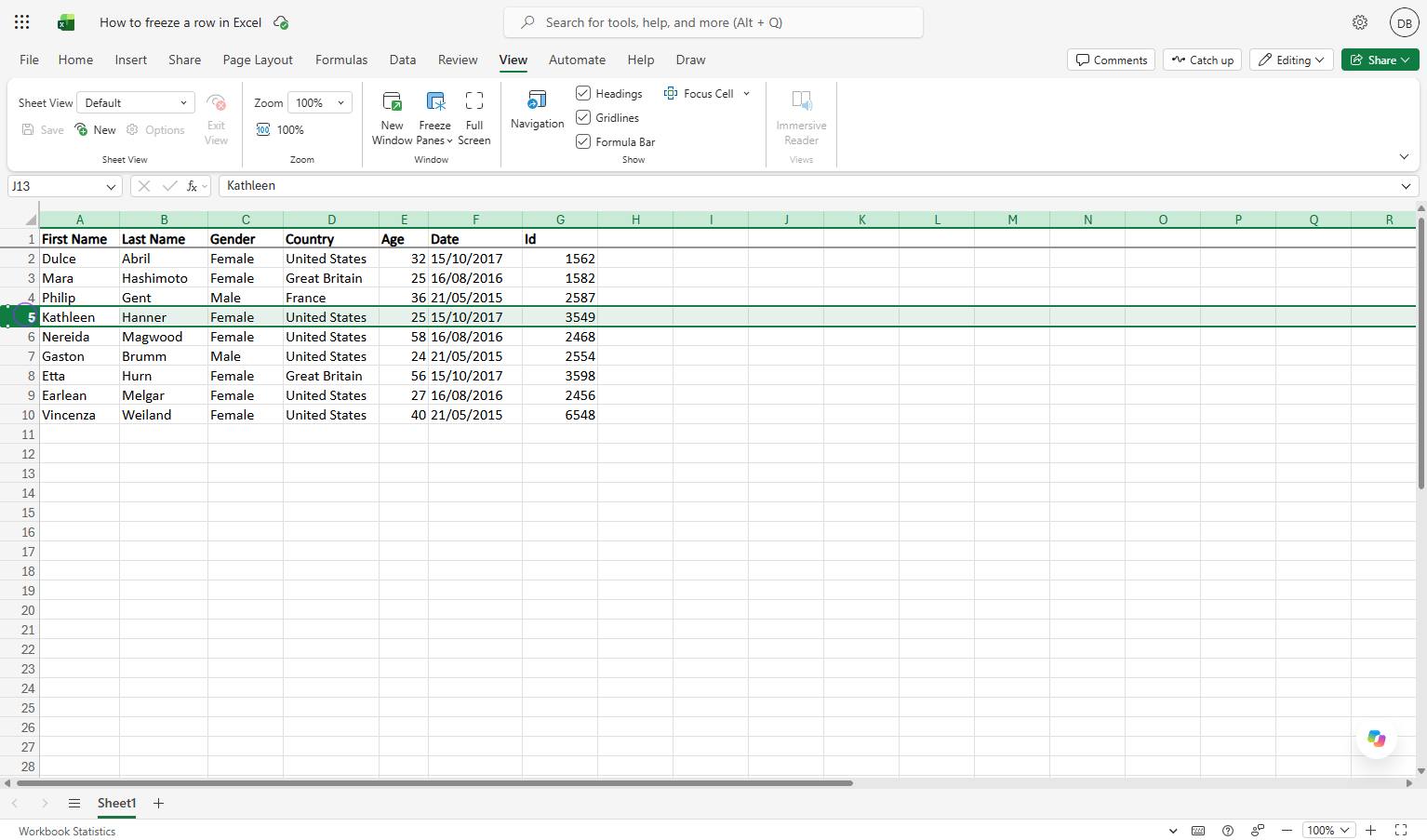
Click the row number below the last row you want to freeze.
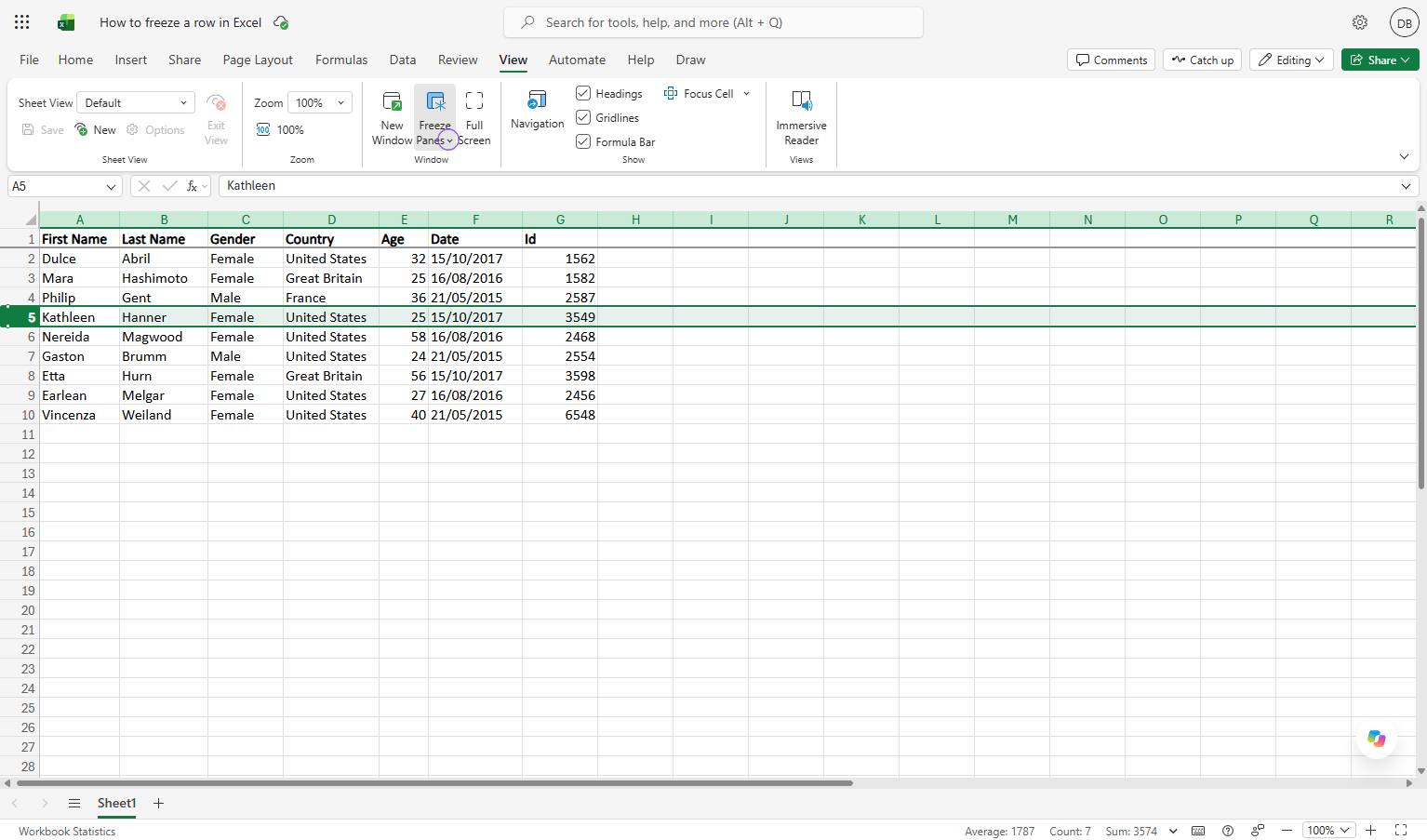
Click the Freeze Panes dropdown arrow in the View ribbon to see the available options.
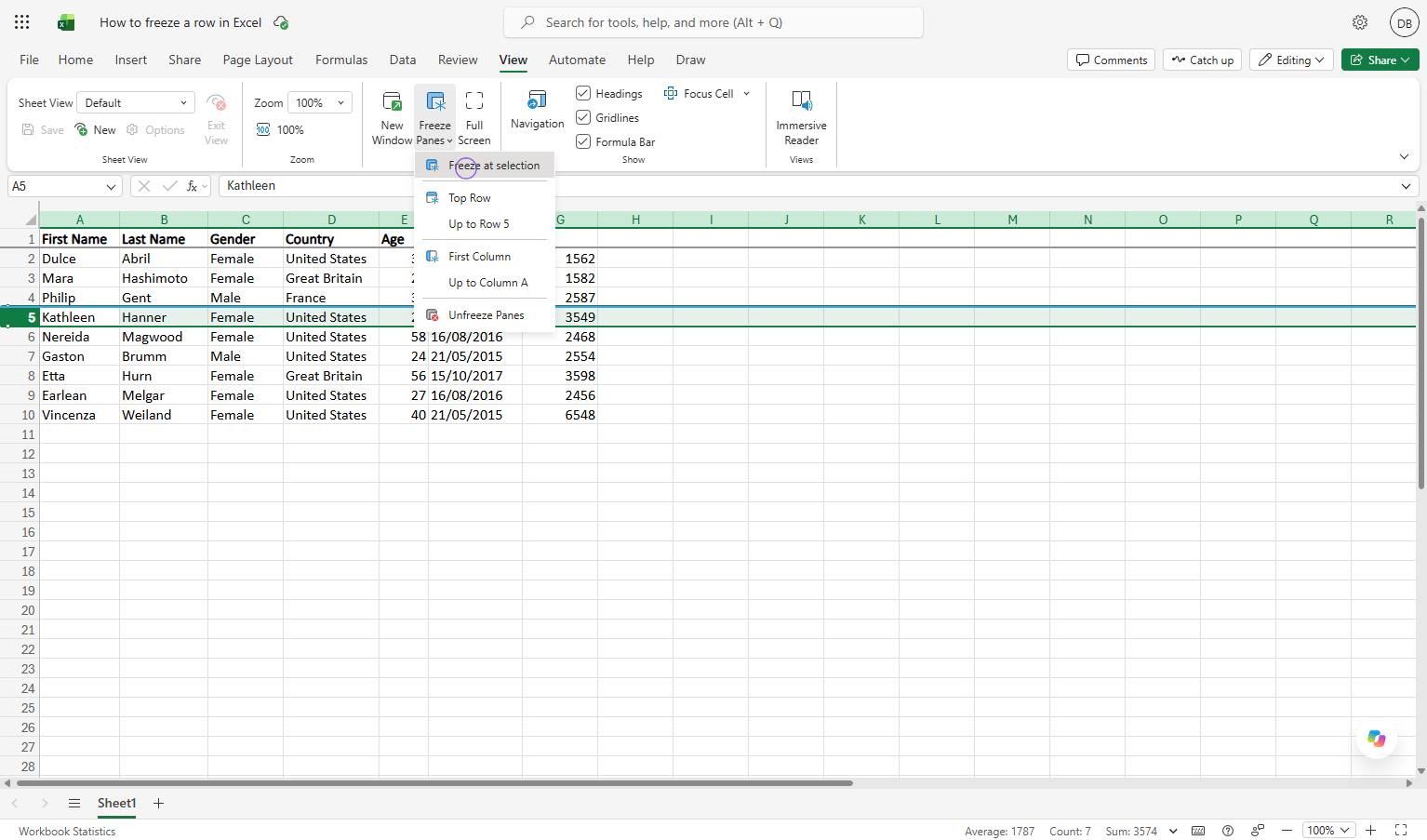
Click the "Freeze at selection" option in the dropdown menu to lock the rows above your active cell.
Duplicate this template, swap in your own screens, and share it with your team. Free to start — no credit card.
Fill out the form and we'll get back to you as soon as possible.
Tell us about your team and we'll find the right plan together.