1
Navigate to your Gmail Inbox
Open your Gmail Inbox to begin the process of locating your archived emails.
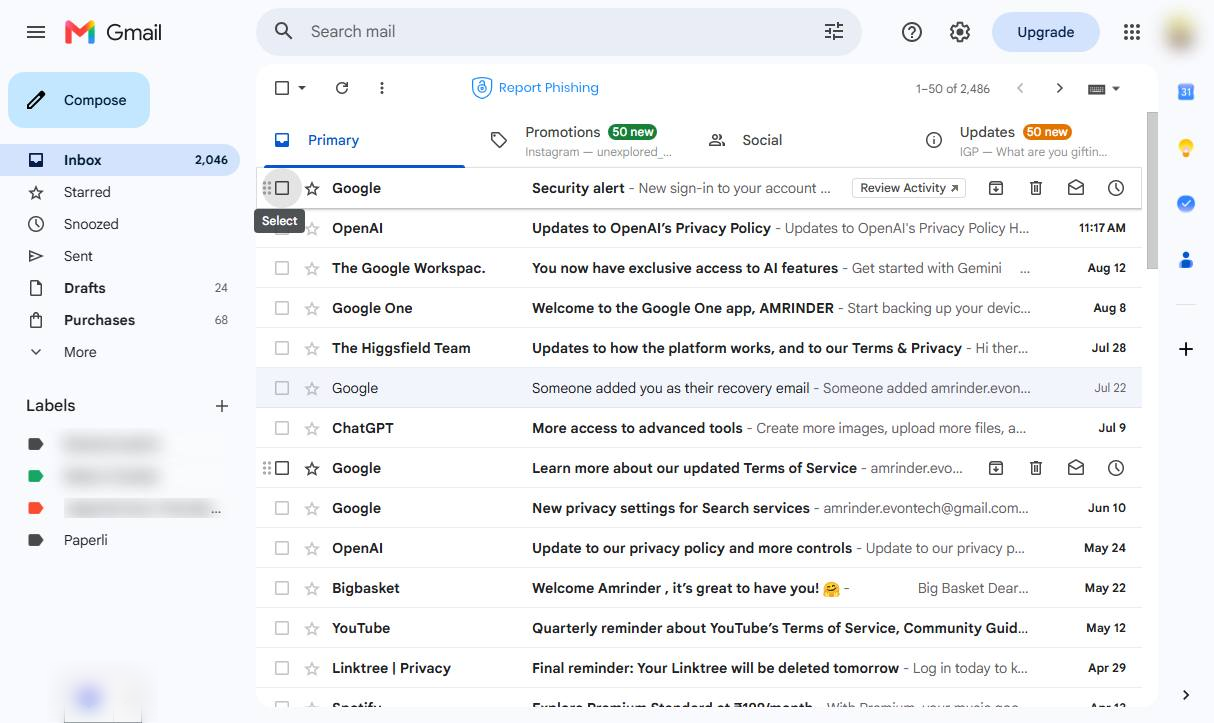

Learn how to easily archive emails and quickly retrieve them using Gmail's 'All Mail' folder or search filters.
Open your Gmail Inbox to begin the process of locating your archived emails.
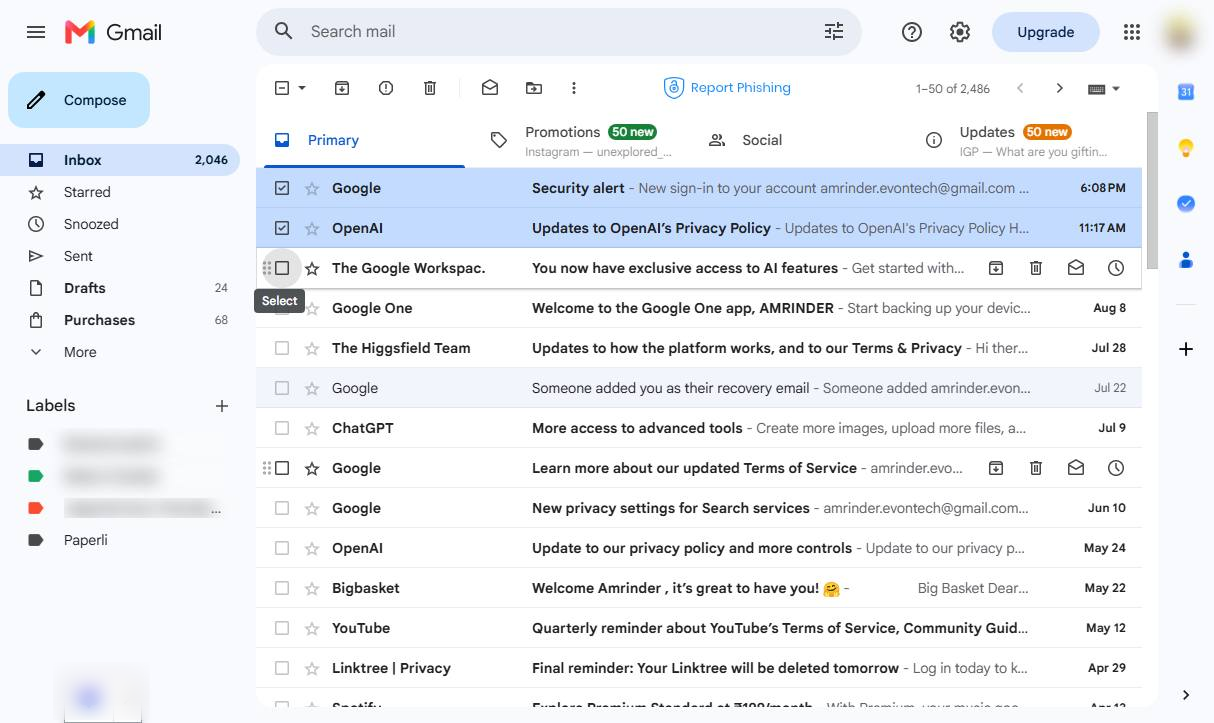
Click the checkbox next to the email from "The Google Workspac." in the inbox list to select it.
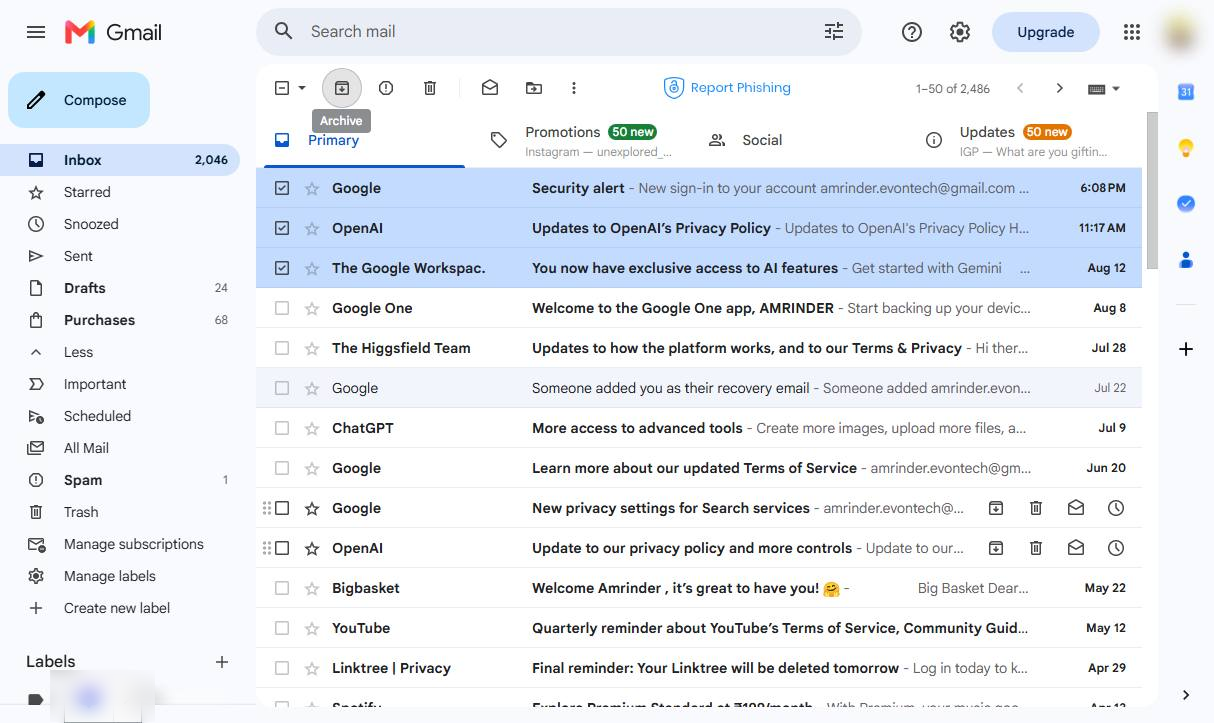
Click the Archive button in the top toolbar to archive the selected emails.
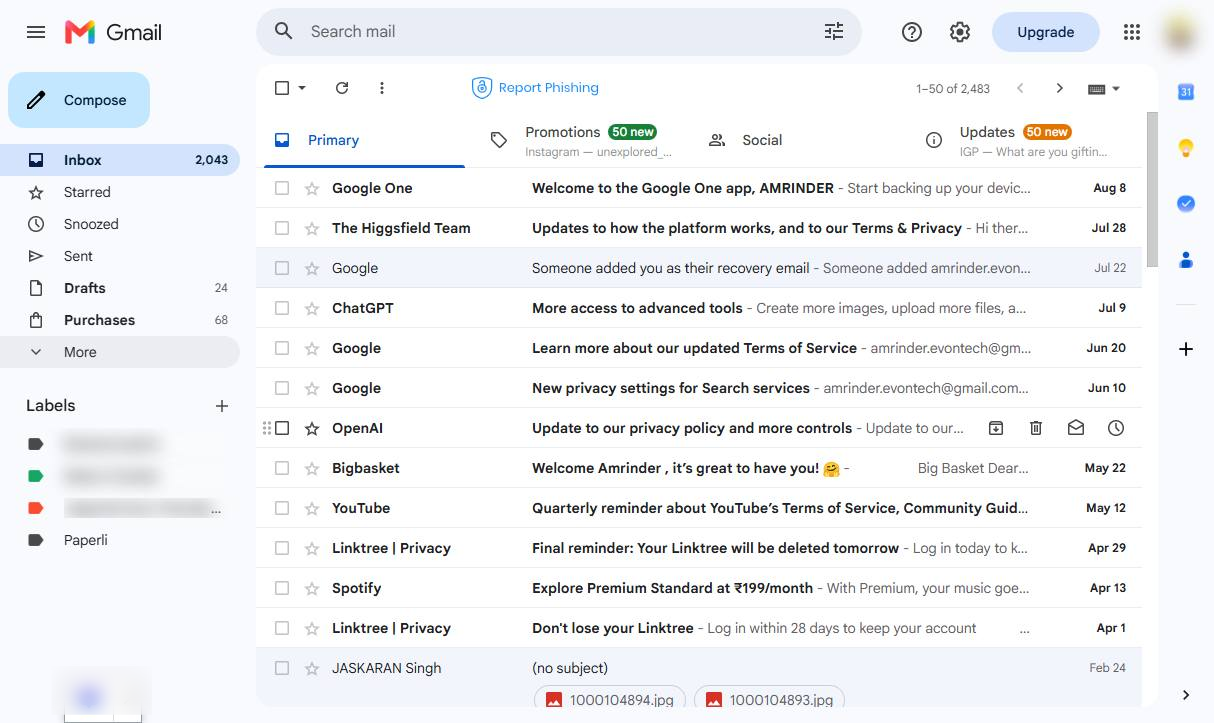
Click "More" in the left sidebar to expand the list of folders and labels.
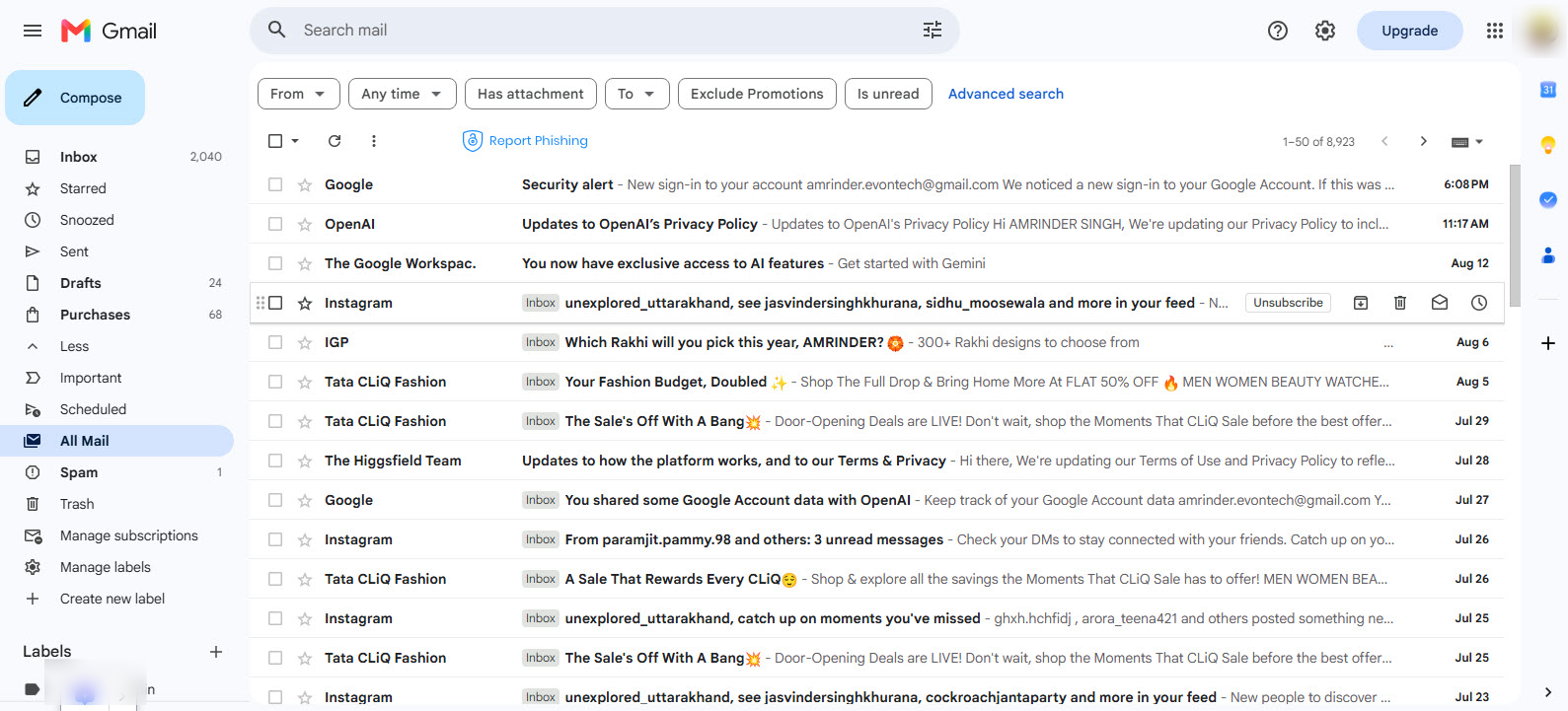
Click the "All Mail" option in the left sidebar to view all your emails, including archived ones.
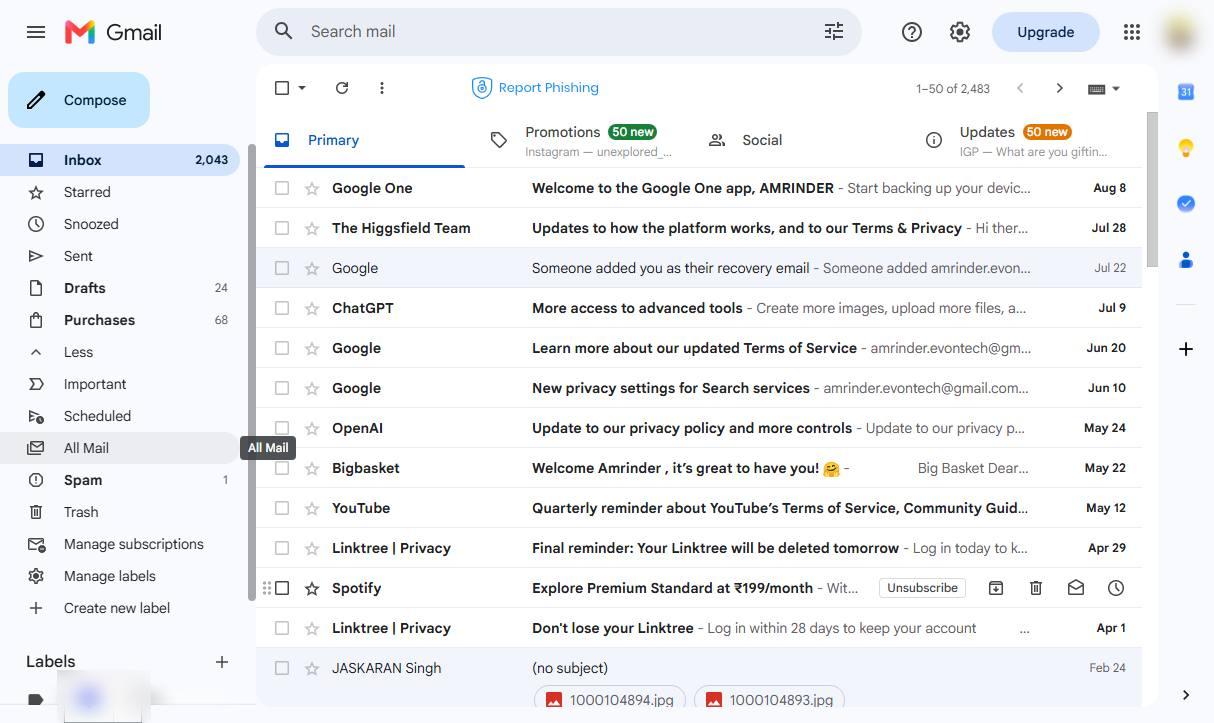
Click the All Mail tab in the left sidebar to view all your emails, including archived ones.
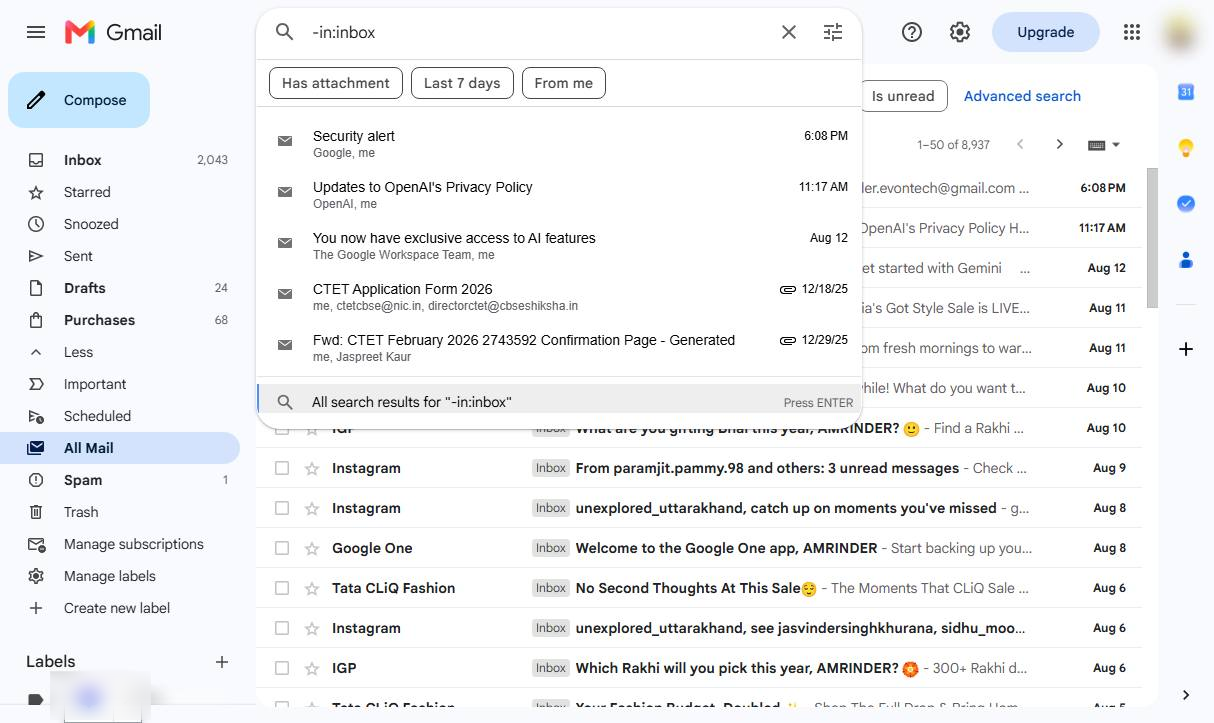
Click the "All search results for '-in:inbox'" option at the bottom of the search suggestions dropdown to execute your query.
Duplicate this template, swap in your own screens, and share it with your team. Free to start — no credit card.
Fill out the form and we'll get back to you as soon as possible.
Tell us about your team and we'll find the right plan together.