Skip to content
Back to template gallery
Google Sheets
Google Sheets

How to filter by color in Google Sheets

This Haiku show you how to filter a column by cell color

Operations
4 steps 2 min Community template
1

Make sure you have a data filter applied.

Make sure you have a data filter applied.
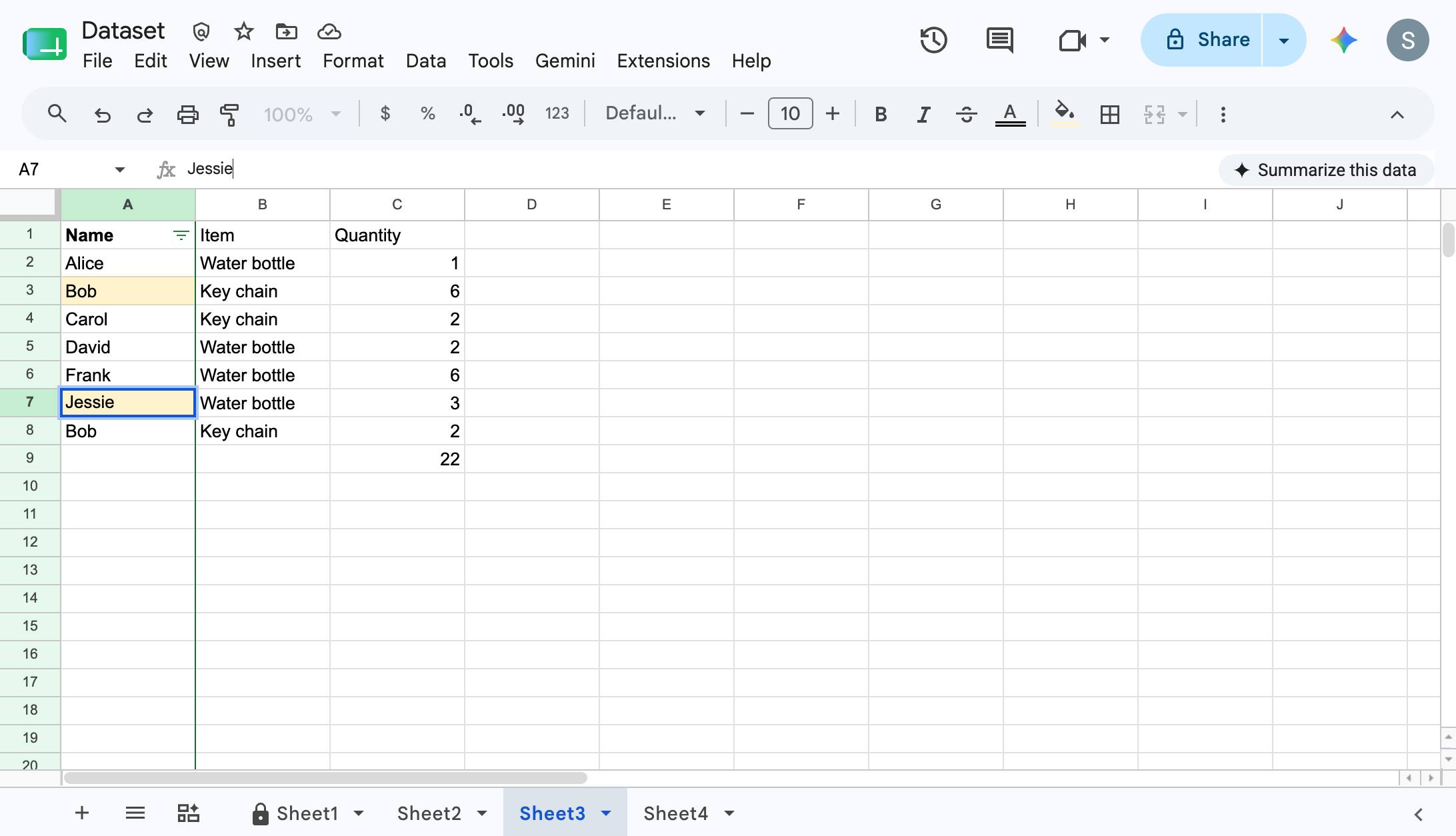
docs.google.com/spreadsheets
Make sure you have a data filter applied.
2

Click the filter icon next in the first cell of the appropriate column header to open up the filter options
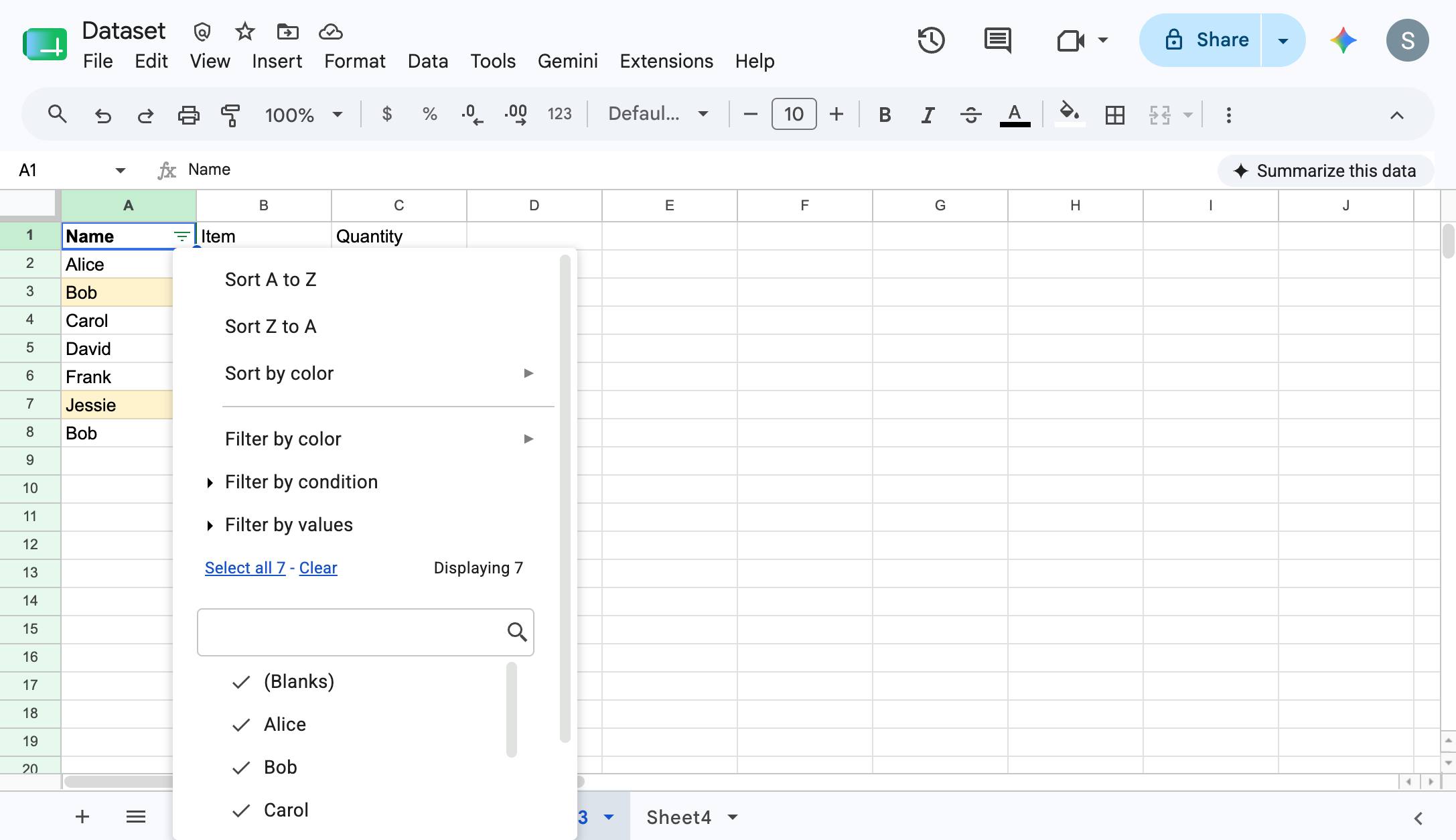
Click the filter icon next in the first cell of the appropriate column header to open up the filter options

docs.google.com/spreadsheets
Click the filter icon next in the first cell of the appropriate column header to open up the filter options
3

Hover or click "Filter by color" Hover or click "Fill Color" and select the color you want to filter by. Note, this also works for "Text Color"
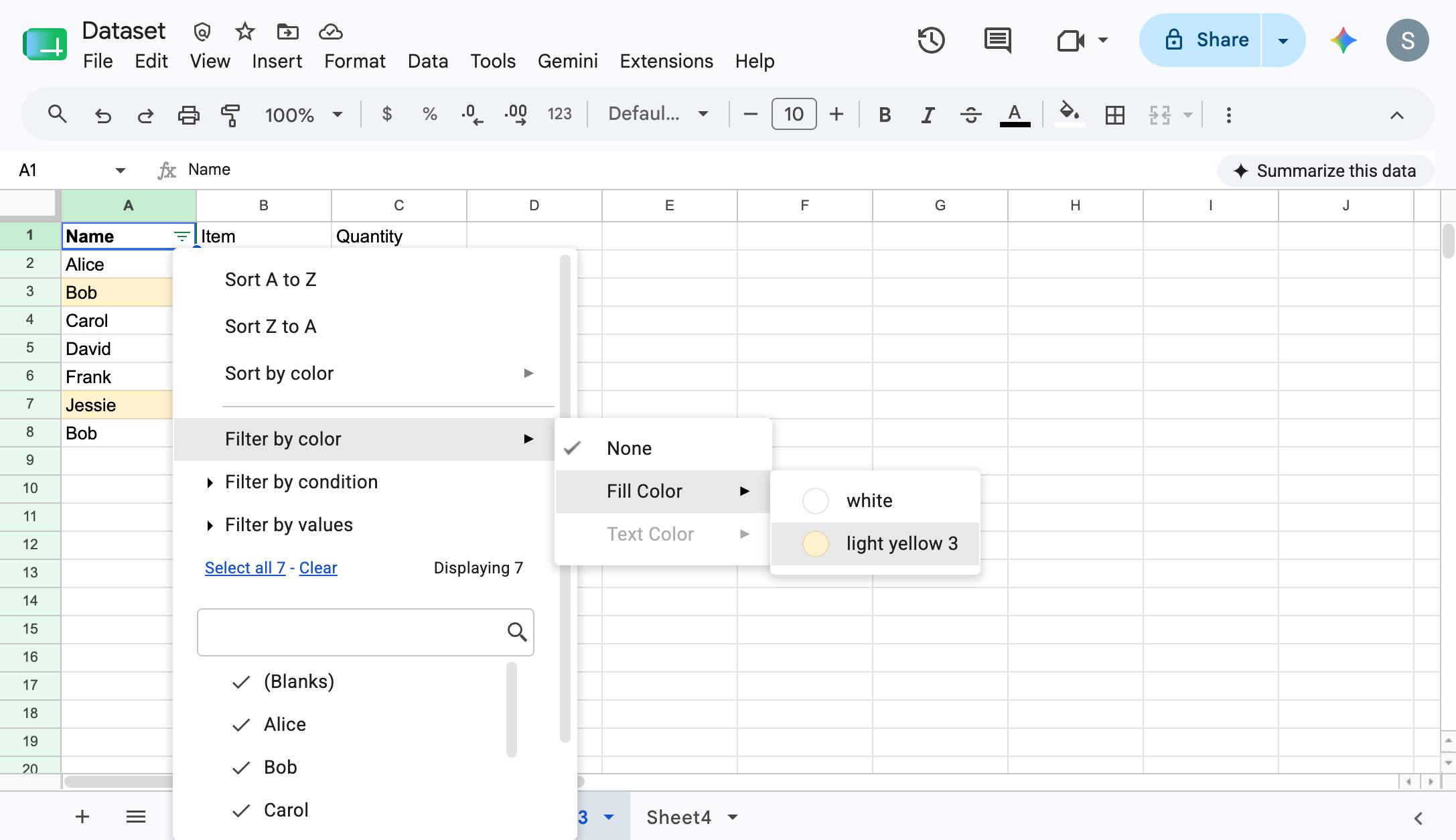
Hover or click "Filter by color" Hover or click "Fill Color" and select the color you want to filter by. Note, this also works for "Text Color"

docs.google.com/spreadsheets
Hover or click "Filter by color" Hover or click "Fill Color" and select the color you want to filter by. Note, this also works for "Text Color"
4

You'll see your data set filtered by your selected color!
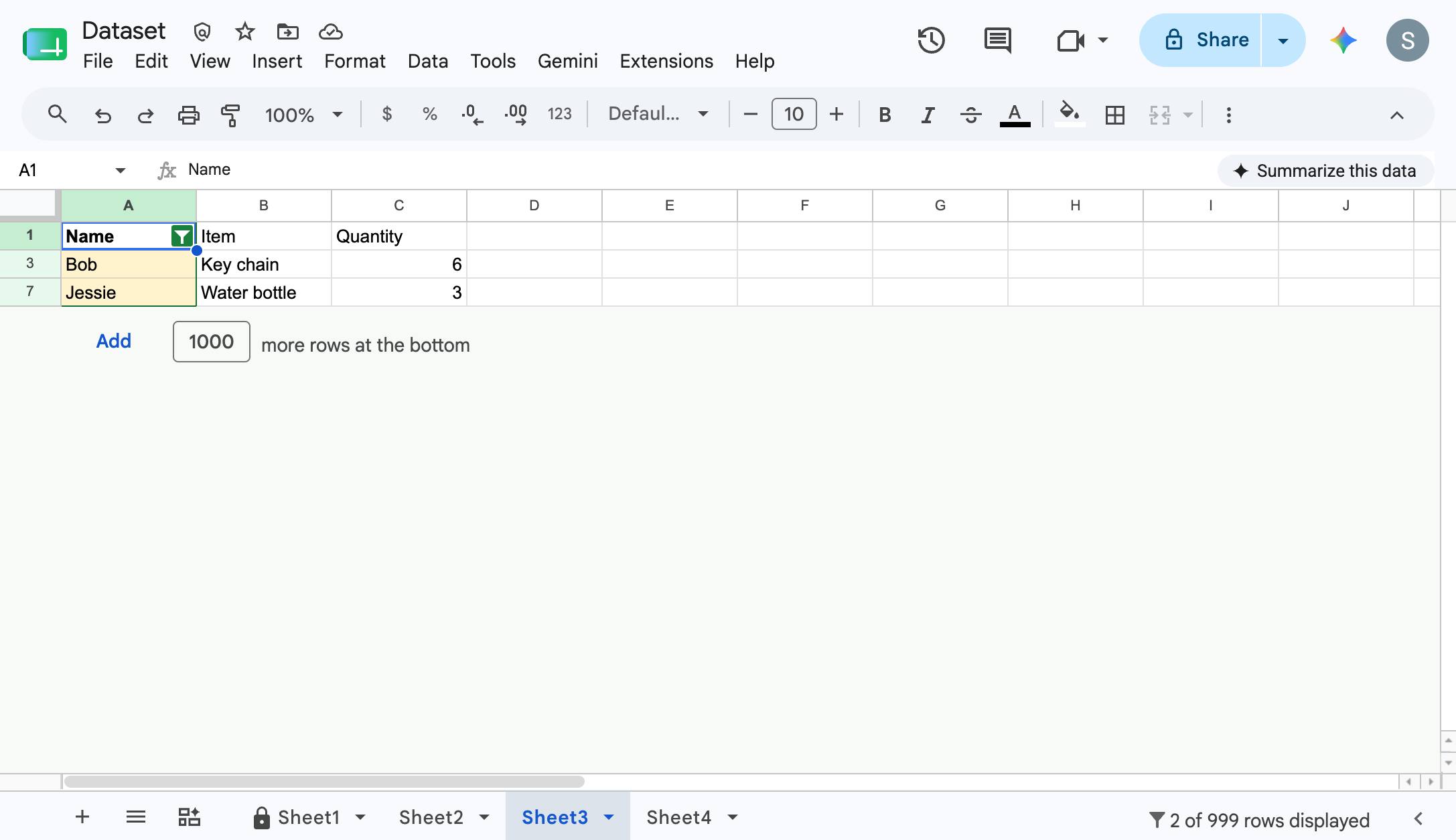
You'll see your data set filtered by your selected color!

docs.google.com/spreadsheets
You'll see your data set filtered by your selected color!

Make this walkthrough your own

Duplicate this template, swap in your own screens, and share it with your team. Free to start — no credit card.