1
Navigate to your Salesforce
Navigate to your Salesforce

A ready-made, step-by-step walkthrough. Preview every step below — then make it your own in seconds.
Navigate to your Salesforce
Click "Reports" in navigation
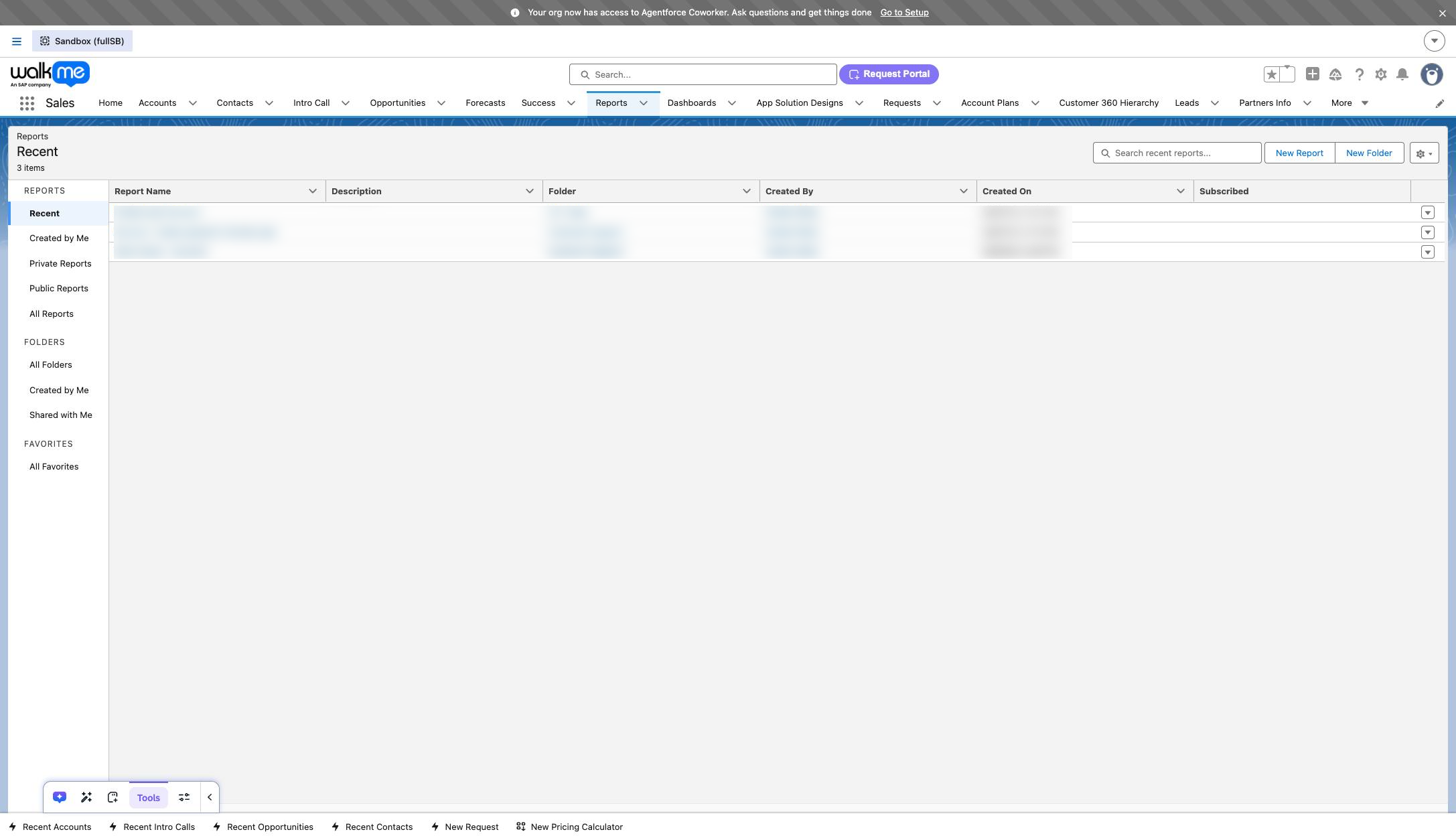
Click "New Report"
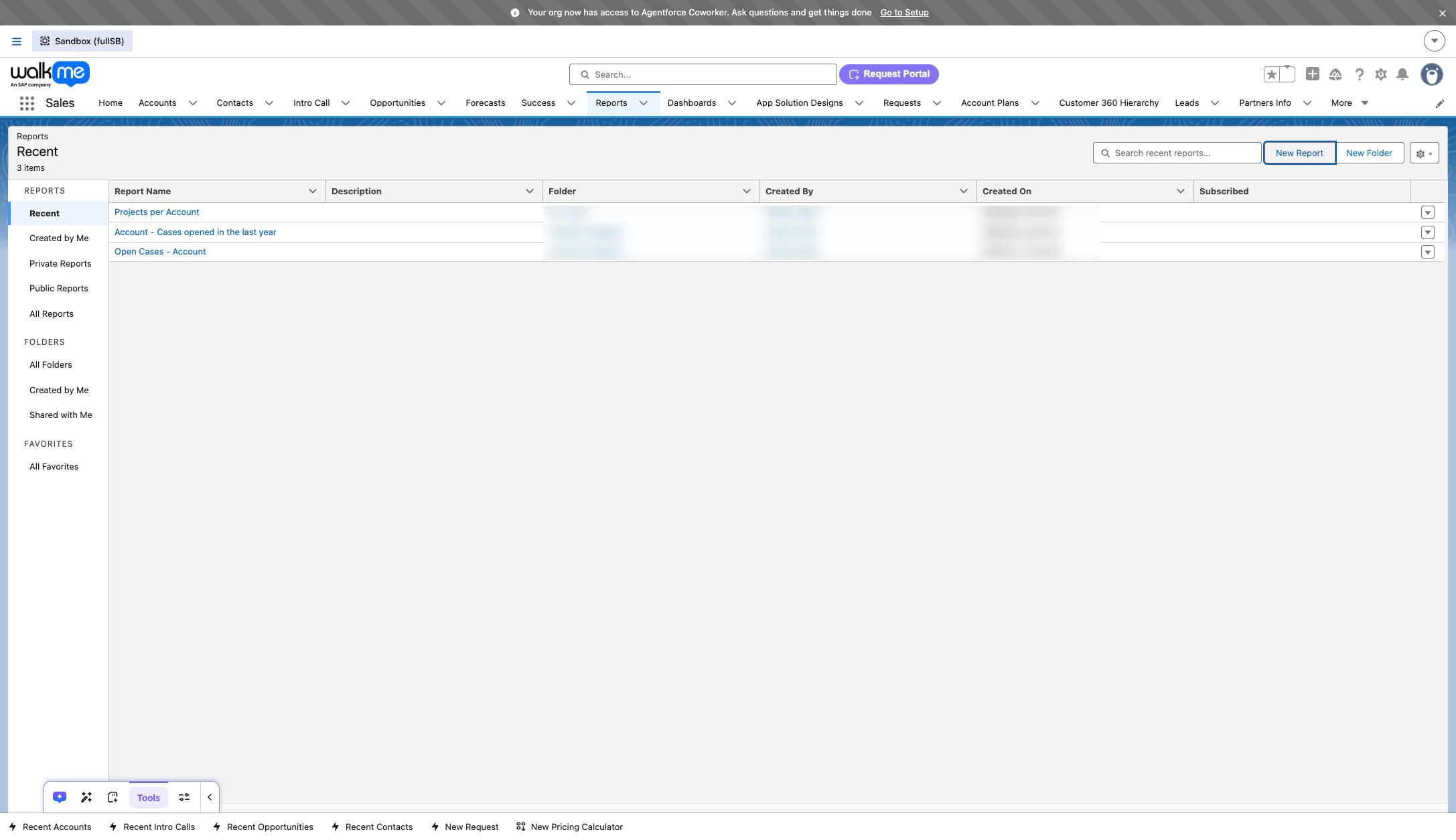
Click "Opportunities" link
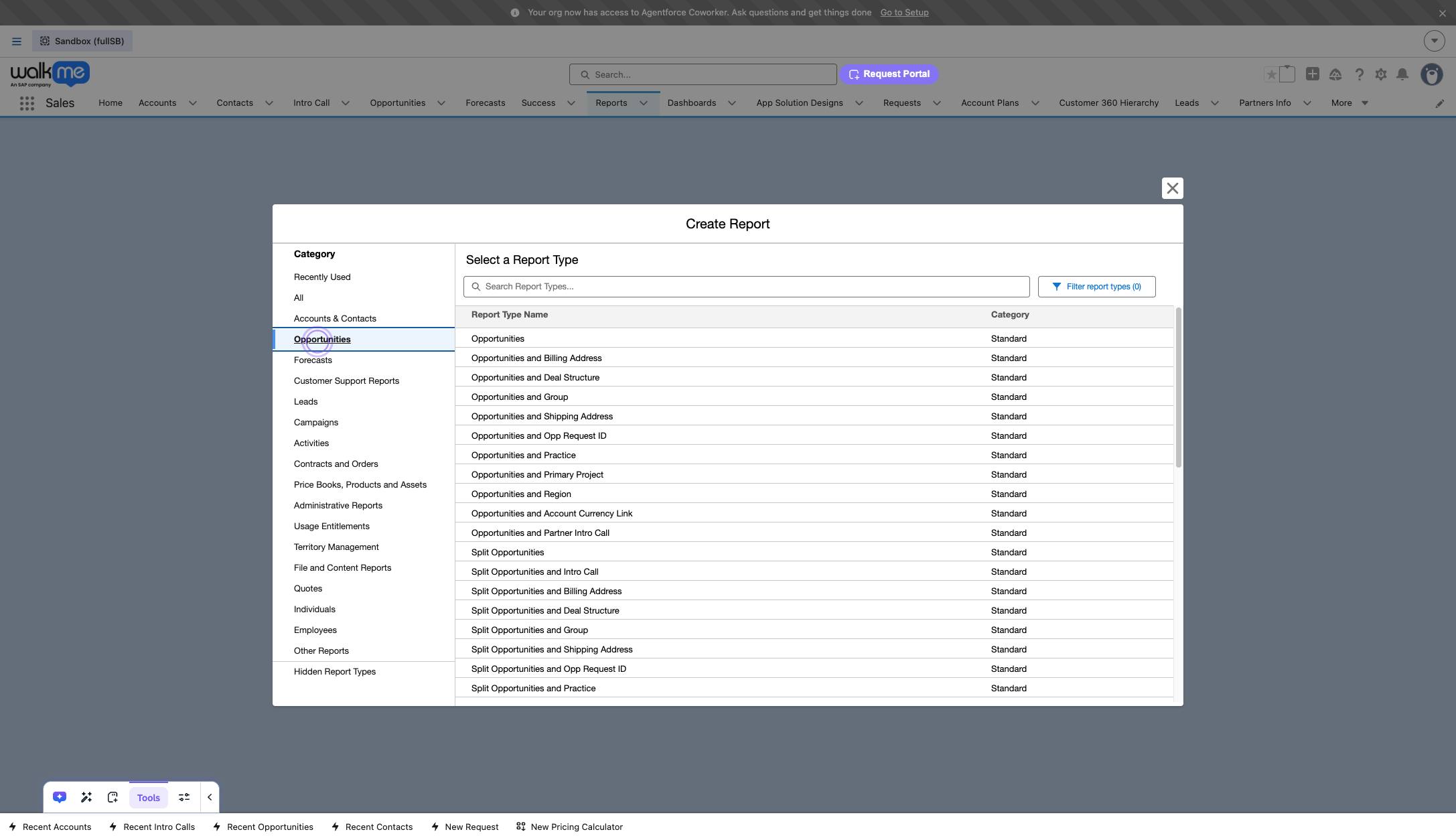
You can add or delete columns by toggling the options on the left-hand side of your screen.
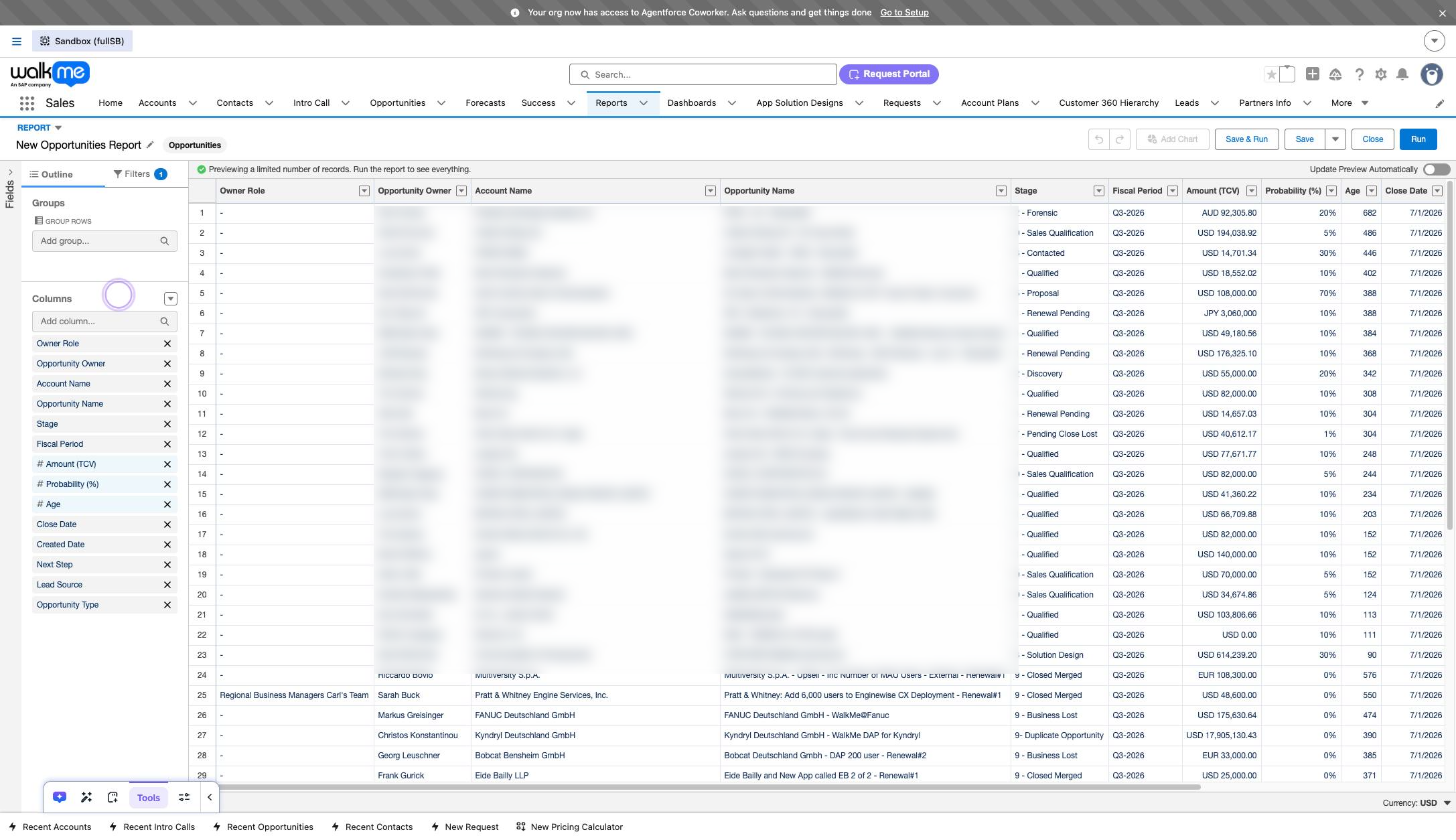
Click "Filters"
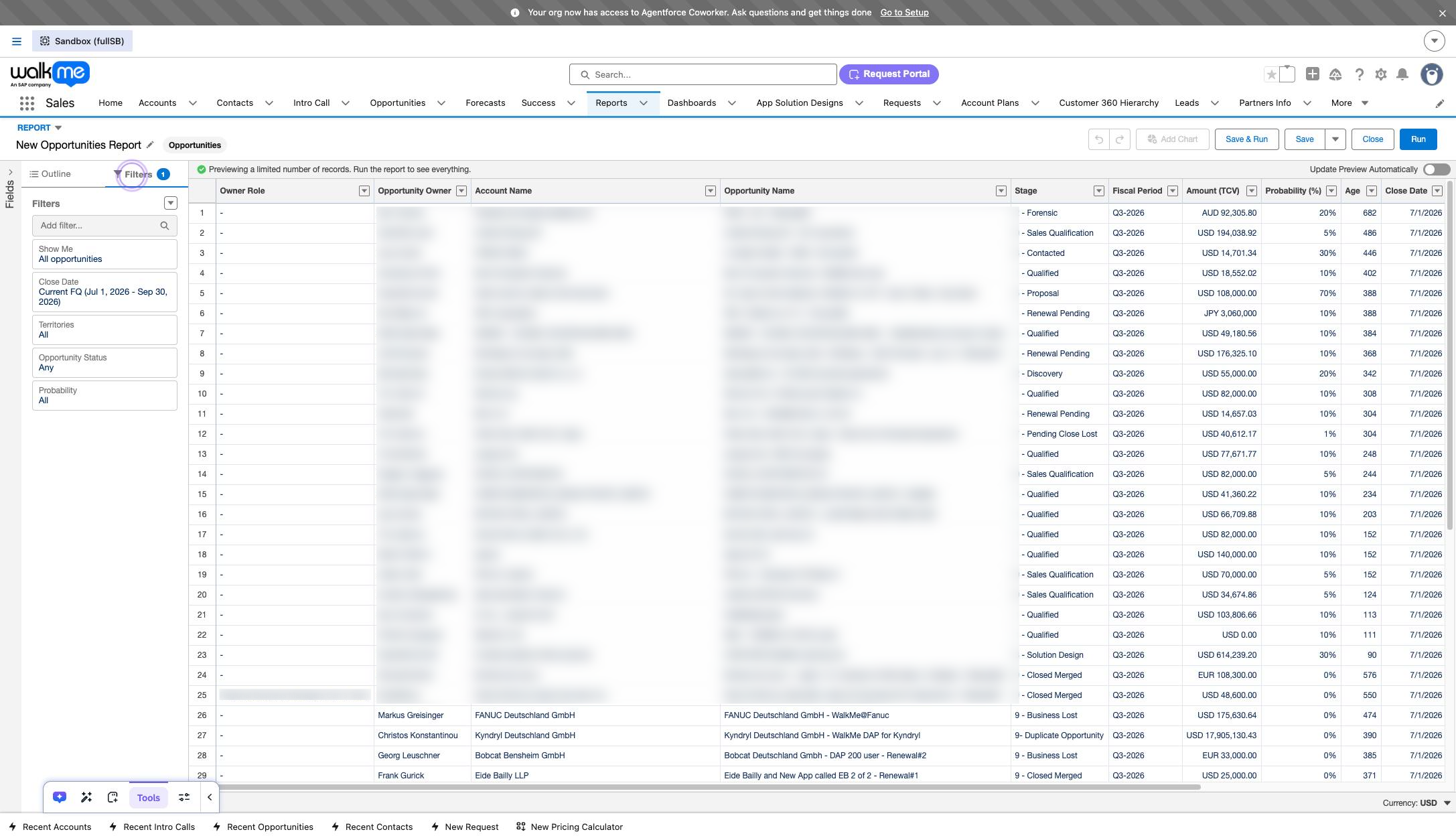
Click the "Add filter..." field if you'd like to add any filters.
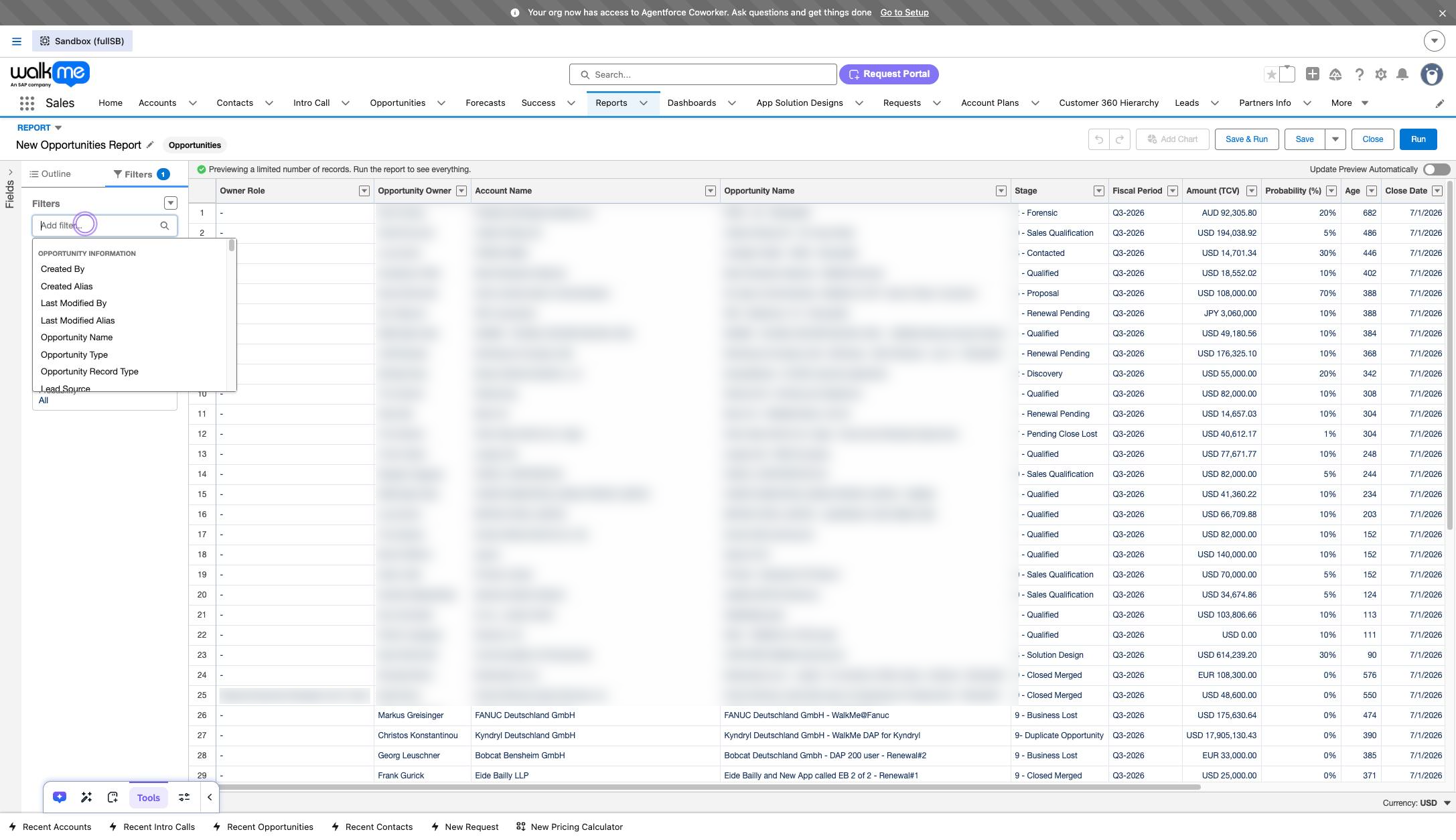
In the example below I added a specific filter, but you can skip this step if you just want to export all opportunities.
Click "Created By"
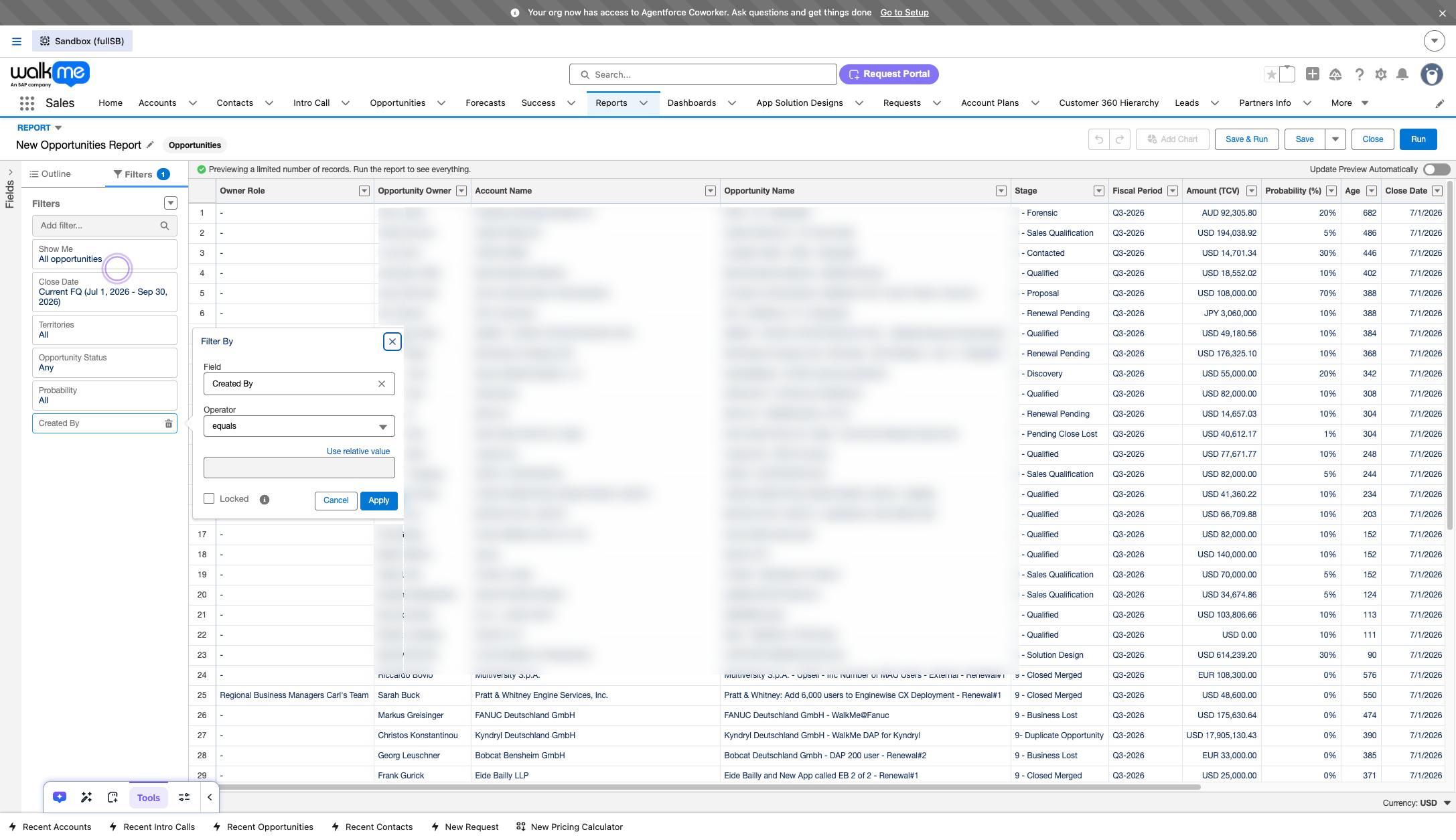
Click "Apply"
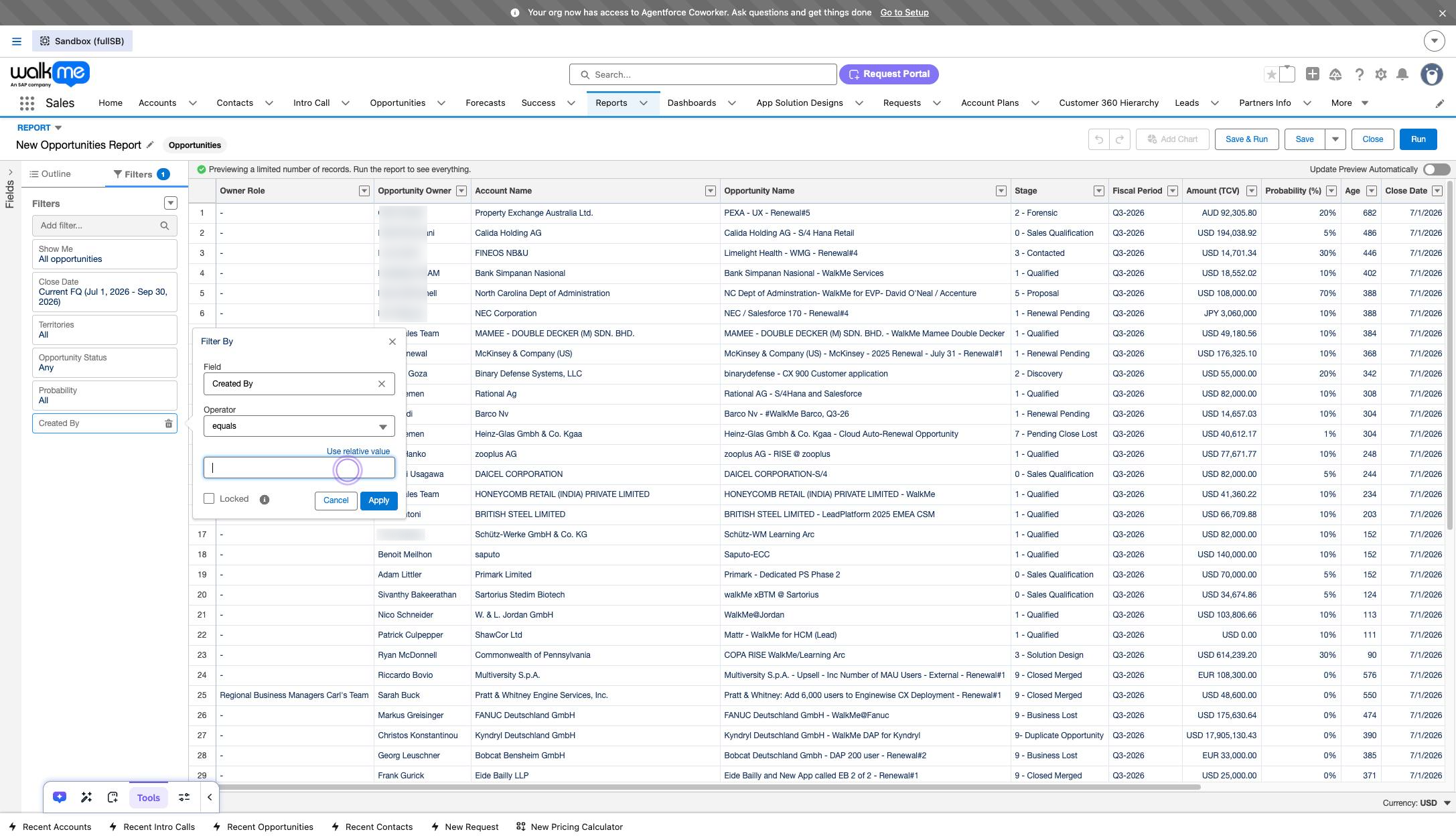
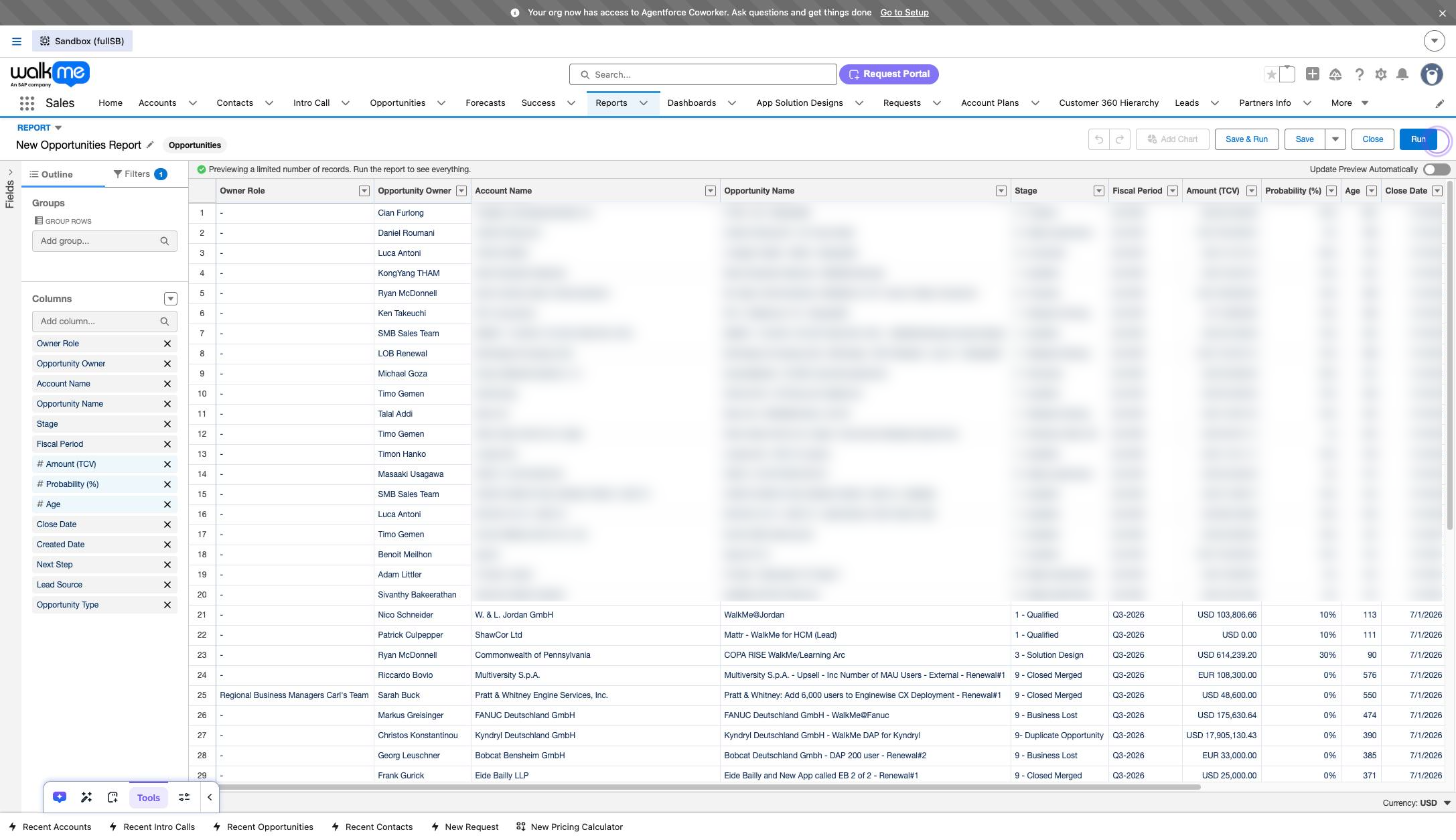
Click "Run"
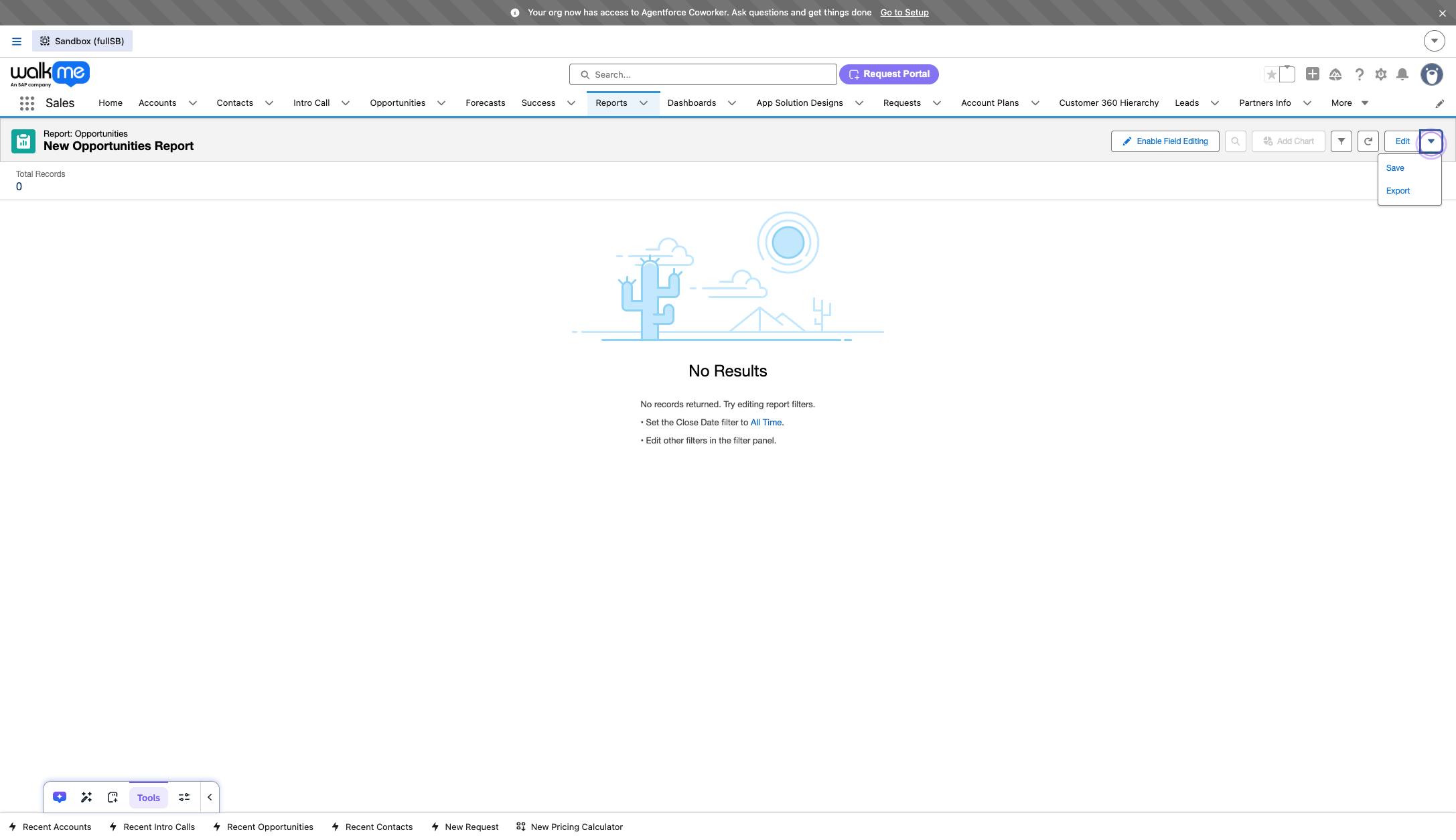
Click the arrow next to the "Edit" button and click "Export"
Click "Export"
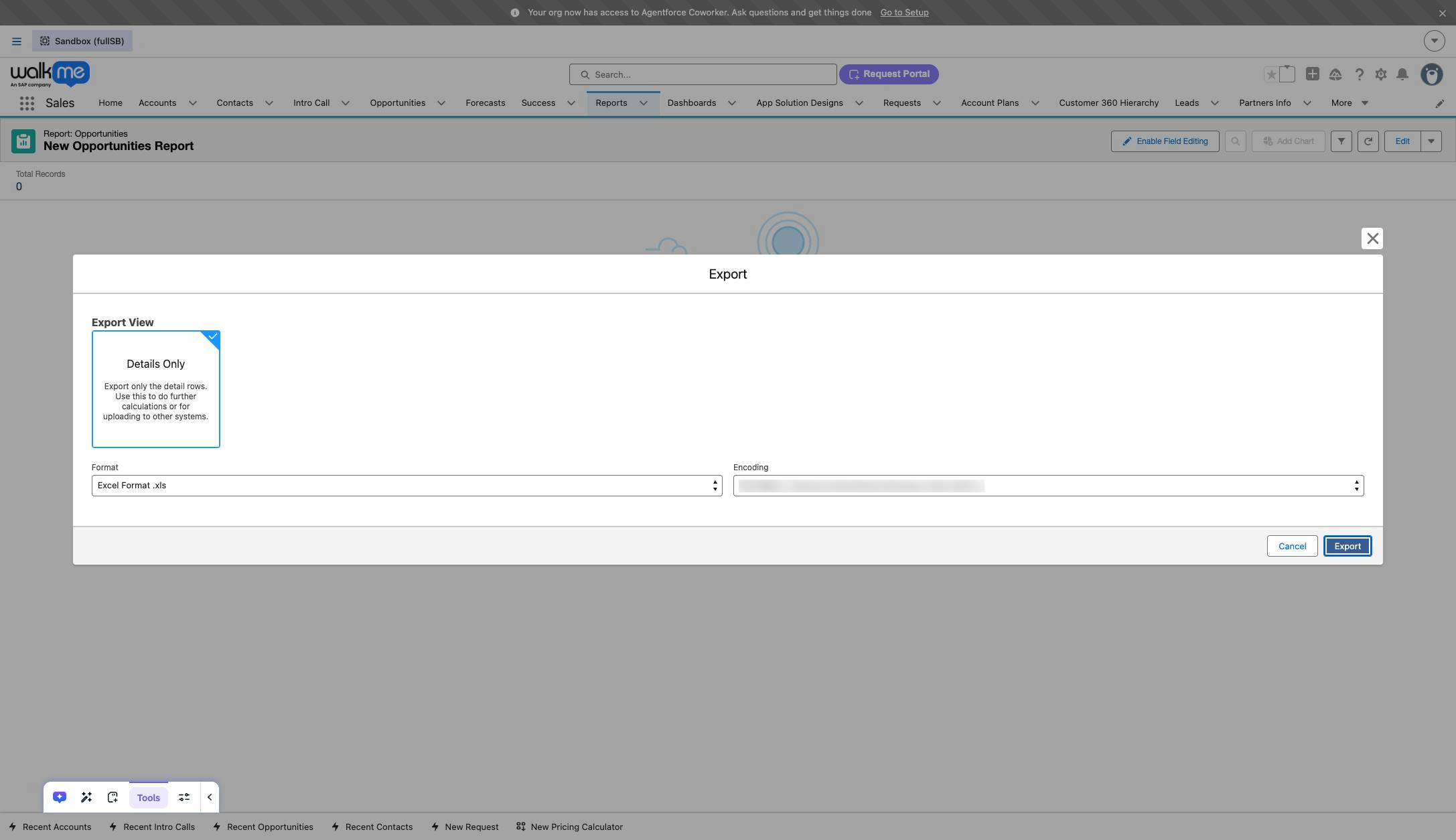
If it's a very large file, it's recommended to download as a CSV rather than an Excel file as it'll download faster. Make sure to then save the file as an excel file, though!
Duplicate this template, swap in your own screens, and share it with your team. Free to start — no credit card.
Fill out the form and we'll get back to you as soon as possible.
Tell us about your team and we'll find the right plan together.