1
Open or Navigate to PowerPoint window
Open Microsoft PowerPoint or switch to the active PowerPoint window on your taskbar to begin editing your worksheet.
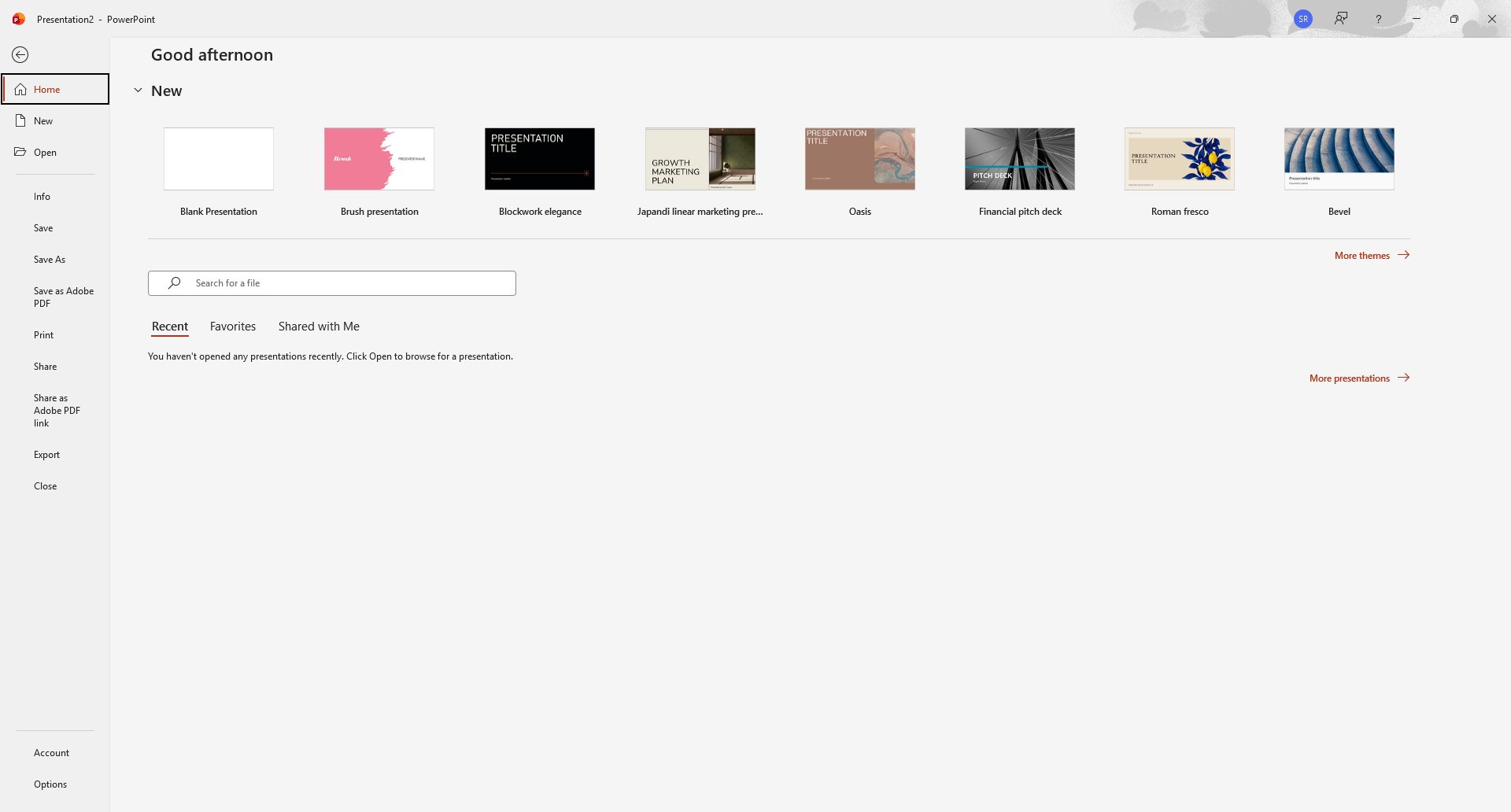

Learn how to format text or numbers as superscript in Microsoft PowerPoint. This quick tutorial will guide you through selecting your text, opening the Font settings from the Home tab, and applying the superscript effect to your slides.
Open Microsoft PowerPoint or switch to the active PowerPoint window on your taskbar to begin editing your worksheet.
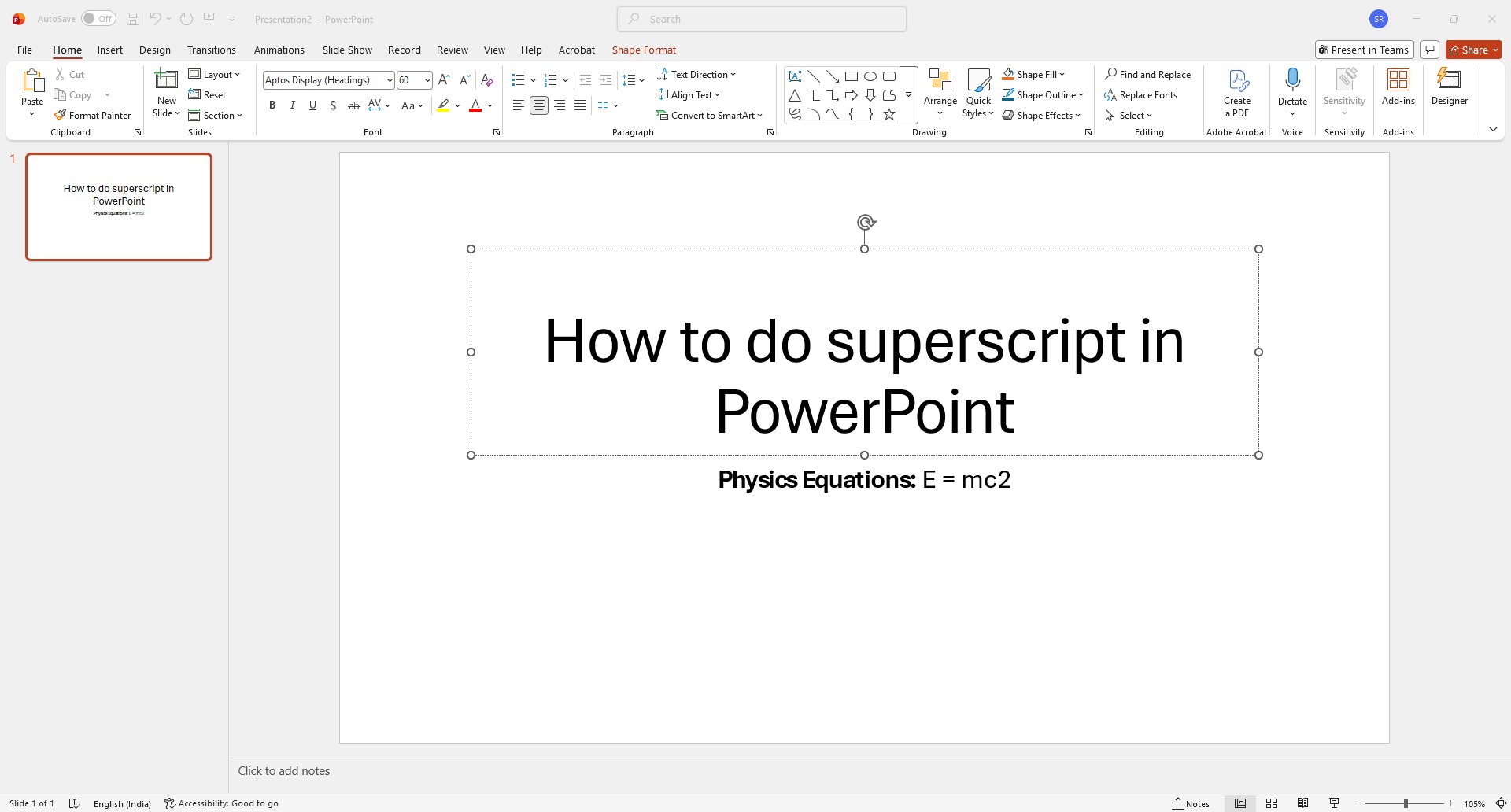
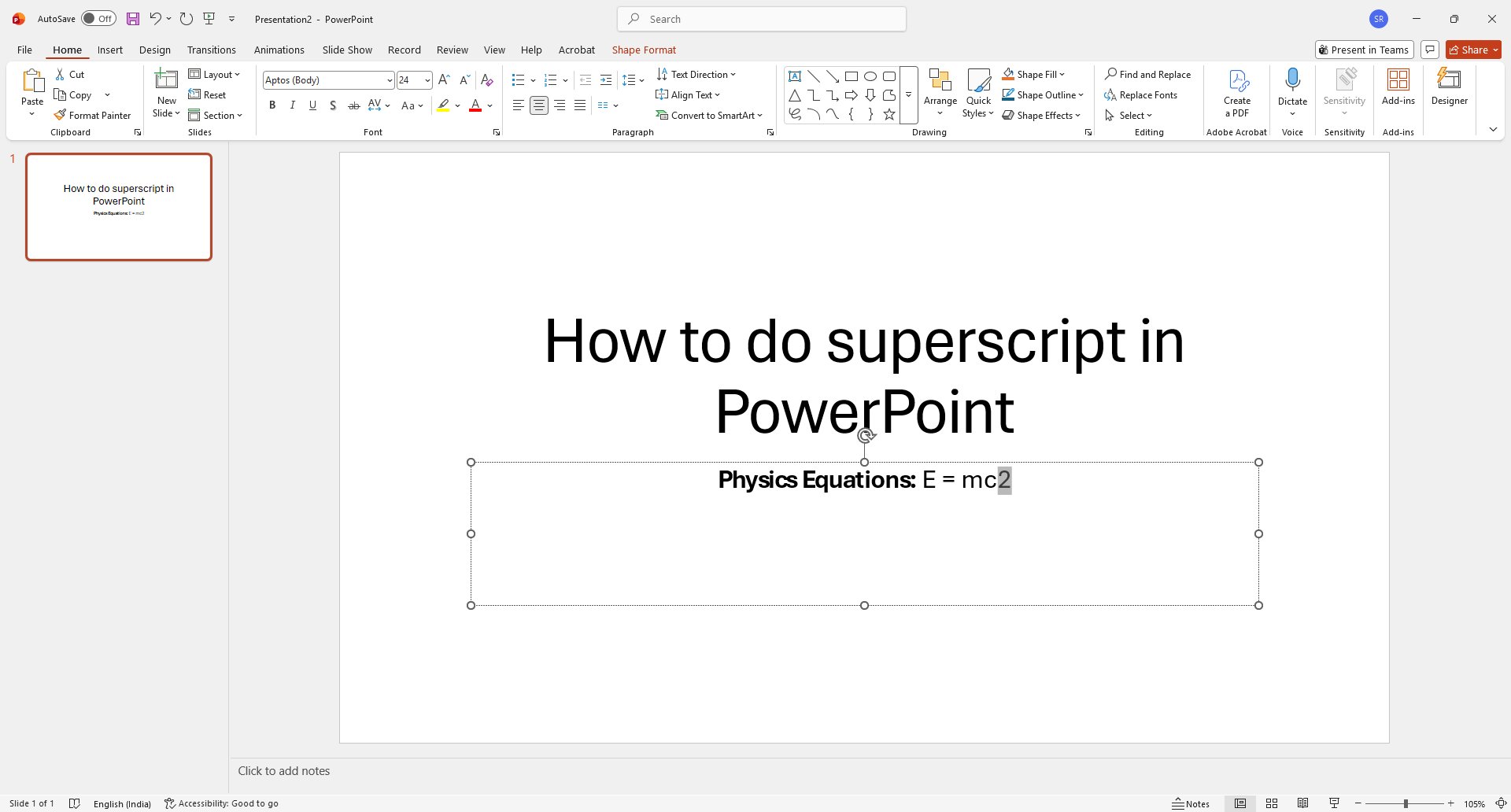
Click and hold the left mouse button just before the character you want to change. Drag the cursor across the character, and then let go of the button.
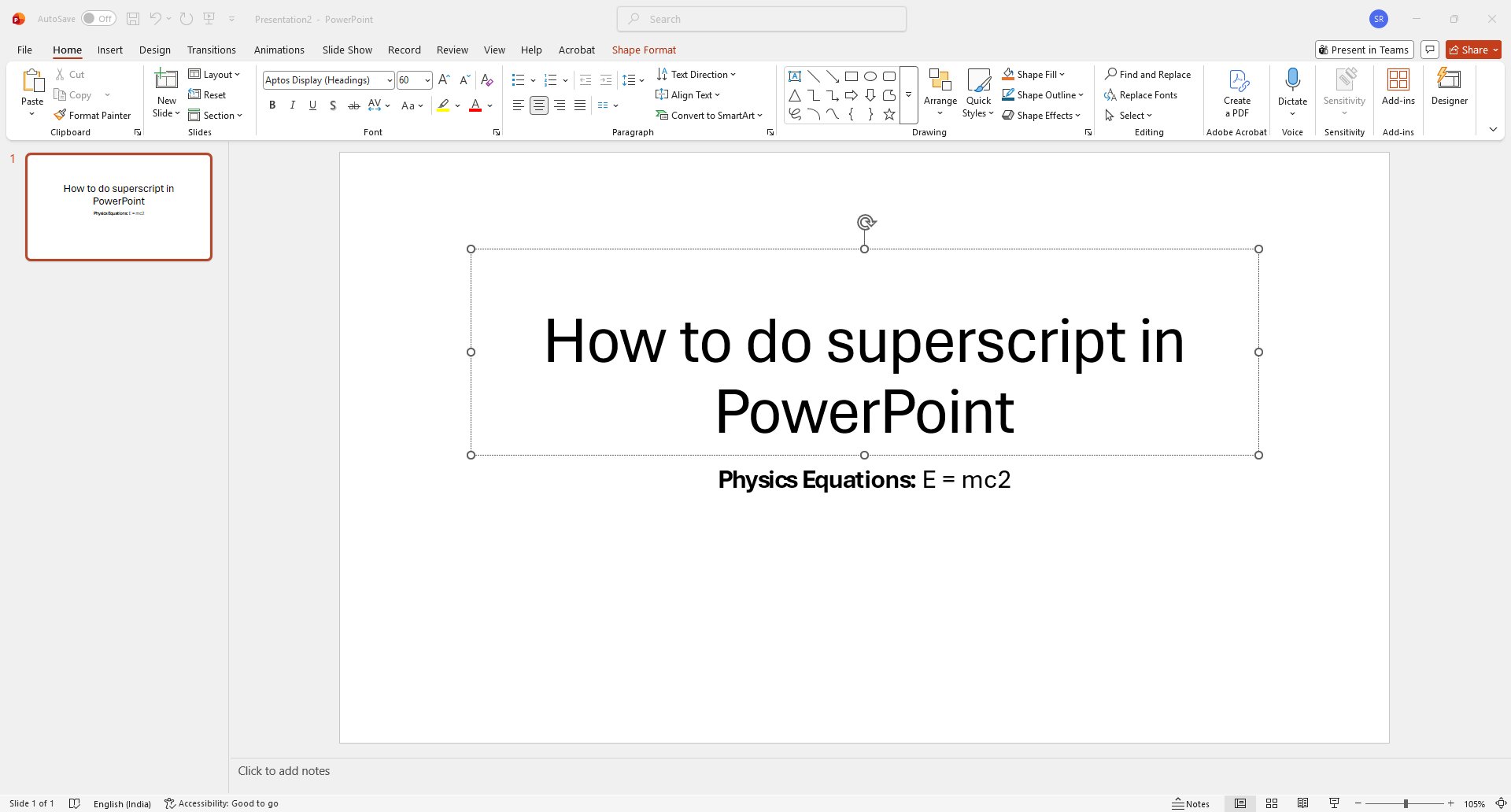
Click the Home tab in the top ribbon menu to access formatting options.
Click the small arrow icon in the bottom right corner of the Font group on the ribbon to access more font options.
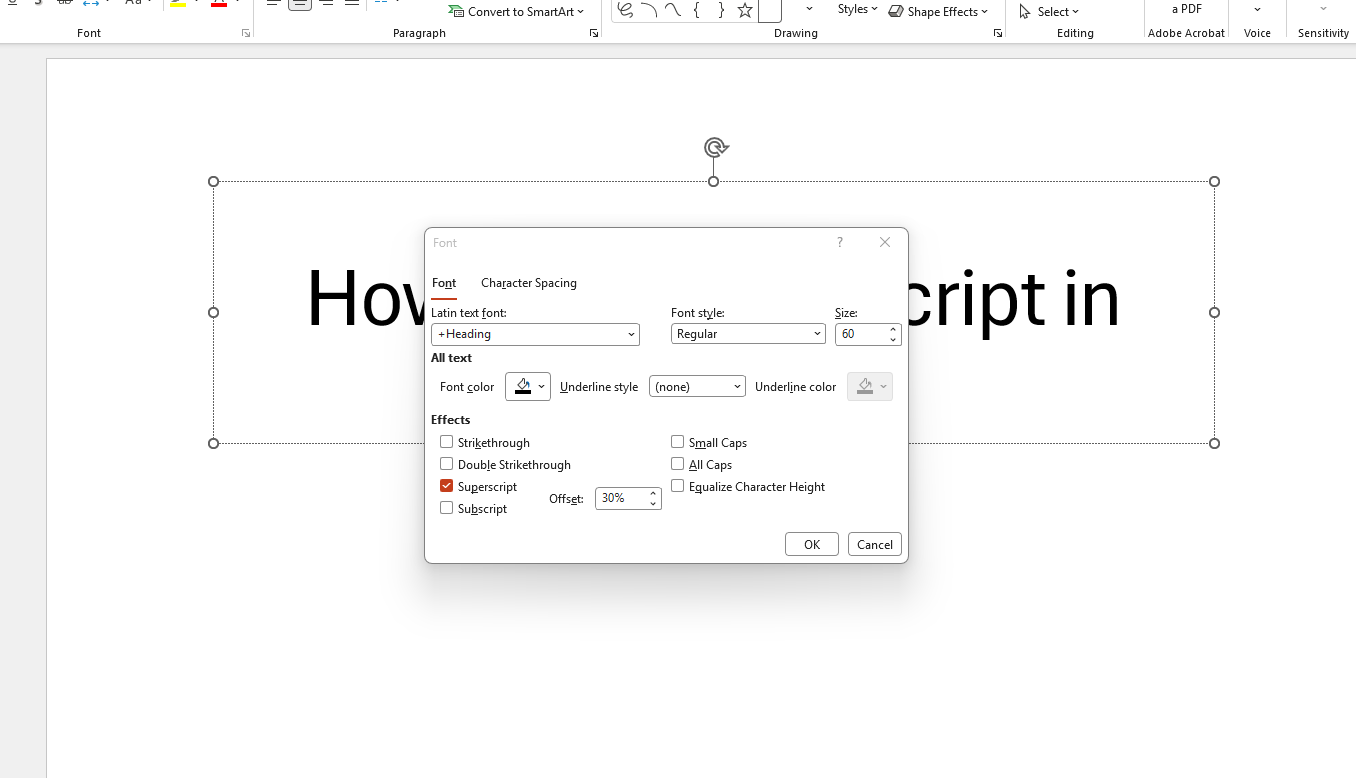
Click the "Superscript" checkbox under the Effects section in the Font dialog box to apply the formatting.
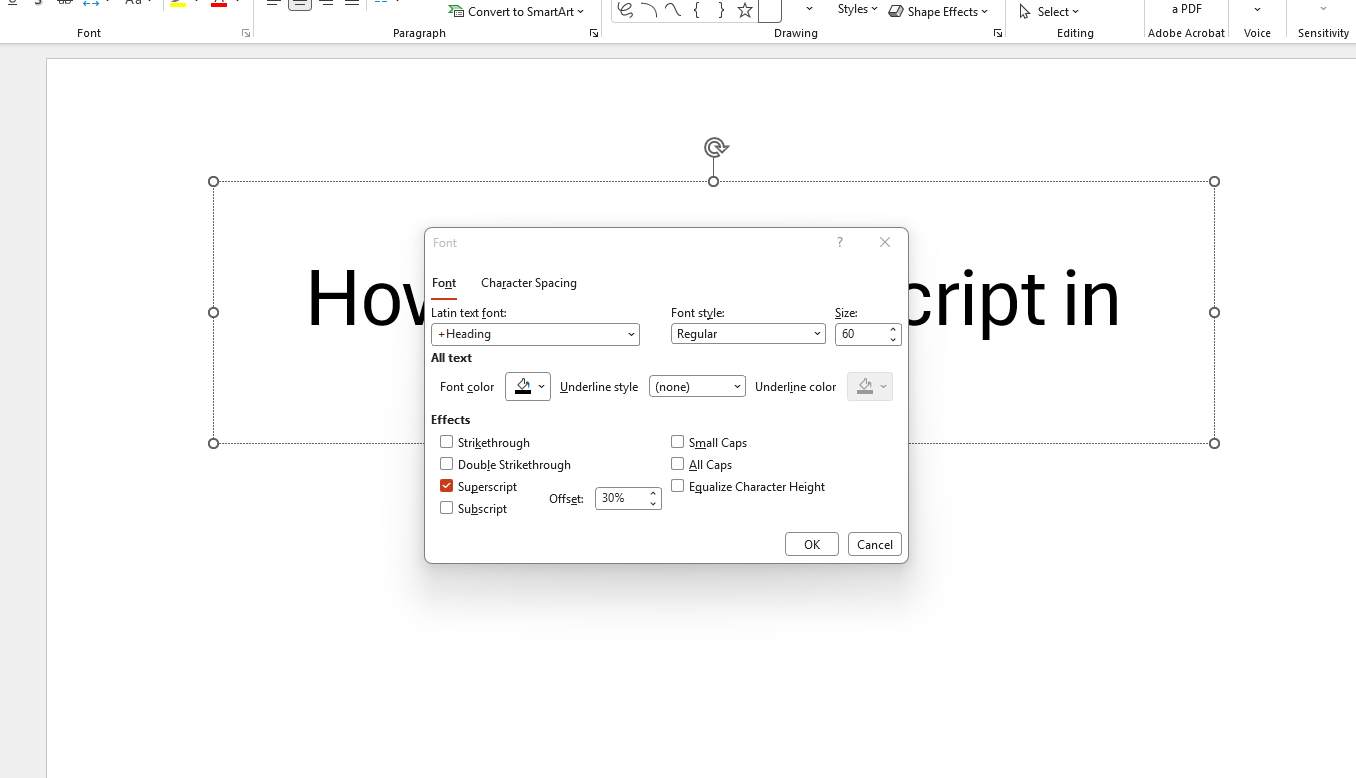
Click the OK button at the bottom right of the Font dialog box to apply your changes.
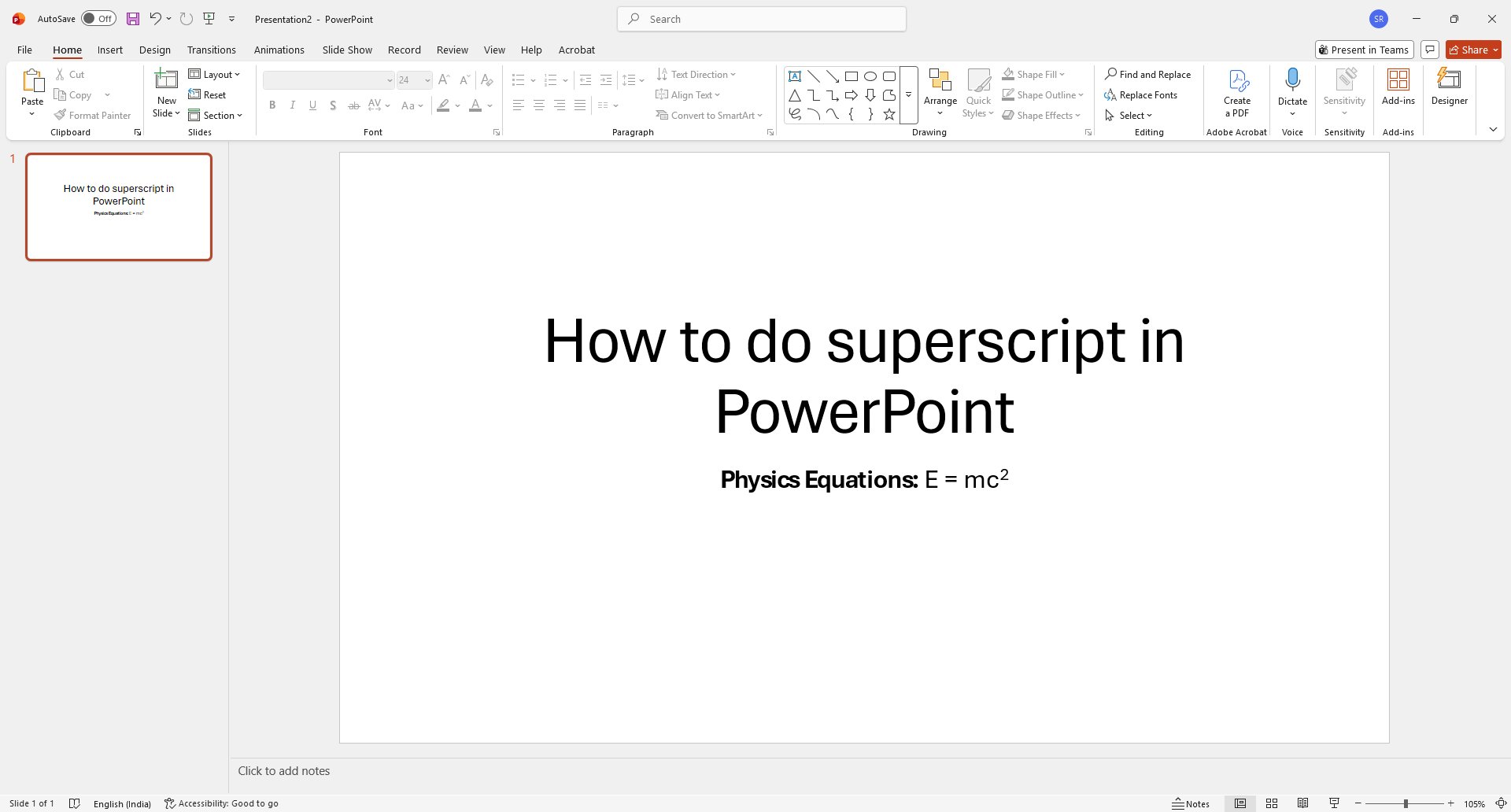
Click anywhere on the main slide area to deselect the text and view the final superscript result.
Duplicate this template, swap in your own screens, and share it with your team. Free to start — no credit card.
Fill out the form and we'll get back to you as soon as possible.
Tell us about your team and we'll find the right plan together.