1
Click in the text
Double-click the paragraph you want to indent.
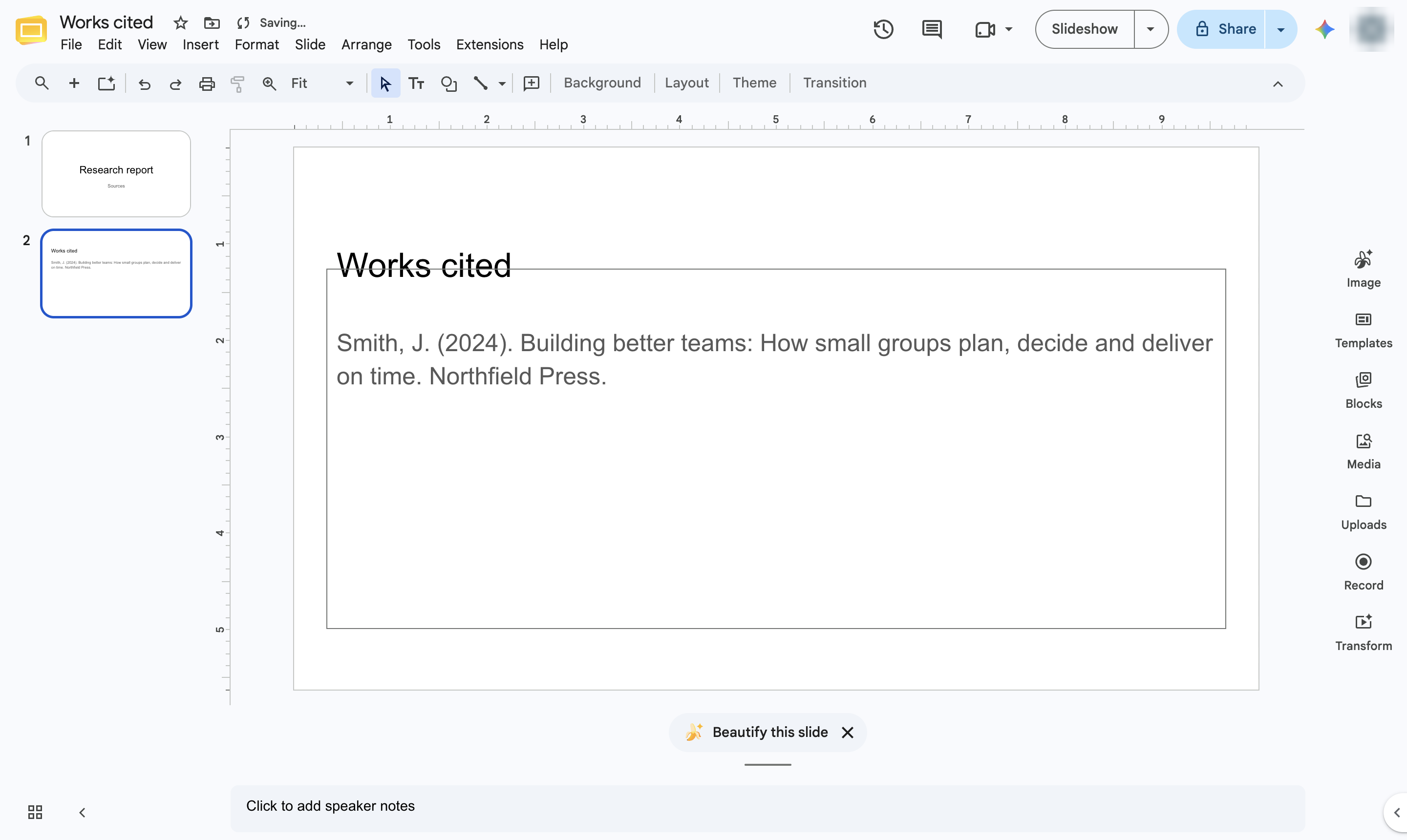

Indent every line of a paragraph except the first, with the ruler indent markers.
Double-click the paragraph you want to indent.
Press Ctrl + A (Cmd + A on Mac) to select the paragraphs.
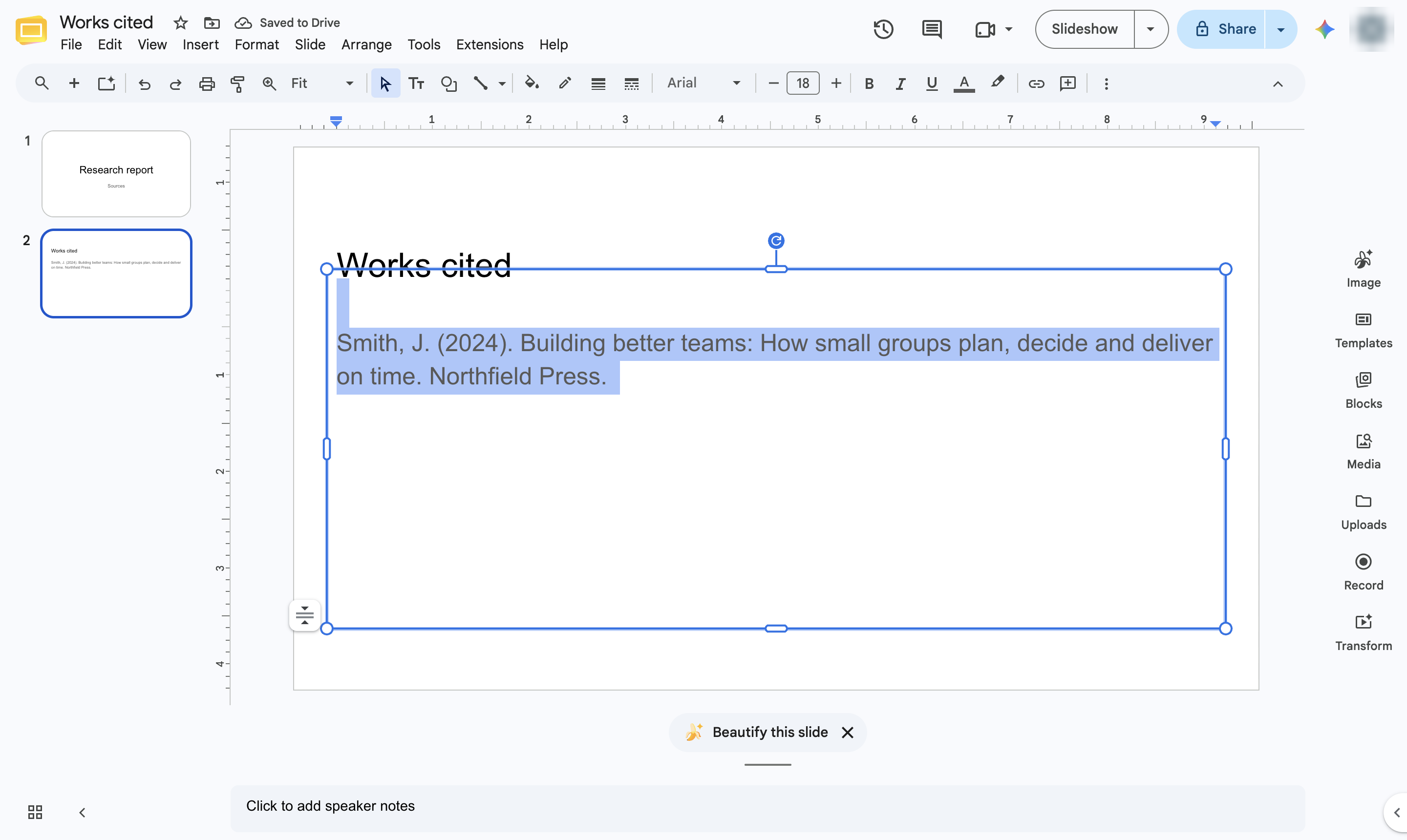
Drag the triangle on the ruler right to 0.5 in. It moves the whole paragraph. Turn on the ruler with View > Show ruler if you cannot see it.
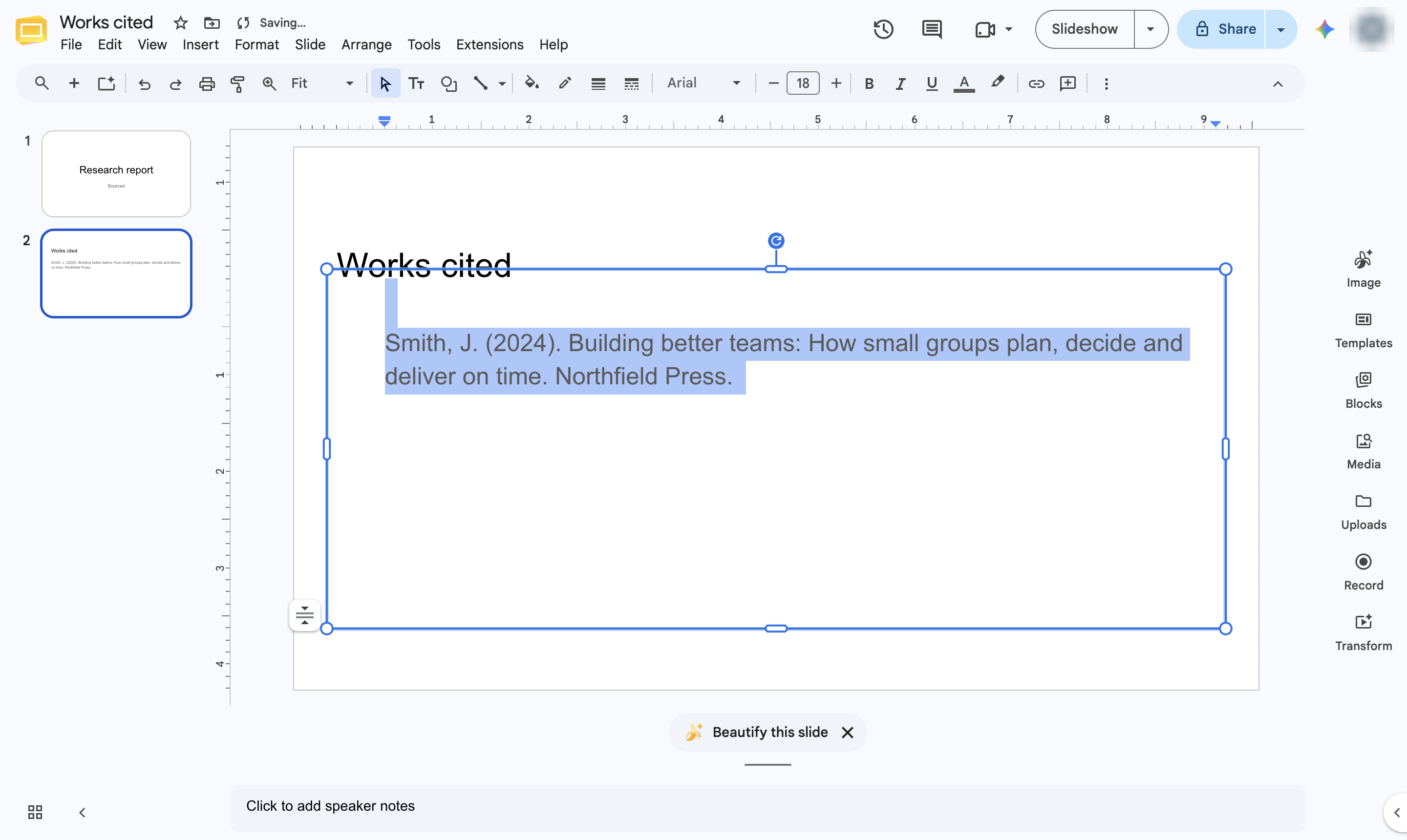
Drag the small rectangle above the triangle back to the left edge. Only the first line moves, which makes the hanging indent.
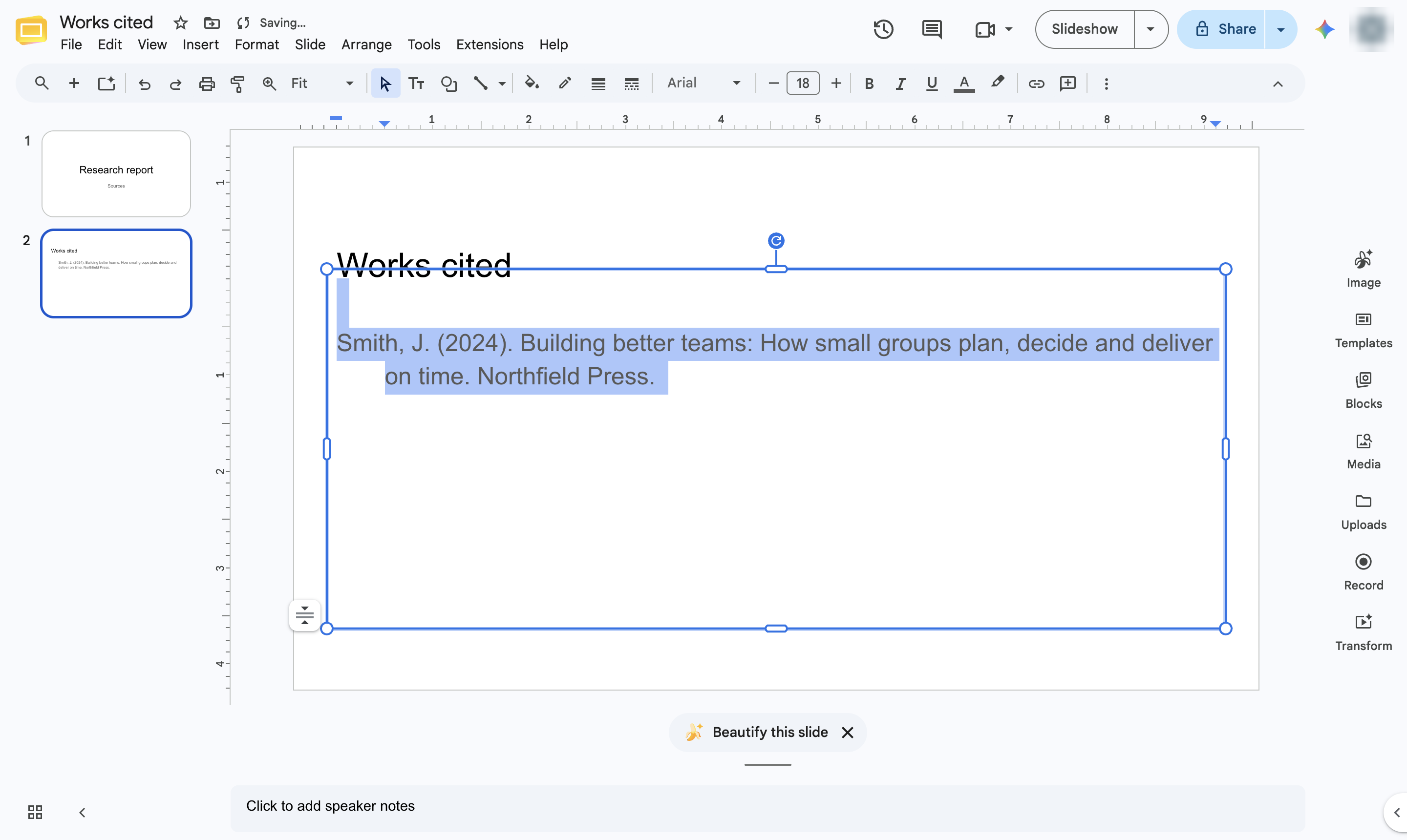
The first line starts at the margin and the other lines are indented.
Duplicate this template, swap in your own screens, and share it with your team. Free to start — no credit card.
Fill out the form and we'll get back to you as soon as possible.
Tell us about your team and we'll find the right plan together.