1
Log in to Dropbox and navigate to the Dropbox Home page
Open the Dropbox Home page to view your files and locate the one you want to delete.
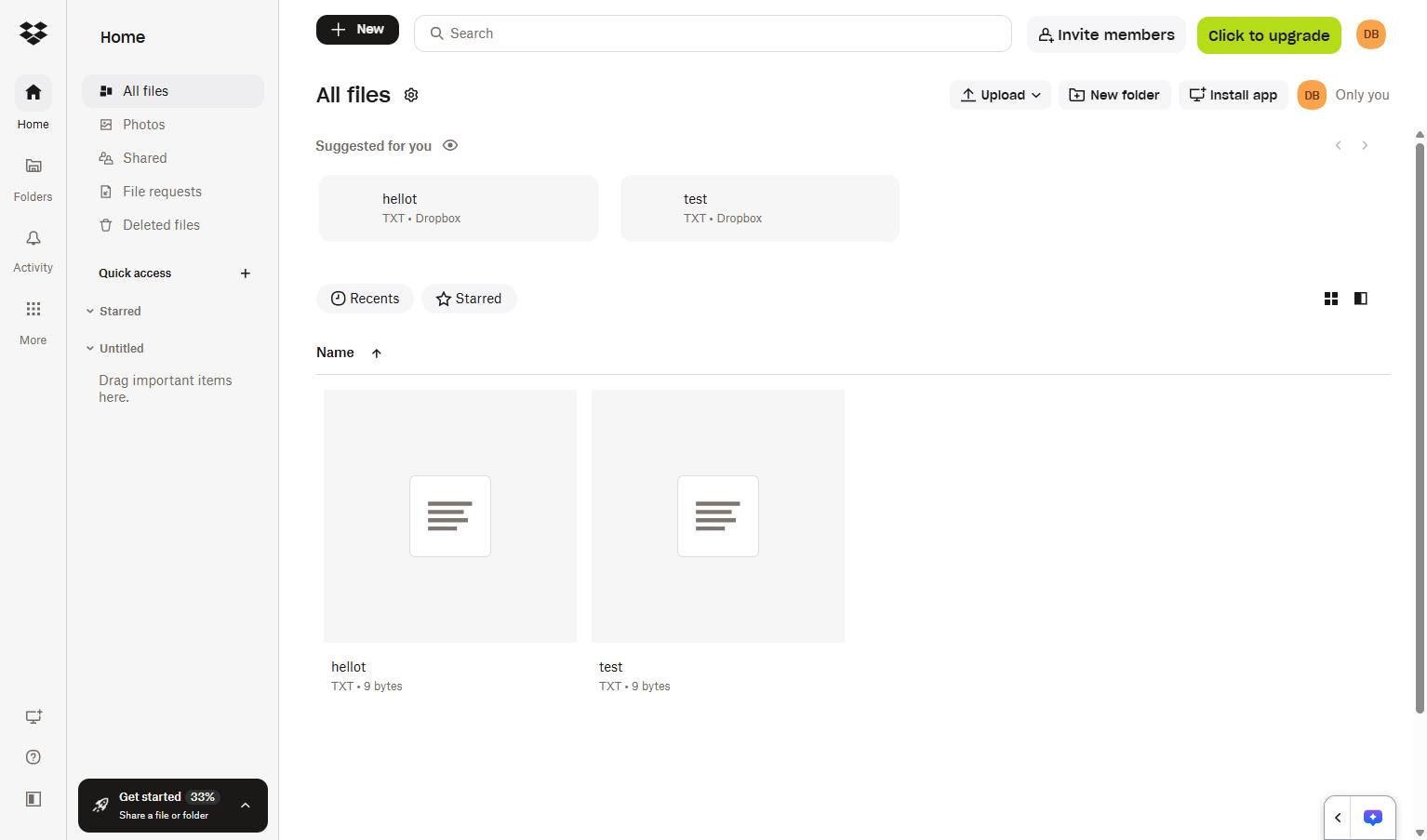

This guide will walk you through the steps to delete a file from your Dropbox account. You will learn how to navigate to your files, select the target file, and confirm its removal to keep your storage organized.
Open the Dropbox Home page to view your files and locate the one you want to delete.
Click the "All files" link in the left sidebar to view your complete file list.
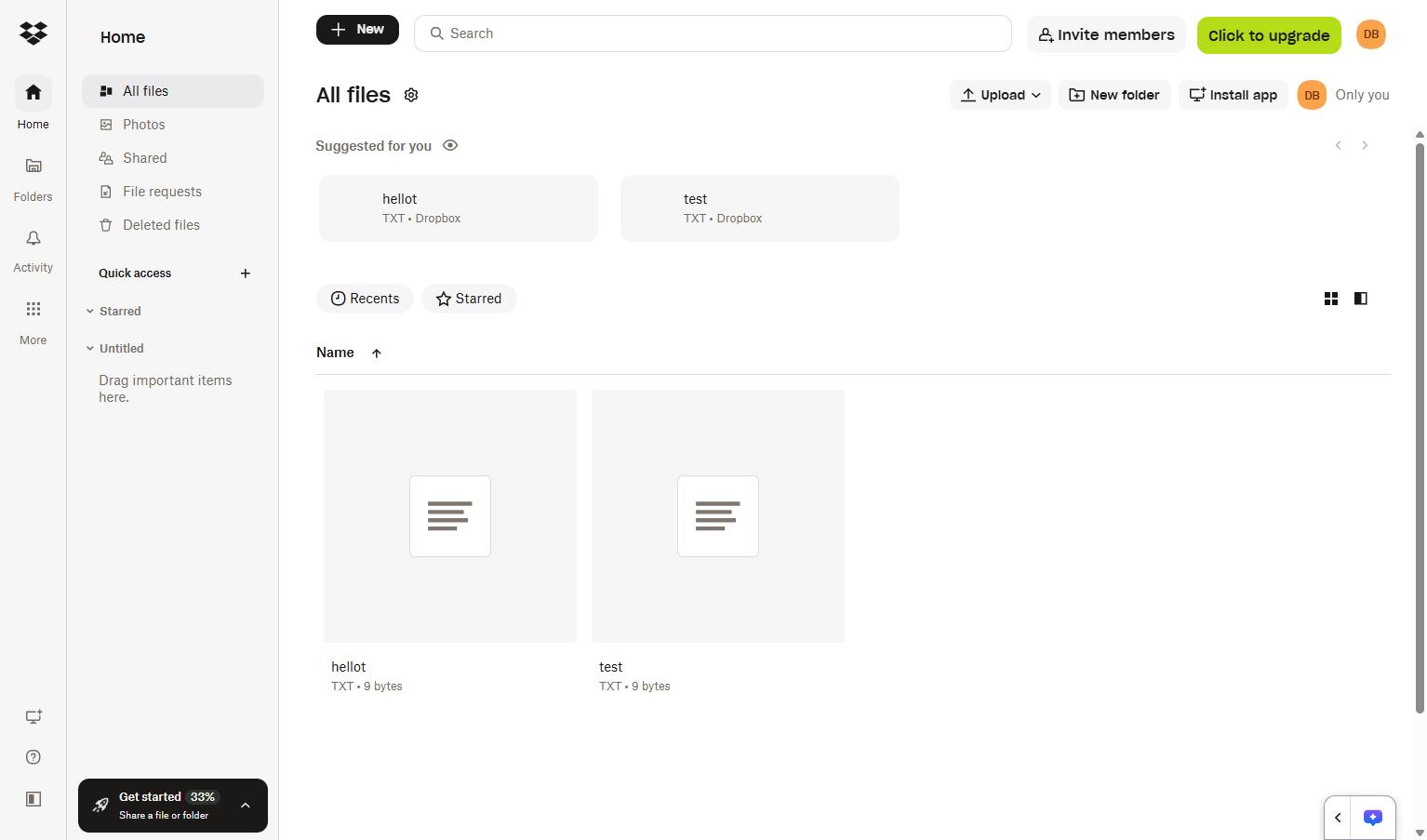
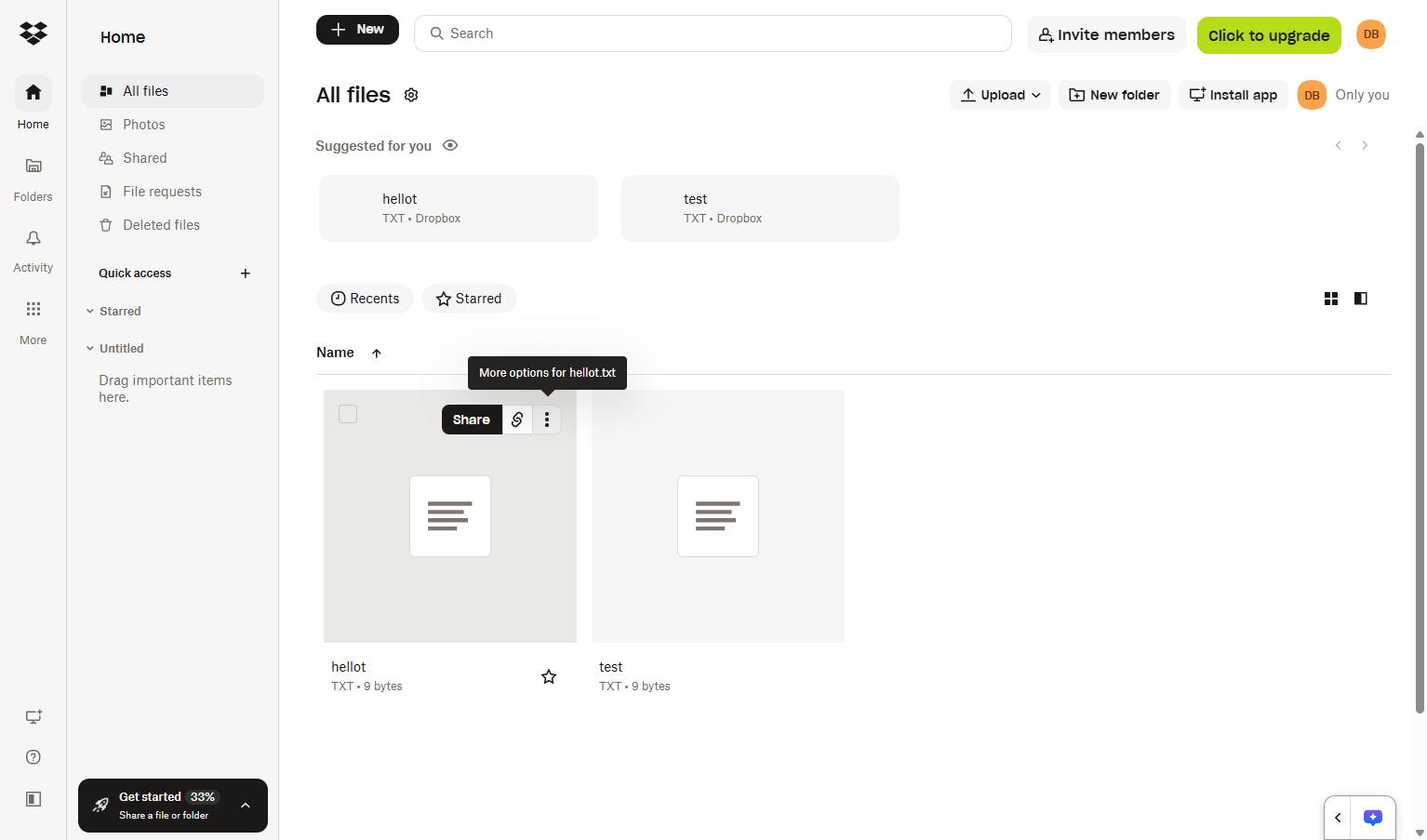
Hover over your target file and click the three-dot "More options" button on the file card to open the file menu.
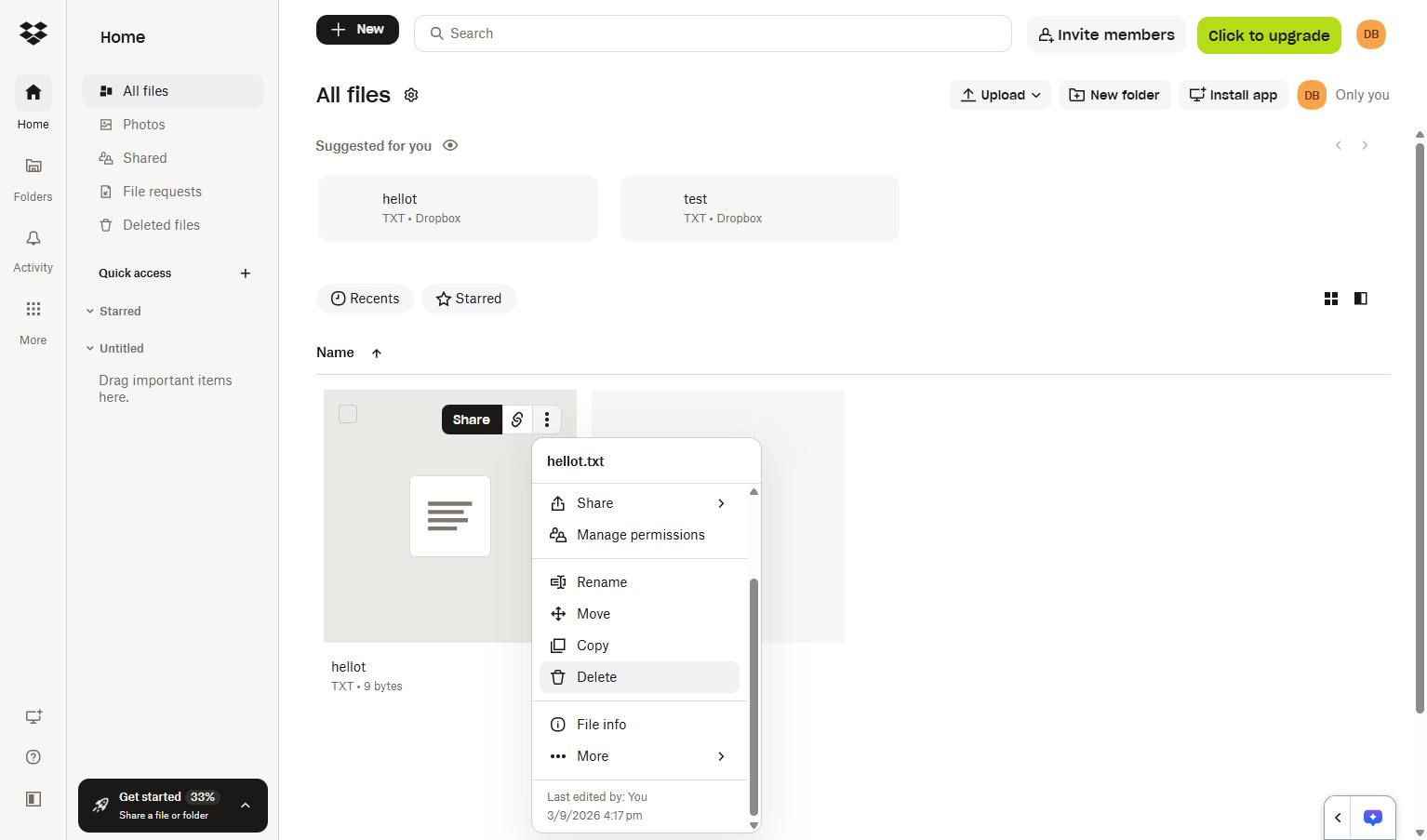
Click the "Delete" option in the dropdown menu to remove the selected file.
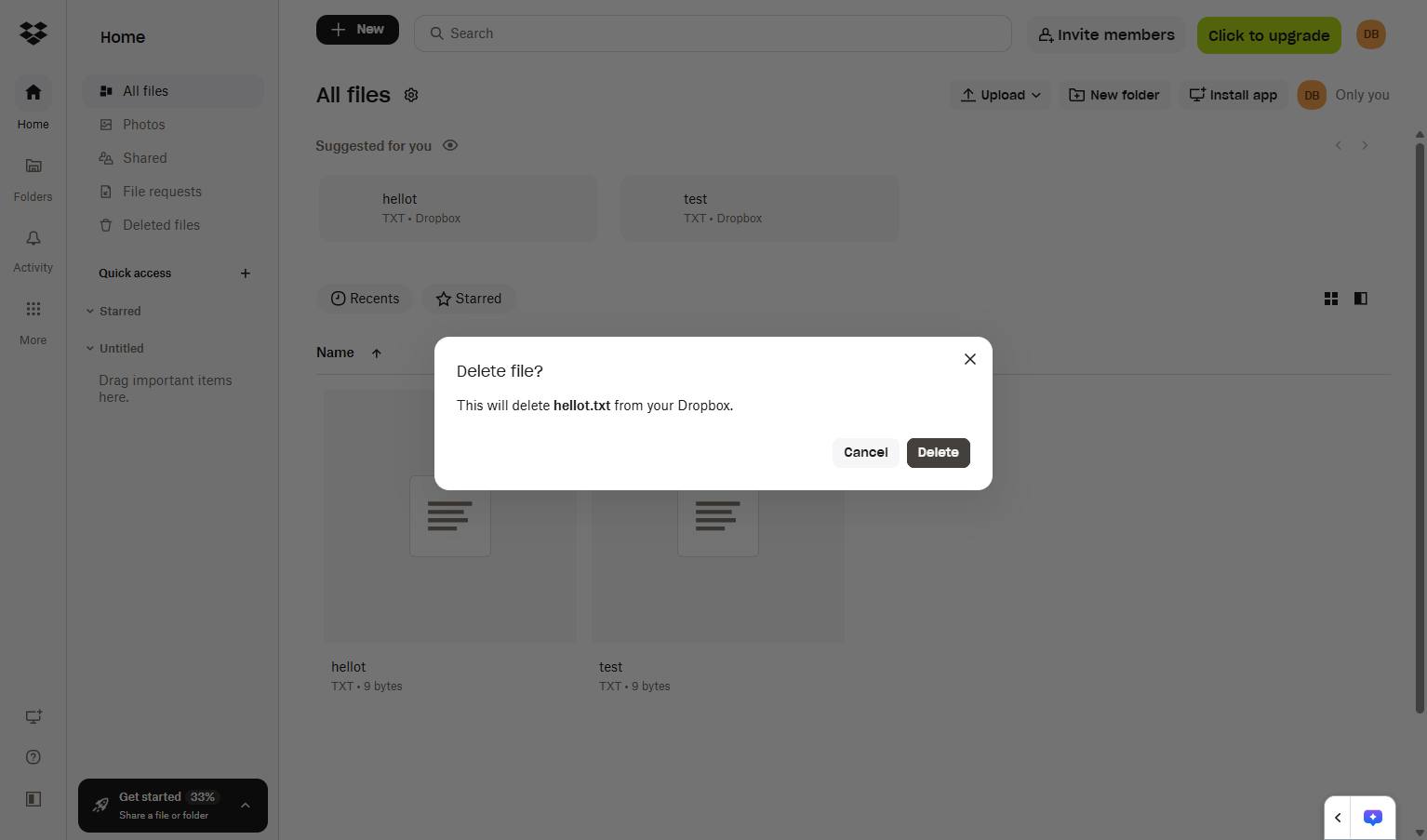
Click the Delete button in the confirmation modal to permanently remove the file from your Dropbox.
Duplicate this template, swap in your own screens, and share it with your team. Free to start — no credit card.
Fill out the form and we'll get back to you as soon as possible.
Tell us about your team and we'll find the right plan together.