1
List of containers
Opening Docker Desktop will display all the containers.
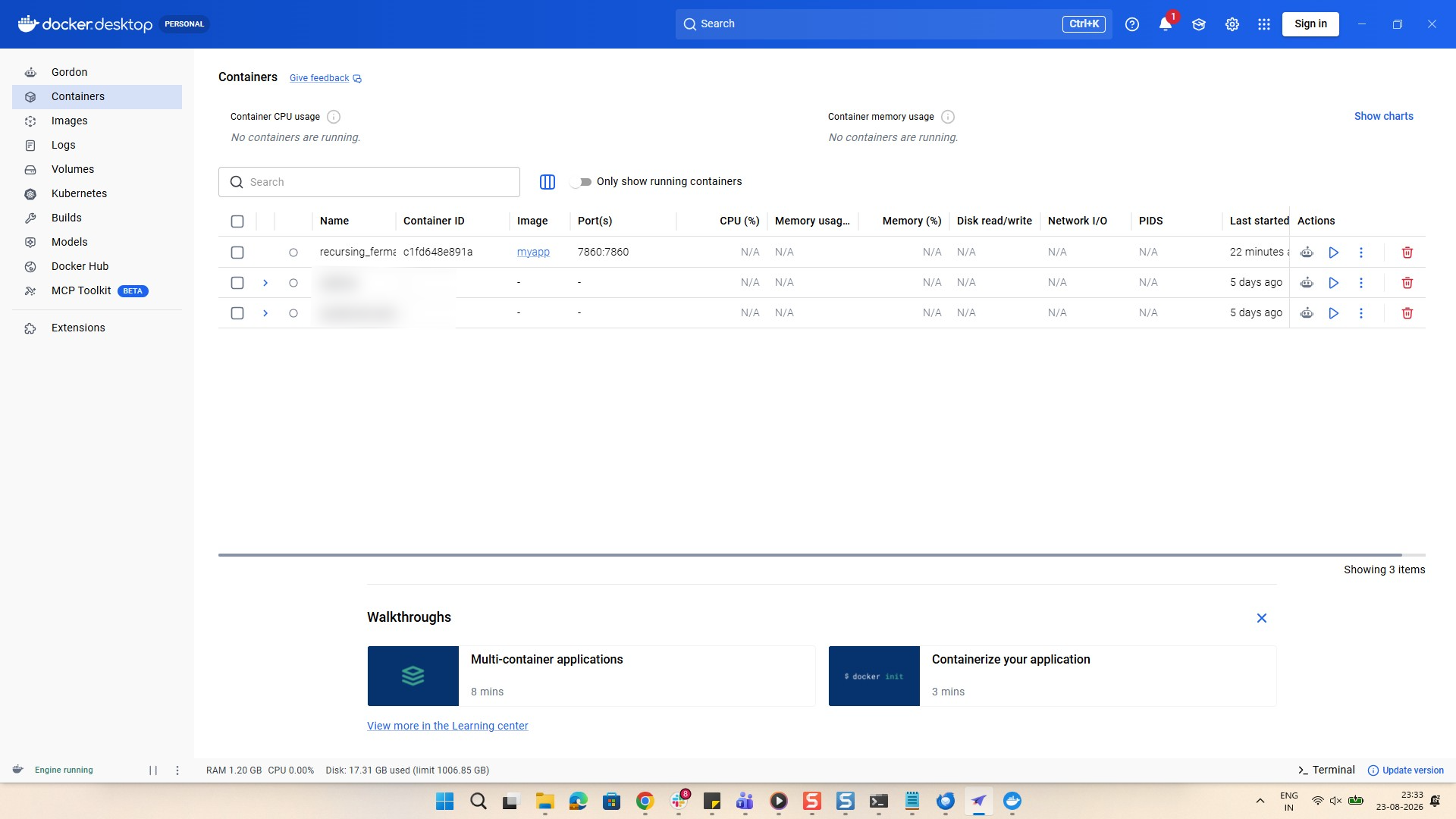
In this guilde you will learn how to delete a docker container using Docker Desktop app and from command line
Opening Docker Desktop will display all the containers.
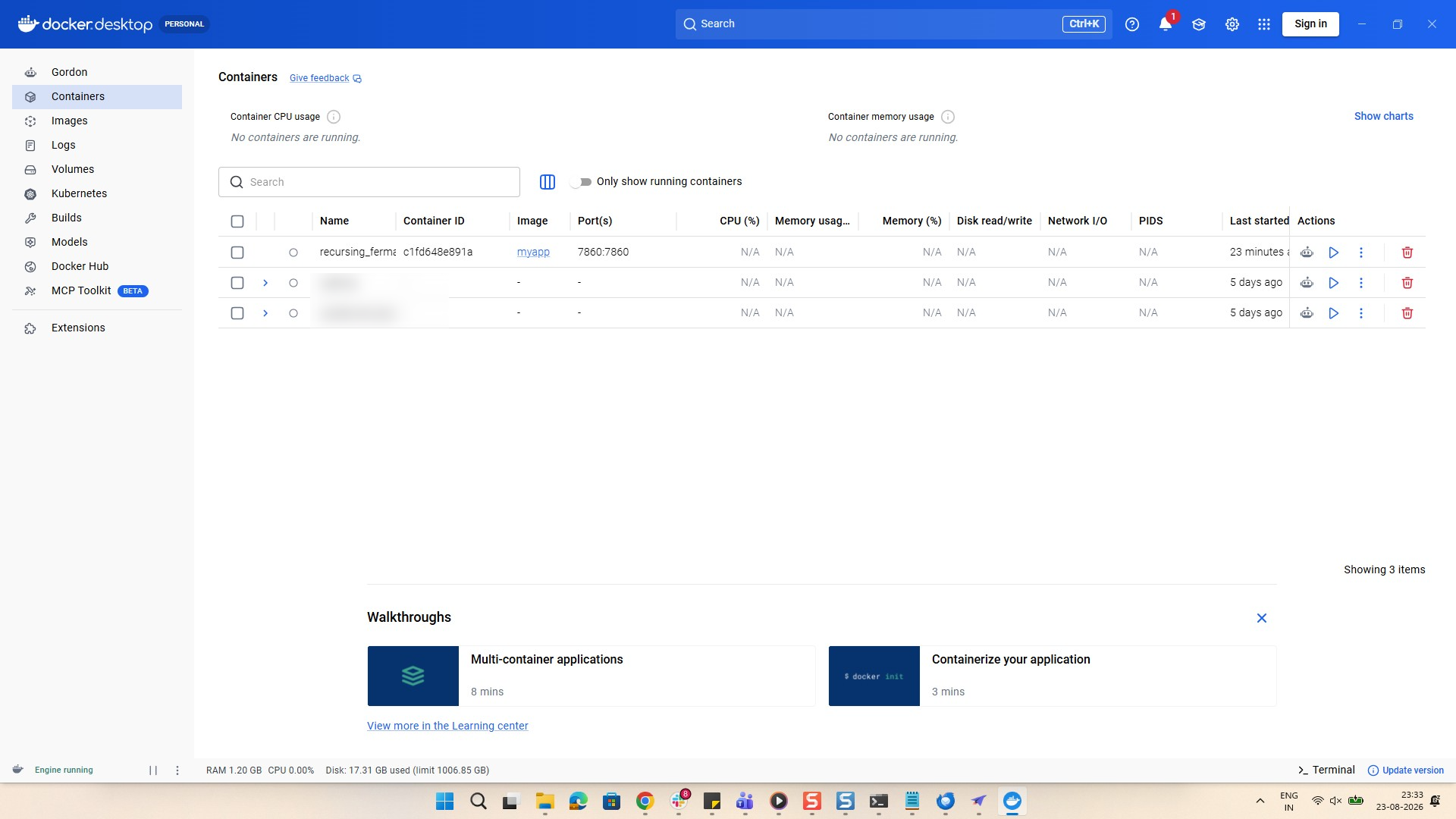
Click the trash can icon in the Actions column of the container row to remove it.
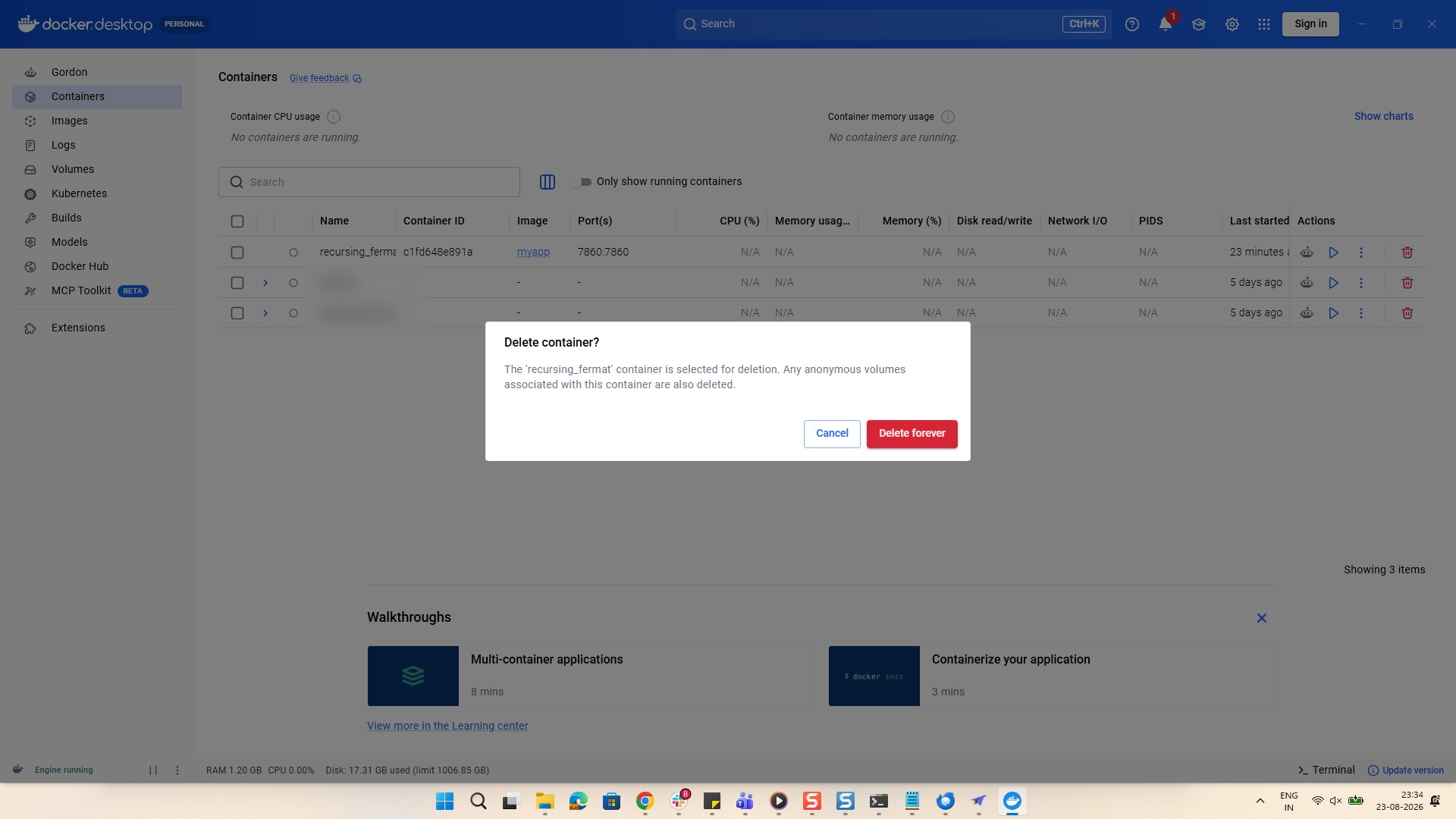
Click the Delete forever button in the confirmation dialog to permanently remove the selected container.
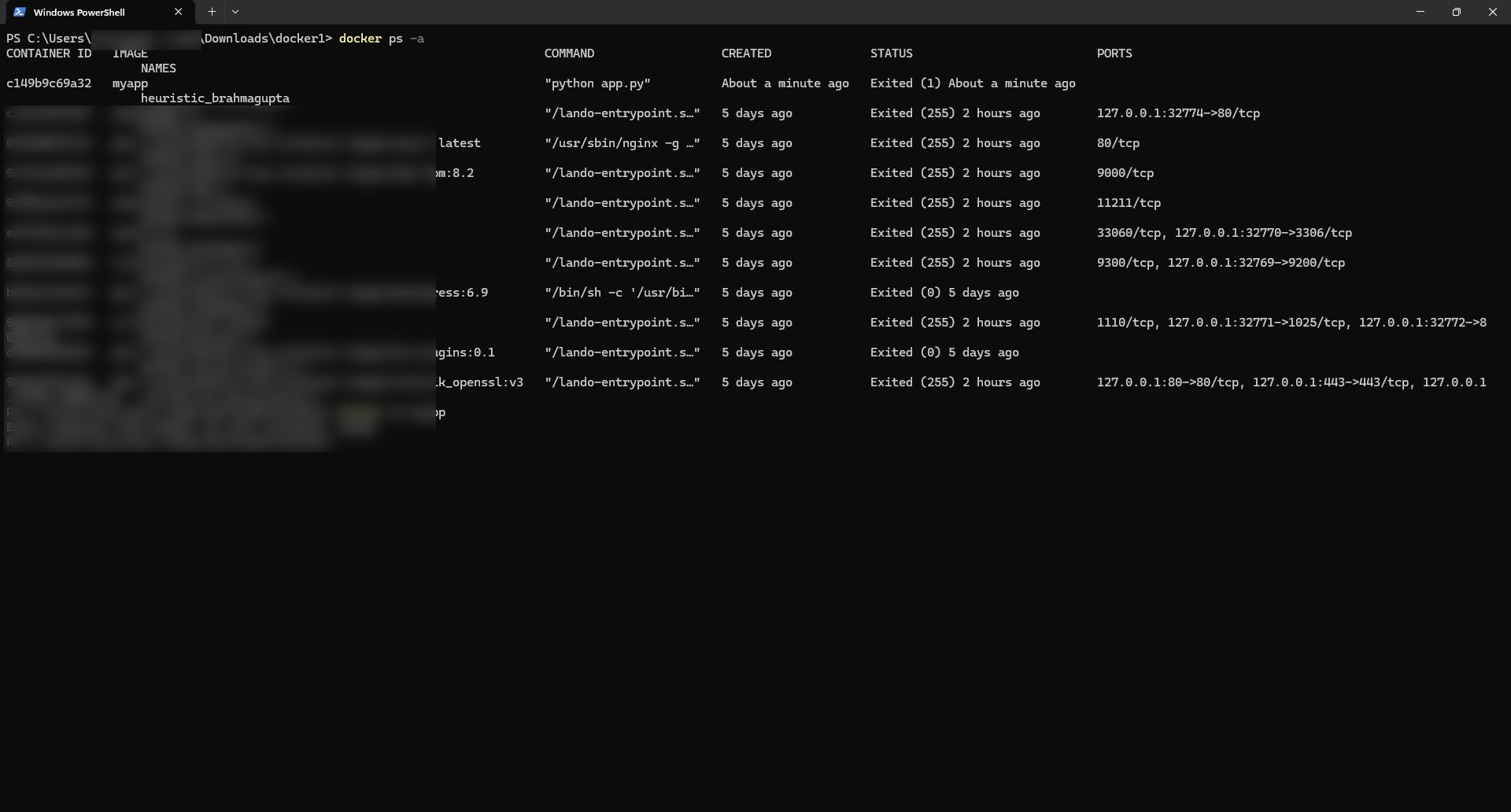
The command will list all the docker containers.
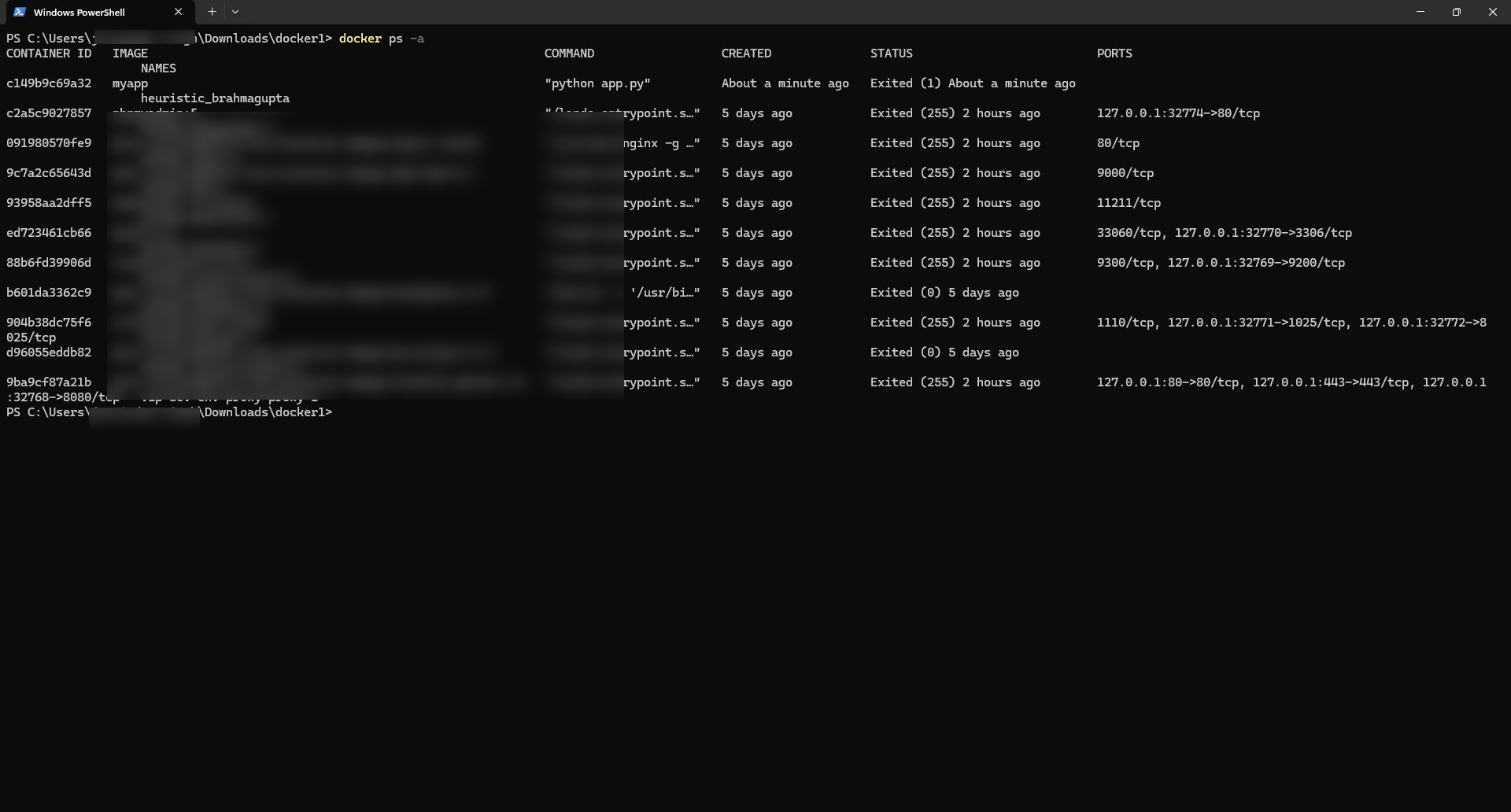
Click the container ID "c149b9c69a32" in the terminal output to select it for copying.
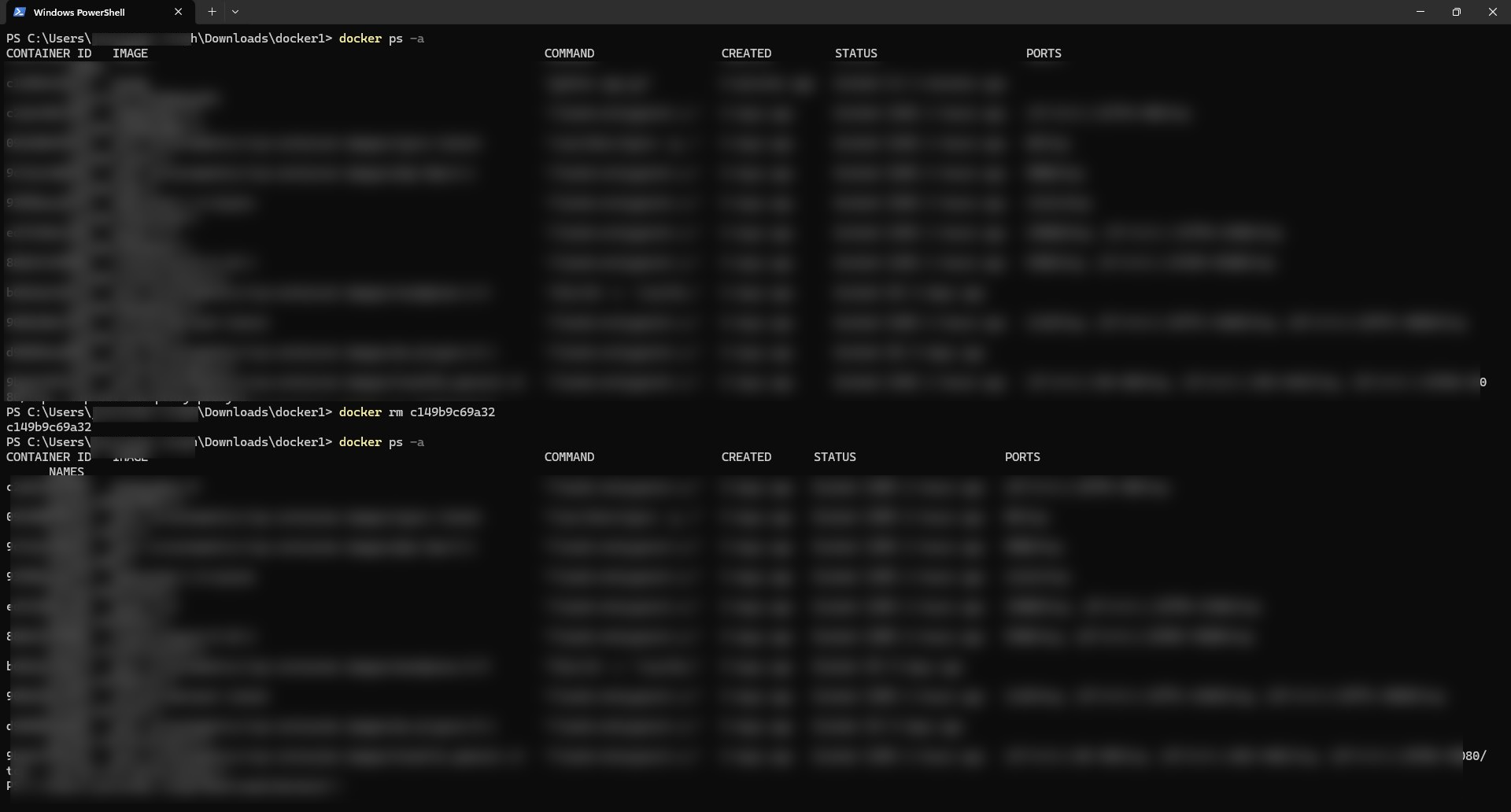
Write command "docker rm container-id" copied in the previous step to delete it. After deleting write command "docker ps -a" to see that the docker container is deleted.
Duplicate this template, swap in your own screens, and share it with your team. Free to start — no credit card.
Fill out the form and we'll get back to you as soon as possible.
Tell us about your team and we'll find the right plan together.