1
Click the PowerPoint icon
Click the PowerPoint icon in the taskbar at the bottom of the screen to open the application.
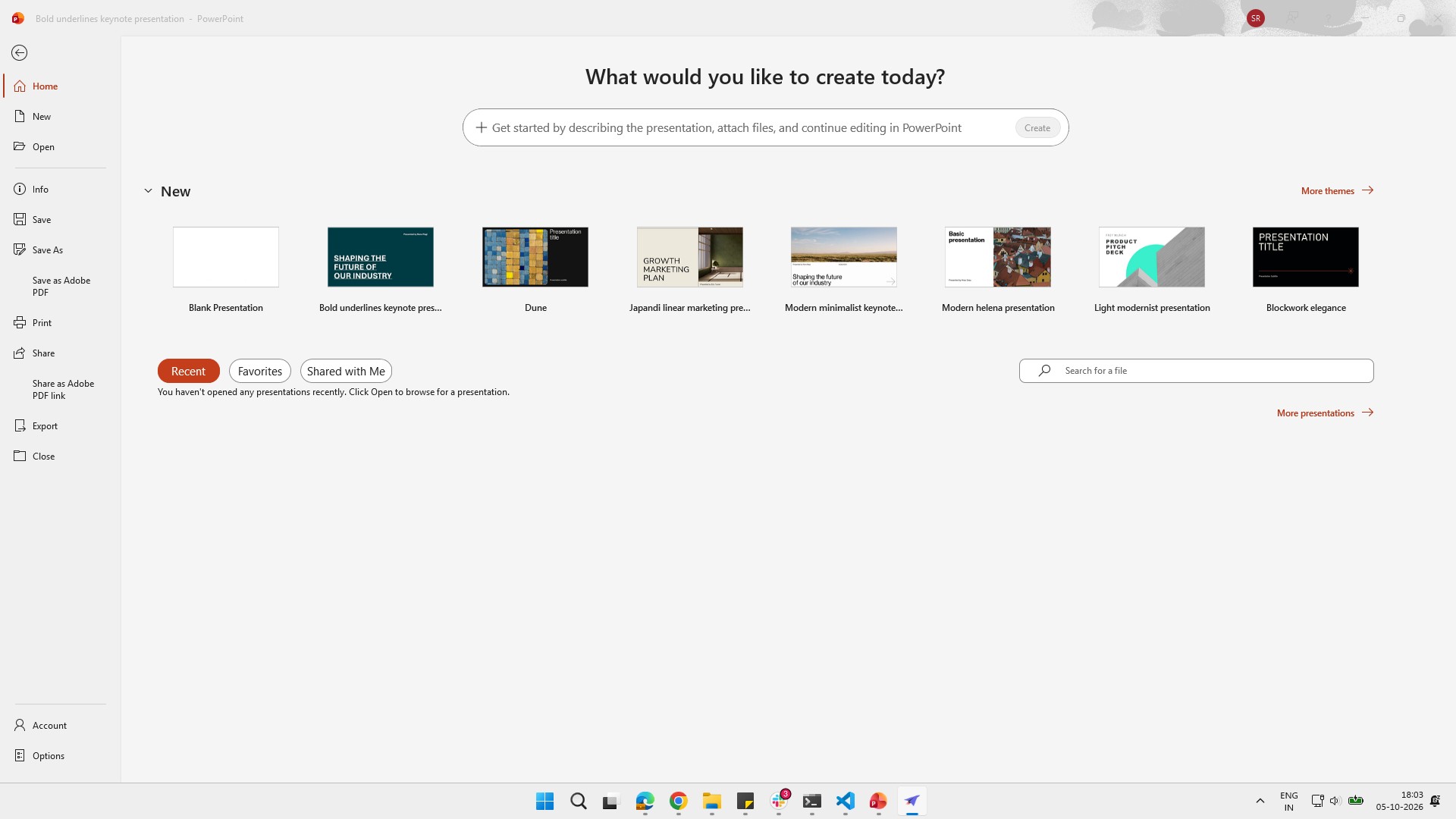

In this click-through tutorial, you will learn how to set up and manage a presentation in Microsoft PowerPoint. You will start by launching the application and selecting the Bold underlines keynote presentation template. Finally, you will navigate through the slide thumbnails in the sidebar pane and delete a specific slide to clean up your presentation.
Click the PowerPoint icon in the taskbar at the bottom of the screen to open the application.
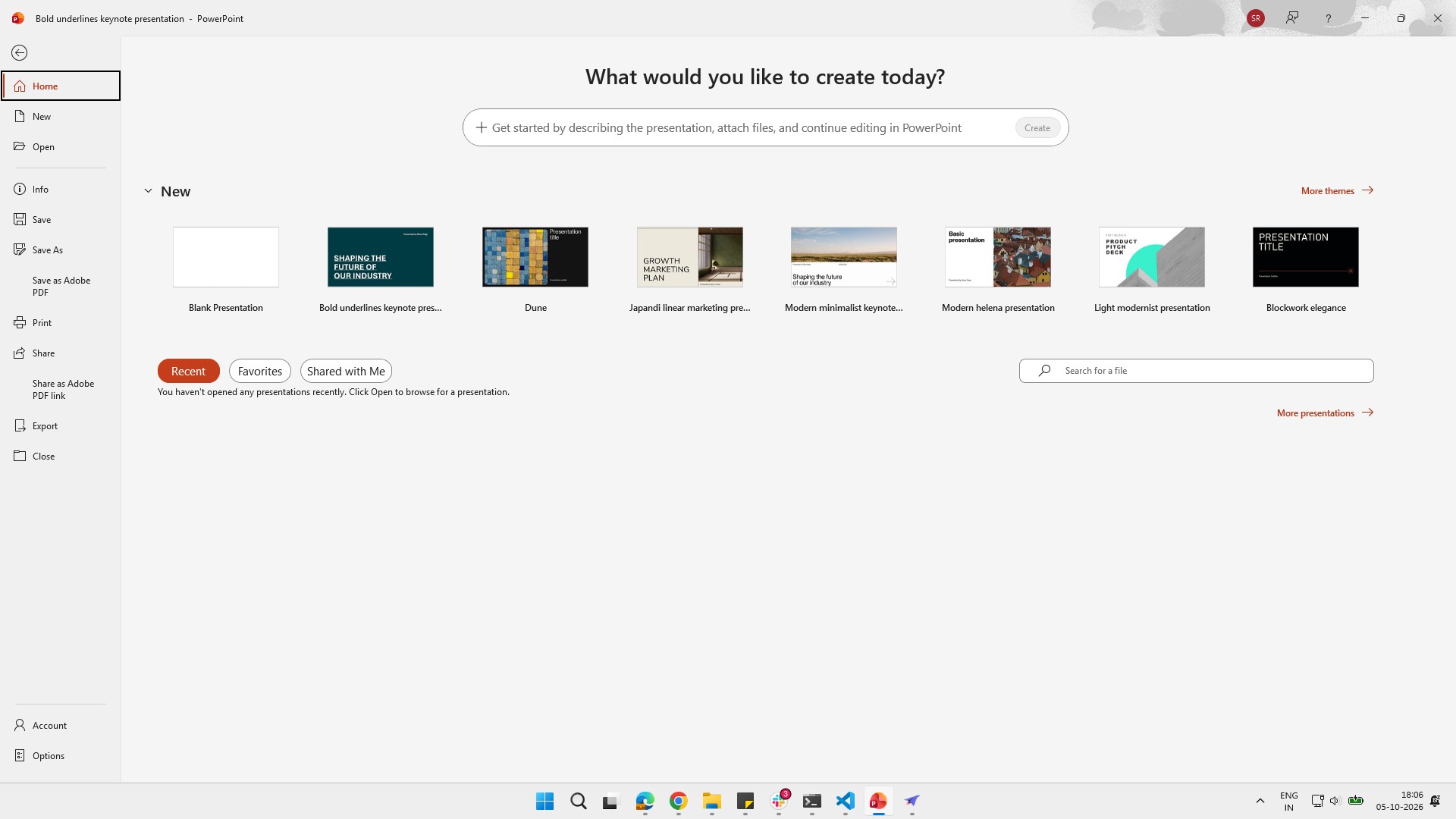
Click the "Bold underlines keynote pres..." template in the New section to start a presentation with this design.
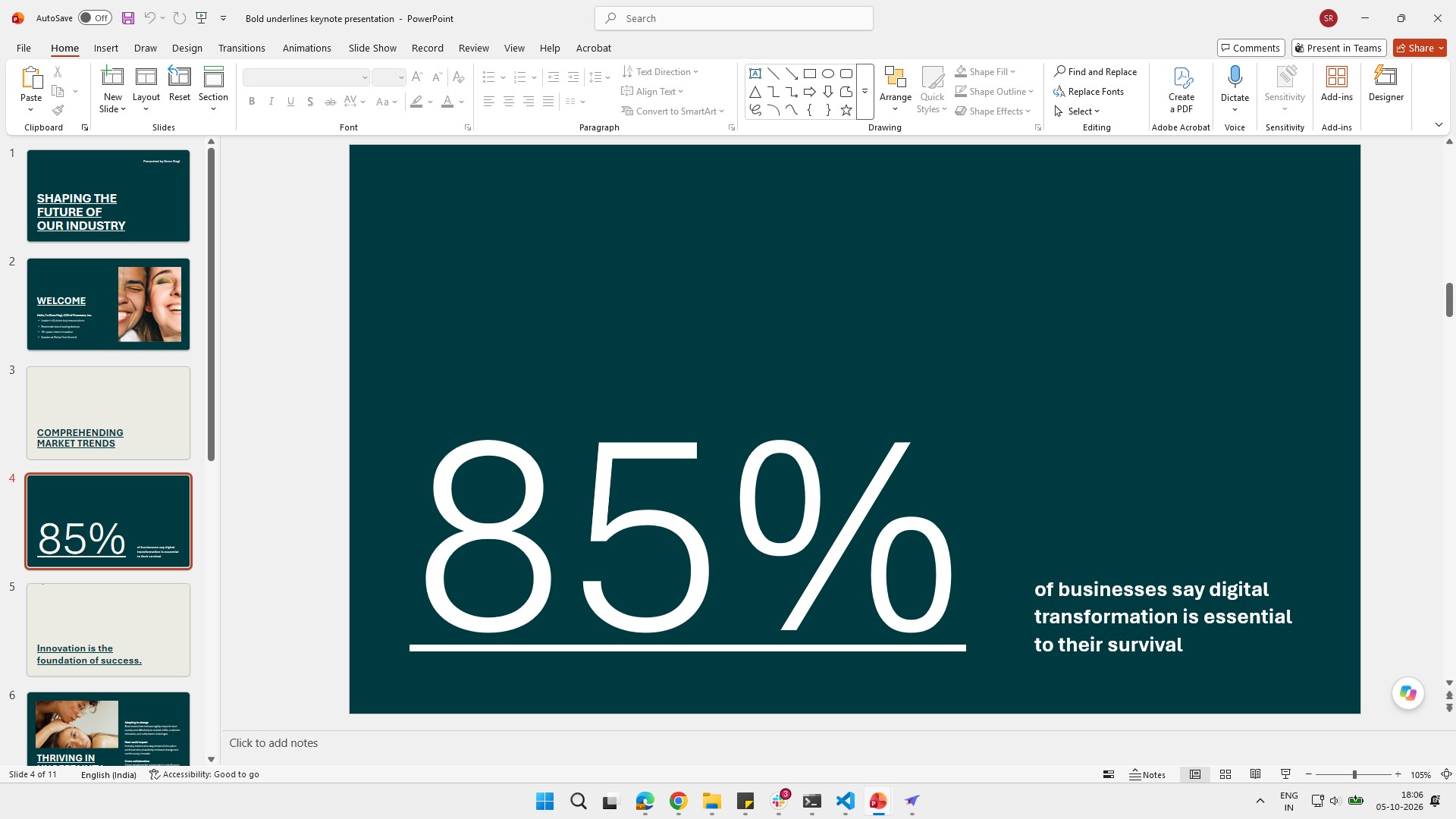
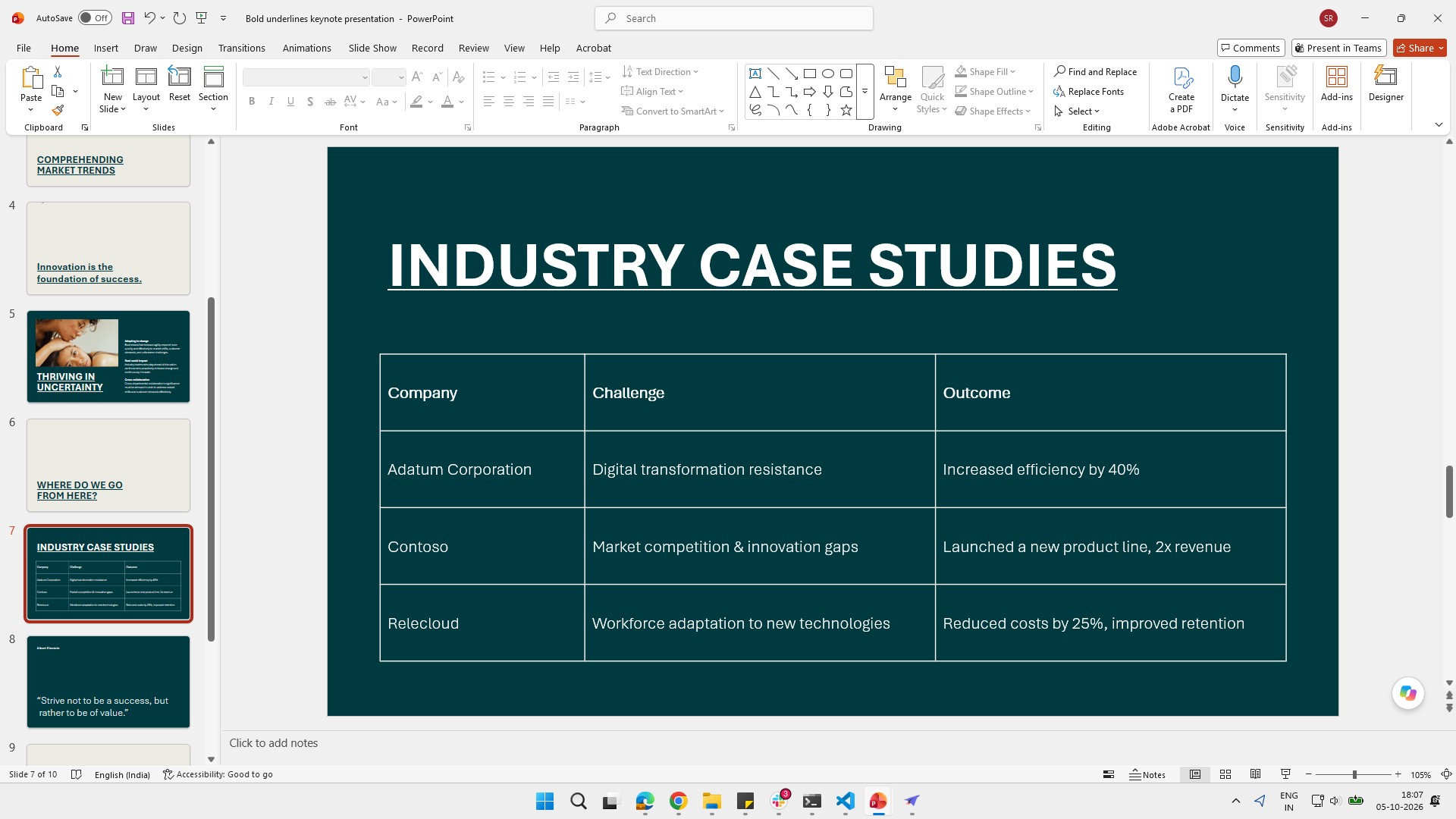
Select the slide you want to remove.
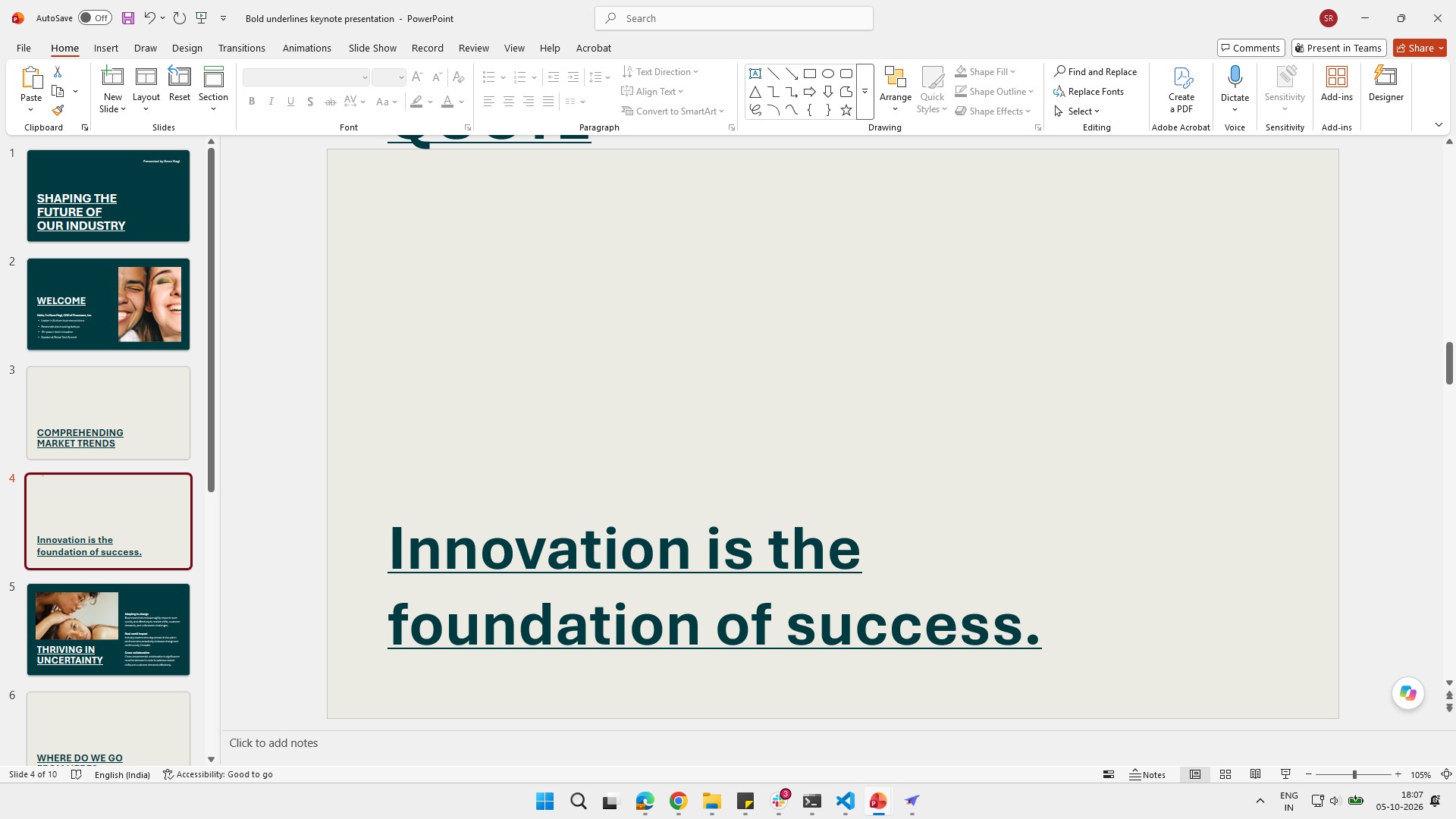
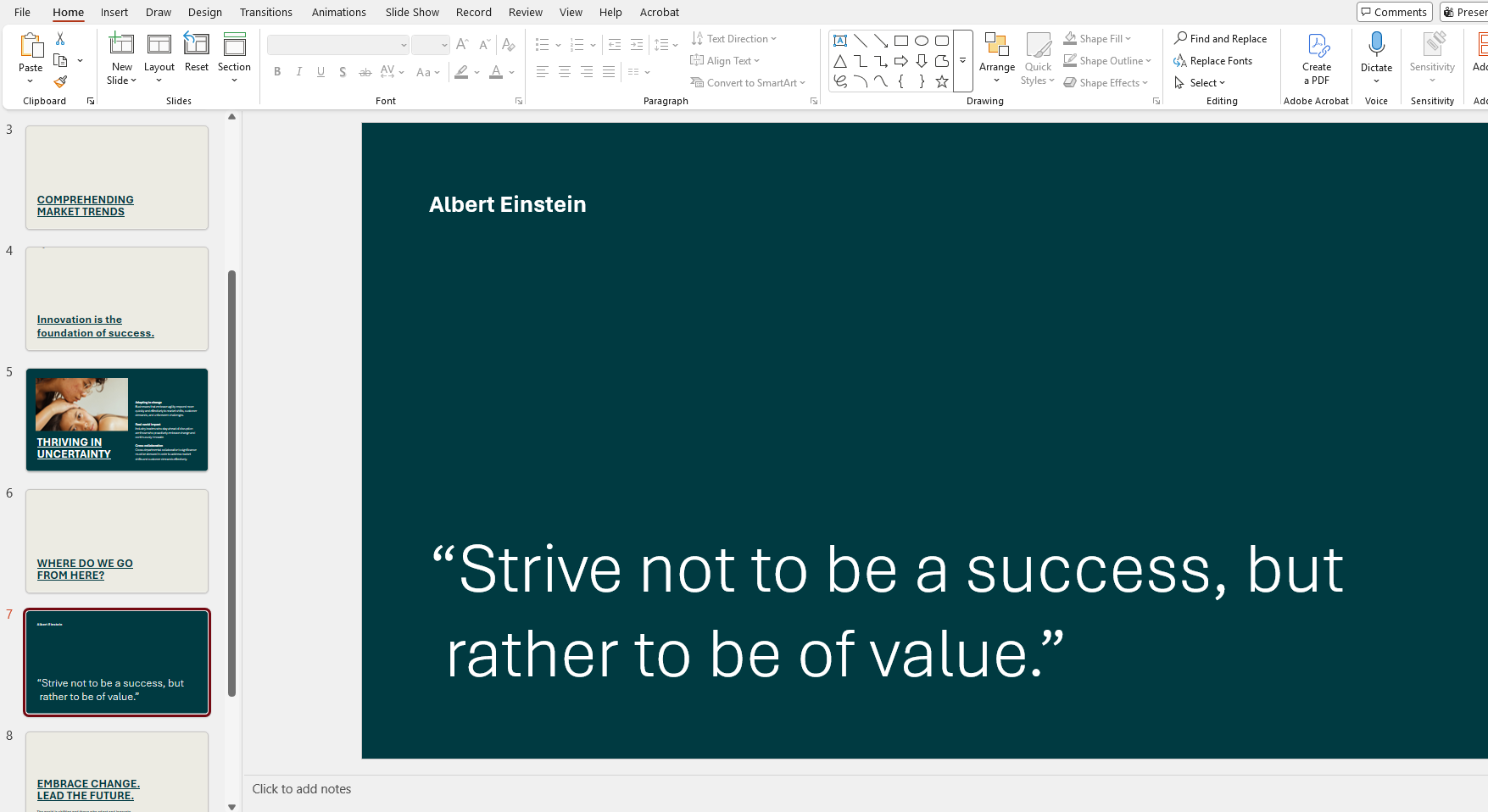
The selected slide will be removed from your presentation.
Click the slide thumbnail in the left sidebar to select and view the slide.
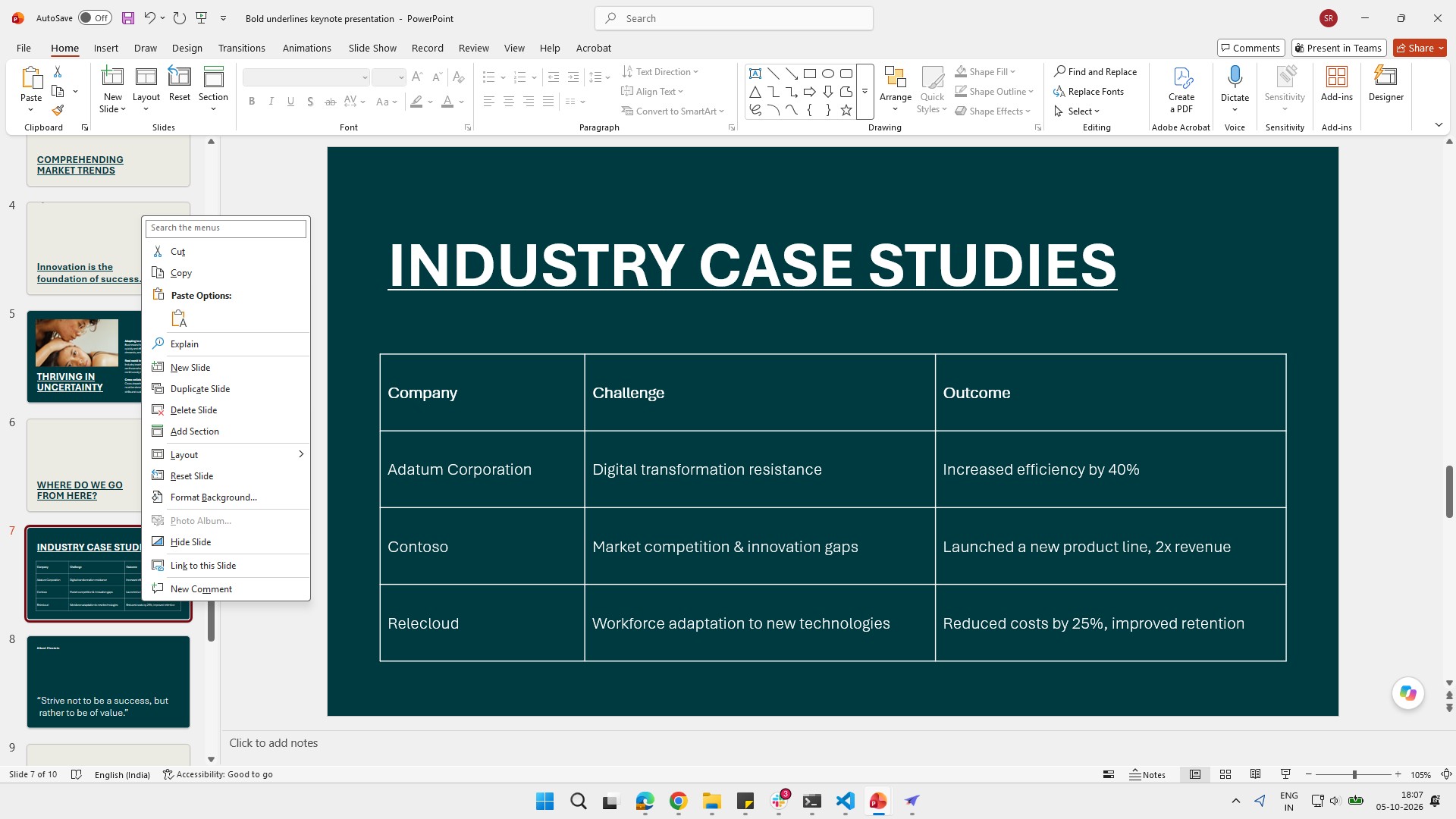
Click the Delete Slide option in the context menu to remove the selected slide from your presentation.
The selected slide has been removed from your presentation.
Duplicate this template, swap in your own screens, and share it with your team. Free to start — no credit card.
Fill out the form and we'll get back to you as soon as possible.
Tell us about your team and we'll find the right plan together.