1
Navigate to the Dropbox
Open the Dropbox to begin the process of permanently deleting your account.
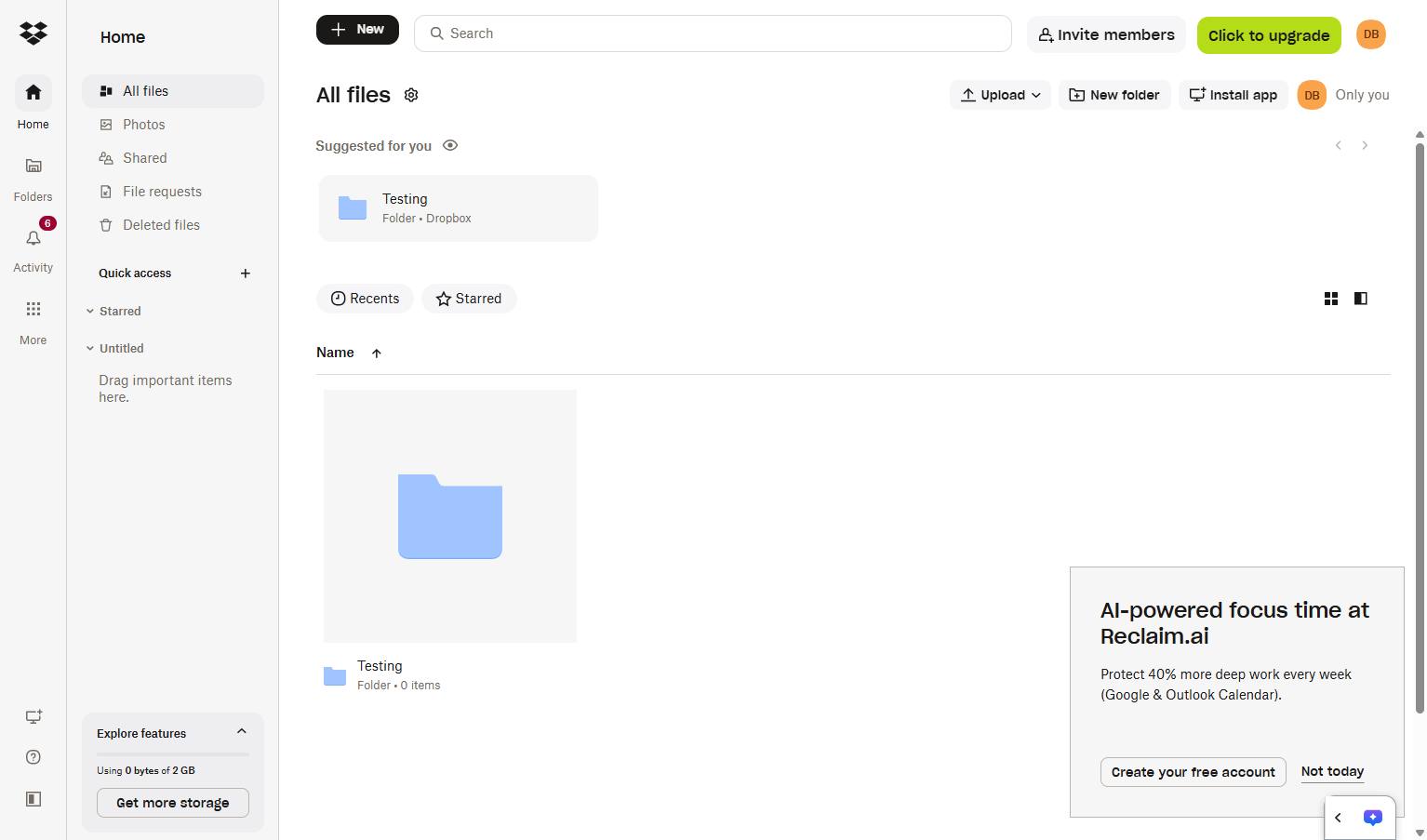

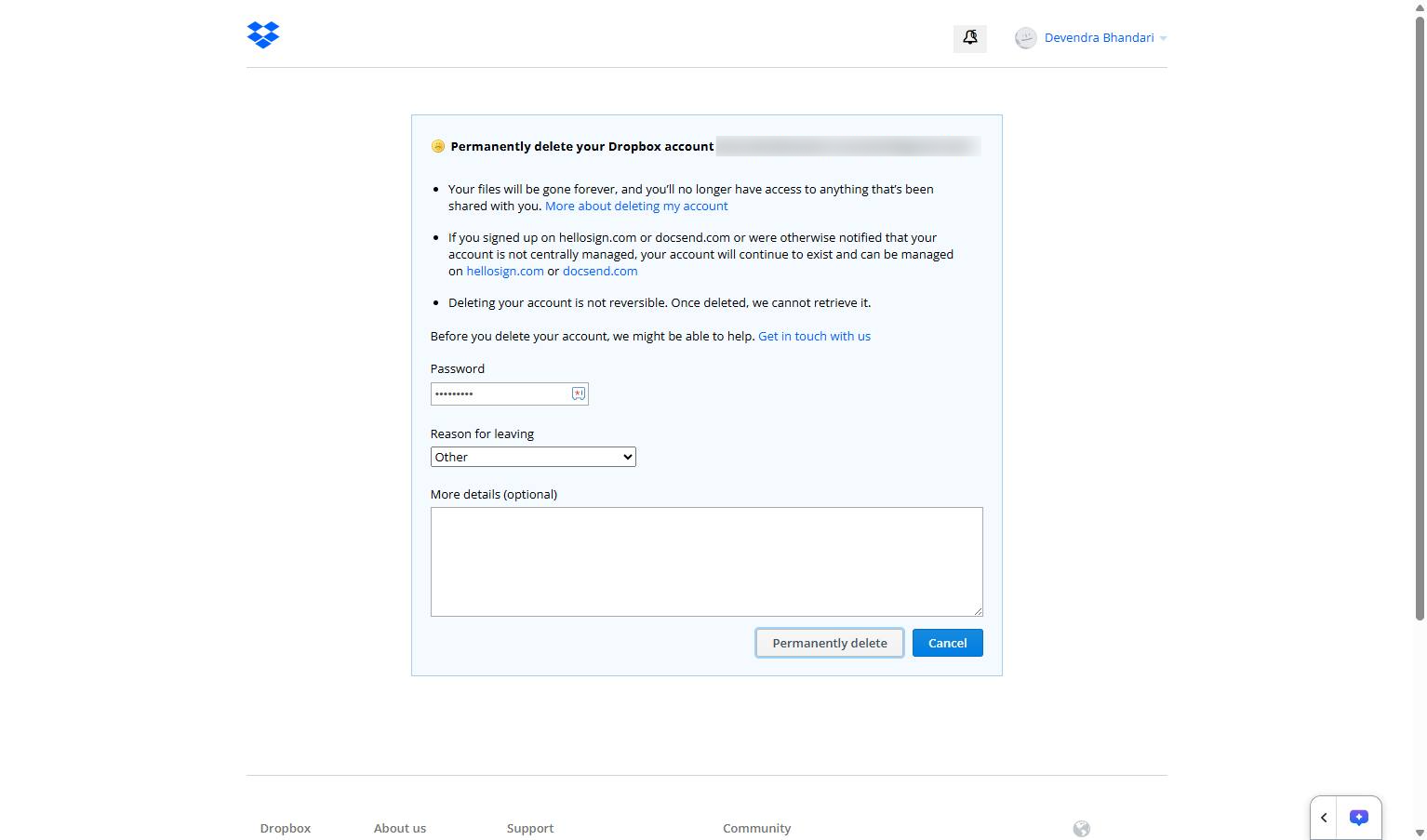
This step-by-step tutorial guides you through the process of permanently deleting your Dropbox account starting from the main Dropbox home page. You will navigate to your account settings, access the General tab, and initiate the account deletion sequence. Finally, you will complete the required security and feedback fields on the Delete my account page to permanently close your account.
Open the Dropbox to begin the process of permanently deleting your account.
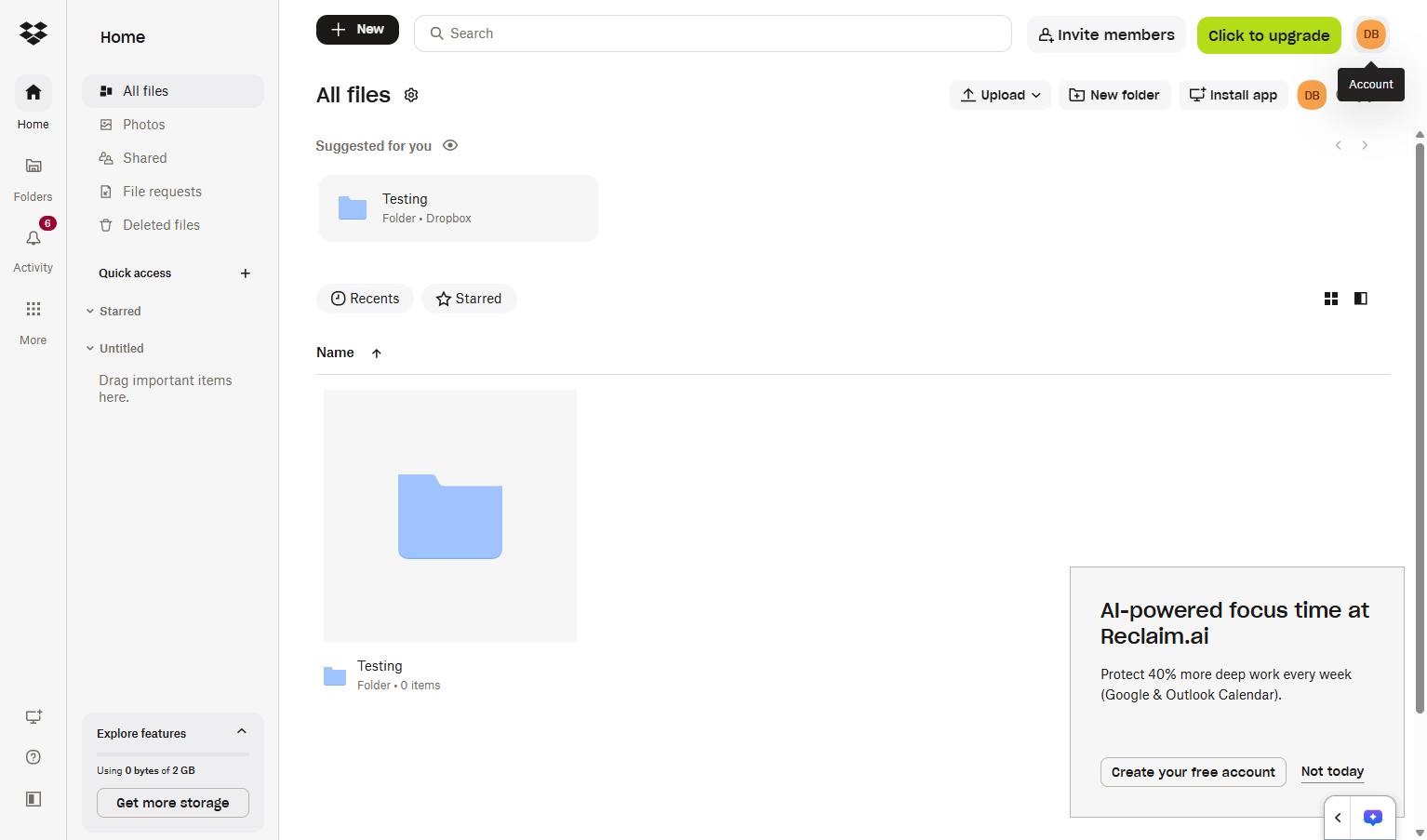
Click the Account avatar in the top right corner to open the account menu.
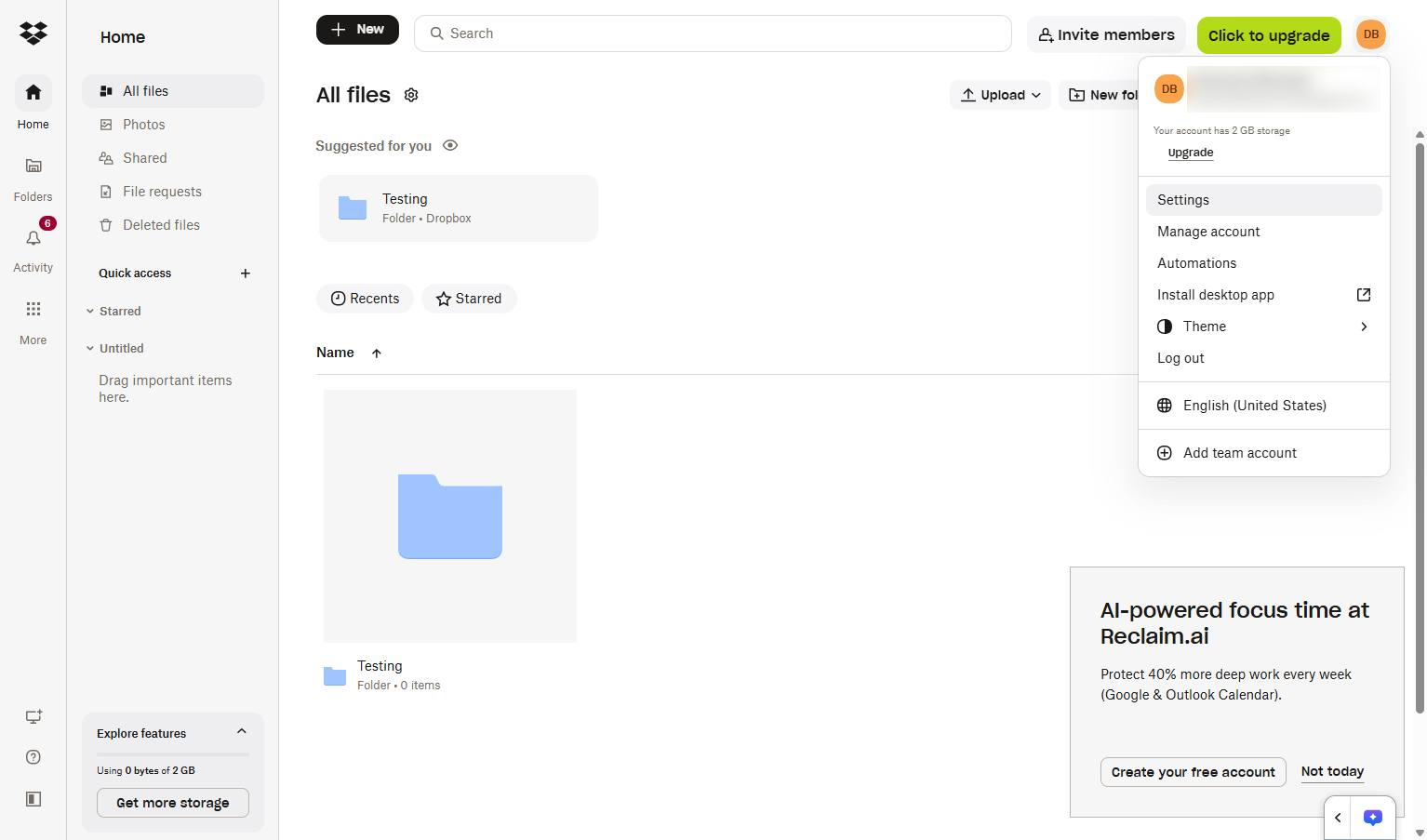
Click the Settings option in the account dropdown menu to access your account preferences.
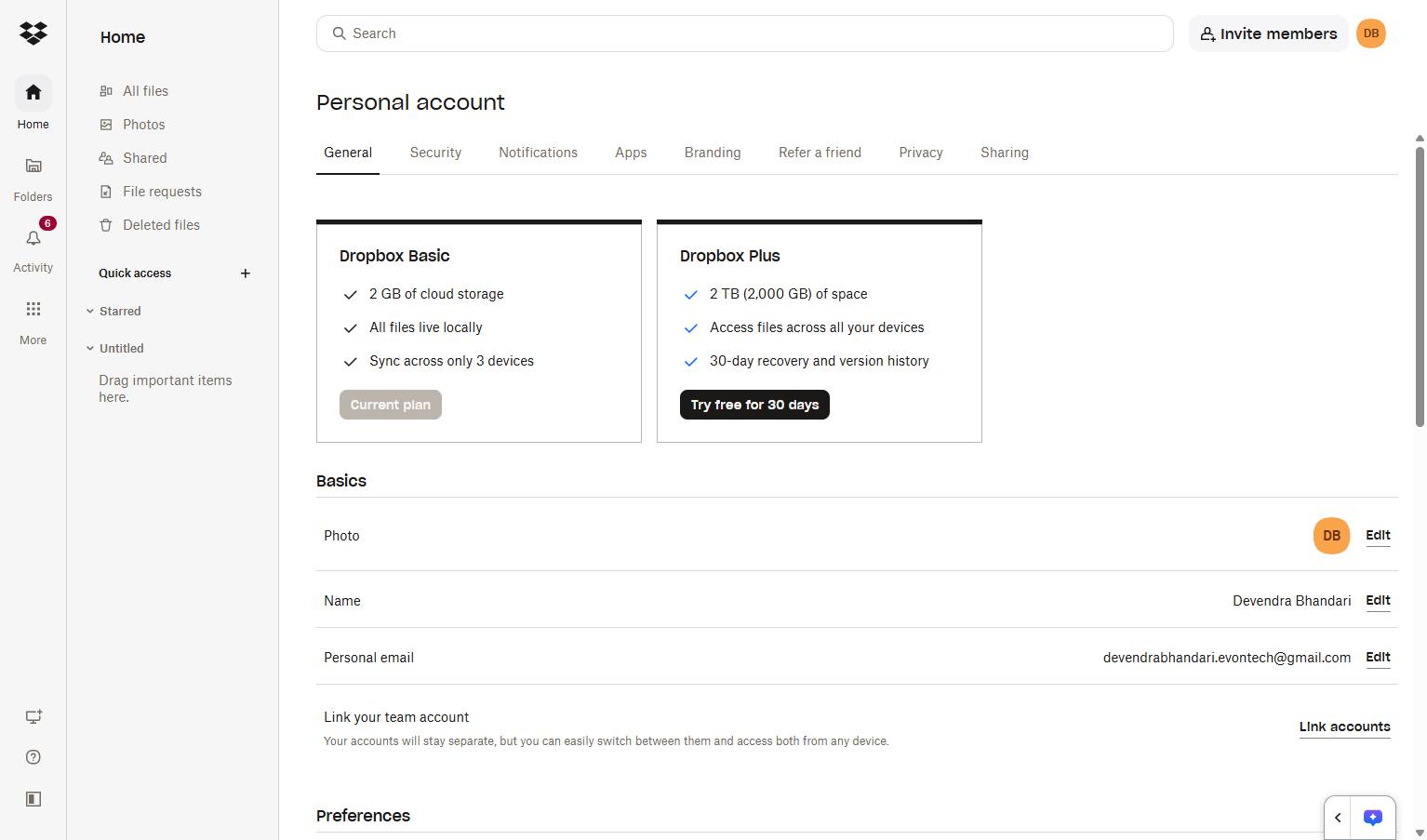
Click the General tab located under the Personal account heading to view your basic account settings.
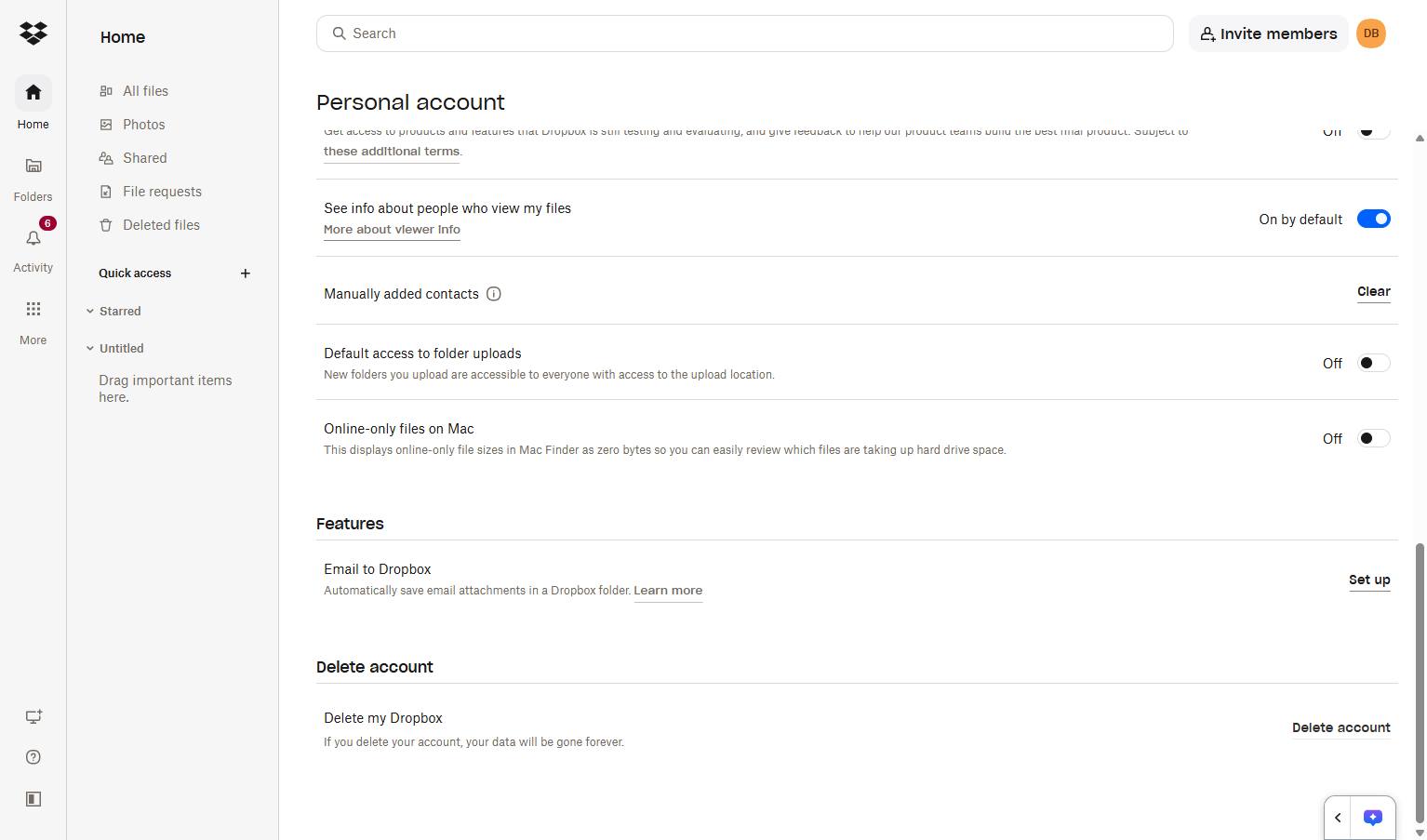
Click the Delete account link located at the bottom right of the page to proceed with account removal.
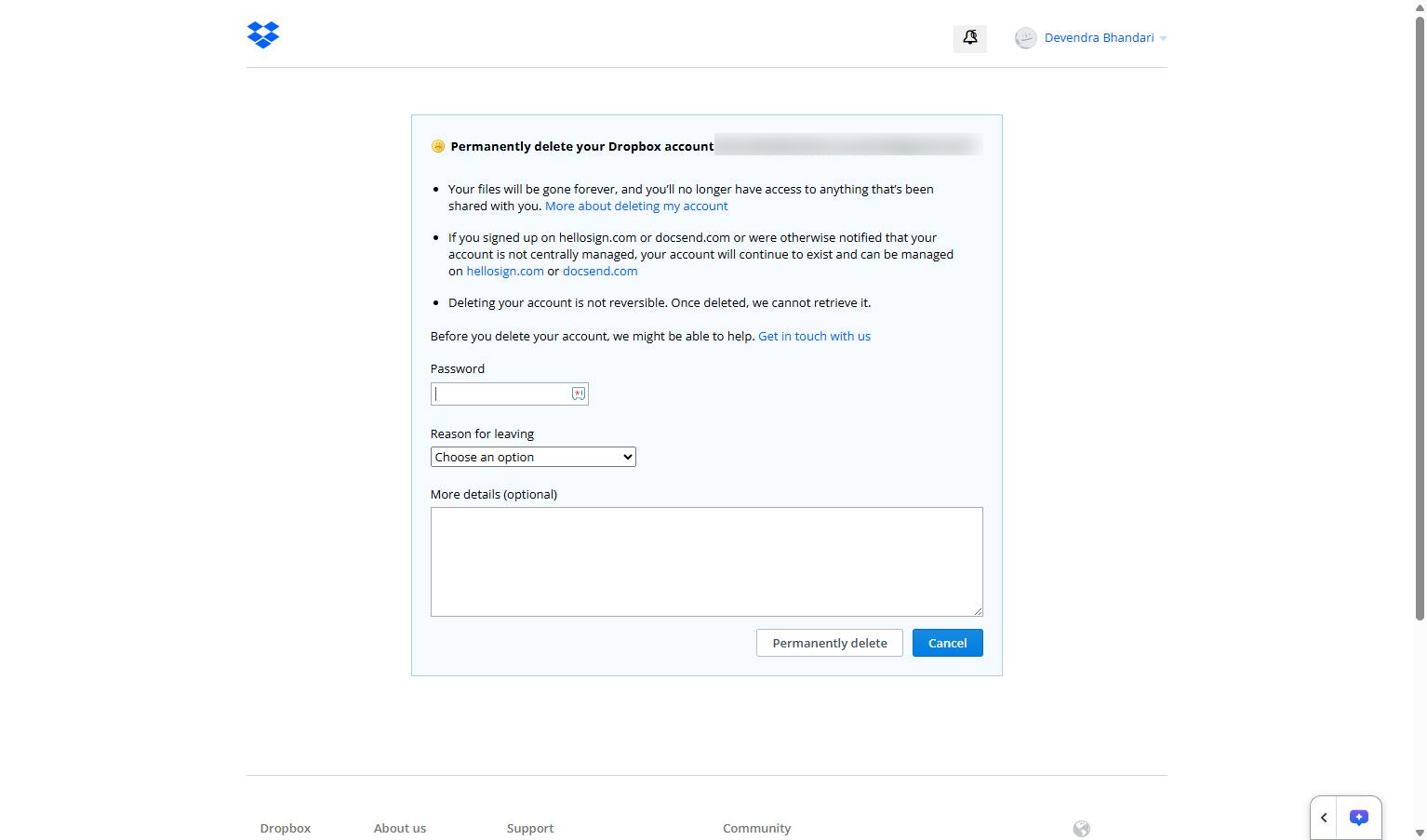
Click the Password input field on the account deletion form to enter your current password.
Click the Reason for leaving dropdown menu to select why you are deleting your account.
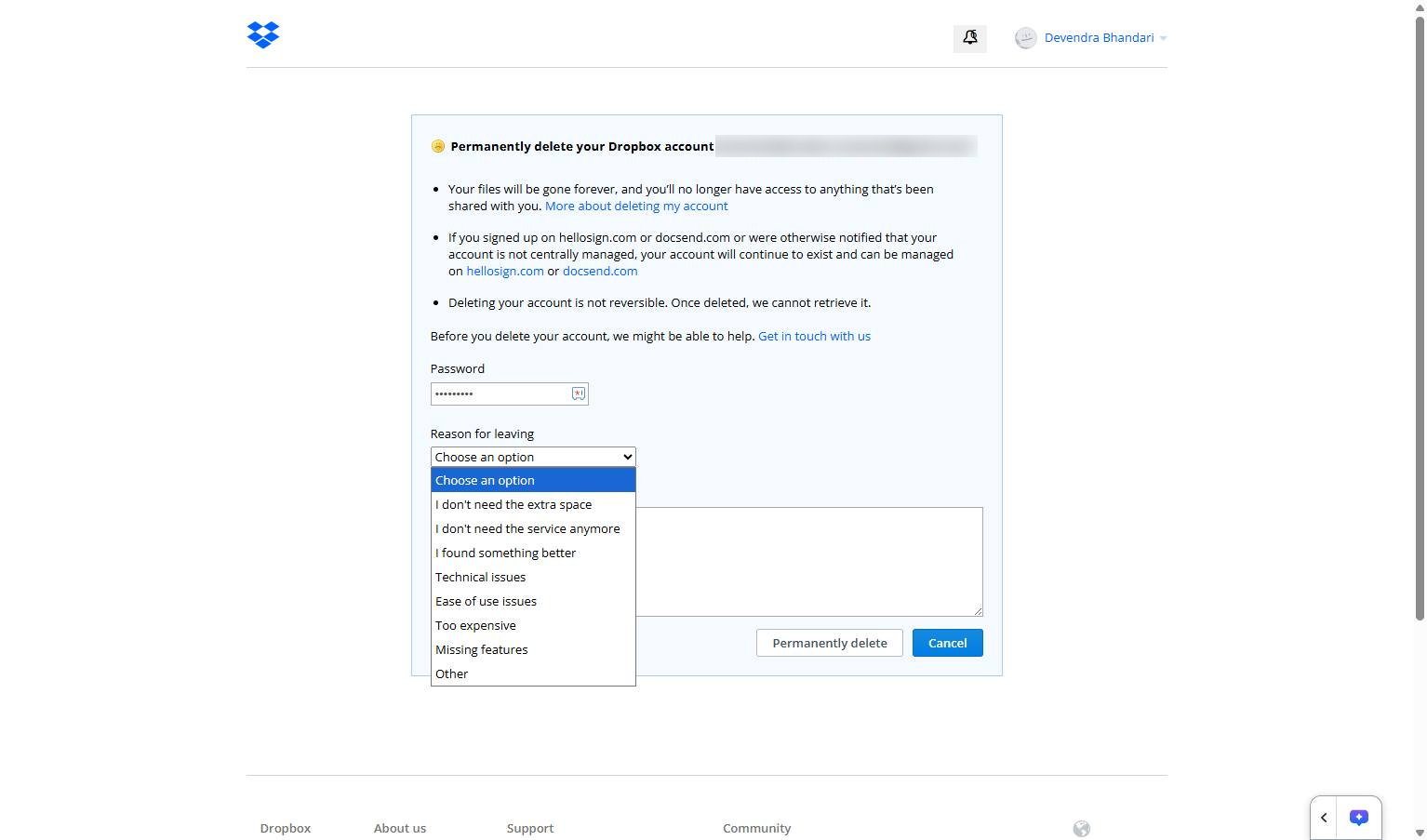
Click the "Reason for leaving" dropdown menu to select a reason for deleting your account.
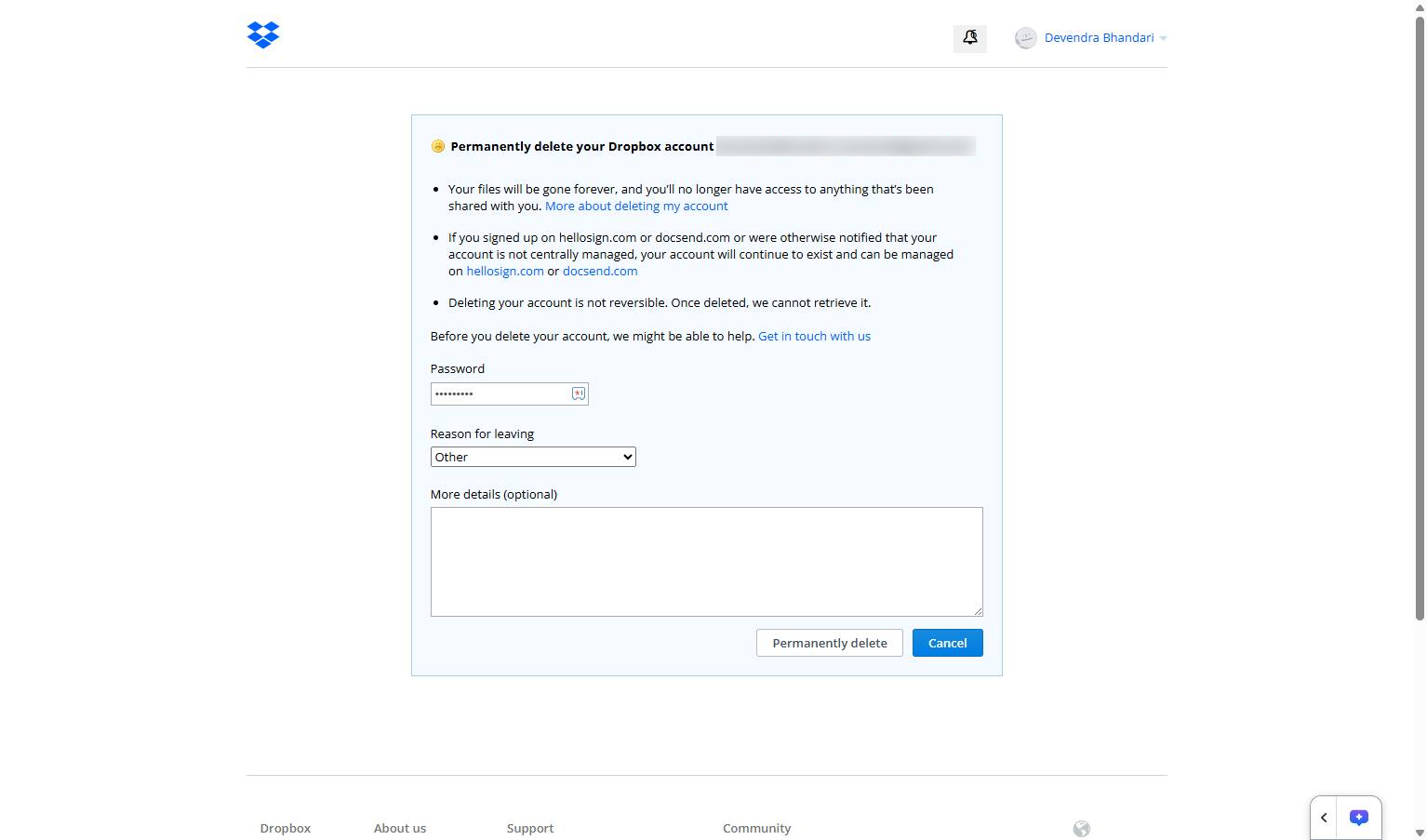
Click the "Permanently delete" button at the bottom of the form to finalize the removal of your account.
Duplicate this template, swap in your own screens, and share it with your team. Free to start — no credit card.
Fill out the form and we'll get back to you as soon as possible.
Tell us about your team and we'll find the right plan together.