1
Navigate to the Amazon homepage
Open the Amazon homepage to begin the process of creating and sharing a custom wish list.
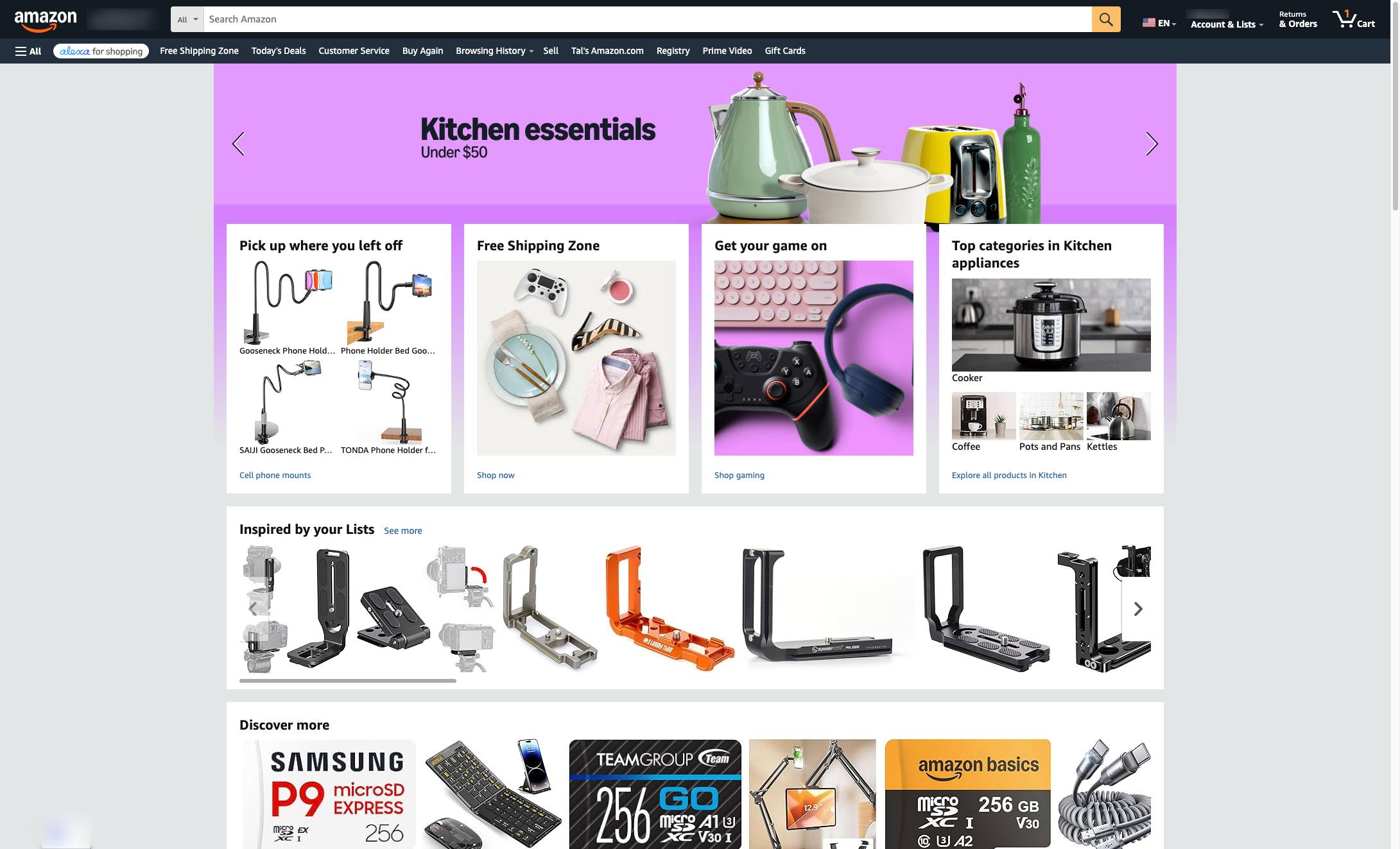

In this tutorial, you will learn how to create a new Wish List on Amazon.com. Follow these steps to name your list, set sharing preferences, and copy a direct link to easily share your desired items with others.
Open the Amazon homepage to begin the process of creating and sharing a custom wish list.
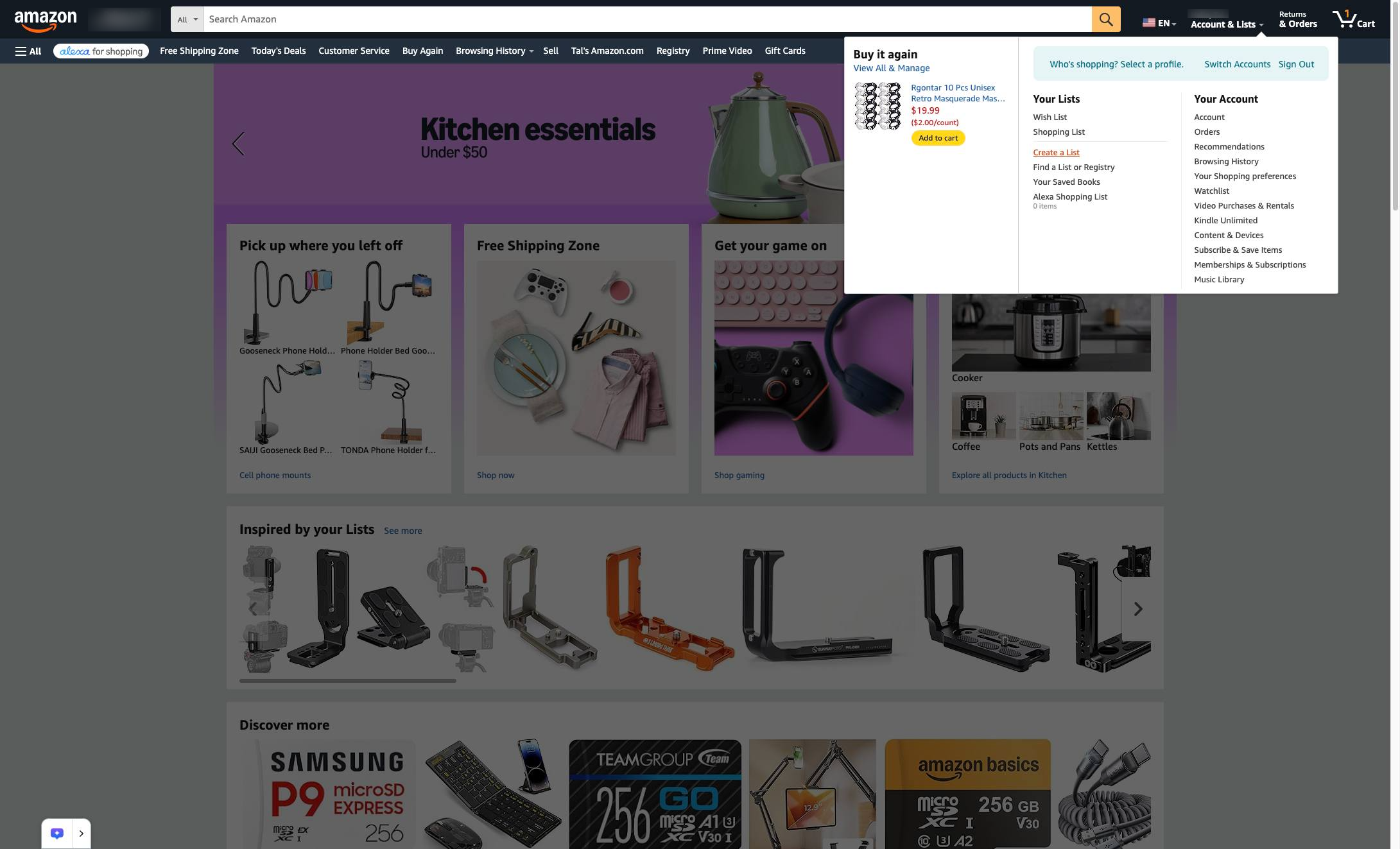
Click the Create a List option in the Account & Lists dropdown menu to start making a new wish list.
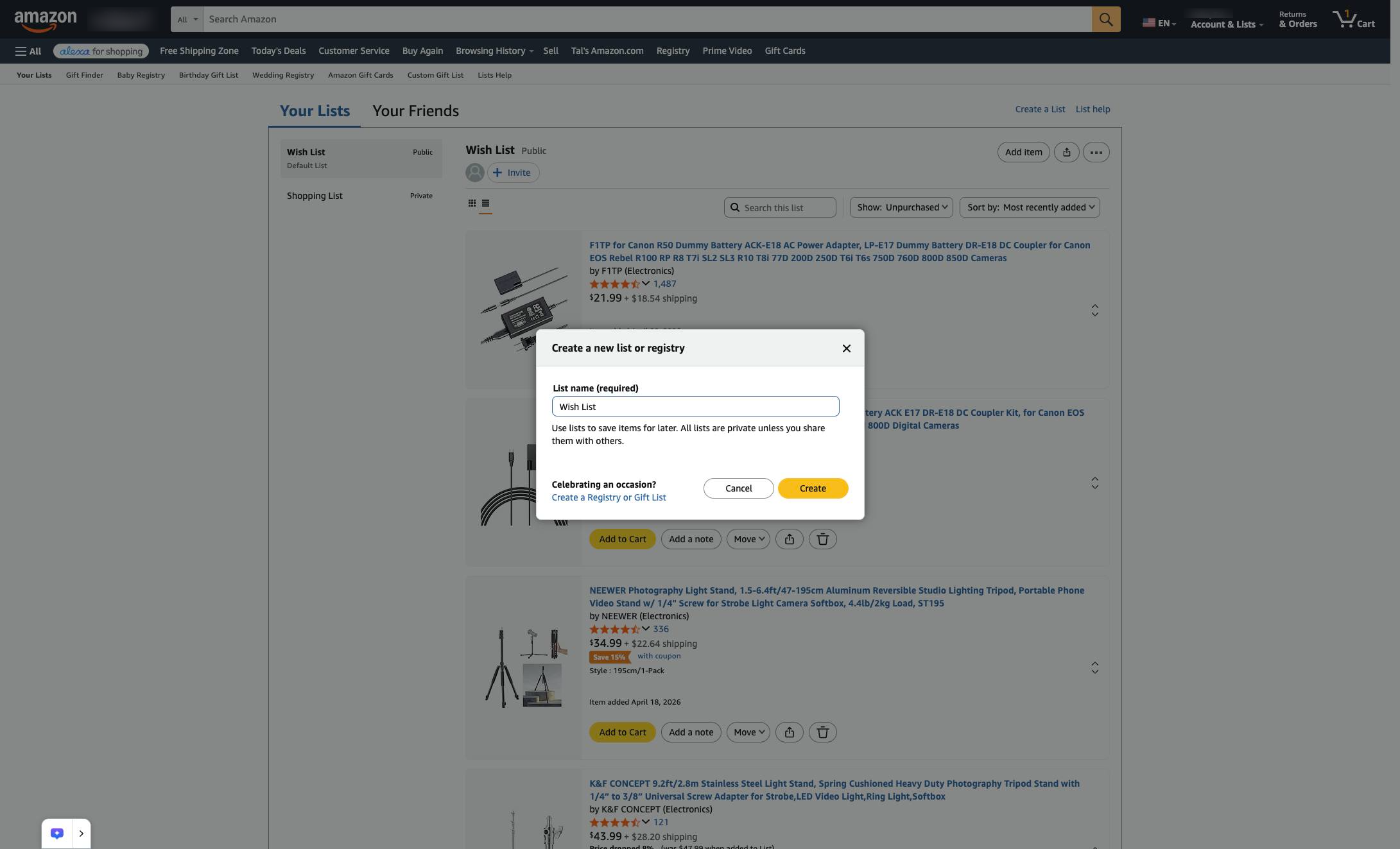
Click the List name field in the Create a list pop-up to specify a name for your new wish list.
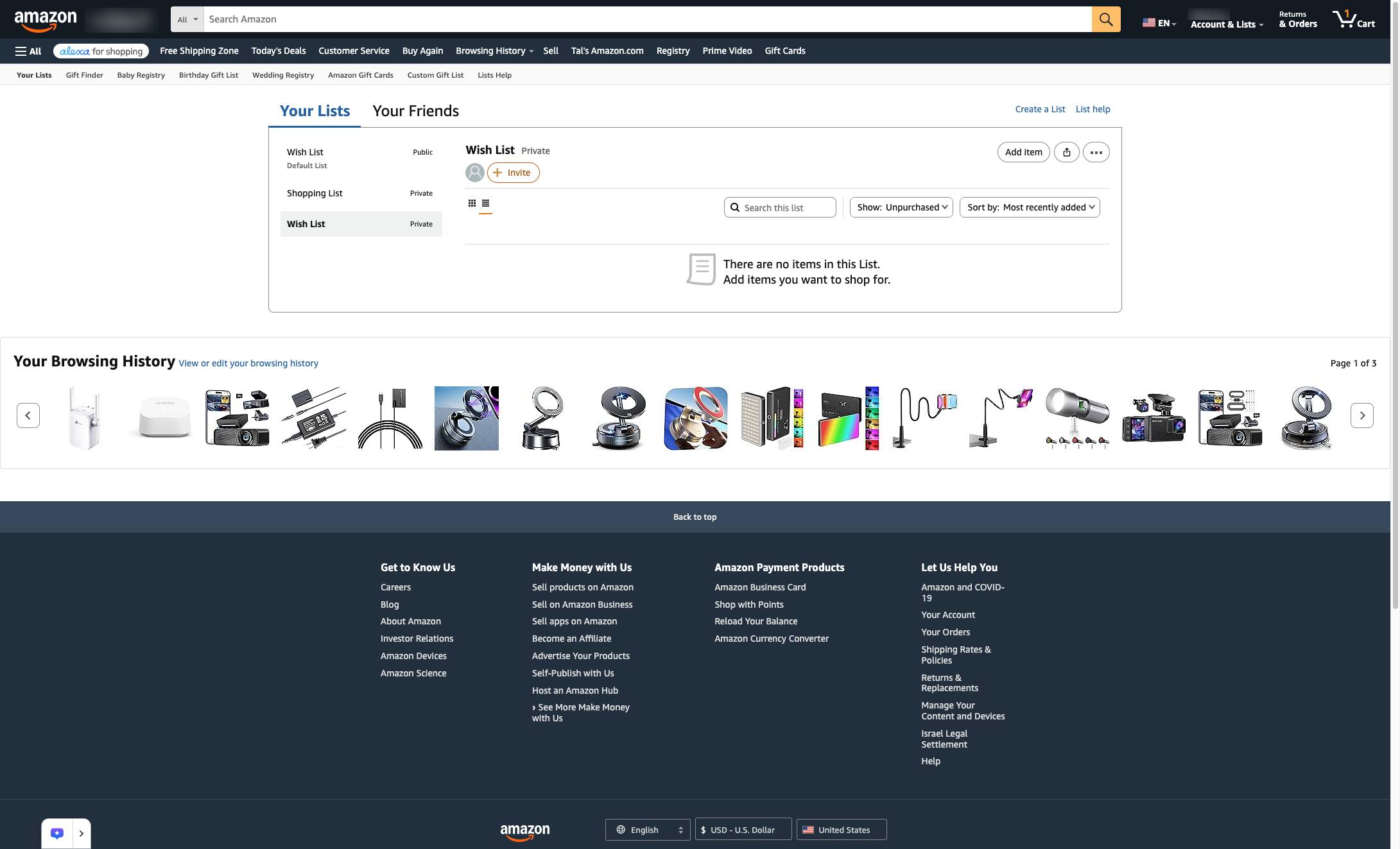
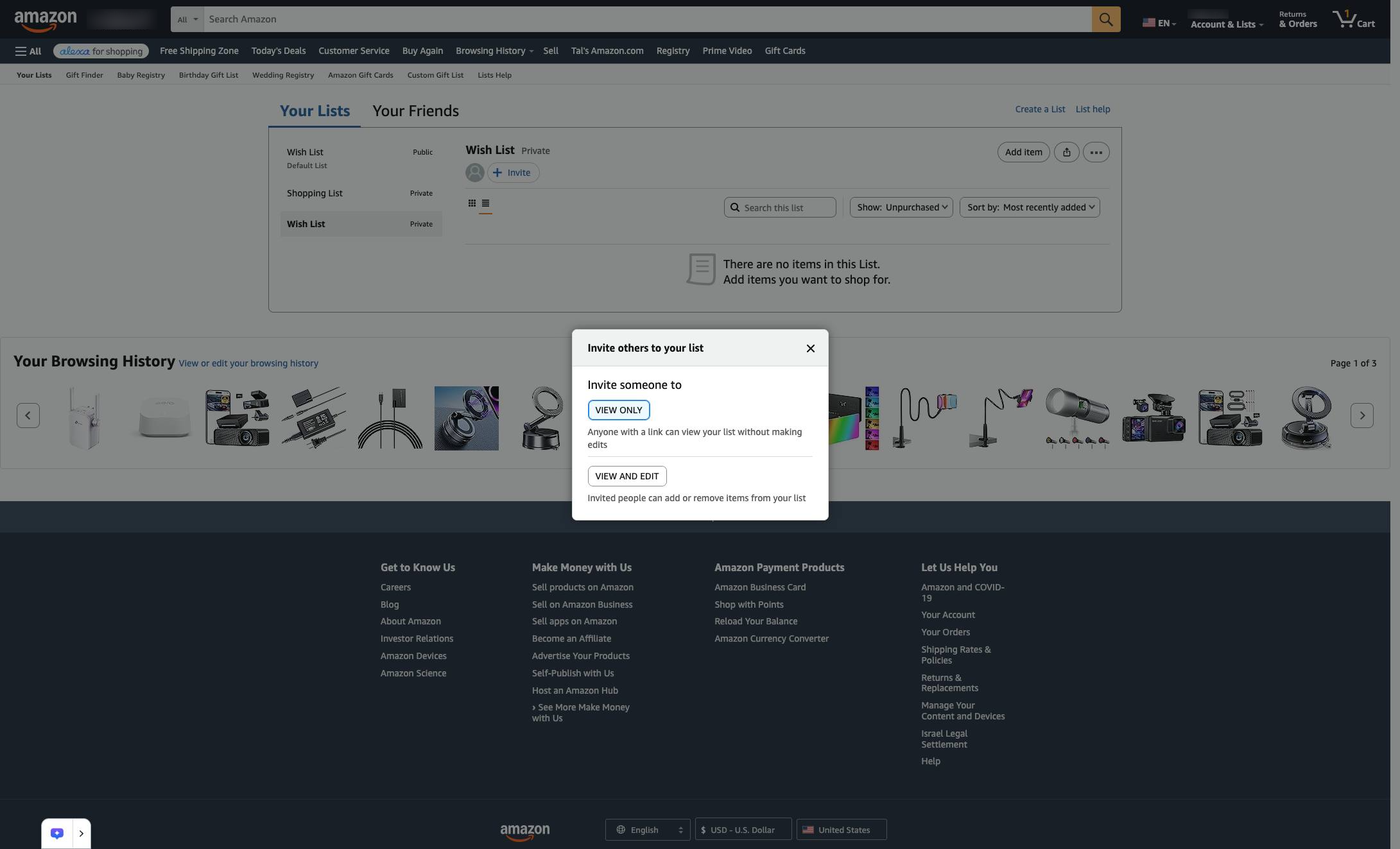
Click the Invite button below the list title to open options for sharing your wish list with other people.
Select this option in the Manage Access window to allow invited people to see and change items on your list.
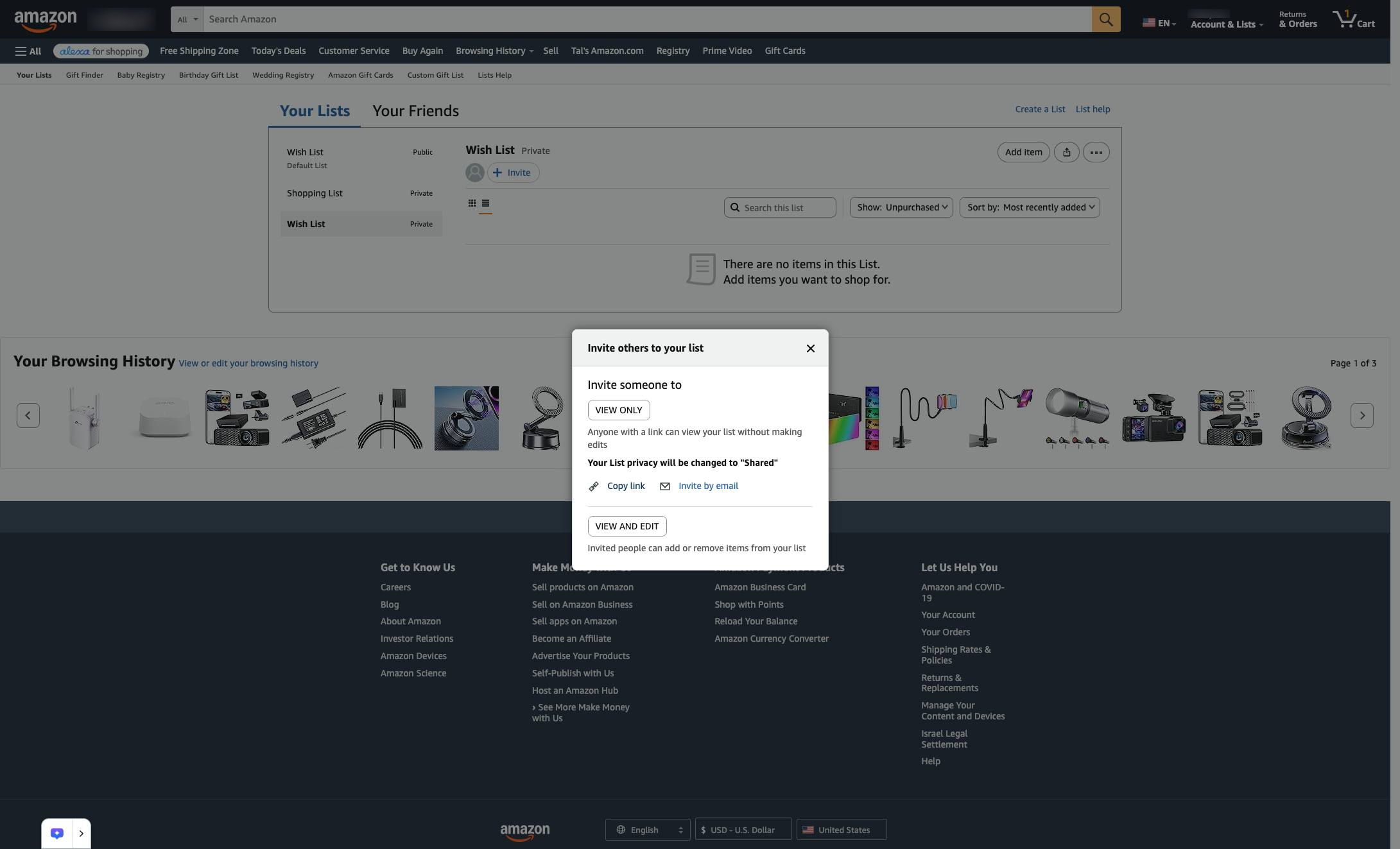
Select this option in the Share your list modal to copy the URL of the wish list to your clipboard.
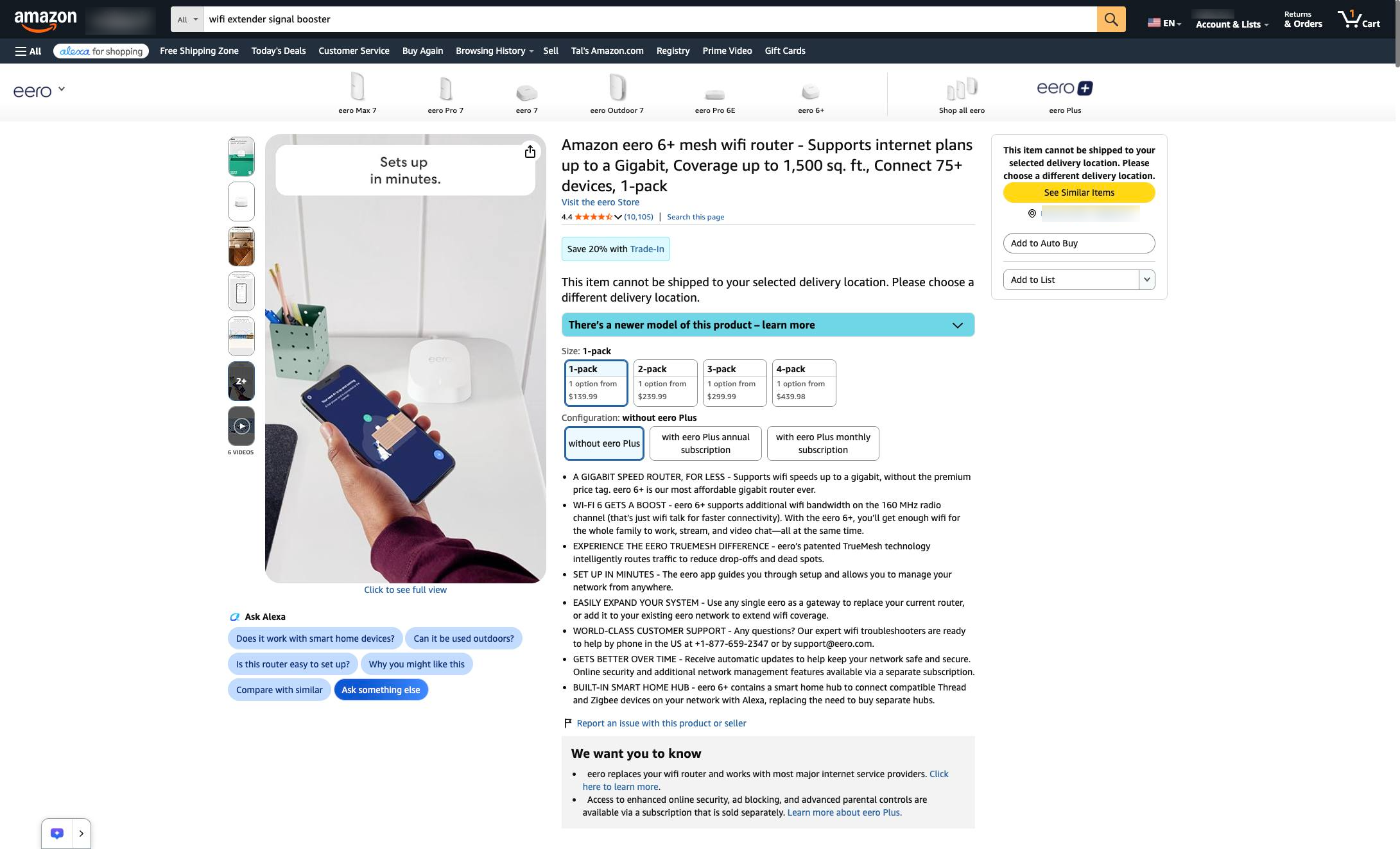
Now when you are browsing on Amazon, you can easily add items to your wish list.
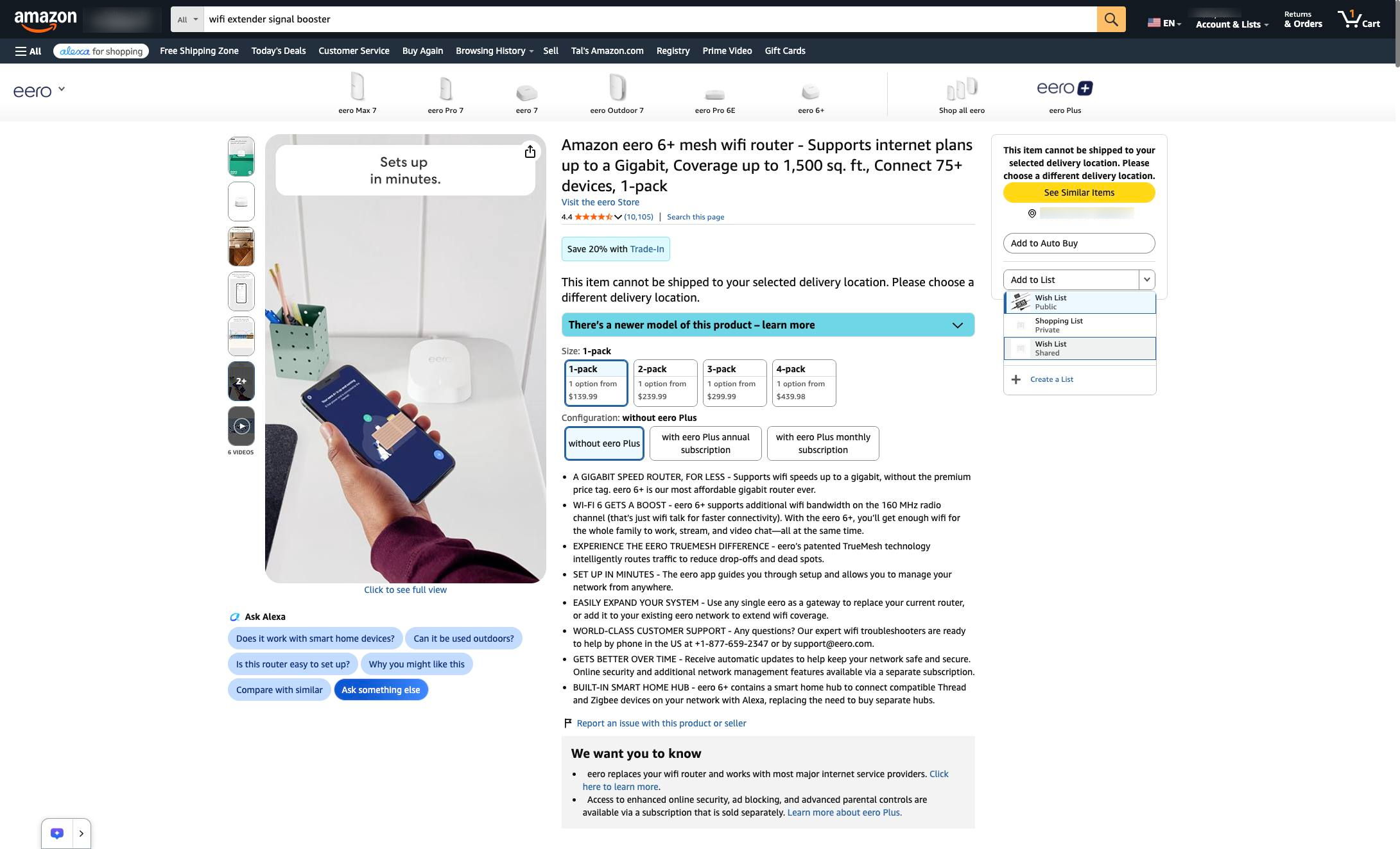
Click the downward-facing arrow next to the "Add to List" button on the right side of the page to view your wish lists.
Click the "Wish List Shared" option in the dropdown menu to add the item to that specific list.
The product has now been added to your wish list! The list will be updated for anyone who has the link
Duplicate this template, swap in your own screens, and share it with your team. Free to start — no credit card.
Fill out the form and we'll get back to you as soon as possible.
Tell us about your team and we'll find the right plan together.