1
Navigate to your Salesforce account.
Navigate to your Salesforce account.

This guide will show you how to create a Salesforce opportunity for your account.
Navigate to your Salesforce account.
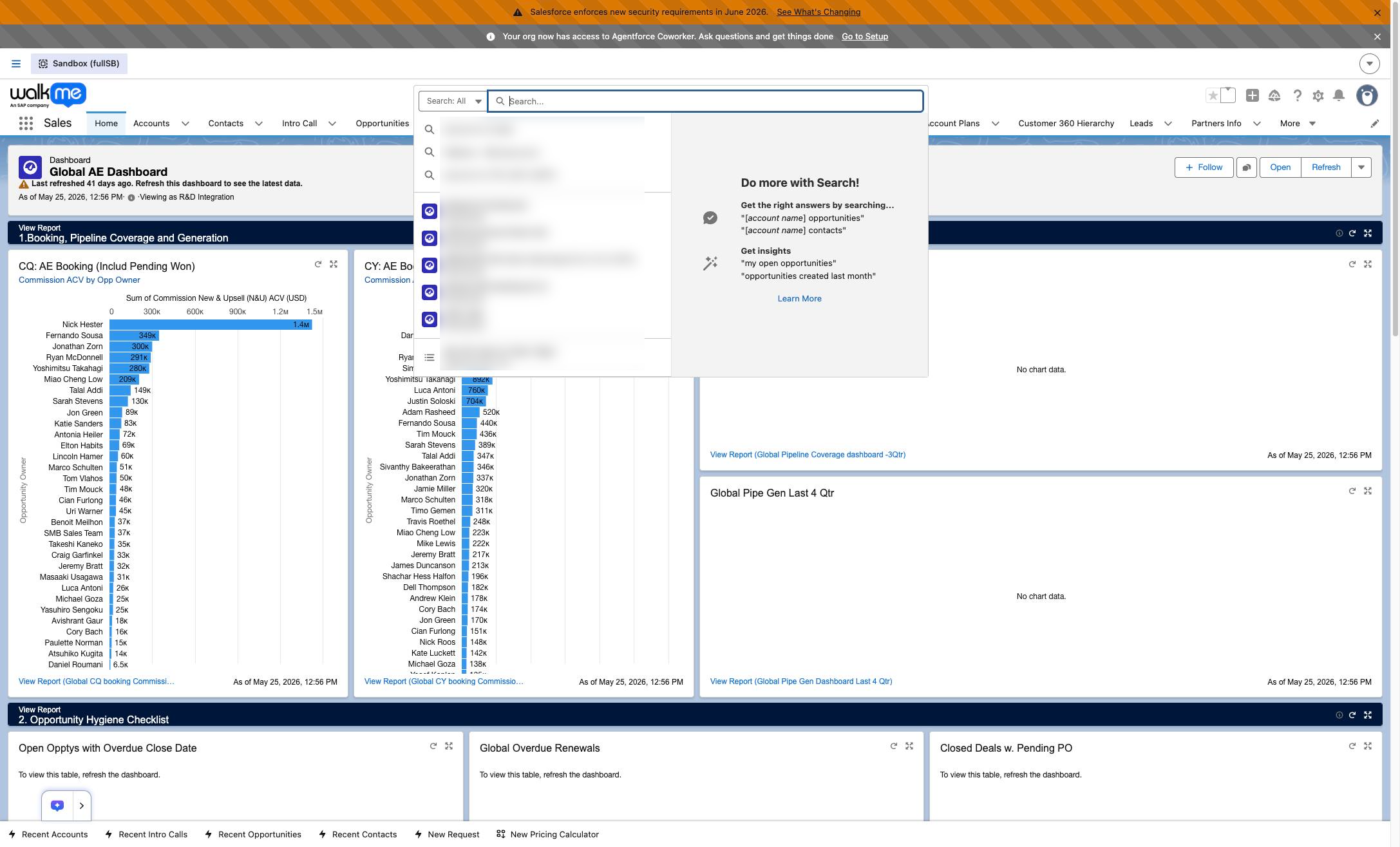
Click the Search input field at the top of the page to find records or information.
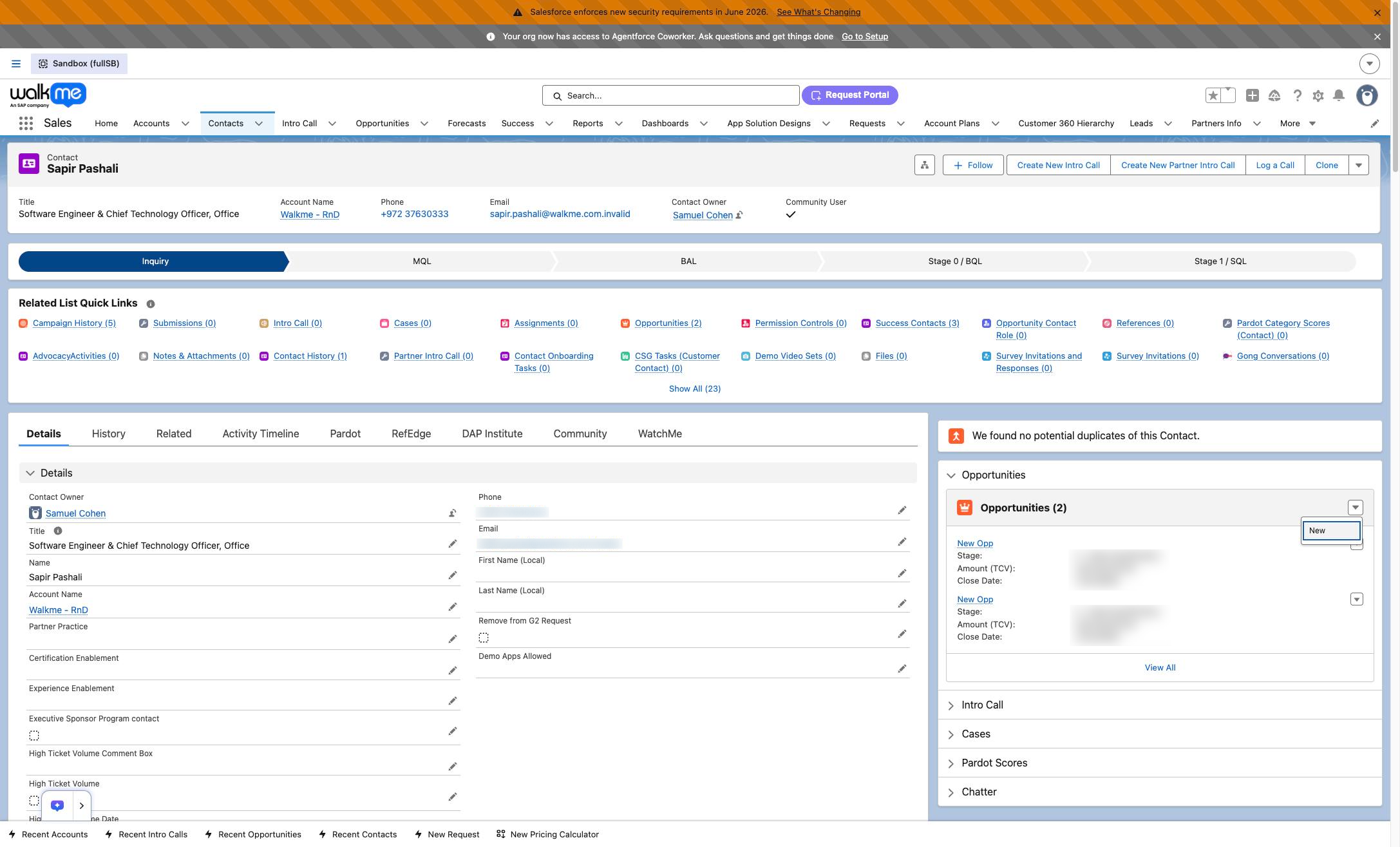
Click the "New" option in the Opportunities section dropdown menu to start creating a new opportunity.
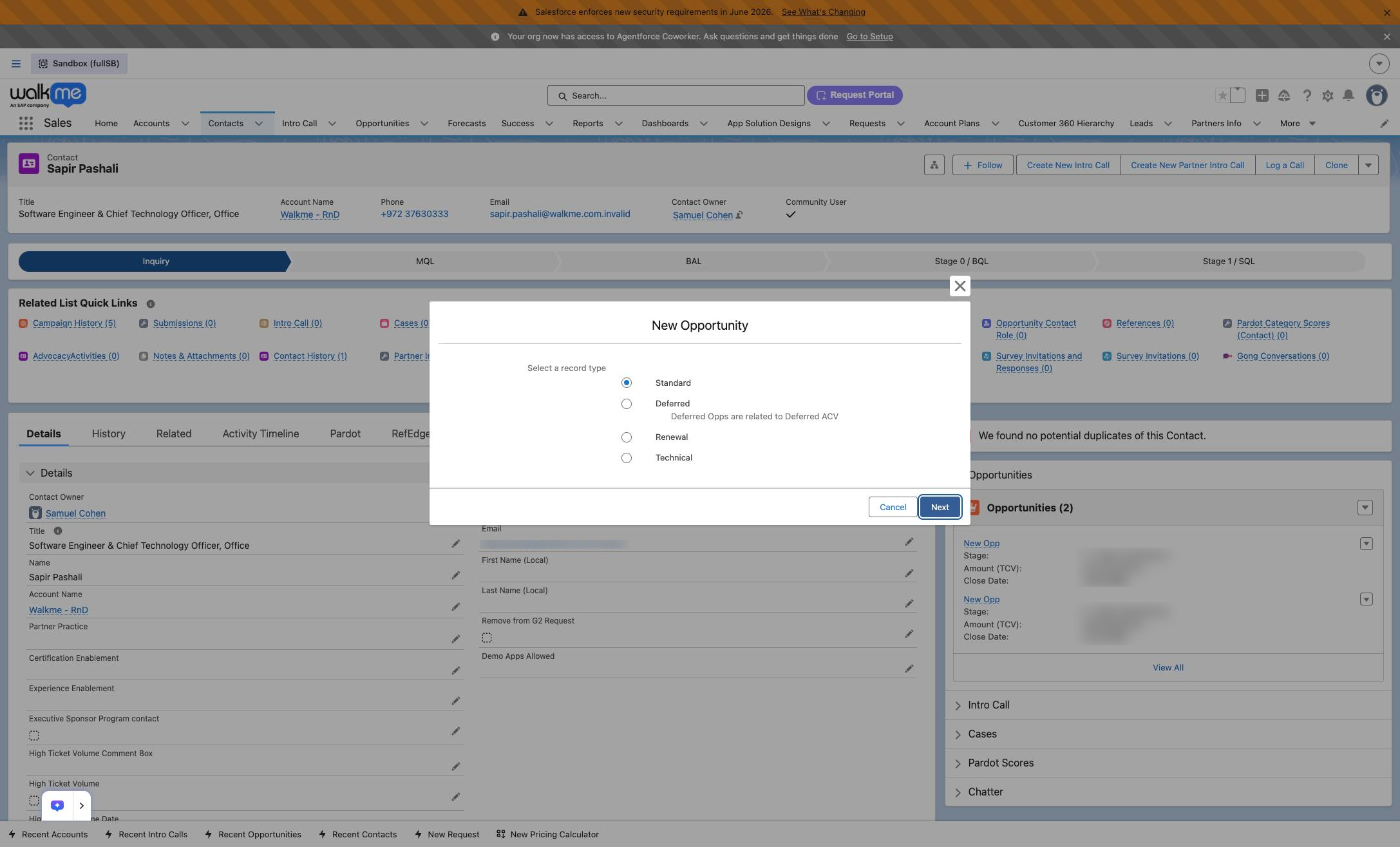
Click the Next button at the bottom of the New Opportunity modal to proceed.
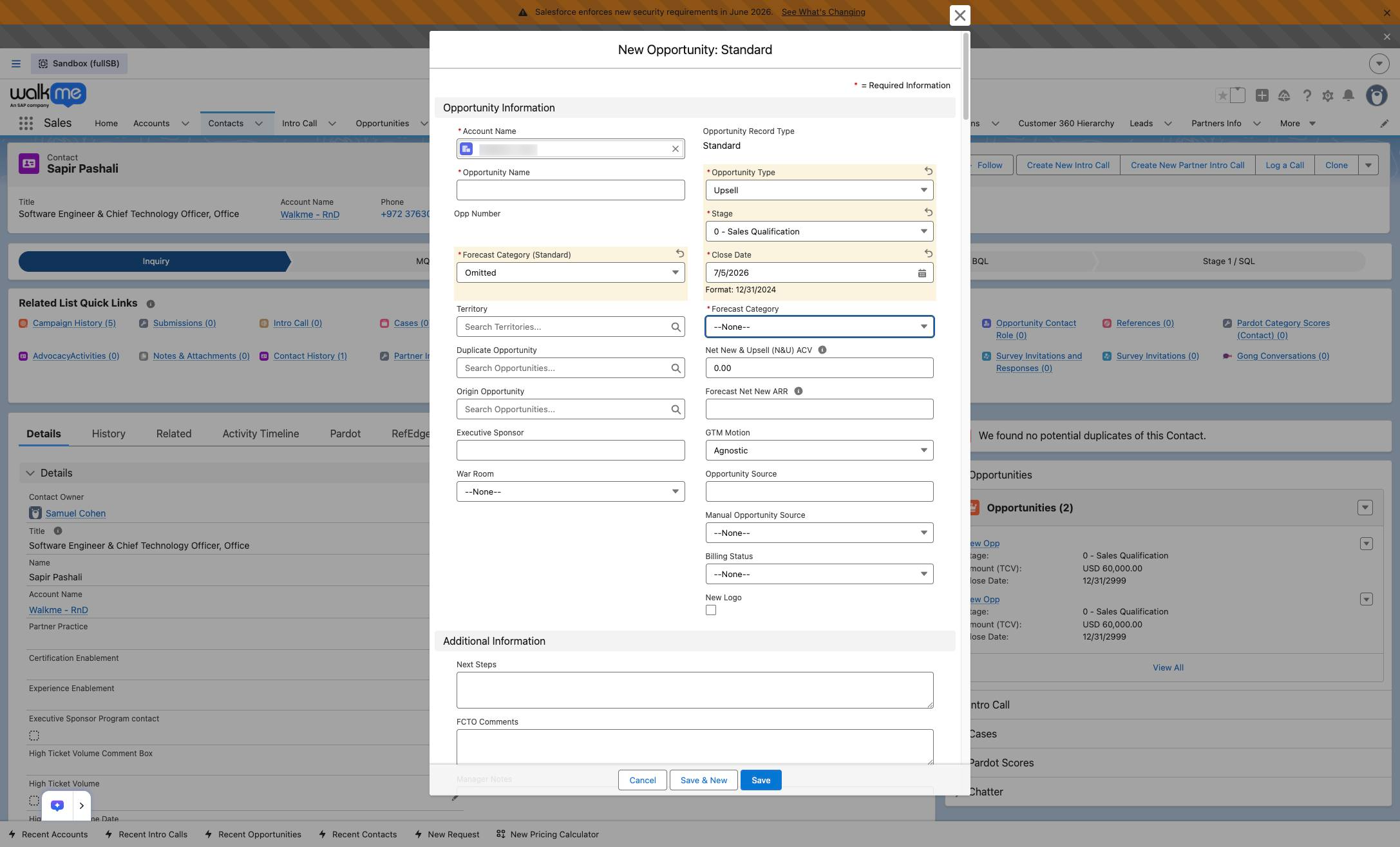
Your salesforce opportunity structure might be different than what is shown below. Please fill our the opportunity fields your company uses, below is just an example.
Fill in the necessary Opportunity information.
Click the Opportunity Name text box in the New Opportunity modal to enter a name for the deal.
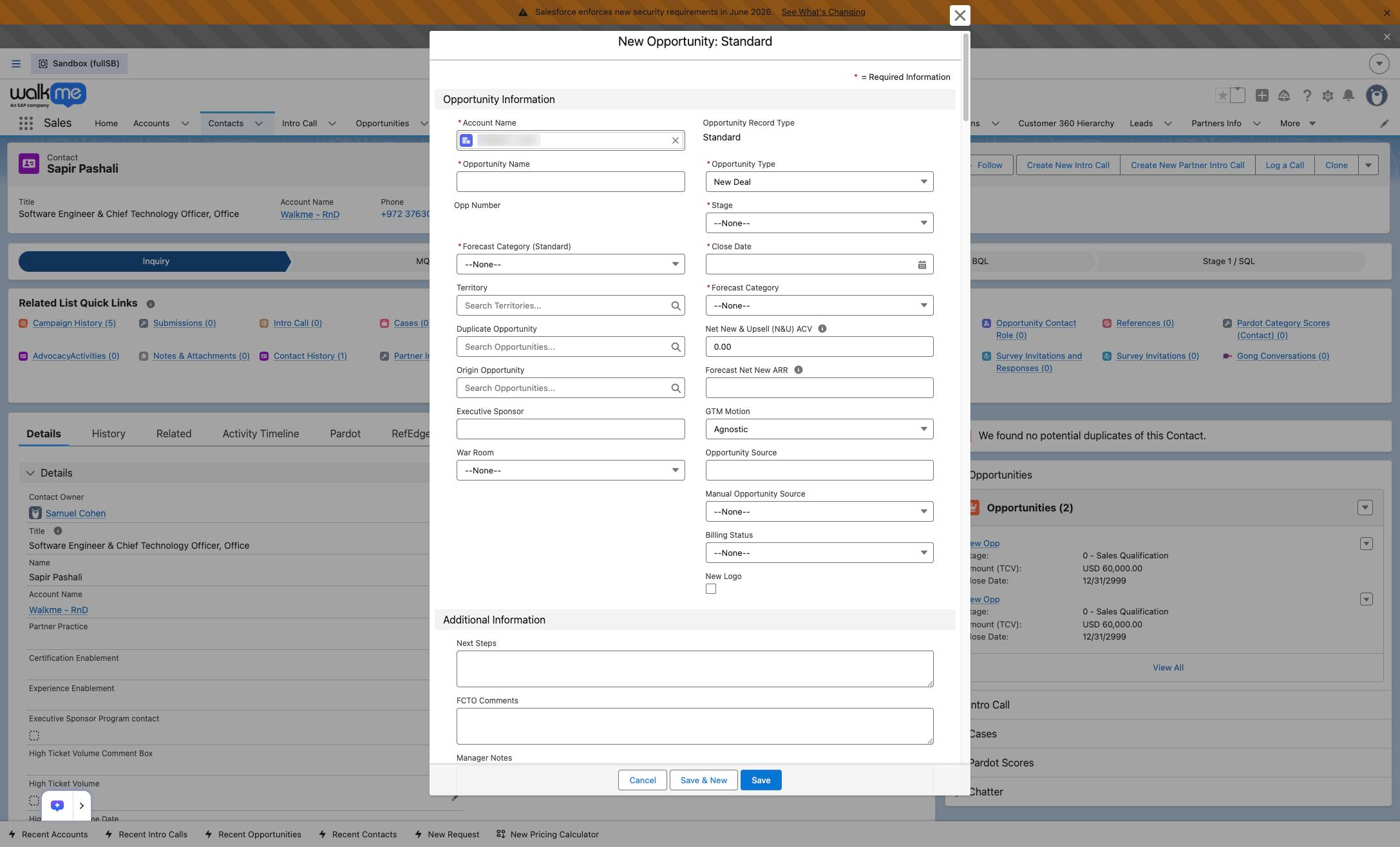
Click the Opportunity Name input field in the Opportunity Information section to enter a name for the new opportunity.
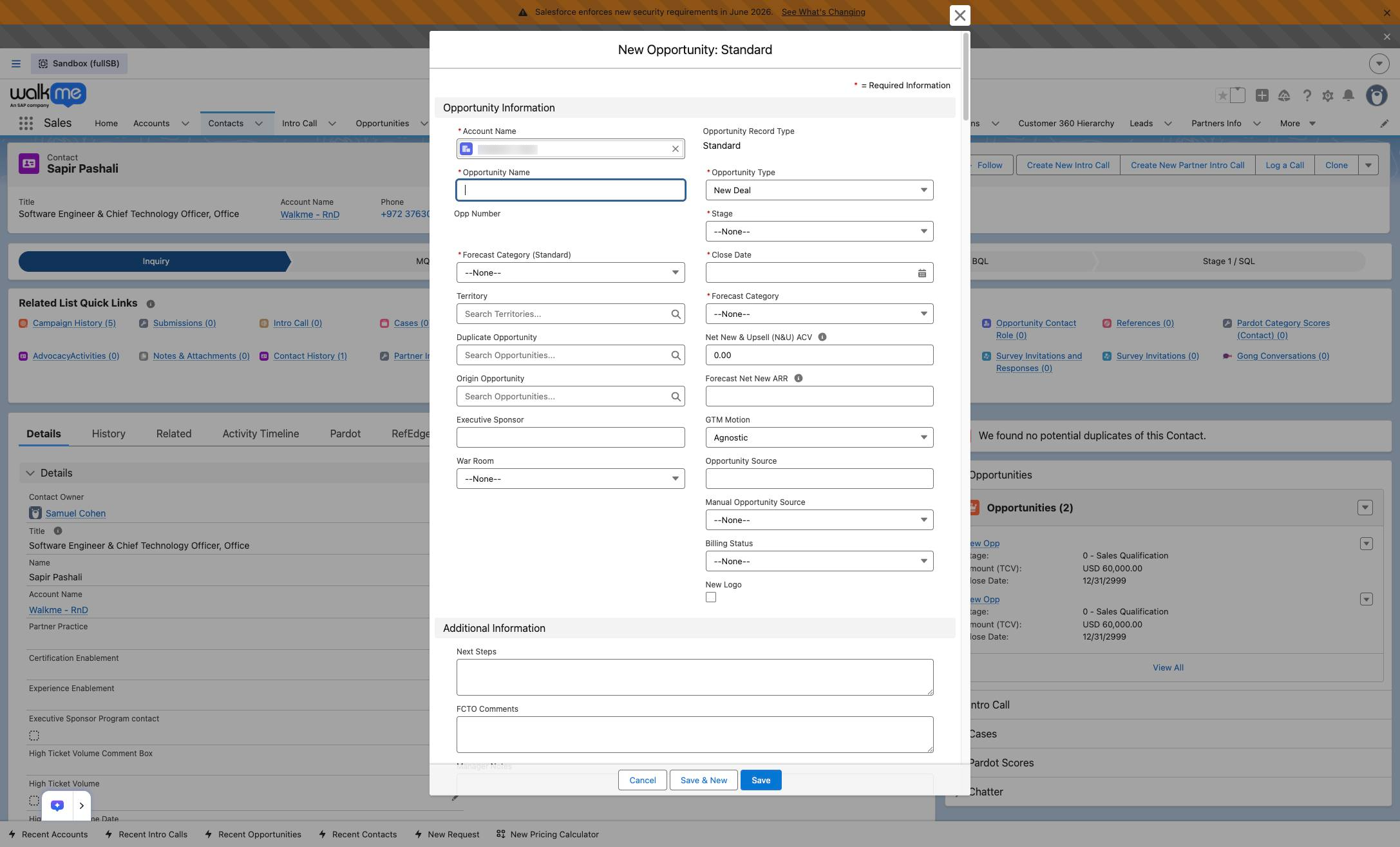
Click the Opportunity Type dropdown in the Opportunity Information section to select the type of deal.
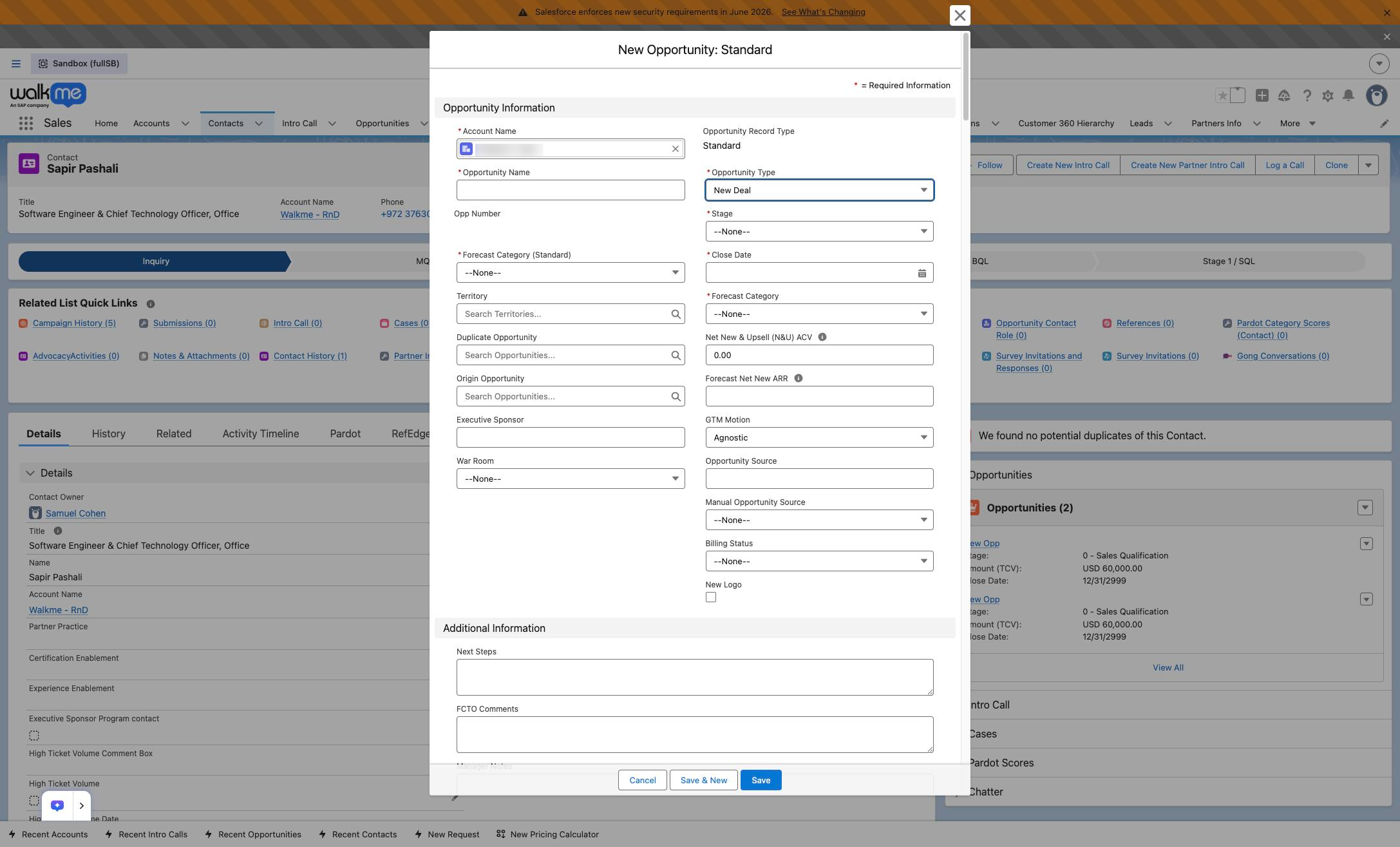
Click the Stage dropdown in the New Opportunity modal to select the current stage of the opportunity.
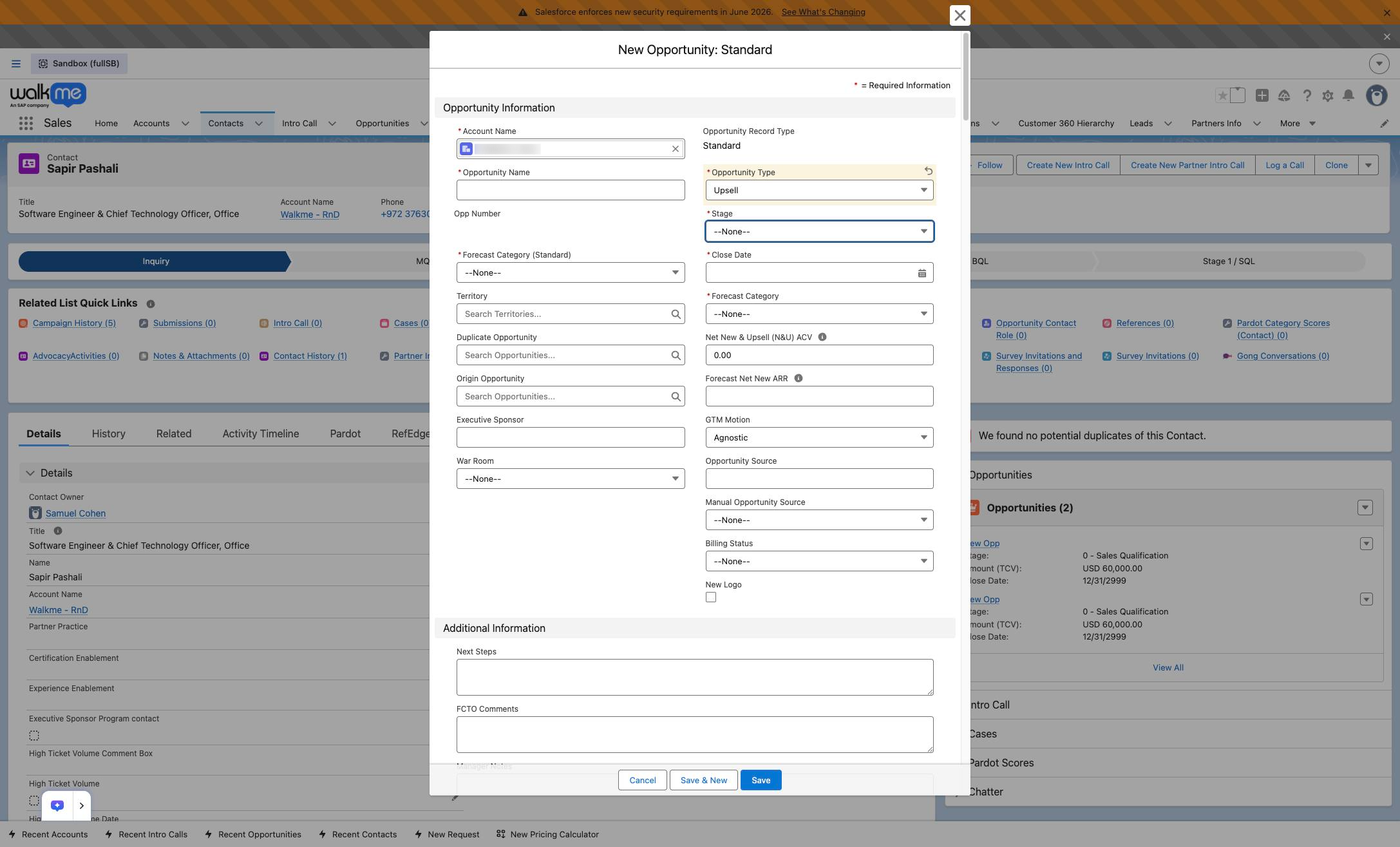
Click the calendar icon in the Close Date field to select a date.
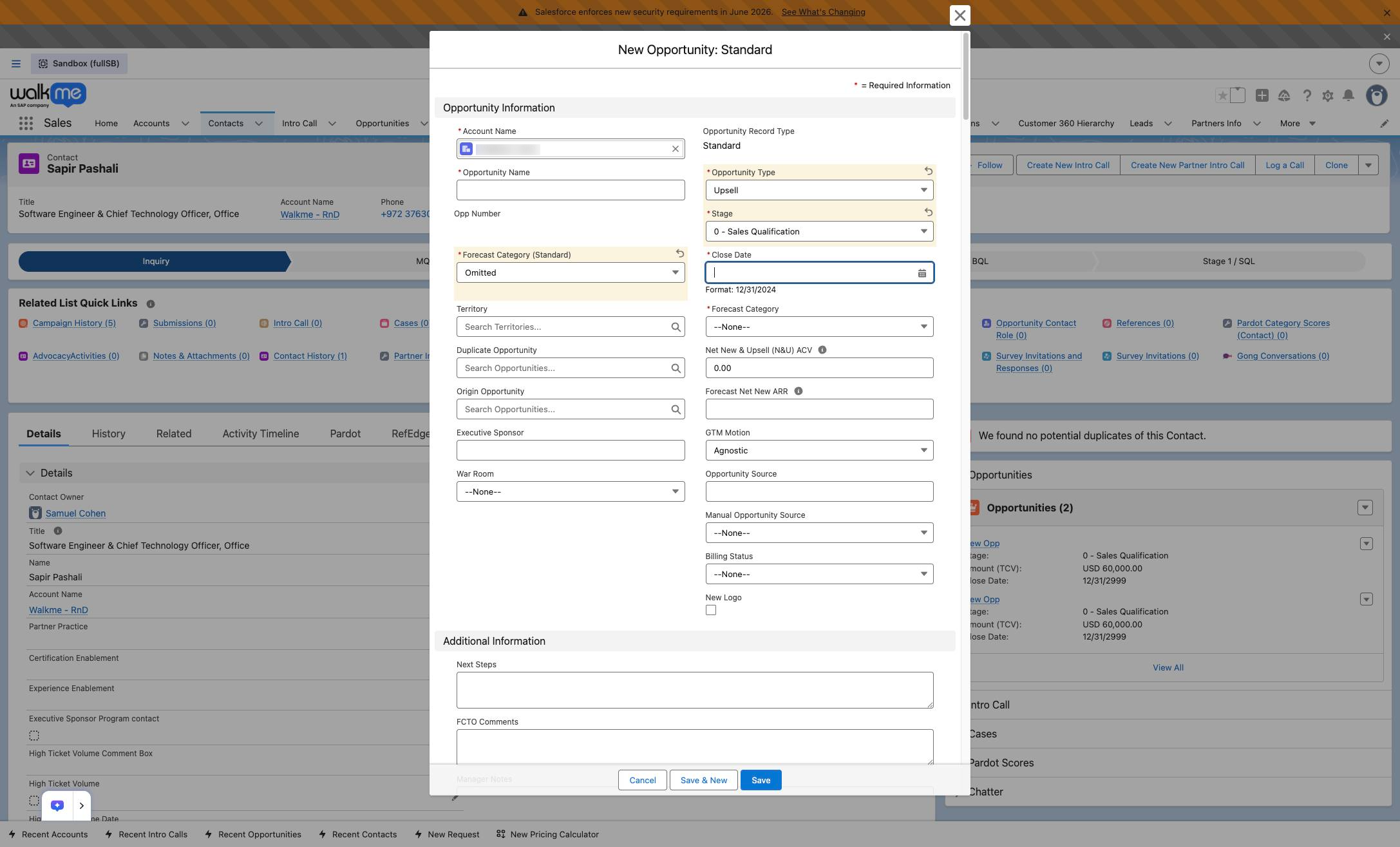
Click the Forecast Category dropdown in the New Opportunity modal to select a category.
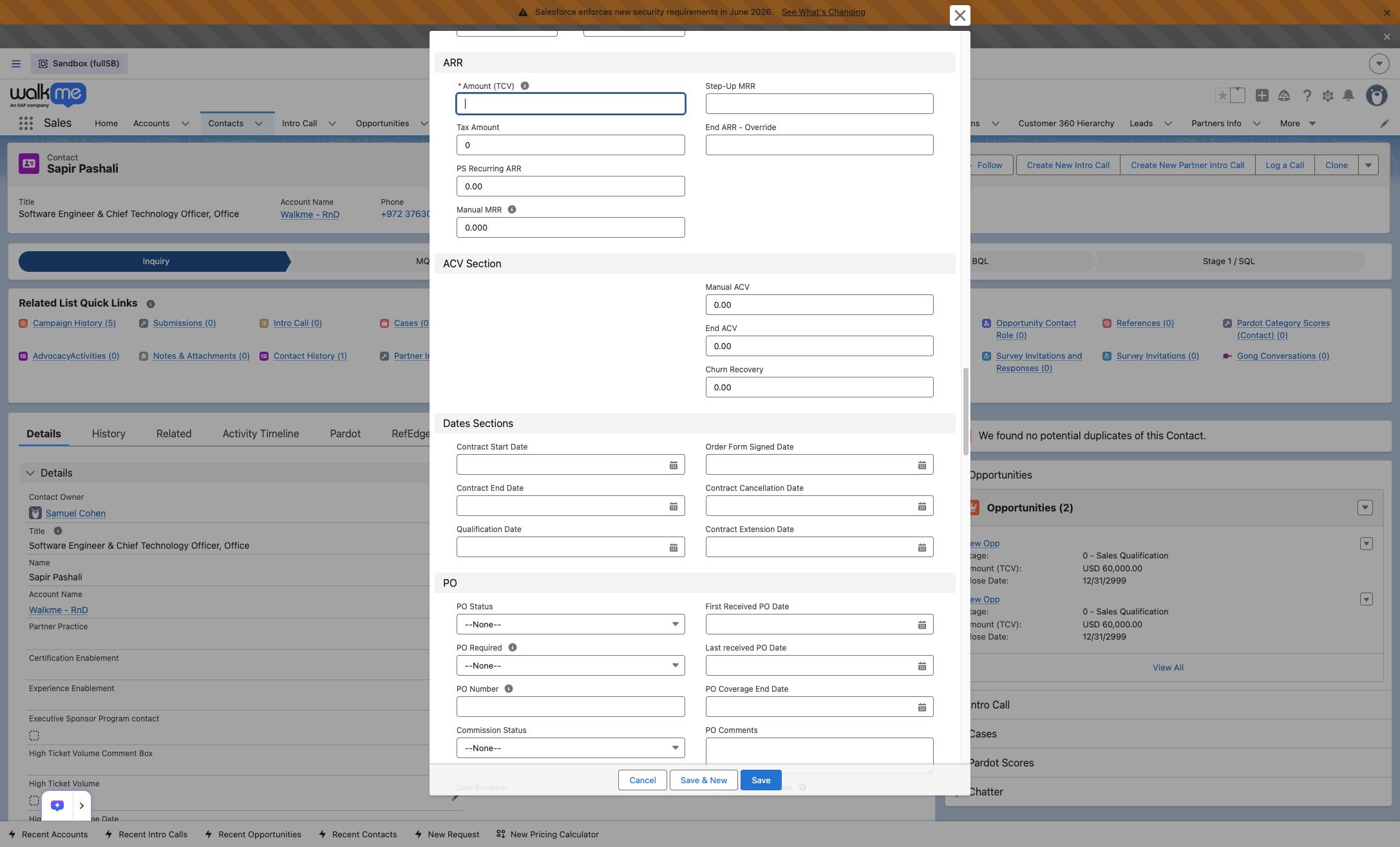
Click the Amount (TCV) input field located in the ARR section of the New Opportunity modal.
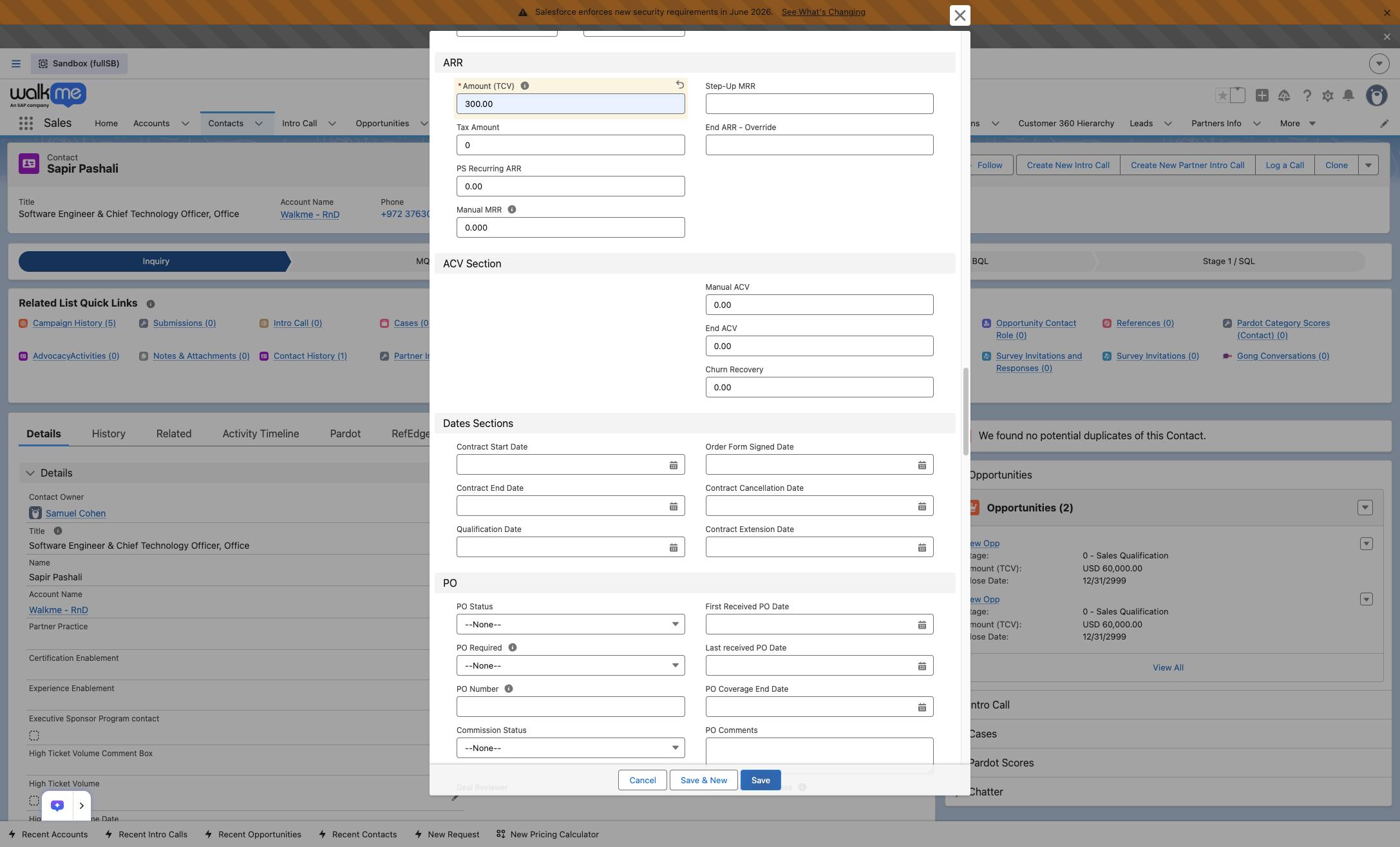
Click the Save button at the bottom of the modal to create the new opportunity.
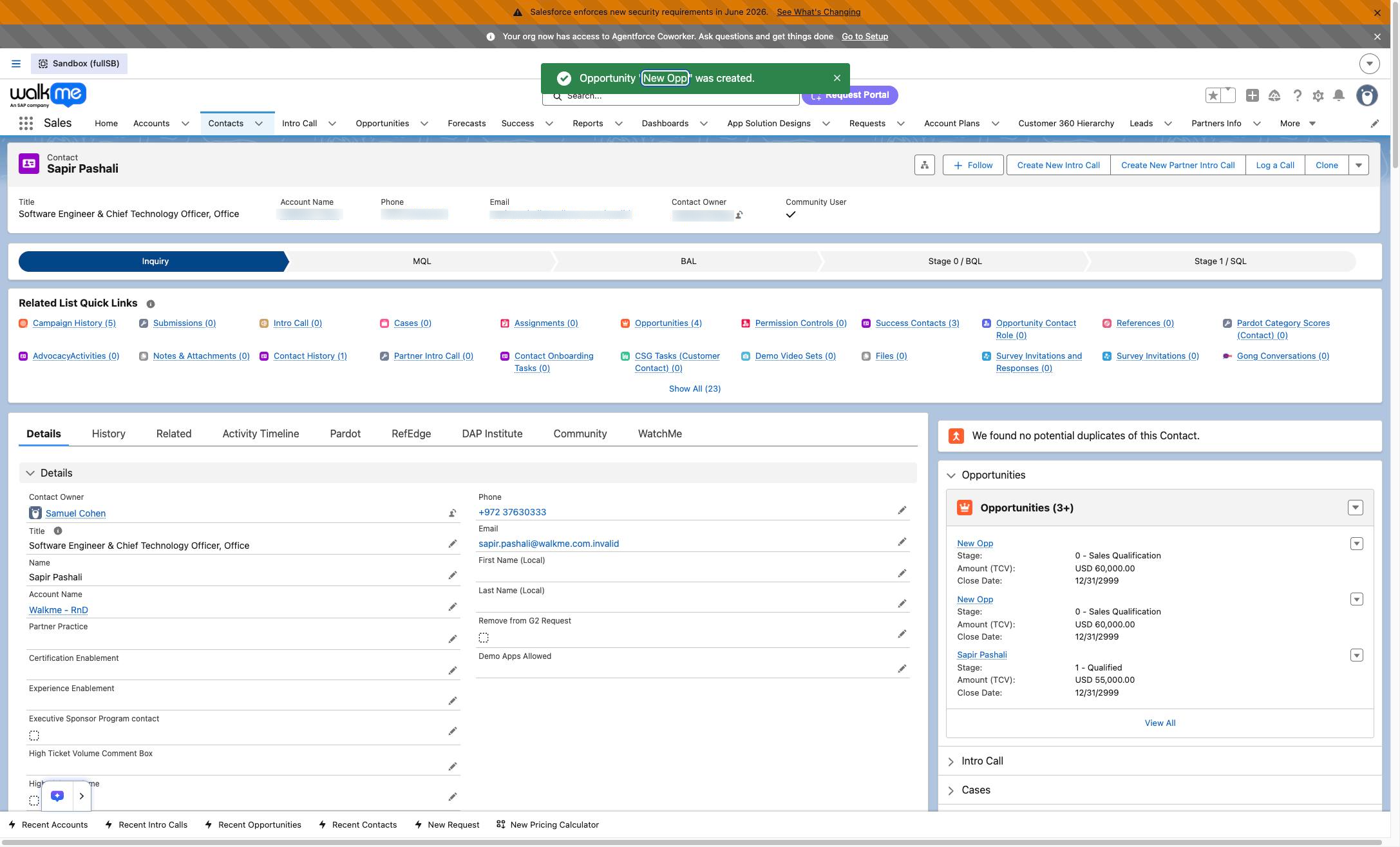
Click the "New Opp" link within the green success banner at the top of the screen to open the newly created opportunity.
Duplicate this template, swap in your own screens, and share it with your team. Free to start — no credit card.
Fill out the form and we'll get back to you as soon as possible.
Tell us about your team and we'll find the right plan together.