1
Select your data
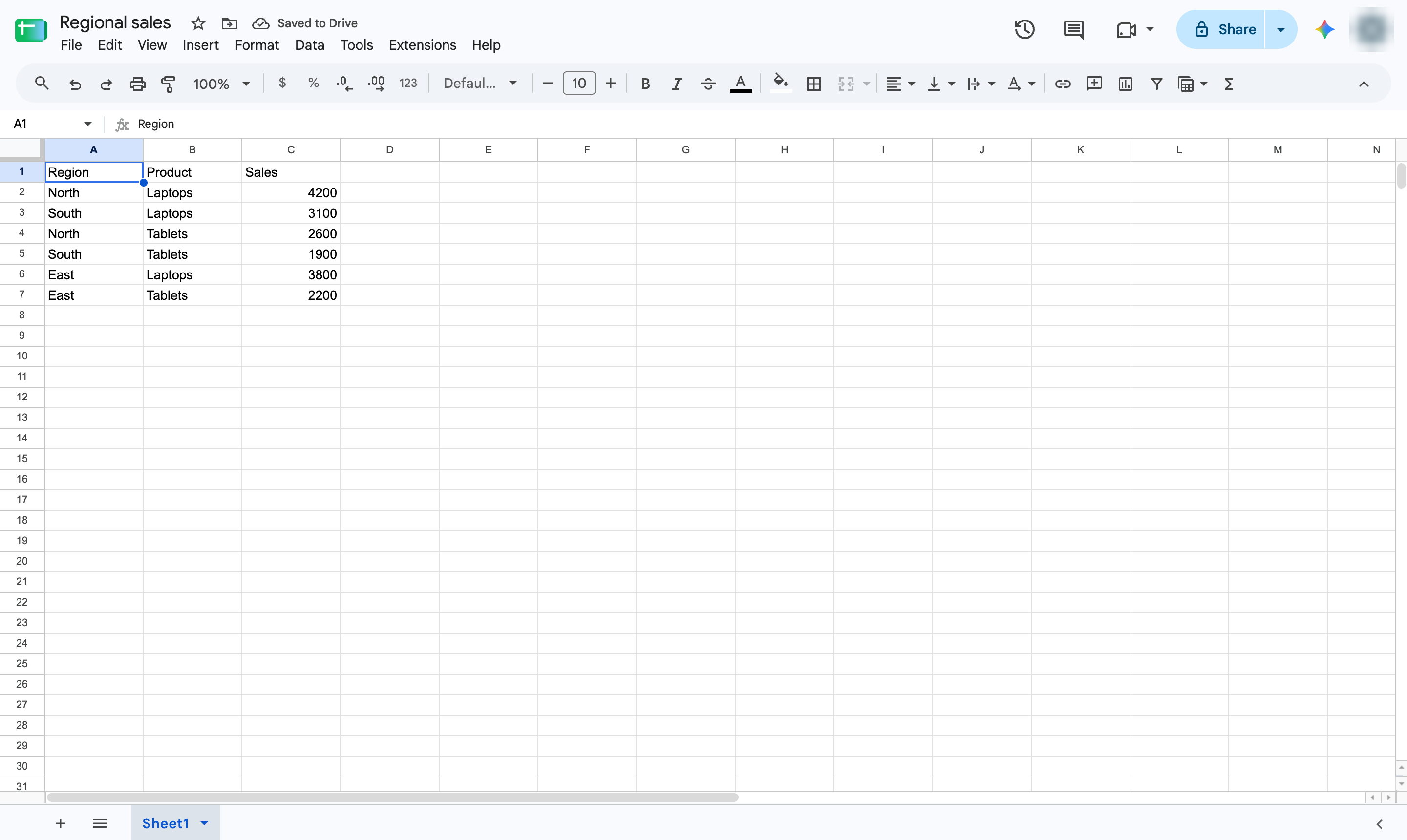
Highlight the table, including its headers.

Summarize a table in seconds: insert a pivot table, then add the fields to group by and total.
Highlight the table, including its headers.
Open the Insert menu.
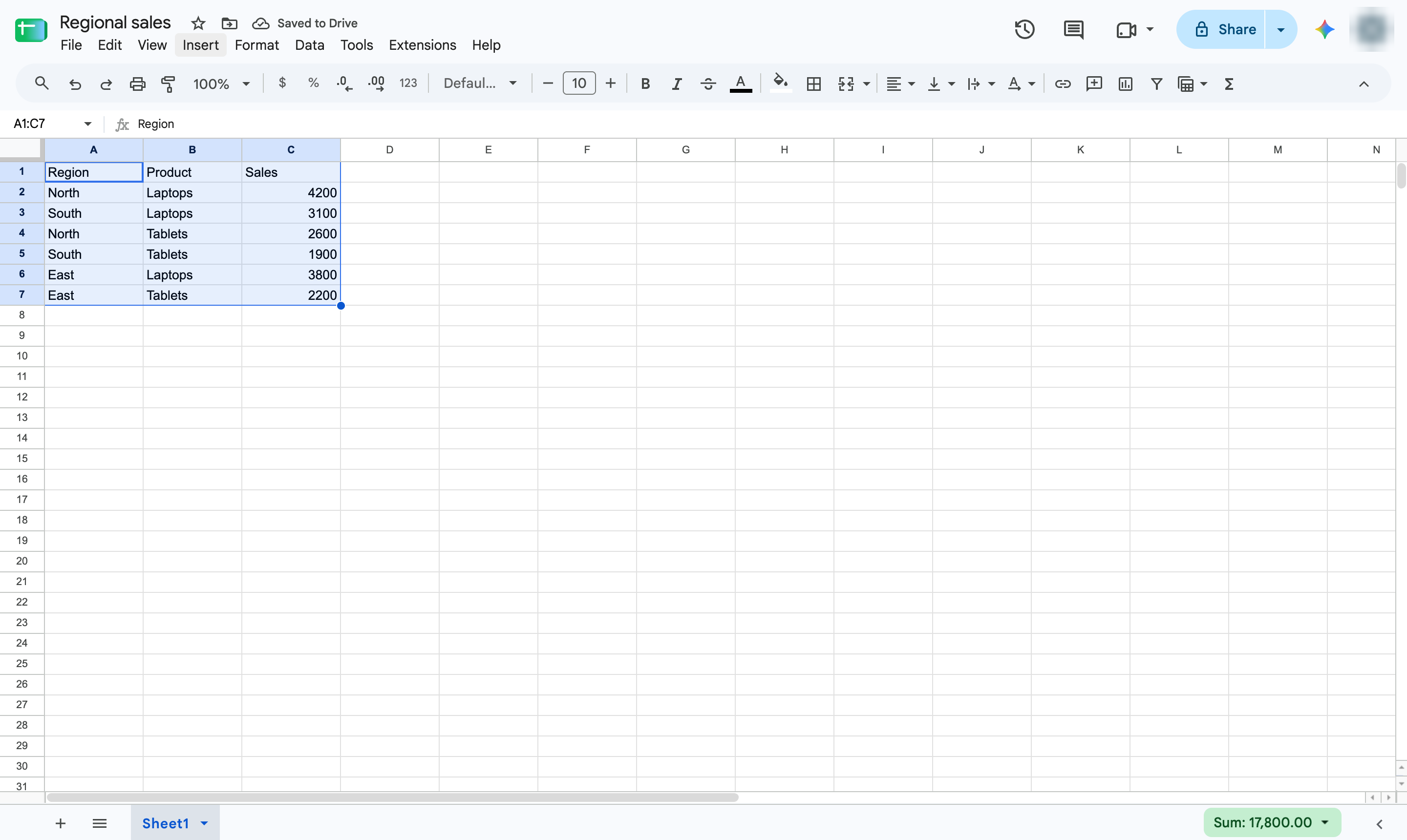
Choose Pivot table.
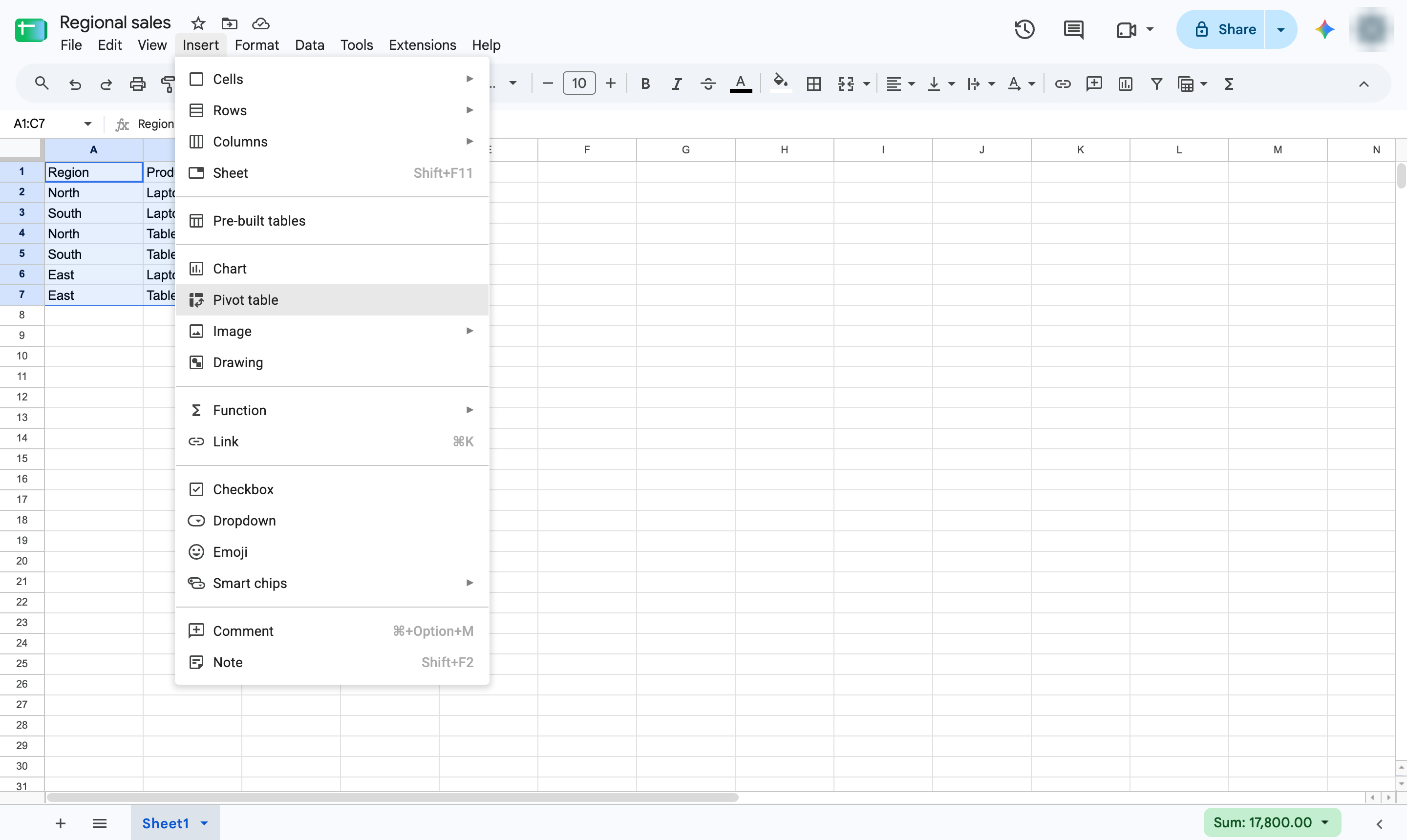
Keep New sheet selected and click Create. The pivot table opens on its own sheet.
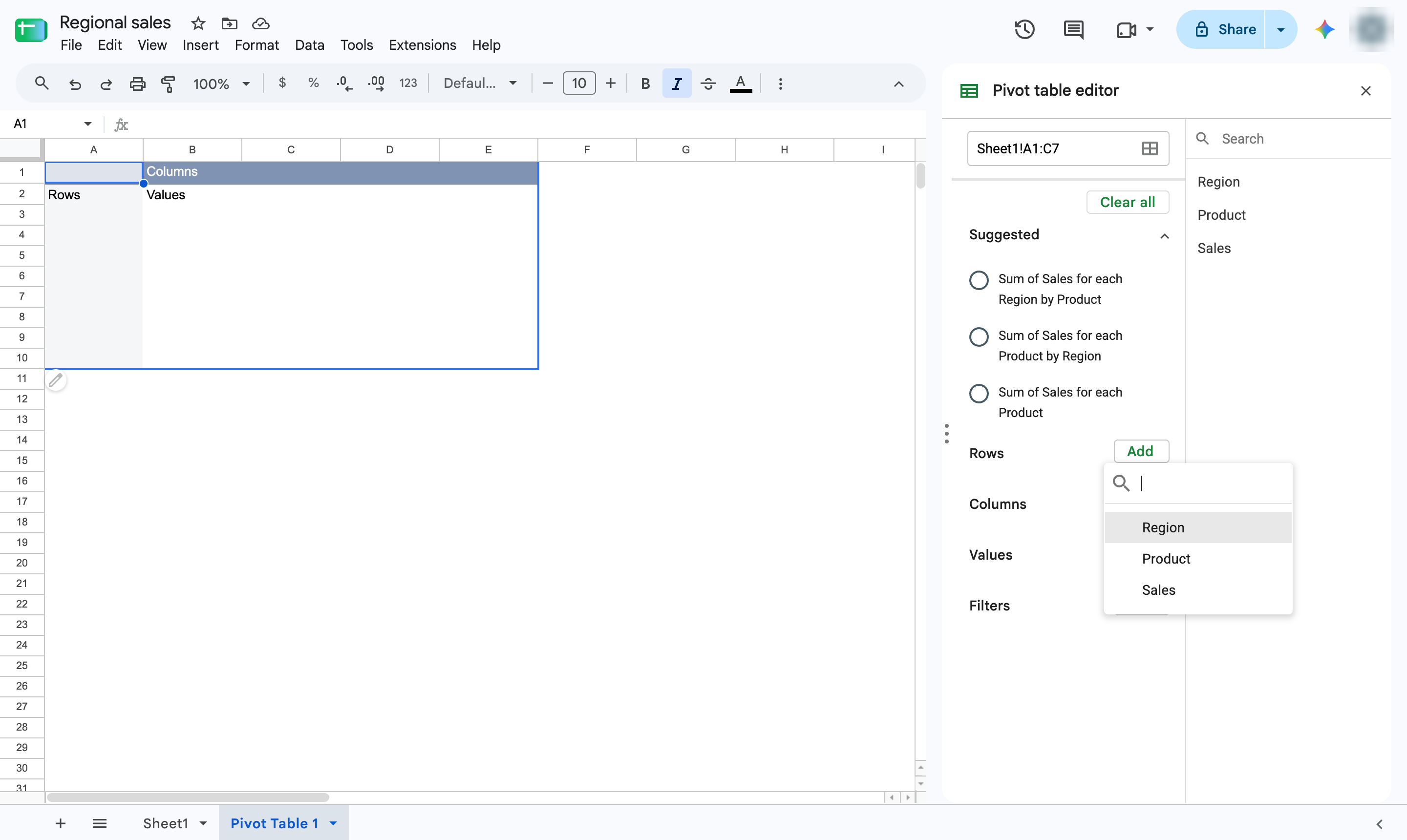
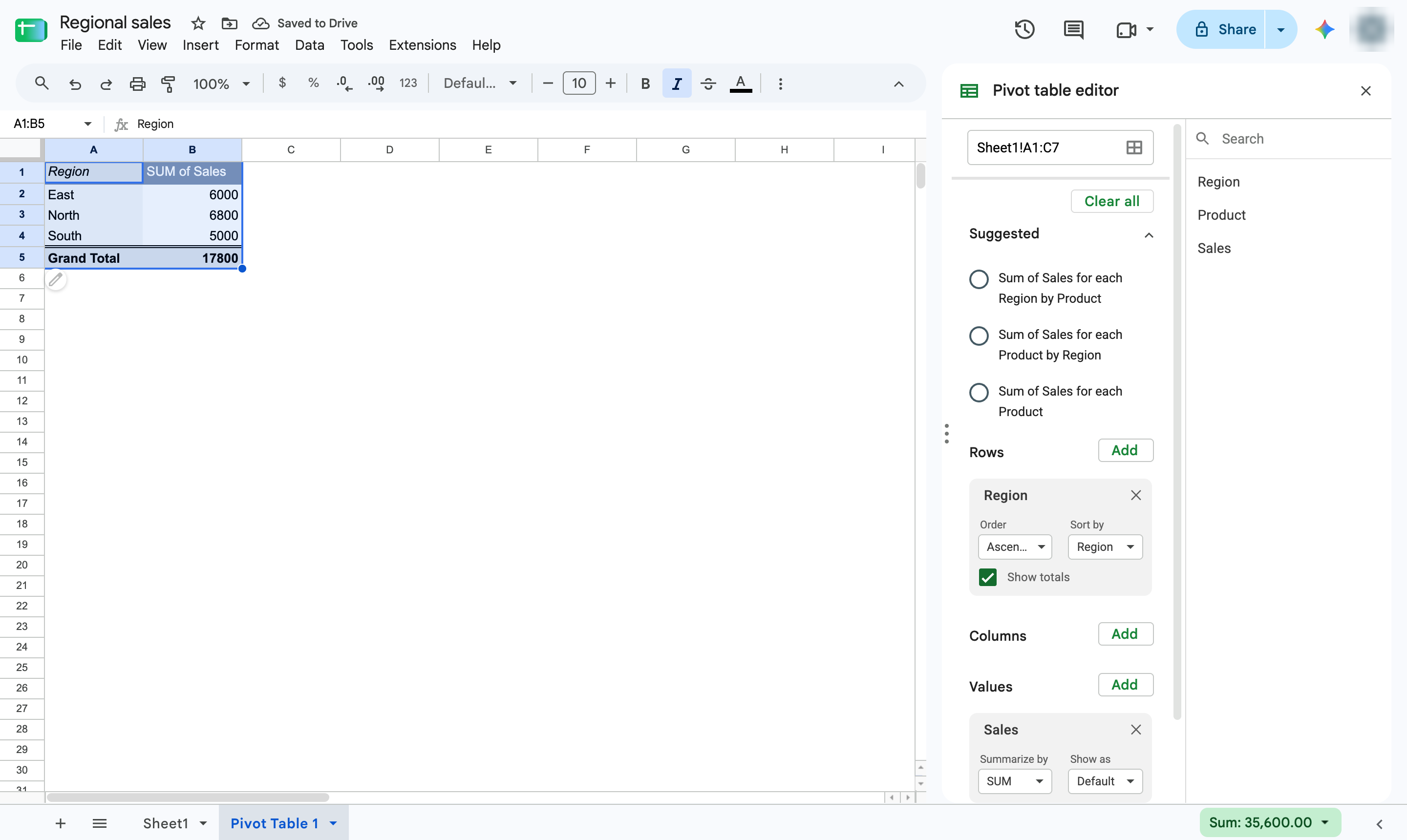
In the Pivot table editor, click Add next to Rows.
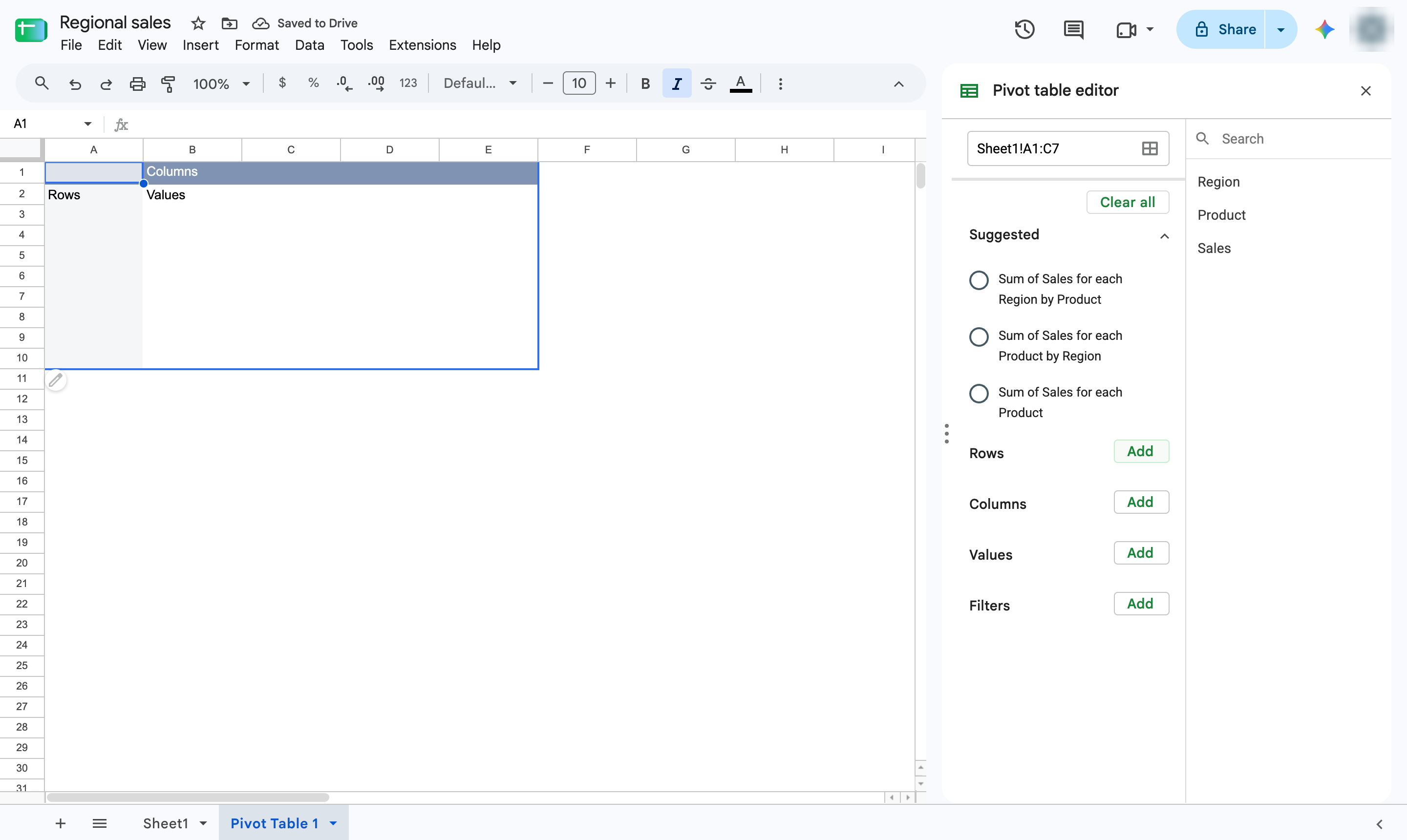
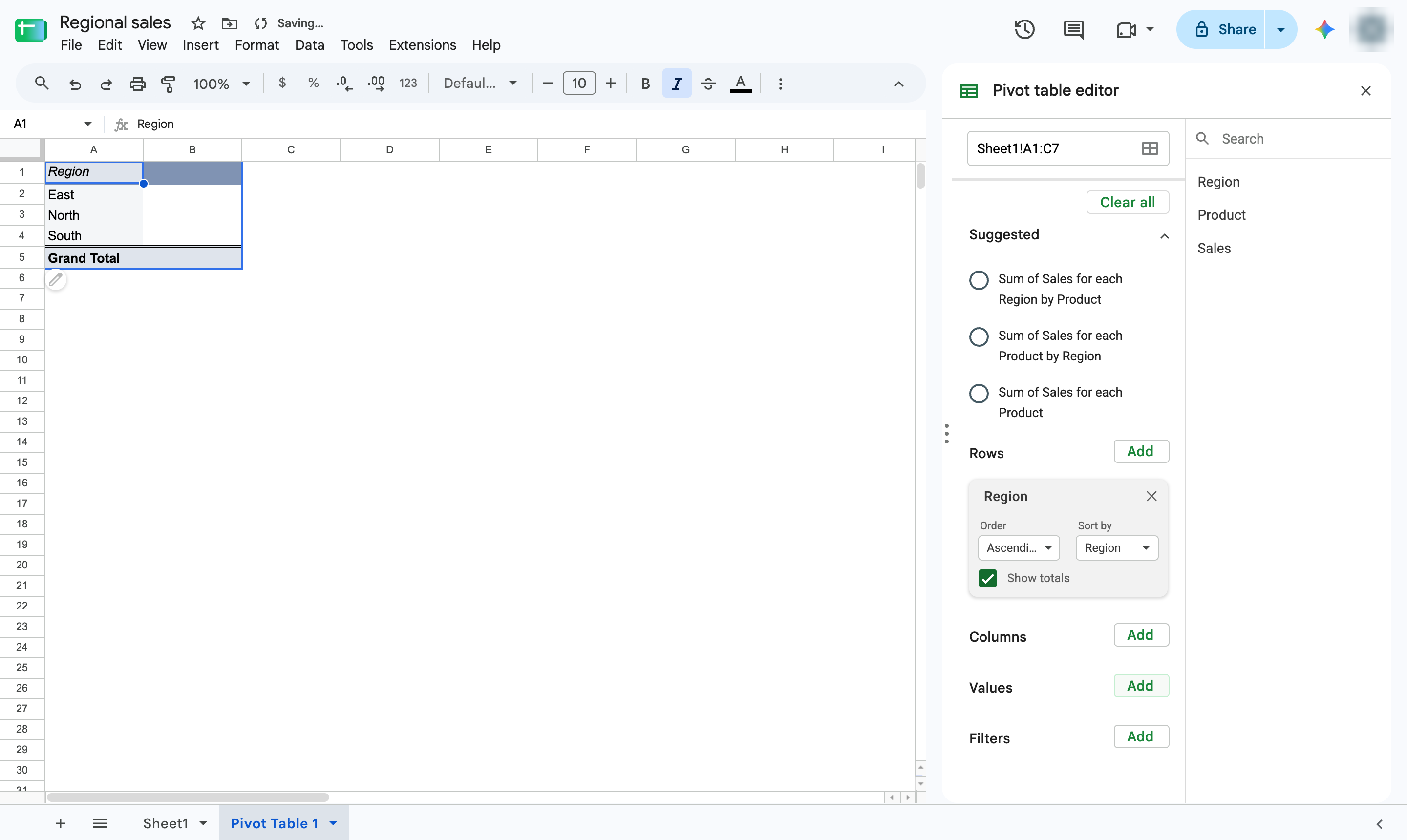
Choose the column to group by - here, Region.
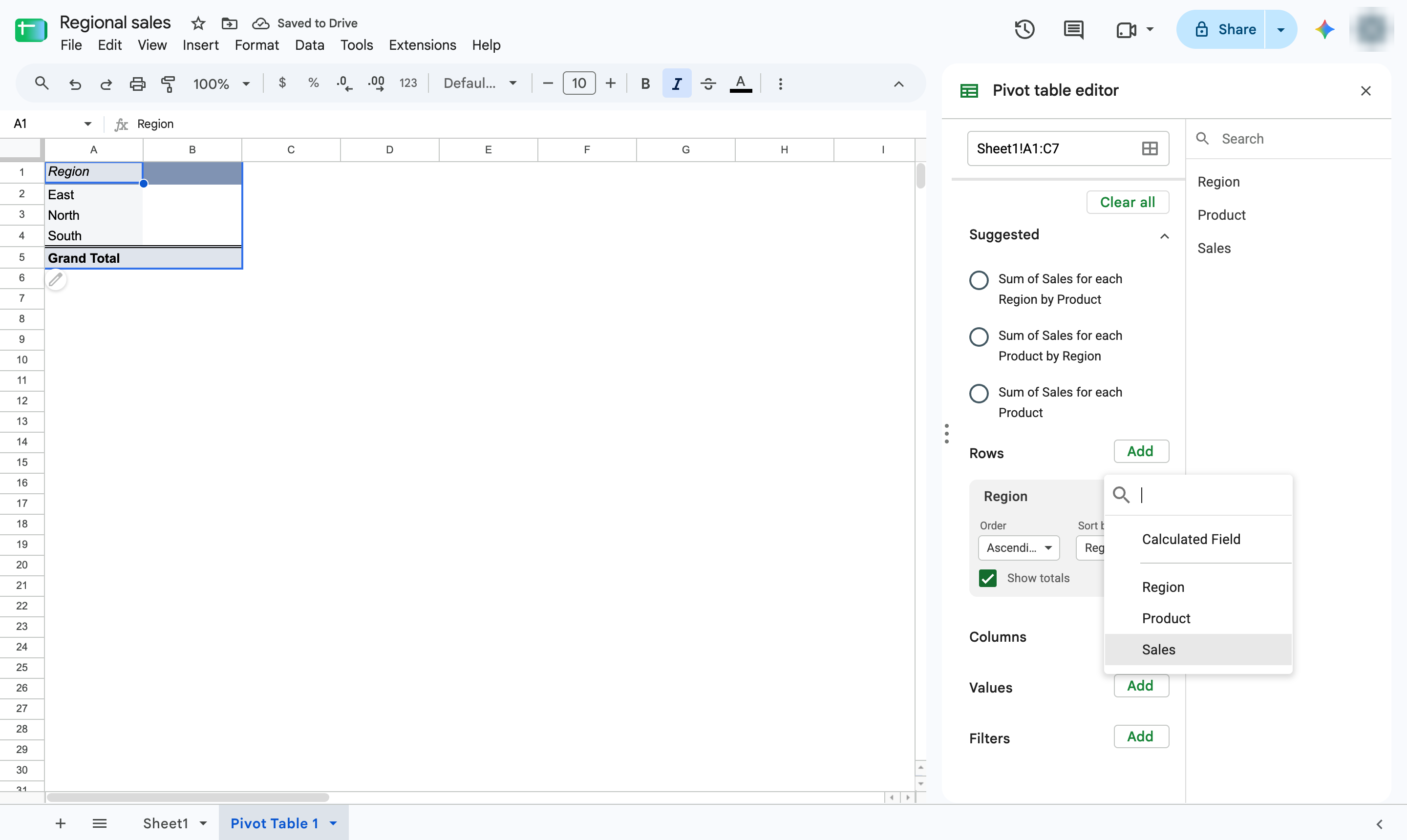
Click Add next to Values.
Choose the column to add up - here, Sales. It is summed by default.
The table shows total sales for each region. Add more rows or columns to break it down further.
Duplicate this template, swap in your own screens, and share it with your team. Free to start — no credit card.
Fill out the form and we'll get back to you as soon as possible.
Tell us about your team and we'll find the right plan together.