1
Navigate to the Google Sheets document
Open the target Google Sheets document where you want to import your Excel file data.
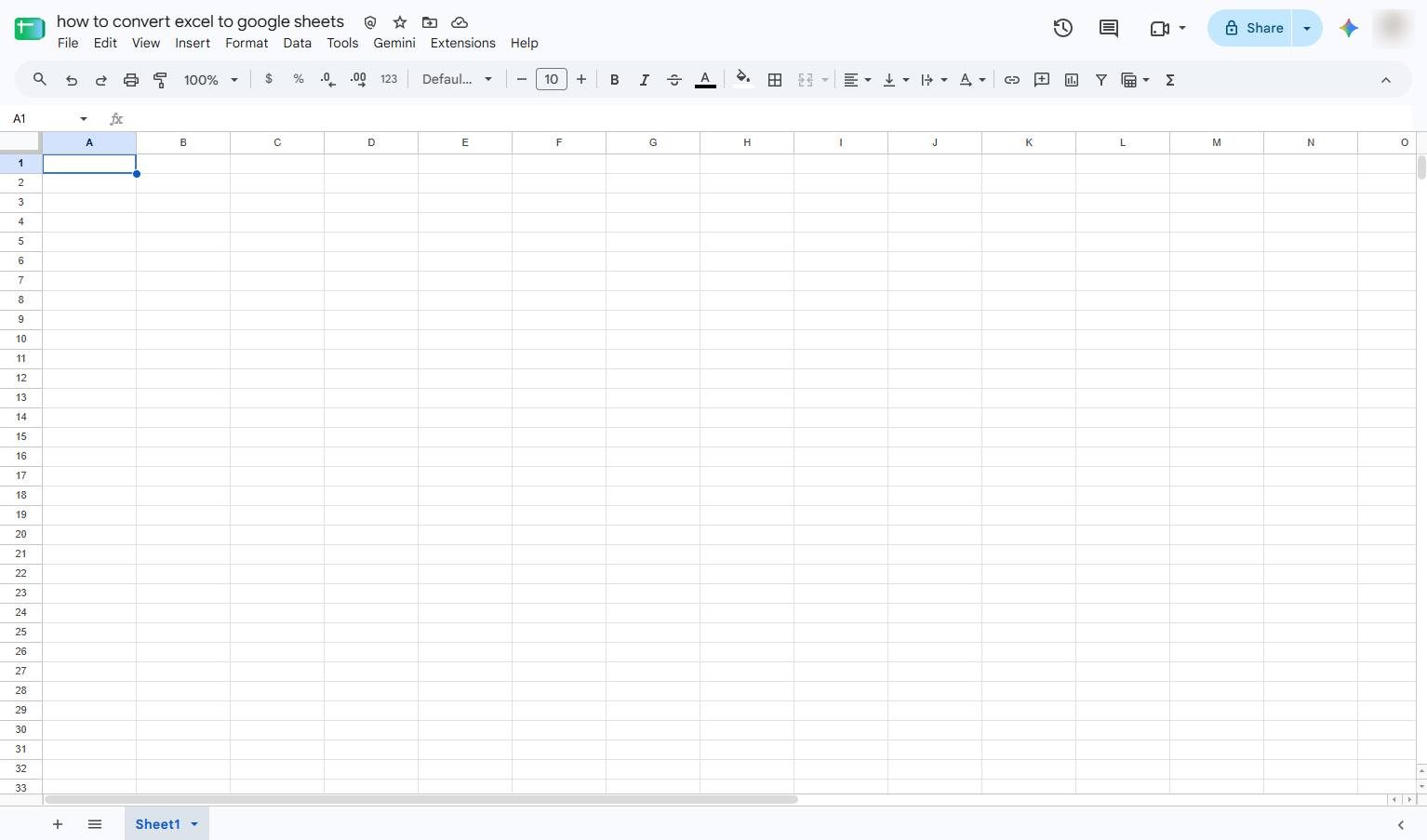

Learn how to easily convert a Microsoft Excel spreadsheet into Google Sheets by importing your external data directly into the application. This step-by-step guide will walk you through uploading your local Excel file, configuring the import settings, and bringing the data into your active spreadsheet. By the end of this tutorial, you will have successfully integrated your Excel data into Google Sheets and prepared it for sharing.
Open the target Google Sheets document where you want to import your Excel file data.
Click the File menu in the top navigation bar to open the file options dropdown.
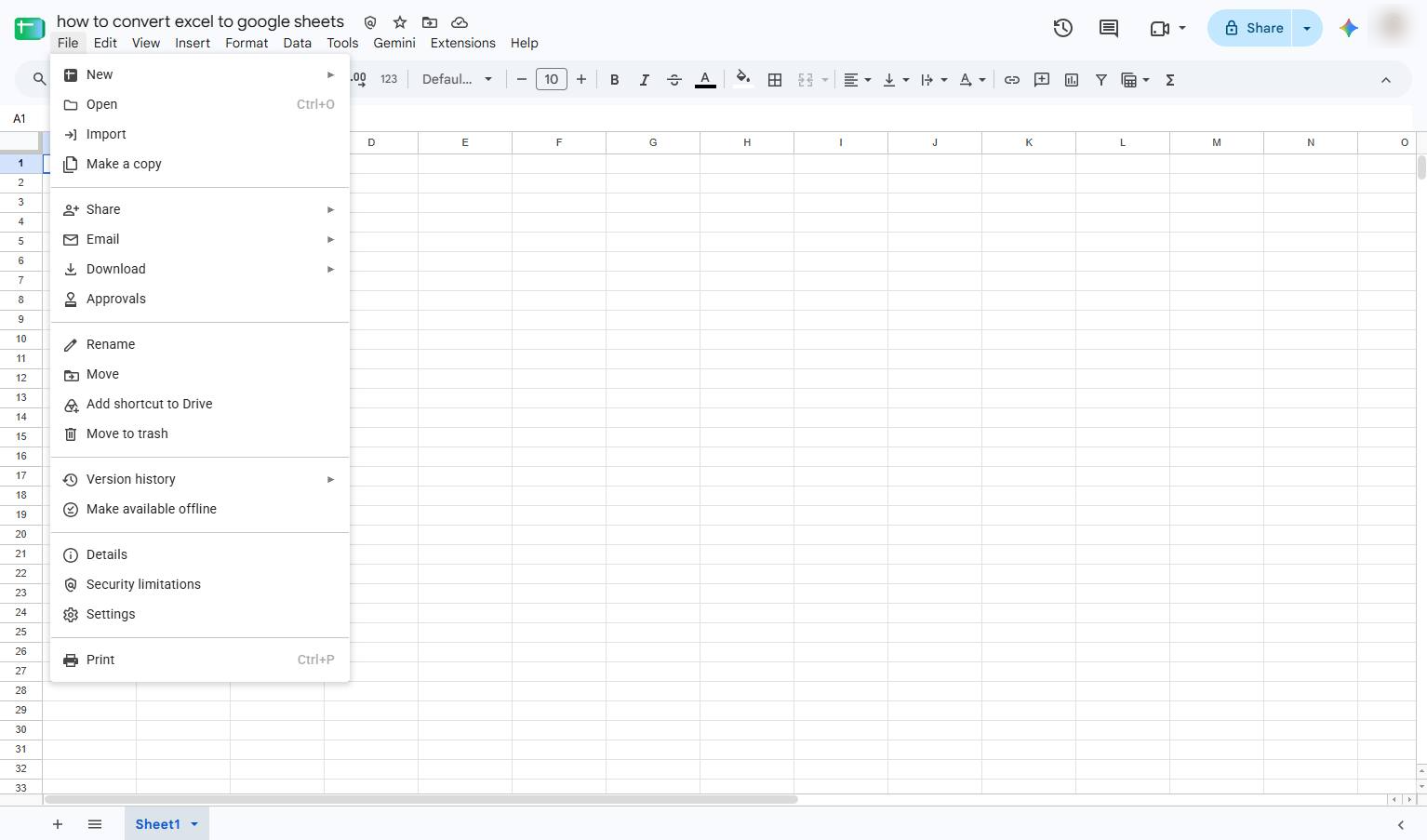
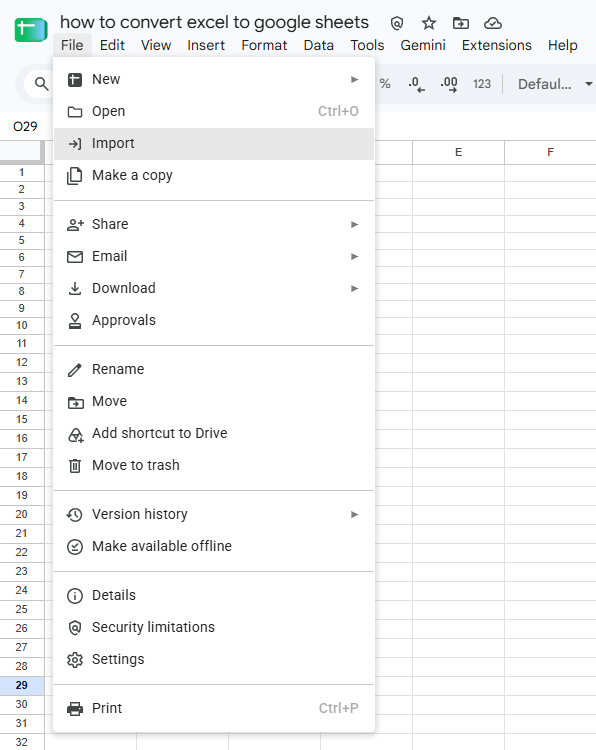
Click the "Import" option in the File menu to bring external data into your spreadsheet.
Click the Upload tab in the Import file modal to select a file from your computer.
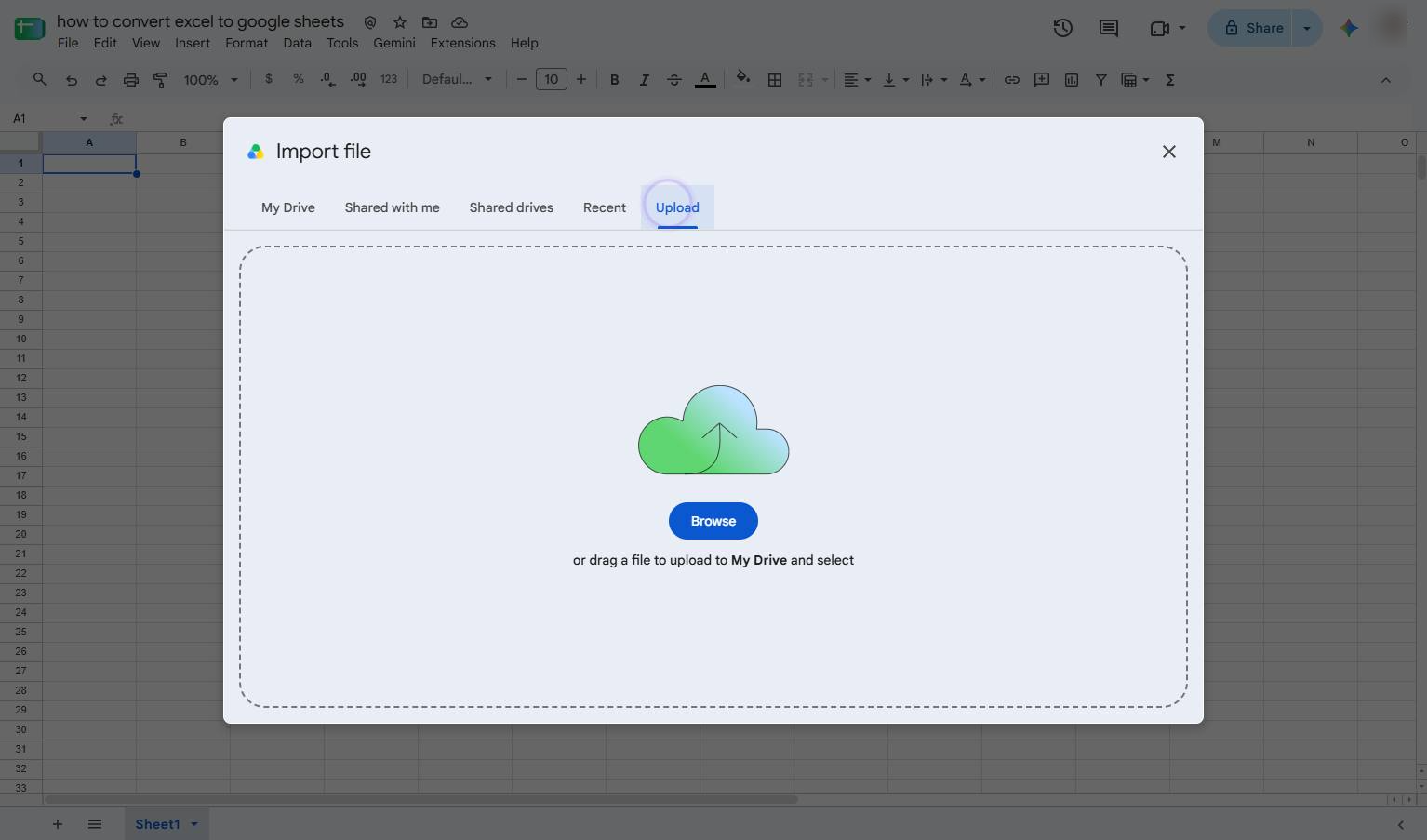
Click the Browse button in the center of the upload modal to select a file from your computer.
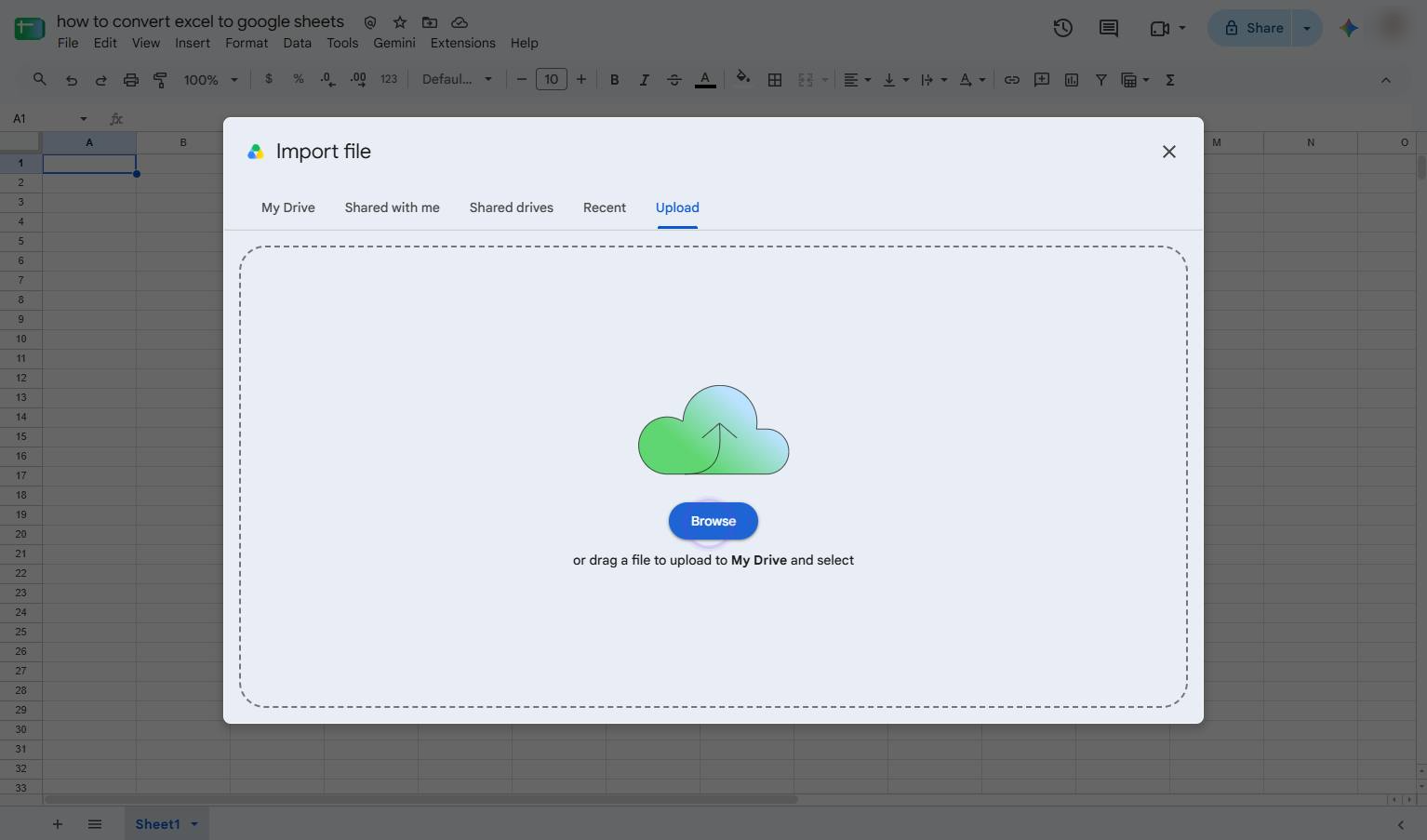
Click the "Insert new sheet(s)" option in the dropdown menu to add the imported data as a new sheet.
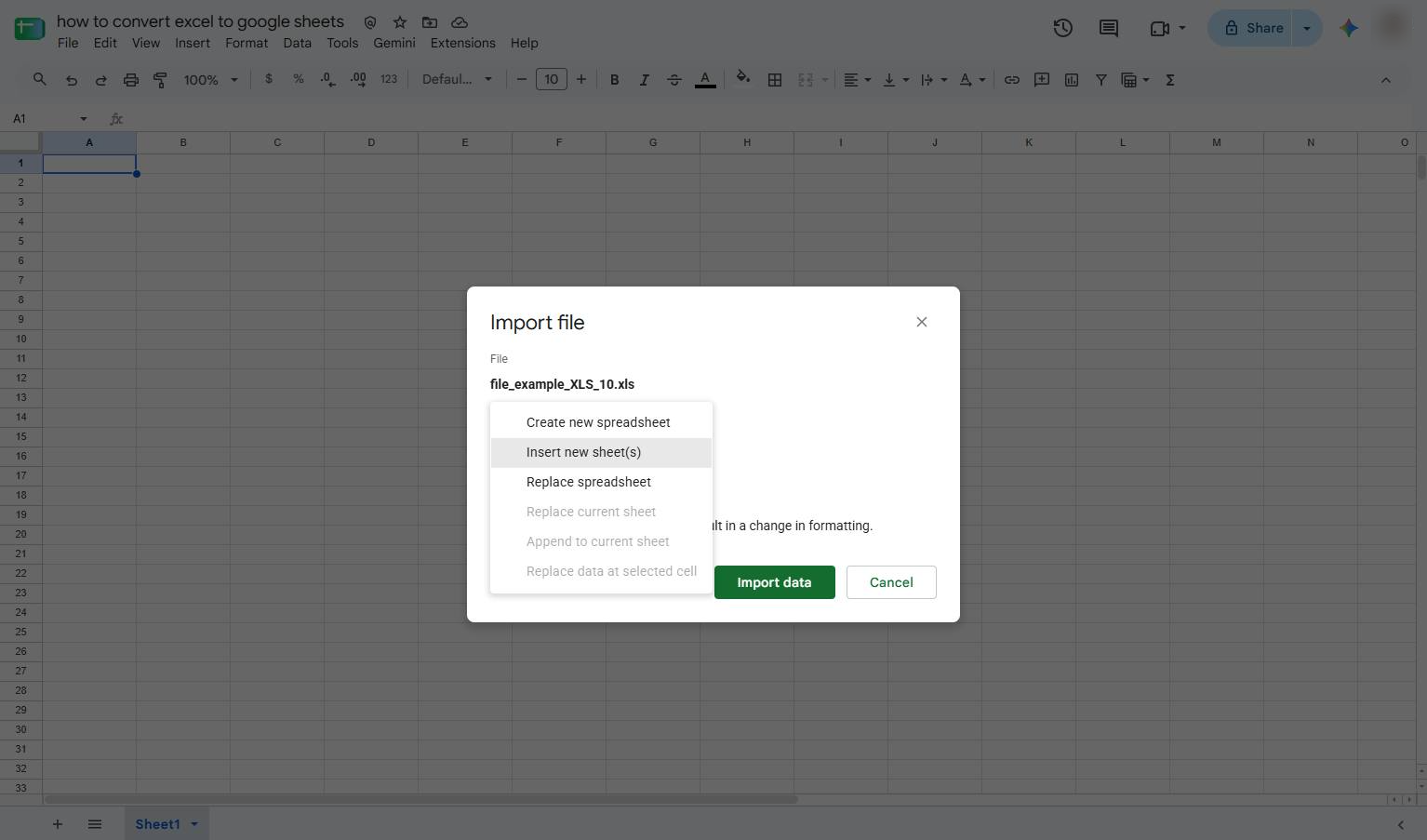
Click the "Import data" button in the "Import file" modal to proceed with importing your Excel file.
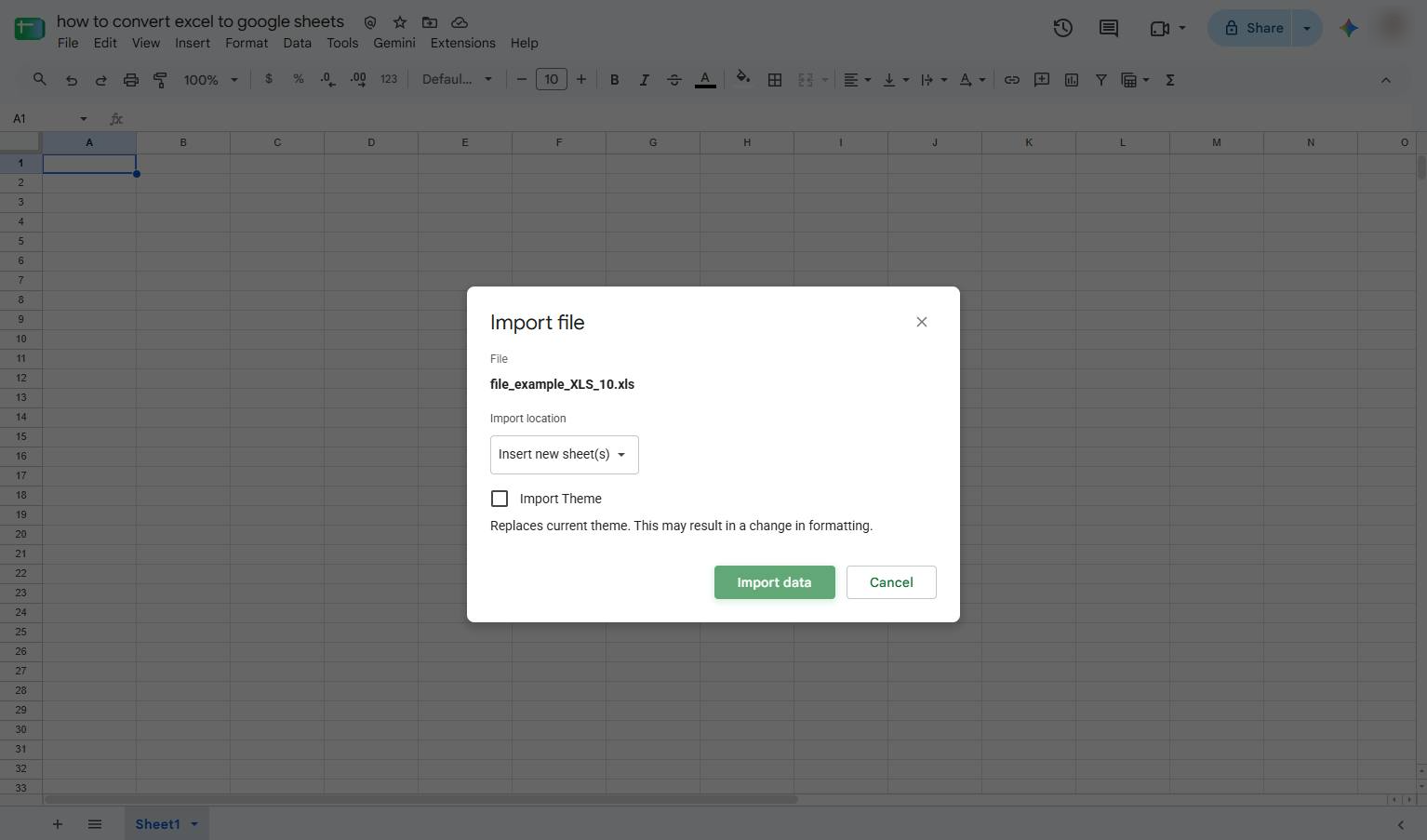
The imported data appears in the sheet. Review the data to make sure it has been imported correctly.
Duplicate this template, swap in your own screens, and share it with your team. Free to start — no credit card.
Fill out the form and we'll get back to you as soon as possible.
Tell us about your team and we'll find the right plan together.