1
Navigate to the Twitter home page
Navigate to Go to the Twitter home page to access your feed and see the latest updates from the accounts you follow.
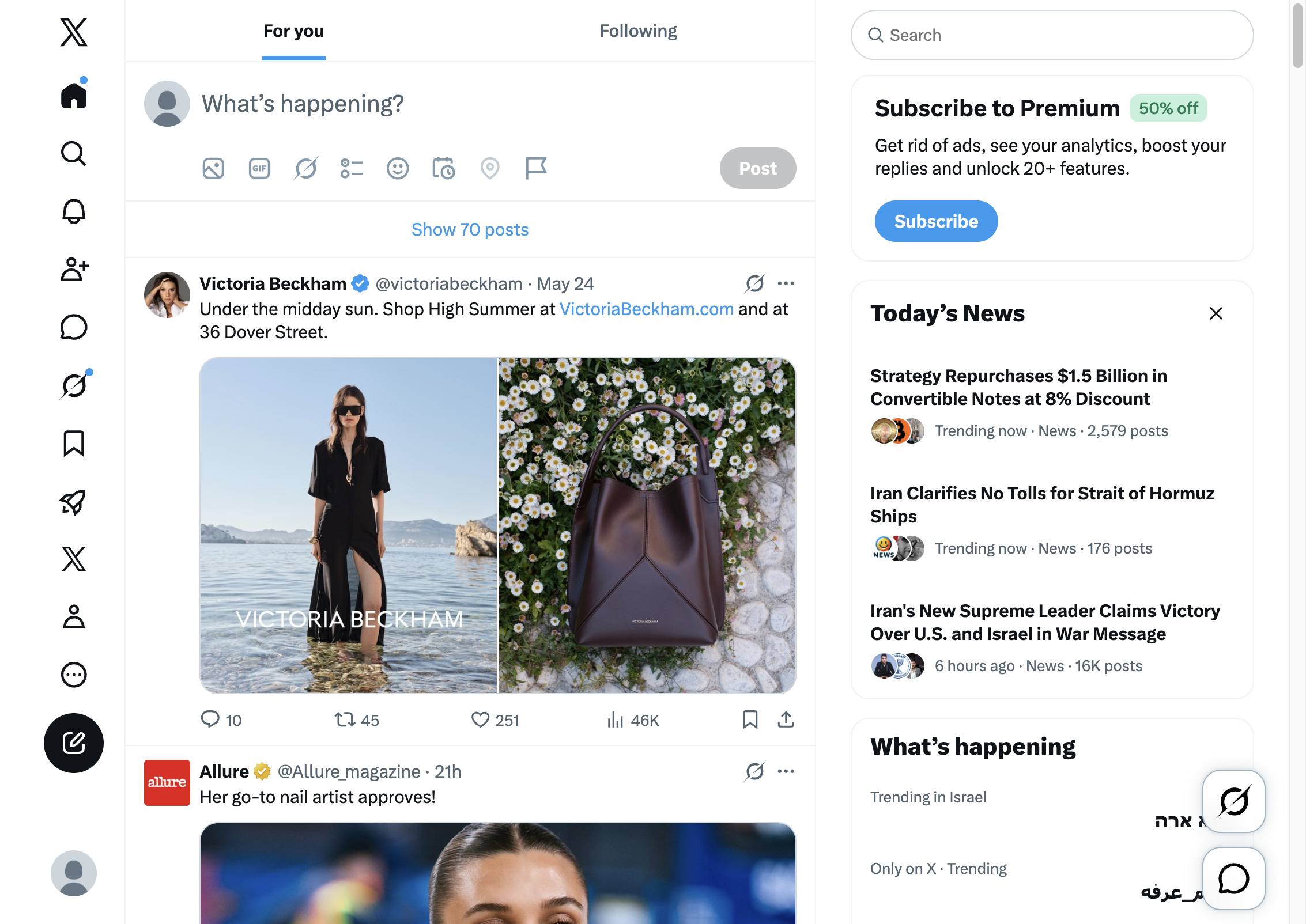

This guide shows you how to customize the visual appearance of your Twitter account
Navigate to Go to the Twitter home page to access your feed and see the latest updates from the accounts you follow.
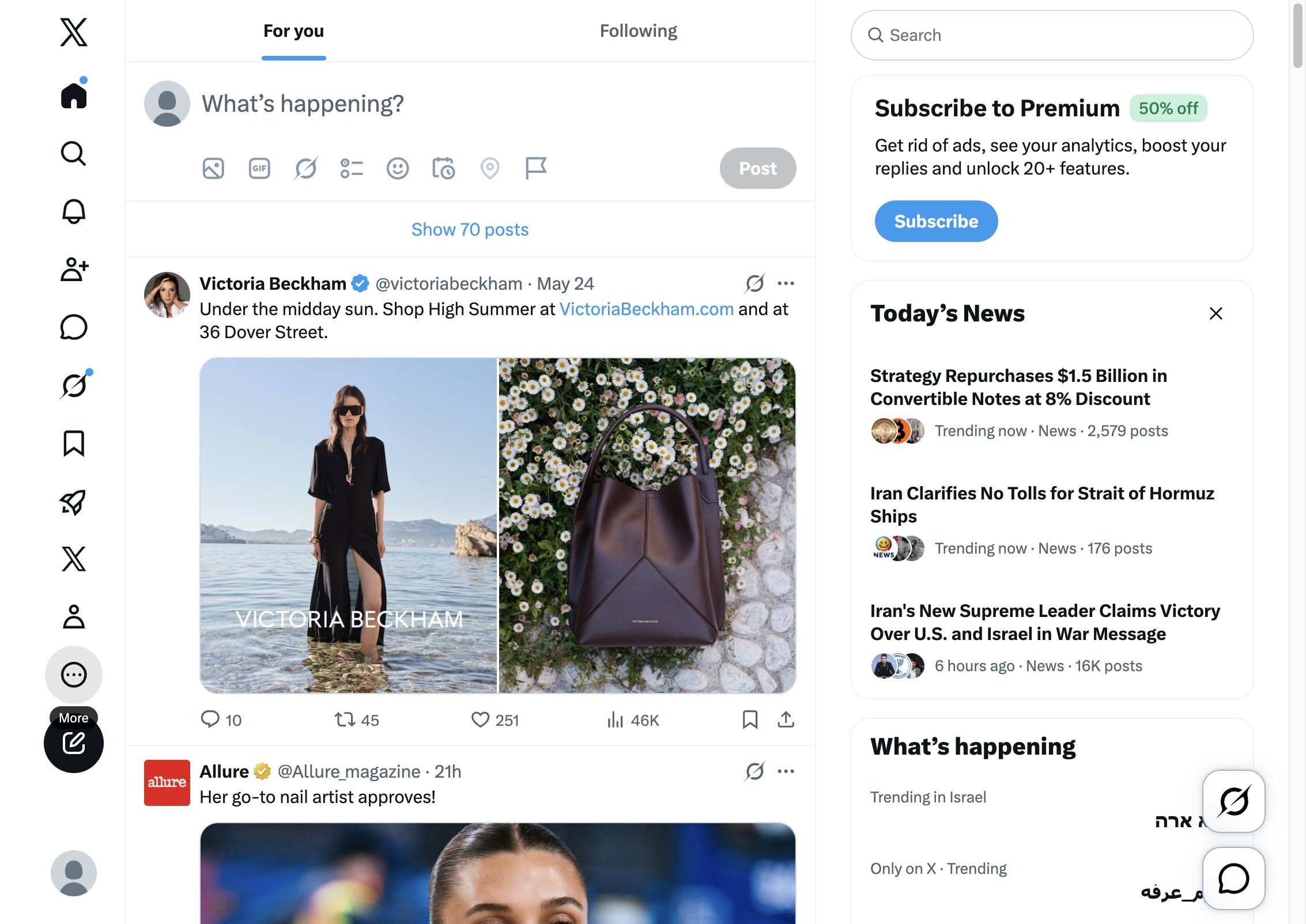
Click the More button in the left sidebar to access additional account settings and navigation options.
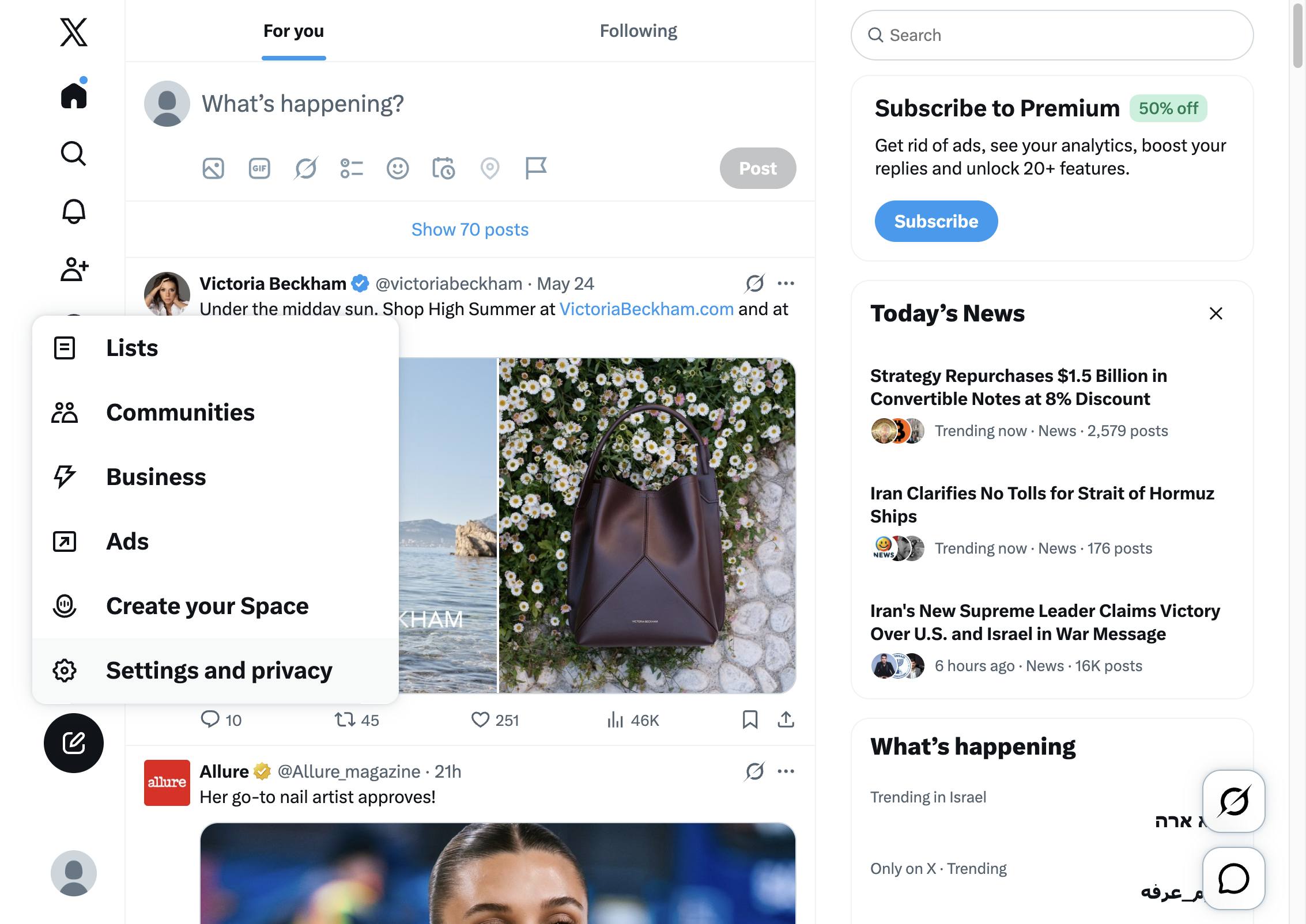
Click Settings and privacy in the sidebar menu to access your account settings and privacy controls.
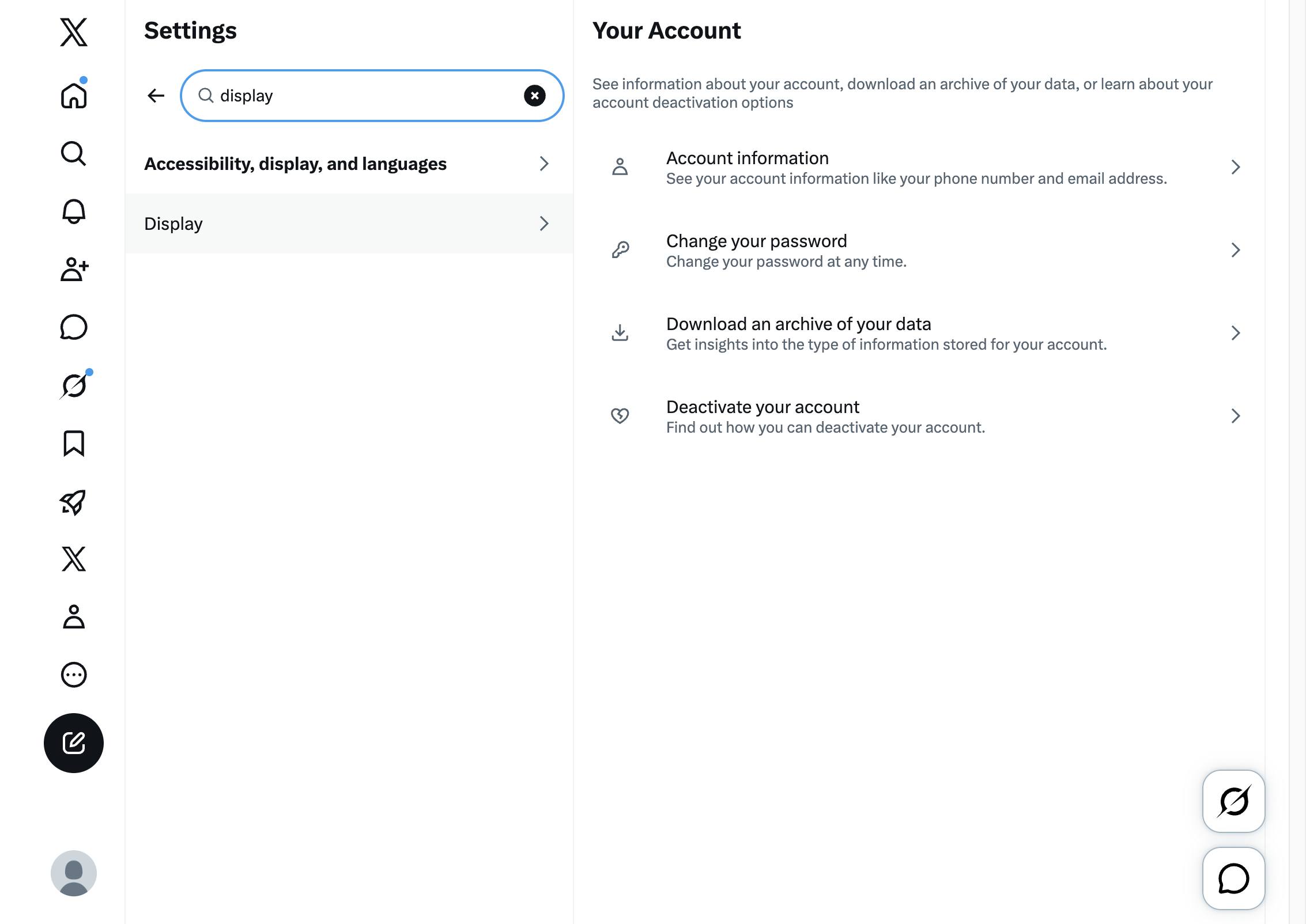
Click the search bar at the top of the sidebar to begin searching for specific settings.
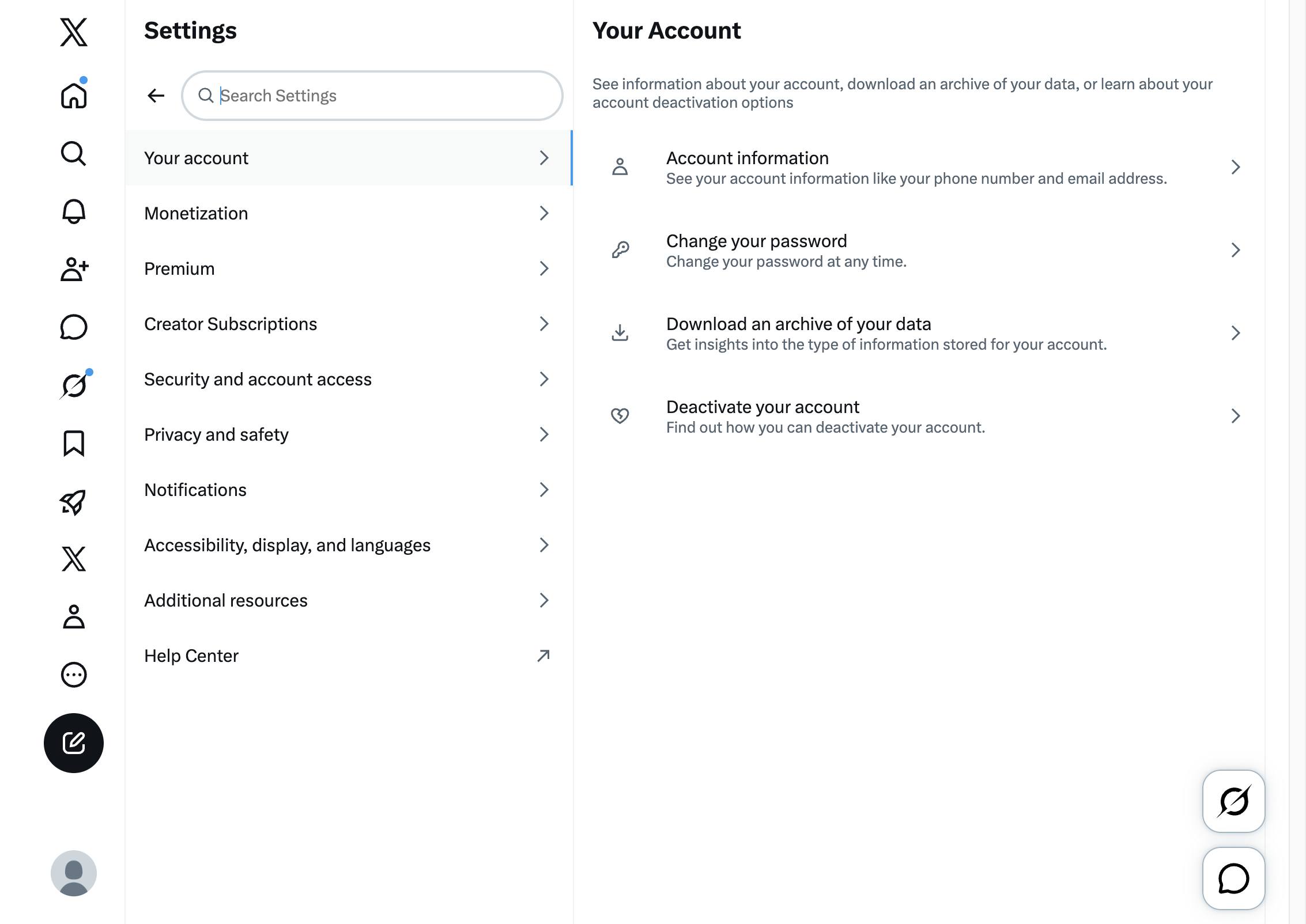
Type "display"
Click the Home button in the left navigation menu to return to your main X timeline.
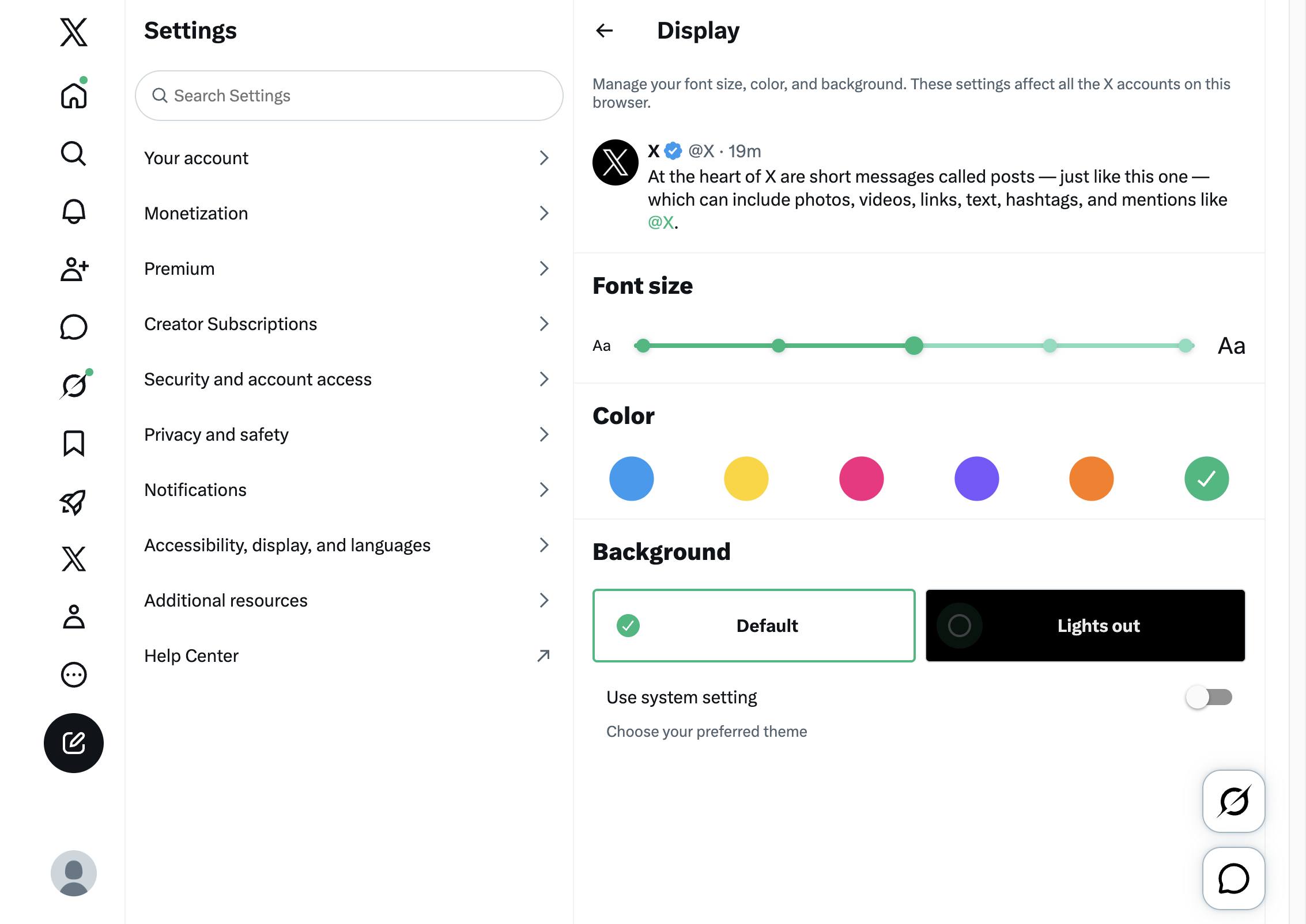
Customize your font size, color, and background. Click on the options to preview them in real time
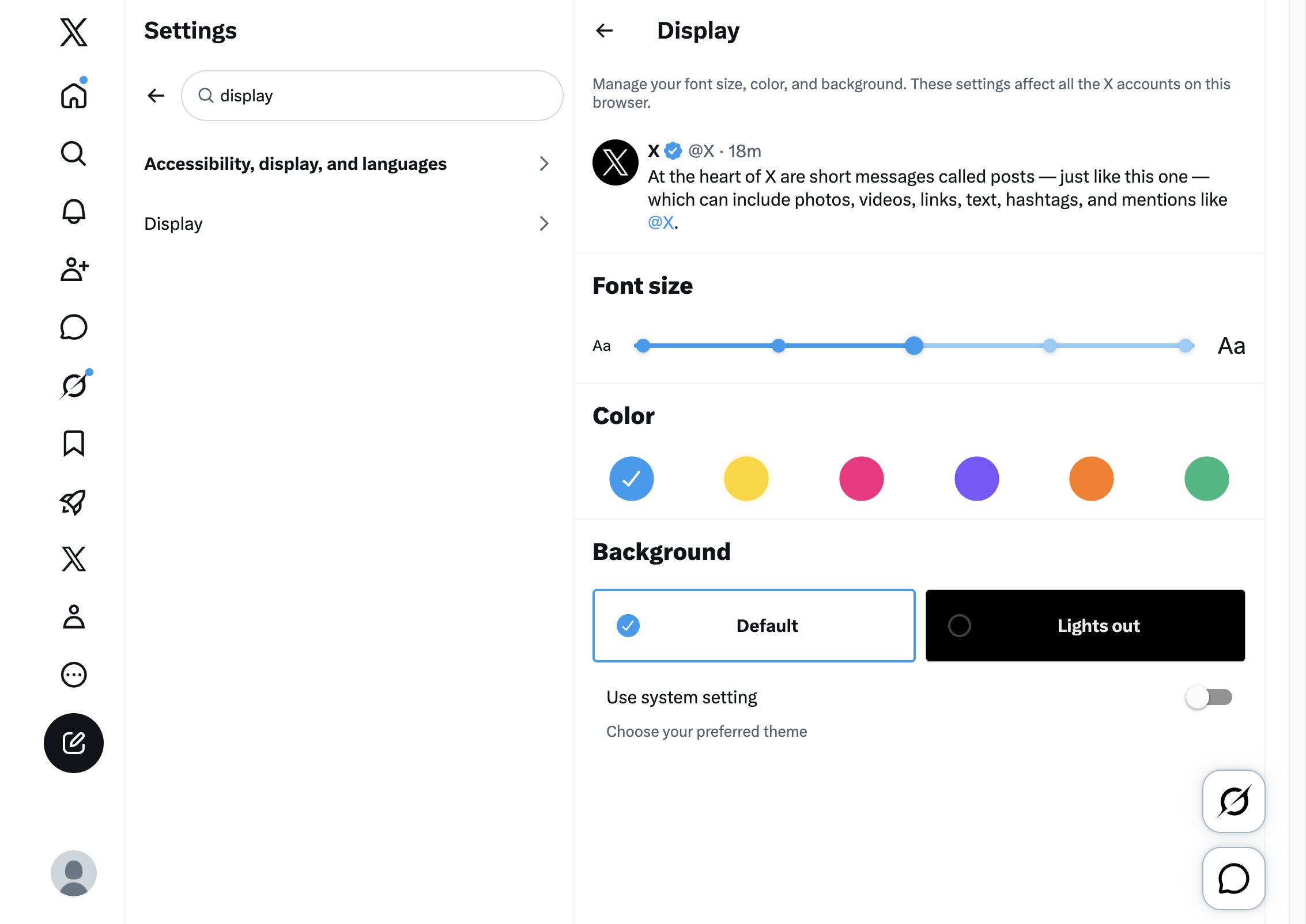
Select the Lights out radio option in the Background section to switch your display to a dark theme.
Duplicate this template, swap in your own screens, and share it with your team. Free to start — no credit card.
Fill out the form and we'll get back to you as soon as possible.
Tell us about your team and we'll find the right plan together.