1
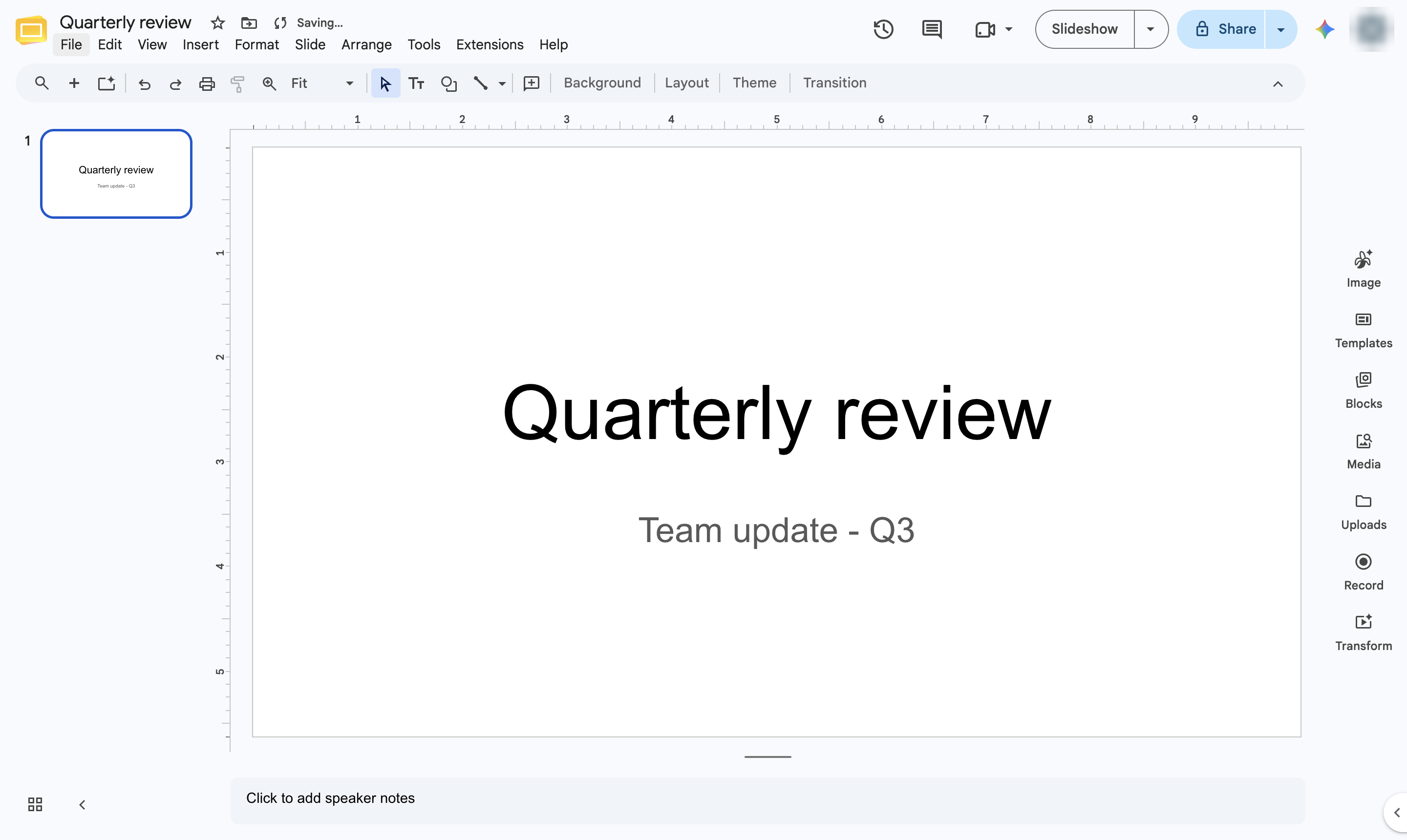
Click File
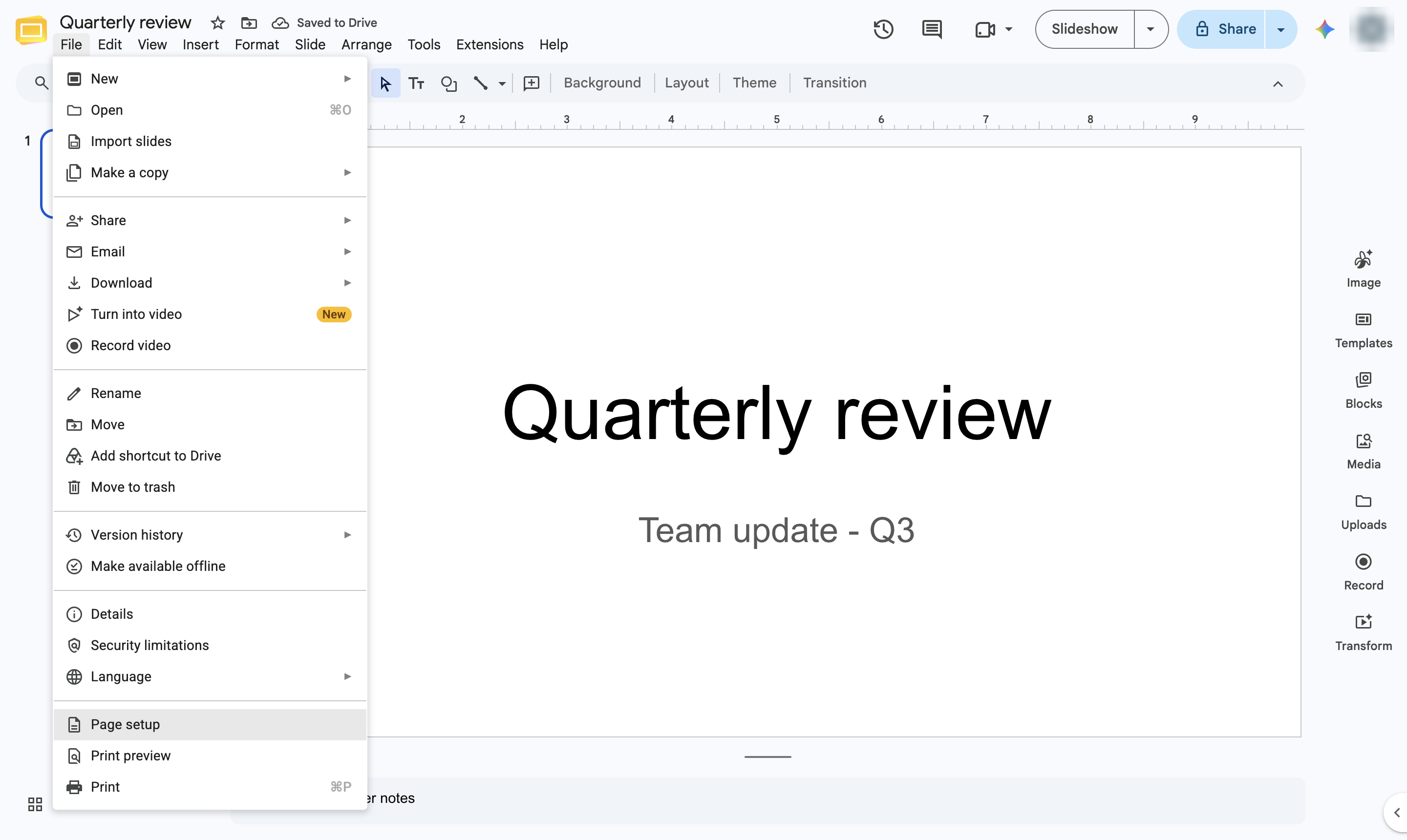
Open the File menu.

Change the slide size - standard 4:3, widescreen, or a custom size - in Page setup.
Open the File menu.
Choose Page setup.
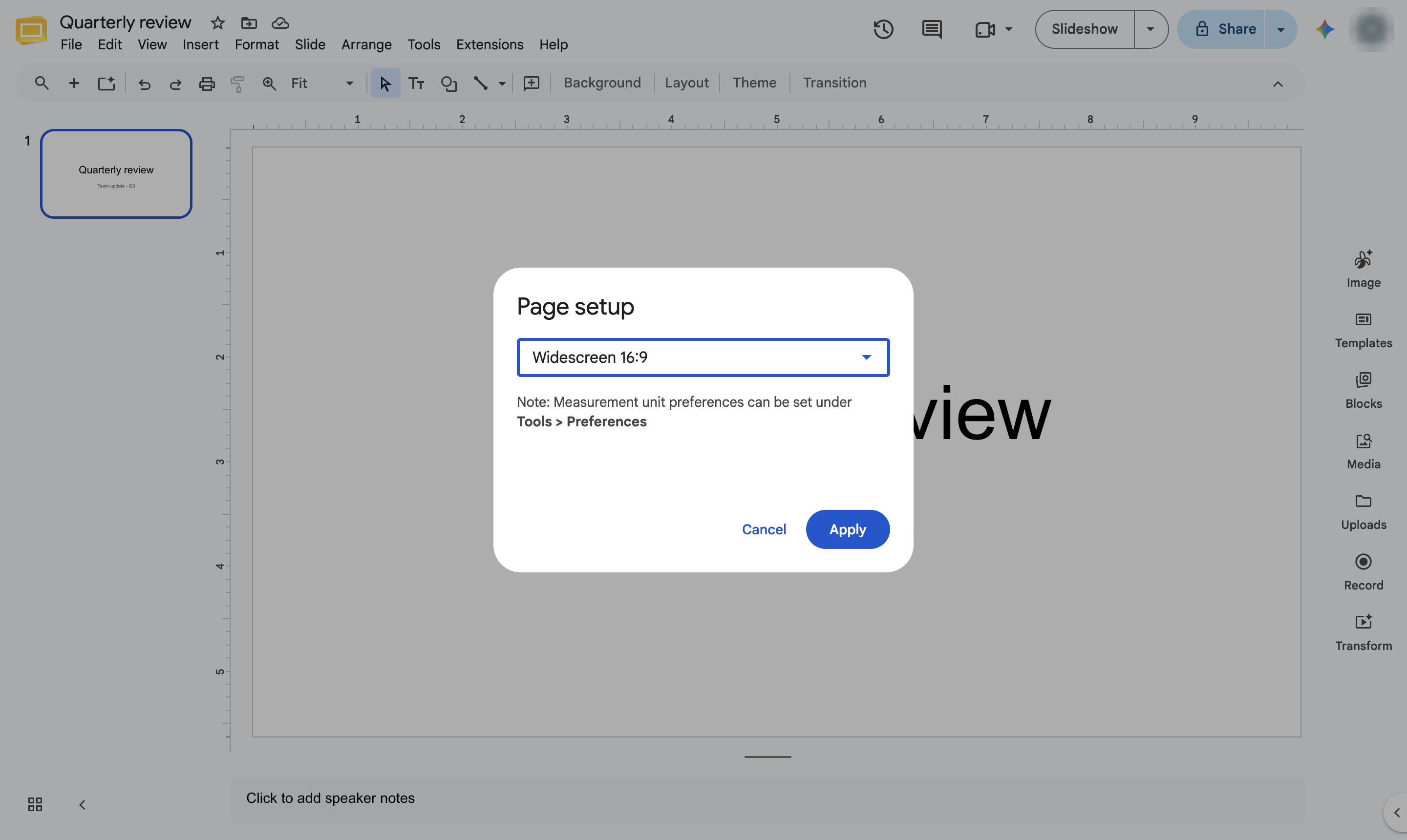
Click the page size drop-down.
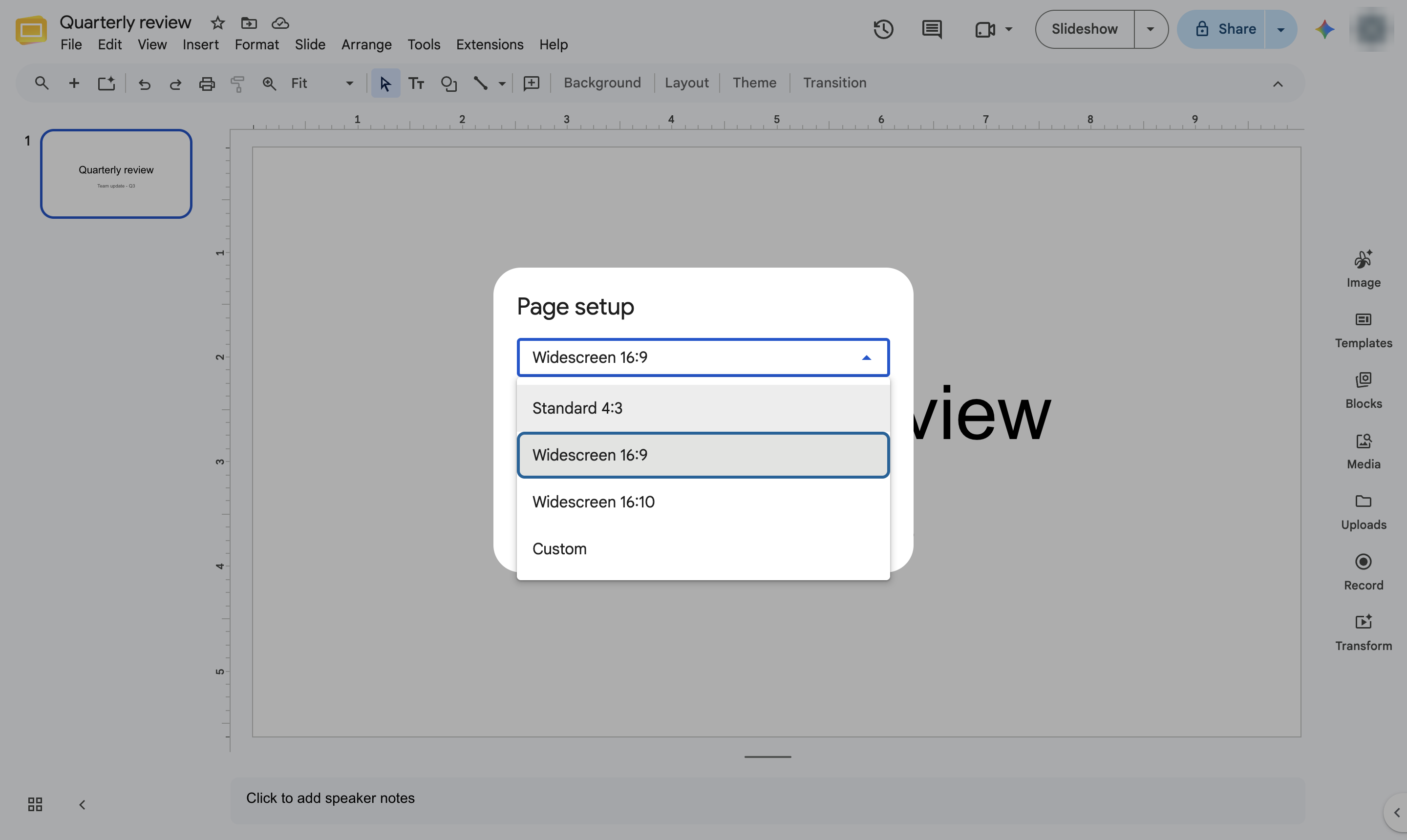
Pick Standard 4:3, Widescreen 16:9, Widescreen 16:10 or Custom (type your own width and height).
Click Apply.
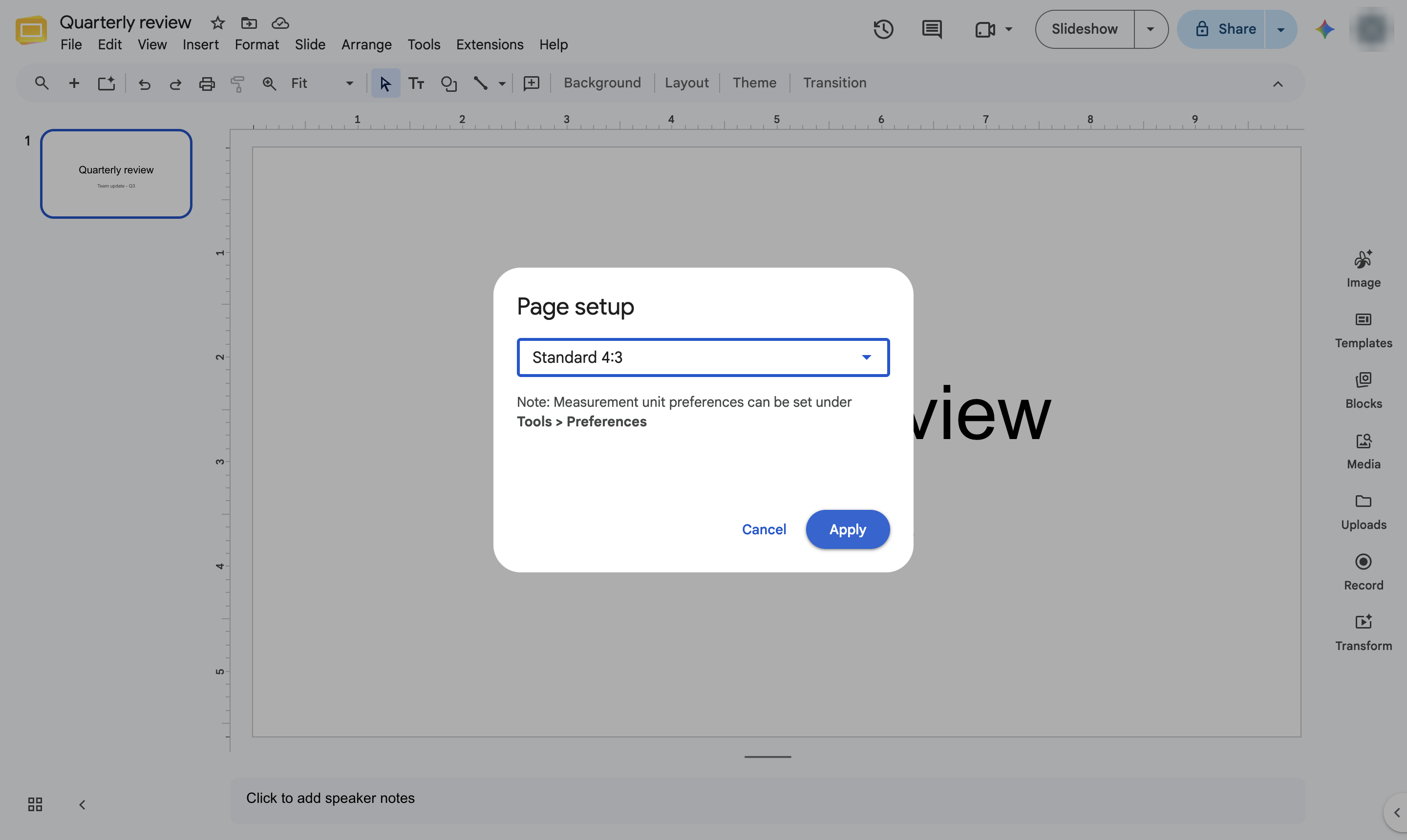
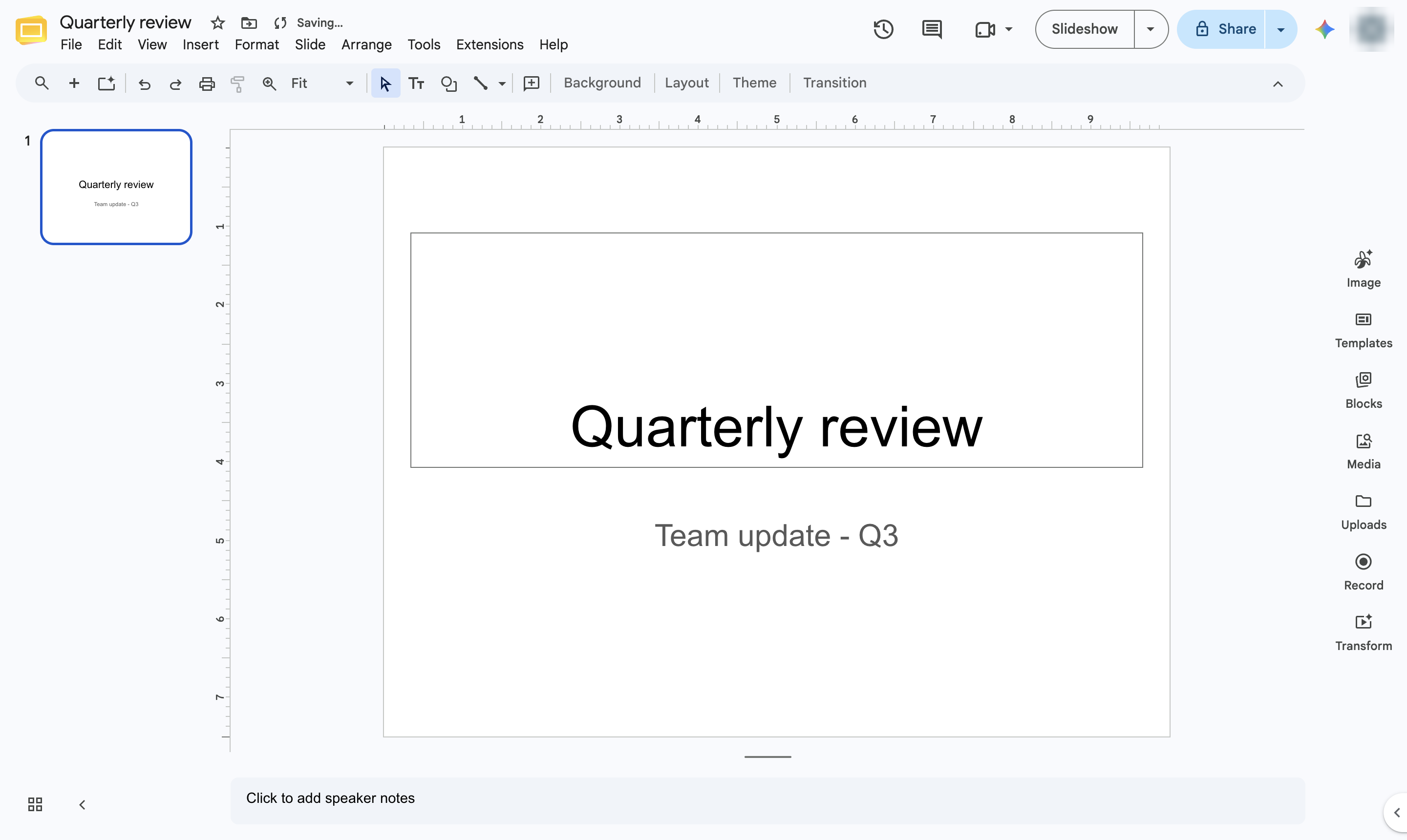
All slides use the new size. The size applies to the whole presentation.
Duplicate this template, swap in your own screens, and share it with your team. Free to start — no credit card.
Fill out the form and we'll get back to you as soon as possible.
Tell us about your team and we'll find the right plan together.