1
Click the Google Slides icon
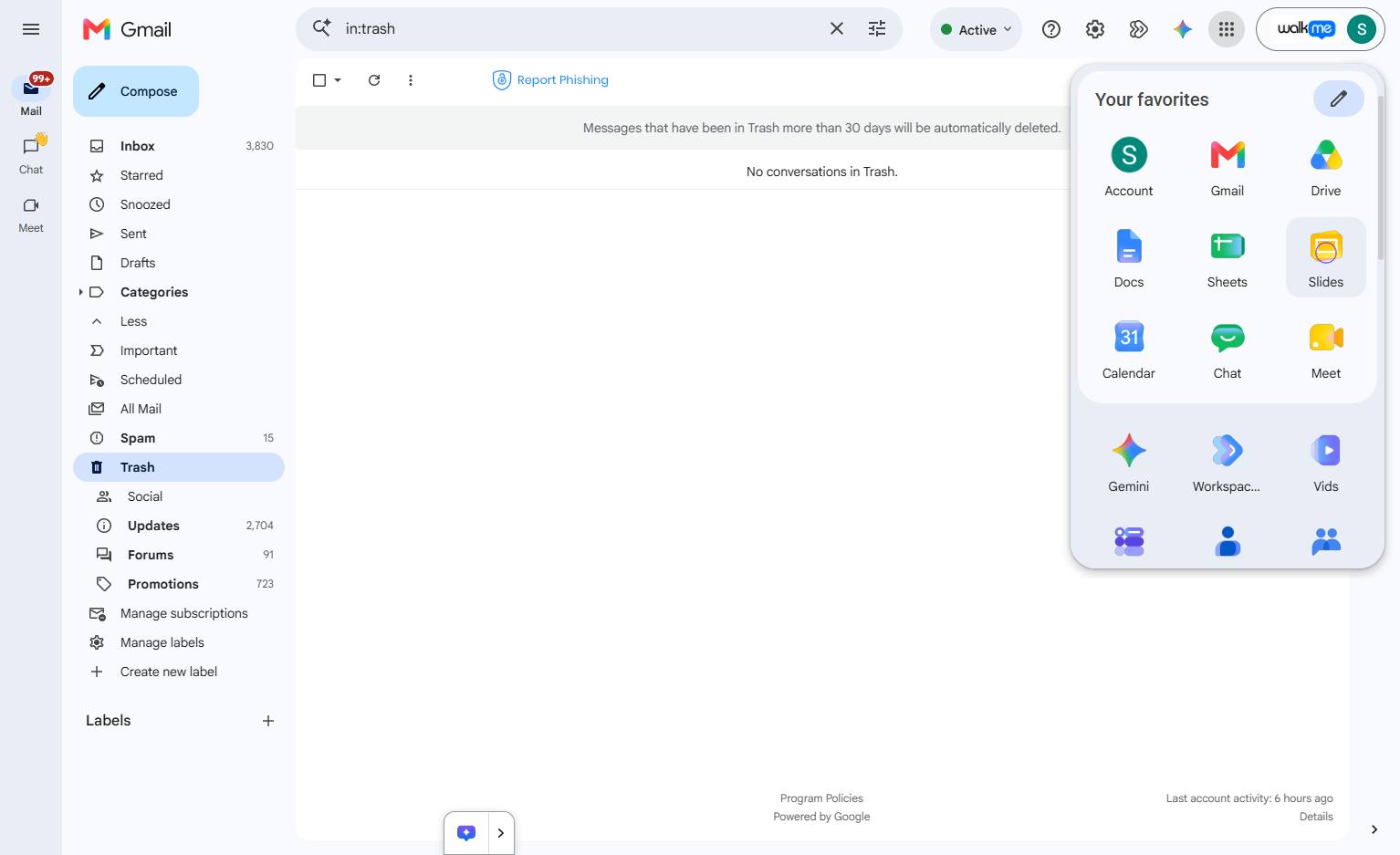
Click the Slides icon in the Google Apps menu to open the application.

In this guide, you will learn how to customize the text color in your Google Slides presentation to match your specific design needs. You will walk through selecting a text box, applying a standard preset color, and opening the custom color tool to input precise color values. By following these steps, you will be able to easily apply any custom color to your presentation elements.
Click the Slides icon in the Google Apps menu to open the application.
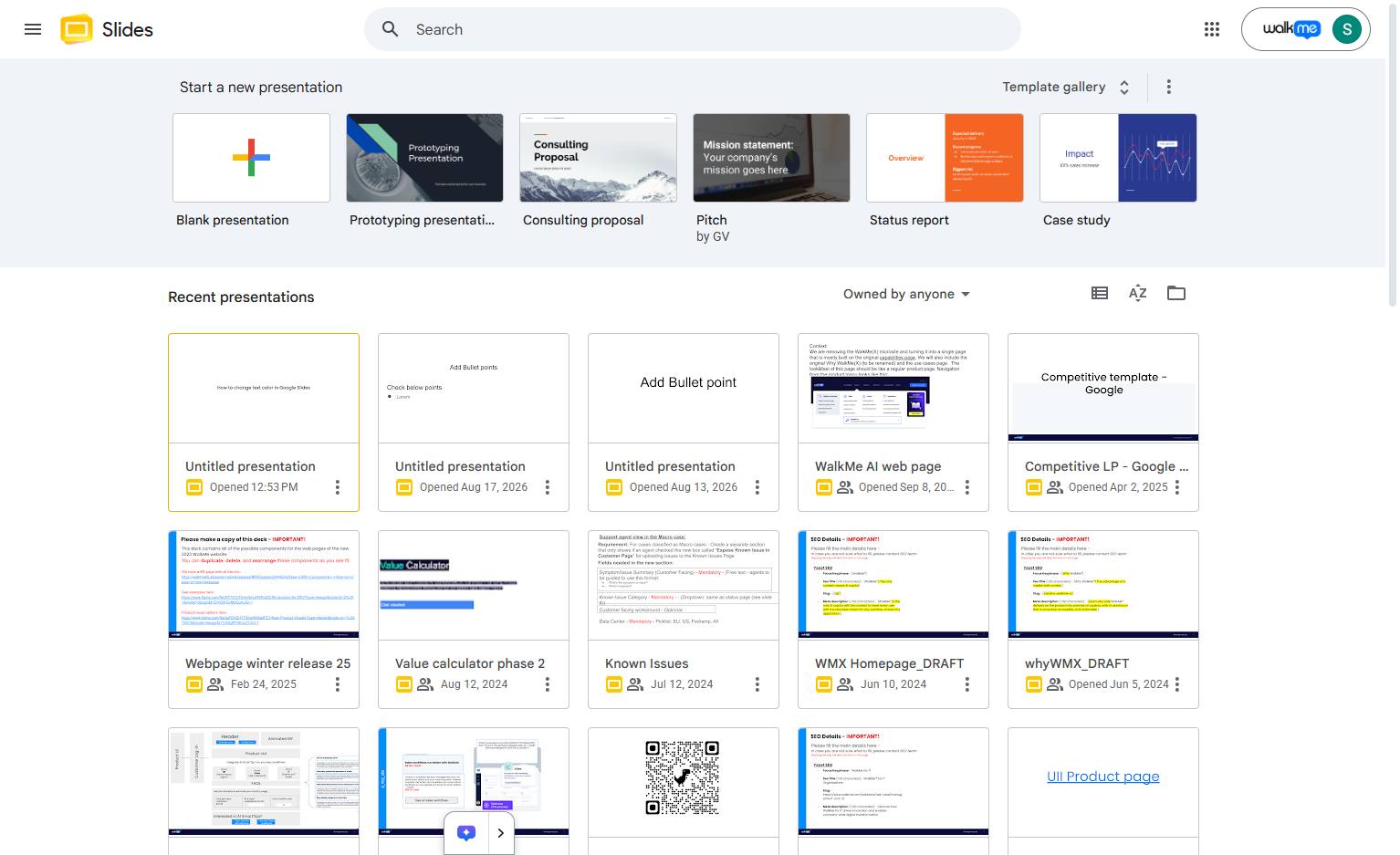
Click the "Untitled presentation" thumbnail in the Recent presentations section to open the file.
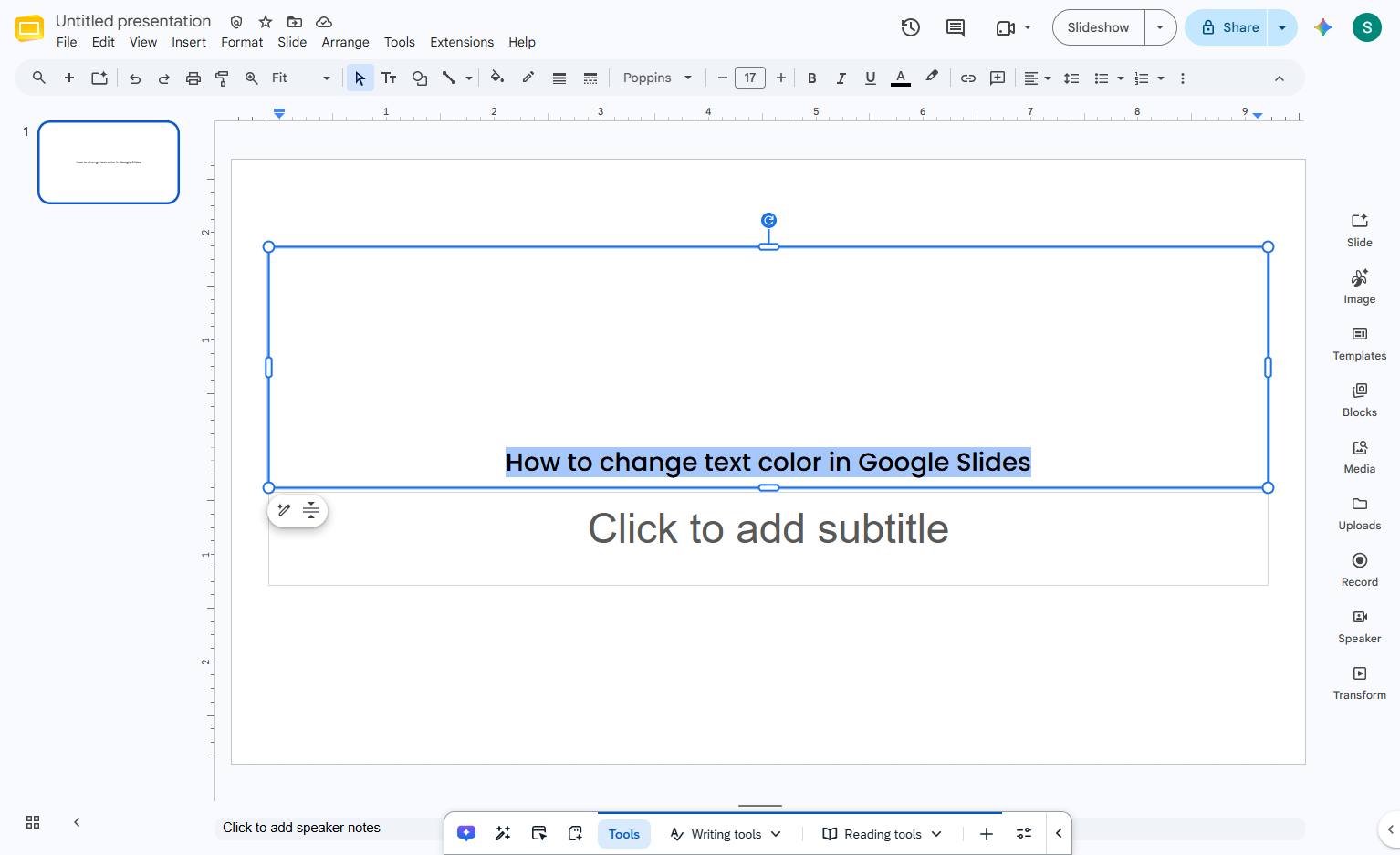
Click the text "How to change text color in Google Slides" on the slide to select it.
Click the Text color button in the top toolbar to open the color palette.
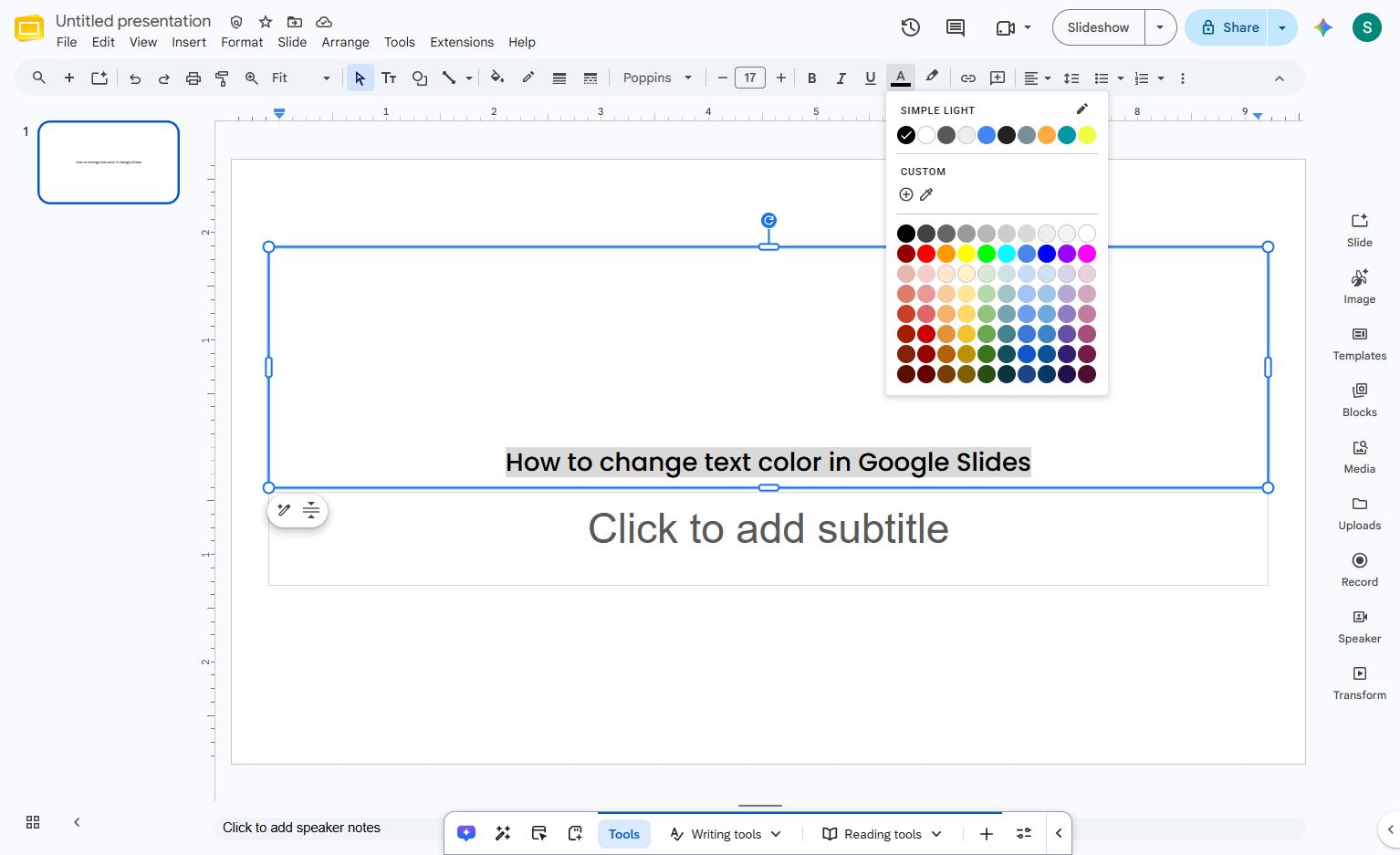
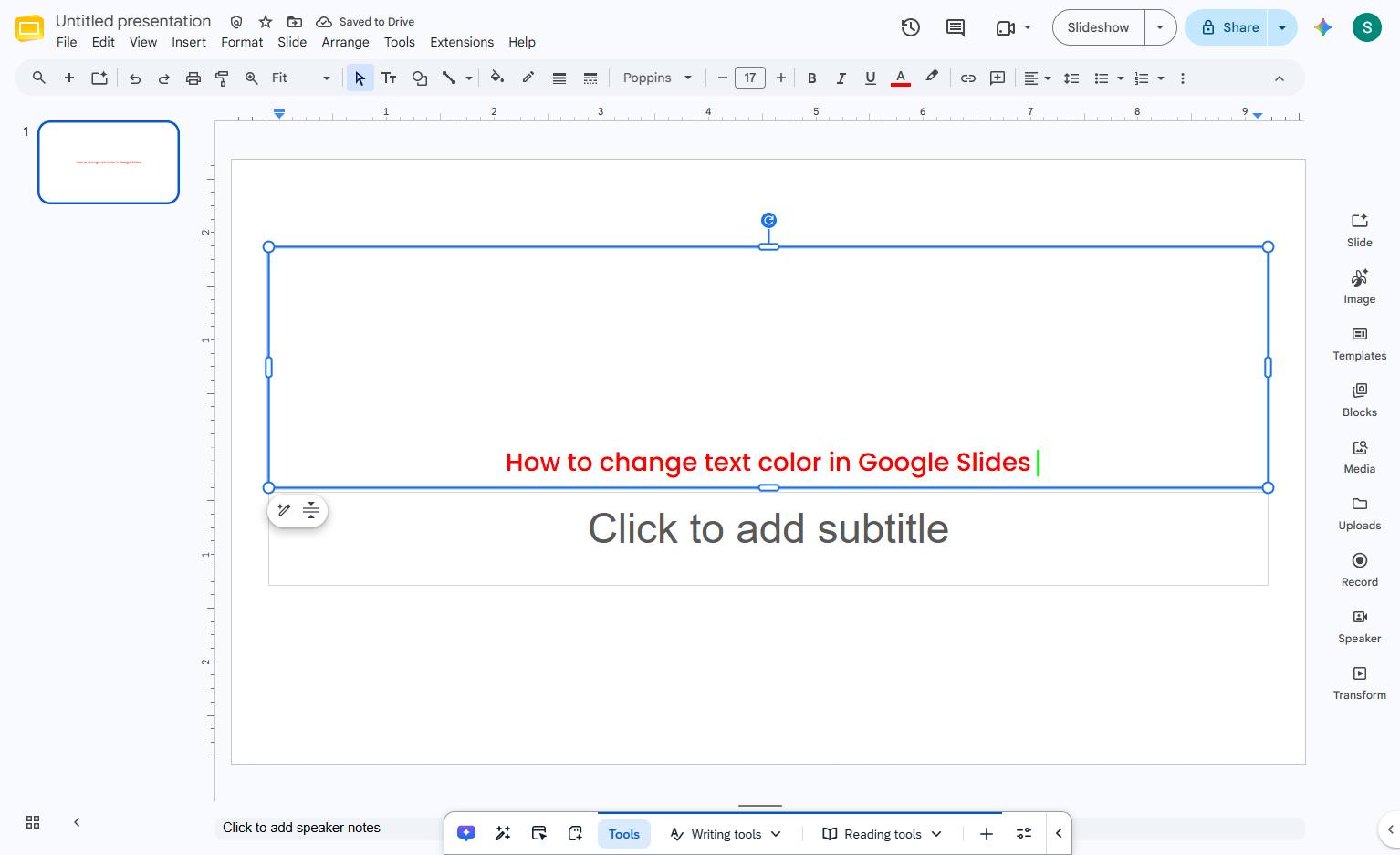
Click the red color swatch in the dropdown menu to change the text color.
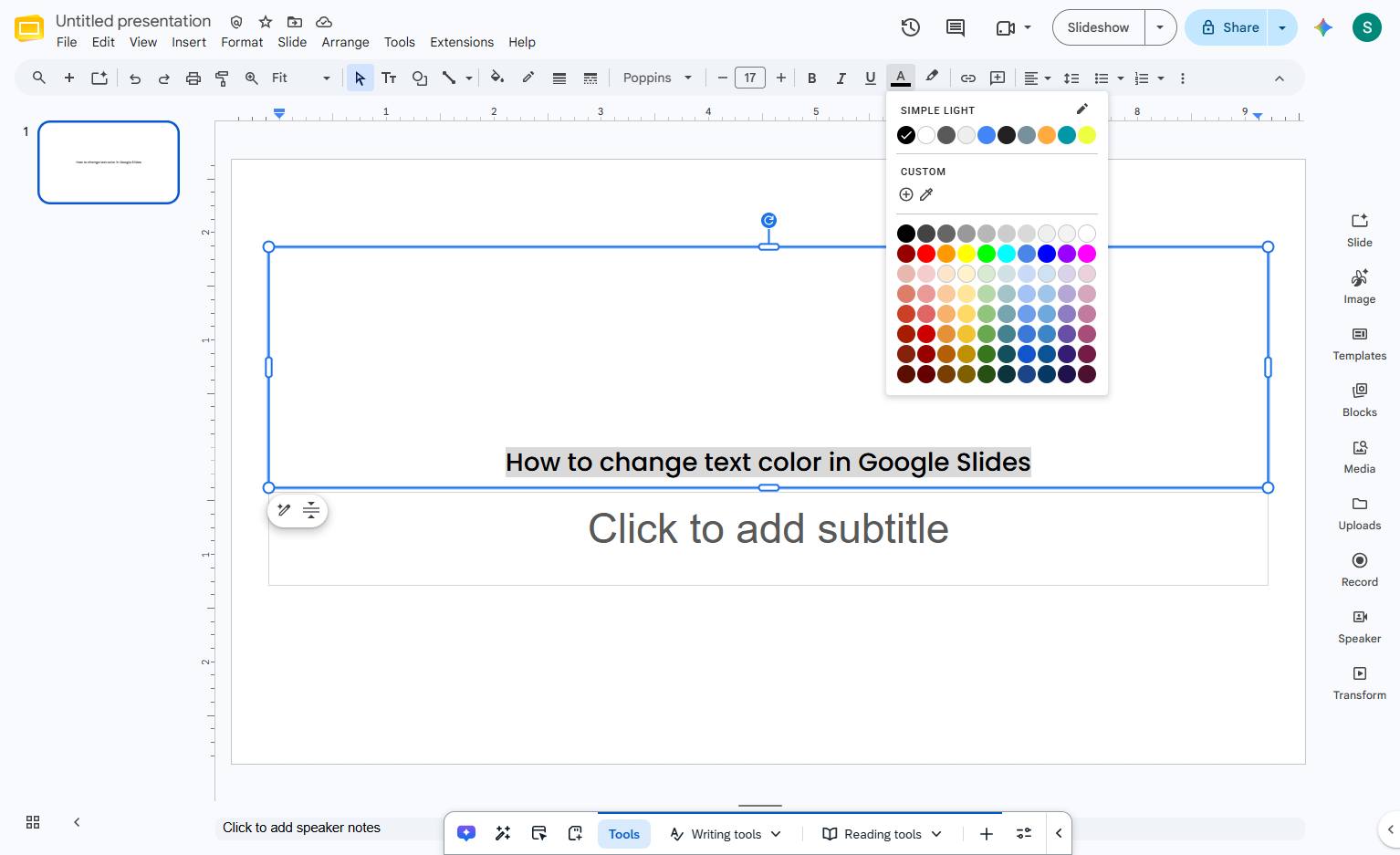
Review the text color change
Duplicate this template, swap in your own screens, and share it with your team. Free to start — no credit card.
Fill out the form and we'll get back to you as soon as possible.
Tell us about your team and we'll find the right plan together.