1
Click the user profile avatar
Click the user profile avatar in the top right corner of the page to open the user navigation menu.
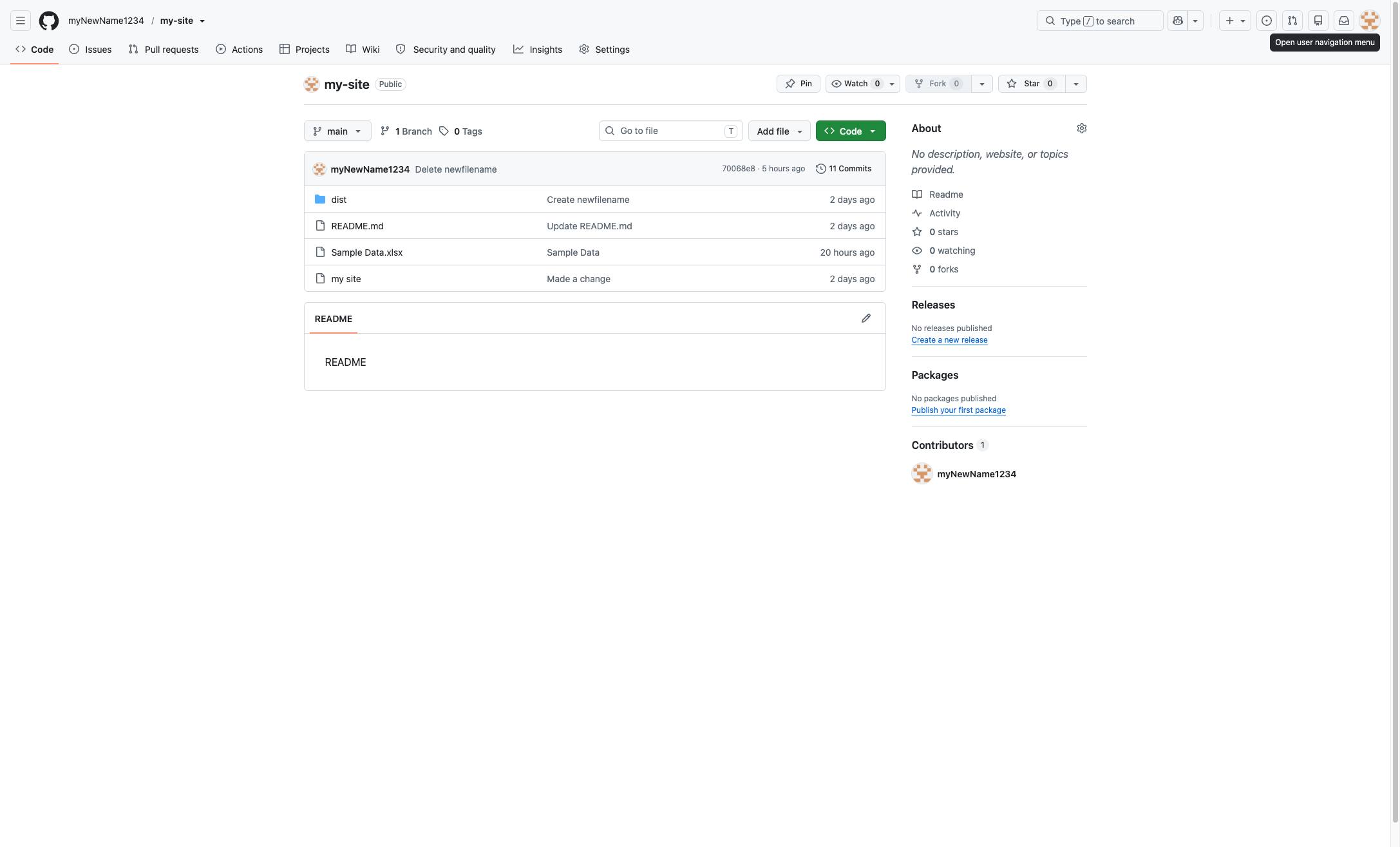

In this guide, you will learn how to update your GitHub account settings to change your username. By navigating through your profile settings to the Account section, you will walk through the step-by-step process of confirming the change and entering a new username
Click the user profile avatar in the top right corner of the page to open the user navigation menu.
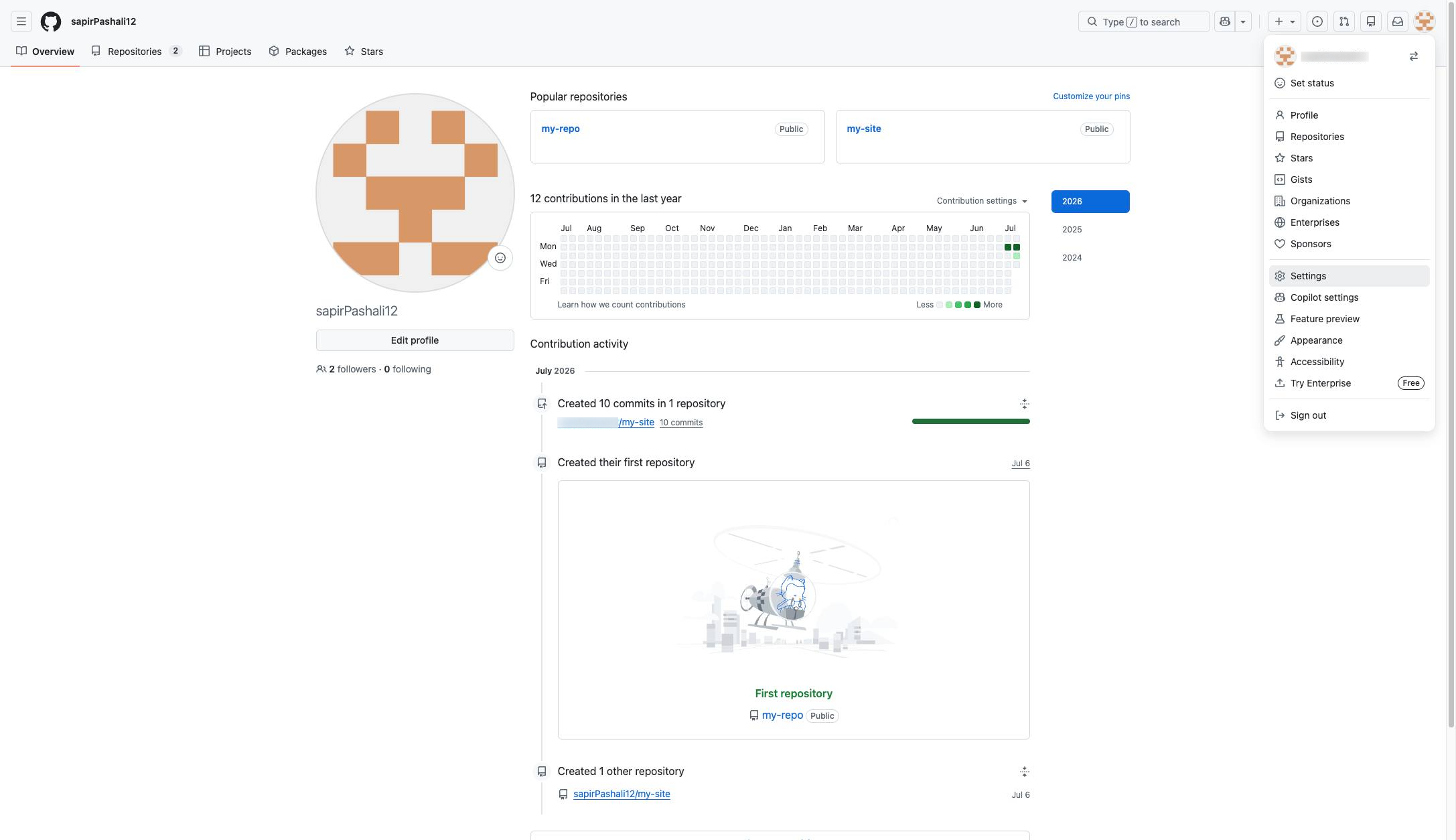
Click the "Settings" option in the user profile dropdown menu to access your account settings.
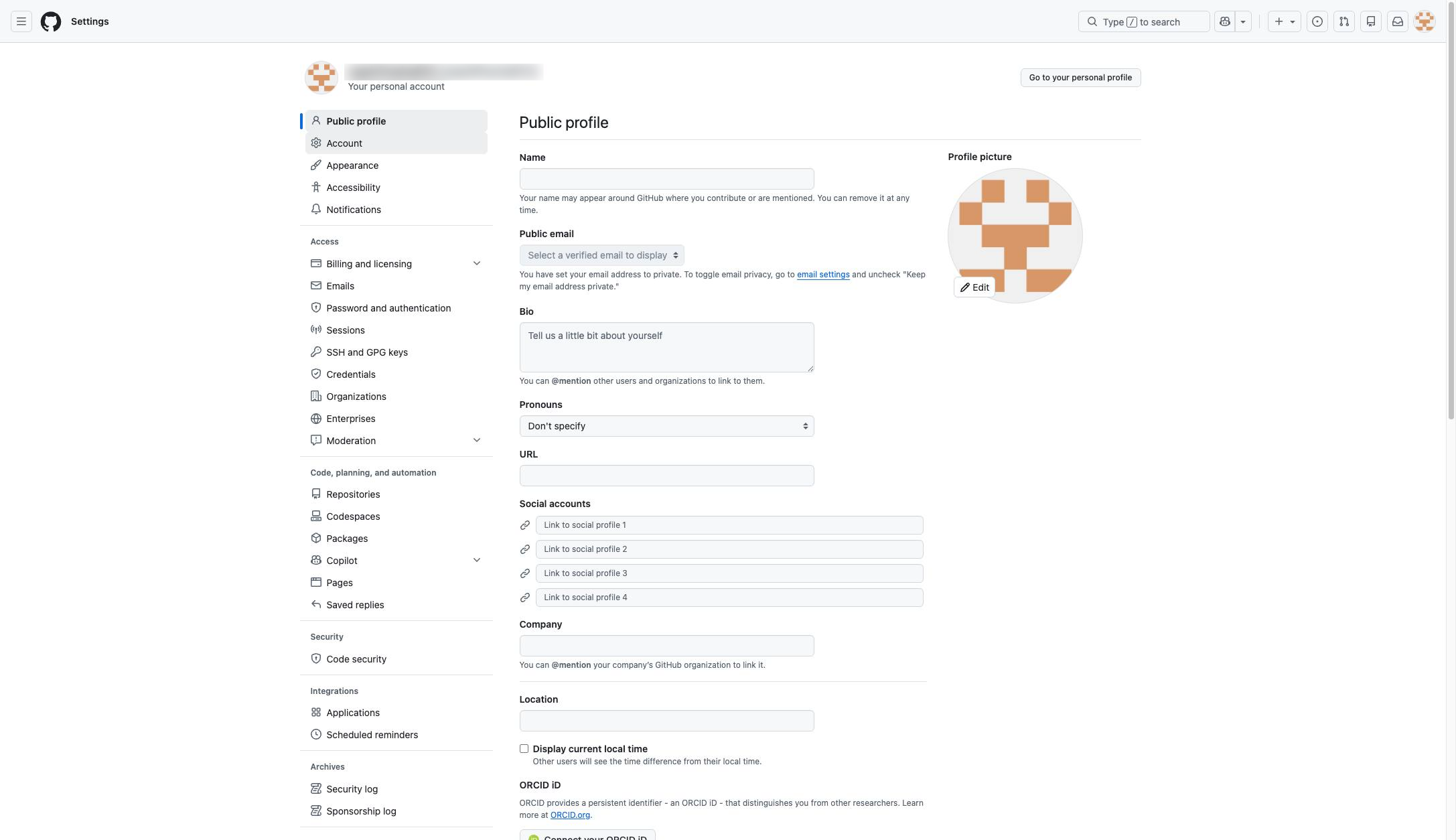
Click the Account option in the left sidebar menu to access your account settings.
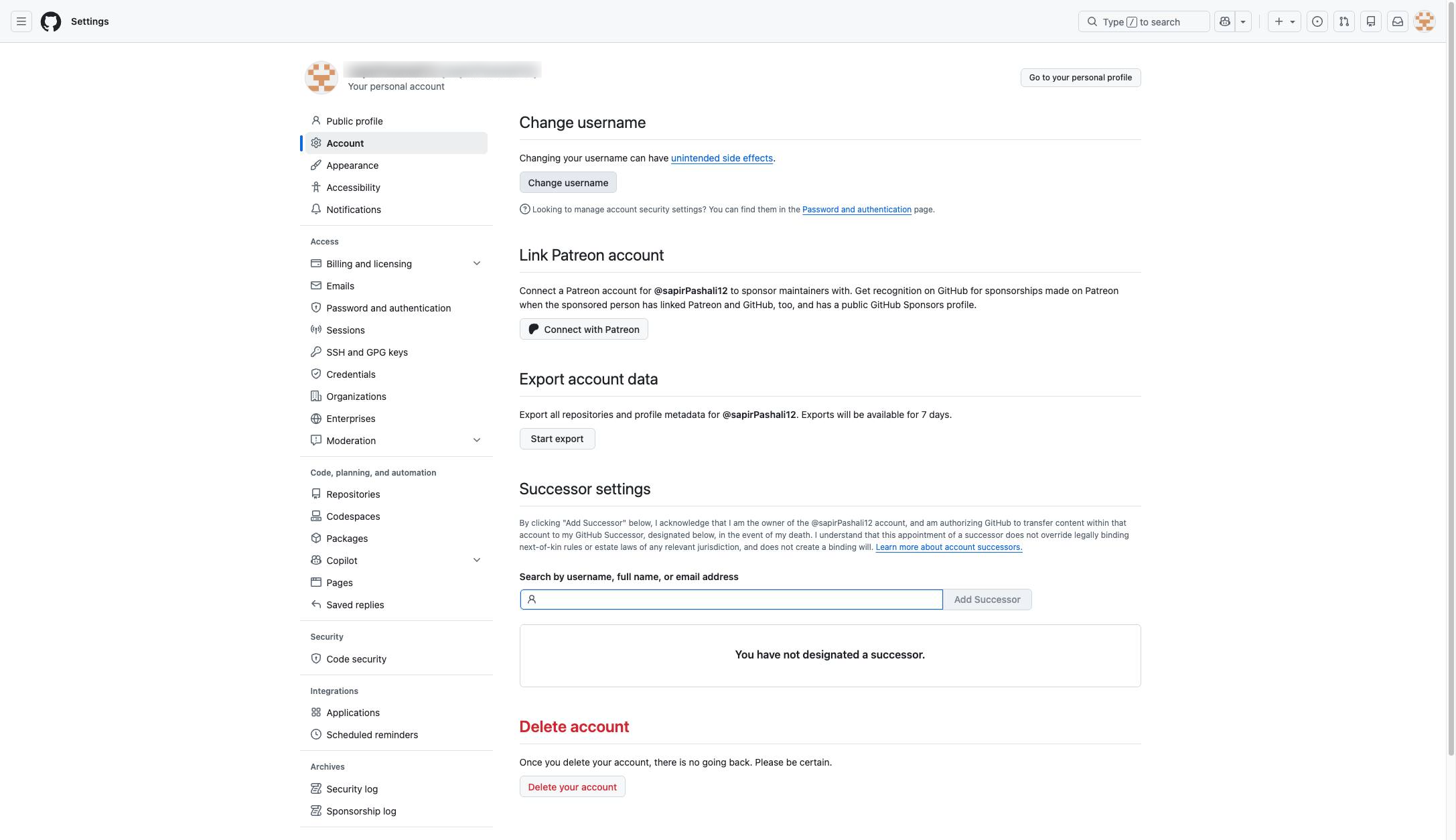
Click the "Change username" button in the main content area to initiate the username change process.
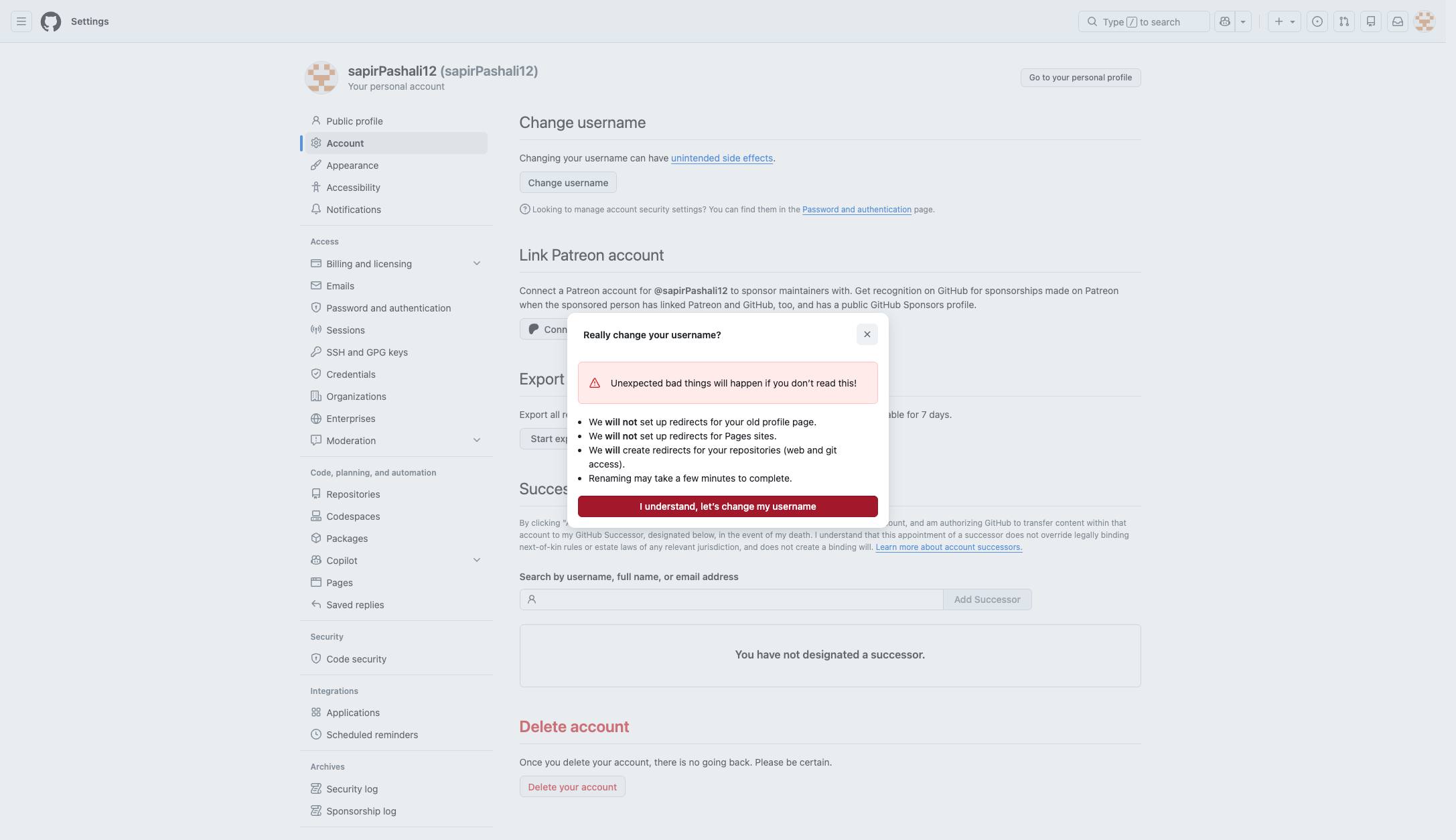
Click the "I understand, let's change my username" button in the confirmation modal to proceed.
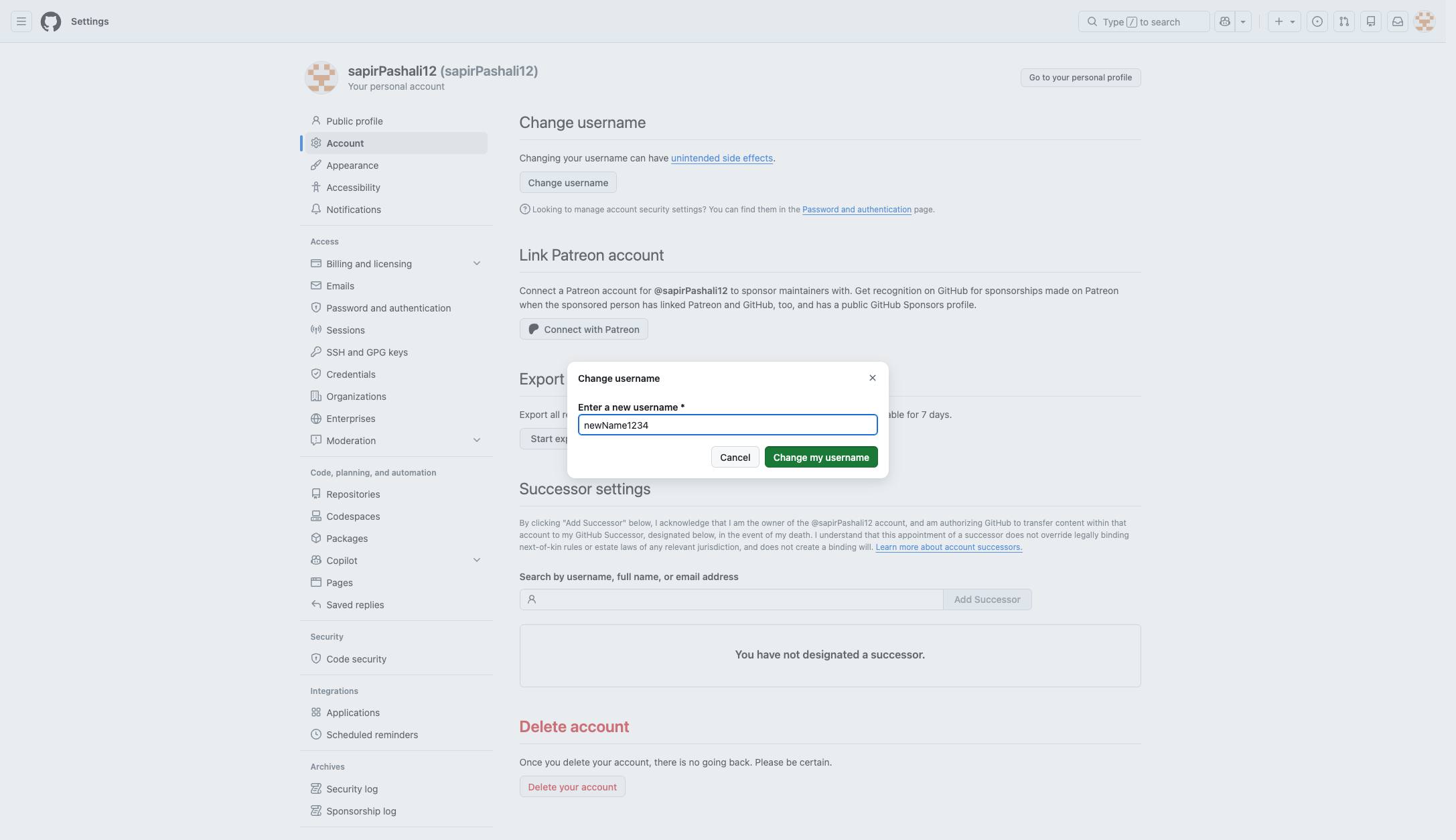
Click the "Change my username" button in the modal to confirm your new username.
Duplicate this template, swap in your own screens, and share it with your team. Free to start — no credit card.
Fill out the form and we'll get back to you as soon as possible.
Tell us about your team and we'll find the right plan together.