1
Navigate to Google Docs
Click the Google Docs apps button in the middle left corner of the header to open the apps menu.
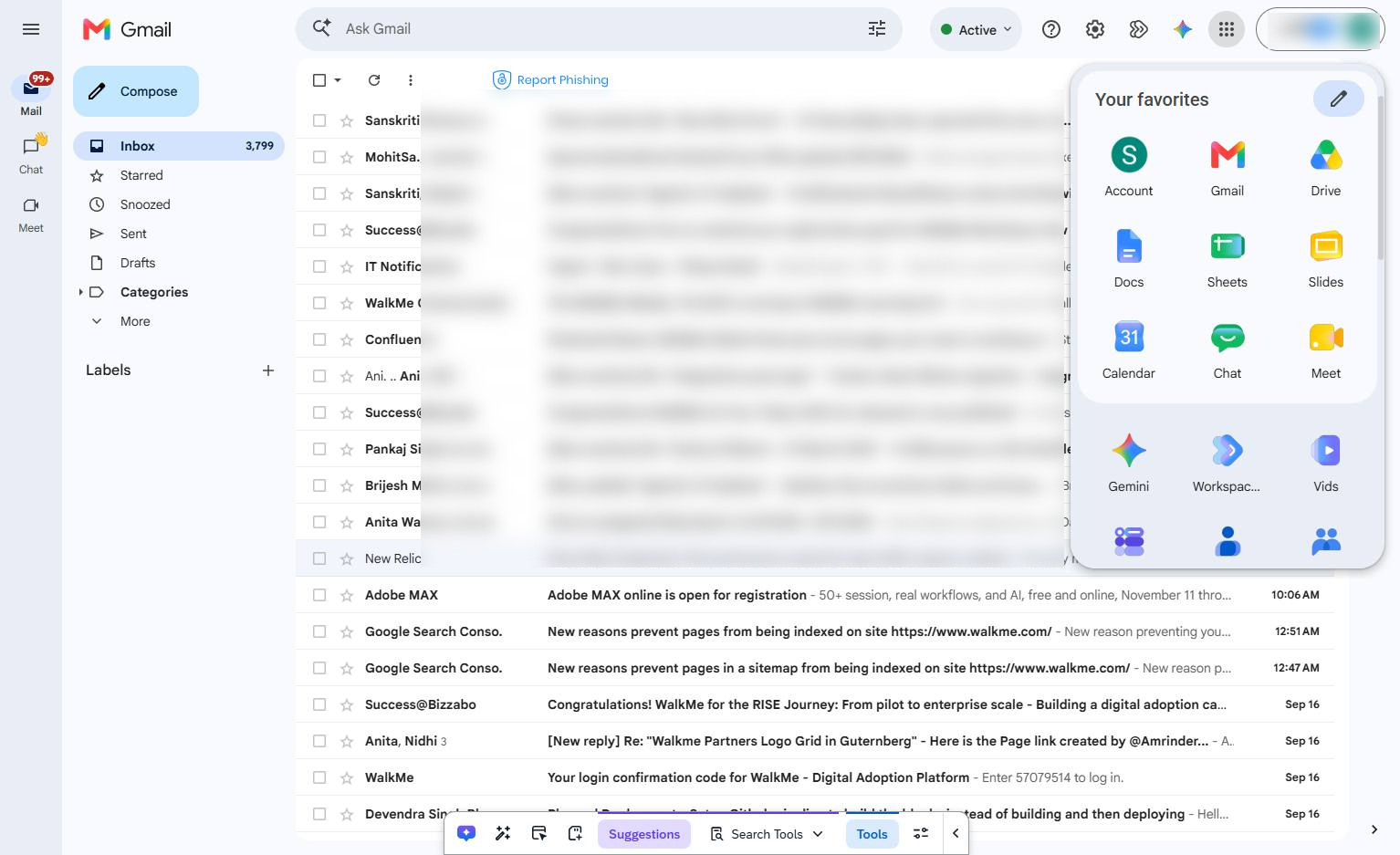

In this guide, you will learn how to customize the background color of a Google Docs document to enhance its visual appeal. Starting from your Gmail inbox, you will navigate to Google Docs, open a new blank document, and access the Page Setup menu. From there, you will select and apply a new page color to instantly transform your document's canvas.
Click the Google Docs apps button in the middle left corner of the header to open the apps menu.
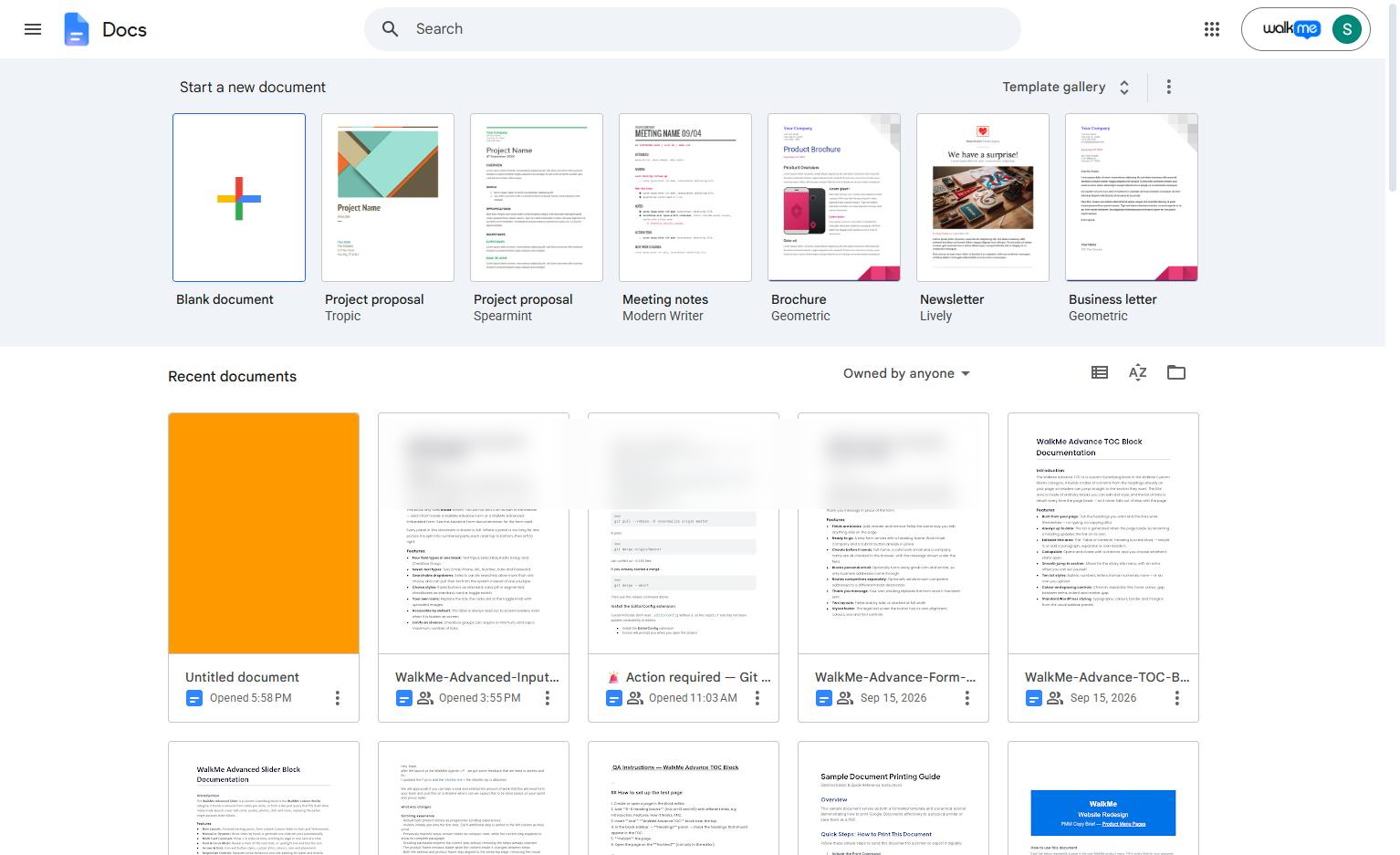
Click the Blank document option in the "Start a new document" section to create a new file.
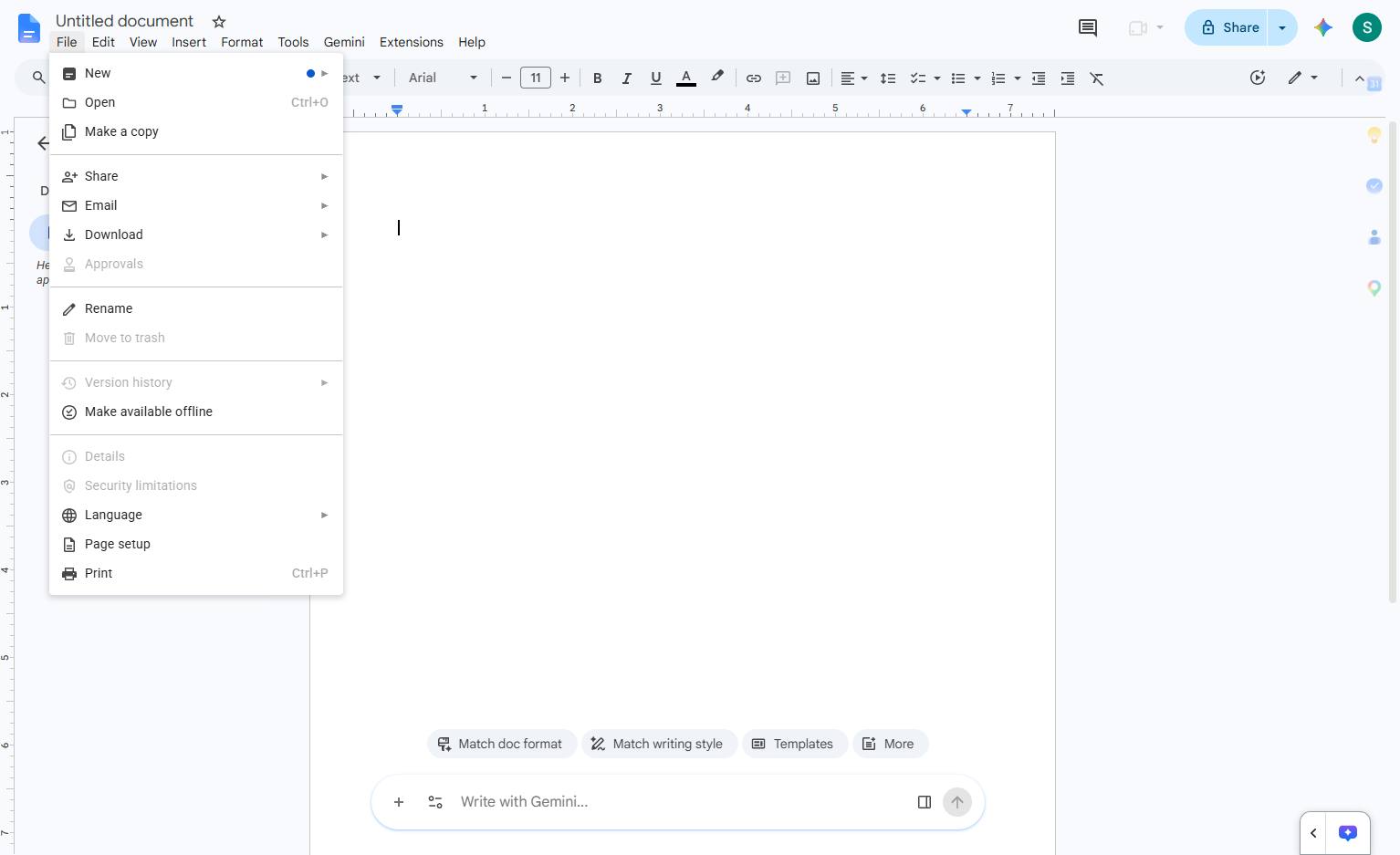
Click the File menu in the top toolbar to access document options.
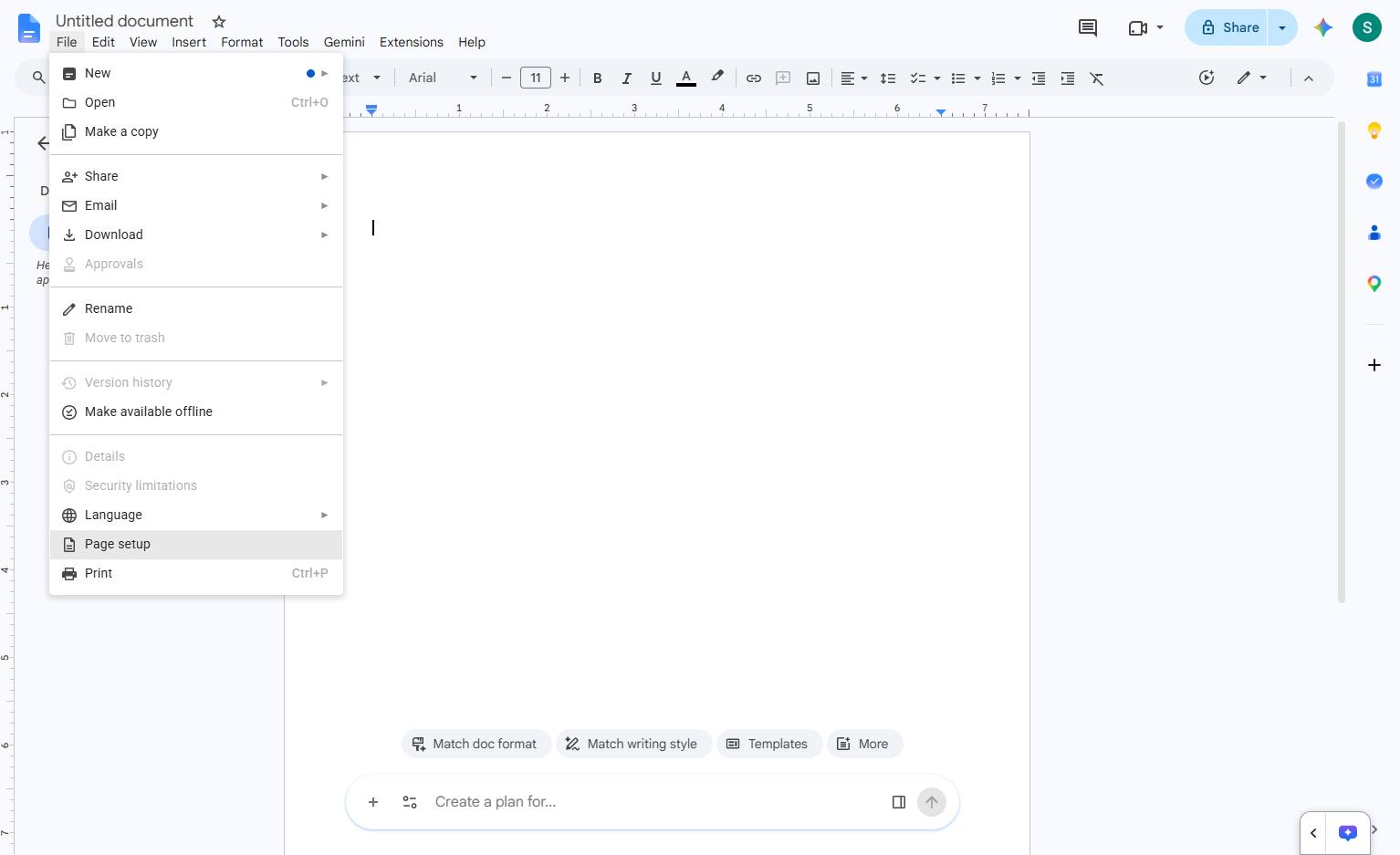
Click the "Page setup" option in the File menu dropdown to configure document dimensions and margins.
Click the Page color dropdown in the Page setup modal to select a background color for your document.
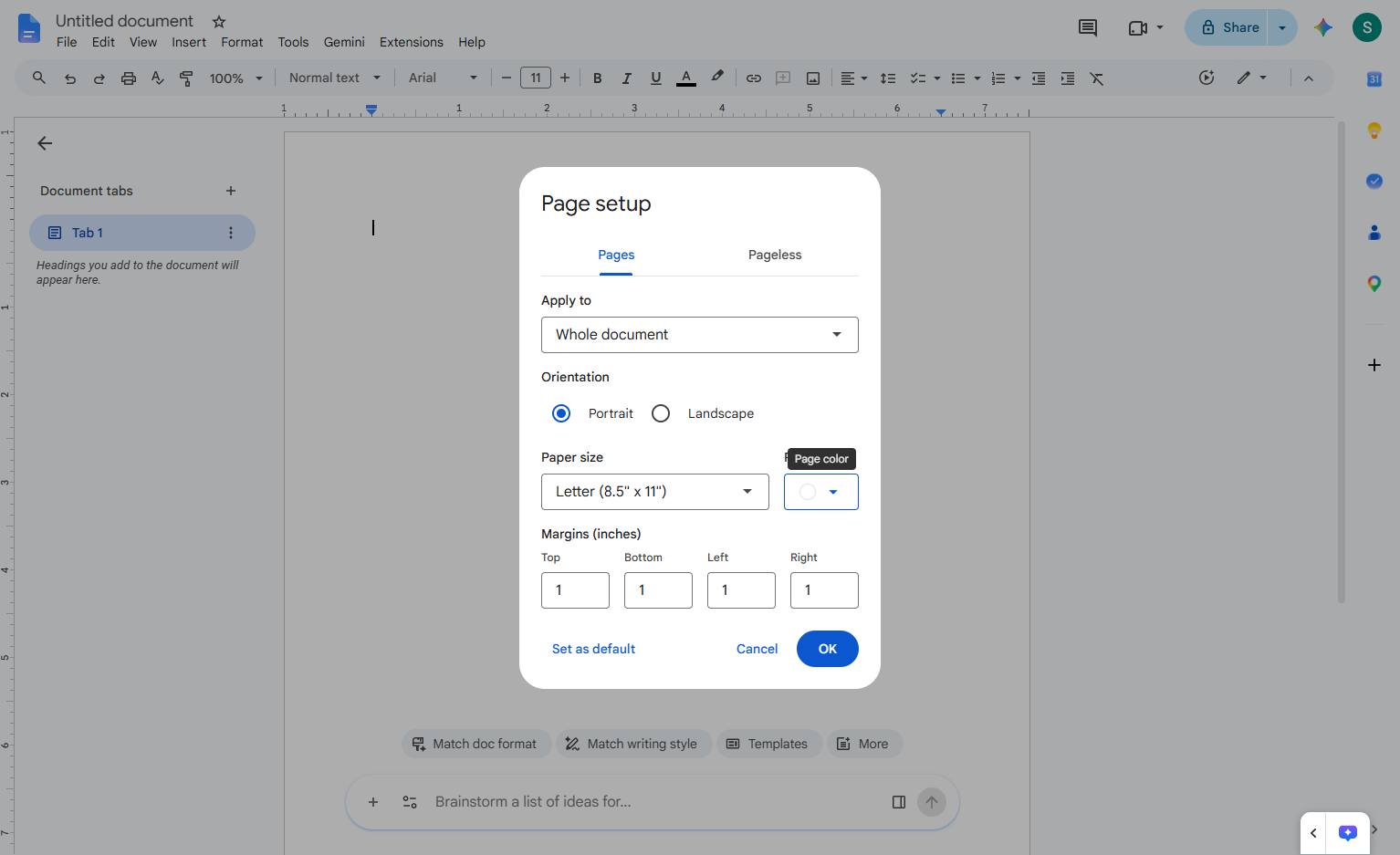
choose a pre-set color or click + Custom to enter a custom hex code.
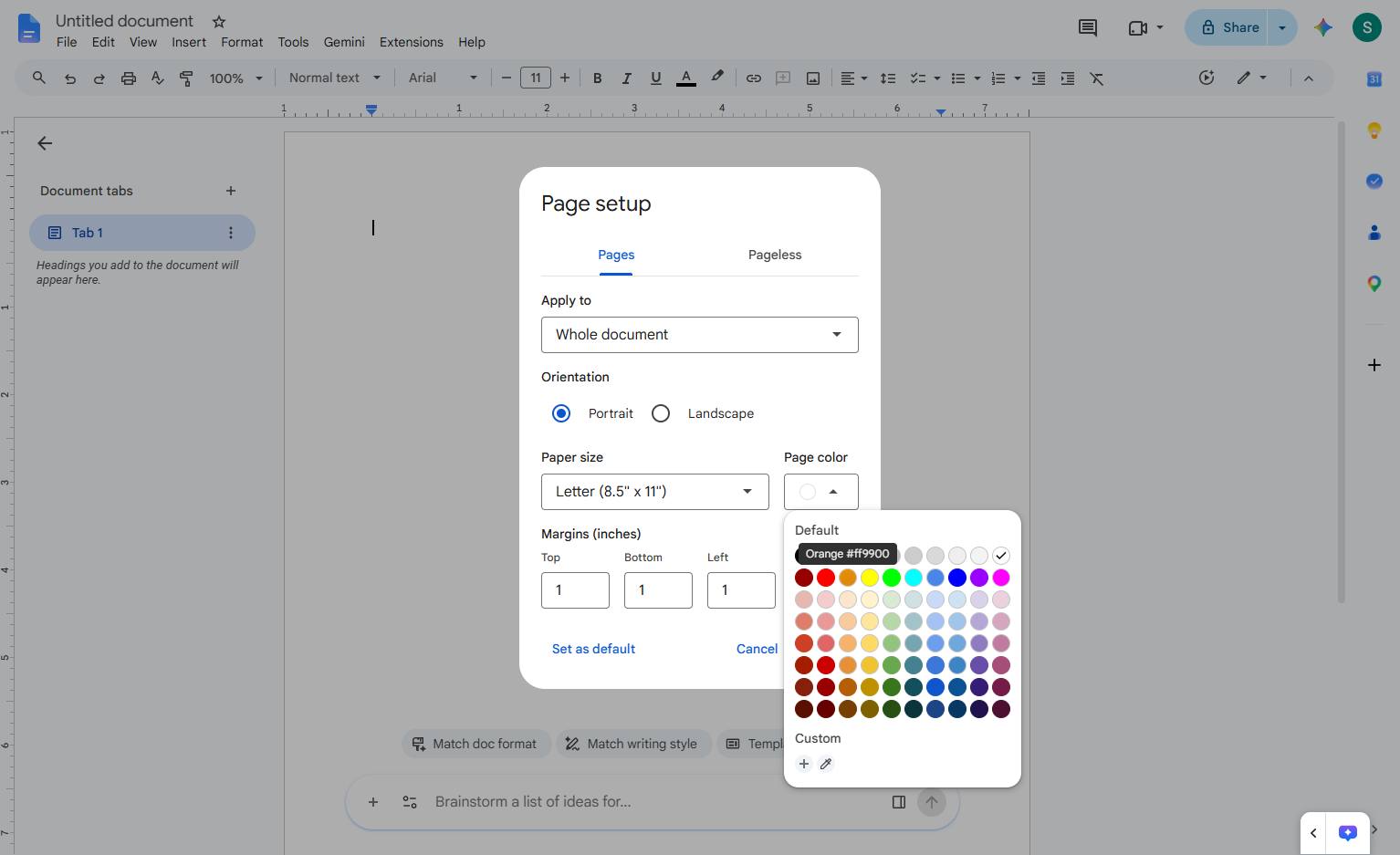
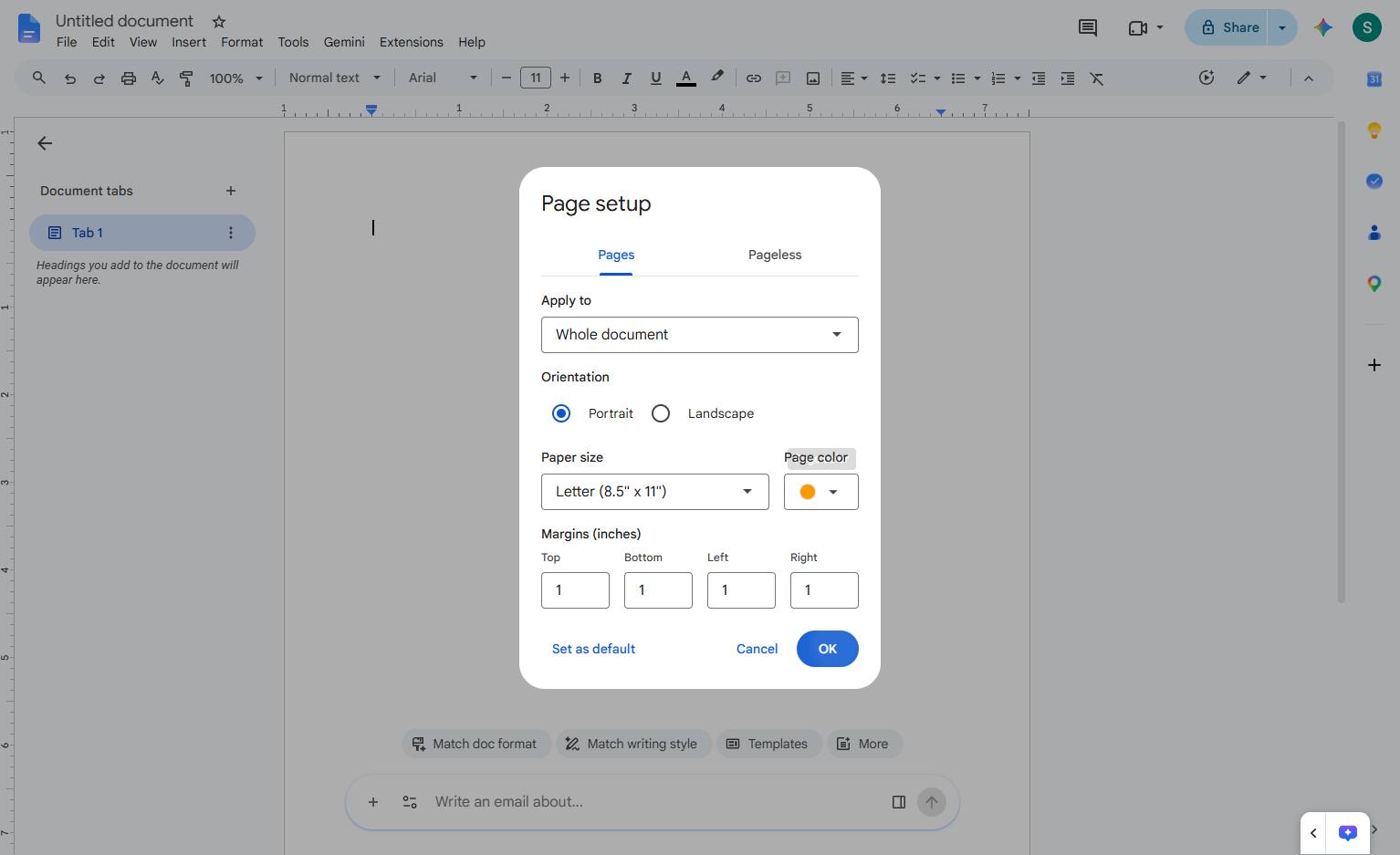
Click the OK button at the bottom right of the Page setup dialog to apply your changes.
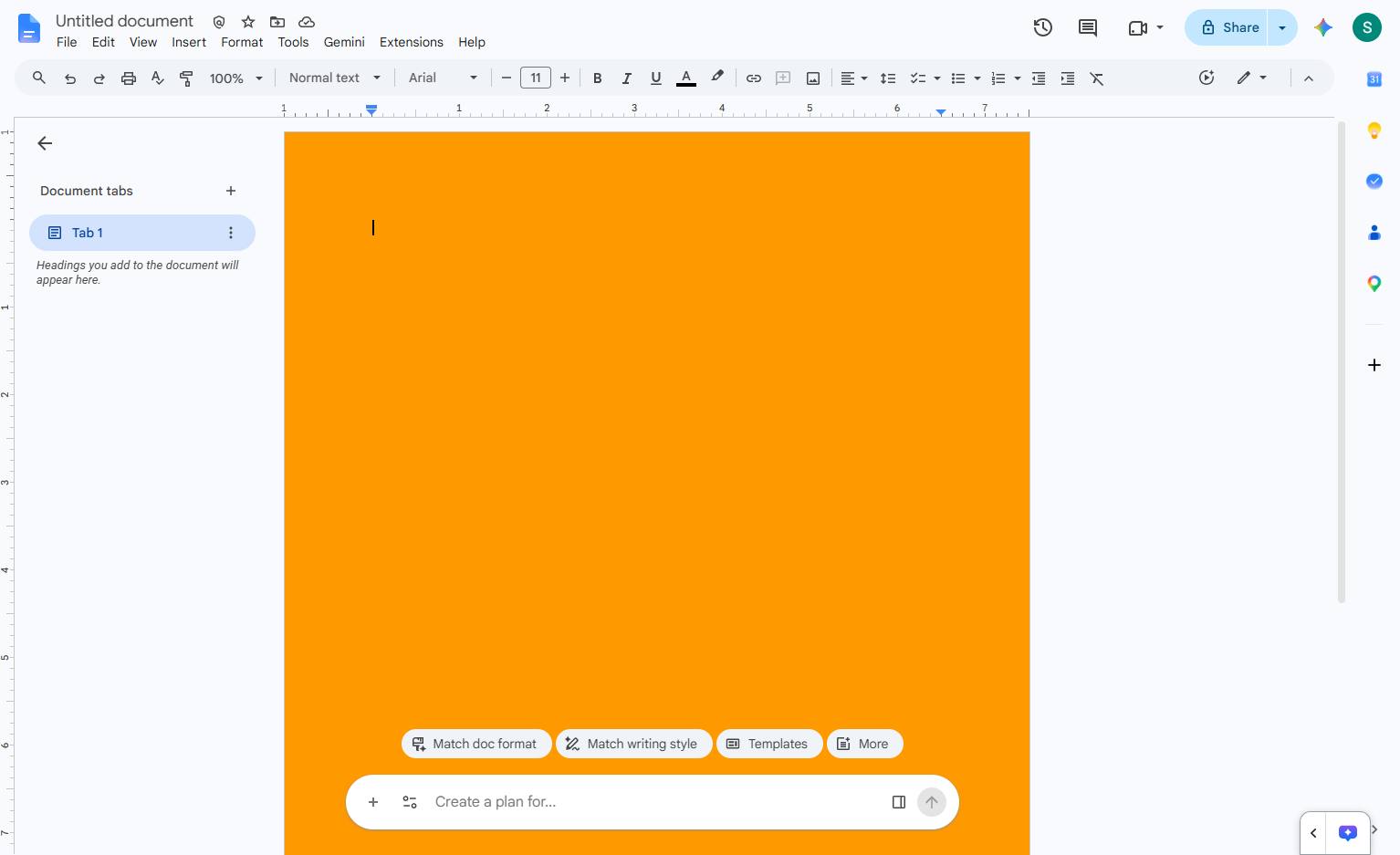
Background on Google doc has been updated.
Duplicate this template, swap in your own screens, and share it with your team. Free to start — no credit card.
Fill out the form and we'll get back to you as soon as possible.
Tell us about your team and we'll find the right plan together.