1
Blur background : Before joining a Zoom meeting
Click the Zoom icon in the taskbar at the bottom of the screen to open the application.
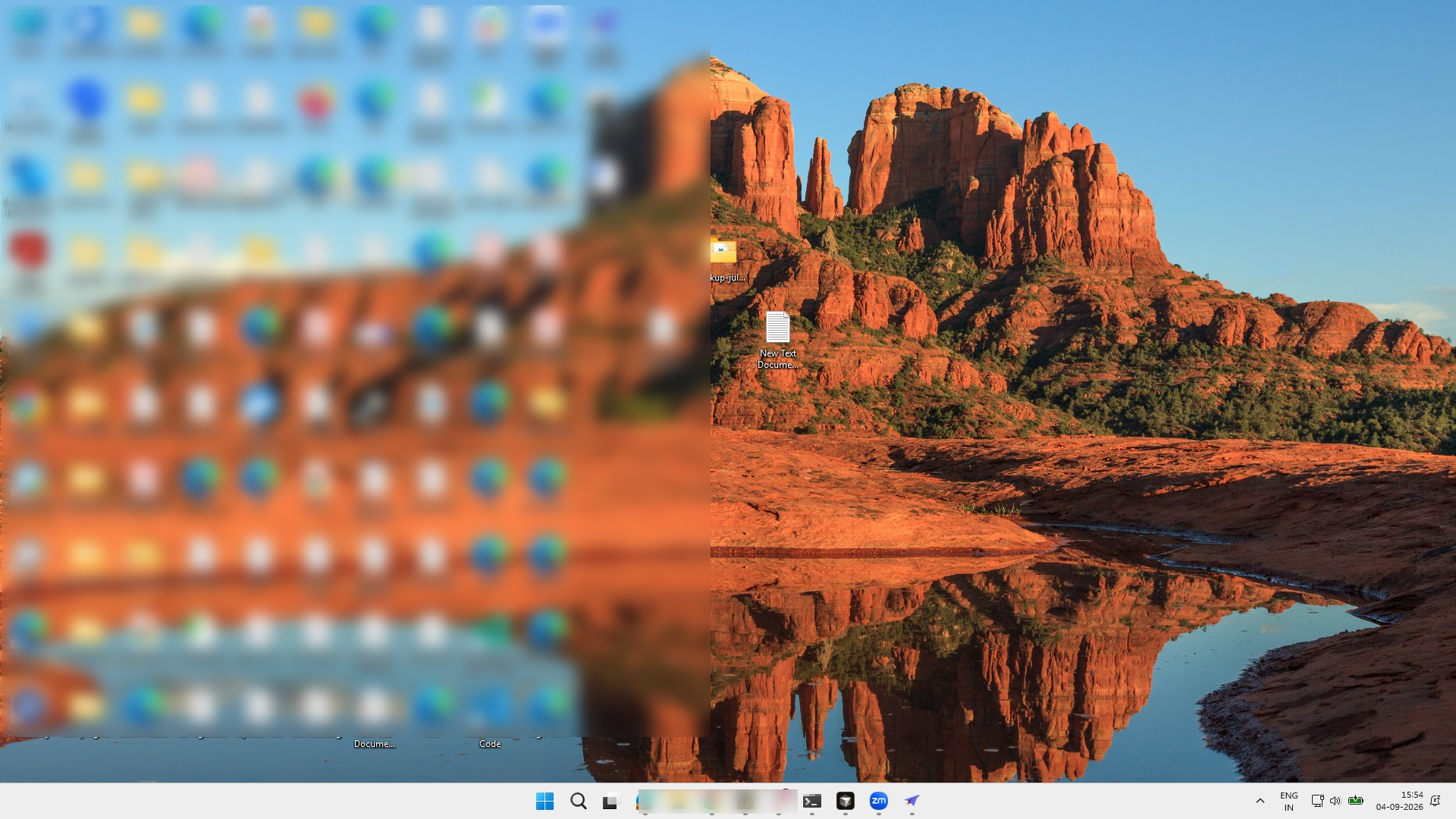

In this click-through tutorial, you will learn how to configure and customize your video appearance and meeting tools within the Zoom Workplace desktop application. You will navigate the settings menu to enable portrait lighting, apply virtual backgrounds, and select custom avatars both before starting and during an active meeting. By following these step-by-step instructions, you will master managing your visual effects and background blur to optimize your virtual presentation.
Click the Zoom icon in the taskbar at the bottom of the screen to open the application.
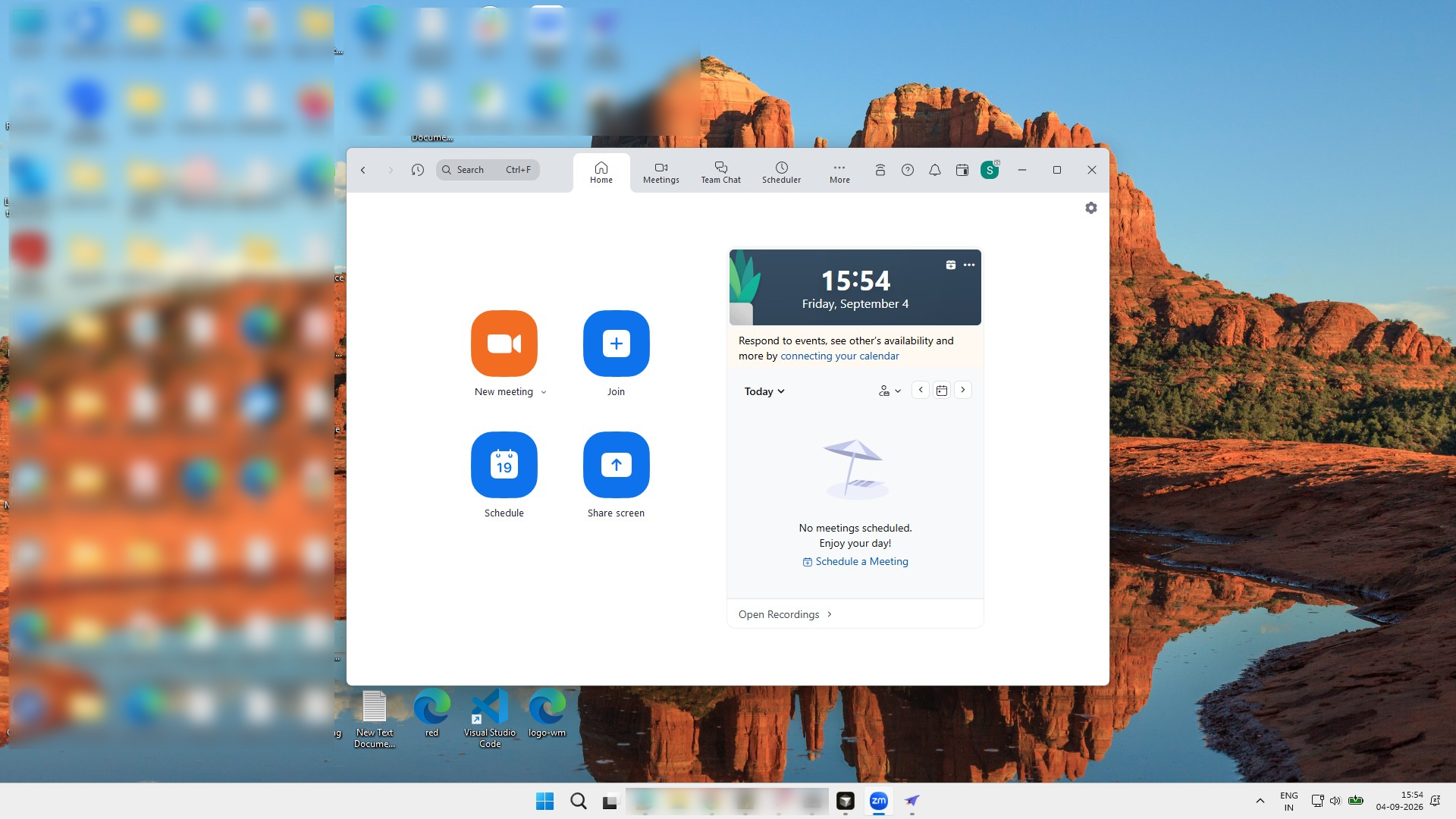
Click the profile icon in the top right corner of the Zoom window to open the account menu.
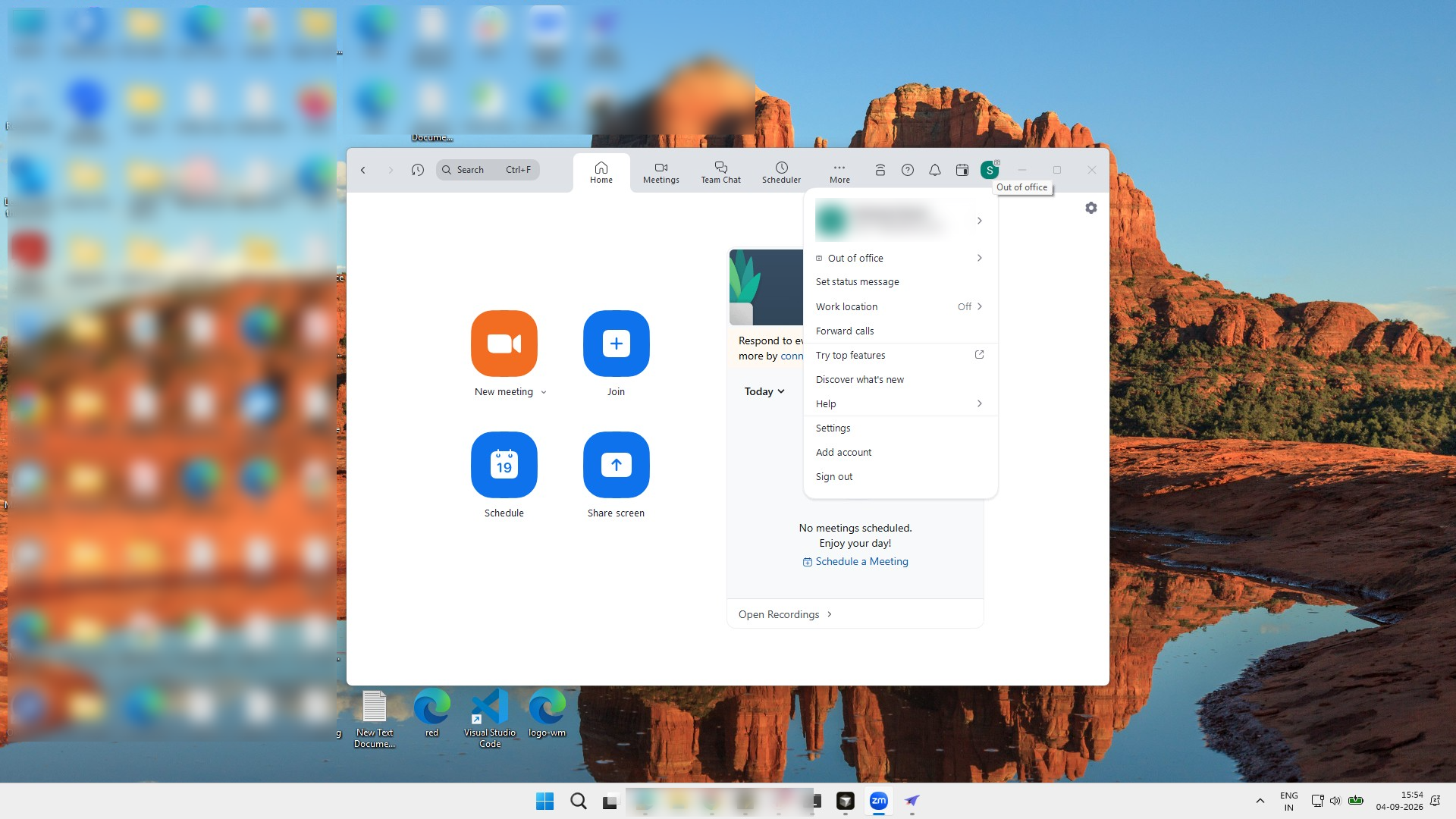
Click the Settings option in the profile dropdown menu to open the configuration panel.
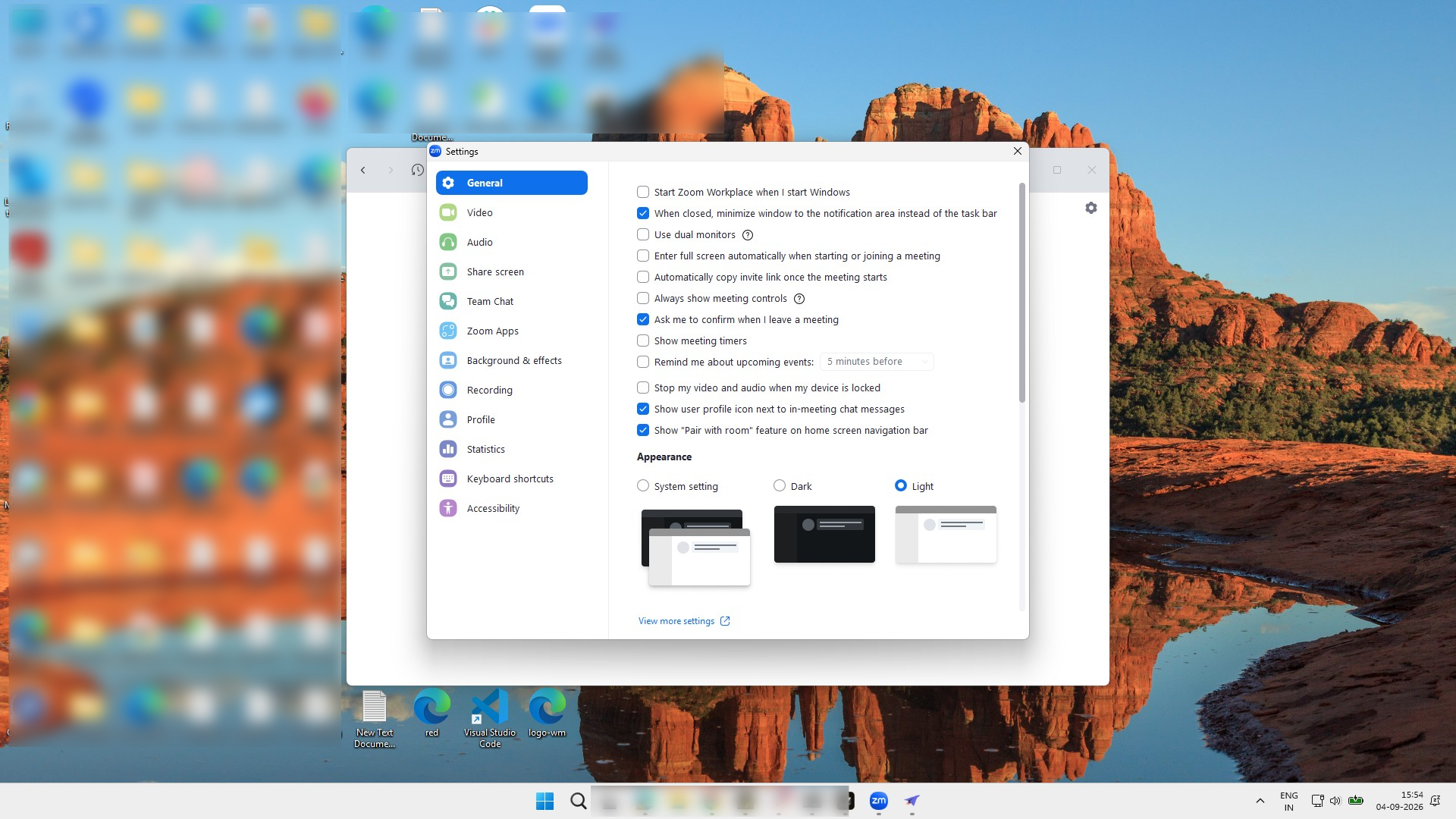
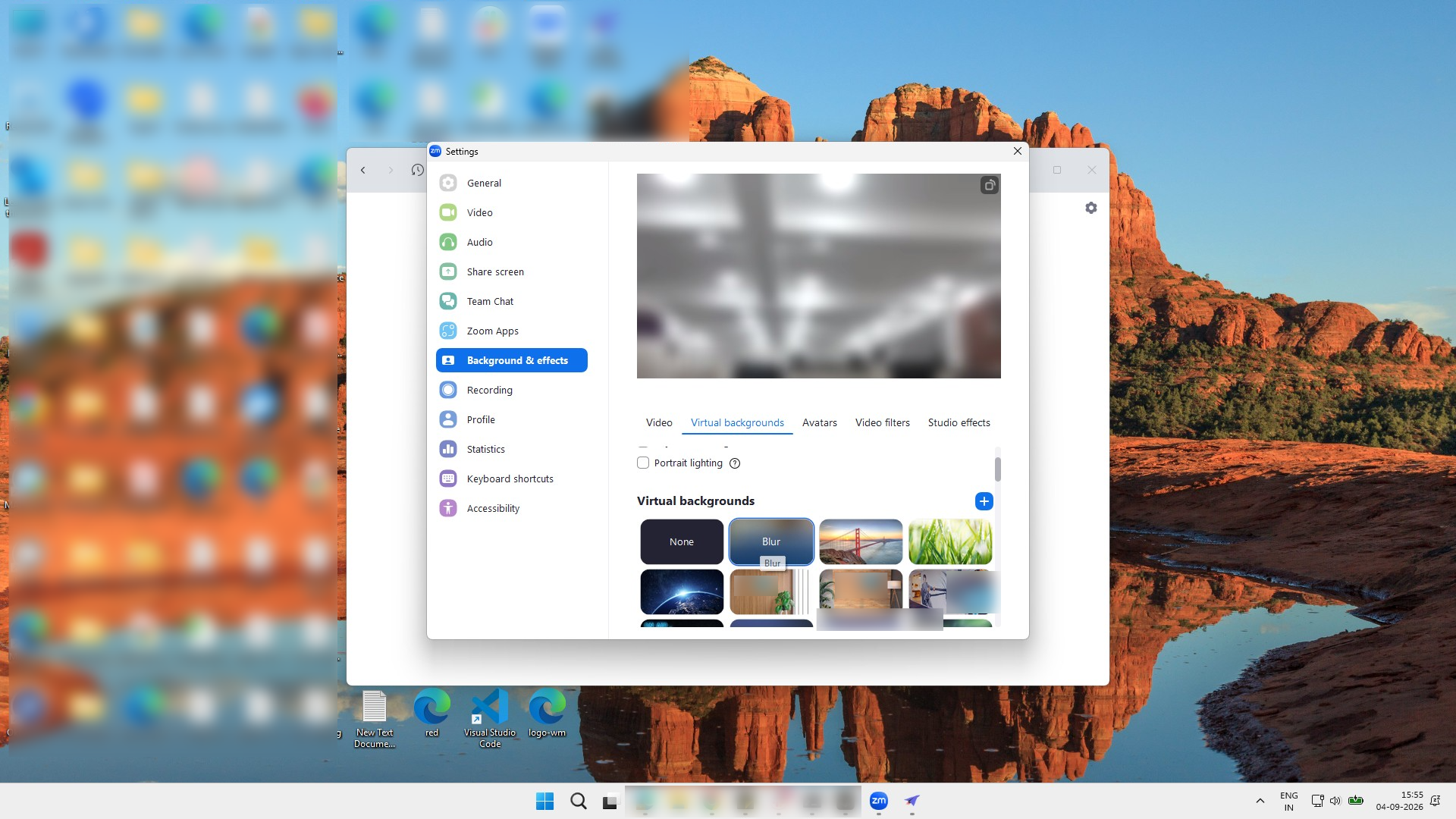
Click the Background & effects tab in the left sidebar of the Settings window.
Click the Blur option in the Virtual backgrounds section to blur your video background.
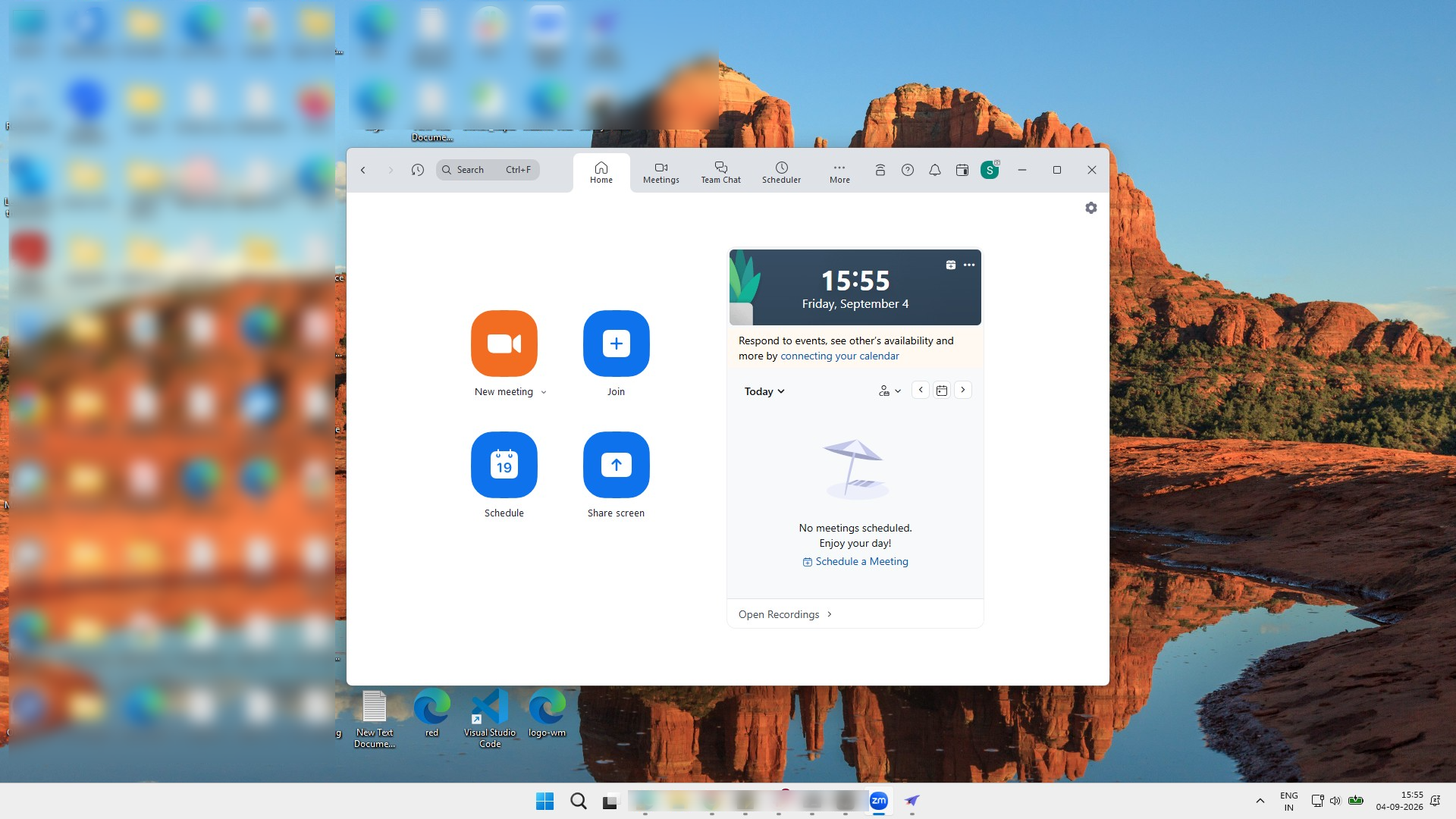
Click the Join button in the Zoom main window.
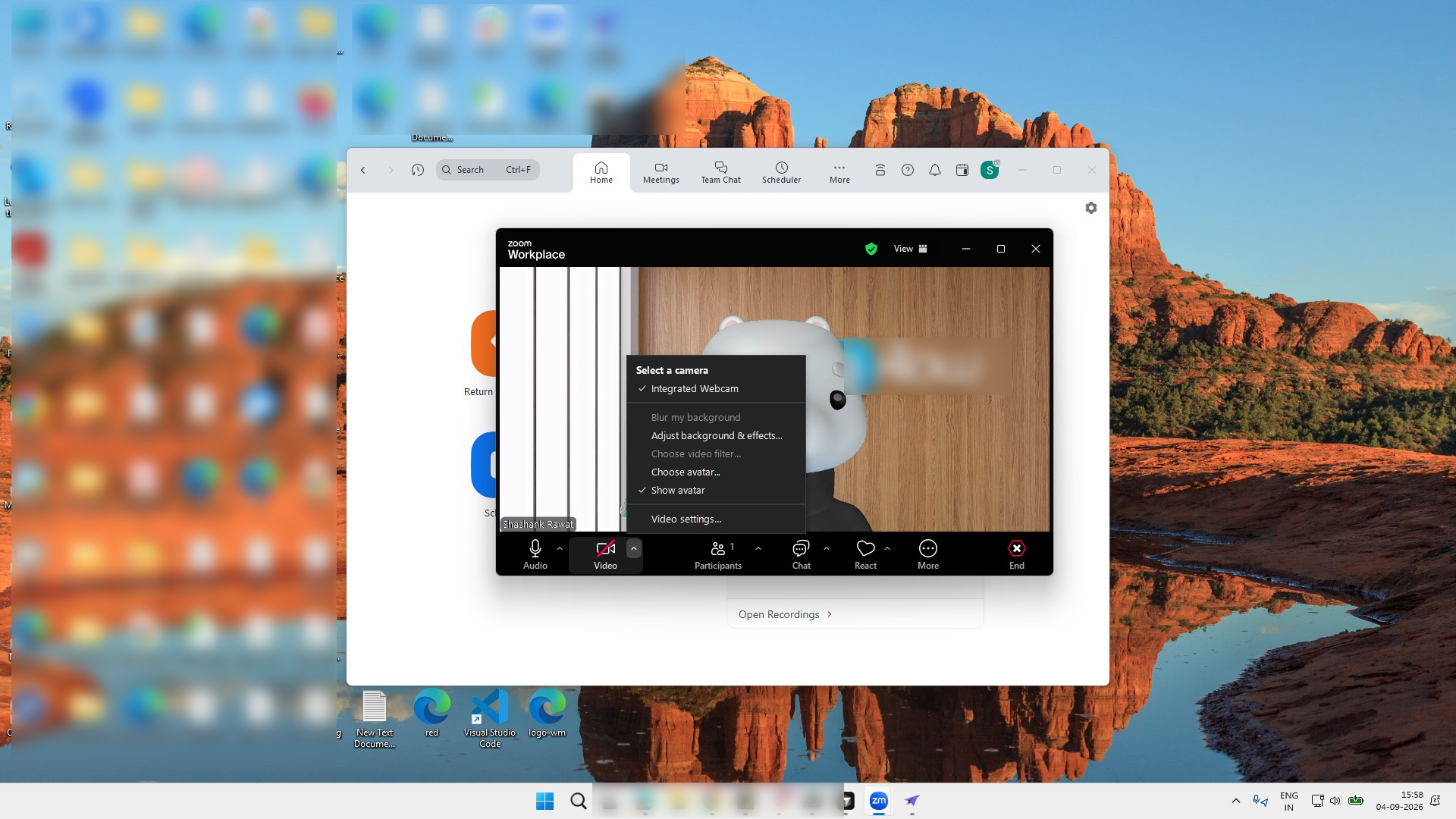
Click "Adjust background & effects..." in the video options menu to open the settings panel.
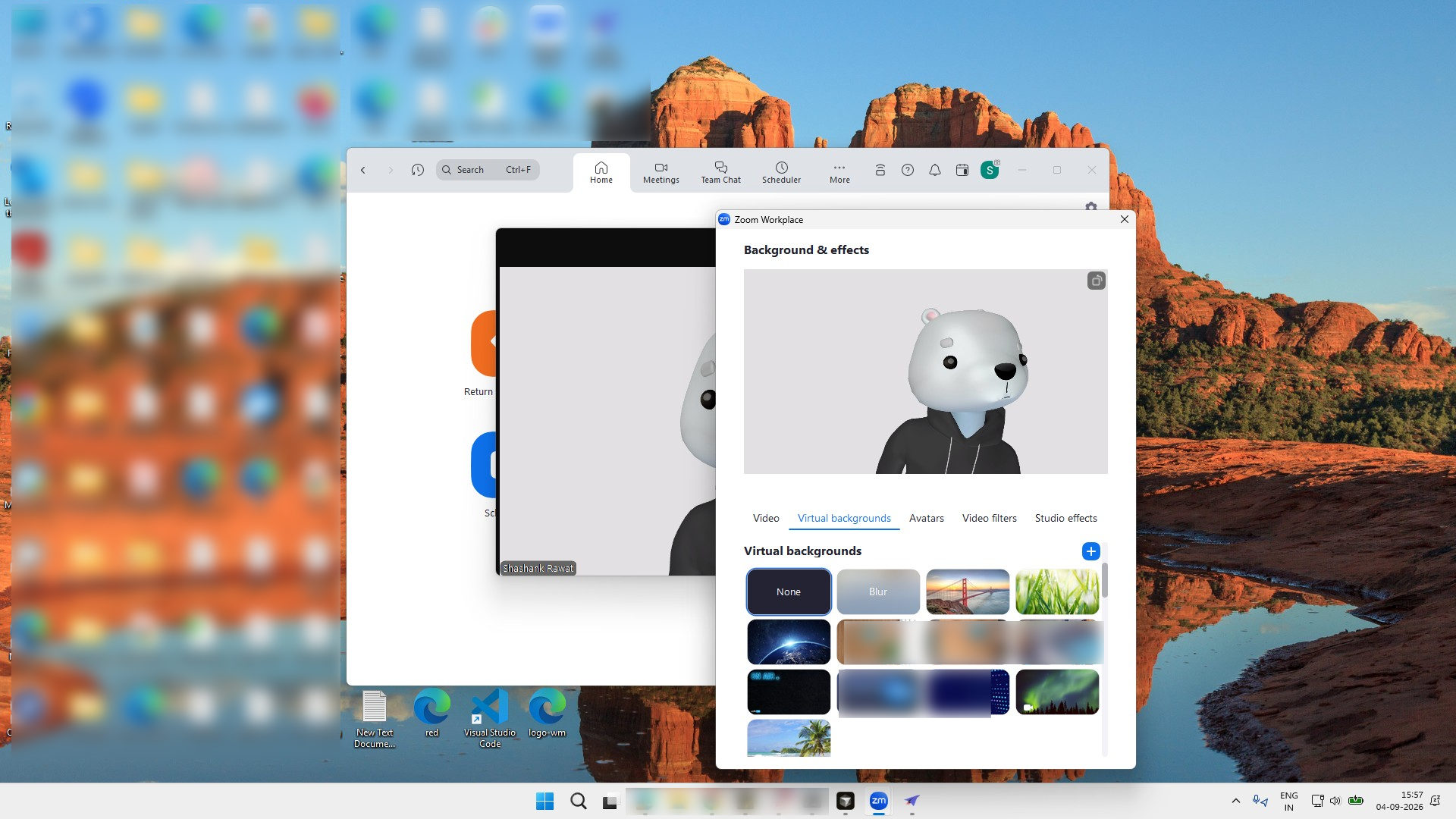
Click the Blur option in the Virtual backgrounds section to apply a blurred effect to your background.
Duplicate this template, swap in your own screens, and share it with your team. Free to start — no credit card.
Fill out the form and we'll get back to you as soon as possible.
Tell us about your team and we'll find the right plan together.