1
Open the PowerPoint presentation
Navigate to the PowerPoint presentation to begin adding a hyperlink to your slide.
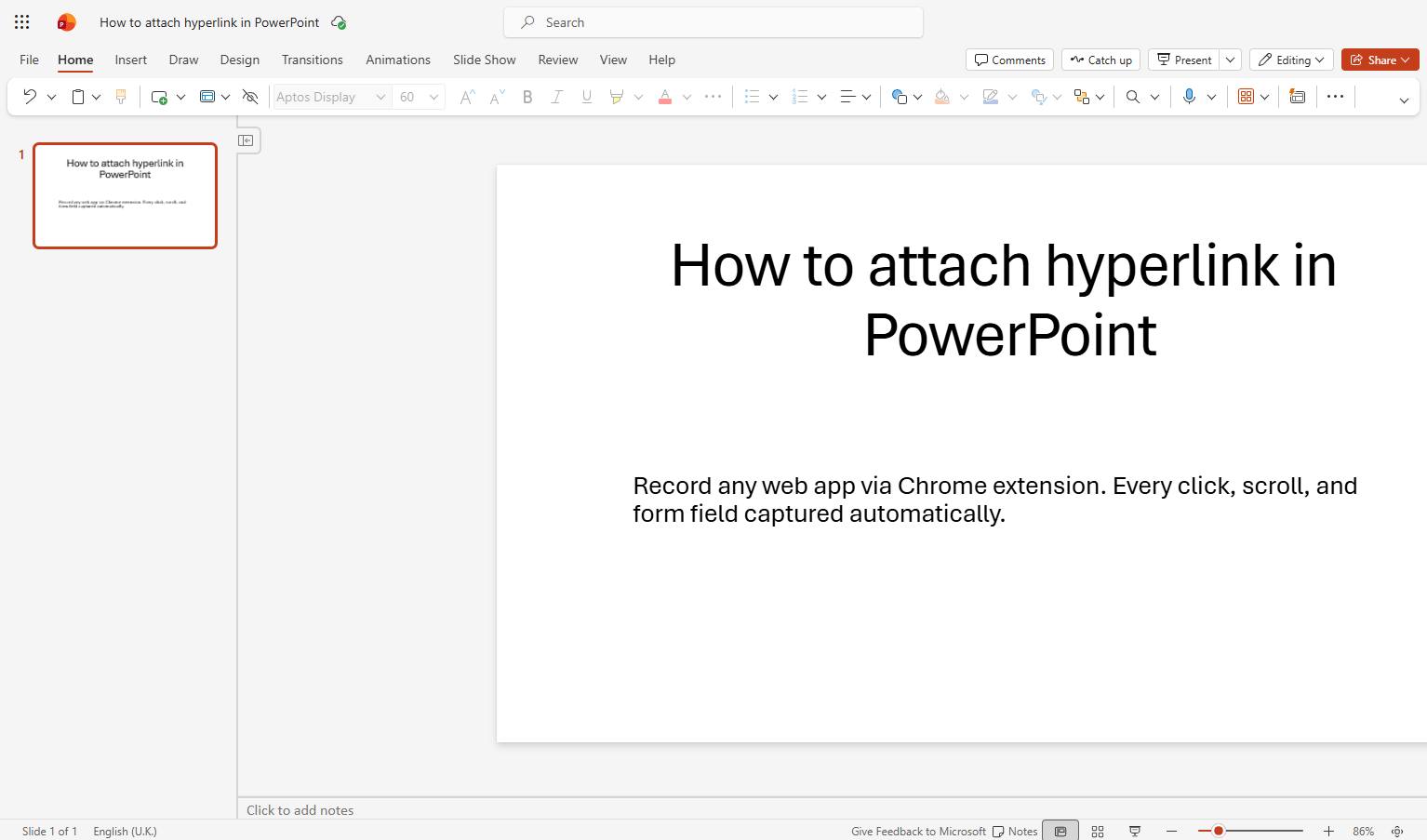

This guide walks you through the process of adding a hyperlink to text within a PowerPoint presentation. You will learn how to select your target text, access the Insert menu, and use the Link dialog box to input your destination URL. By completing these steps, you will successfully embed an active web link directly into your slide content.
Navigate to the PowerPoint presentation to begin adding a hyperlink to your slide.
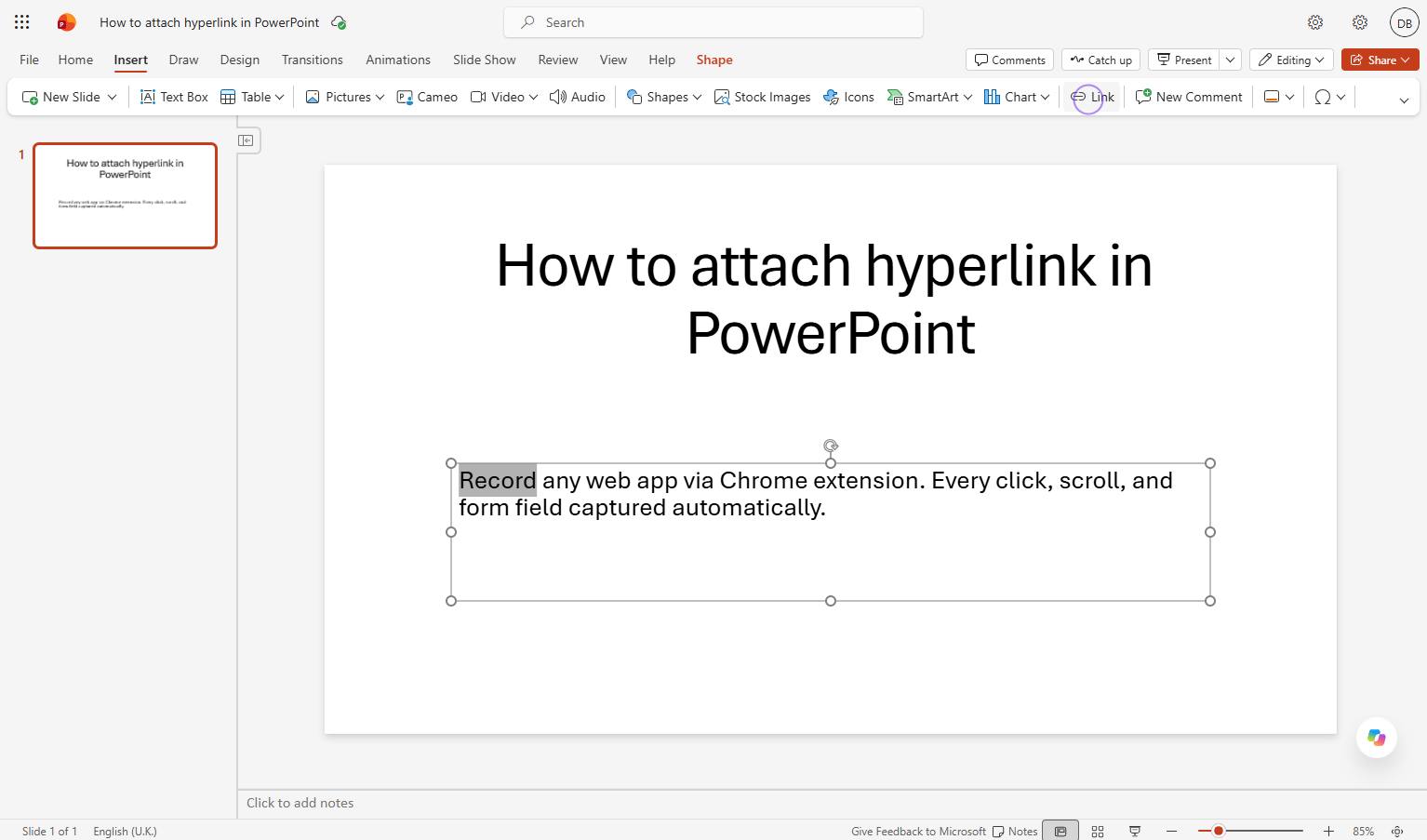
Click the text box on the slide containing the text "Record any web app..." to select it for editing.
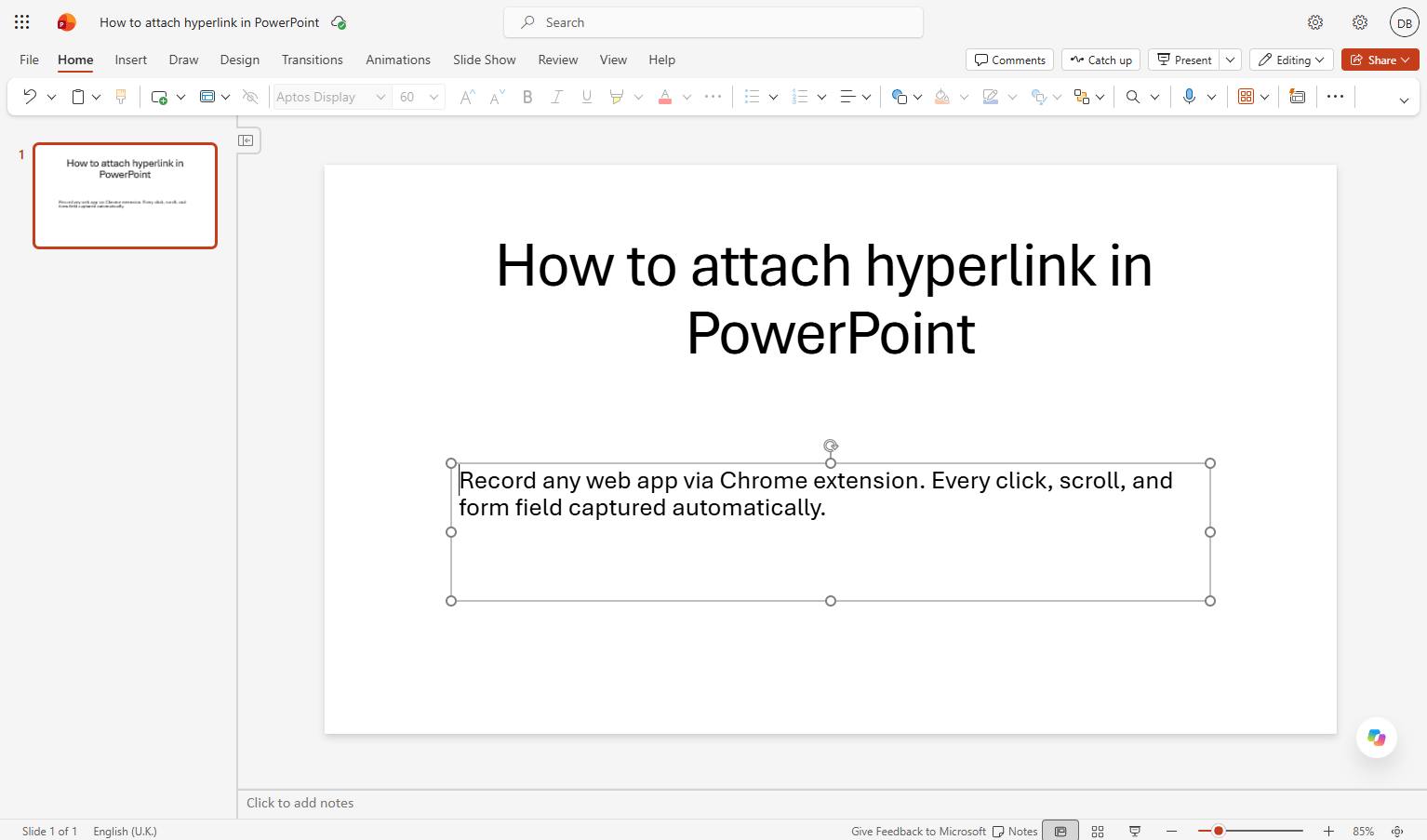
Select the text, shape or image you want to use as a link.
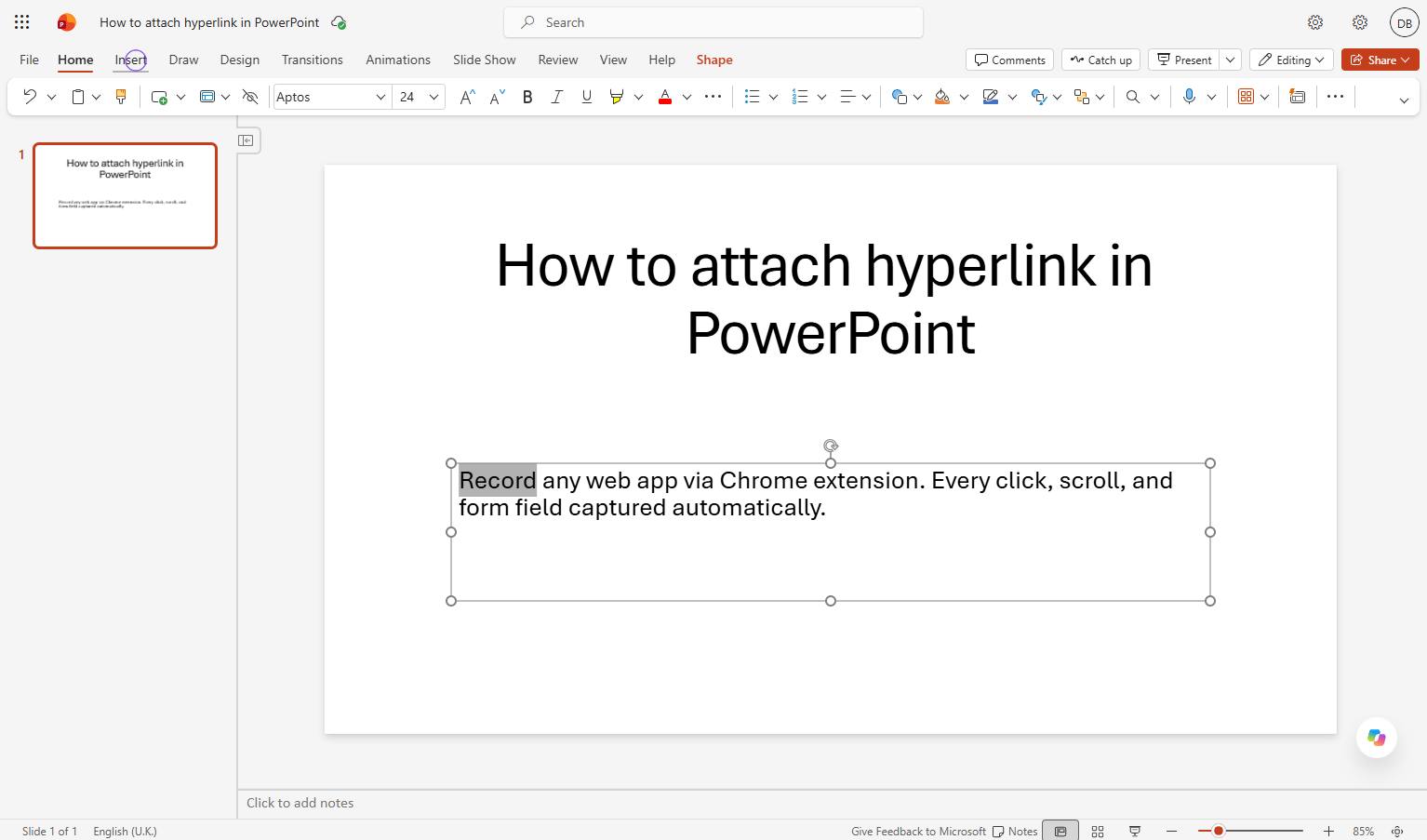
Click the Insert tab in the top ribbon menu to access additional options.
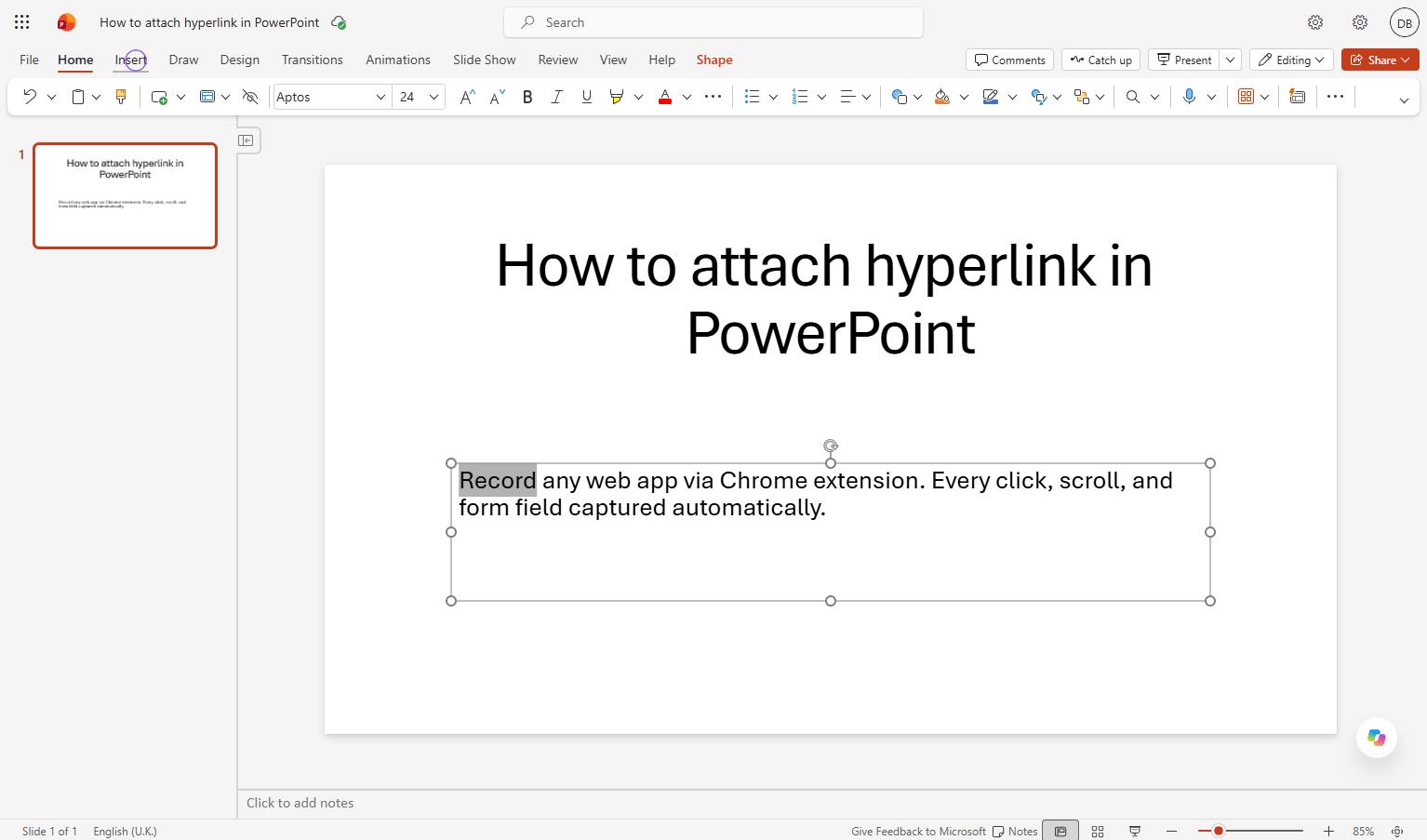
Click the Link button in the top toolbar to insert a hyperlink.
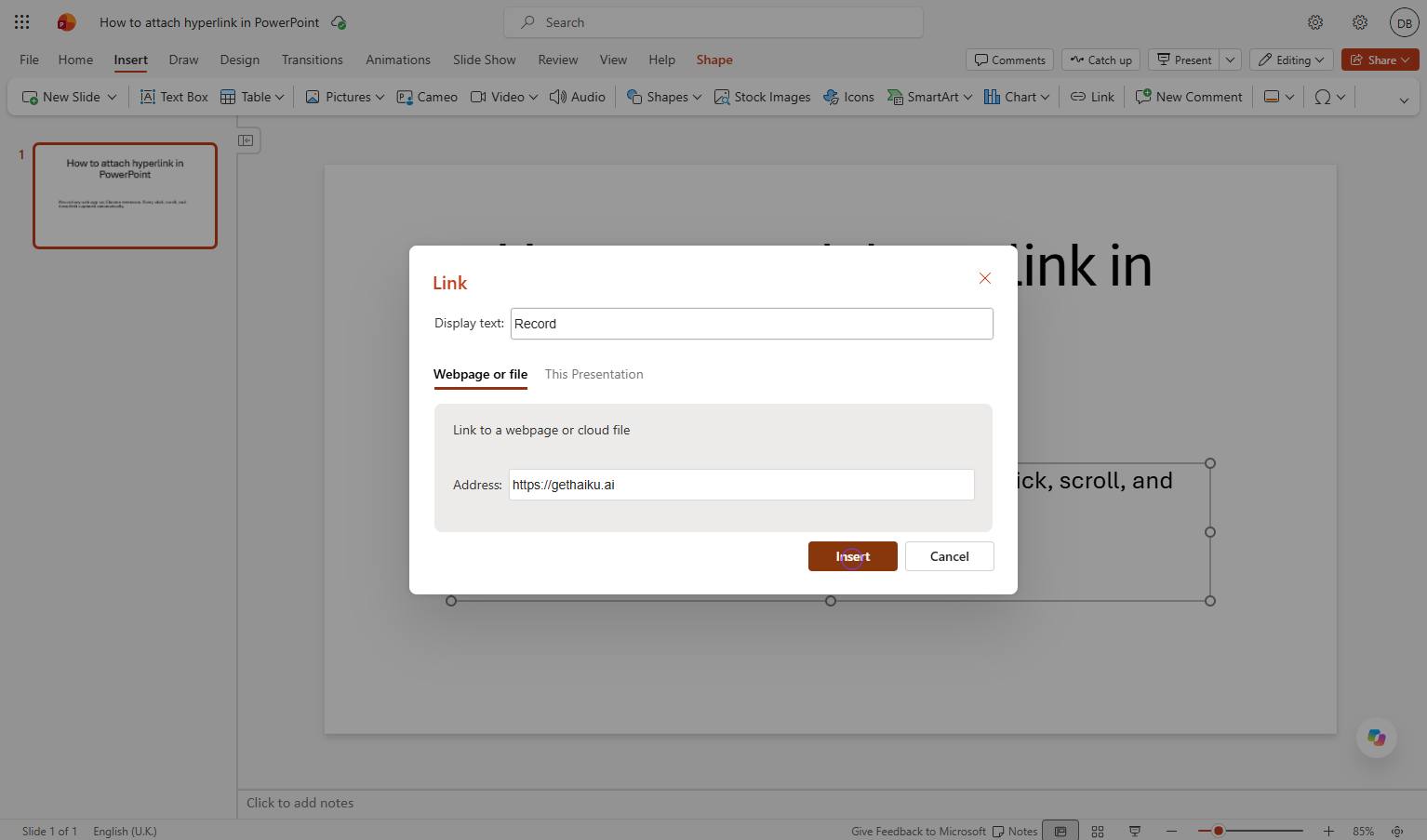
Type "https://gethaiku.ai"
Click the Insert button at the bottom of the Link dialog to apply the hyperlink.
Duplicate this template, swap in your own screens, and share it with your team. Free to start — no credit card.
Fill out the form and we'll get back to you as soon as possible.
Tell us about your team and we'll find the right plan together.