1
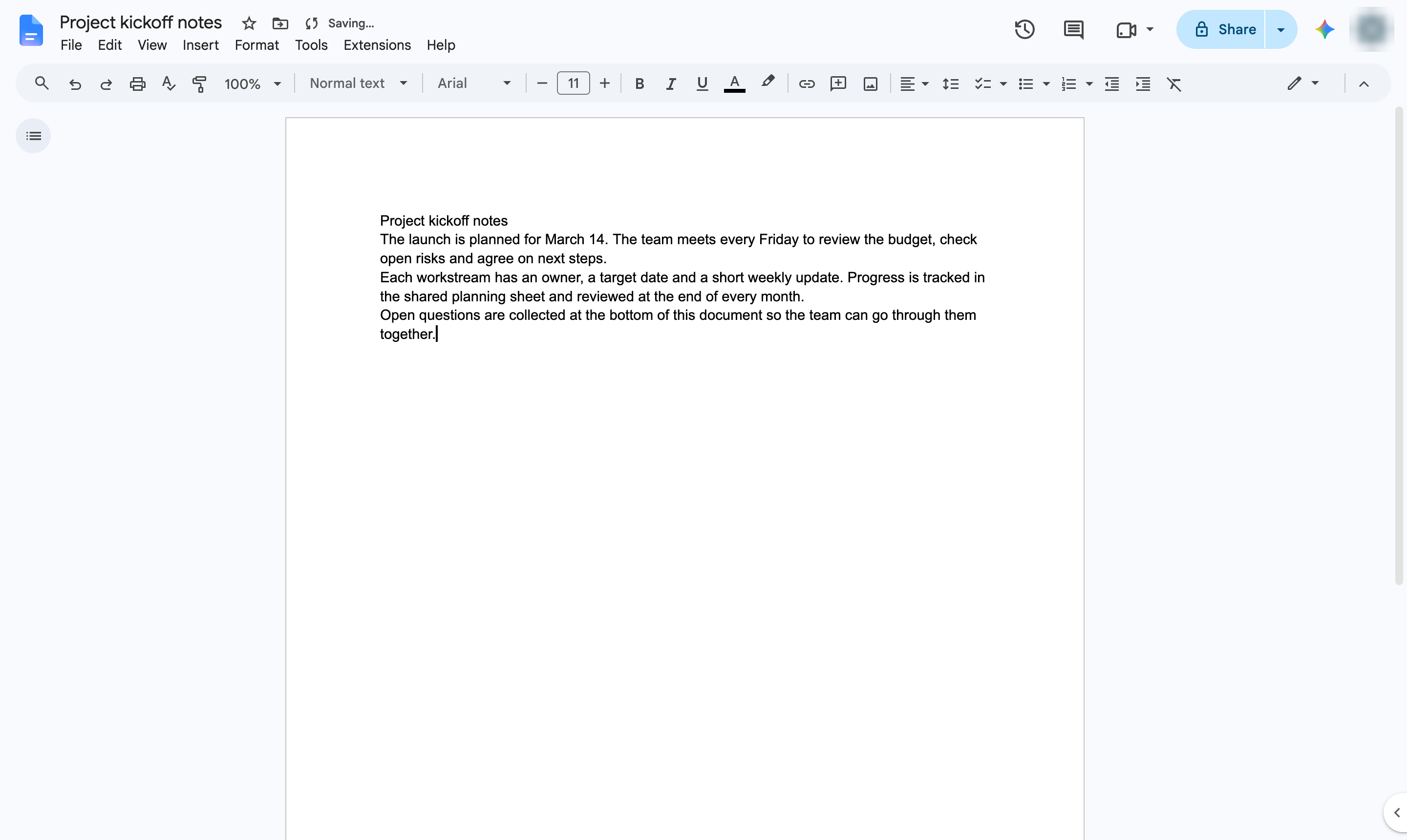
Select the text
Highlight the text you want in the new font.

Add more Google Fonts to your font list and apply one to your text.
Highlight the text you want in the new font.
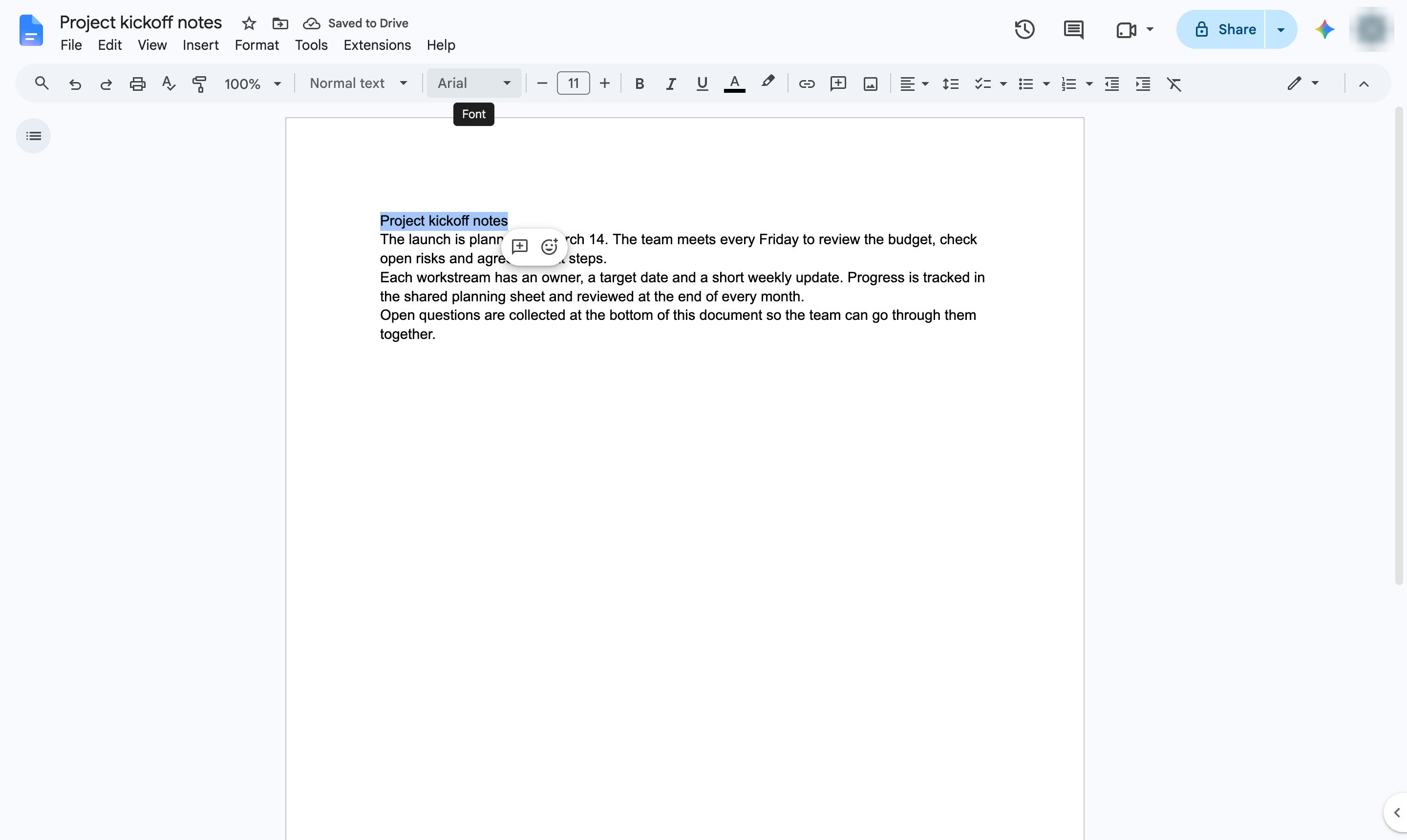
In the toolbar, click the font box (Arial).
Choose More fonts at the top of the list.
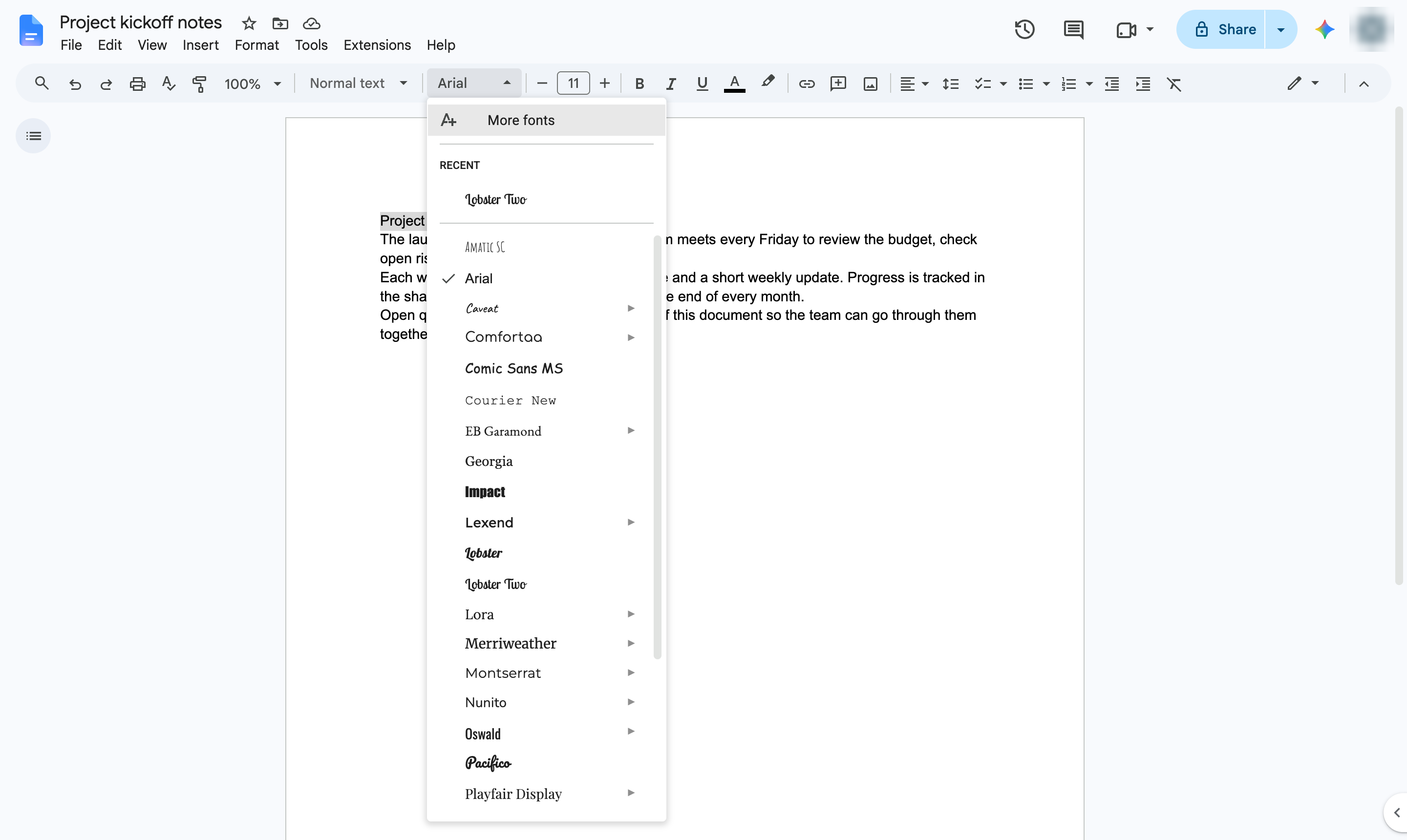
Click the search box. Type the name of the font you want.
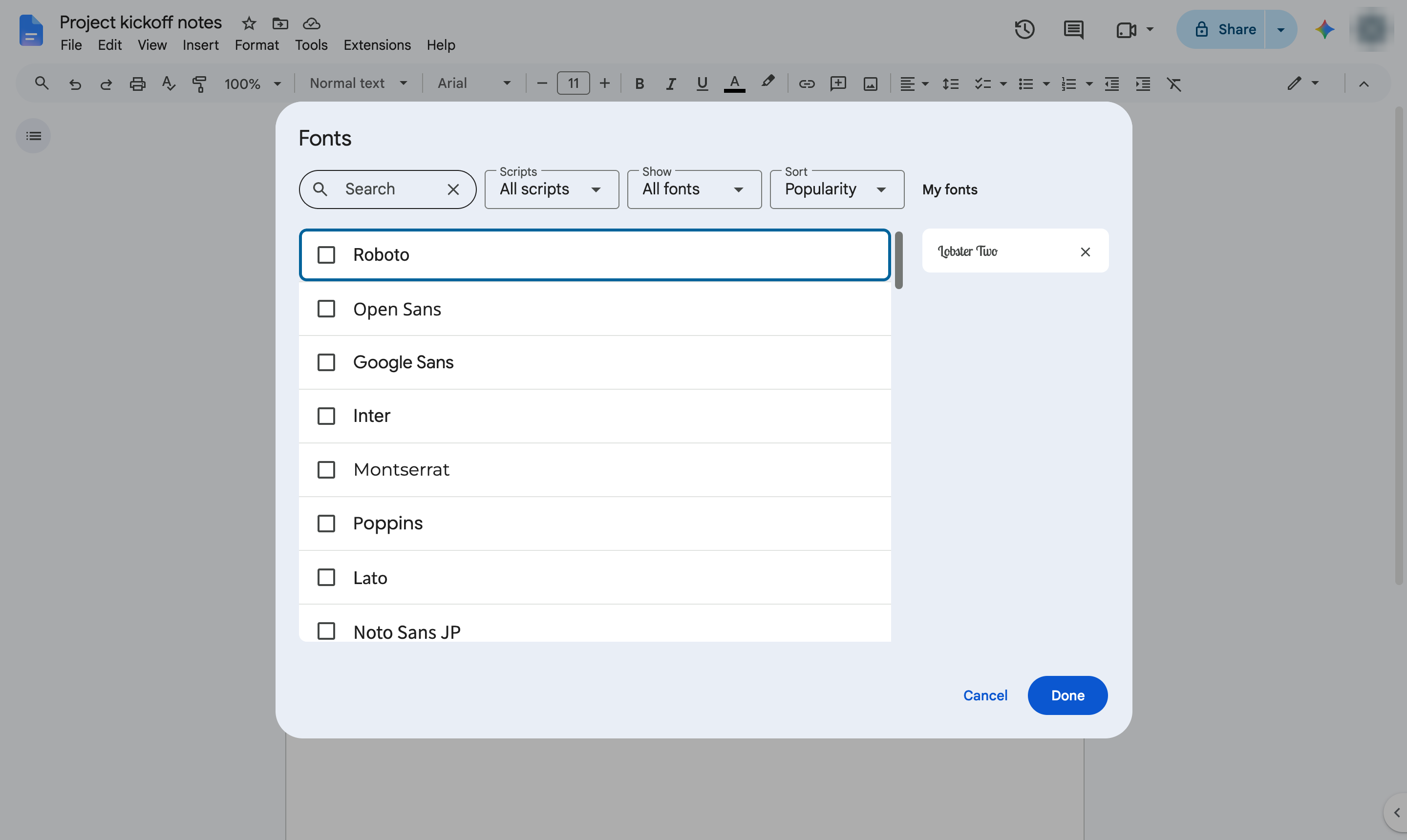
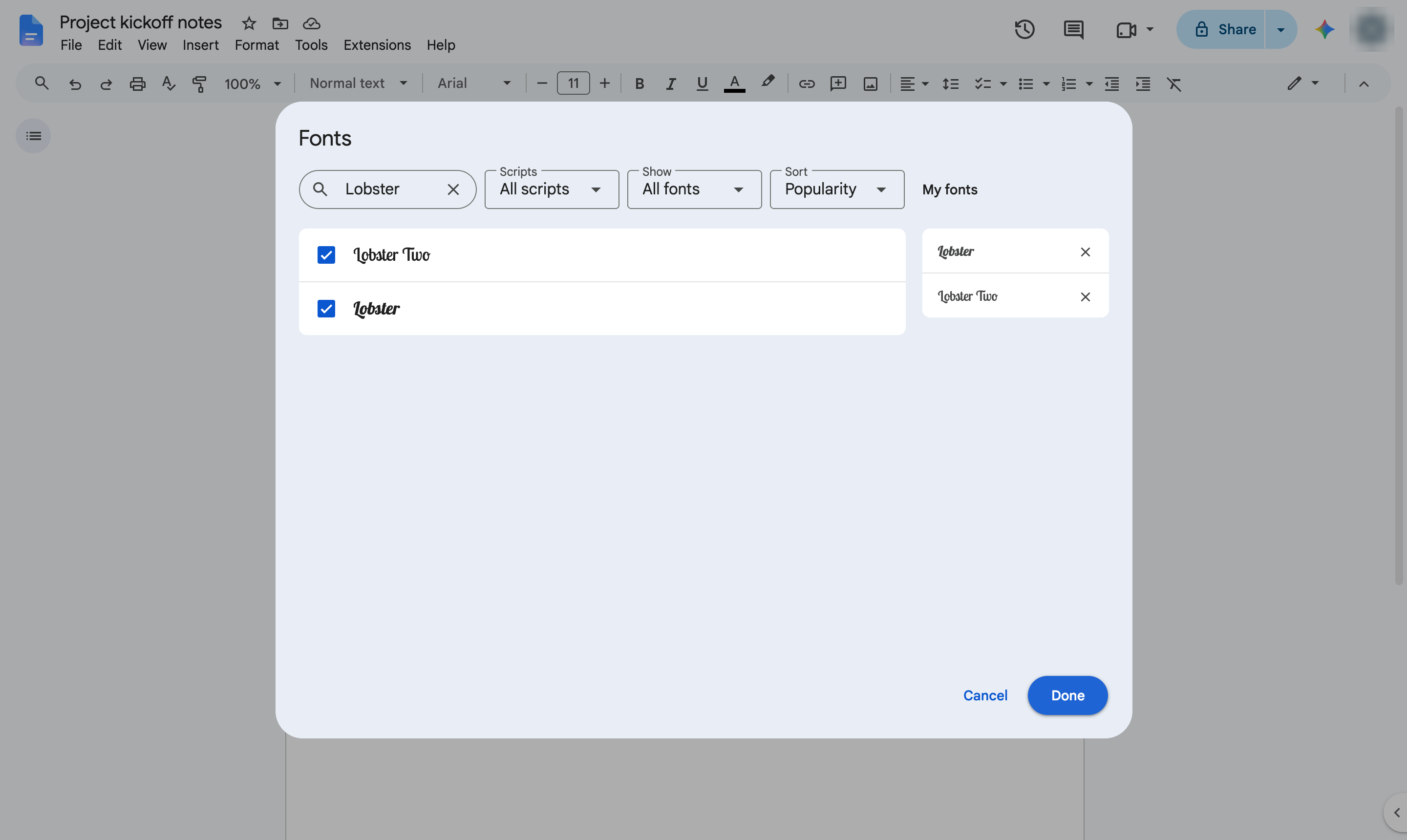
Click the font to add it to My fonts. It turns blue.
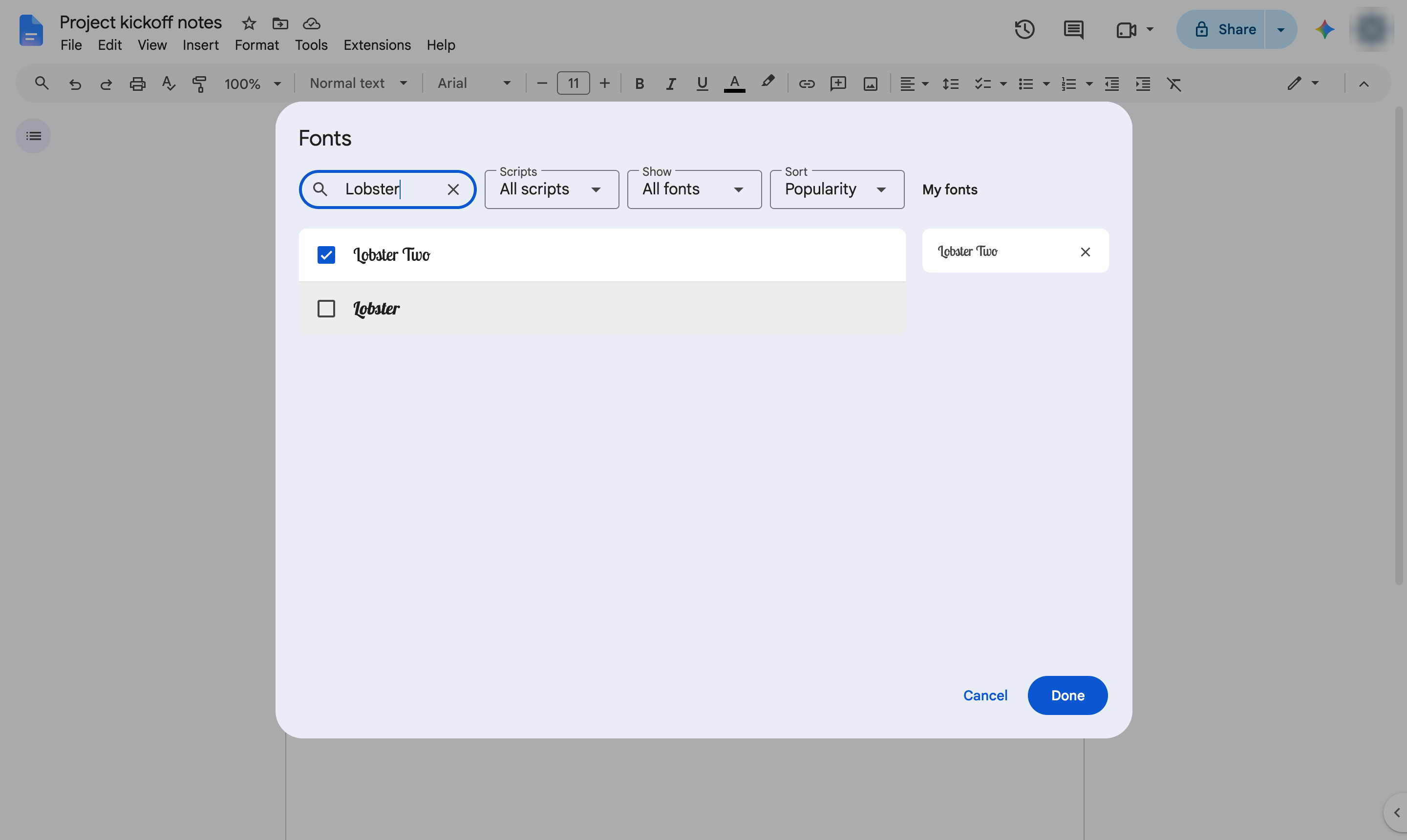
Click Done to close the window.
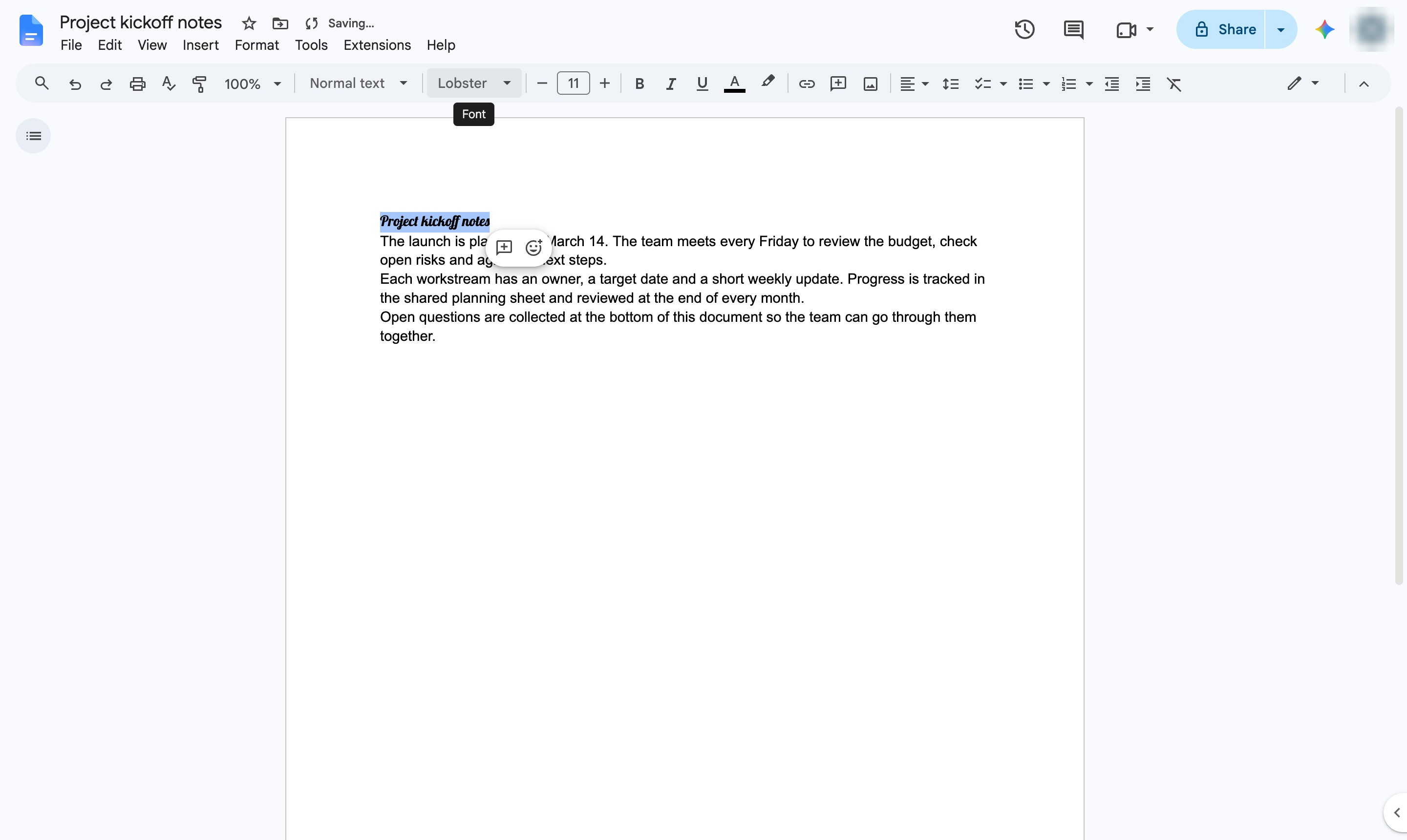
The font is now in your font list and applied to the selected text.
Duplicate this template, swap in your own screens, and share it with your team. Free to start — no credit card.
Fill out the form and we'll get back to you as soon as possible.
Tell us about your team and we'll find the right plan together.