1
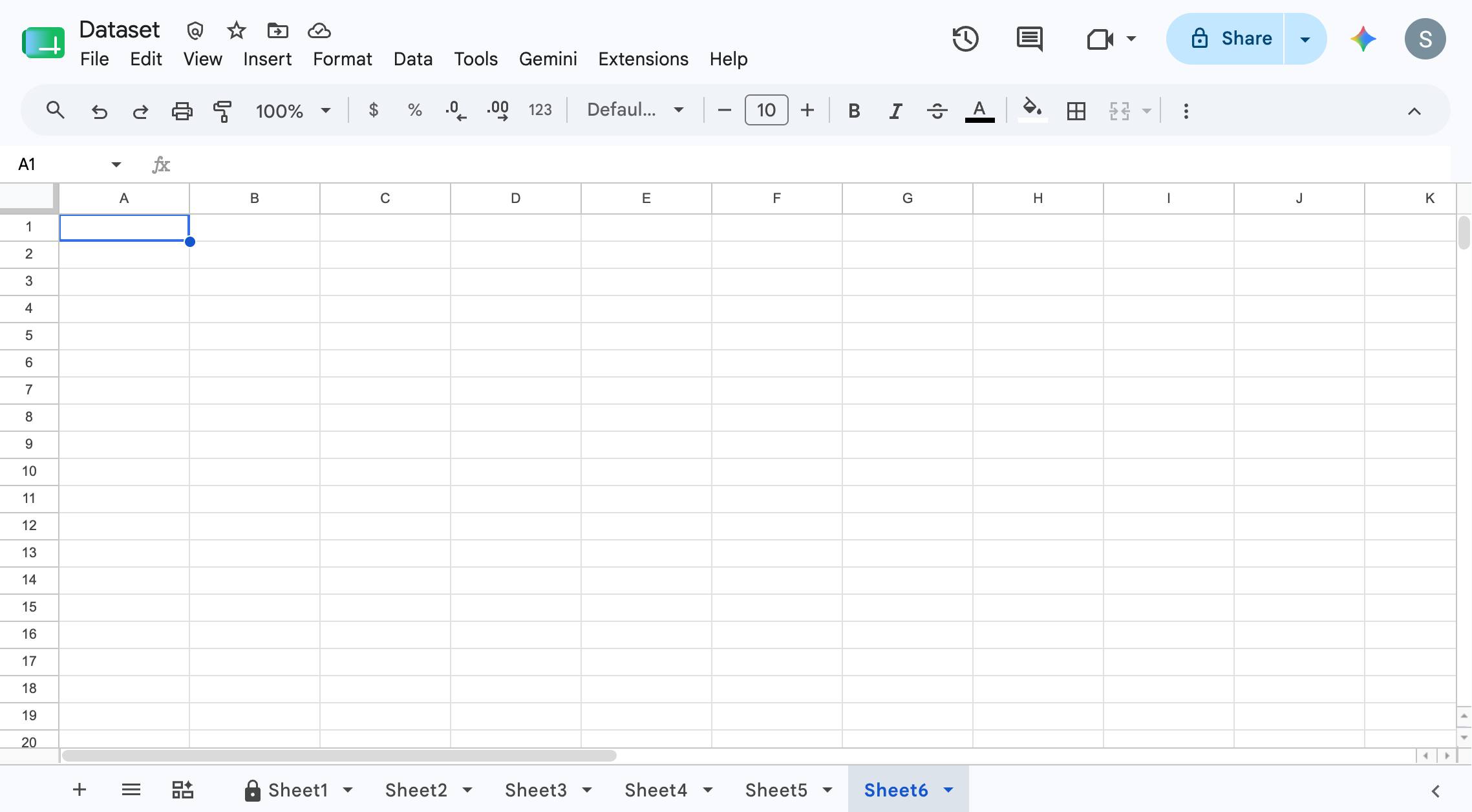
Navigate to https://docs.google.com/spreadsheets and edit or create a new Google sheet.
Navigate to https://docs.google.com/spreadsheets and edit or create a new Google sheet.

A ready-made, step-by-step walkthrough. Preview every step below — then make it your own in seconds.
Navigate to https://docs.google.com/spreadsheets and edit or create a new Google sheet.
Click "Insert"
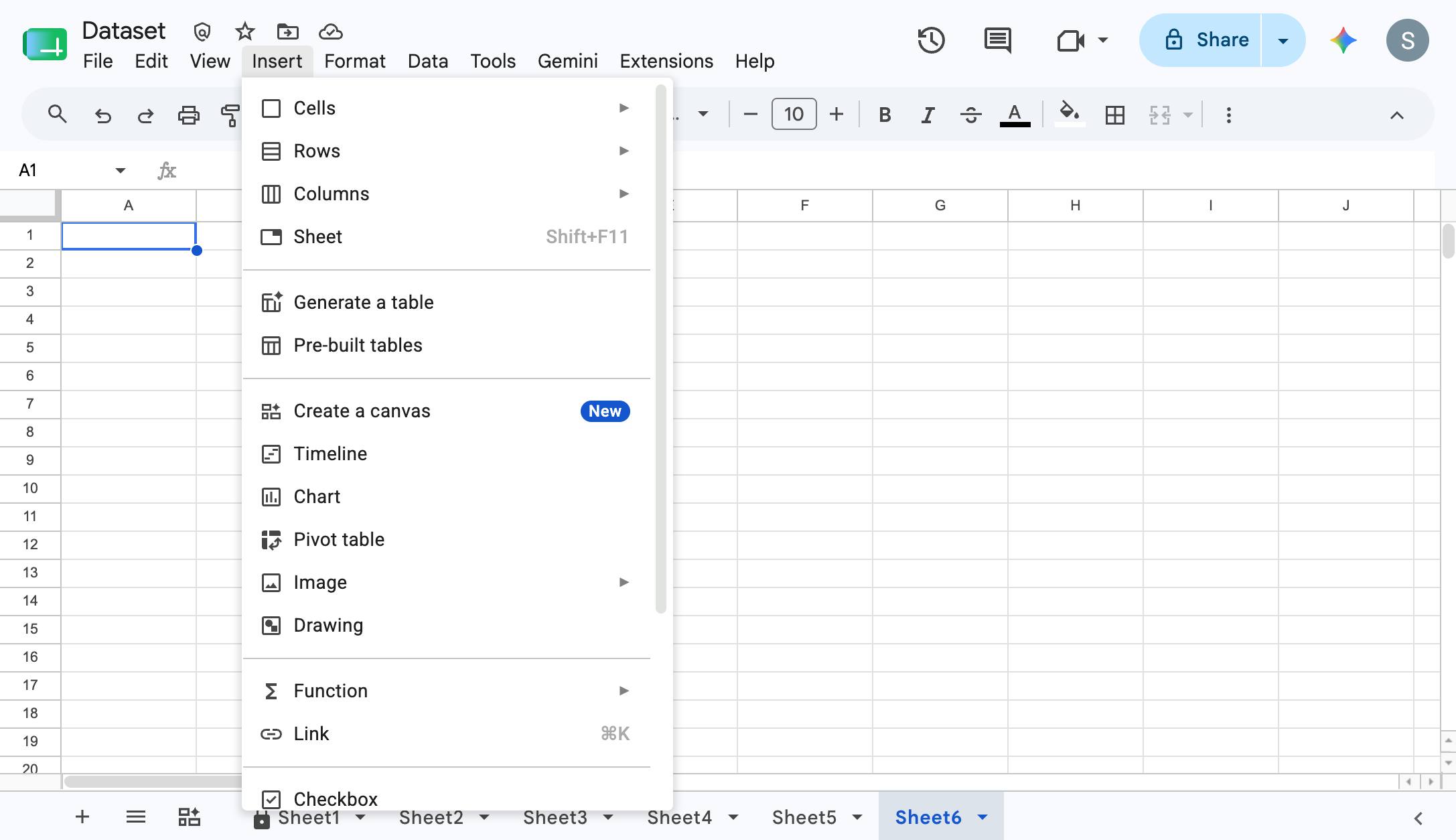
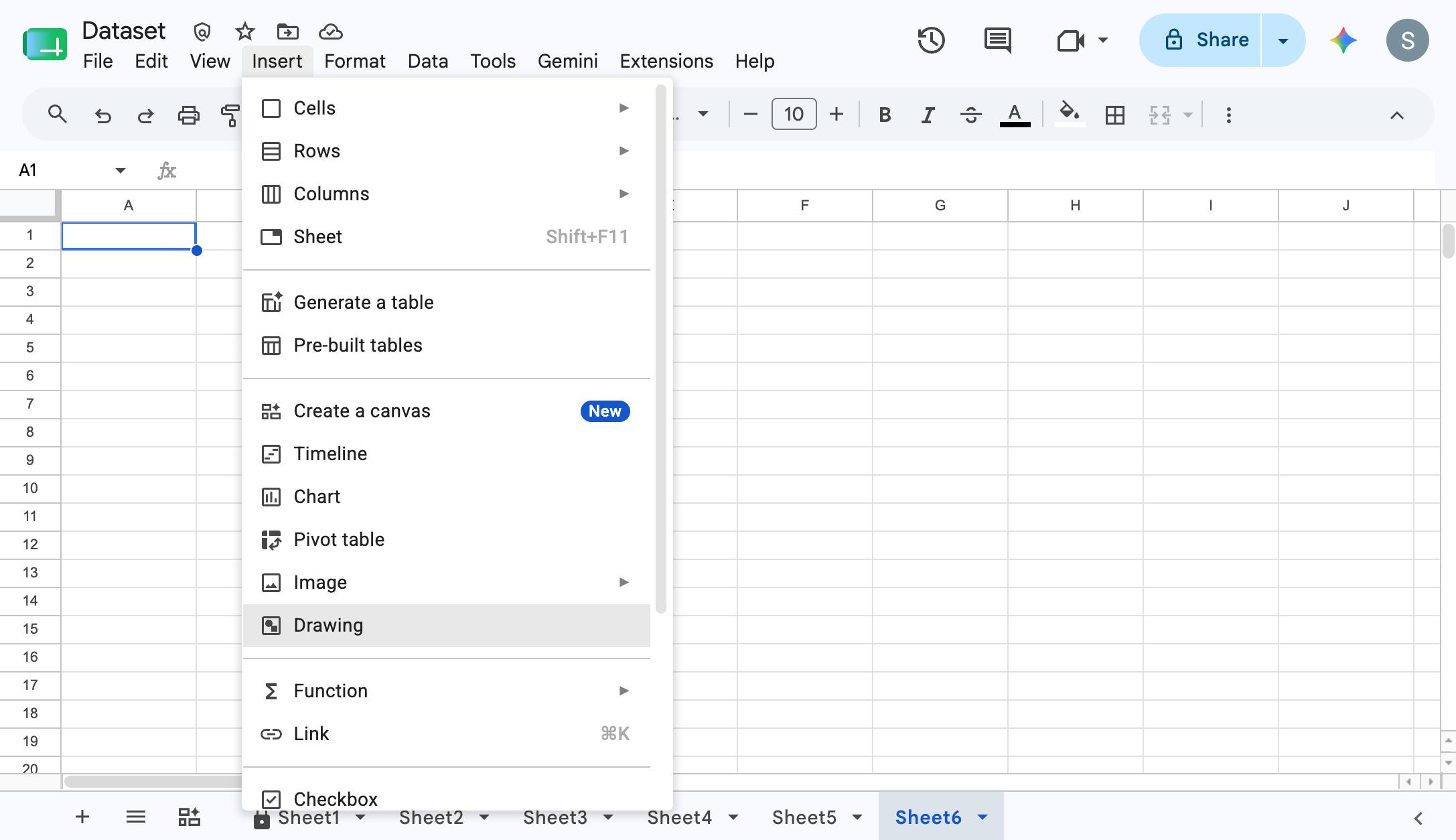
Click "Drawing"
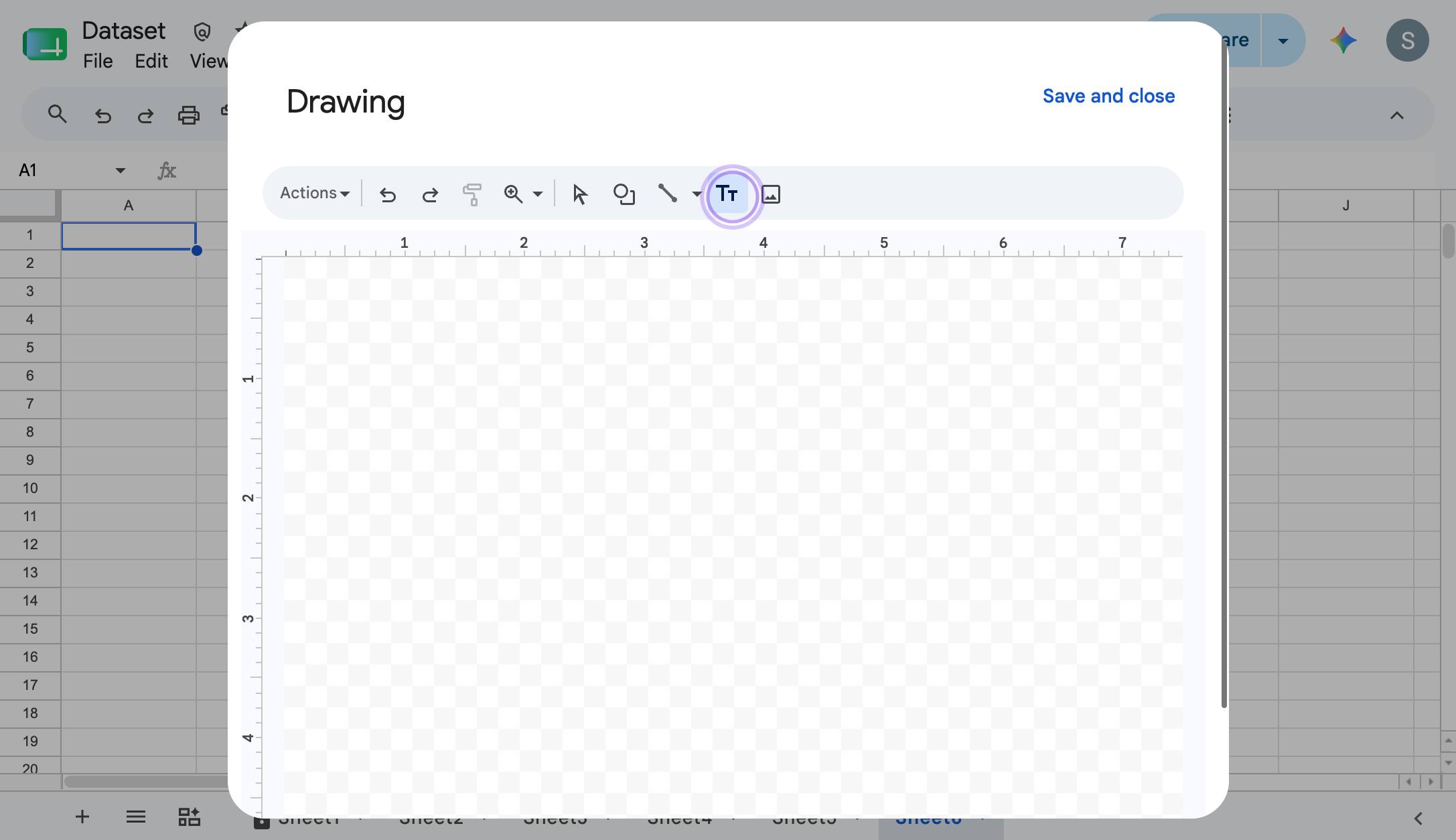
Click the text box icon.
Click and drag to create a text area.
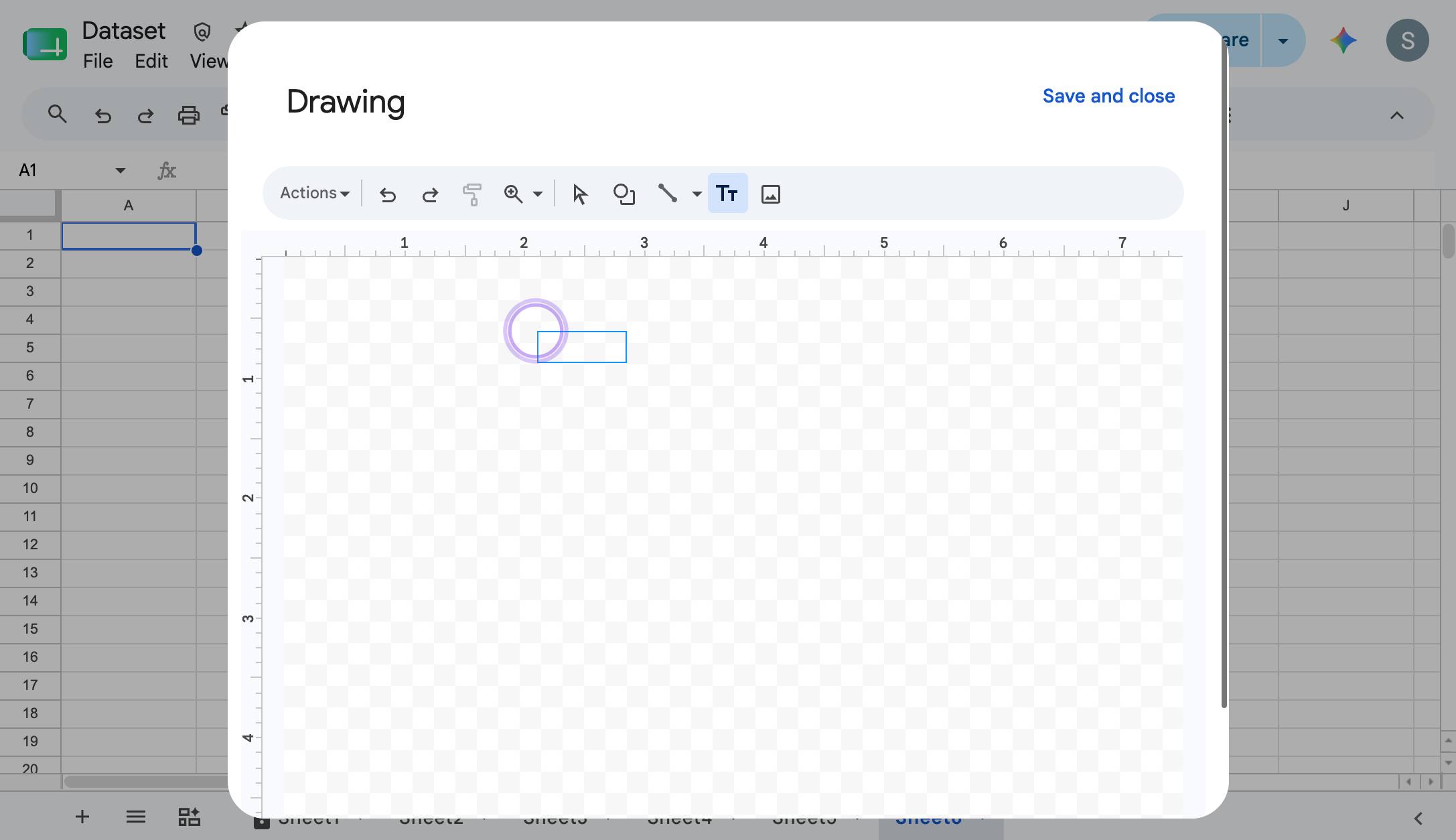
Type your text.
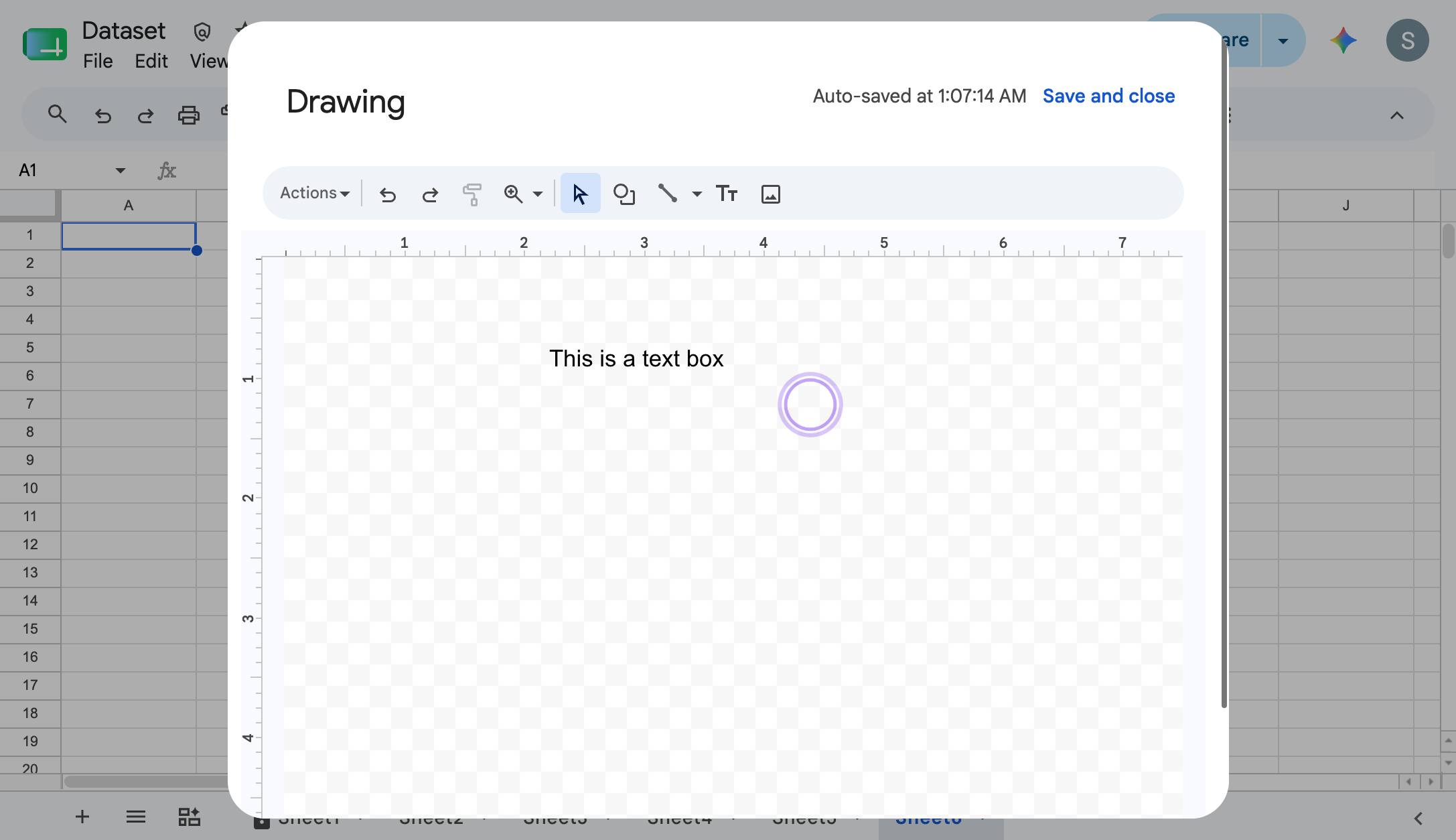
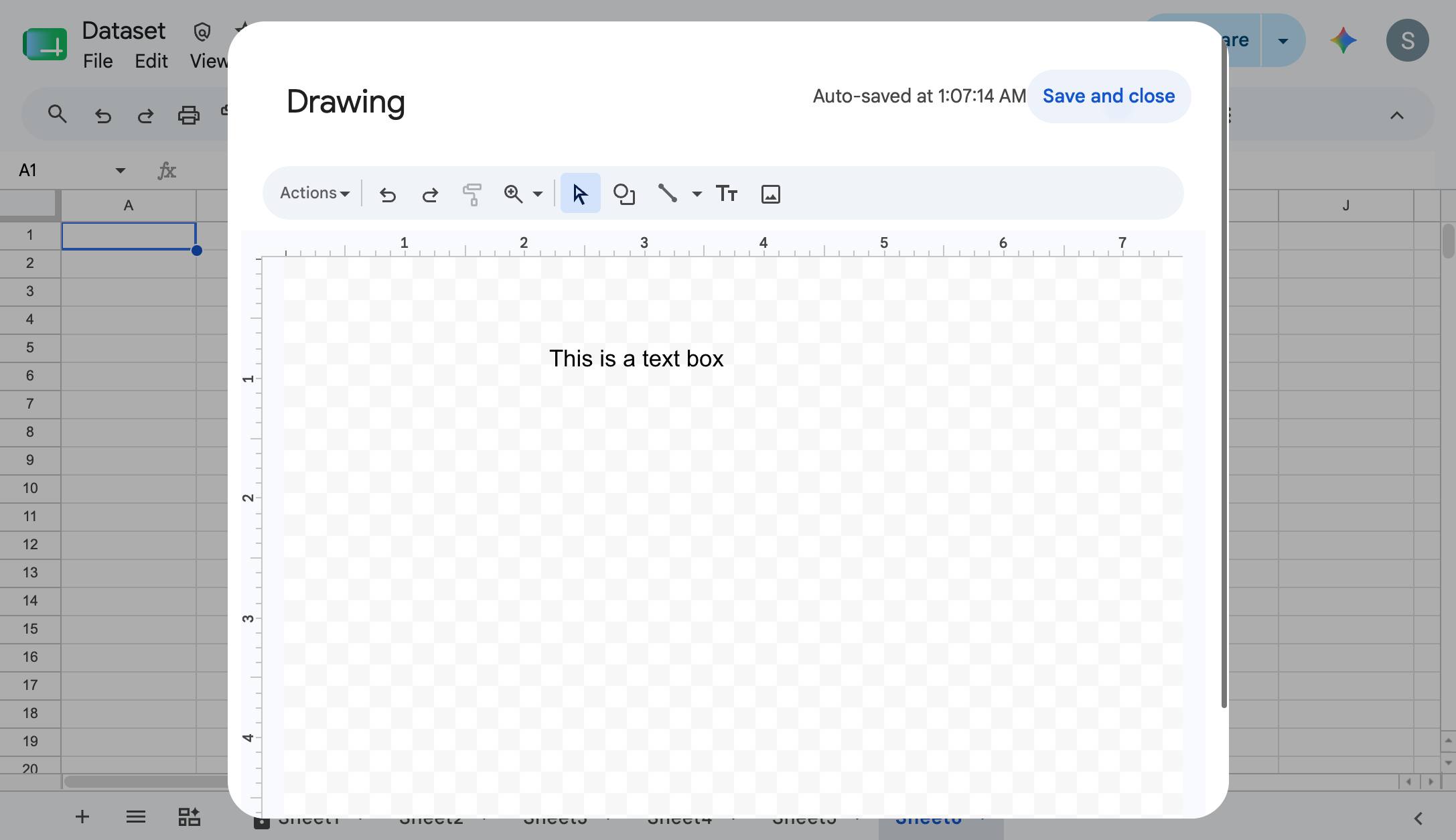
Click "Save and close"
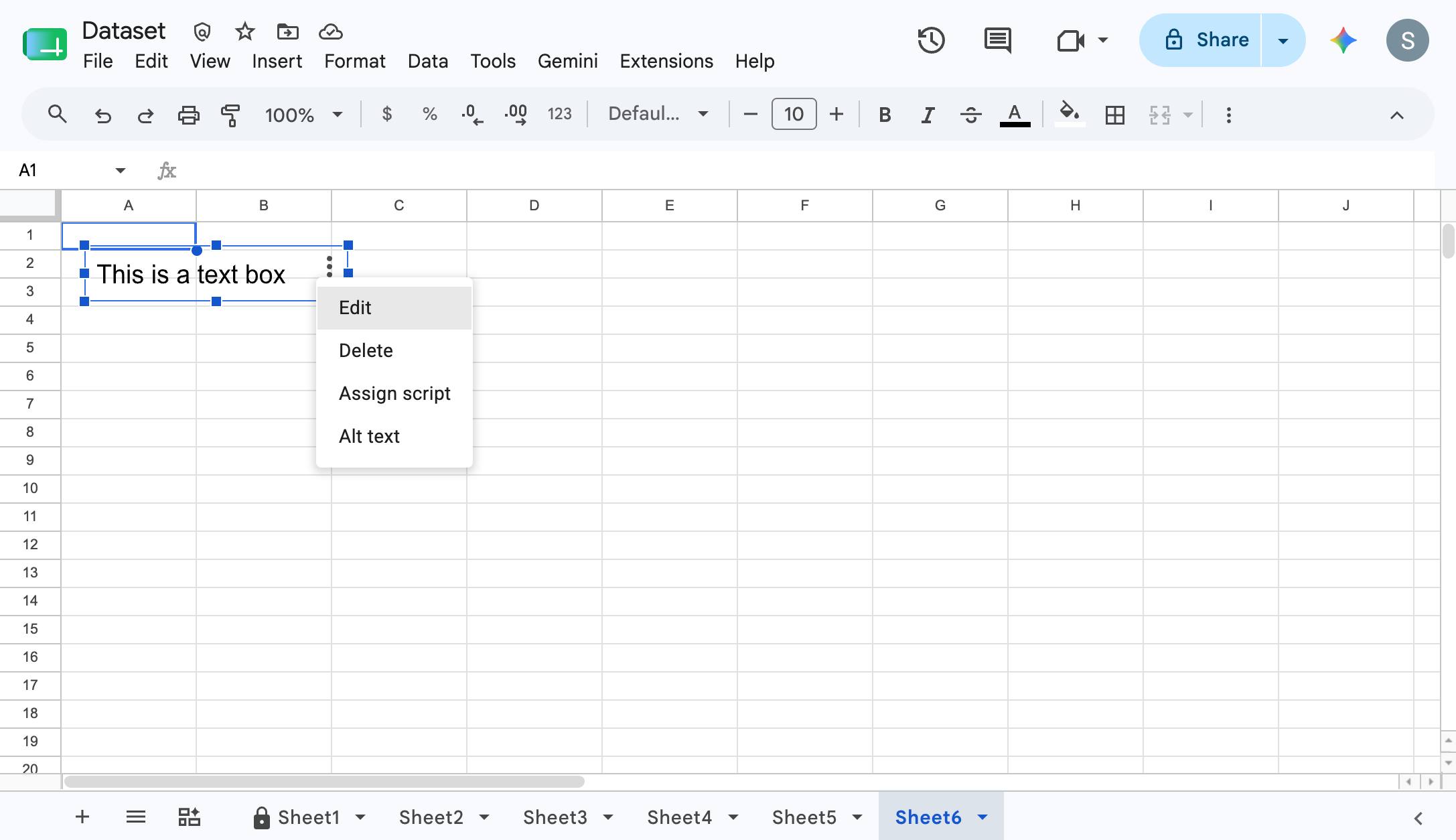
View your text box in your Google sheet.
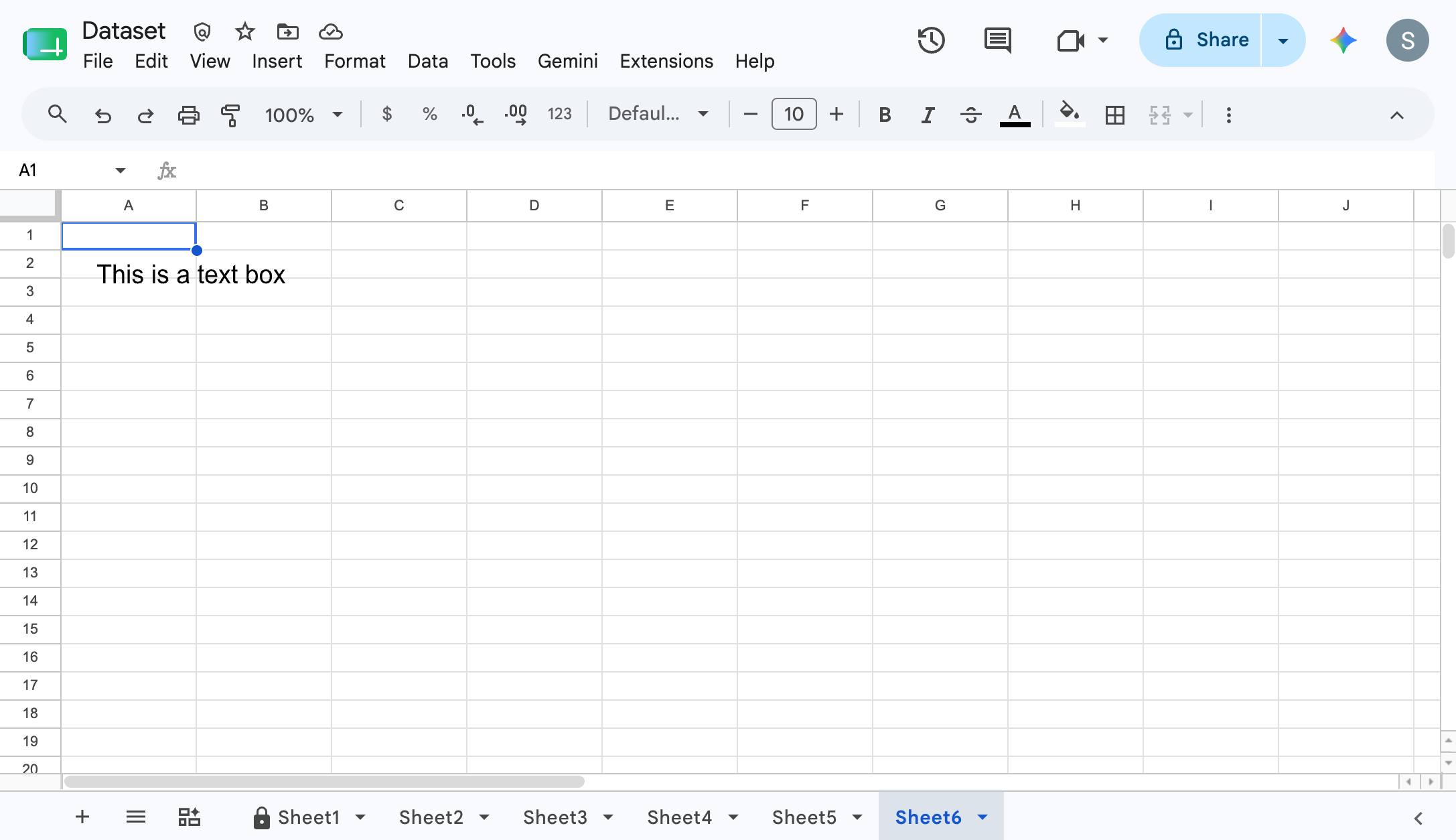
Click to move or edit the text box.
Duplicate this template, swap in your own screens, and share it with your team. Free to start — no credit card.
Fill out the form and we'll get back to you as soon as possible.
Tell us about your team and we'll find the right plan together.