1
Open the Google Docs document
Navigate to the Google Docs document to begin adding a new page.
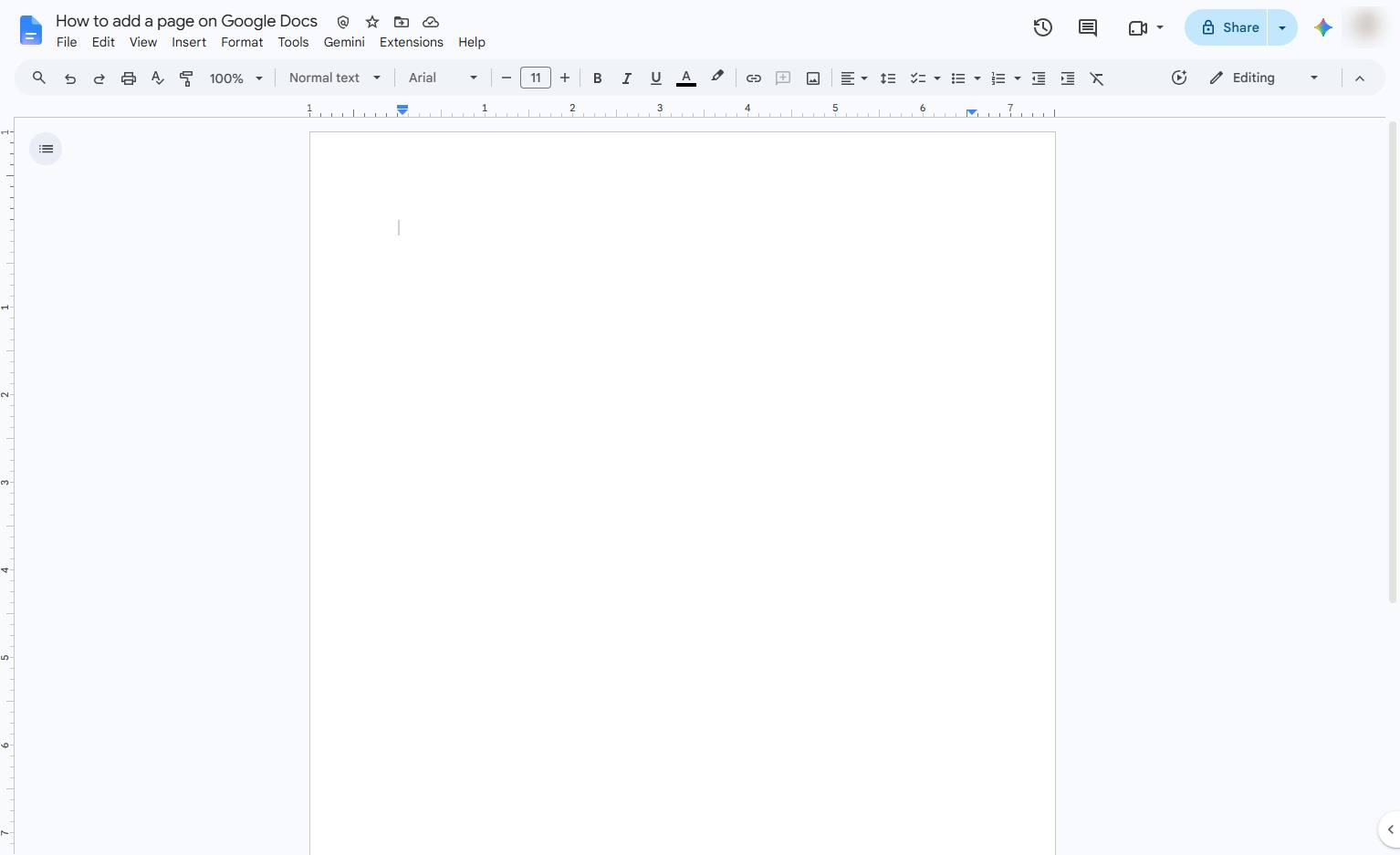

Learn how to add a new page to your document in Google Docs by inserting a page break. This step-by-step tutorial will guide you through positioning your cursor and using the Insert menu to instantly create a fresh page.
Navigate to the Google Docs document to begin adding a new page.
Click anywhere on the blank document page to place your text cursor.
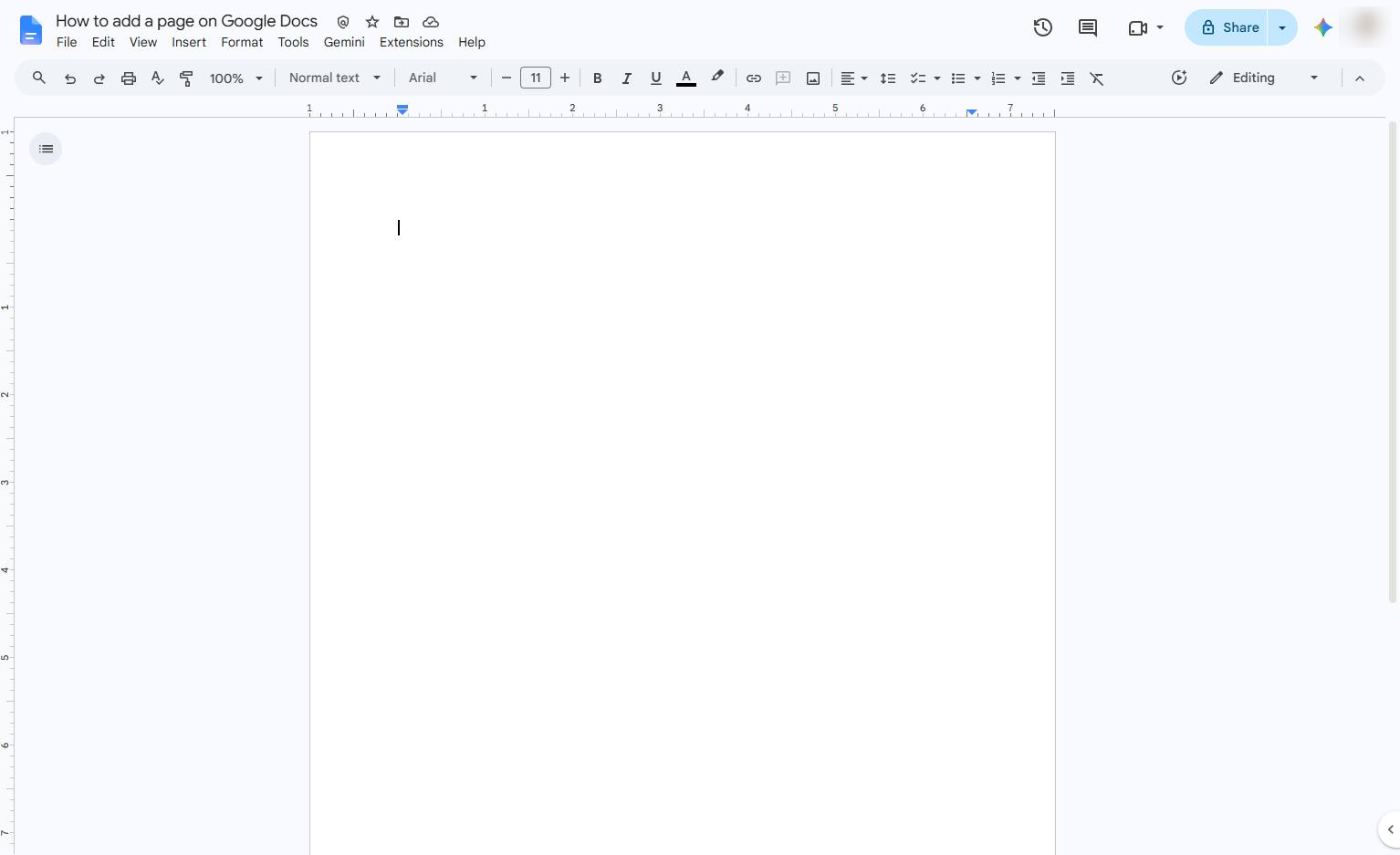
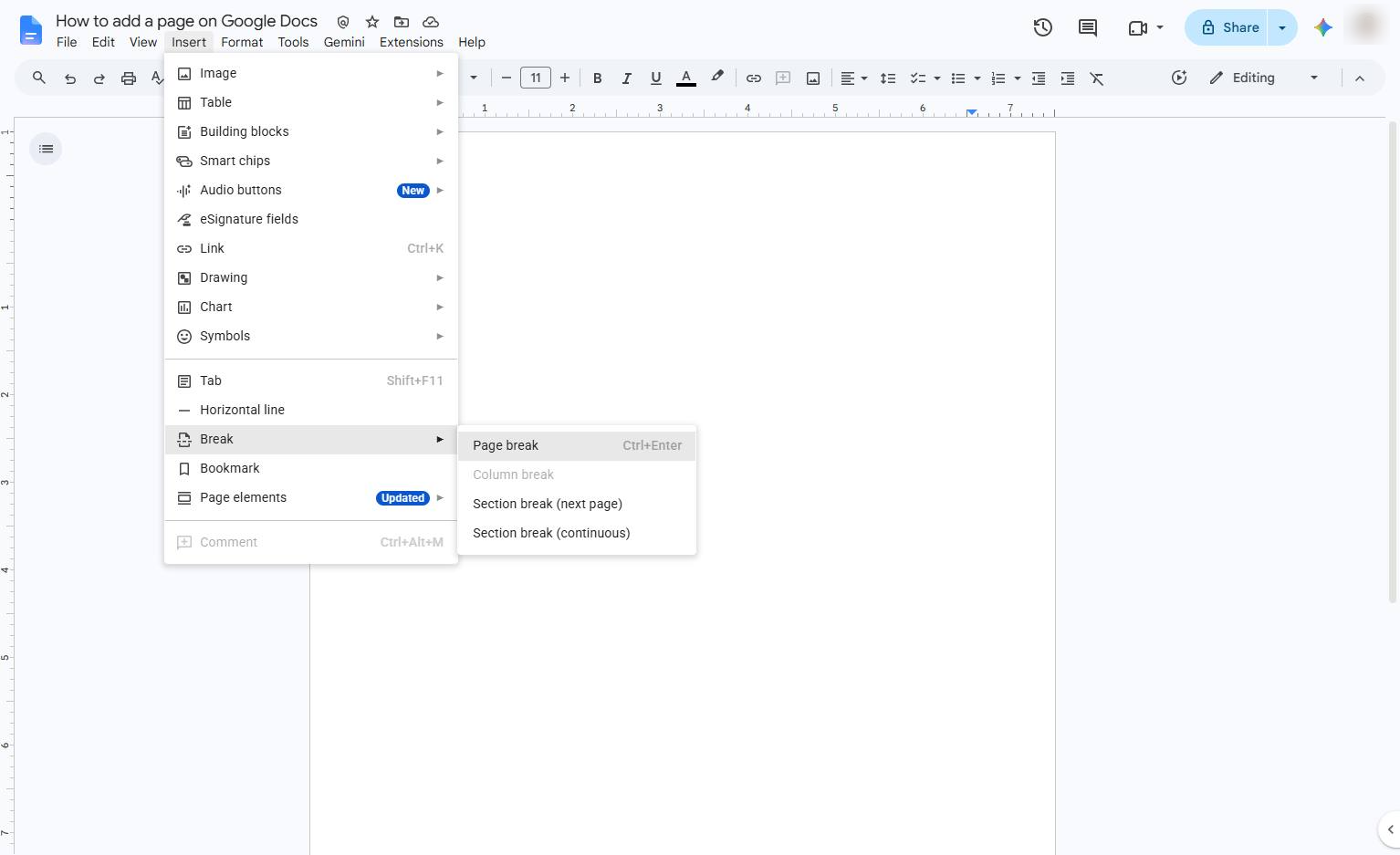
Click the Insert menu in the top menu bar to view the available options for adding content to your document.
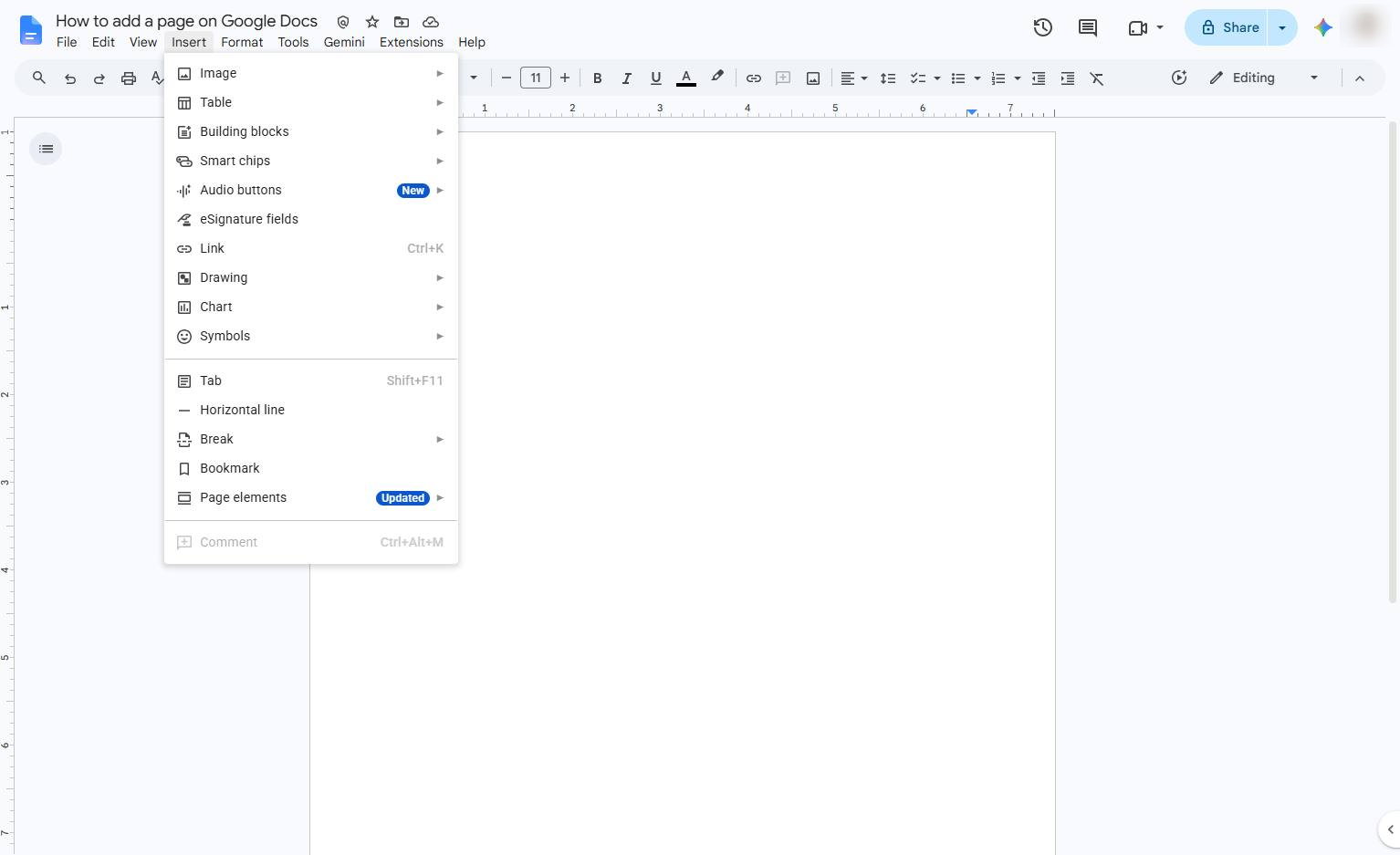
Click the Break option in the dropdown menu to reveal the page and section break choices.
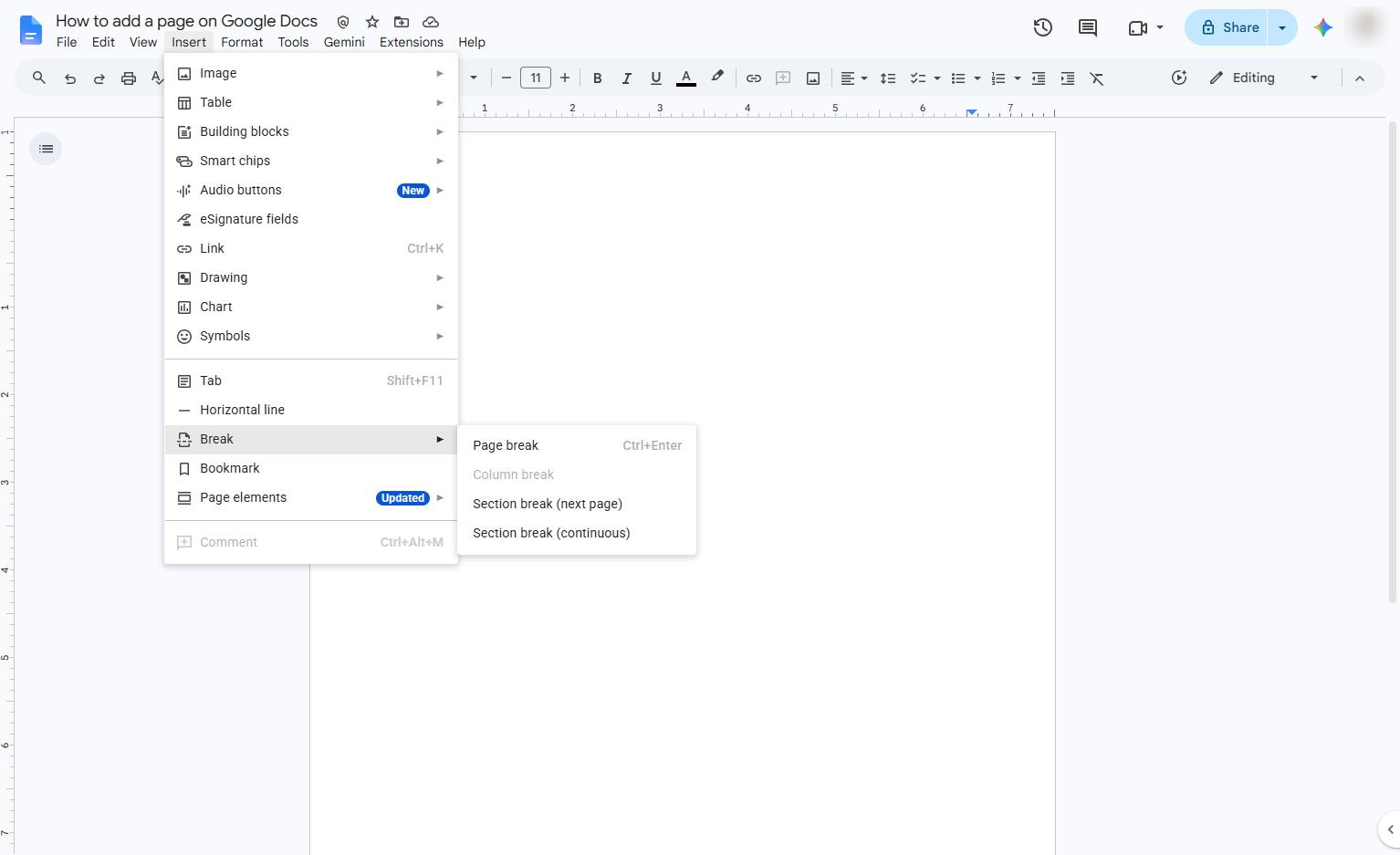
Click the "Page break" option in the sub-menu to insert a new page into your document.
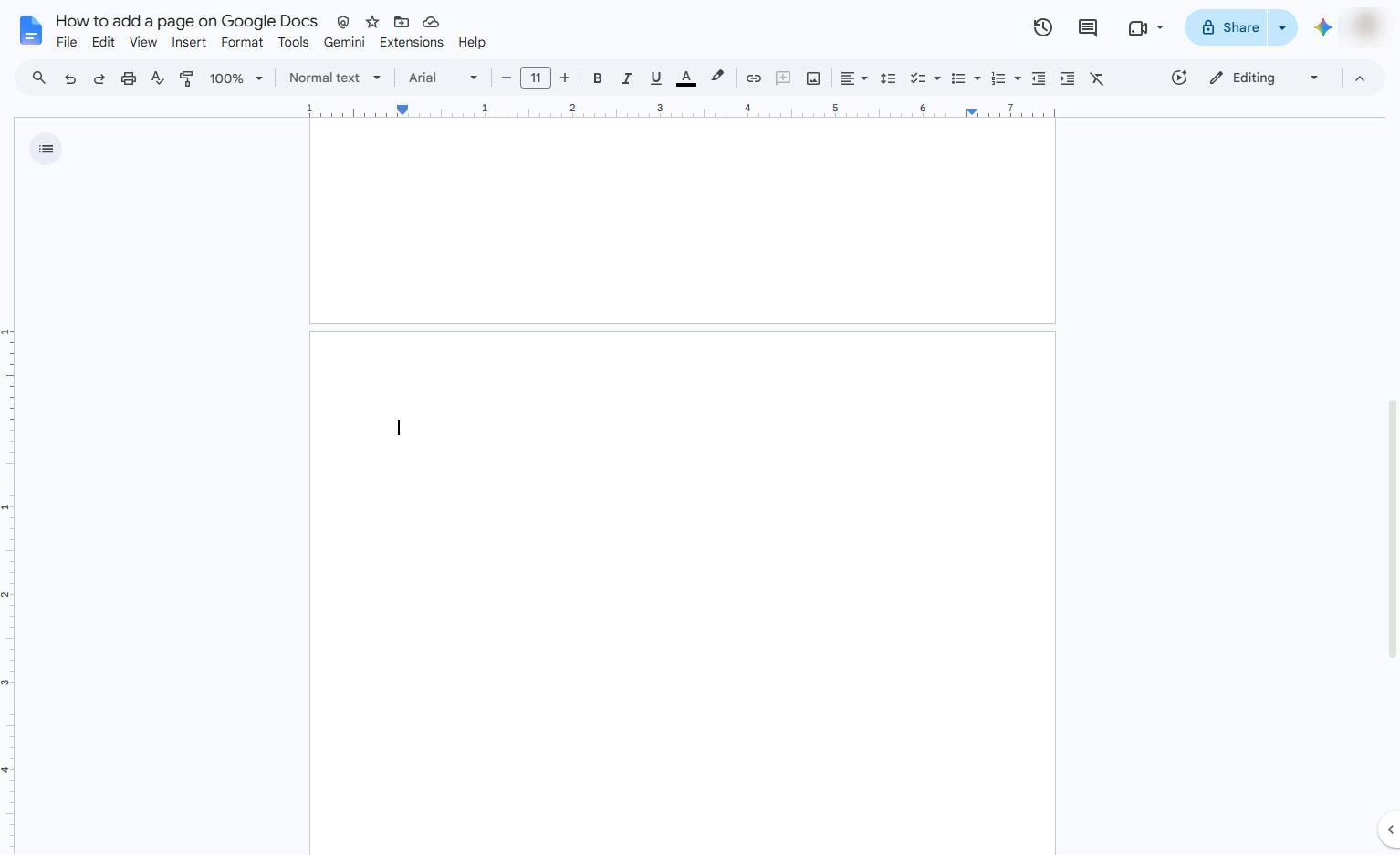
Your cursor automatically moves to the new page, so you can start typing immediately.
Duplicate this template, swap in your own screens, and share it with your team. Free to start — no credit card.
Fill out the form and we'll get back to you as soon as possible.
Tell us about your team and we'll find the right plan together.