1
Click the Google Sheets icon
Click the Sheets icon in the Google apps menu to open the application.
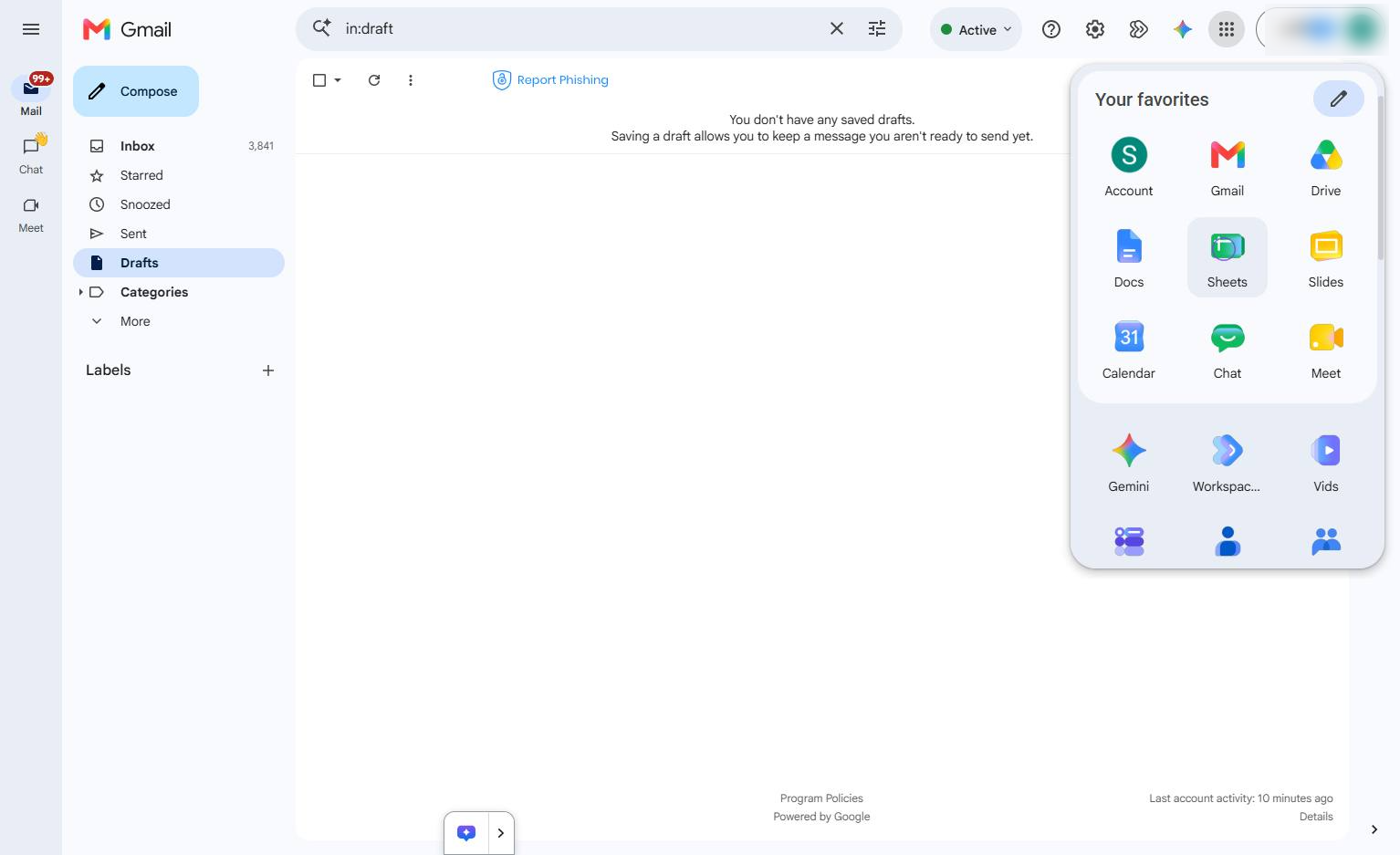

This quick tour guides you through opening a new spreadsheet, adding checkboxes to your cells from the Insert menu, and interacting with them to manage your lists. Use this feature to easily toggle task completion and bring visual organization to your spreadsheets.
Click the Sheets icon in the Google apps menu to open the application.
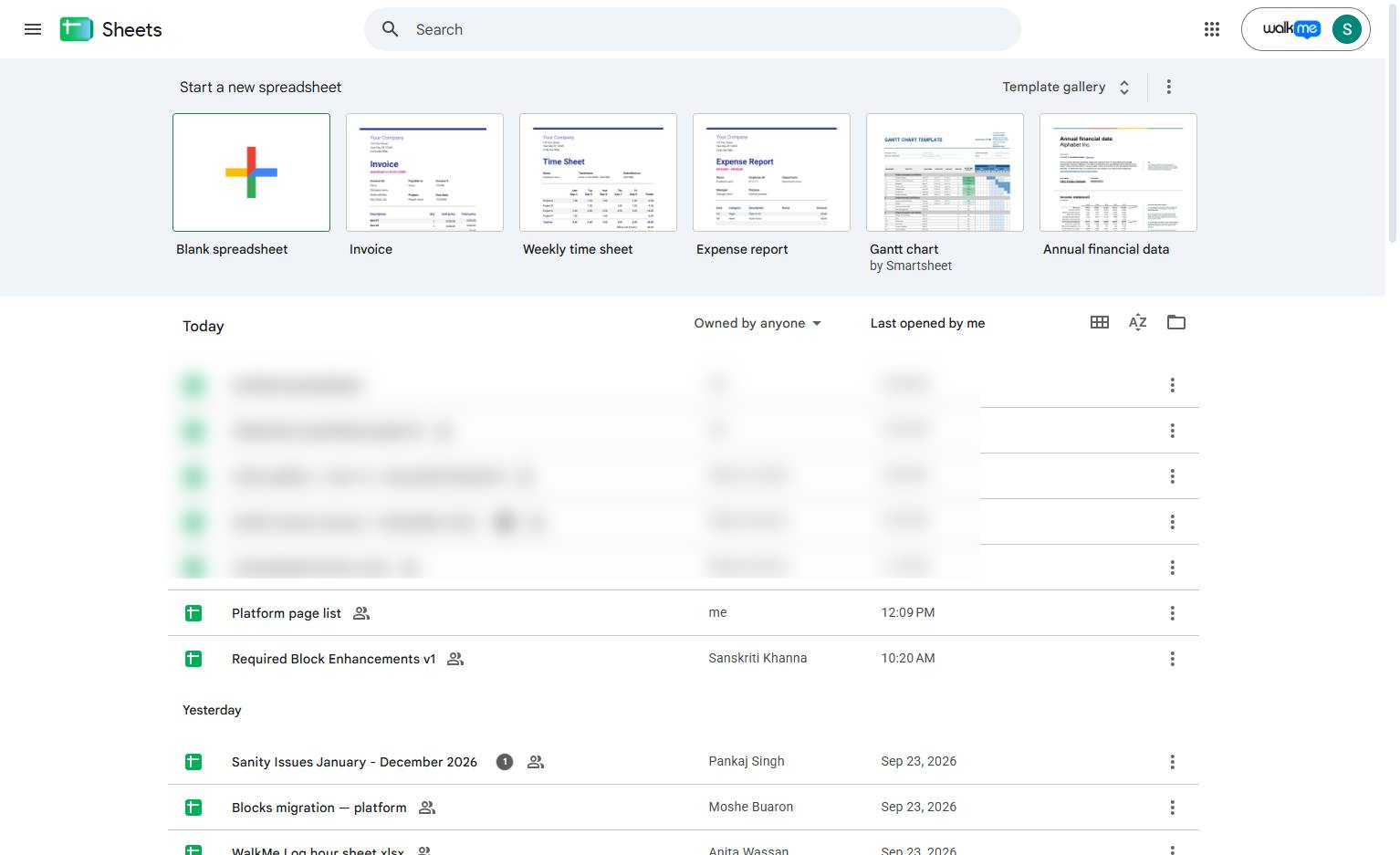
Click the Blank spreadsheet option under "Start a new spreadsheet" to create a new document.
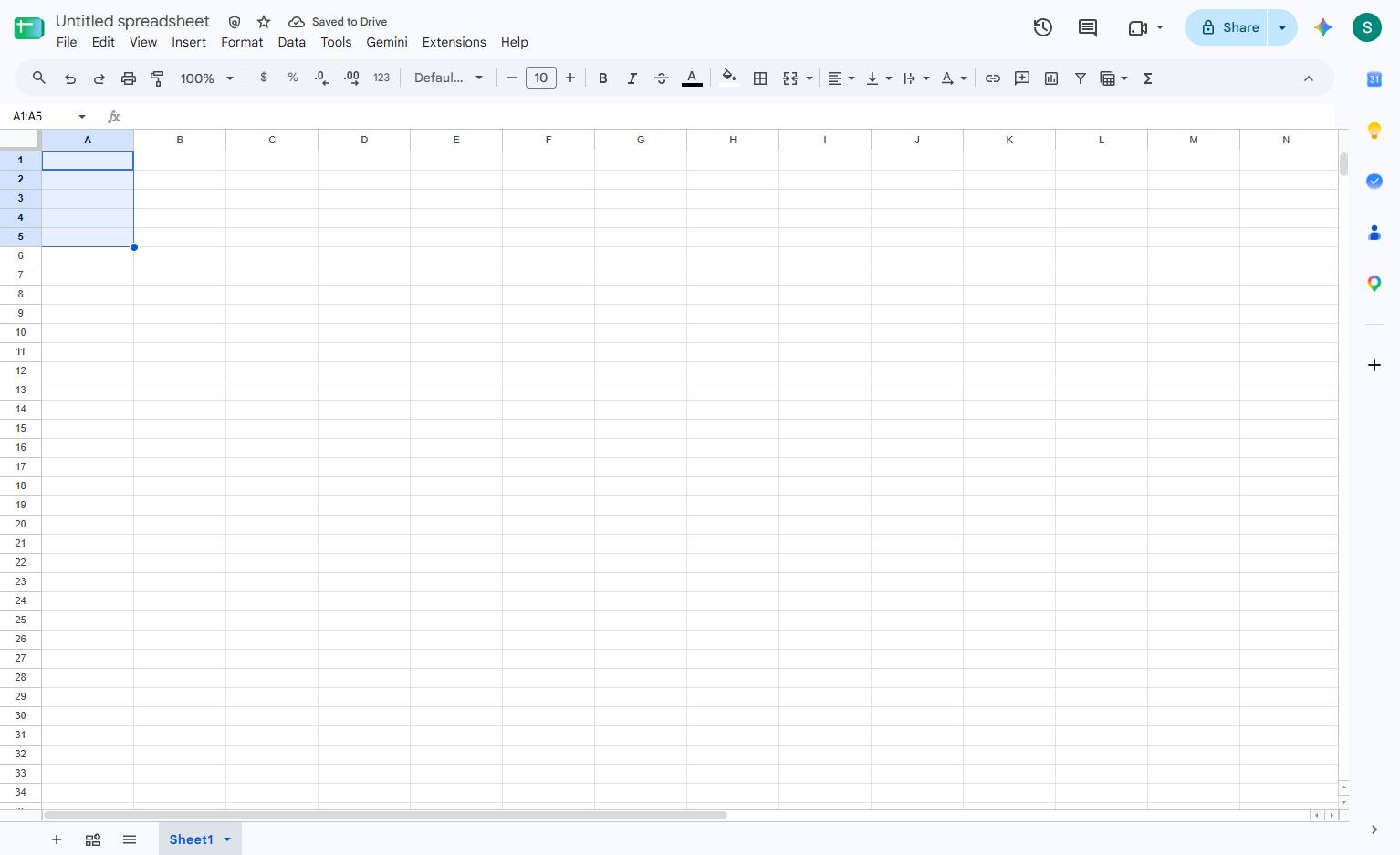
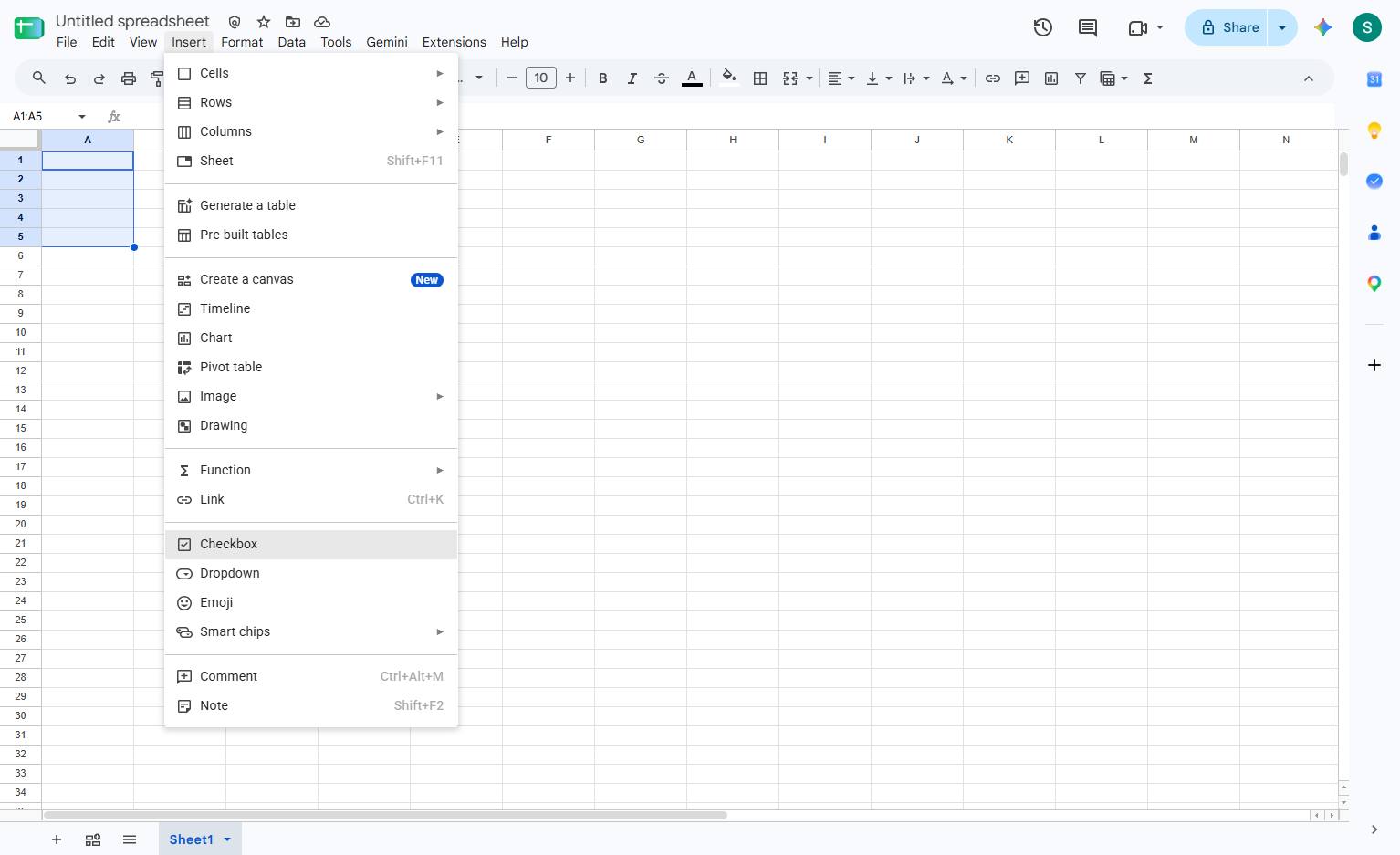
Select the cell or range of cells where you want the checkboxes.
Click the Insert menu in the top menu bar to view the available options.
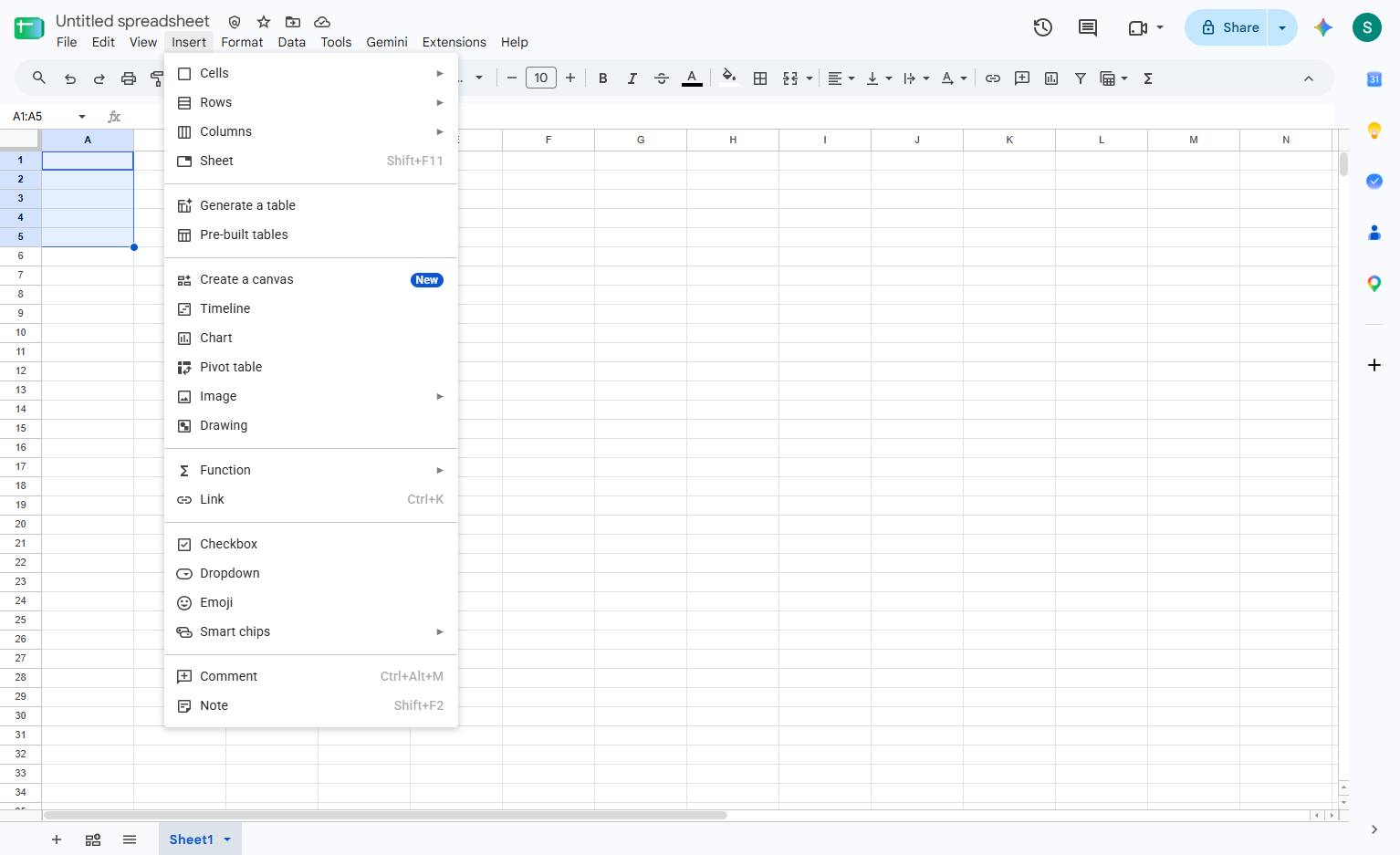
Click the Checkbox option in the dropdown menu to insert a checkbox into the selected cell.
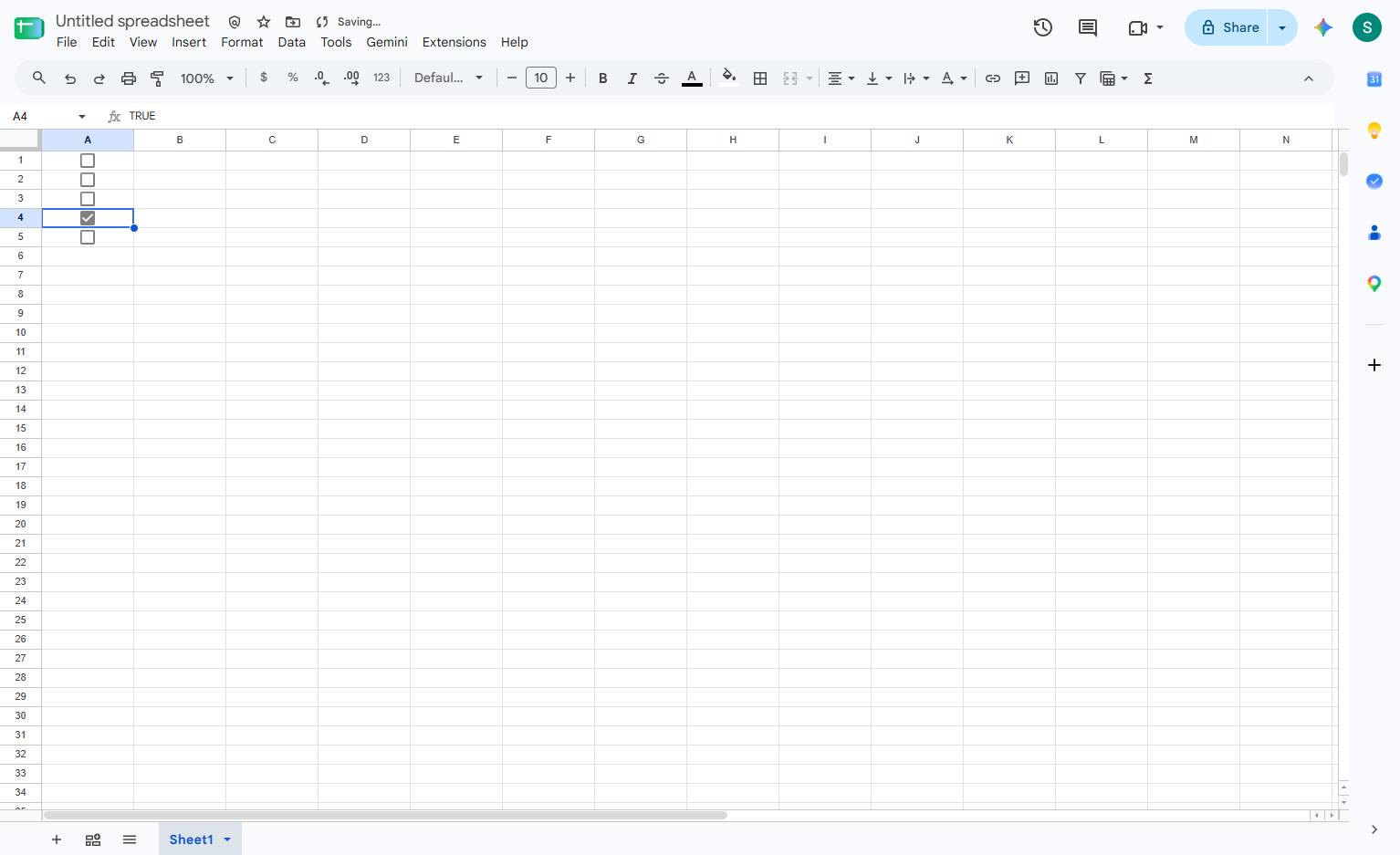
Click the checkbox to check or uncheck it.
Duplicate this template, swap in your own screens, and share it with your team. Free to start — no credit card.
Fill out the form and we'll get back to you as soon as possible.
Tell us about your team and we'll find the right plan together.