1
Navigate to the Zoom Settings page
Navigate to your Zoom settings page.
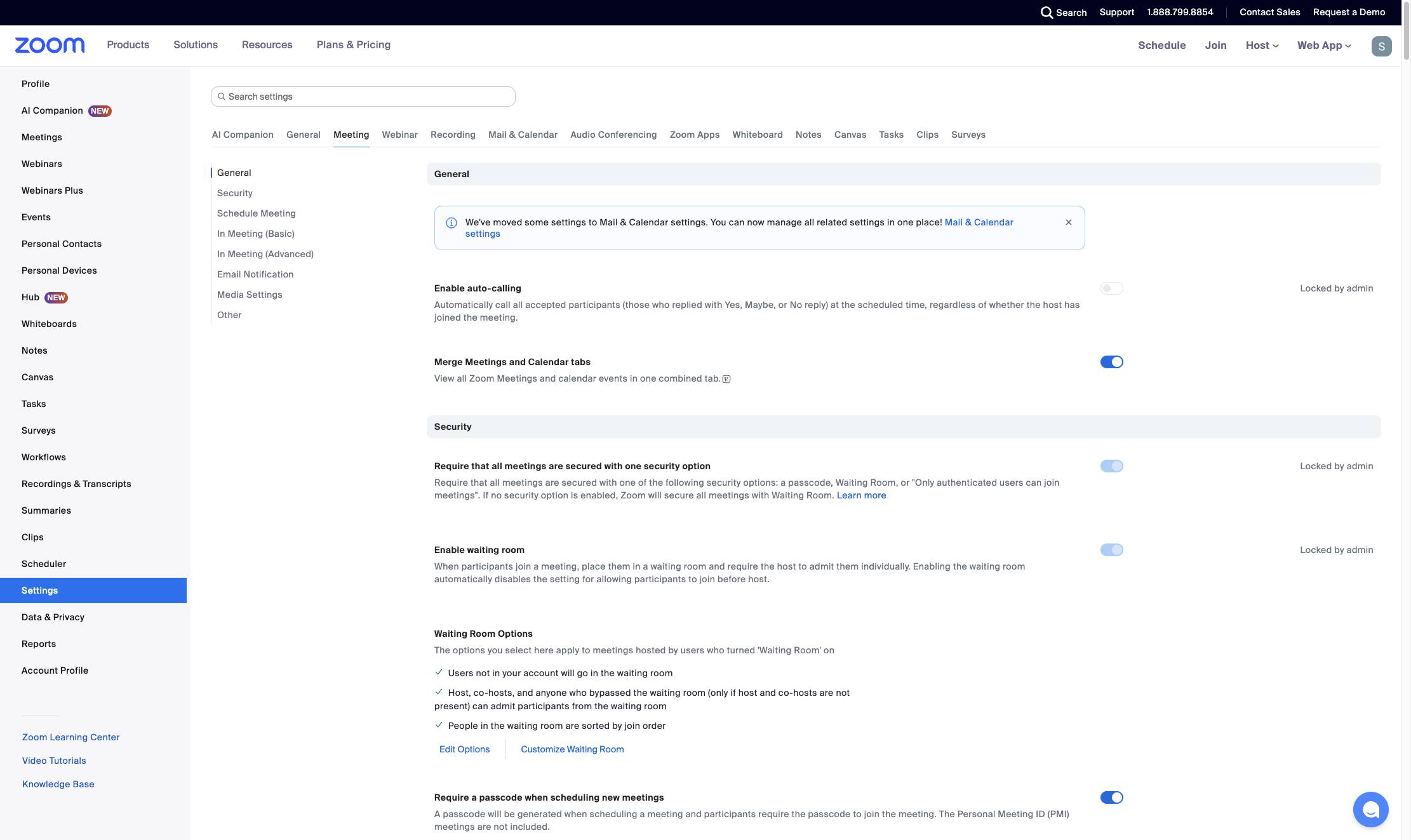

This guide provides step-by-step instructions on how to allow your team to bypass the Zoom waiting room. By following these steps, you can customize your Zoom settings to allow specific domains or teammates to bypass the waiting room, making it more convenient for your team to join meetings without unnecessary delays.
Navigate to your Zoom settings page.
Click the Meeting tab in the horizontal navigation menu to view meeting-related settings.
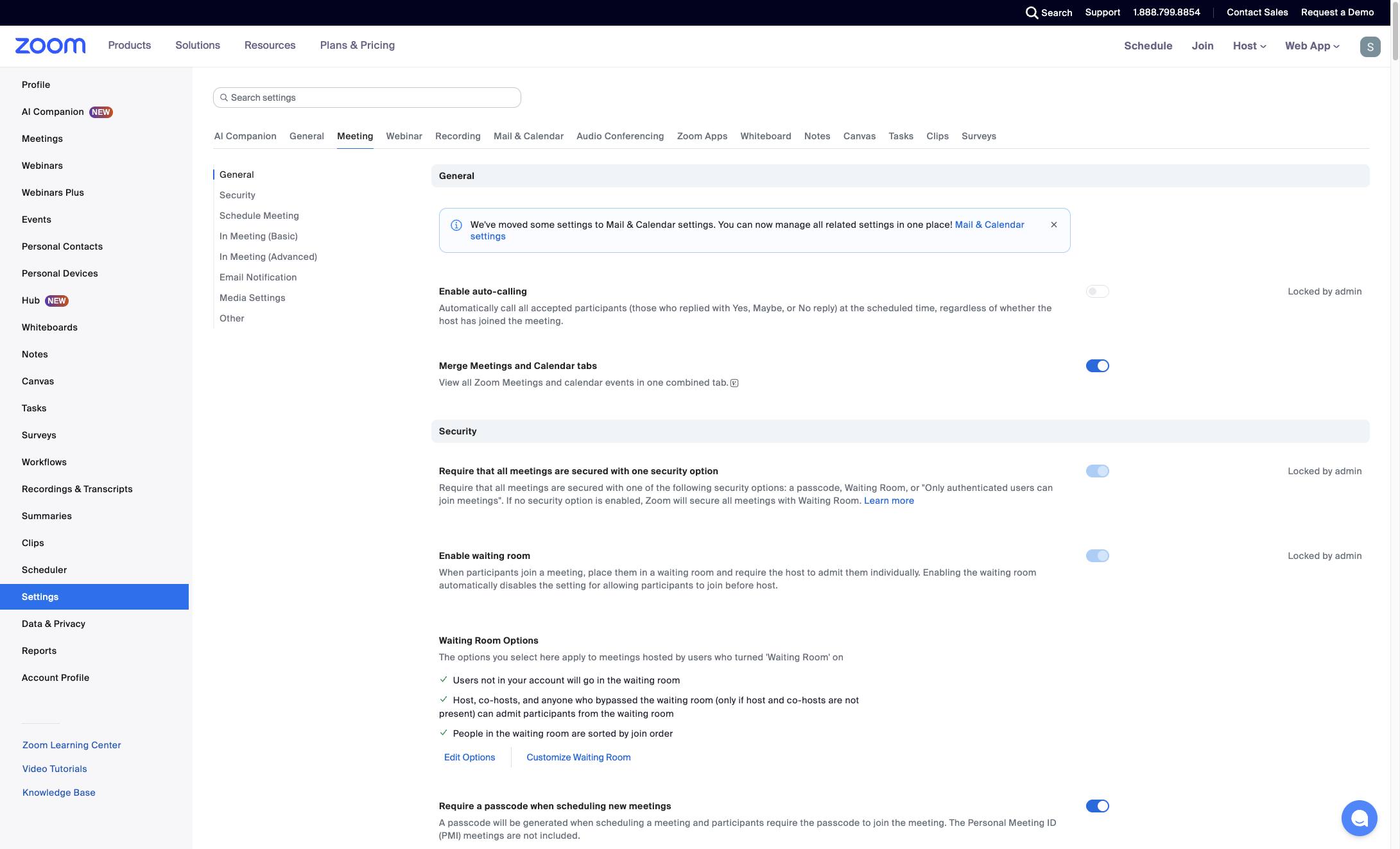
Click the toggle to right of the "Waiting Room" setting.
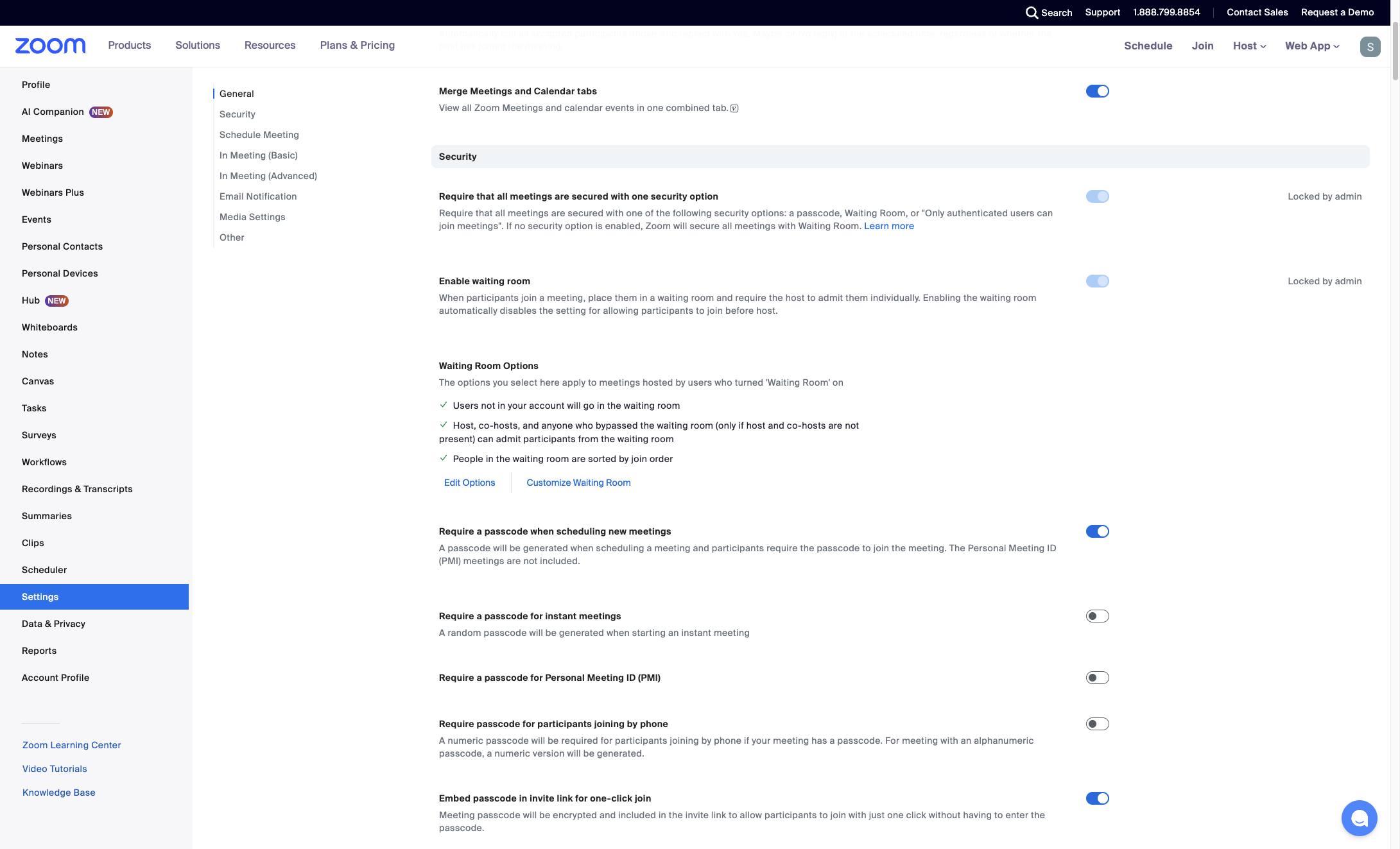
Click the Edit Options button under the Waiting Room Options section to modify your waiting room settings.
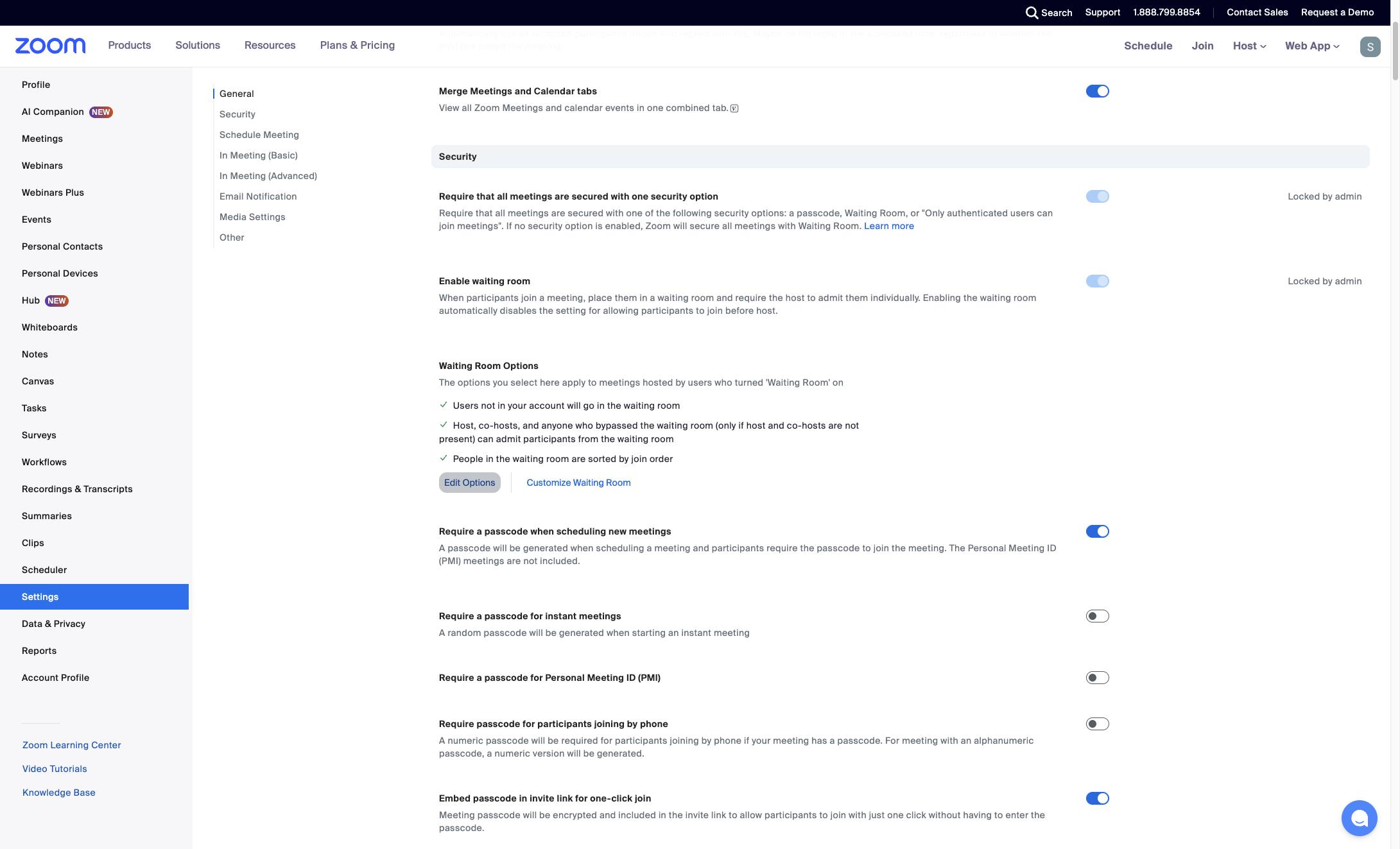
Choose the radio button for "Users who are not in your account and not part of your whitelisted domains" in the modal.
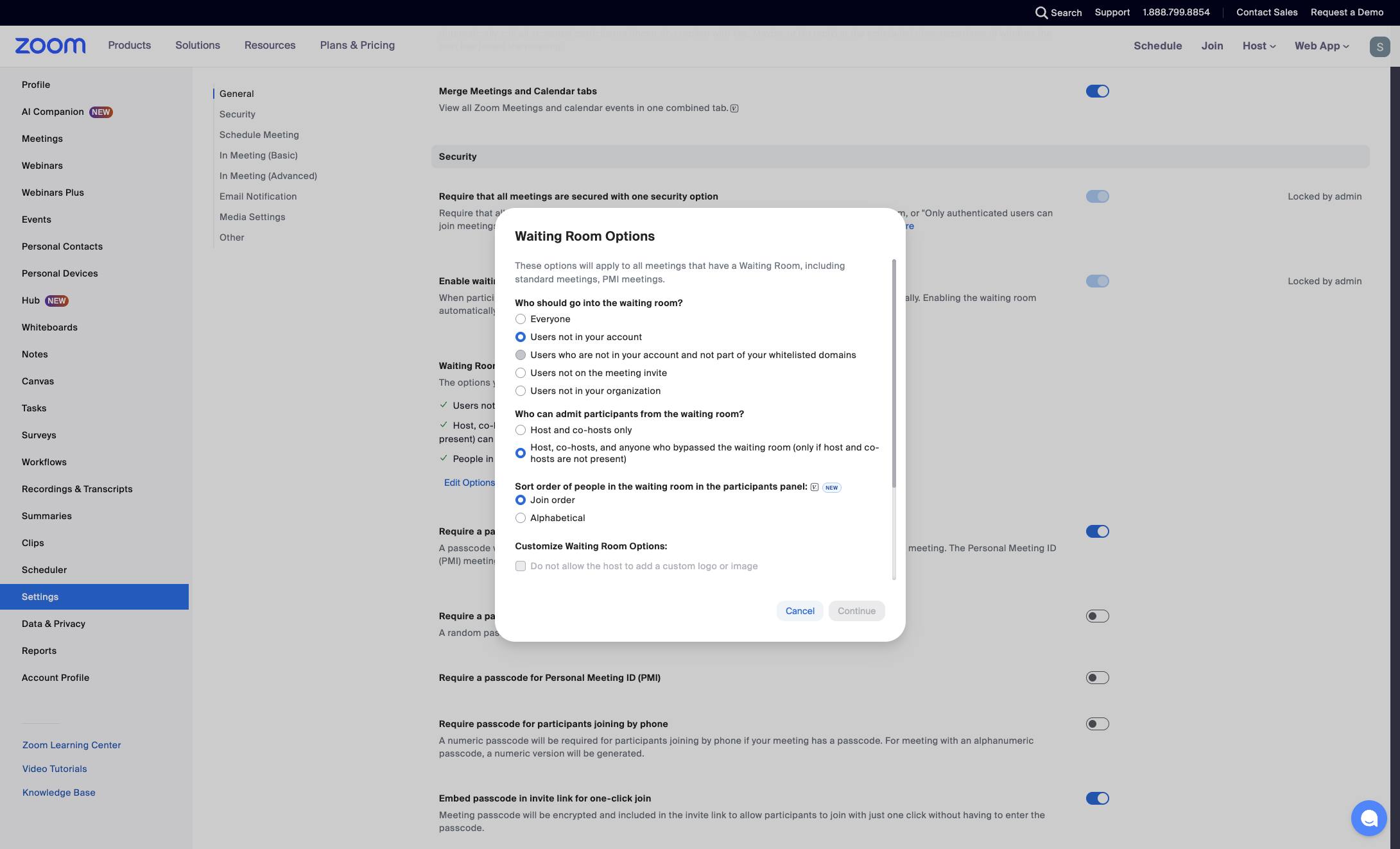
Click the Approved Domains input field within the Waiting Room Options modal to enter allowed domains. Type the domains (i.e., the end of your team's email addresses, like mycompany.com) that you want to allow to skip the Zoom room.
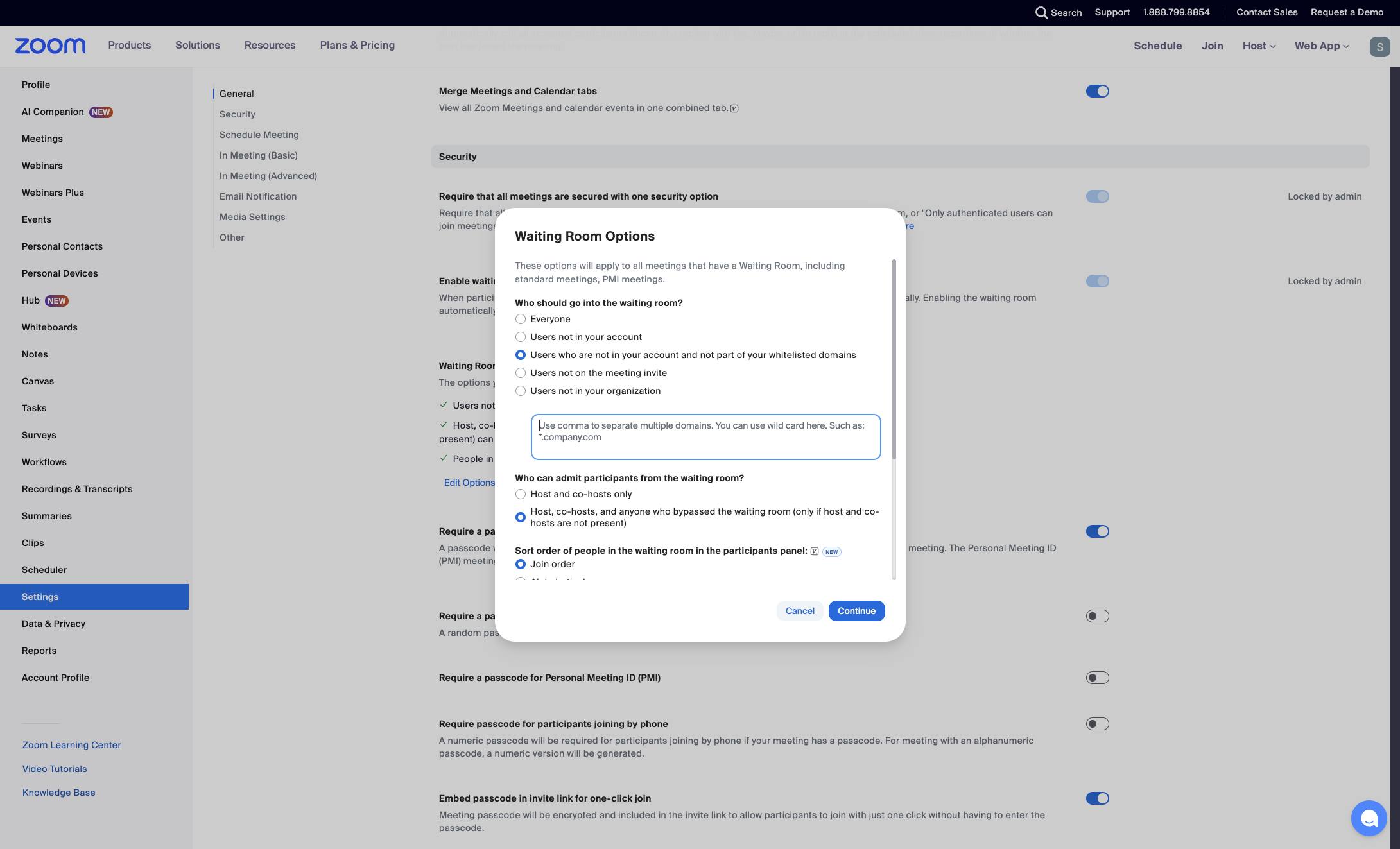
Click the radio button for "Host, co-hosts, and anyone who bypassed the waiting room" in the Waiting Room Options modal.
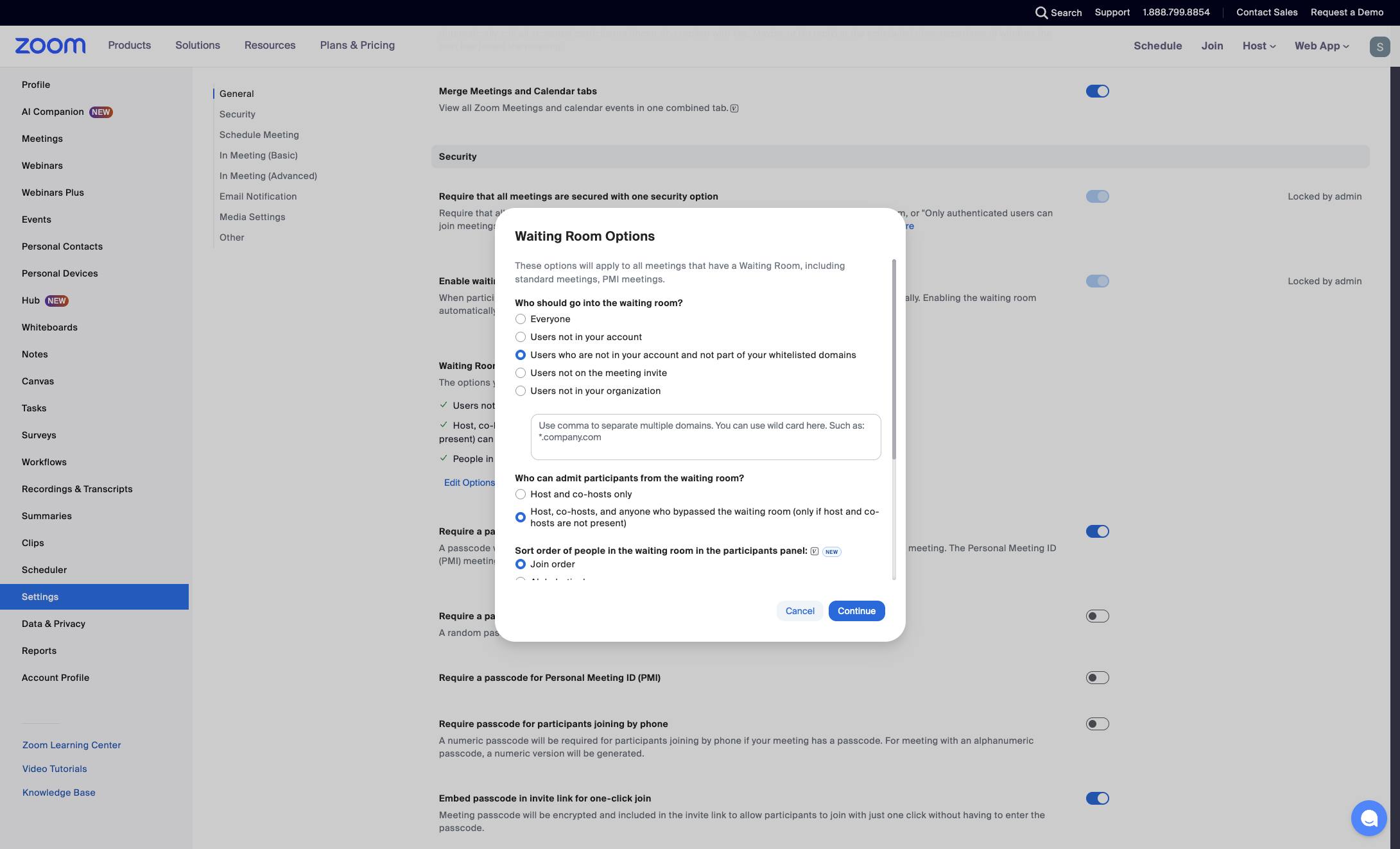
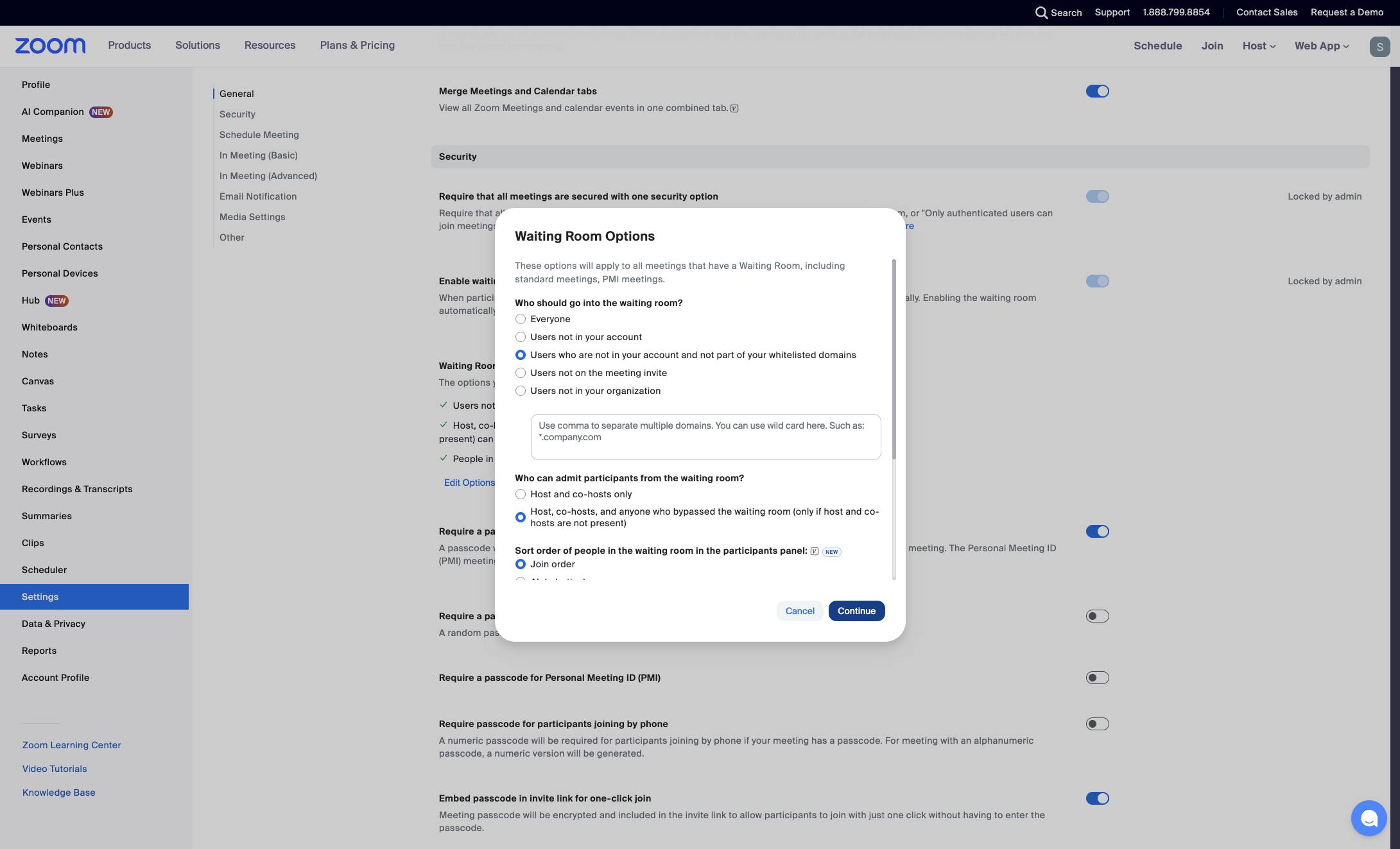
Click the Continue button at the bottom of the modal to save your waiting room options.
Duplicate this template, swap in your own screens, and share it with your team. Free to start — no credit card.
Fill out the form and we'll get back to you as soon as possible.
Tell us about your team and we'll find the right plan together.