1
Open Your Google Sheet
Open the Google Sheets file where you want to wrap the text.
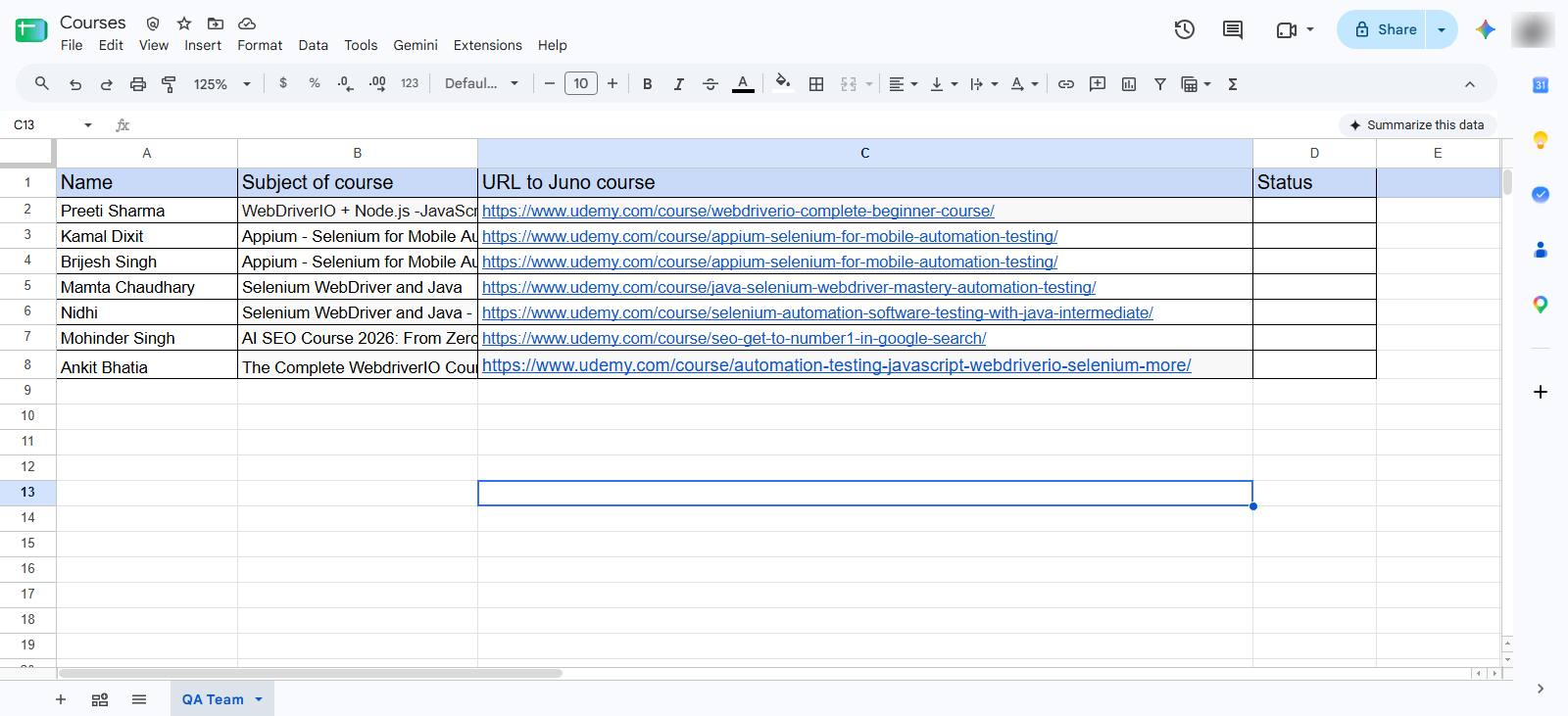

Wrap text keeps long content readable within the same cell by displaying it across multiple lines, without increasing the column width.
Open the Google Sheets file where you want to wrap the text.
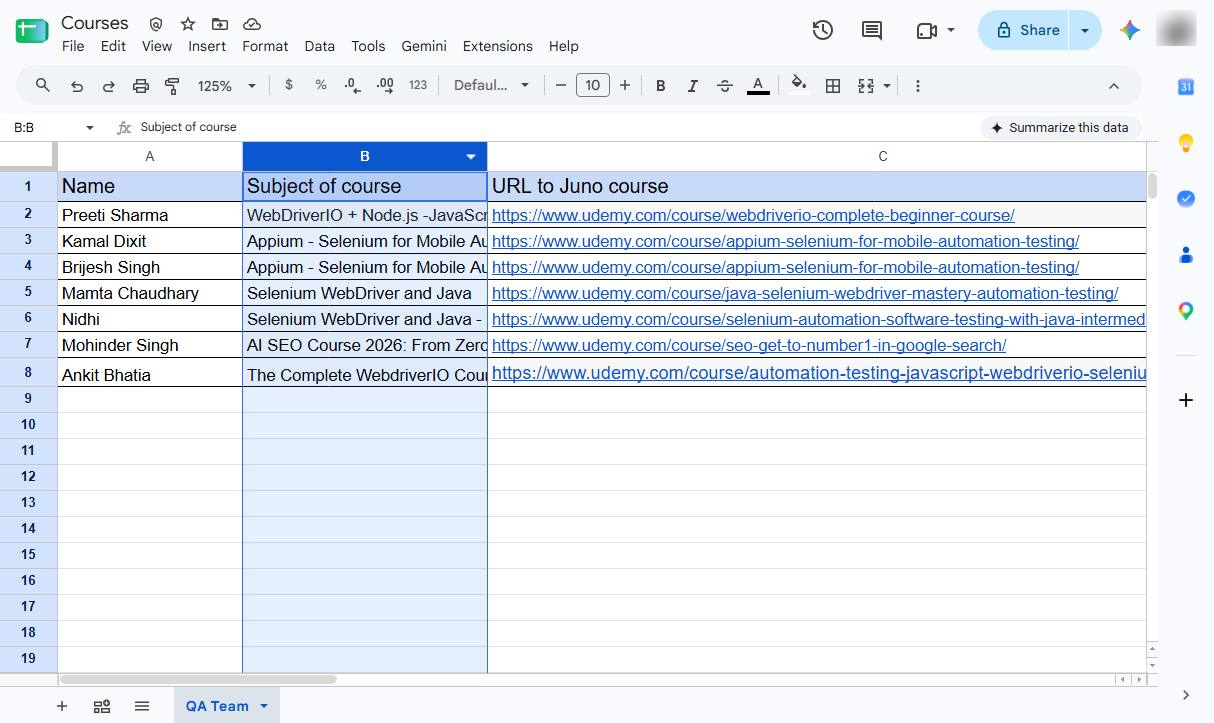
Select the cell or range of cells containing the text you want to wrap.
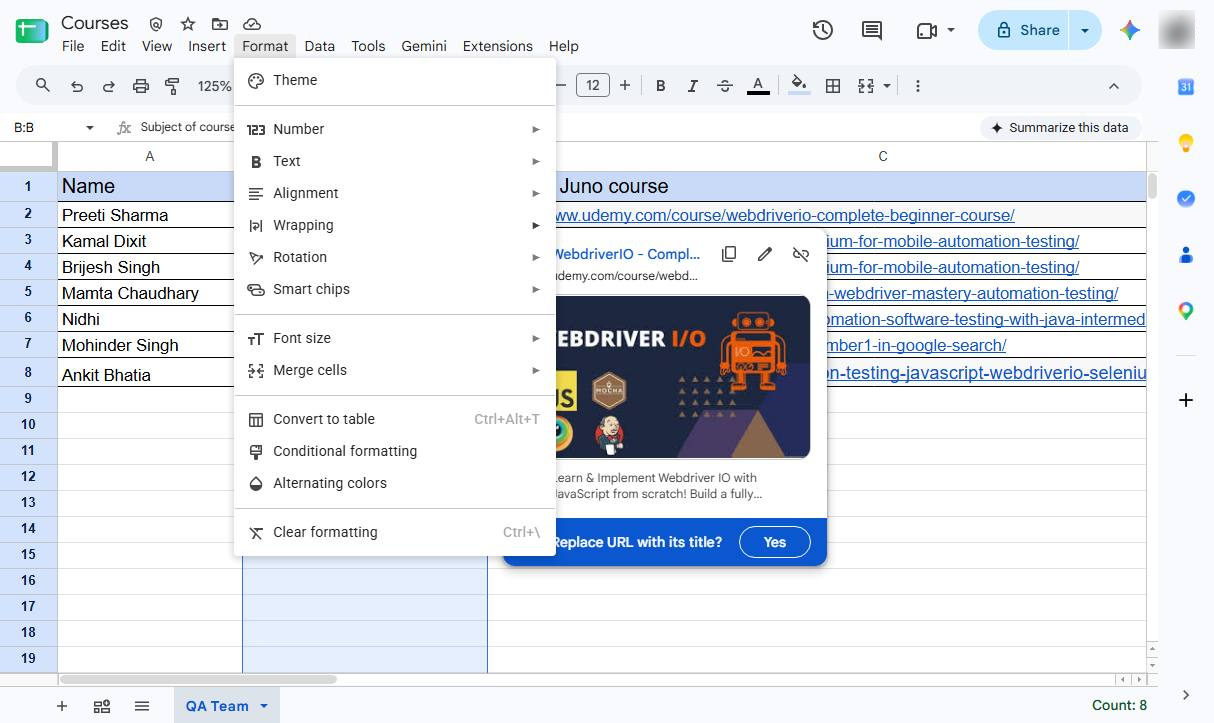
Click Format in the top menu to access formatting options for the selected cells.
Select Wrapping from the Format menu to view the available text display options.
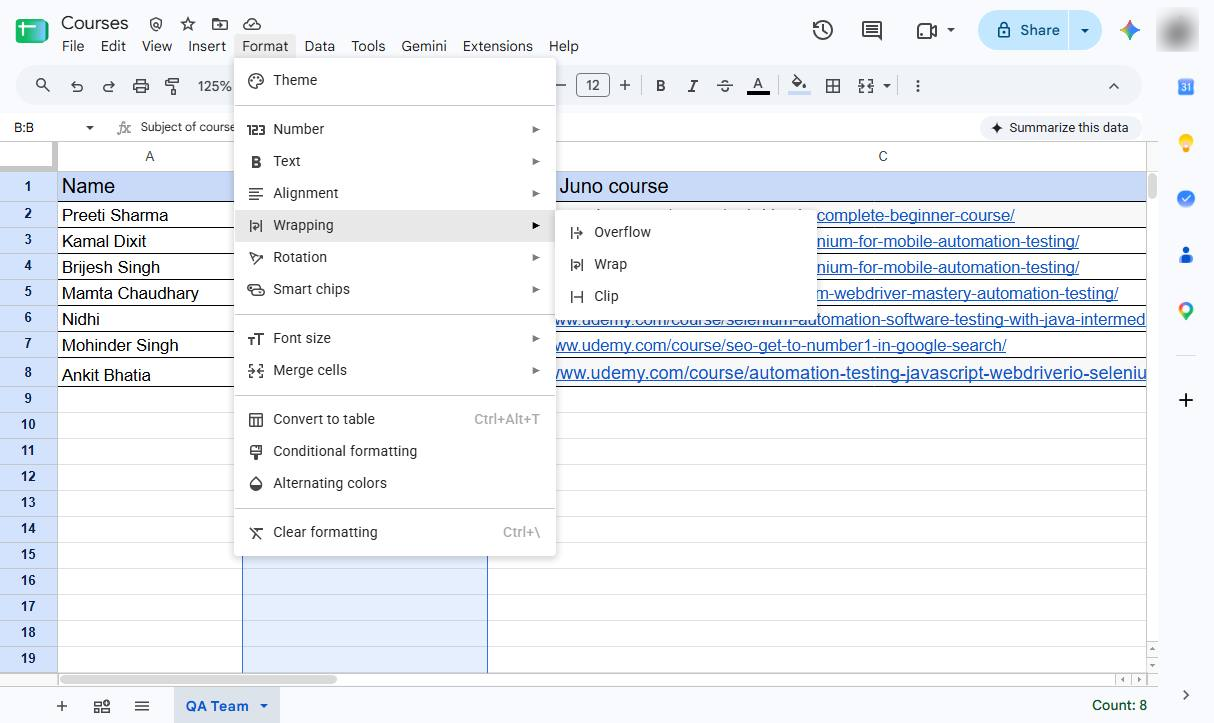
Choose Wrap to display long text across multiple lines while keeping the column width unchanged.
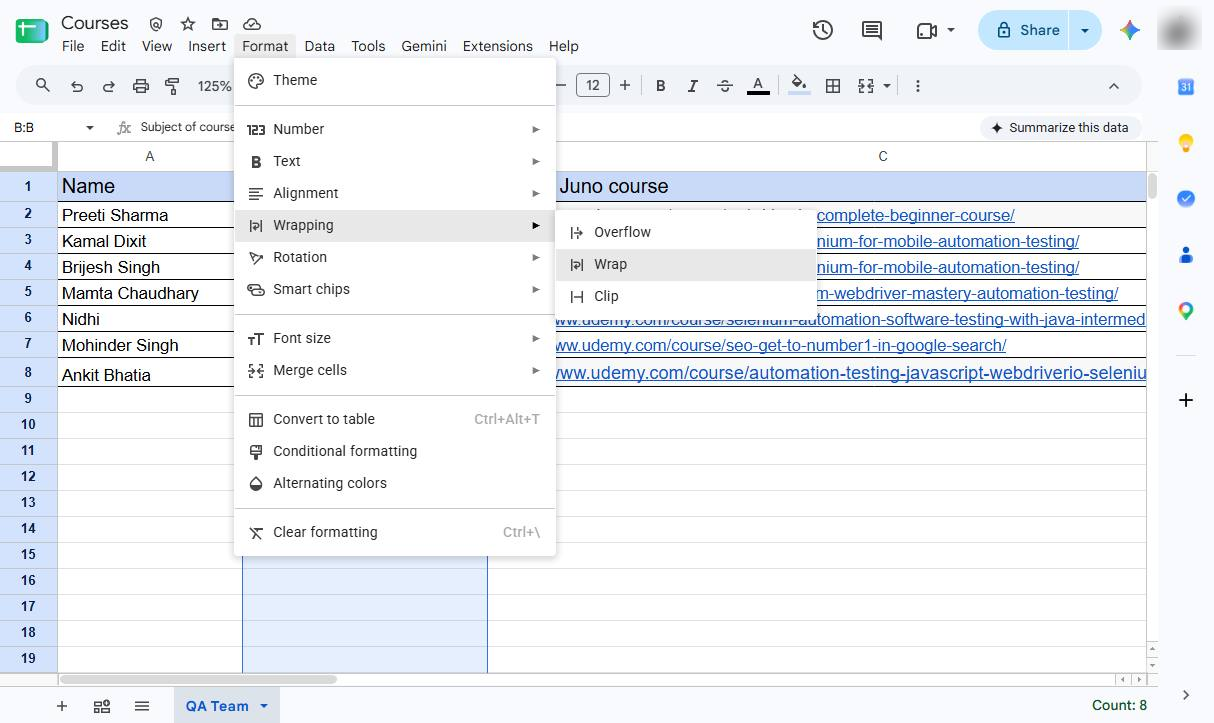
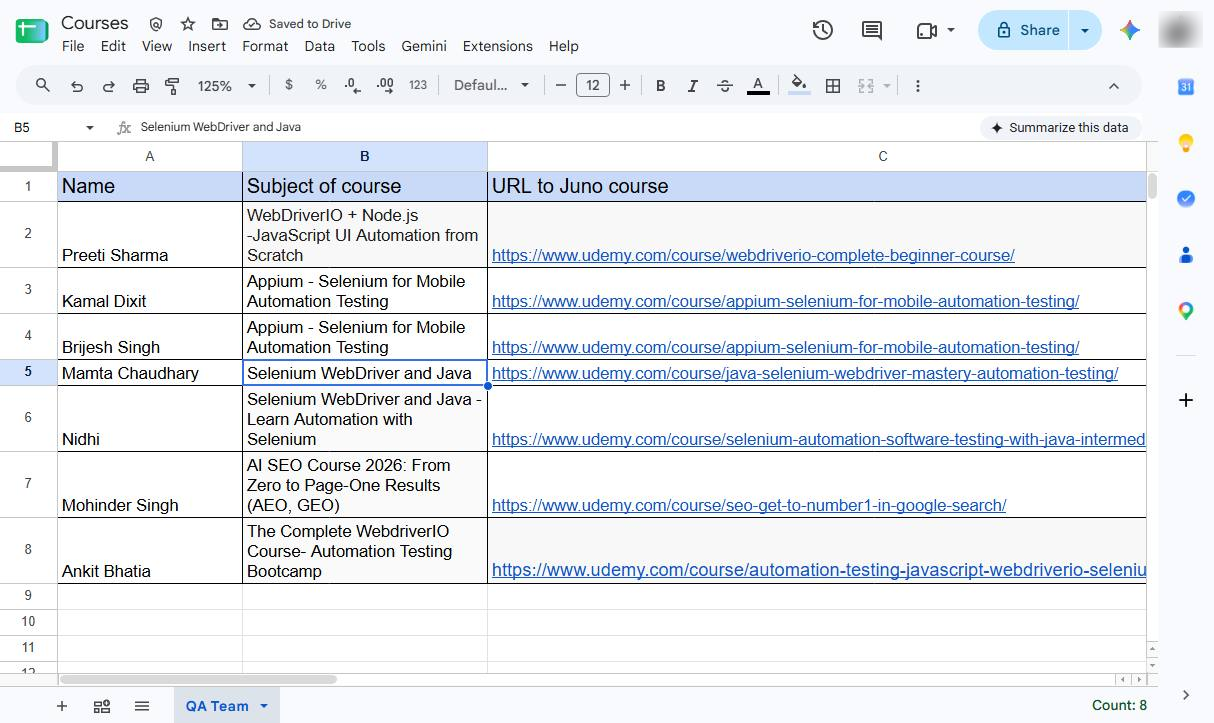
If the wrapped text is not fully visible, adjust the row height so that all lines are displayed.
Duplicate this template, swap in your own screens, and share it with your team. Free to start — no credit card.
Fill out the form and we'll get back to you as soon as possible.
Tell us about your team and we'll find the right plan together.