1
Navigate to your Google Sheet
Navigate to the specific Google Sheets document where you want to unfreeze the columns.
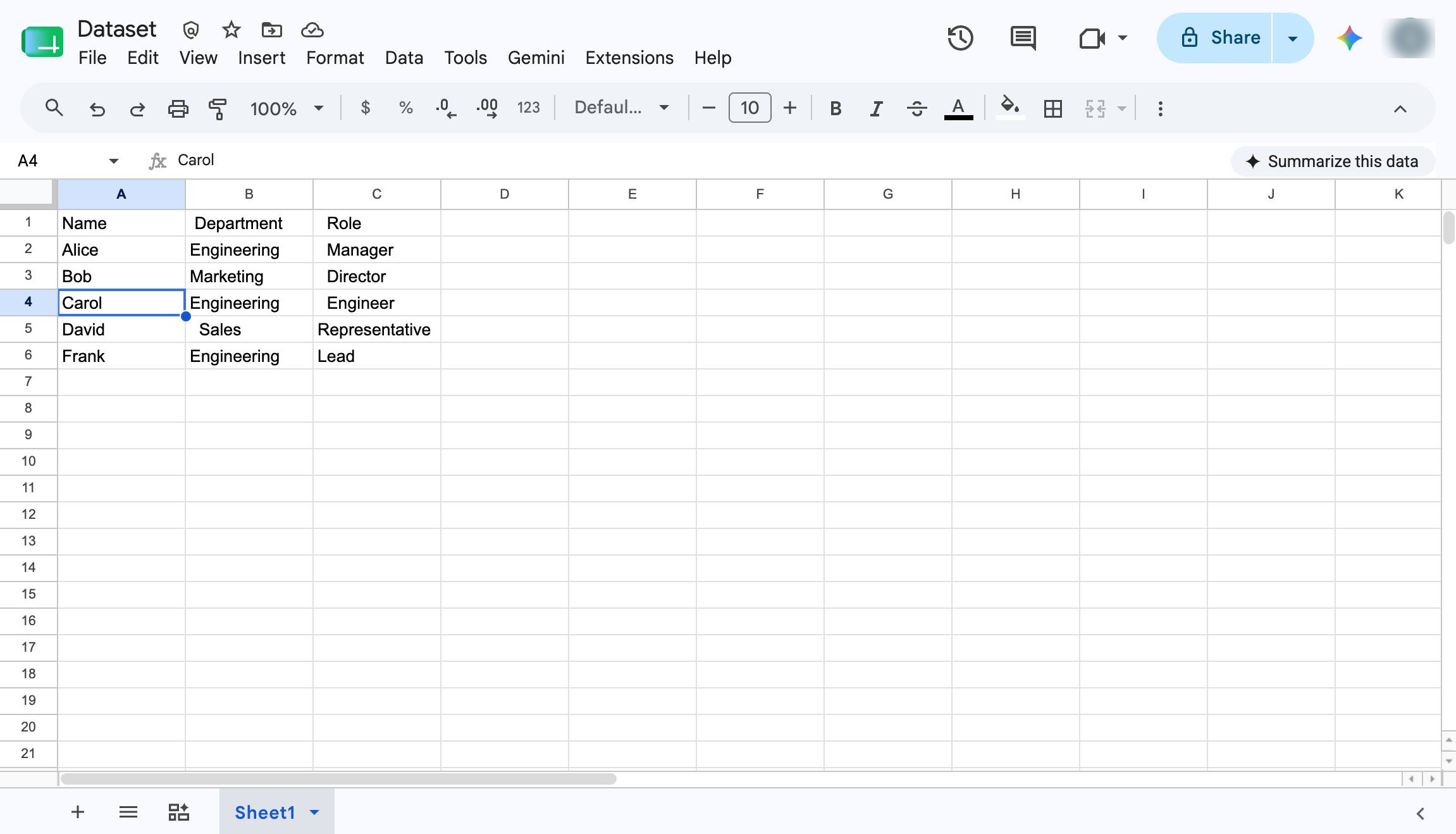

In this guide, you will learn how to unfreeze columns in a Google Sheets spreadsheet to improve your data viewing experience. By navigating the menu options in the Dataset document, you will quickly disable column freezing and restore standard scrolling to your sheet.
Navigate to the specific Google Sheets document where you want to unfreeze the columns.
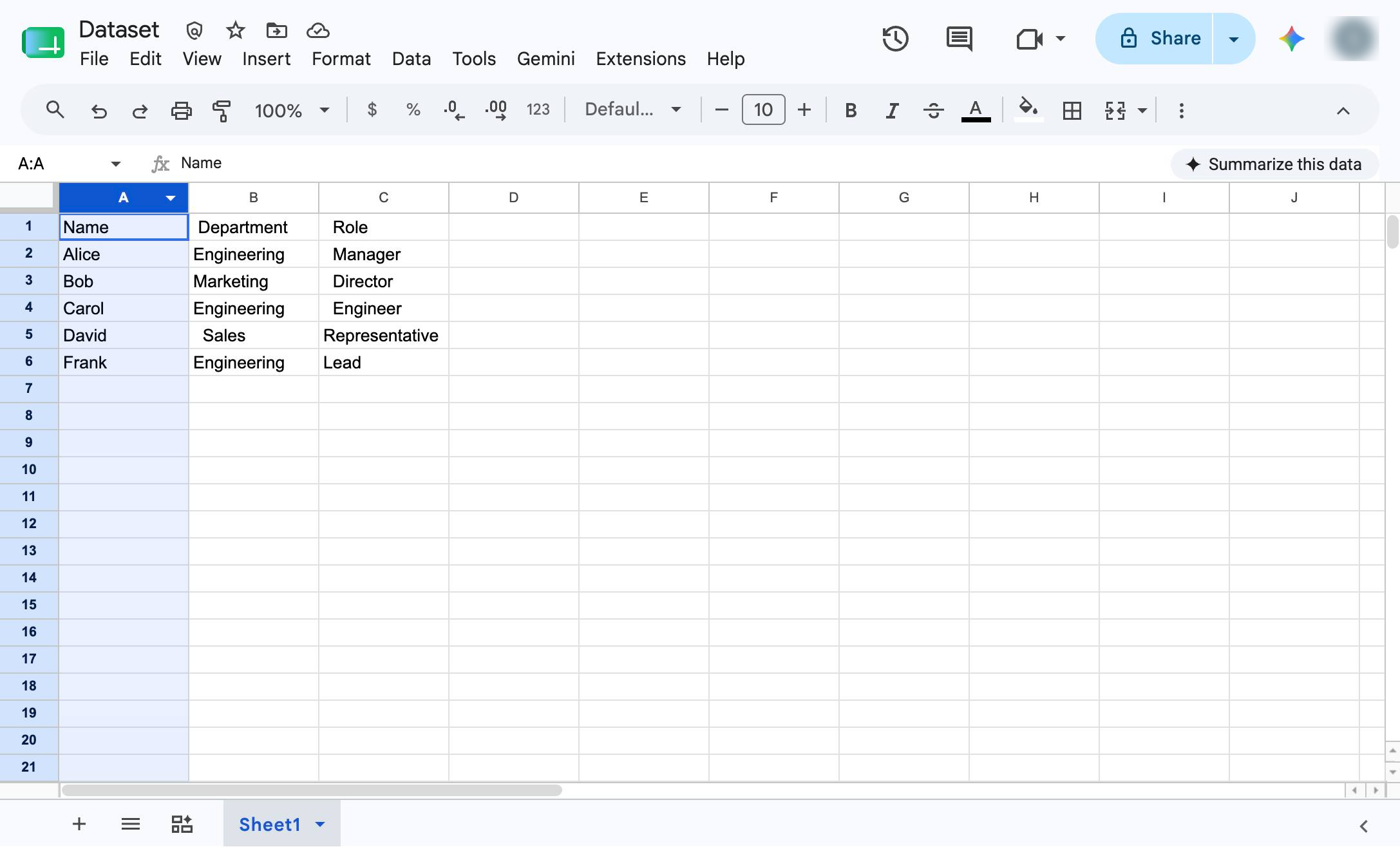
Click on the column you want to unfreeze
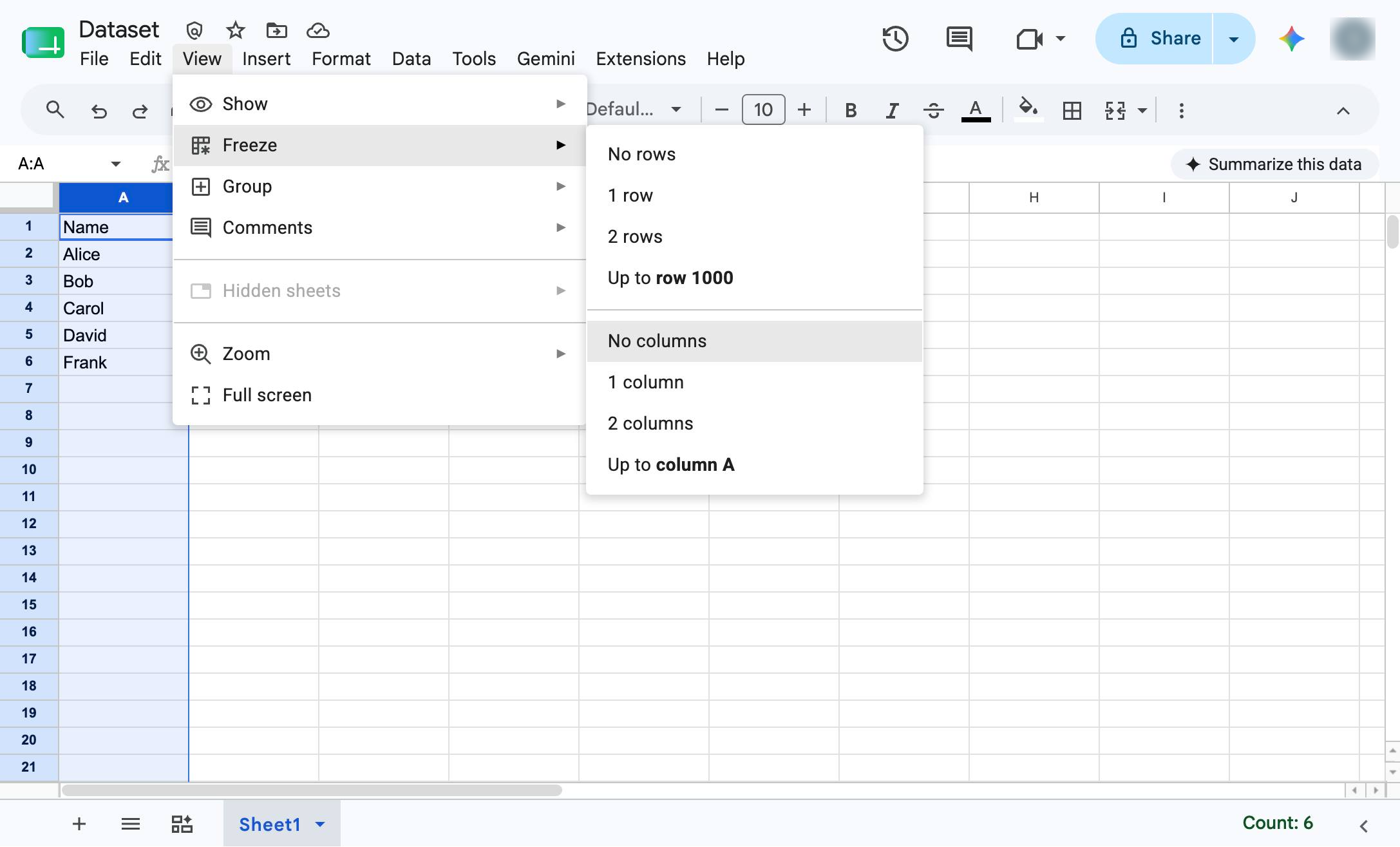
Click the View menu in the top toolbar to access the freeze options.
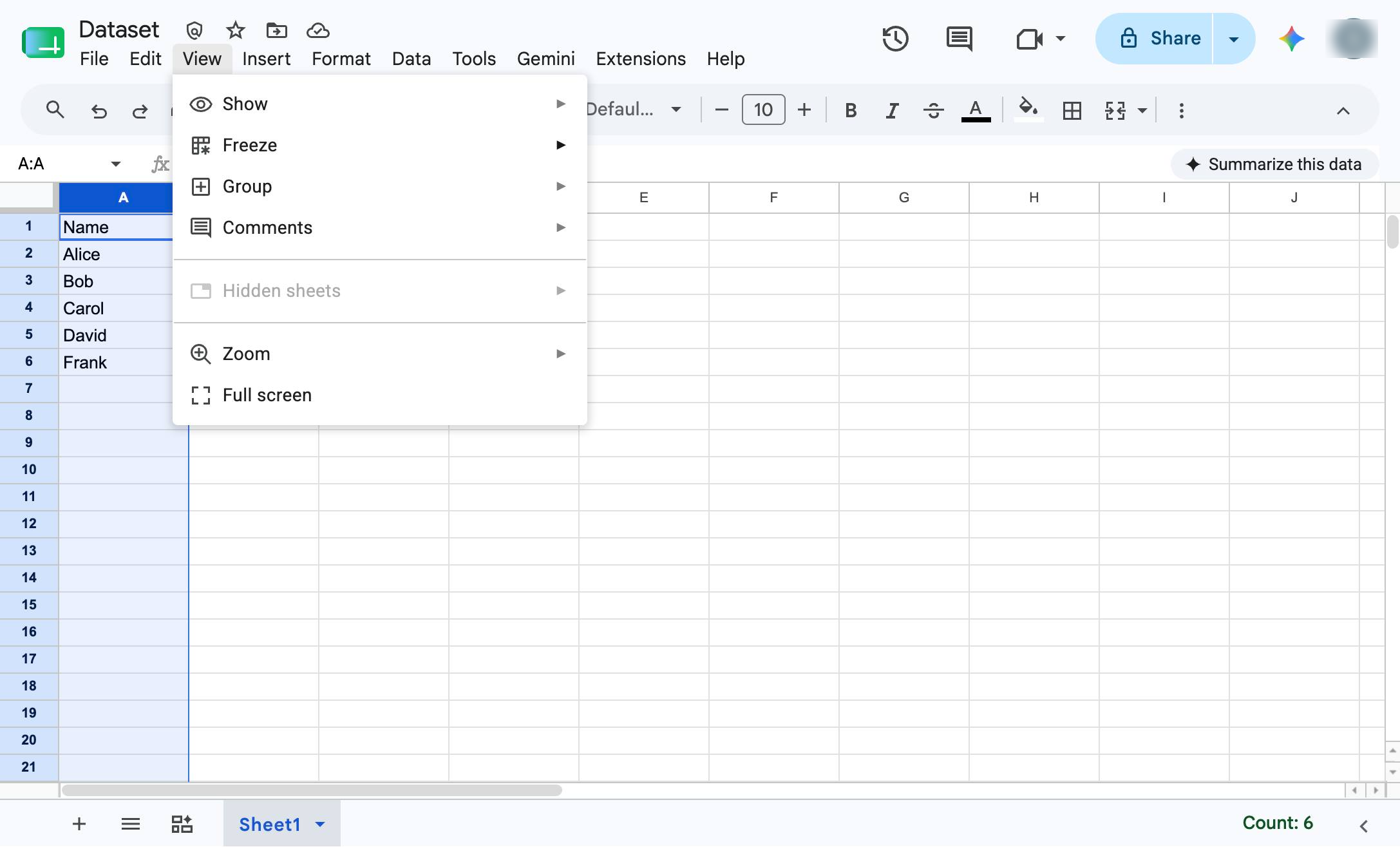
Click the "Freeze" option in the dropdown menu to reveal the freezing settings.
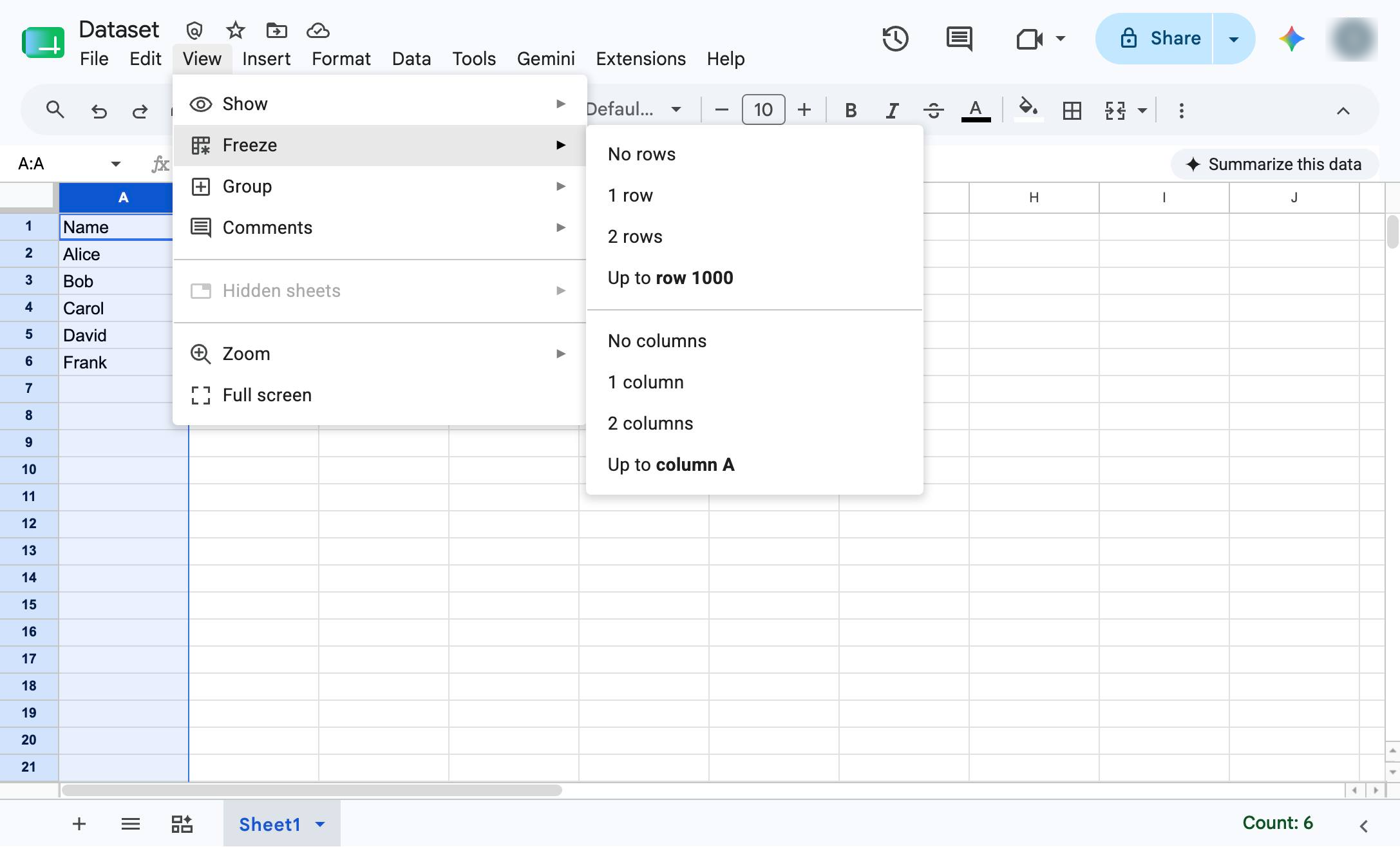
Click "No columns" in the submenu to unfreeze all columns in your spreadsheet.
Duplicate this template, swap in your own screens, and share it with your team. Free to start — no credit card.
Fill out the form and we'll get back to you as soon as possible.
Tell us about your team and we'll find the right plan together.