1
Click the first slide
In the filmstrip on the left, click the first slide you want.
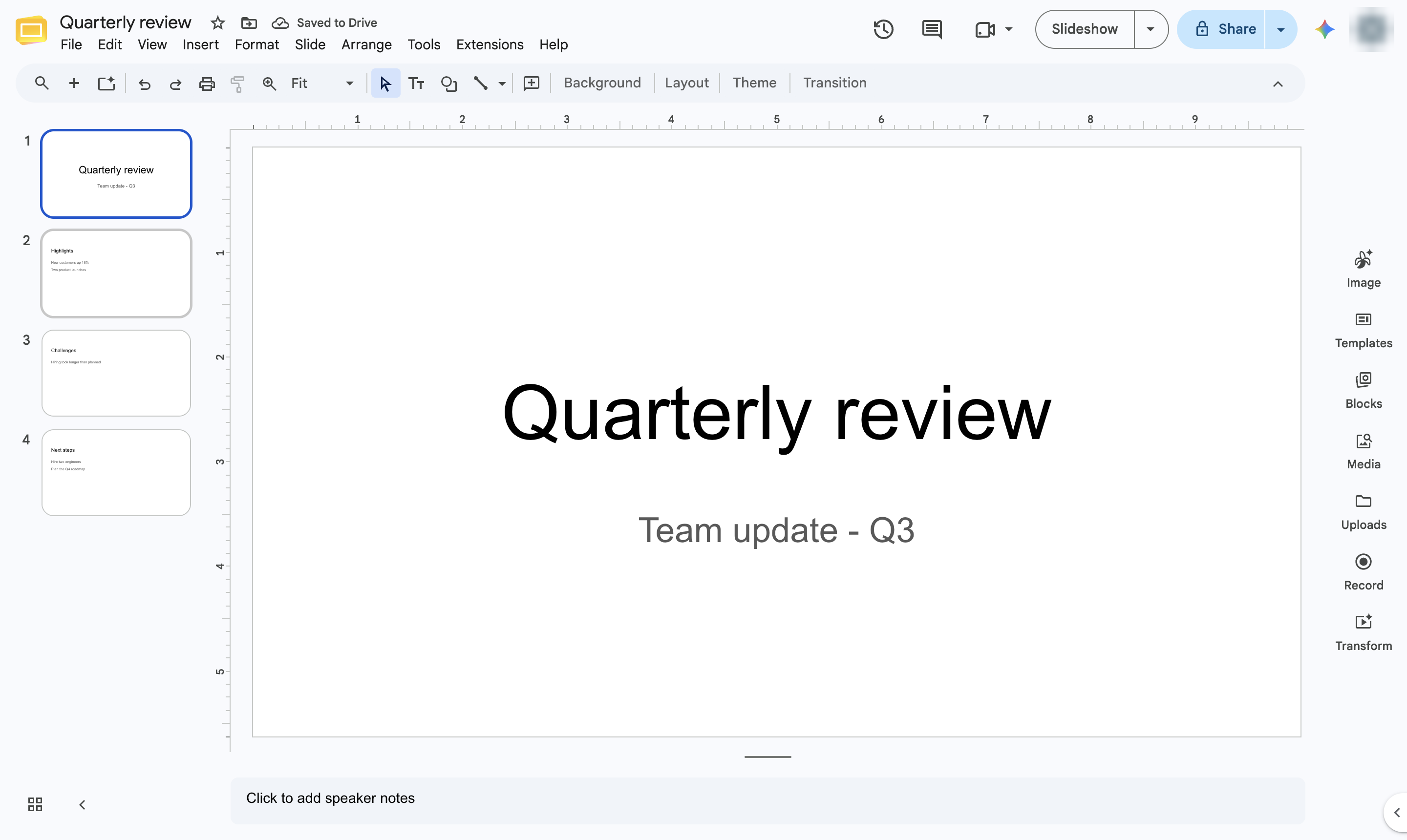

Select several slides at once in the filmstrip to move, delete, or duplicate them together.
In the filmstrip on the left, click the first slide you want.
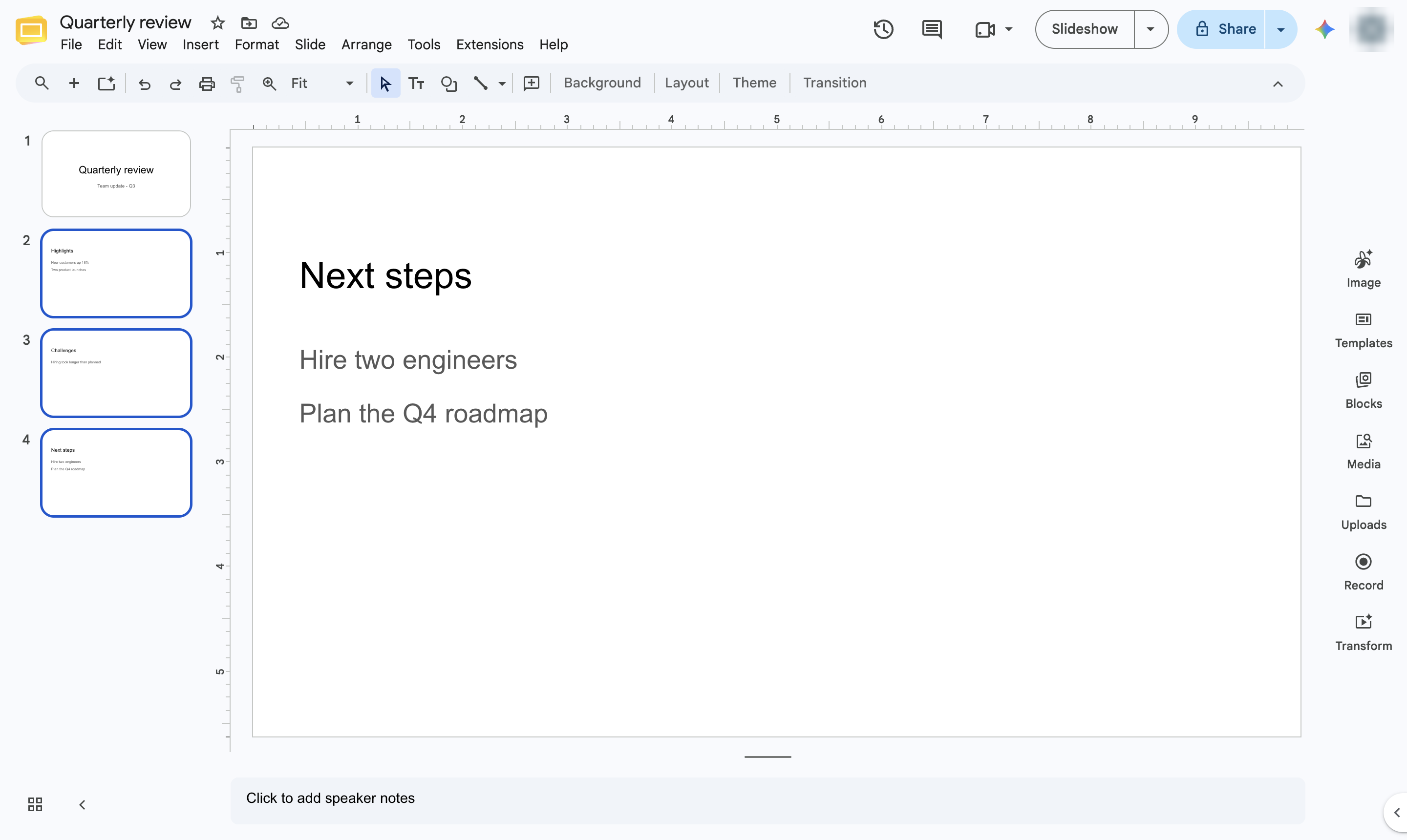
Hold Shift and click the last slide of the range. To pick slides that are not next to each other, hold Ctrl (Cmd on Mac) and click each one.
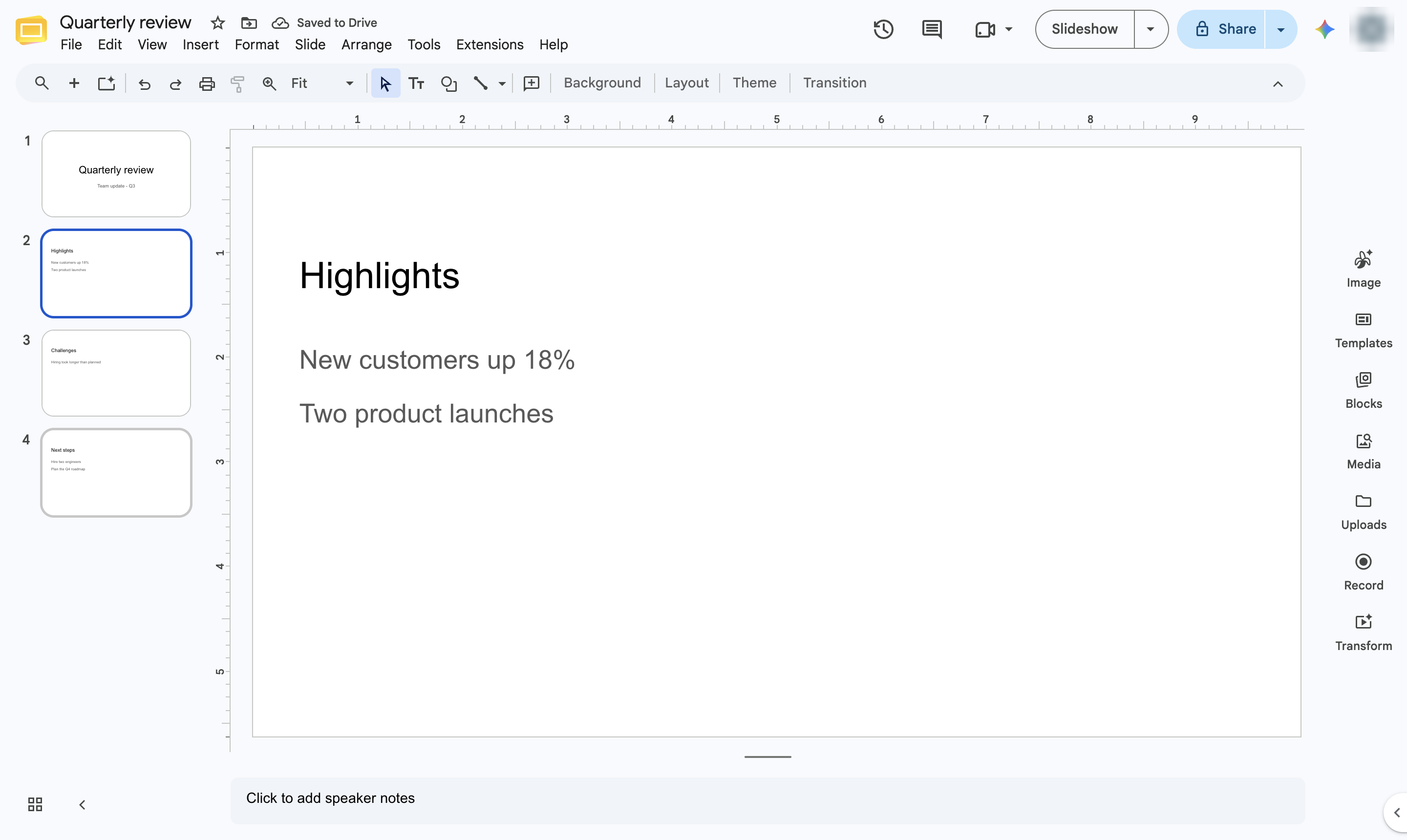
The selected slides are highlighted. Drag them to move, or right-click to delete, duplicate or skip them all at once.
Duplicate this template, swap in your own screens, and share it with your team. Free to start — no credit card.
Fill out the form and we'll get back to you as soon as possible.
Tell us about your team and we'll find the right plan together.