1
Click the first cell of the column
Click the cell in row 1 at the top of the column.
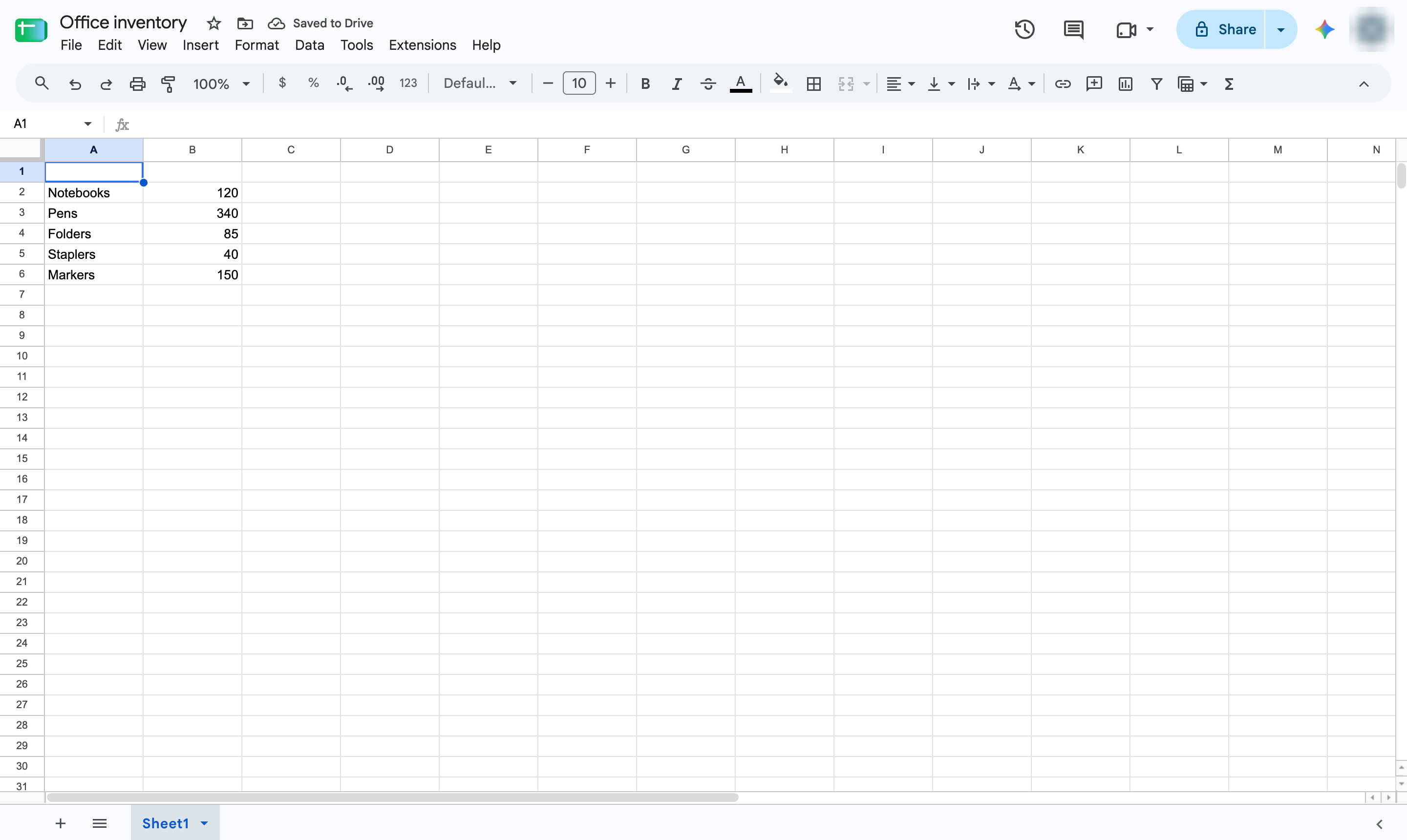

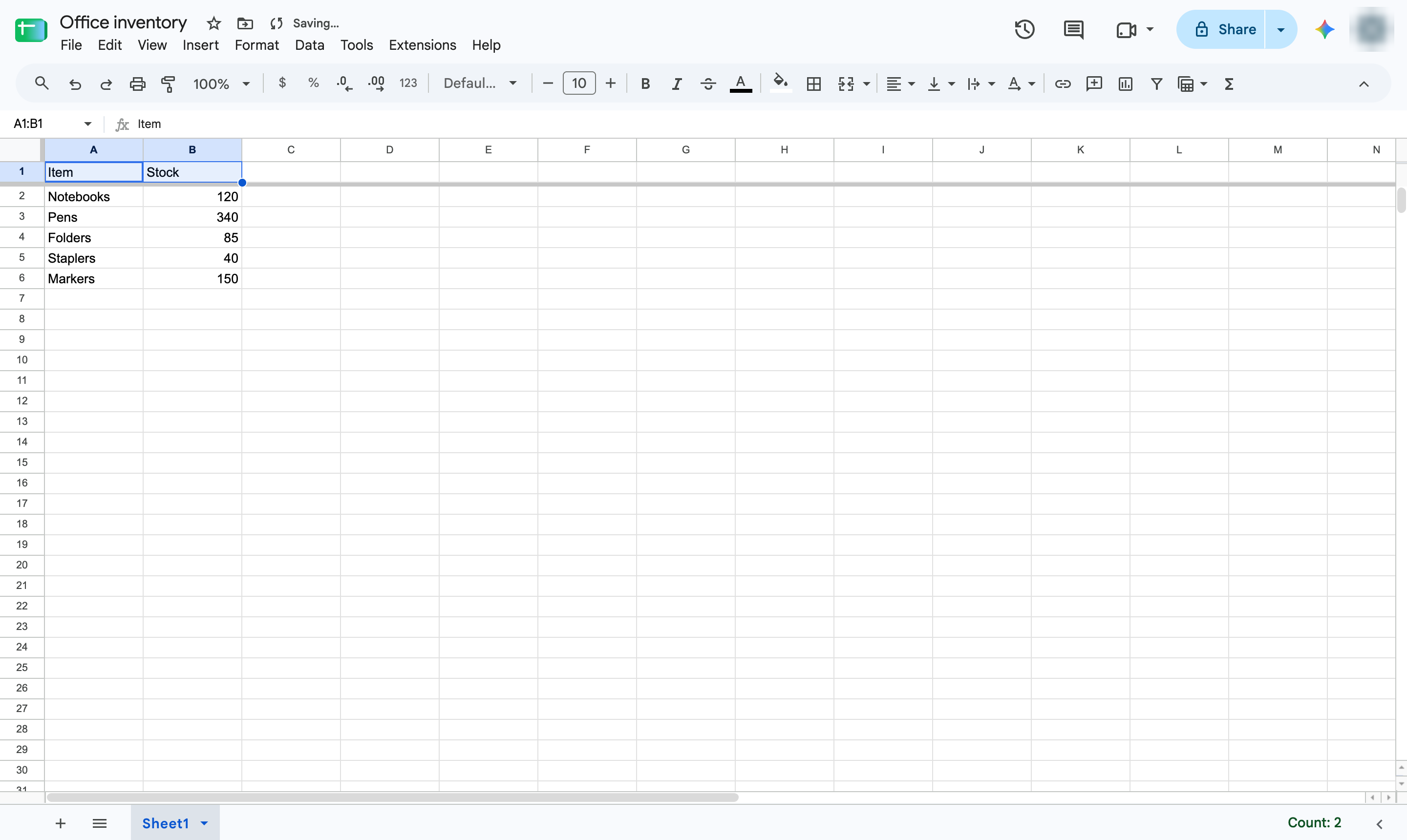
Give each column a name by typing headers in row 1, then freeze the row so the names stay visible.
Click the cell in row 1 at the top of the column.
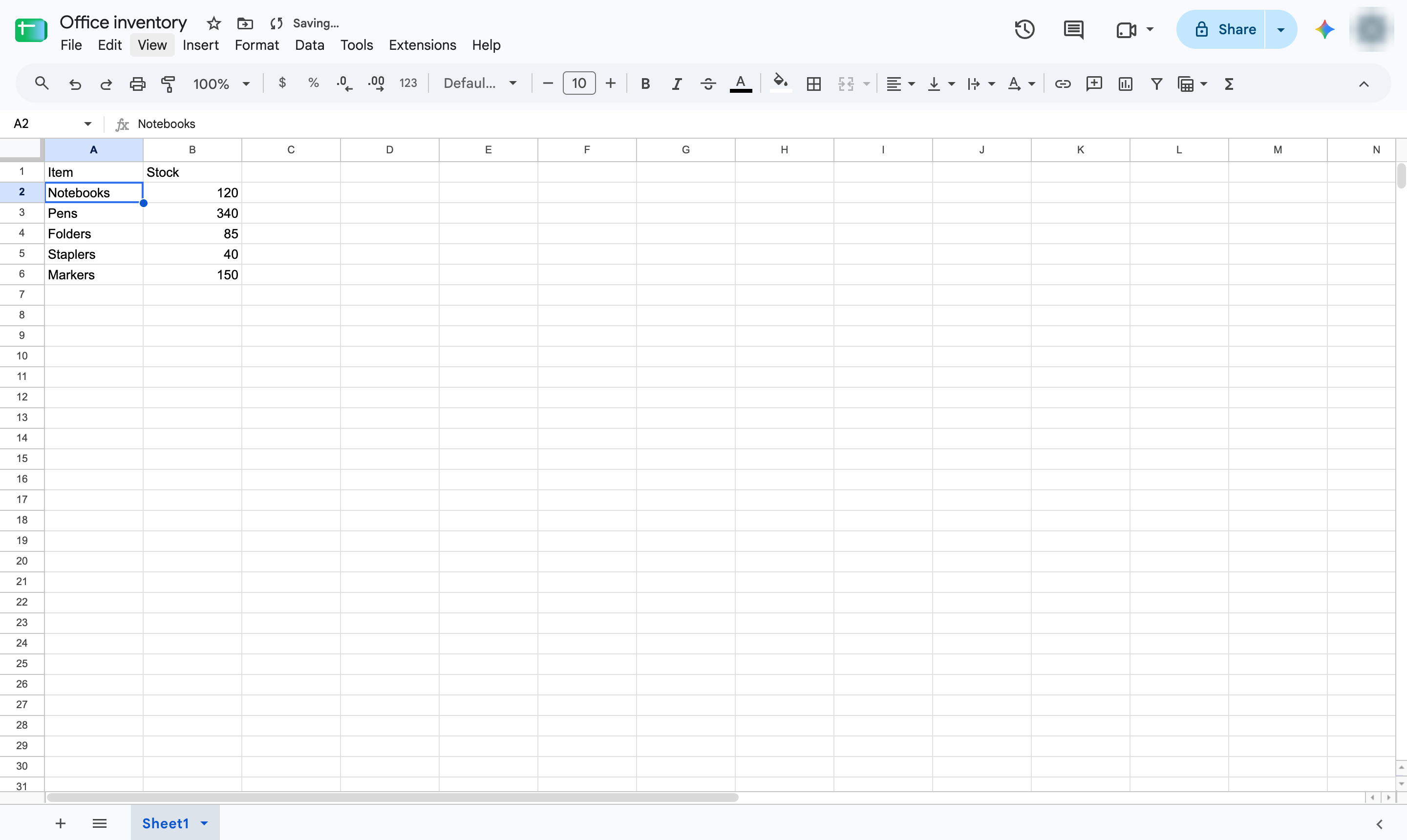
Type a name for the column - here, Item.
Press Tab to move to the next column.
Type the next name - here, Stock.
Press Enter to confirm.
Open the View menu.
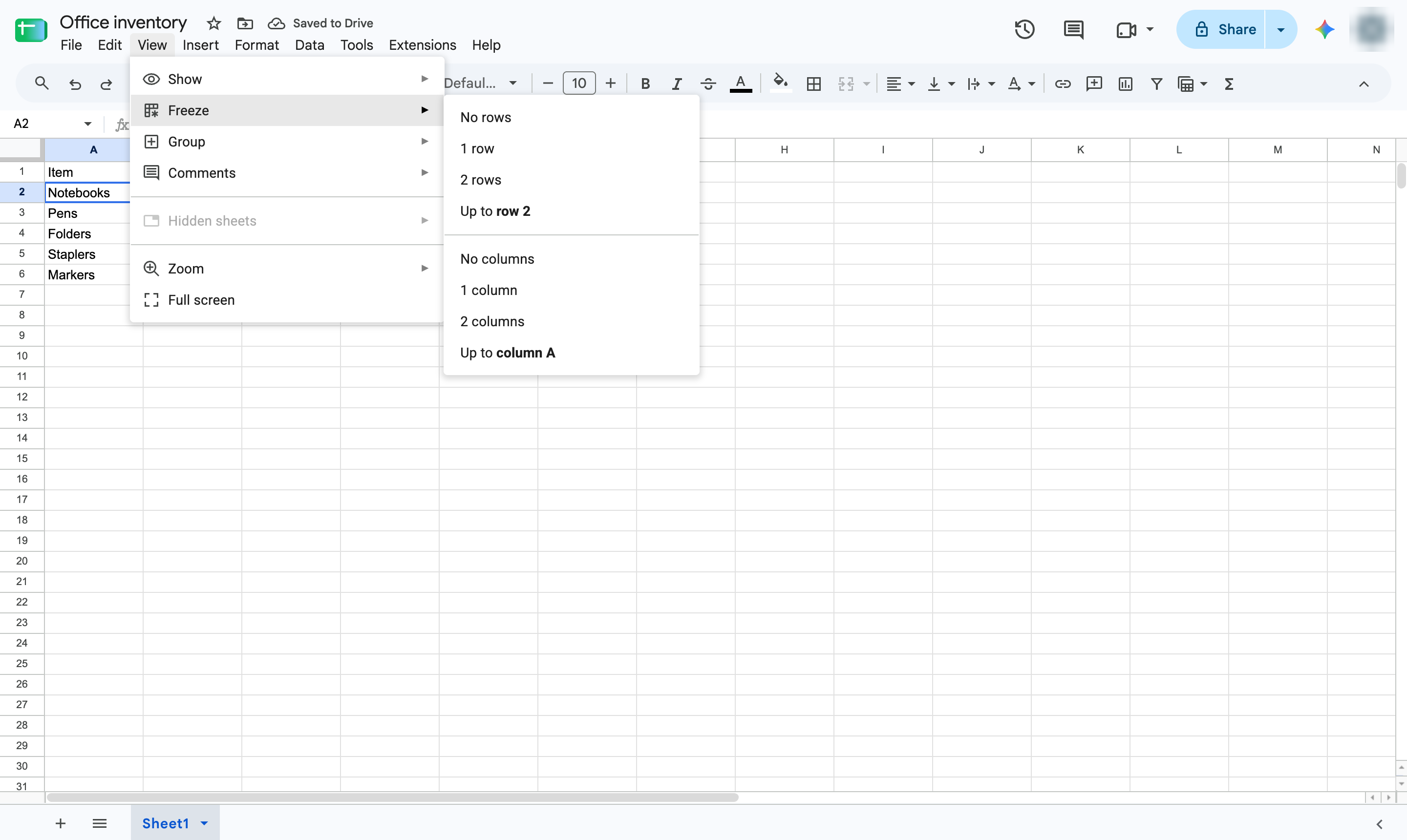
Hover over Freeze.
Choose 1 row so the column names stay on screen when you scroll.
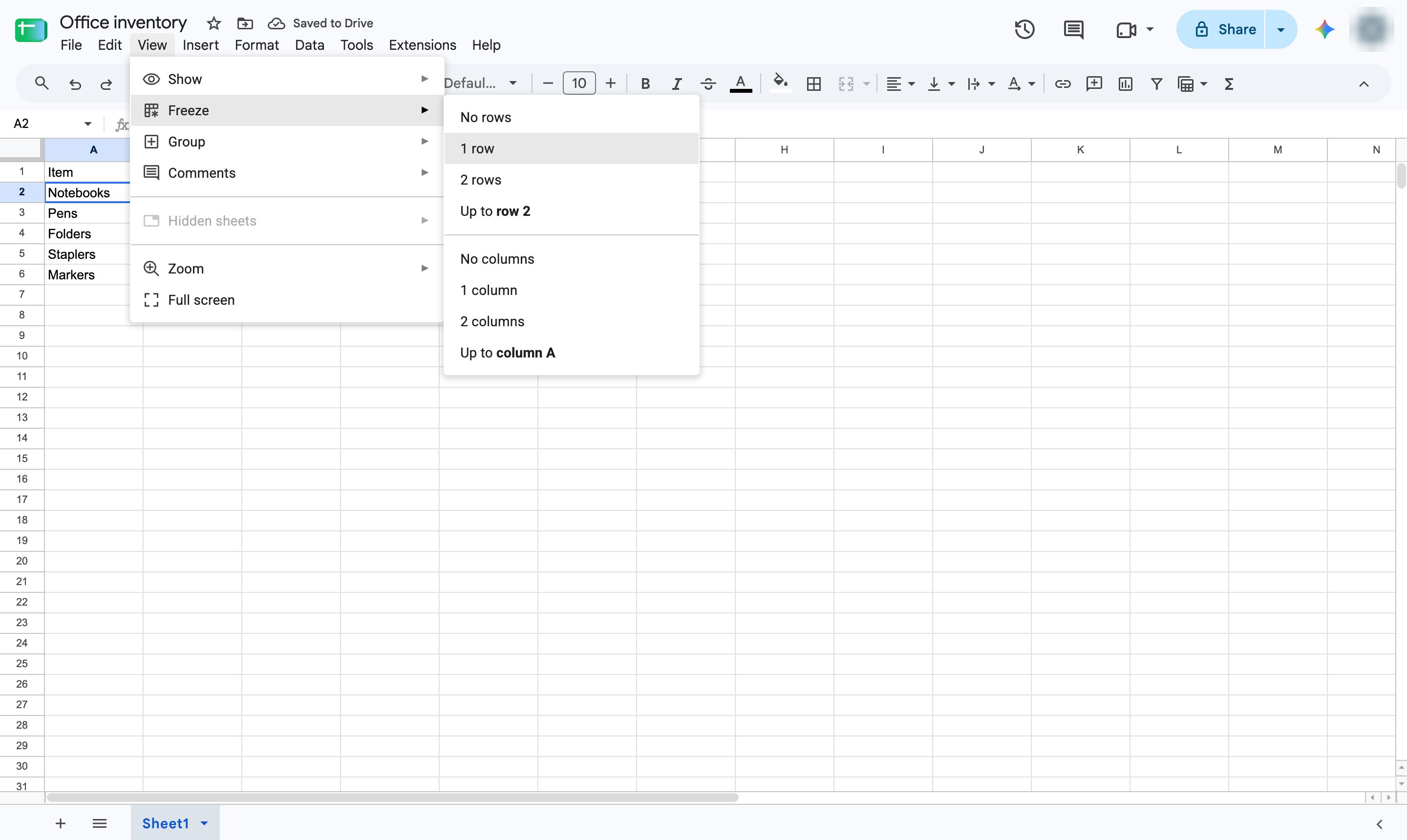
Row 1 now holds the column names and stays put as you scroll.
Duplicate this template, swap in your own screens, and share it with your team. Free to start — no credit card.
Fill out the form and we'll get back to you as soon as possible.
Tell us about your team and we'll find the right plan together.