1
Click Format
Open the Format menu.
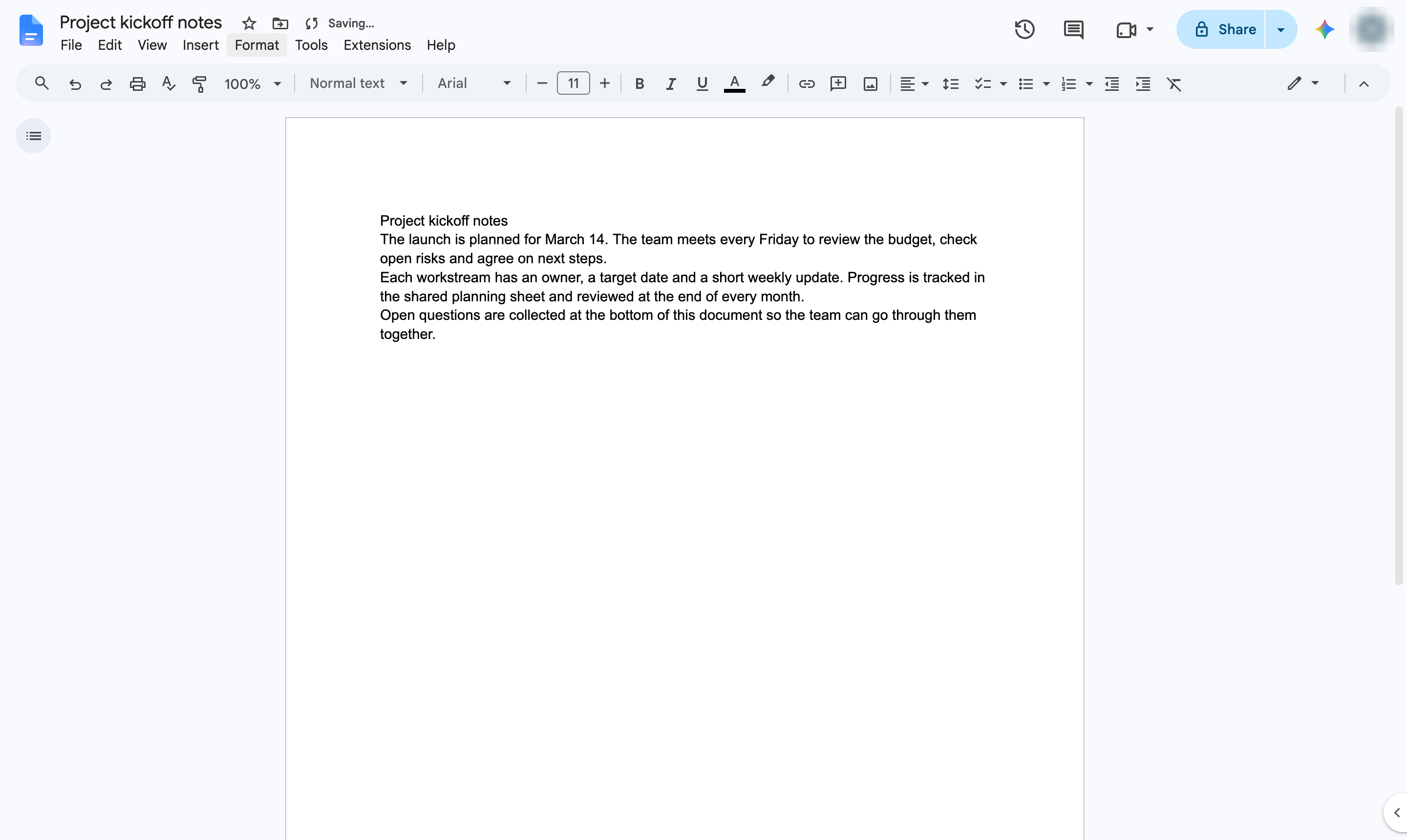

Split your text into two or three columns, like a newsletter, from the Format menu.
Open the Format menu.
Hover over Columns to see the layouts.
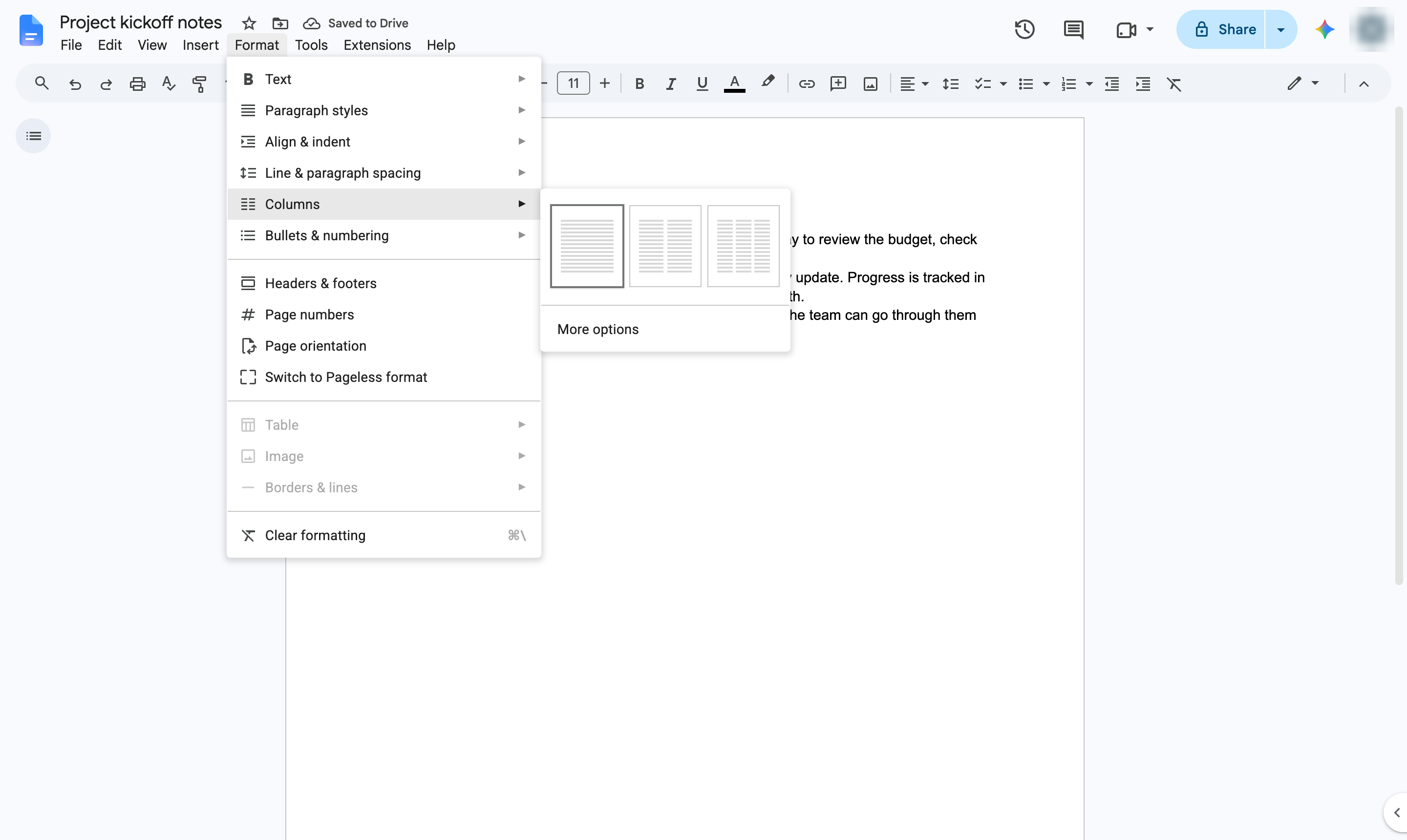
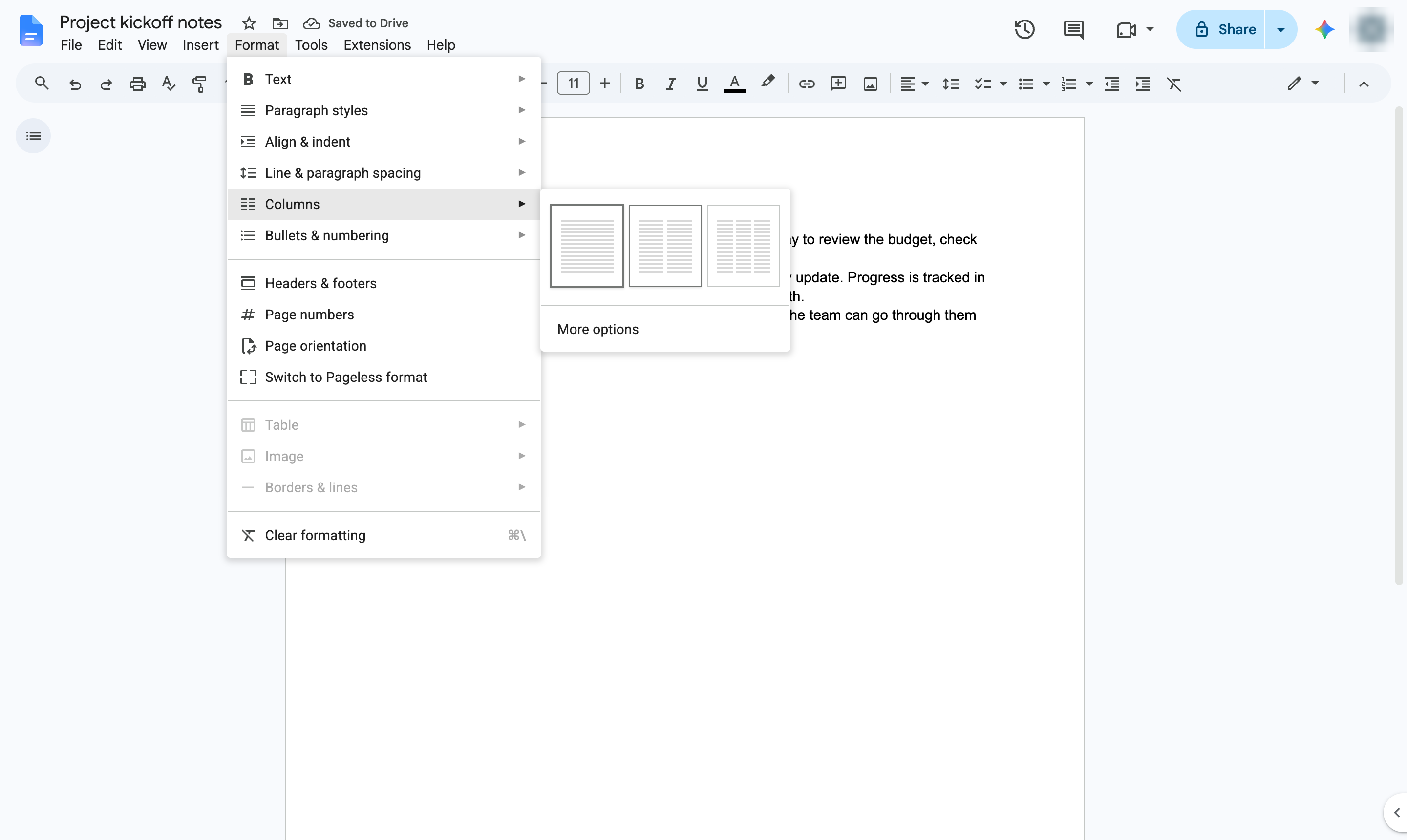
Pick a layout - here, two columns. Choose More options to set the spacing or add a line between columns.
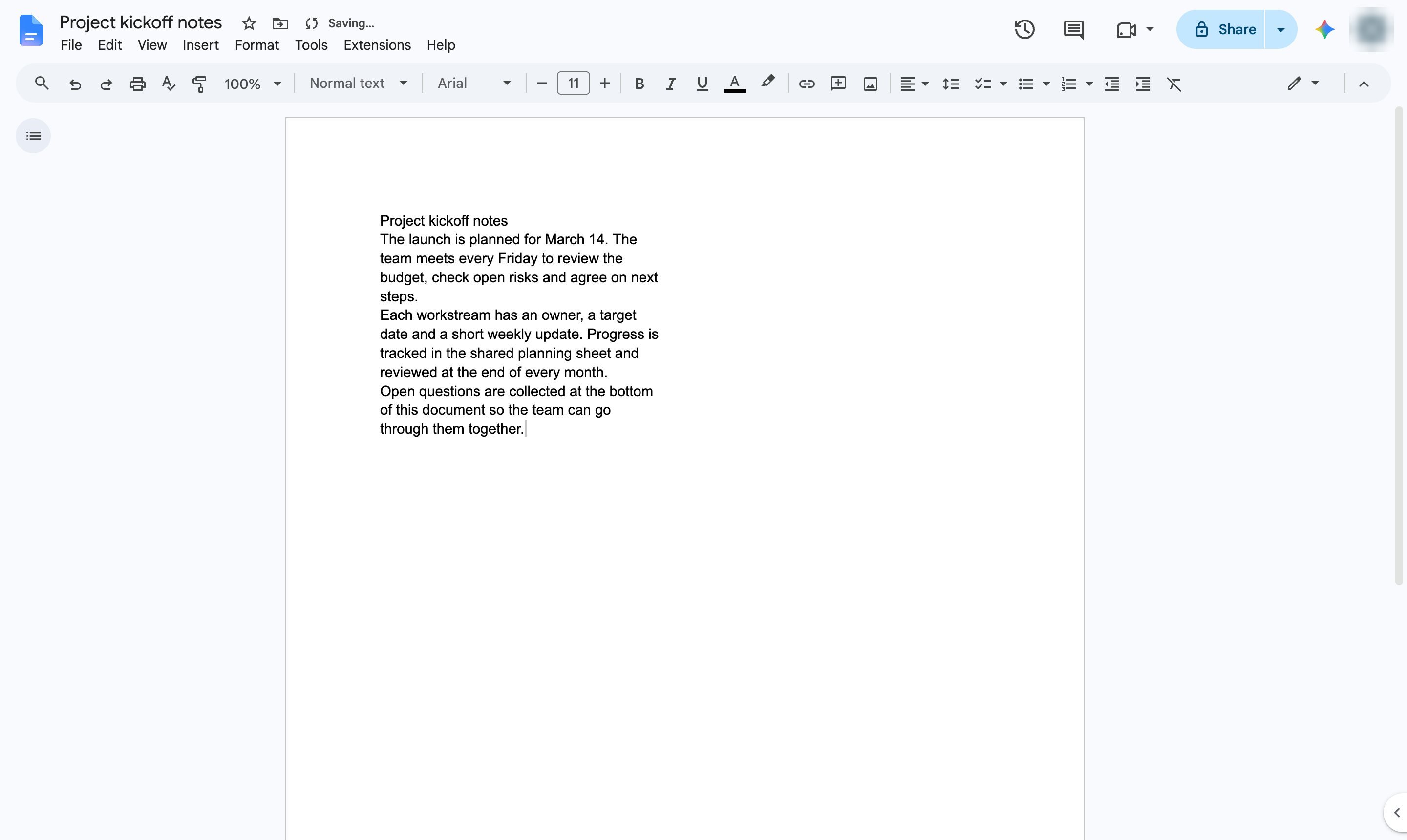
Your text now flows down the first column and on into the second.
Duplicate this template, swap in your own screens, and share it with your team. Free to start — no credit card.
Fill out the form and we'll get back to you as soon as possible.
Tell us about your team and we'll find the right plan together.