1
Click where the table should go
Click at the spot in your document where you want the table.
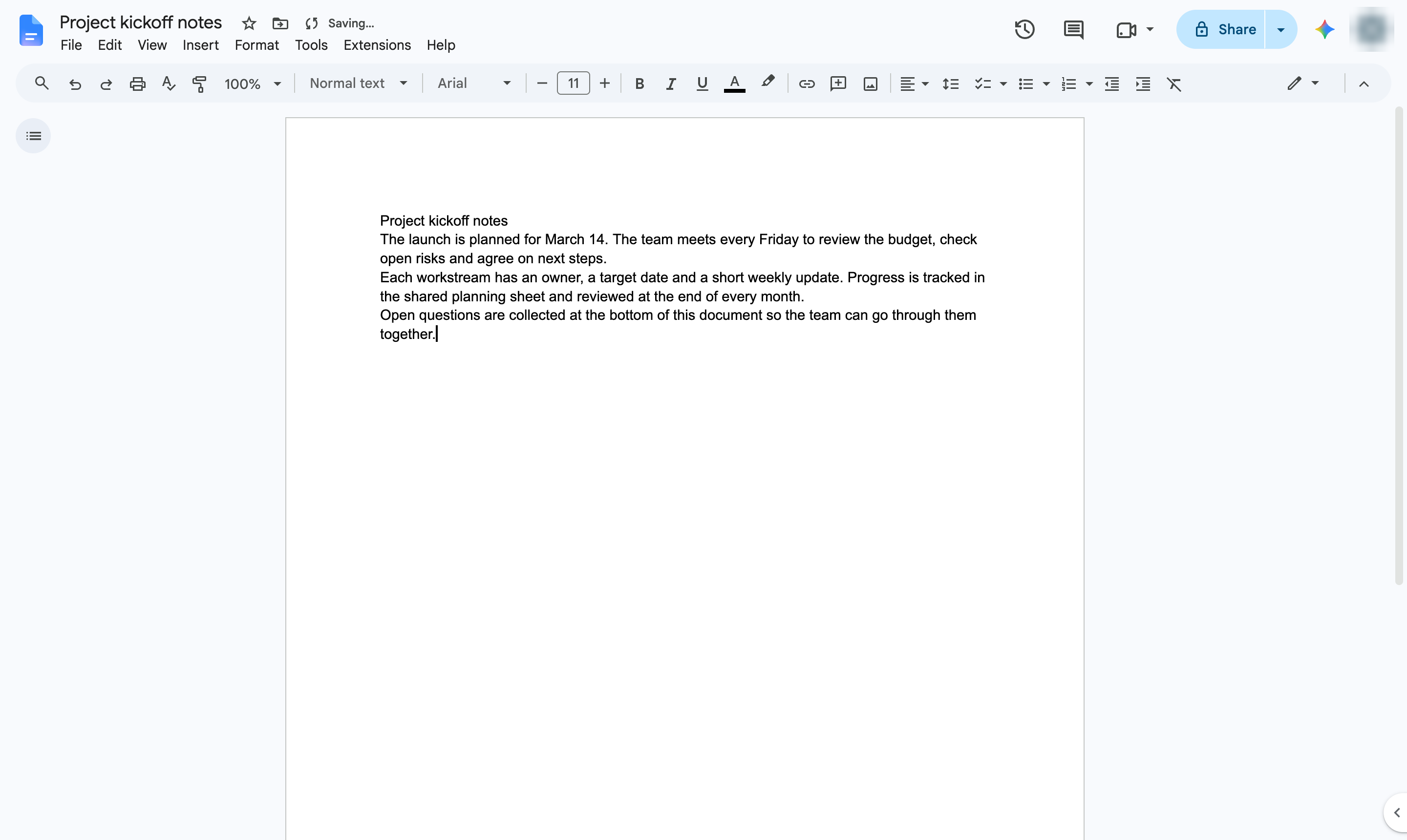

Add a table and pick how many rows and columns it has.
Click at the spot in your document where you want the table.
Start a new line for the table.
Open the Insert menu.
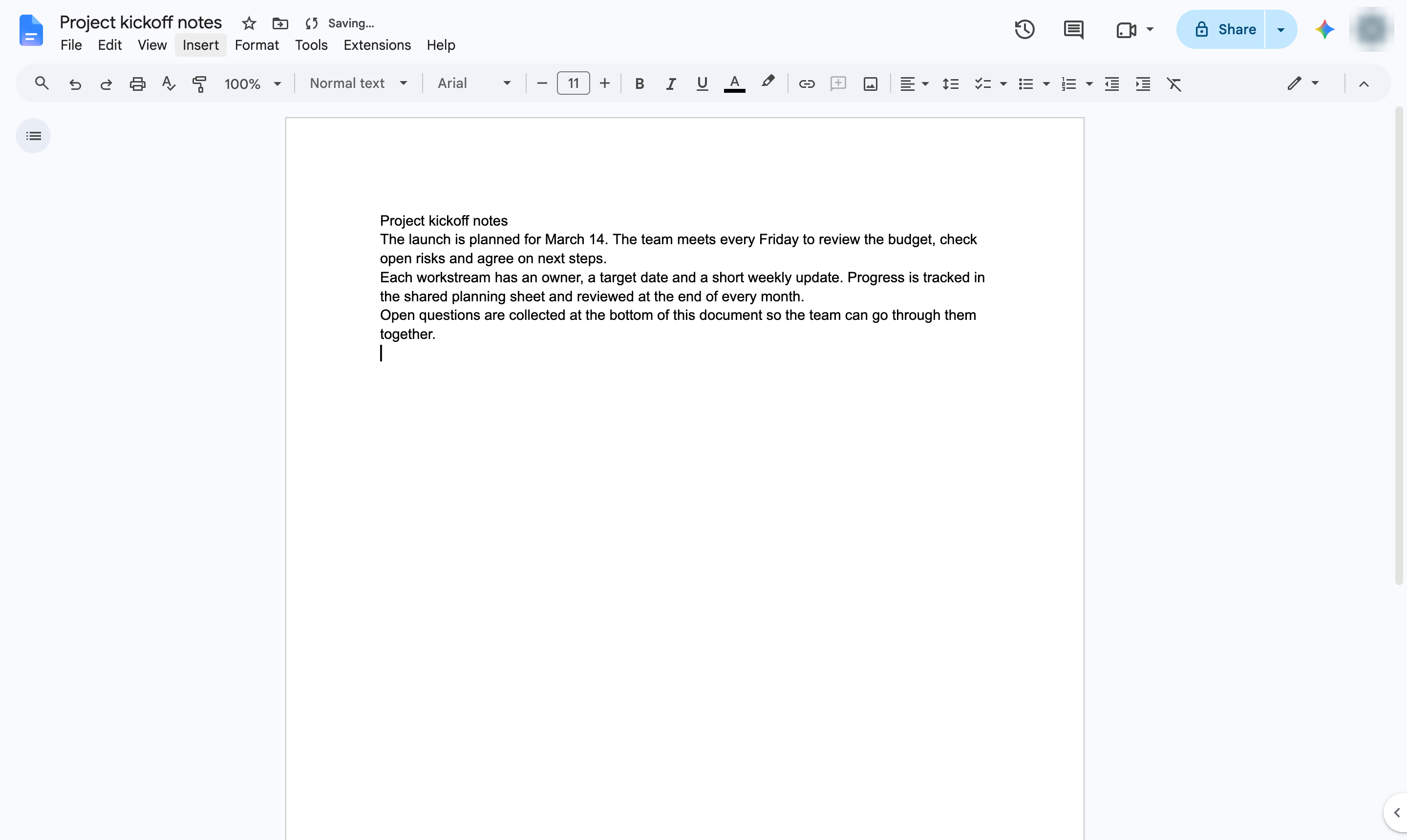
Hover over Table to open the size grid.
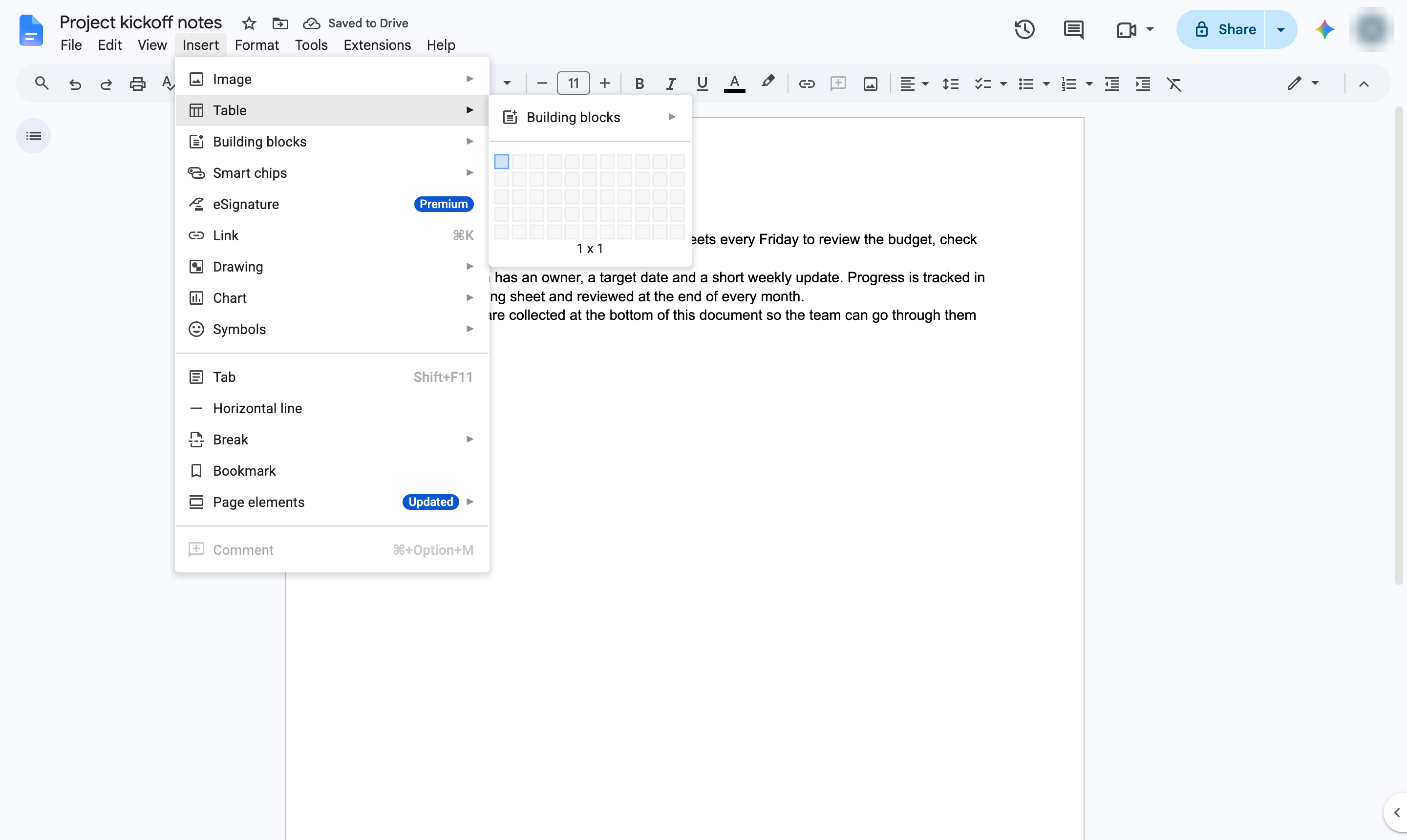
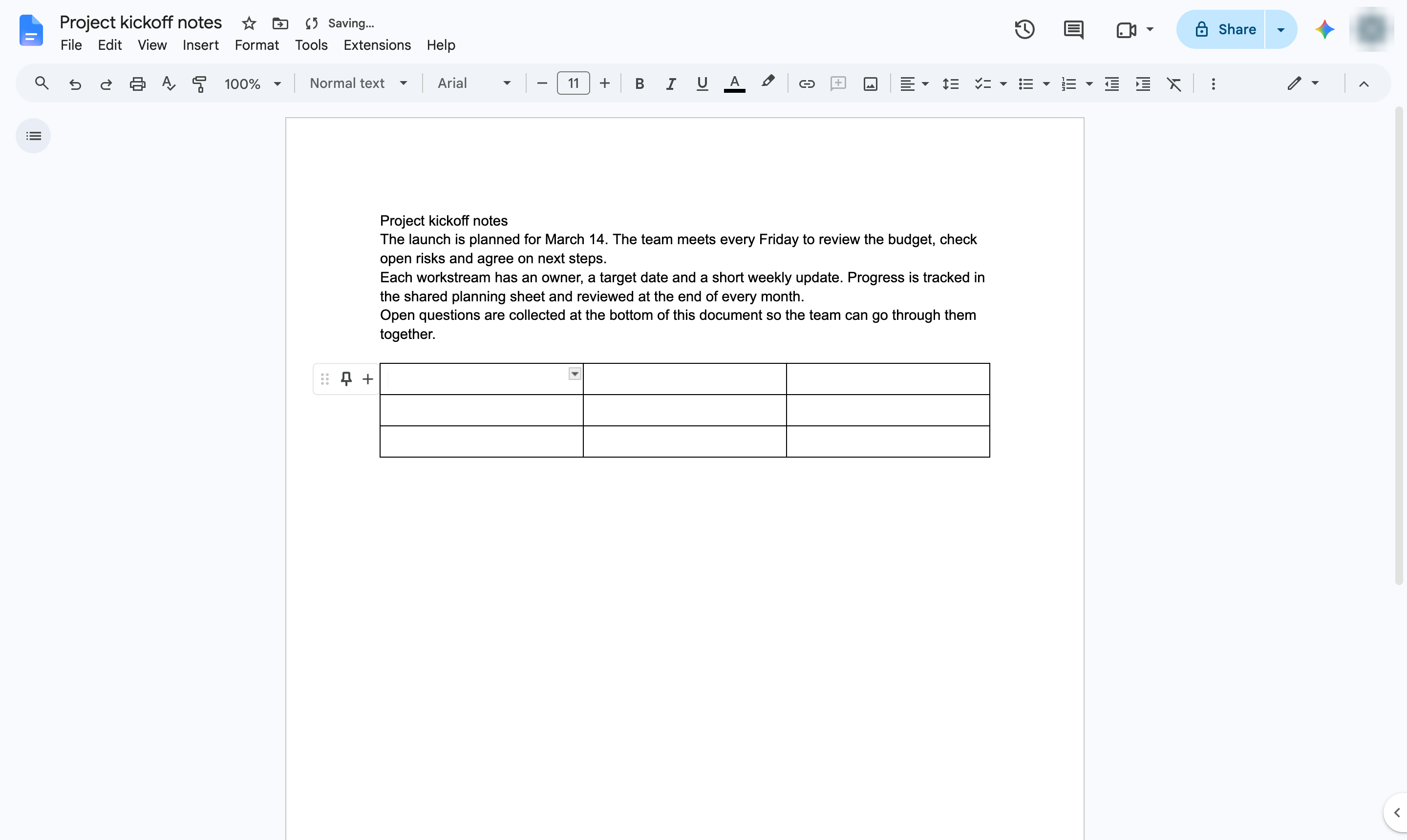
Move over the grid to pick rows and columns - here, 3 x 3 - and click.
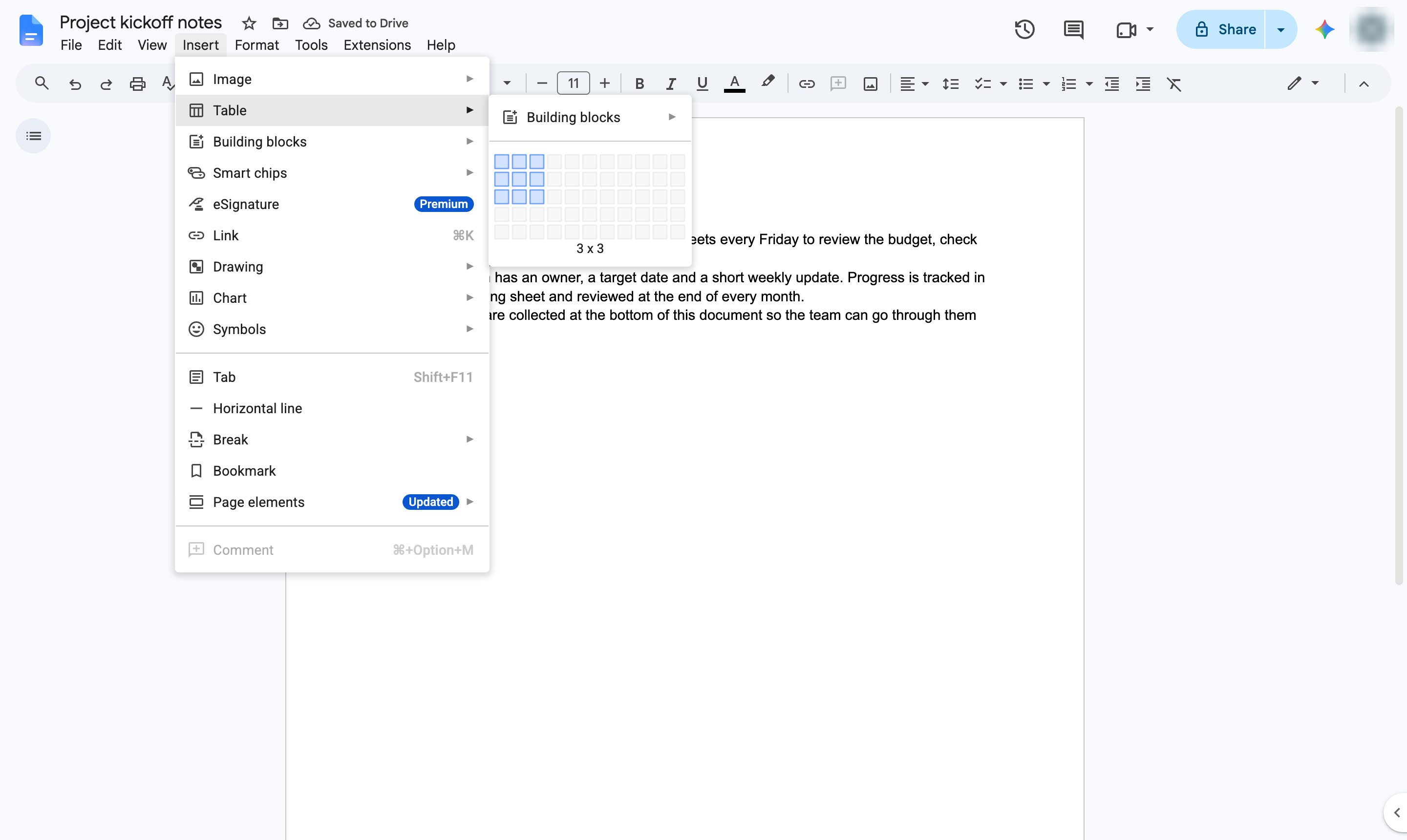
The table is in your document with the cursor in its first cell. Press Tab to move to the next cell.
Duplicate this template, swap in your own screens, and share it with your team. Free to start — no credit card.
Fill out the form and we'll get back to you as soon as possible.
Tell us about your team and we'll find the right plan together.