1
Click the first row number
Click the number of the first row you want to hide - here, row 3.
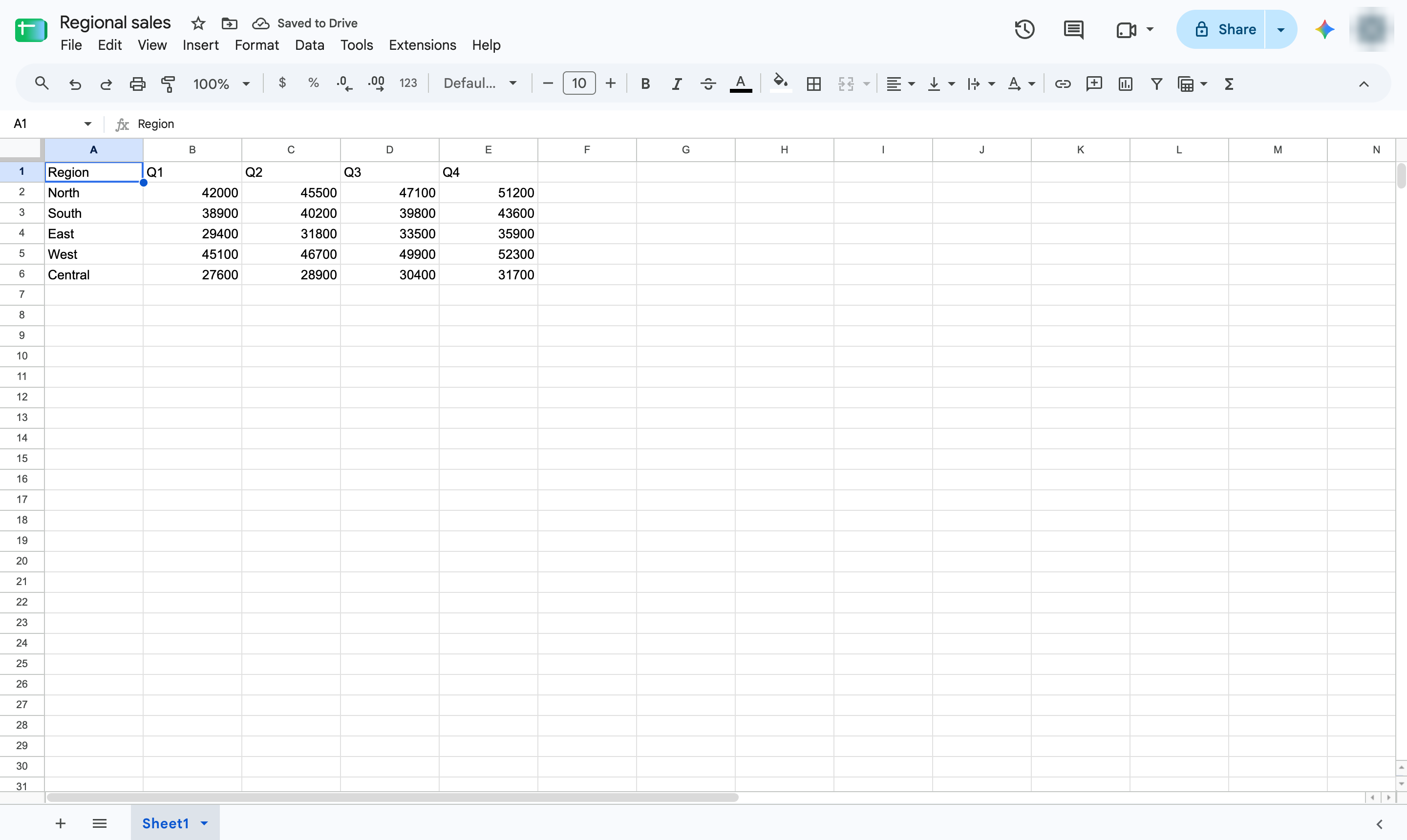

Hide rows you do not need to see right now without deleting them, and bring them back with one click.
Click the number of the first row you want to hide - here, row 3.
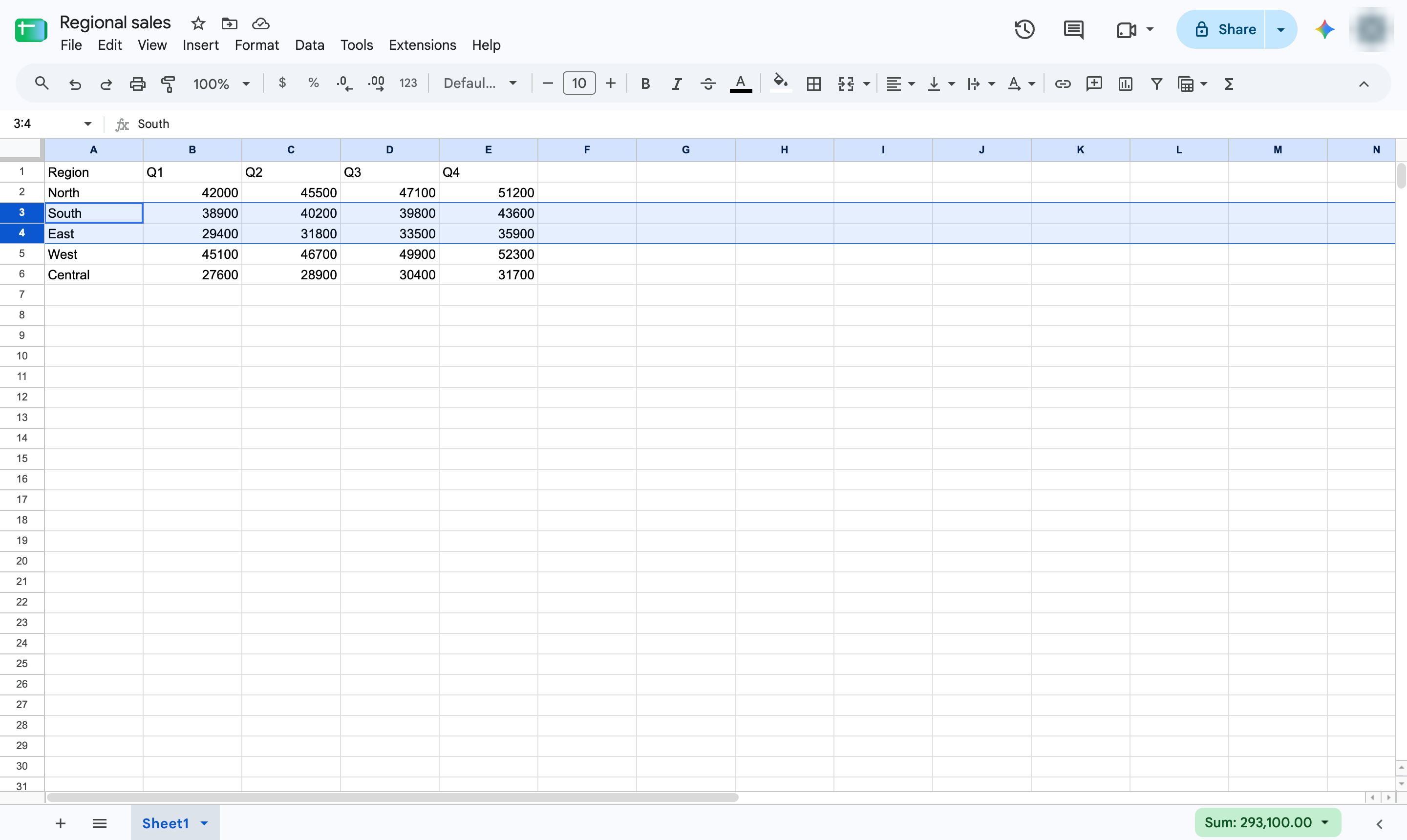
Hold Shift and click the last row number to select every row in between.
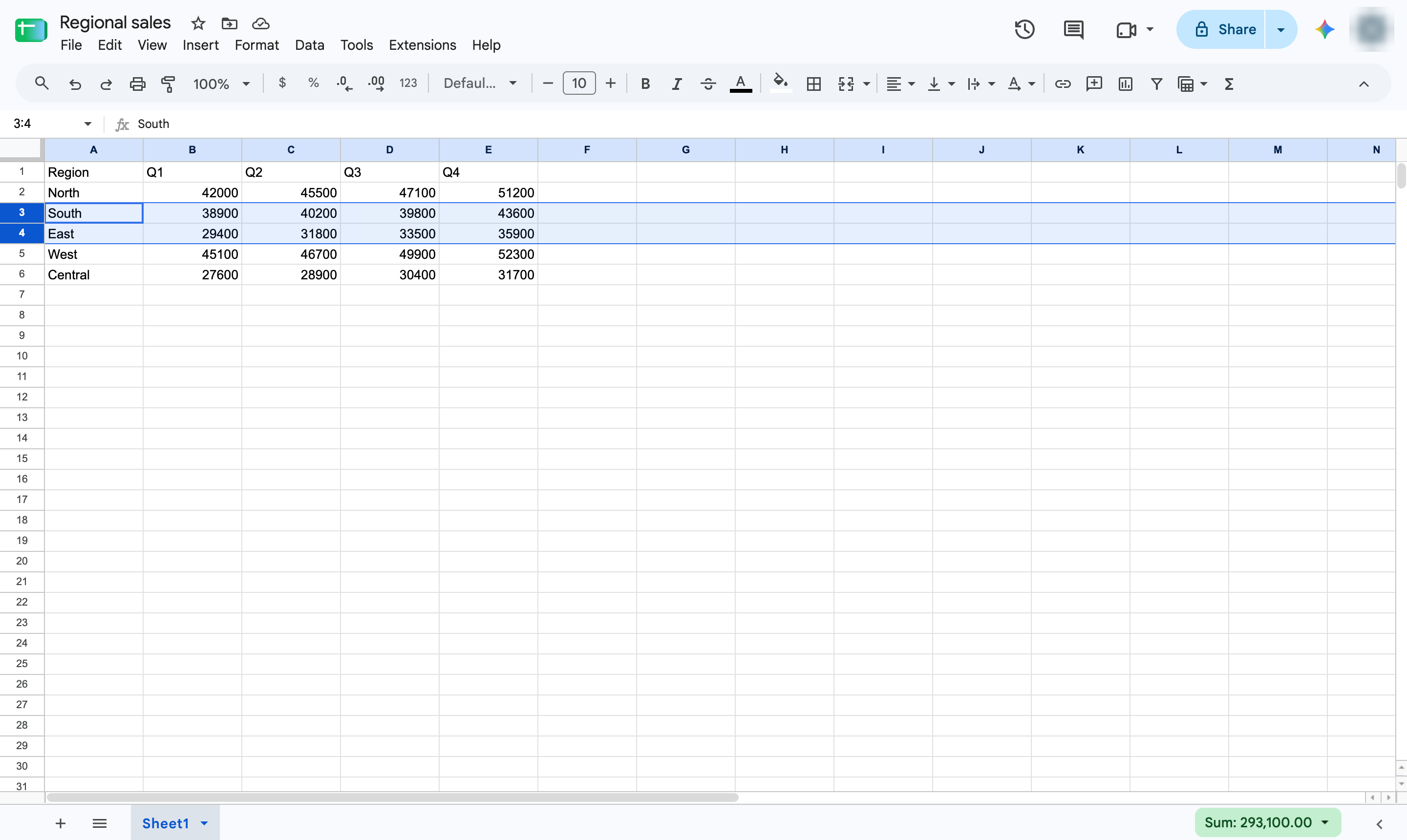
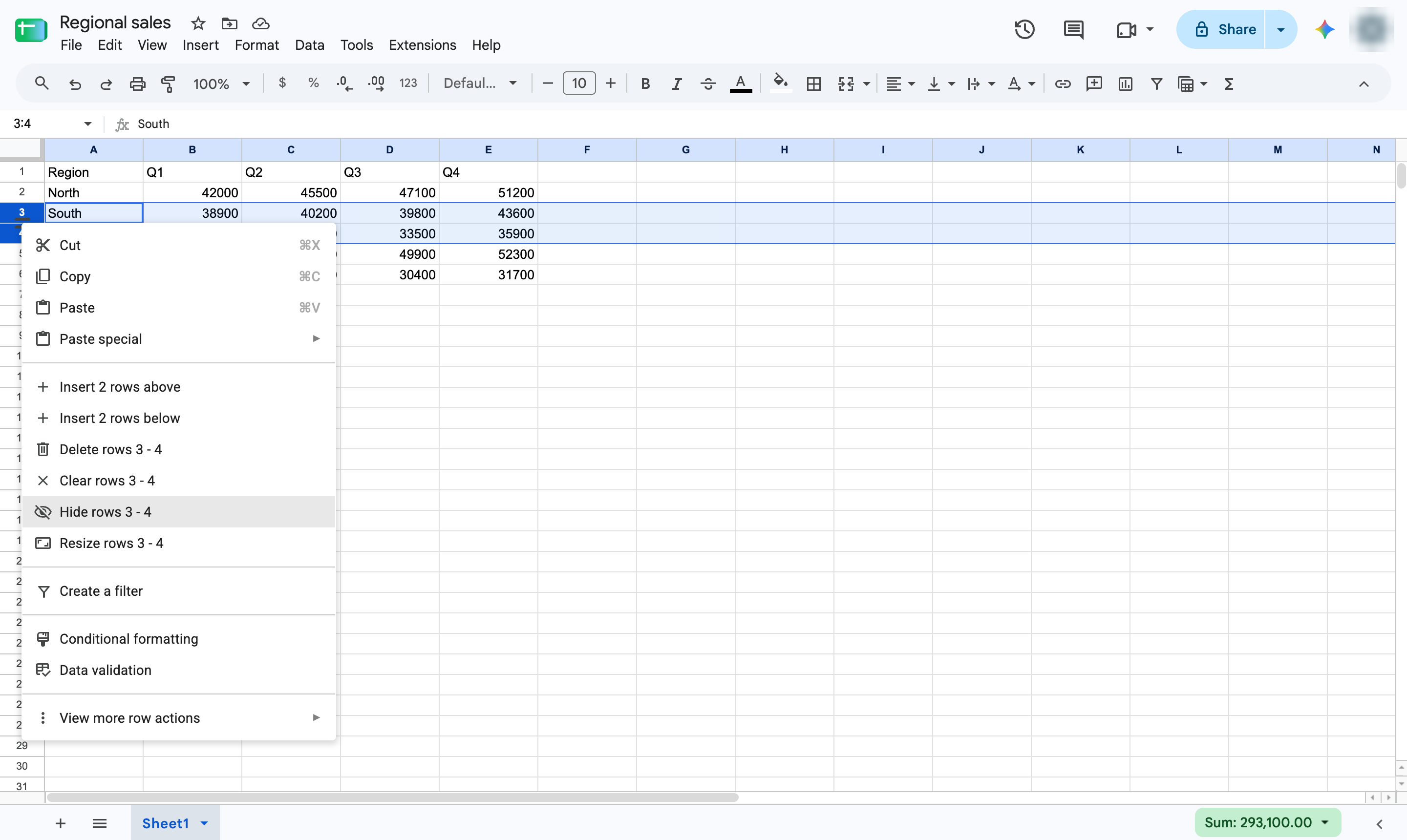
Right-click one of the selected row numbers to open the row menu.
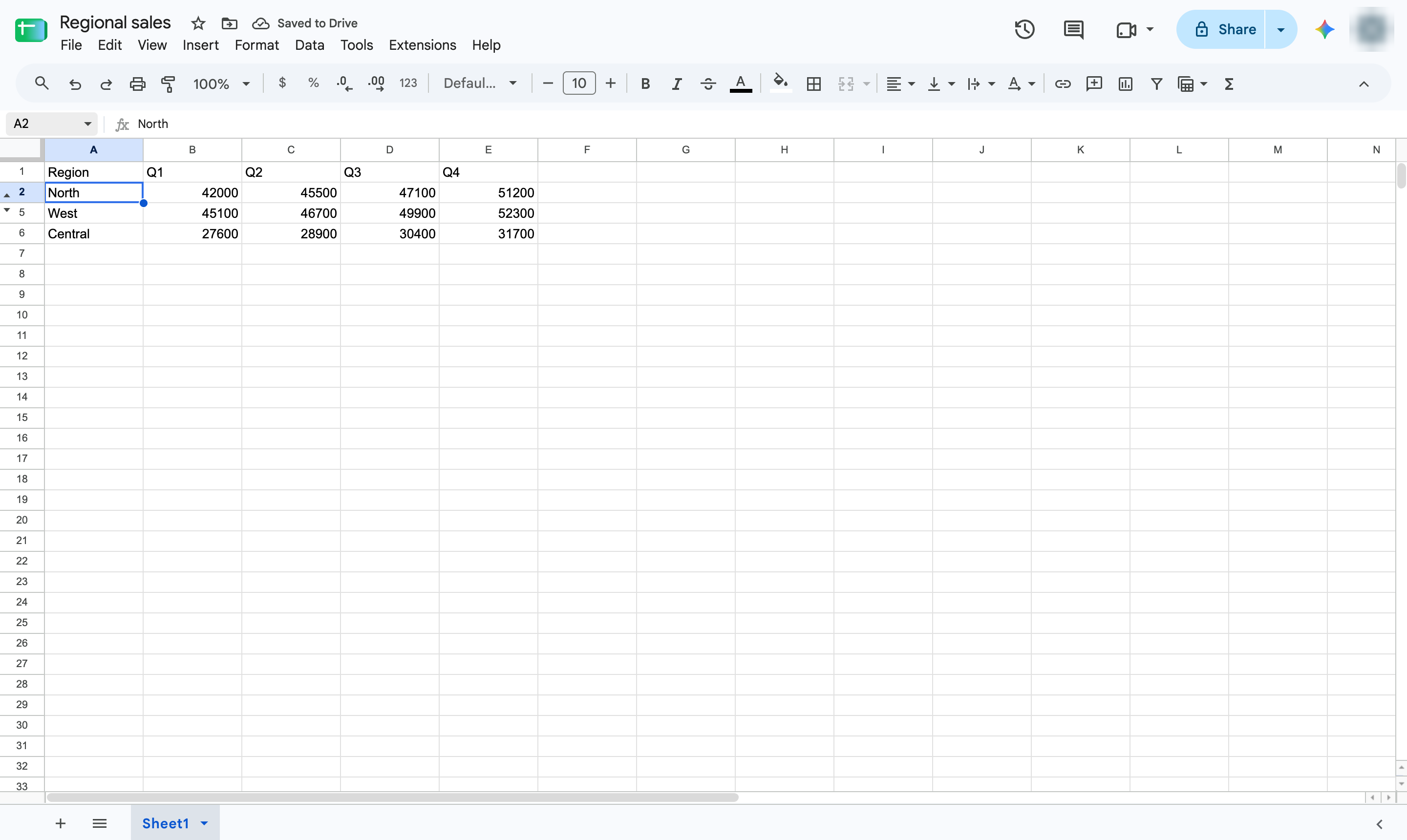
Choose Hide rows 3 - 4. The rows disappear and small arrows mark where they were.
The rows are hidden, not deleted. Click the arrows between the row numbers whenever you want to show them again.
Duplicate this template, swap in your own screens, and share it with your team. Free to start — no credit card.
Fill out the form and we'll get back to you as soon as possible.
Tell us about your team and we'll find the right plan together.