1
Click the editing mode button
At the right end of the toolbar, click the pencil (Editing) button.
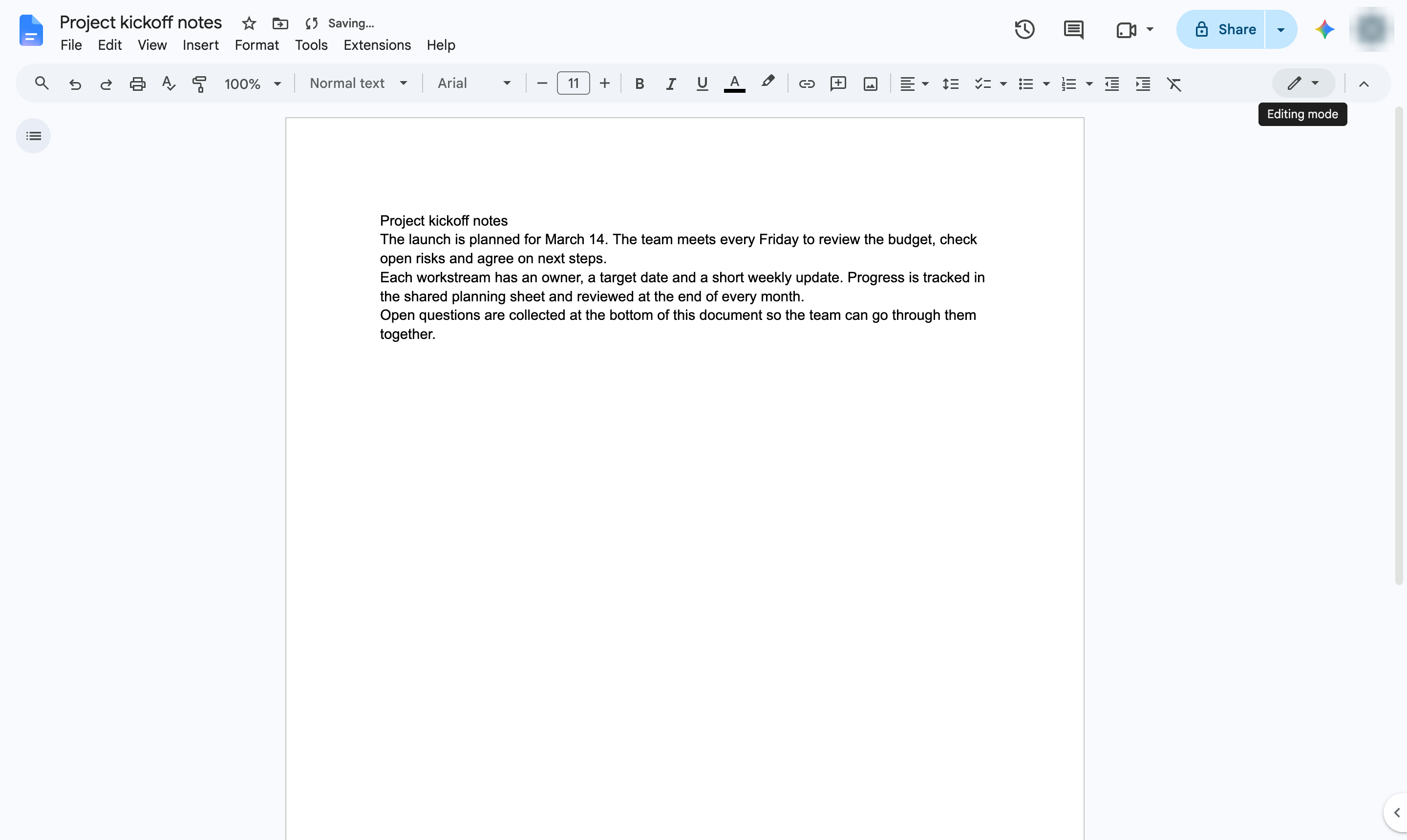

Switch to Suggesting mode so every edit shows as a suggestion others can accept or reject.
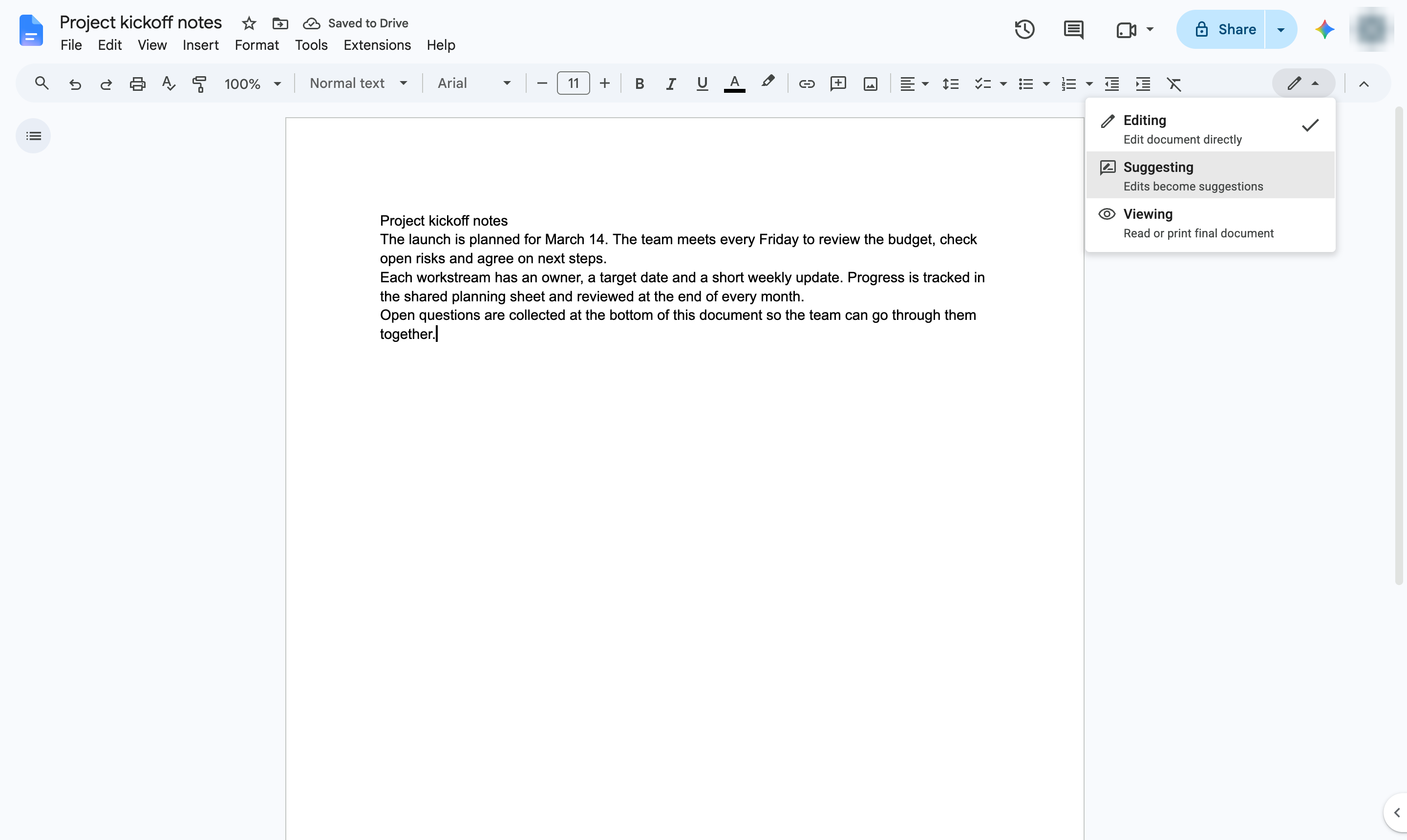
At the right end of the toolbar, click the pencil (Editing) button.
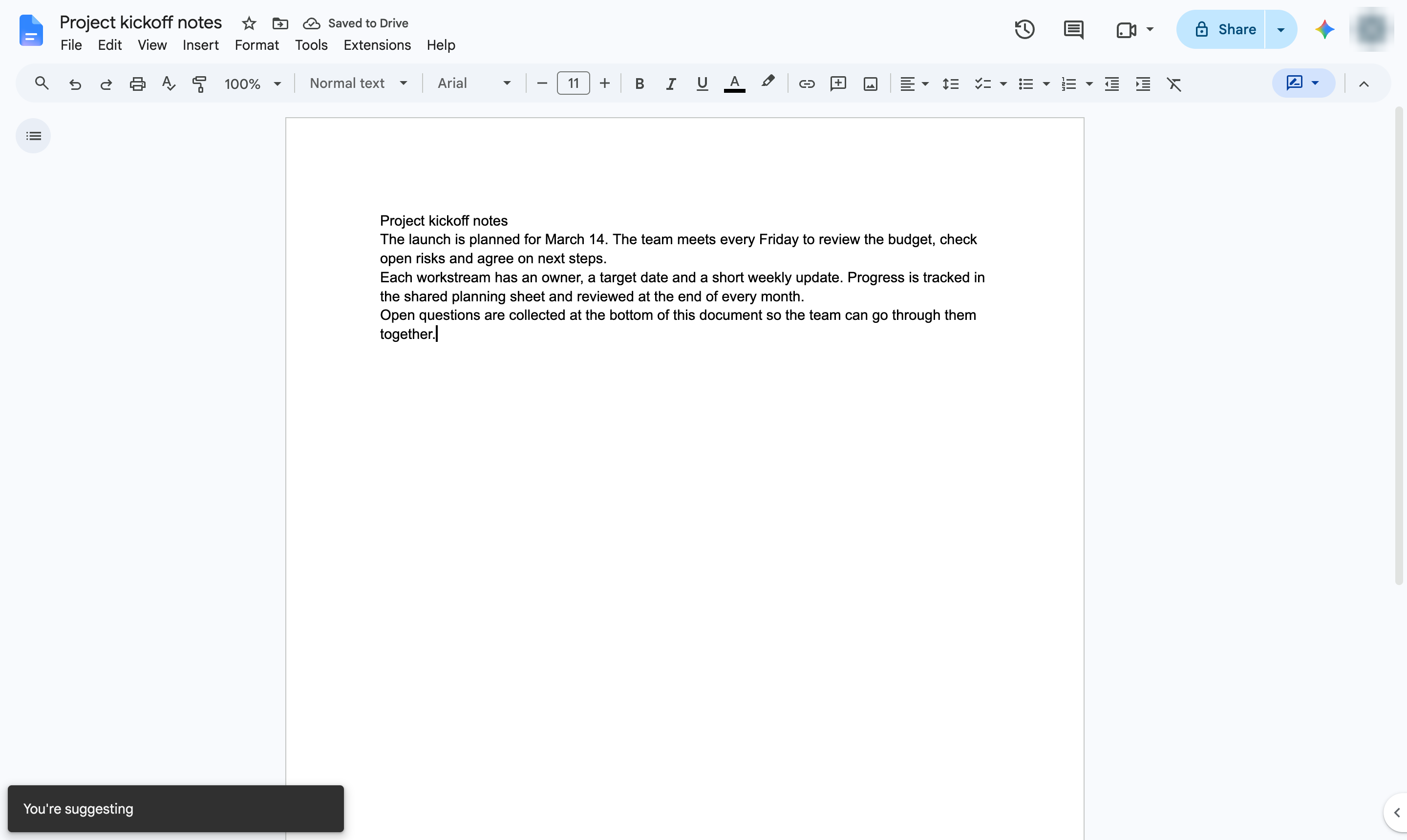
Choose Suggesting. Your edits are now tracked as suggestions.
Click in the text you want to change.
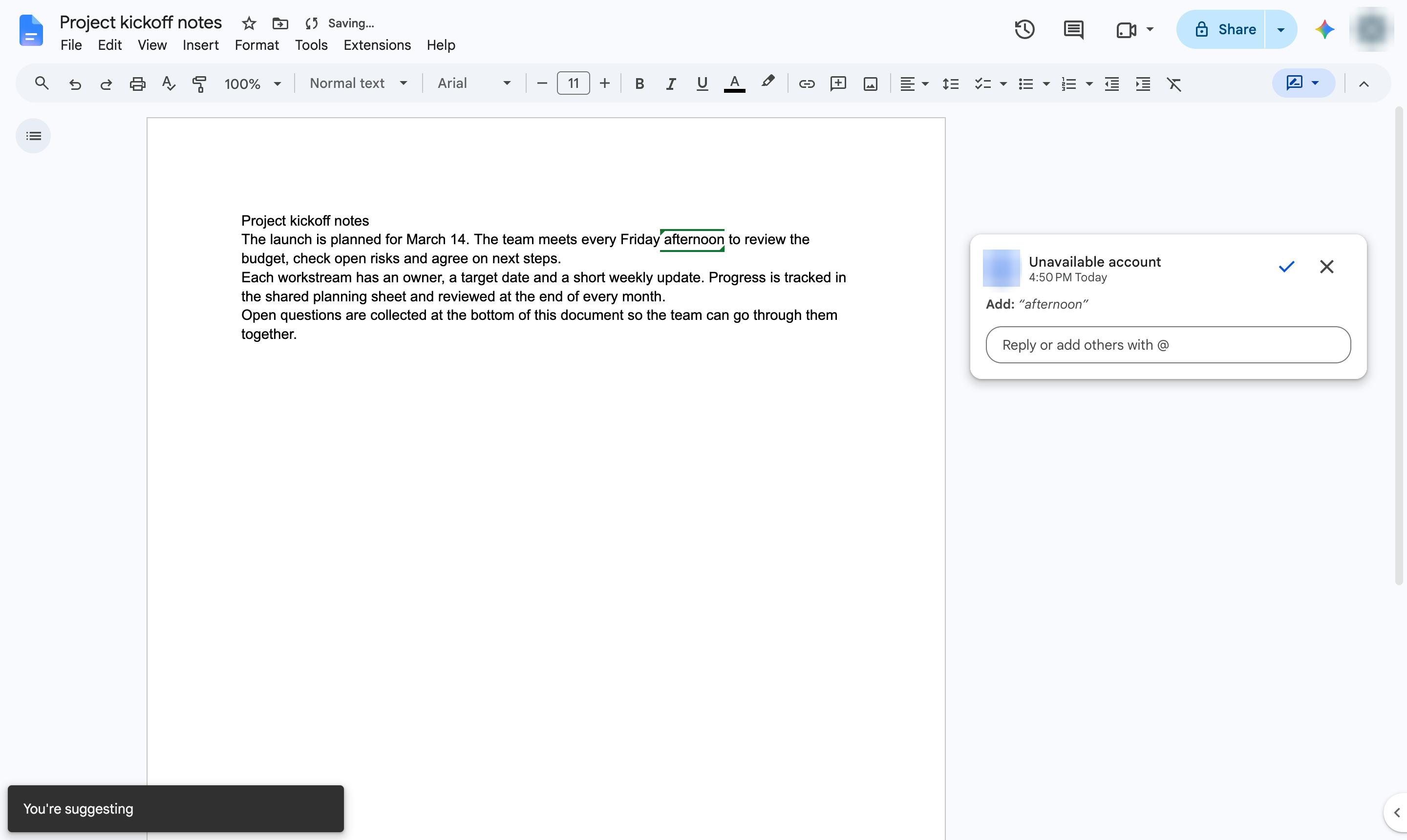
Type as usual. New text appears in color, with a suggestion card in the margin.
The edit shows as a suggestion. The document owner can accept or reject it from the card.
Duplicate this template, swap in your own screens, and share it with your team. Free to start — no credit card.
Fill out the form and we'll get back to you as soon as possible.
Tell us about your team and we'll find the right plan together.