1
Click Insert
Open the Insert menu.
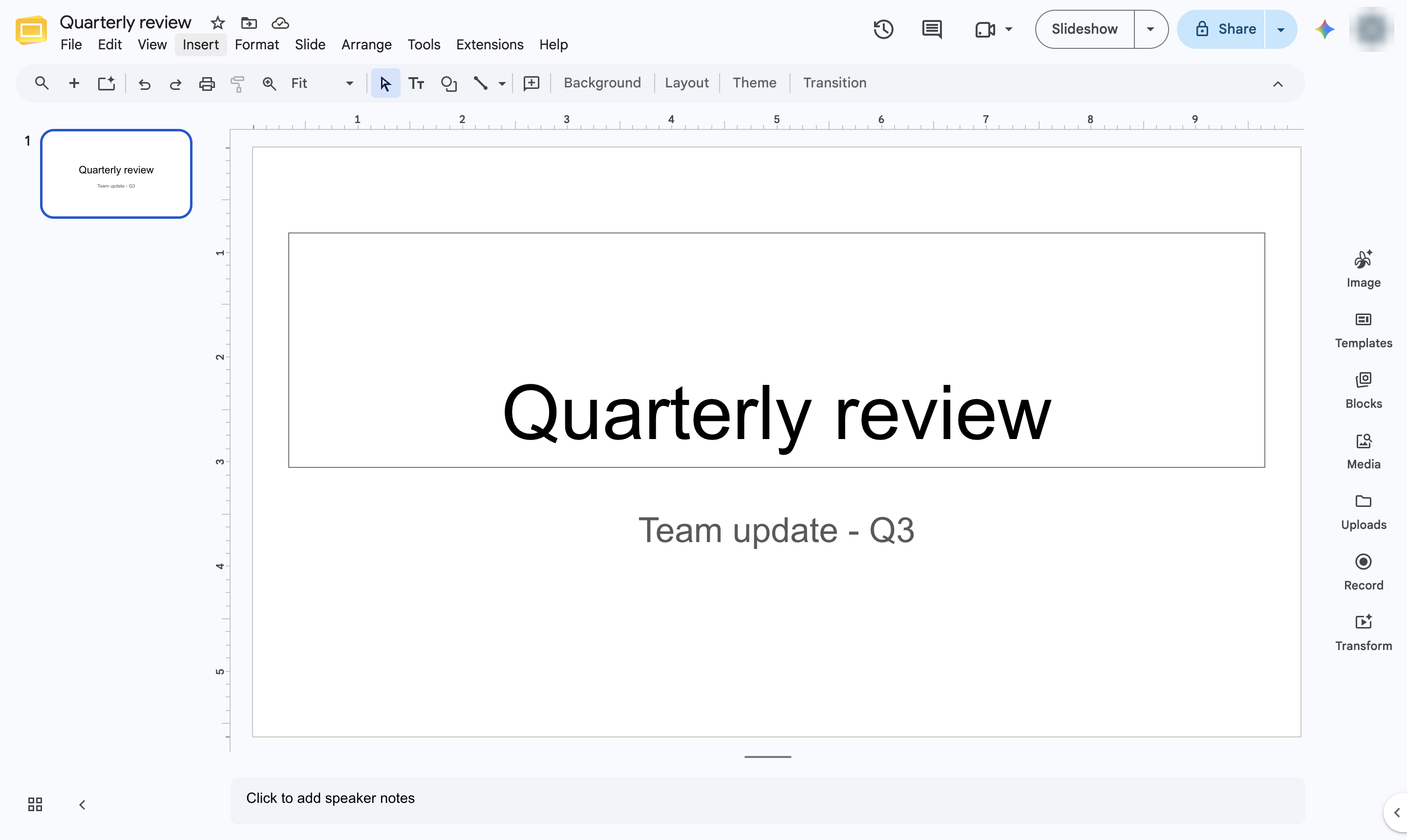

Add narration to a slide: record your voice-over, upload it to Google Drive, and insert it with Insert > Audio.
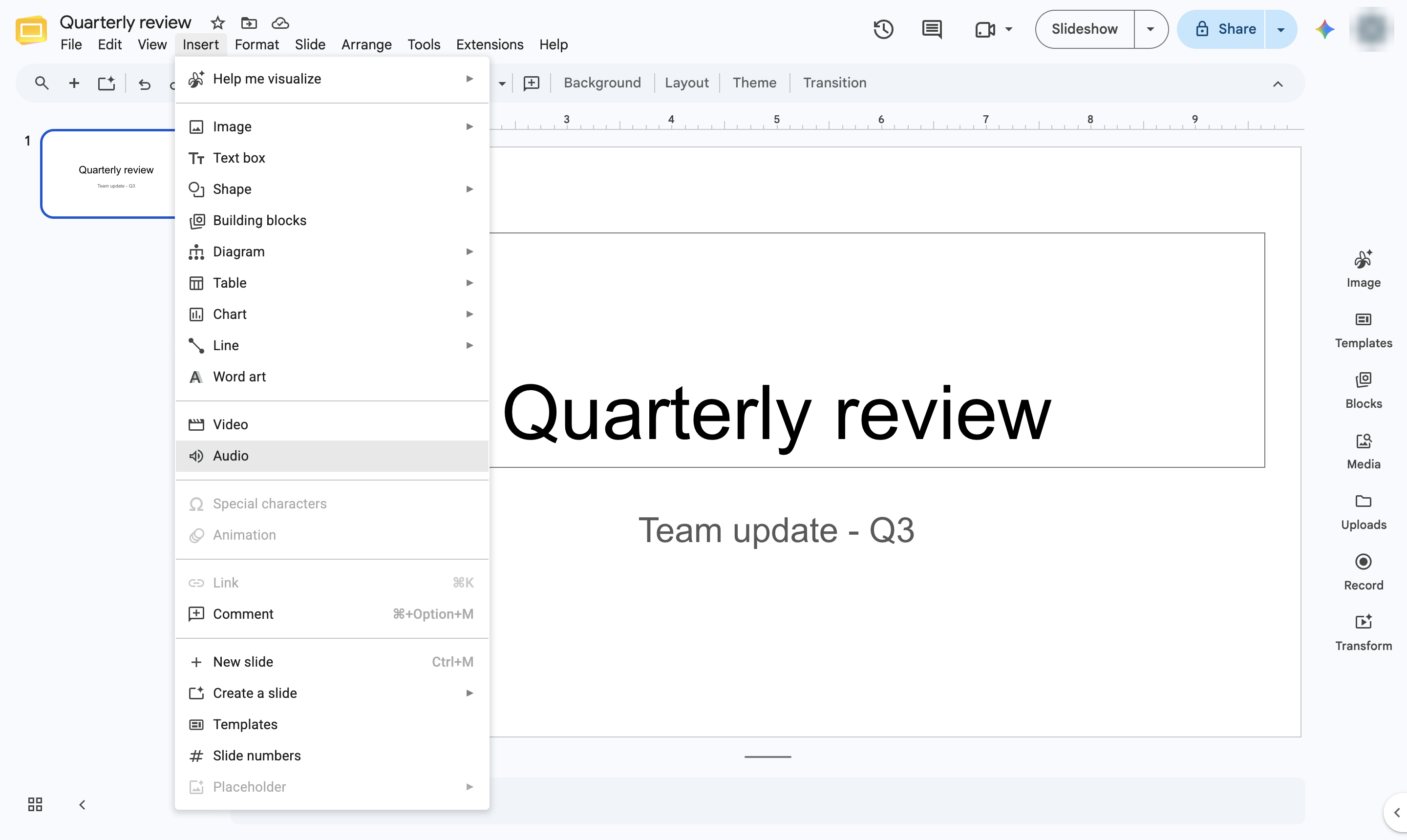
Open the Insert menu.
Choose Audio. Slides cannot record sound itself, so first record your voice-over with any recorder app (for example Voice Memos or Sound Recorder) and upload the file to Google Drive.
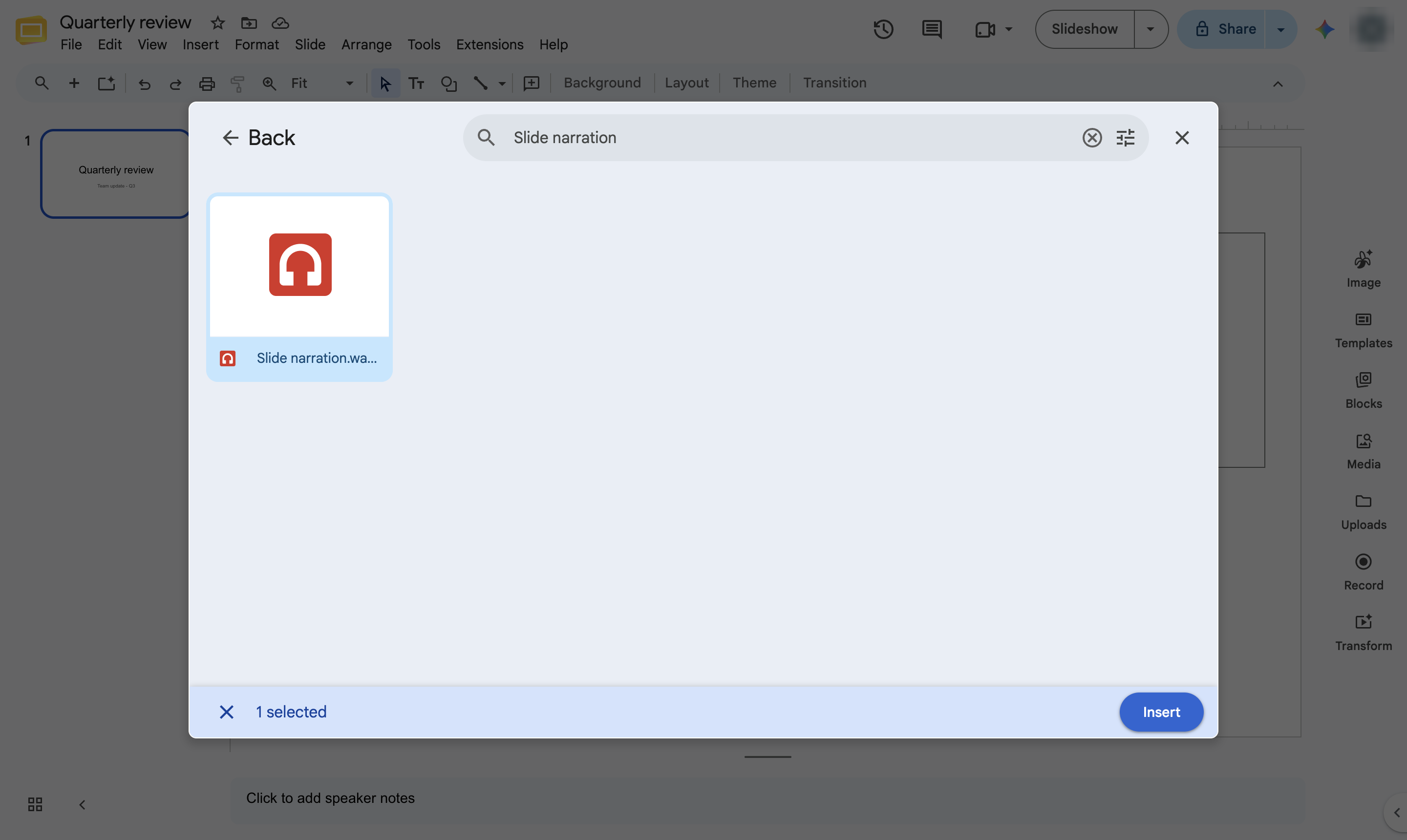
Click the search box in the Insert audio window. Slides plays MP3 and WAV files stored in your Google Drive.
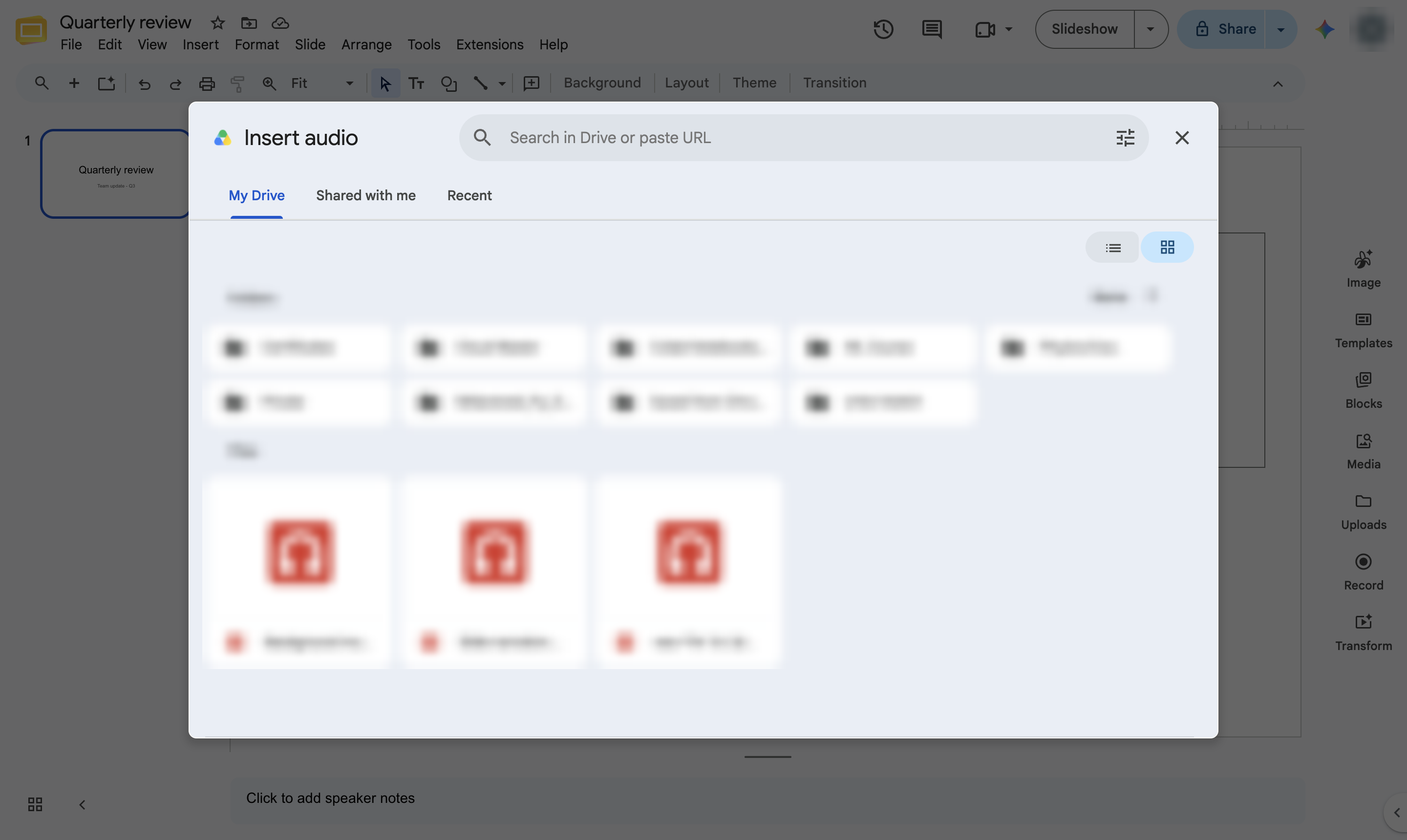
Type the name of the audio file.
Press Enter to search your Drive.
Click the audio file.
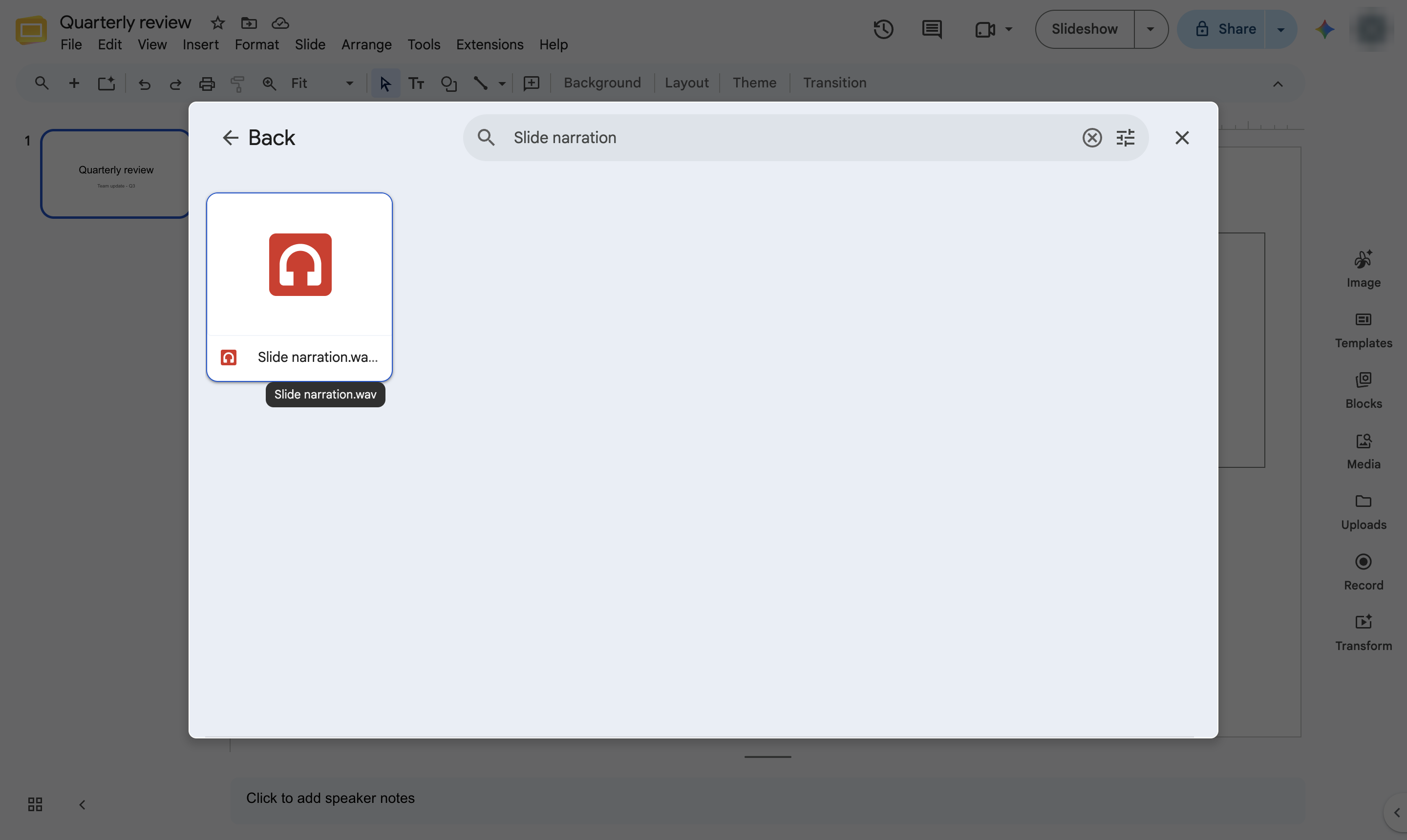
Click Insert.
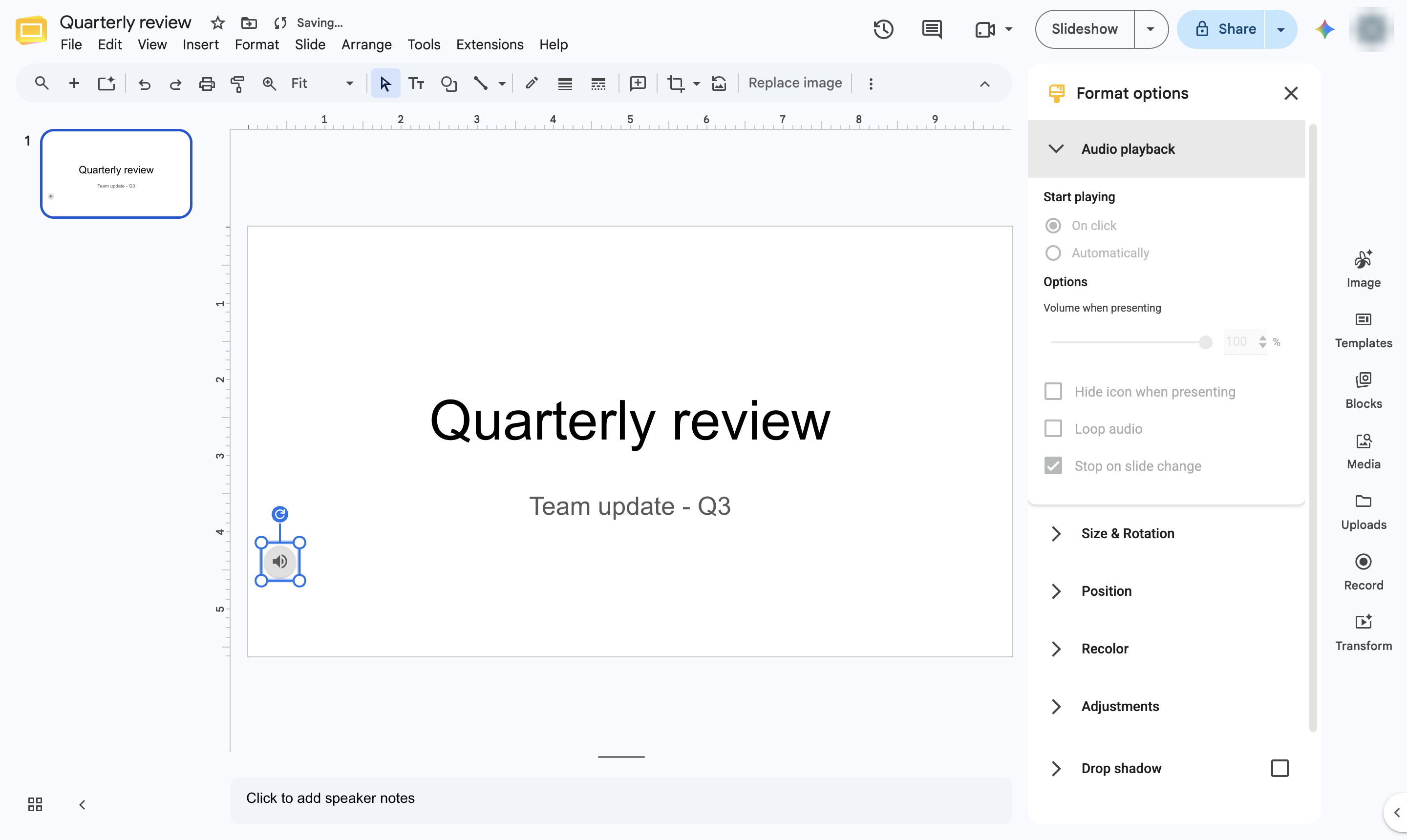
A speaker icon appears on the slide. Click it and open Format options to play the audio automatically, loop it or hide the icon during the slideshow.
Duplicate this template, swap in your own screens, and share it with your team. Free to start — no credit card.
Fill out the form and we'll get back to you as soon as possible.
Tell us about your team and we'll find the right plan together.