1
Open Outlook
Open Outlook and access your mailbox.
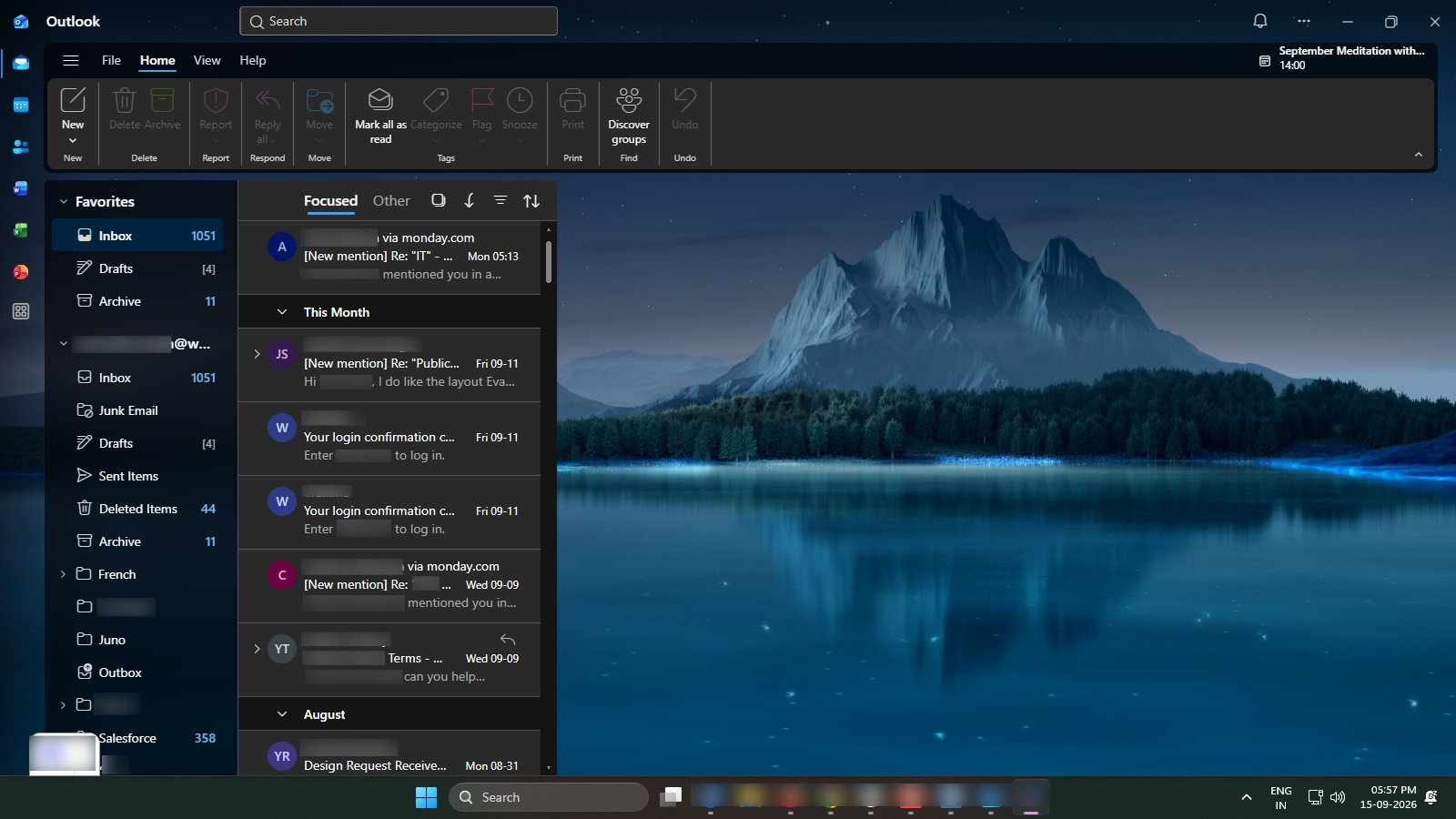

Learn how to create folders in Outlook to organize your emails.
Open Outlook and access your mailbox.
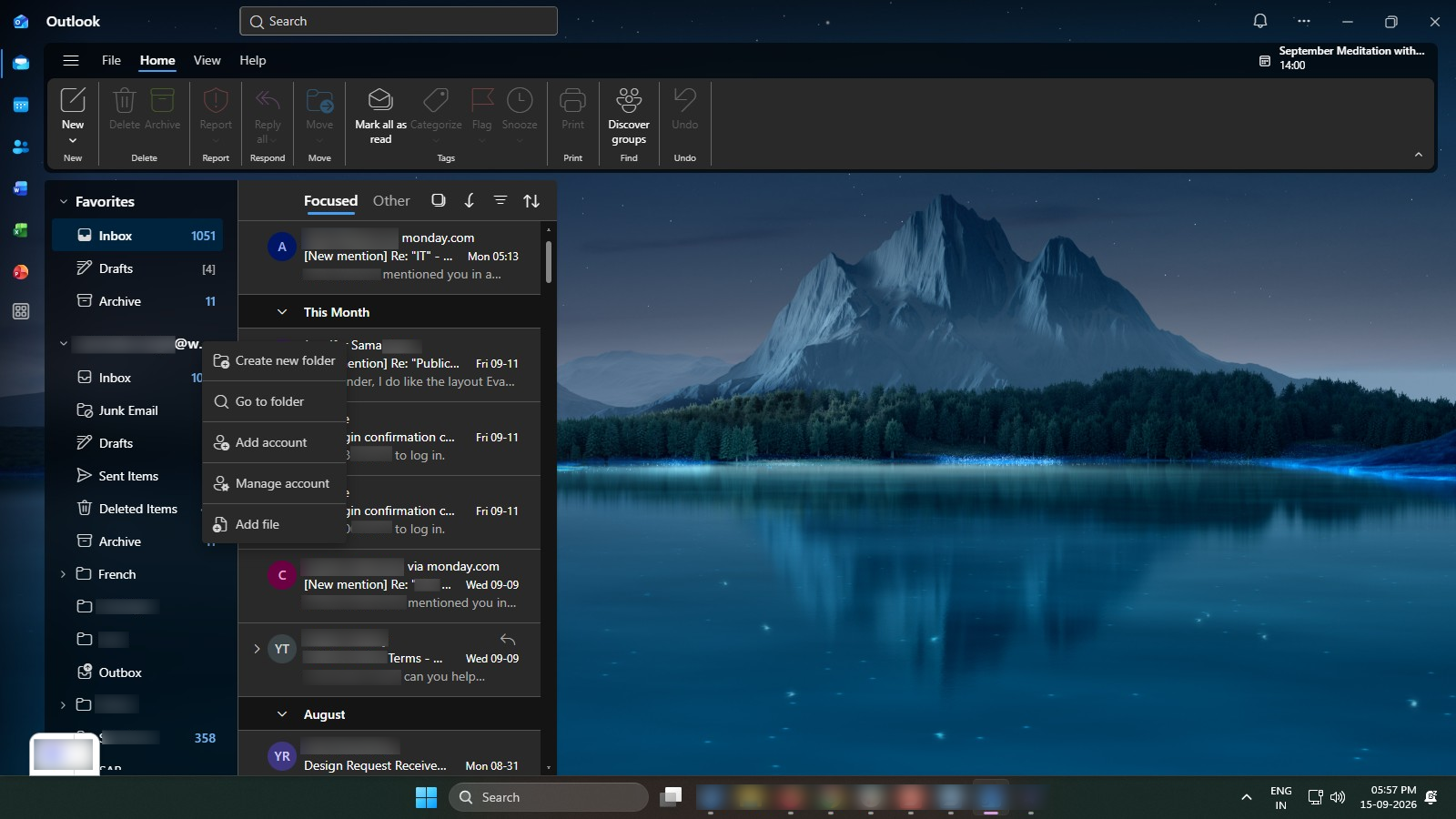
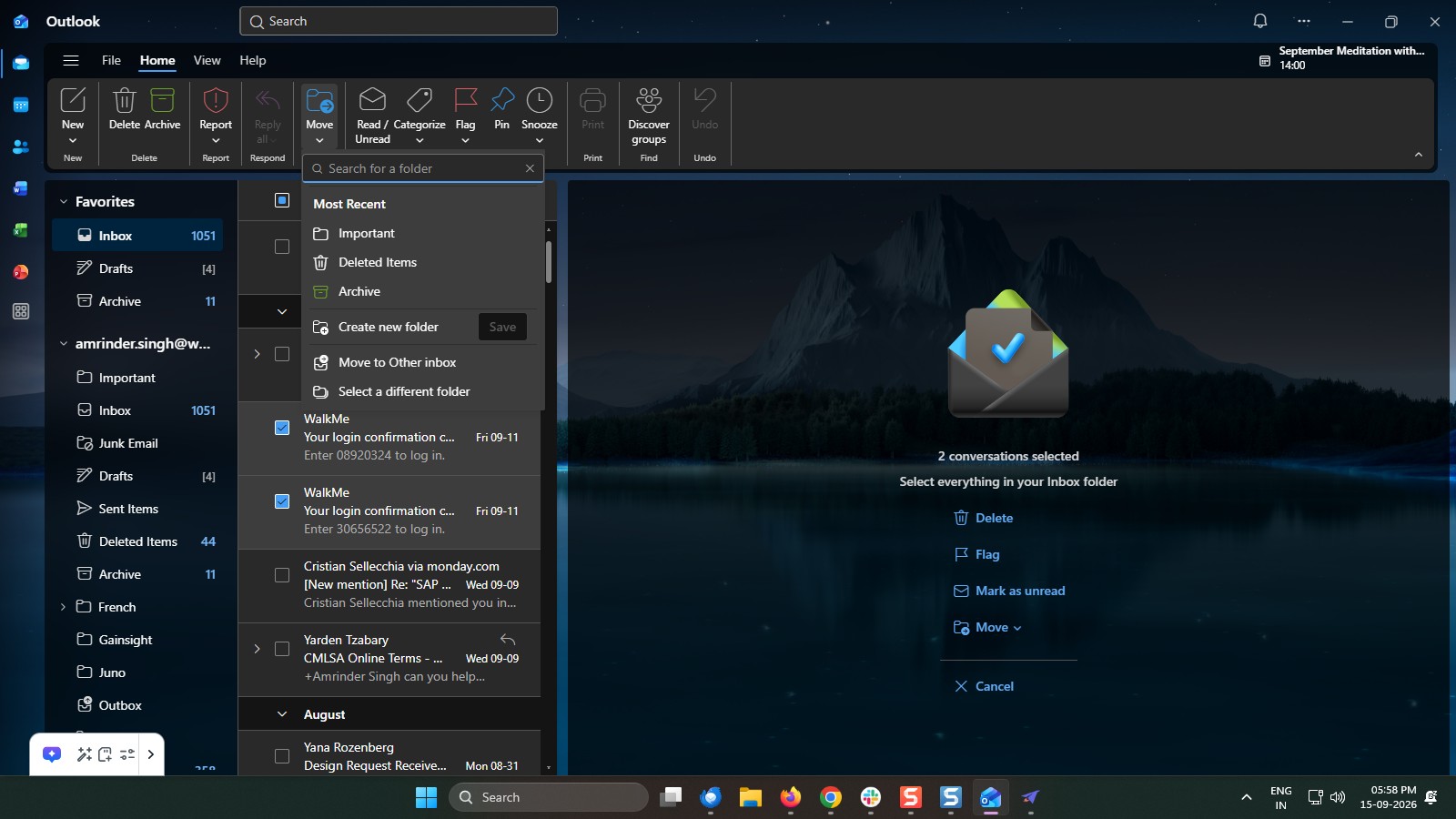
Right-click Inbox or your mailbox, or select the three dots (…) and choose Create new folder.
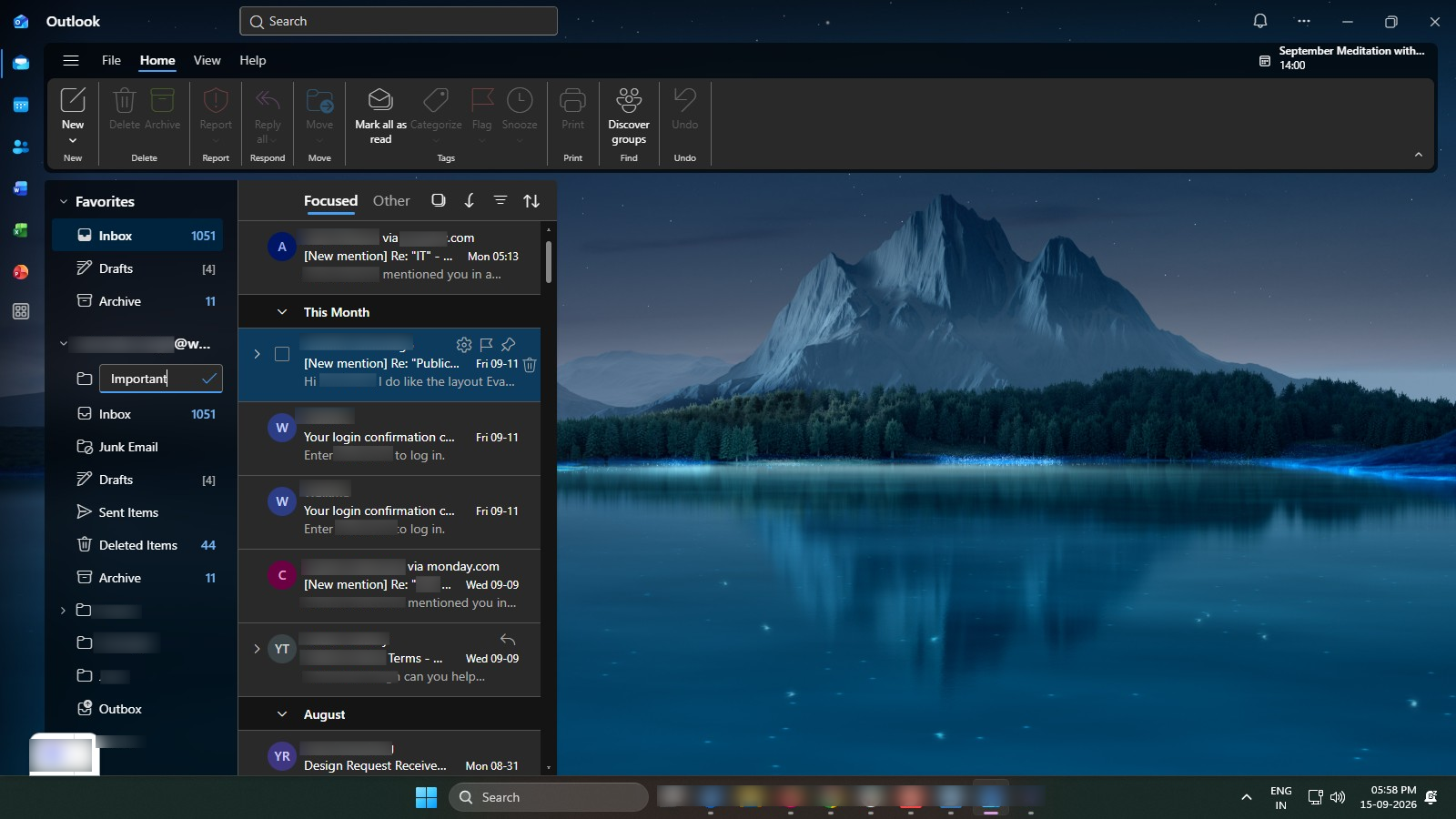
Enter a name for the folder and press Enter.
Select the emails you want to move to the new folder.
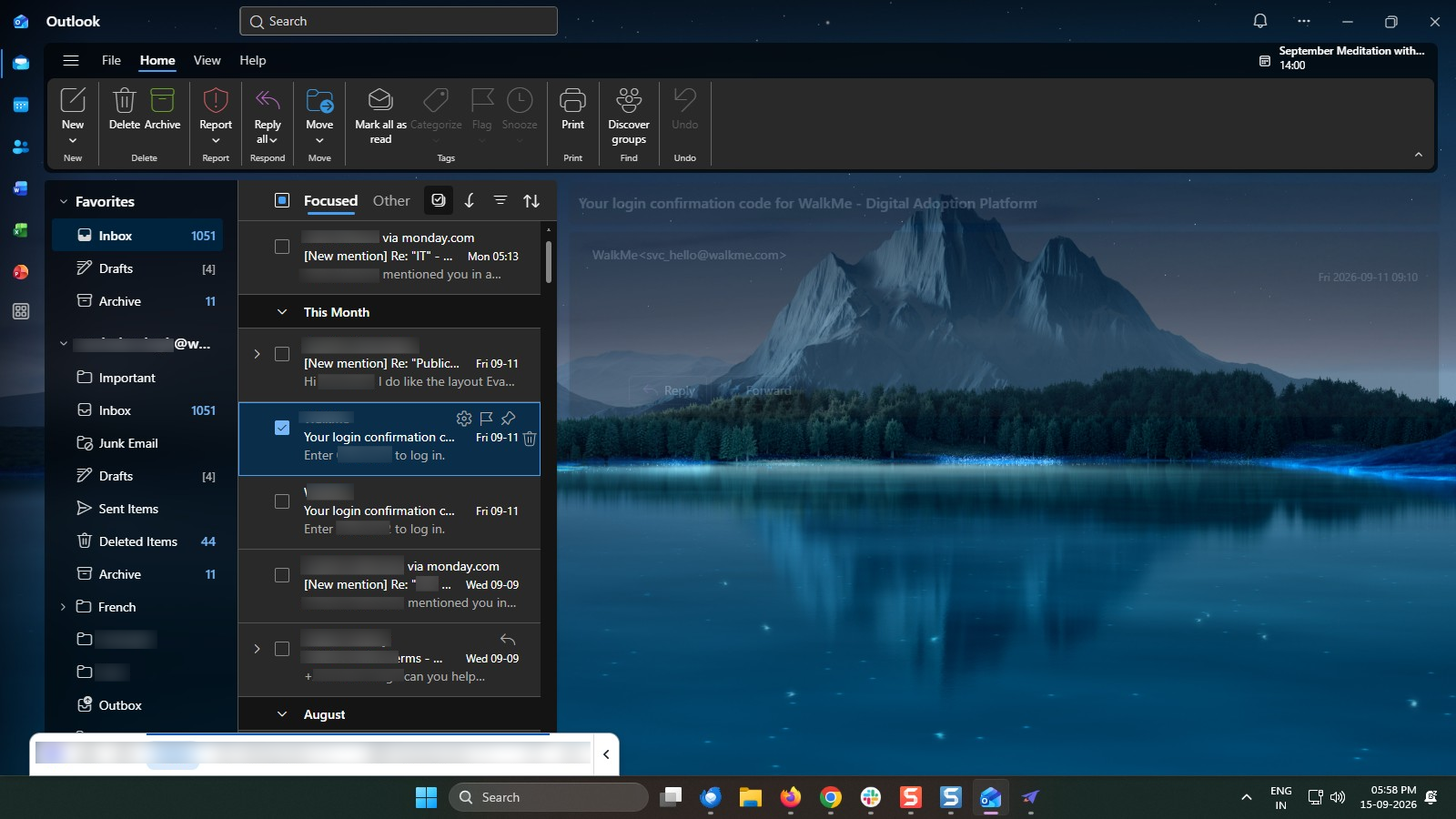
Select Move, then choose the folder you created.
Duplicate this template, swap in your own screens, and share it with your team. Free to start — no credit card.
Fill out the form and we'll get back to you as soon as possible.
Tell us about your team and we'll find the right plan together.