1
Open or Navigate to Excel window
Open Microsoft Word or switch to the active Excel window on your taskbar to begin editing your worksheet.
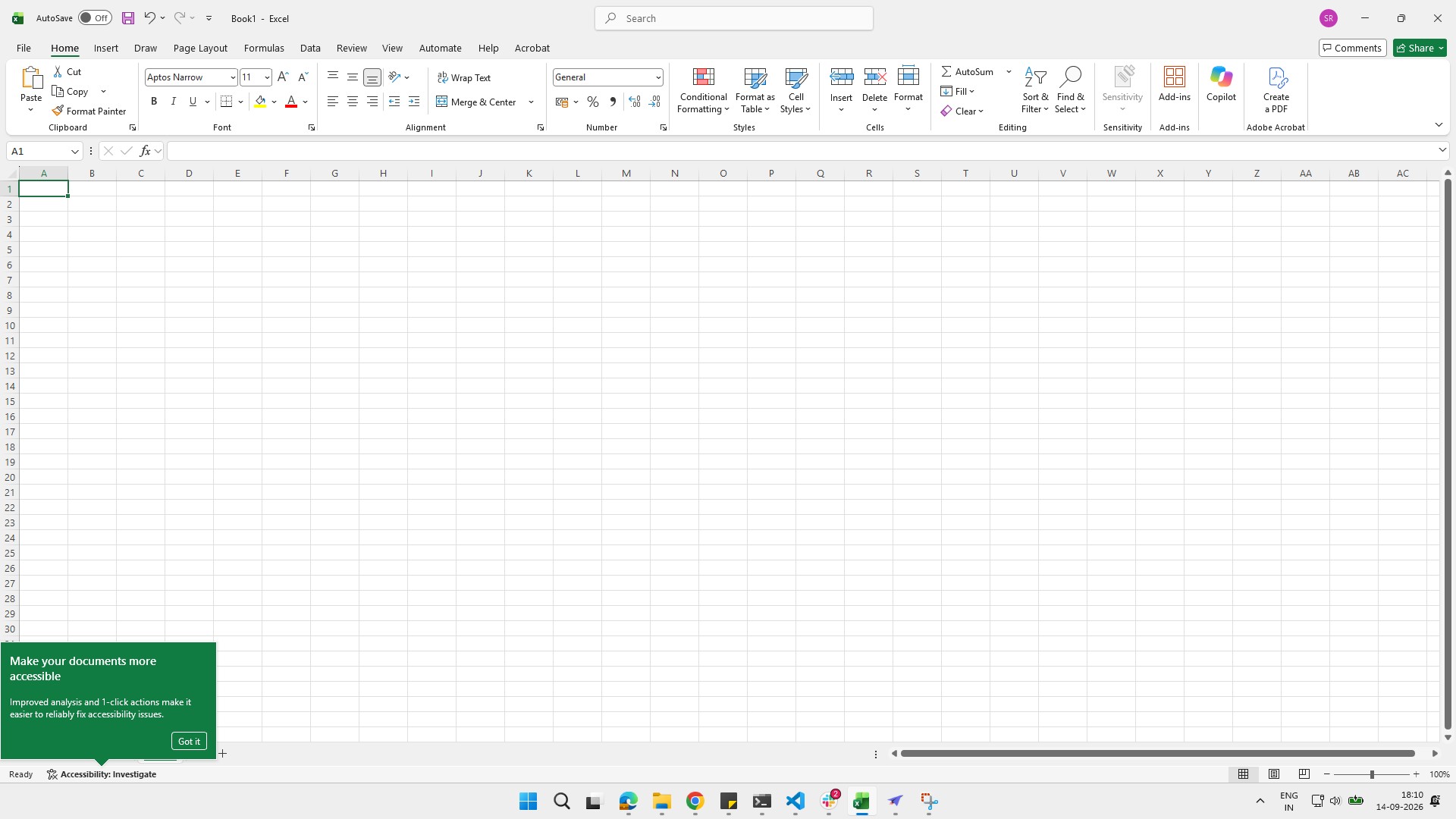

This guide will show you how to organize worksheets, input data, and write basic formulas in Microsoft Excel. You will practice navigating between sheets, entering numerical values into specific cells, and creating comparison and sum formulas to analyze your data. By following these steps, you will gain the foundational skills needed to manage spreadsheet data and perform simple calculations efficiently.
Open Microsoft Word or switch to the active Excel window on your taskbar to begin editing your worksheet.
Click cell D23 to display your result. Type = followed by your calculation (e.g., =B23+C23 or =SUM(B23:C23)), then press Enter to calculate the sum.
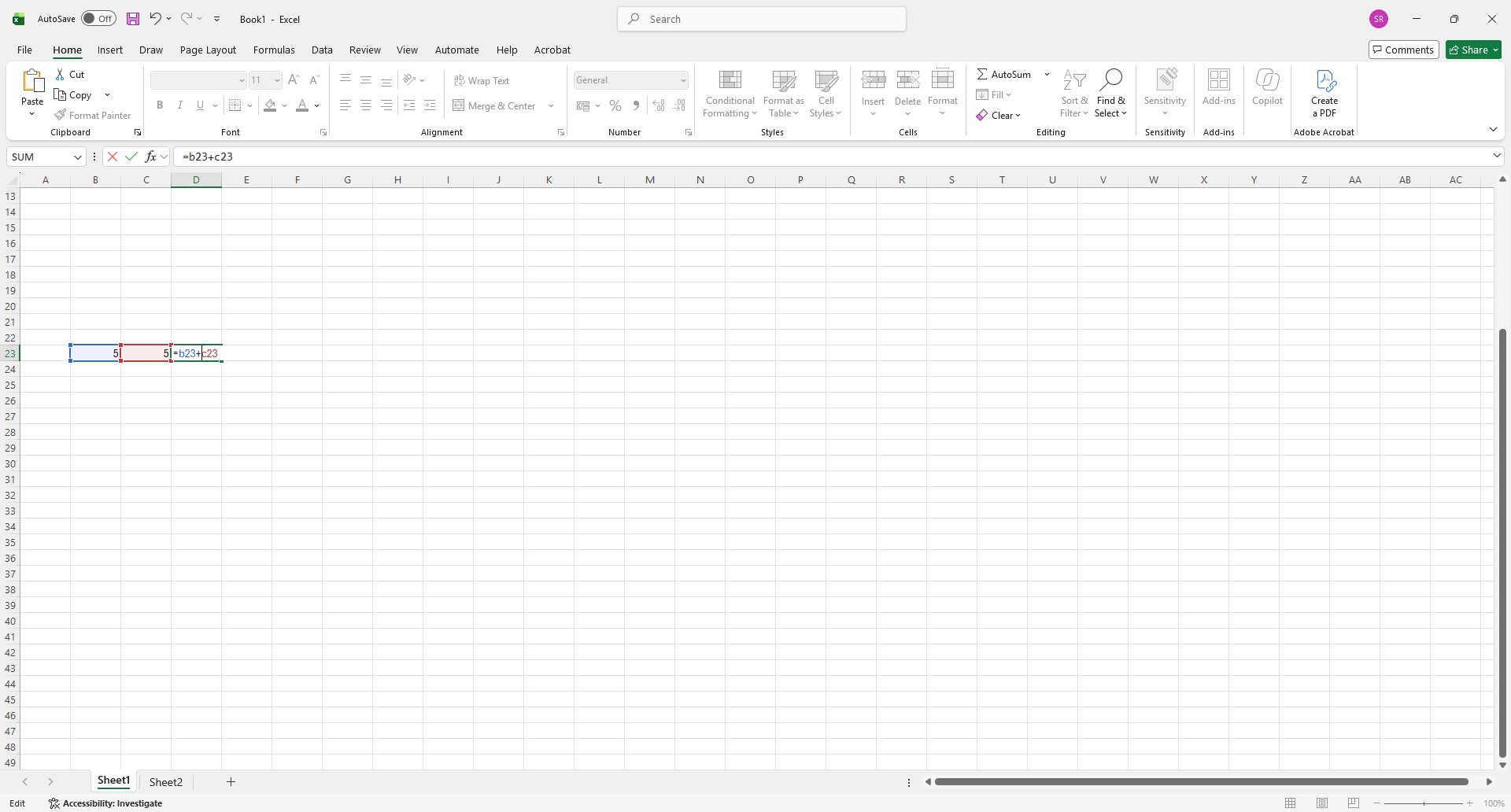
Perform calculations directly using standard mathematical operators with numbers or cell references:=A1 + B1 (Addition) =A1 - B1 (Subtraction) =A1 * B1 (Multiplication) =A1 / B1 (Division)

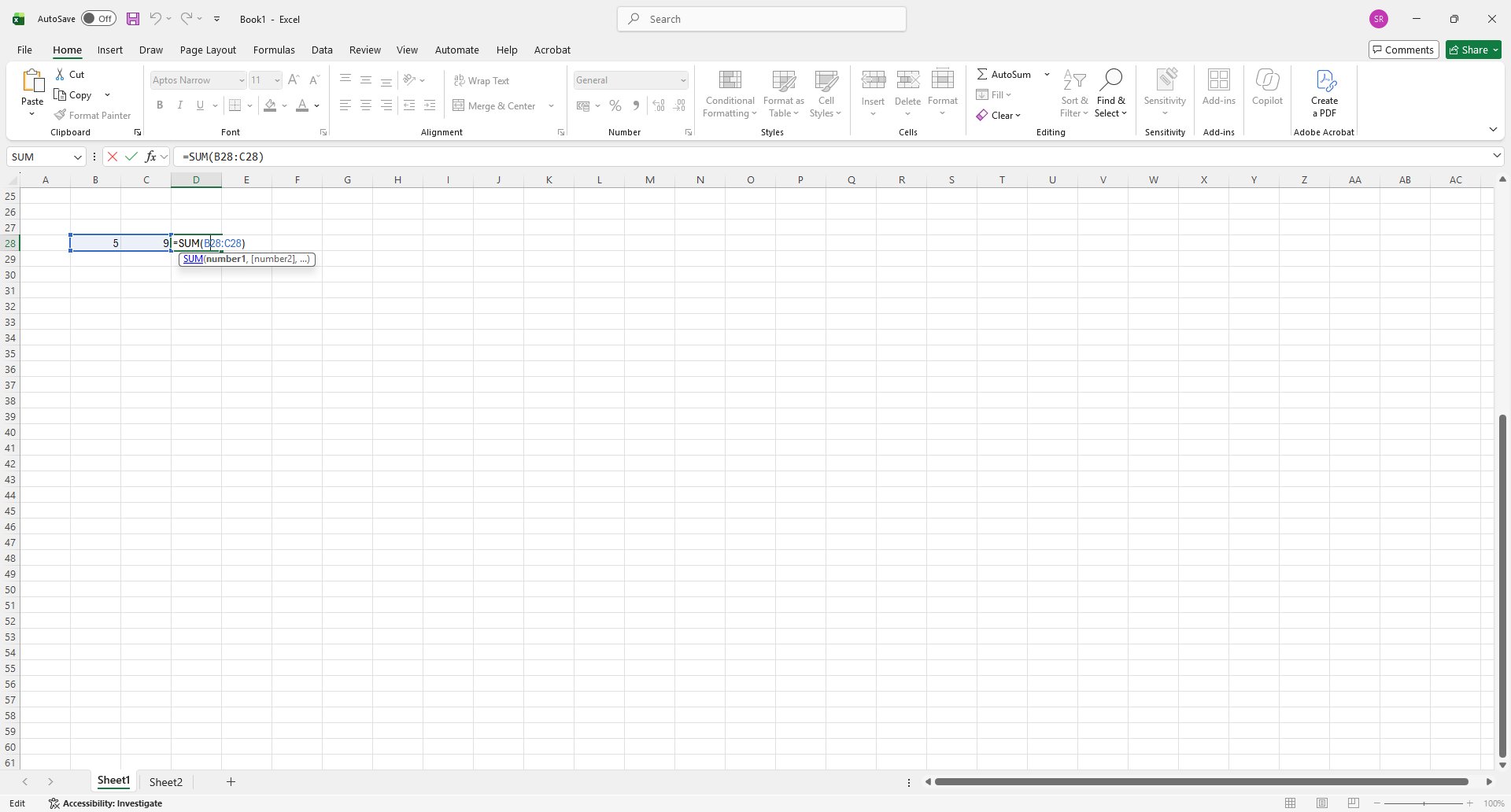
Excel has hundreds of built-in functions for quick calculations. Here are common examples:=SUM(B28:C28) — Adds all values in the selected range=AVERAGE(B1:B5) (Calculates the mean of B1 through B5)=COUNT (Counts how many cells contain numbers)
Duplicate this template, swap in your own screens, and share it with your team. Free to start — no credit card.
Fill out the form and we'll get back to you as soon as possible.
Tell us about your team and we'll find the right plan together.