Skip to content
Back to template gallery
GitHub
GitHub

How to Create a Folder in GitHub

Creating a new folder in GitHub cannot be done directly. Instead, you must create a new file in order to populate your folder. Once your folder contains at least one file, you may add additional files to it

IT & Engineering
8 steps 3 min Community template
1

To create a new folder in GitHub, you must first create a new file and add that file to your new folder at the same time. Do this by navigating to your repository page.
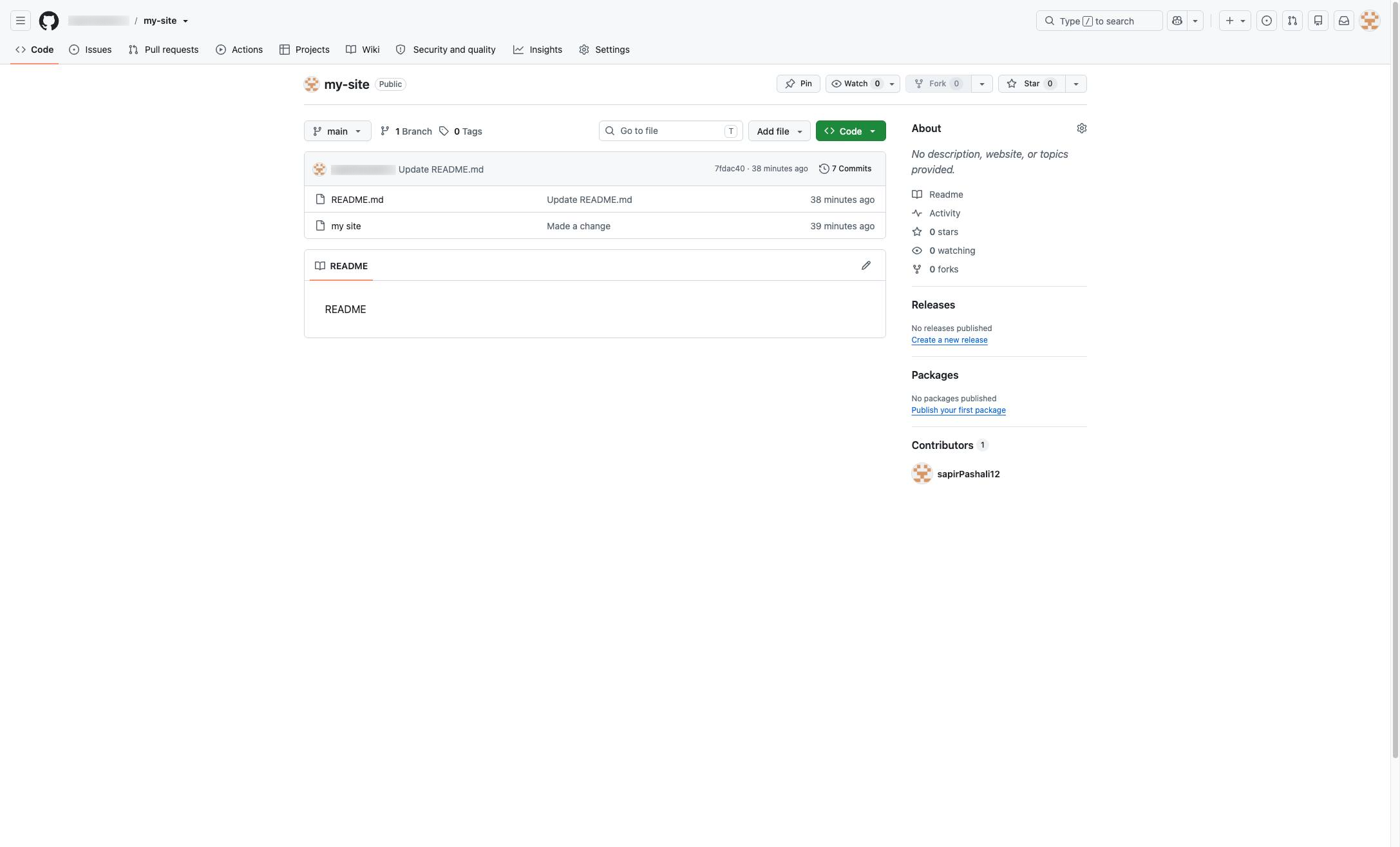
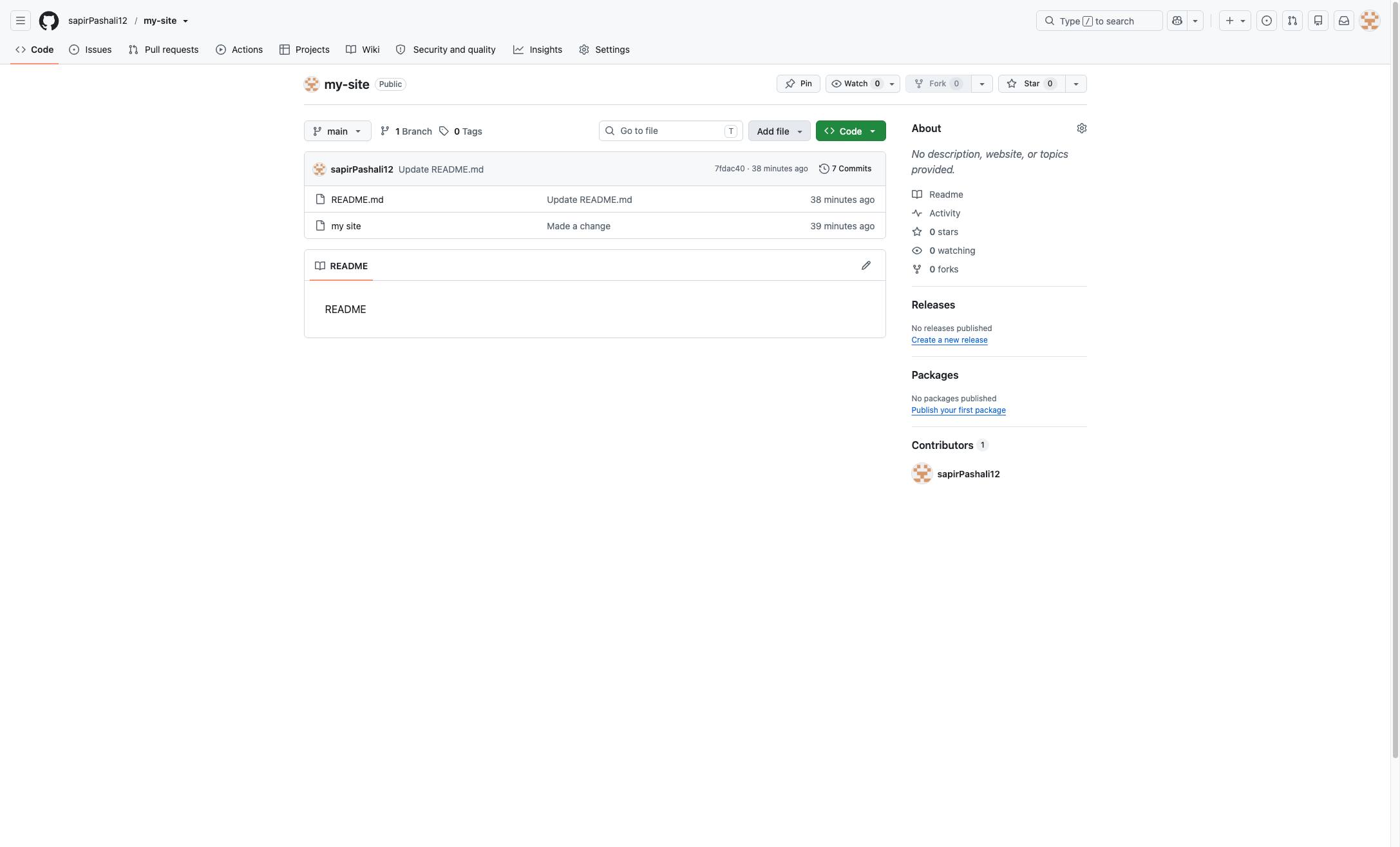
To create a new folder in GitHub, you must first create a new file and add that file to your new folder at the same time. Do this by navigating to your repository page.
github.com
To create a new folder in GitHub, you must first create a new file and add that file to your new folder at the same time. Do this by navigating to your repository page.
2

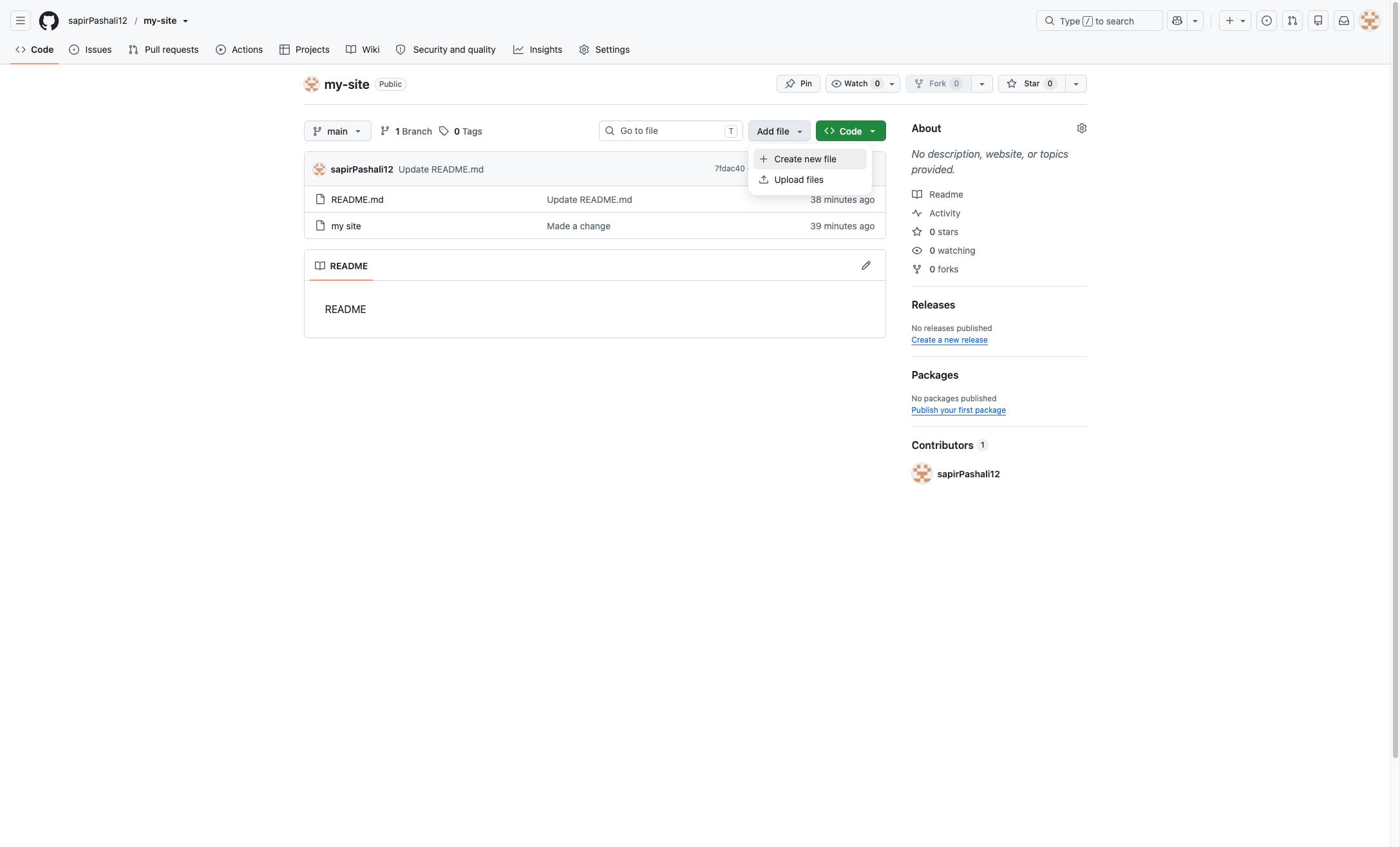
Next, click the Add file dropdown menu on the right.

Next, click the Add file dropdown menu on the right.

github.com
Next, click the Add file dropdown menu on the right.
3

Select the first option labeled "Create new file."

Select the first option labeled "Create new file."

github.com
Select the first option labeled "Create new file."
4

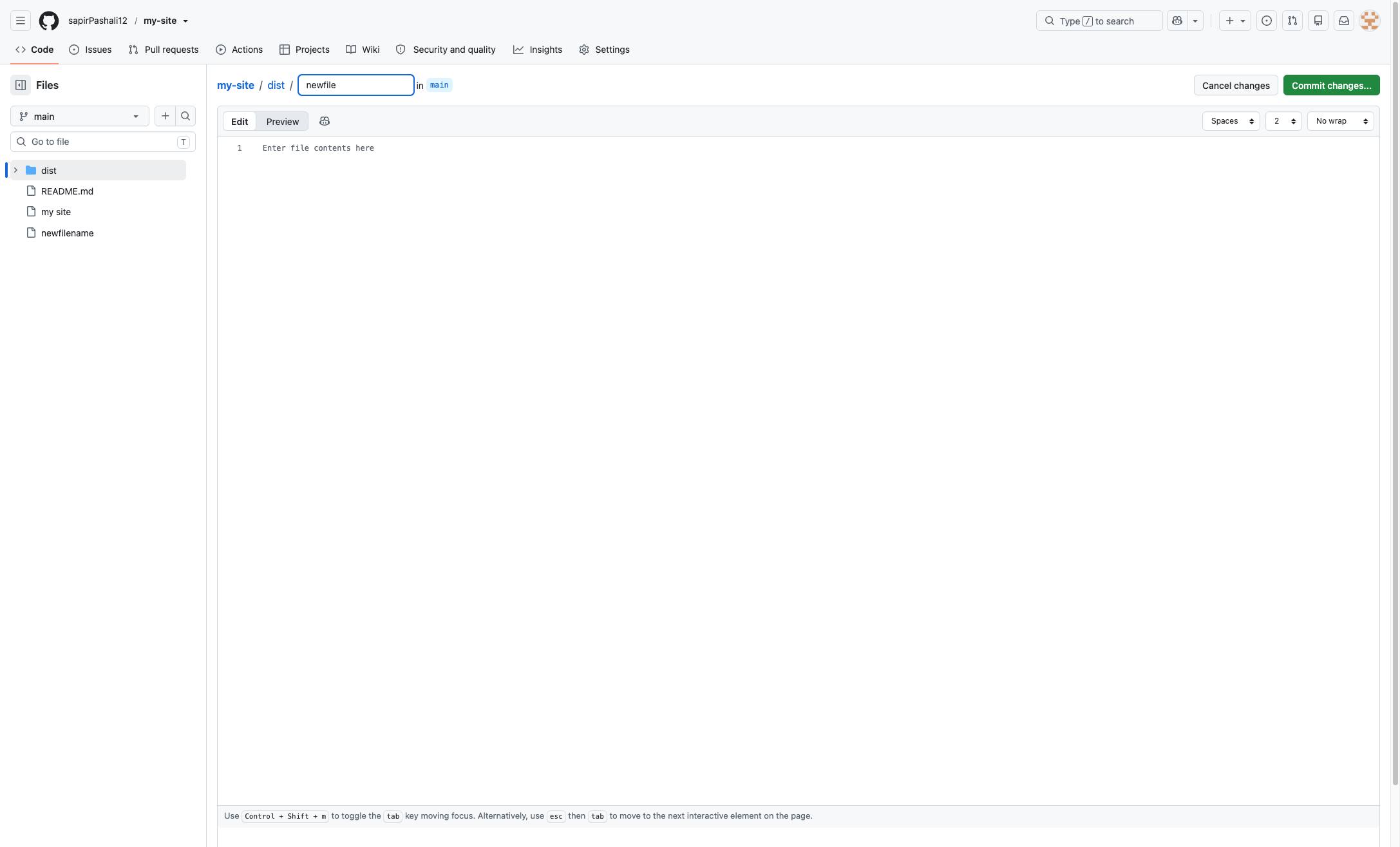
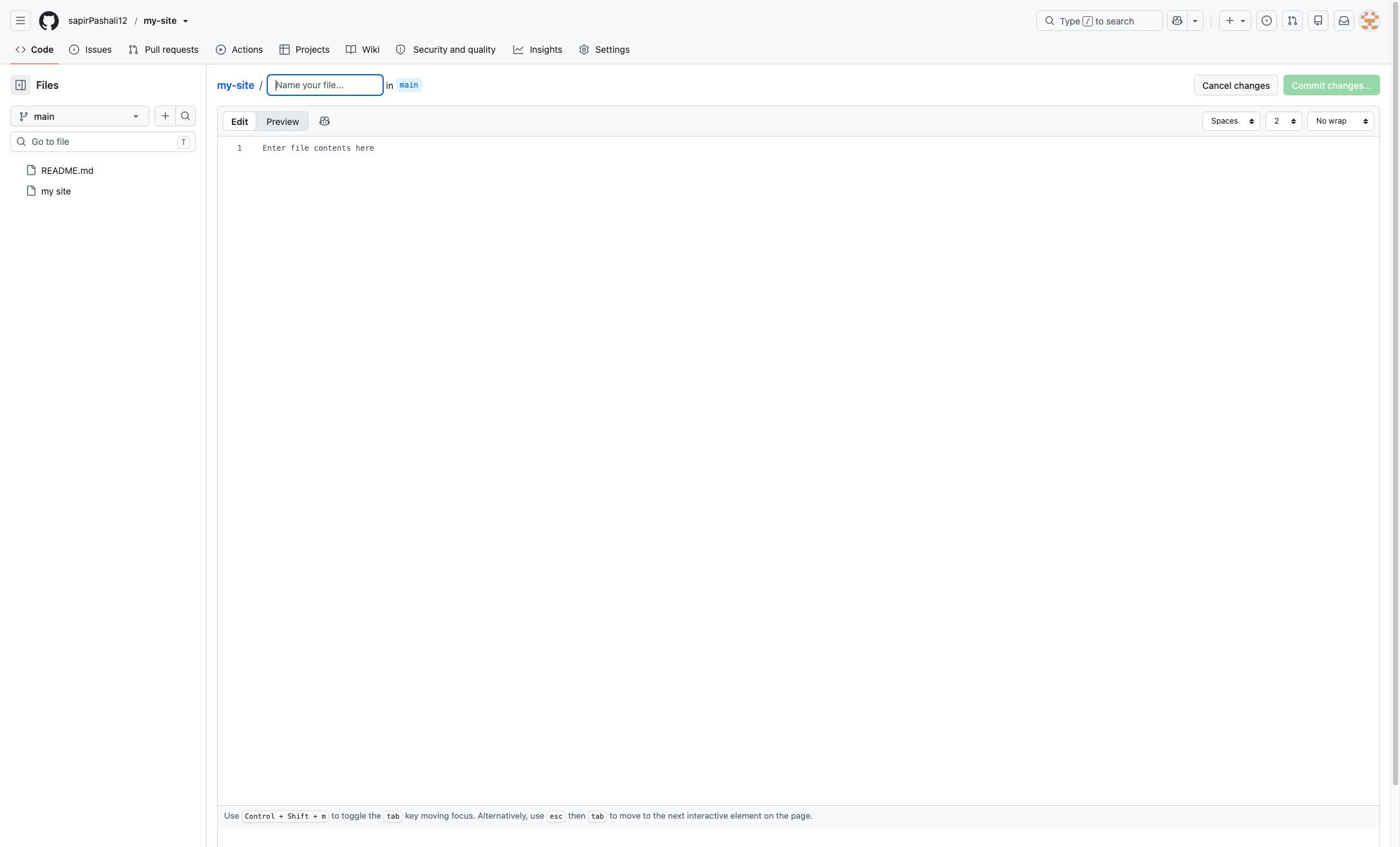
To create a folder, name your file as follows: Type the folder name followed by / and hit Enter

To create a folder, name your file as follows: Type the folder name followed by / and hit Enter

github.com
To create a folder, name your file as follows: Type the folder name followed by / and hit Enter
5

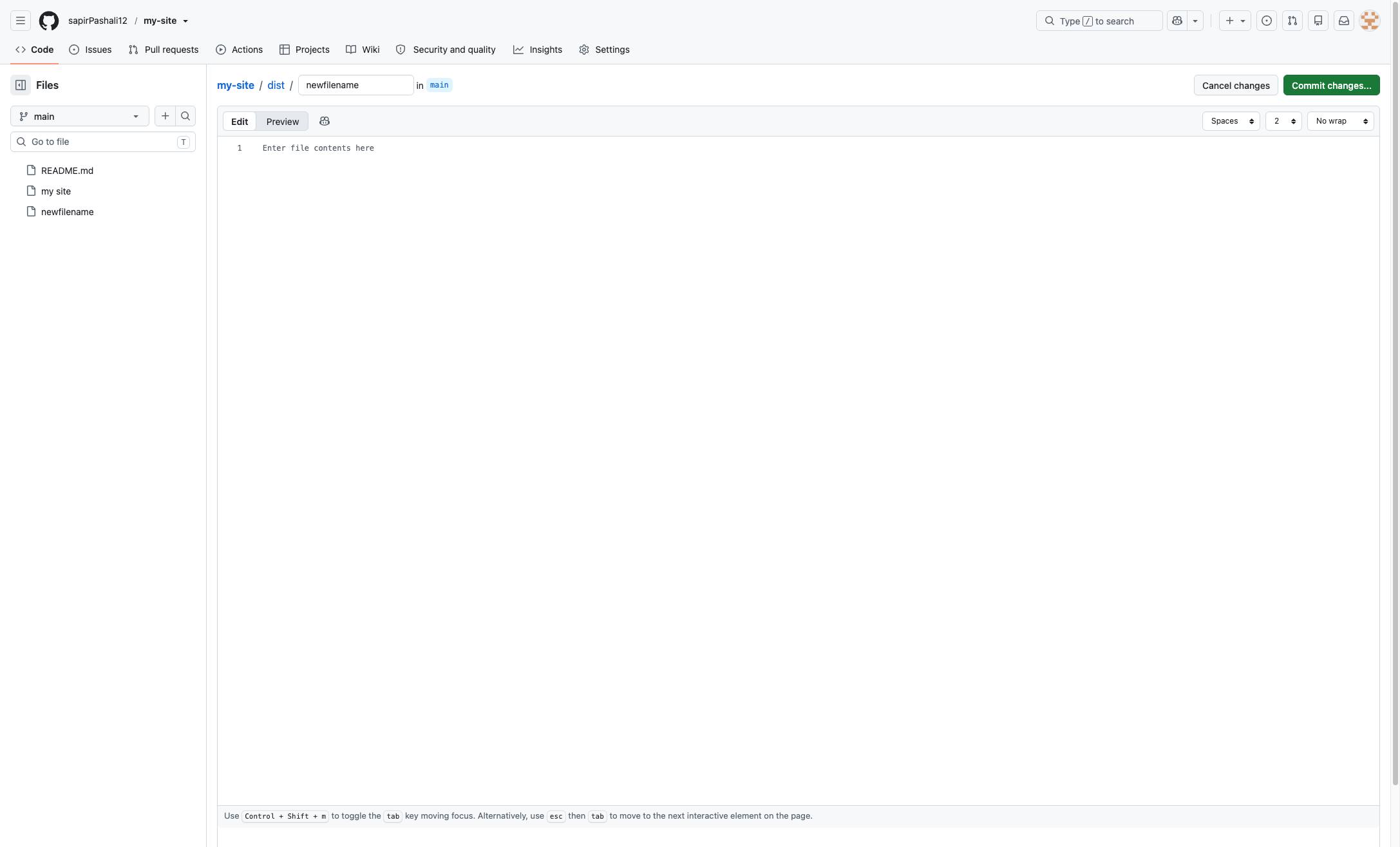
The folder name will automatically generate a new folder. Now you can give your file a name.

The folder name will automatically generate a new folder. Now you can give your file a name.

github.com
The folder name will automatically generate a new folder. Now you can give your file a name.
6

Click "Commit changes..."

Click "Commit changes..."

github.com
Click "Commit changes..."
7

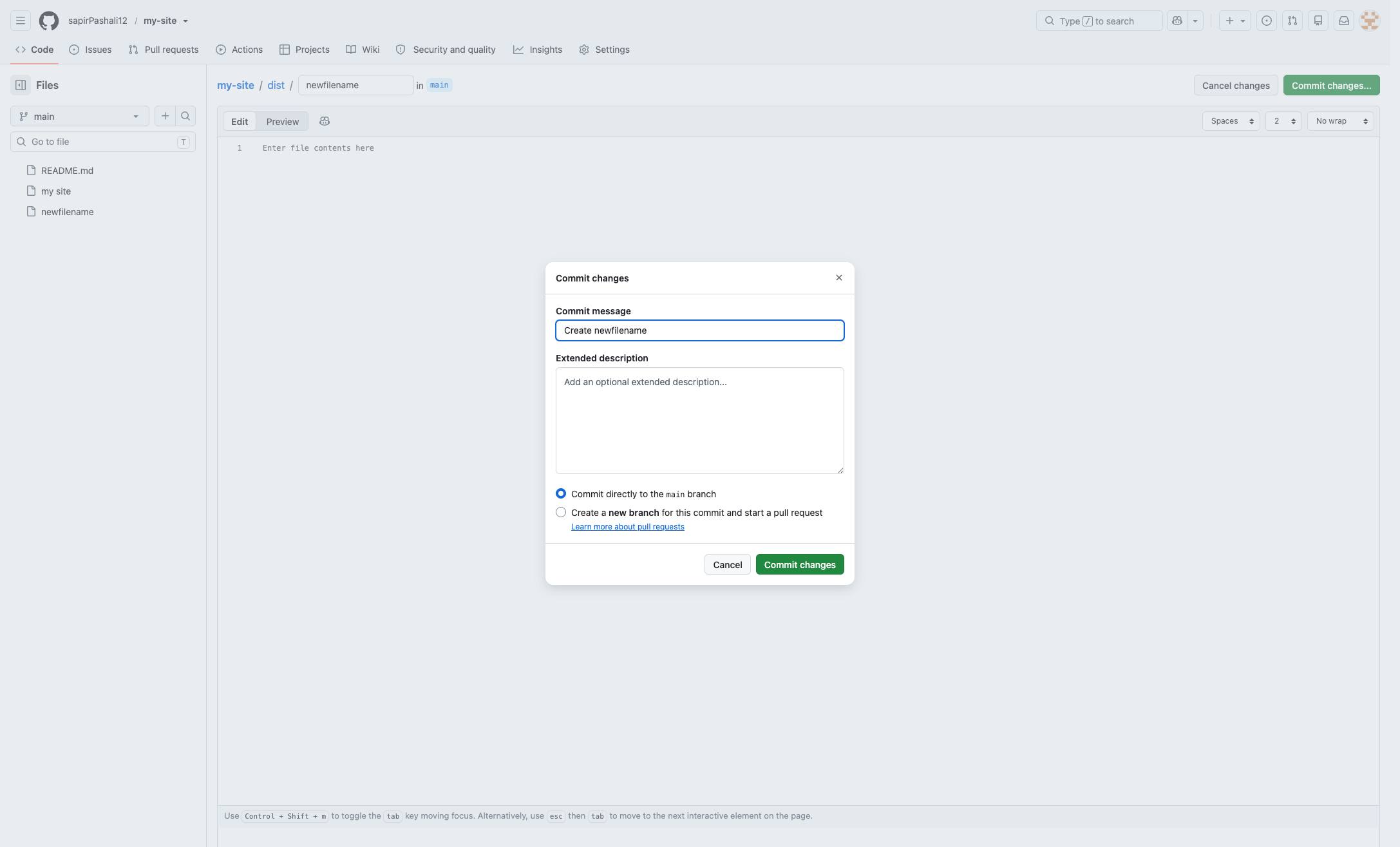
You'll need to commit your changes. Give your commit a name and a description.

You'll need to commit your changes. Give your commit a name and a description.

github.com
You'll need to commit your changes. Give your commit a name and a description.
8

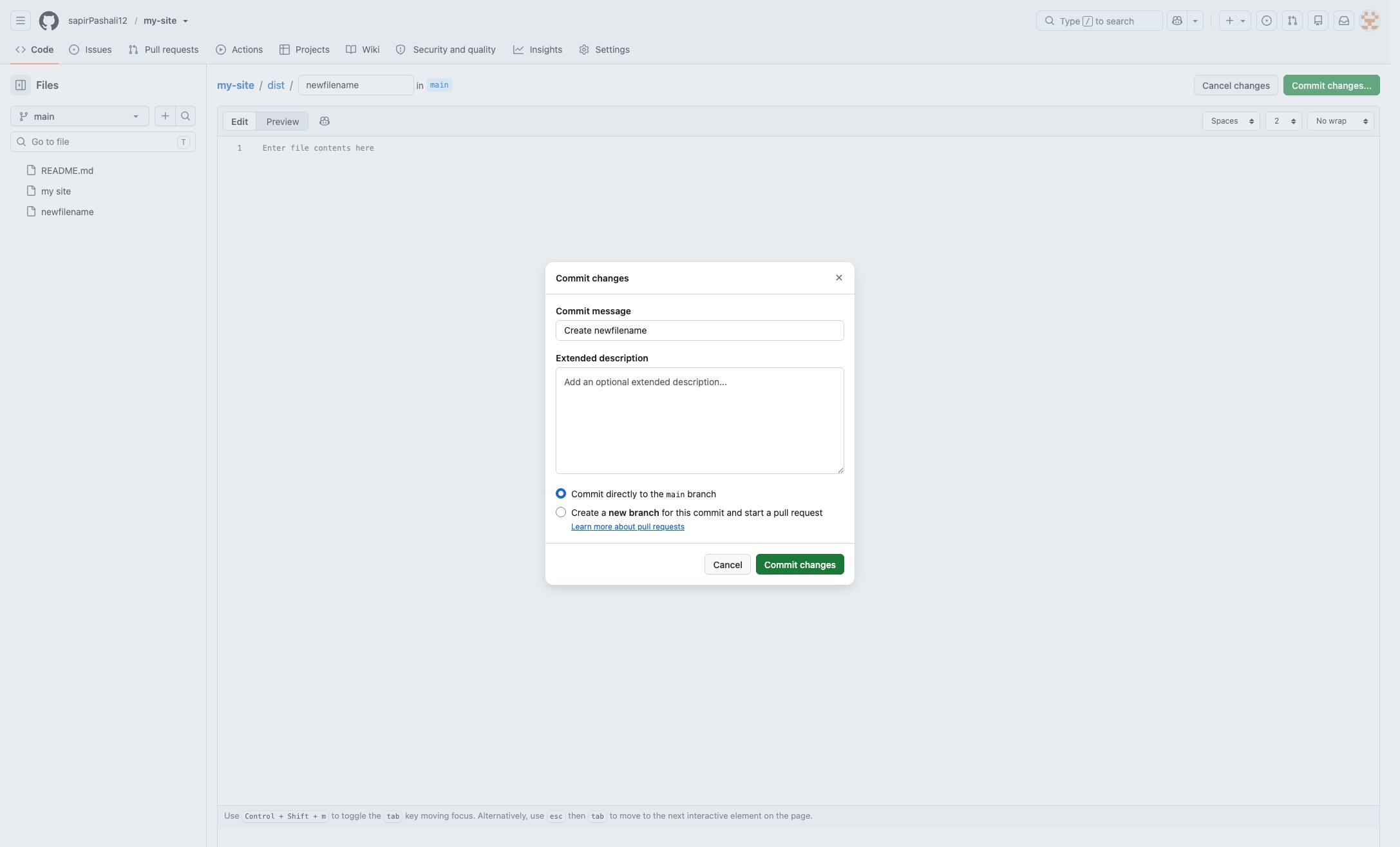
Finally, hit "Commit new file" to finalize the changes.

Finally, hit "Commit new file" to finalize the changes.

github.com
Finally, hit "Commit new file" to finalize the changes.

Make this walkthrough your own

Duplicate this template, swap in your own screens, and share it with your team. Free to start — no credit card.