1
Select the text to copy
Highlight the text you want to copy.
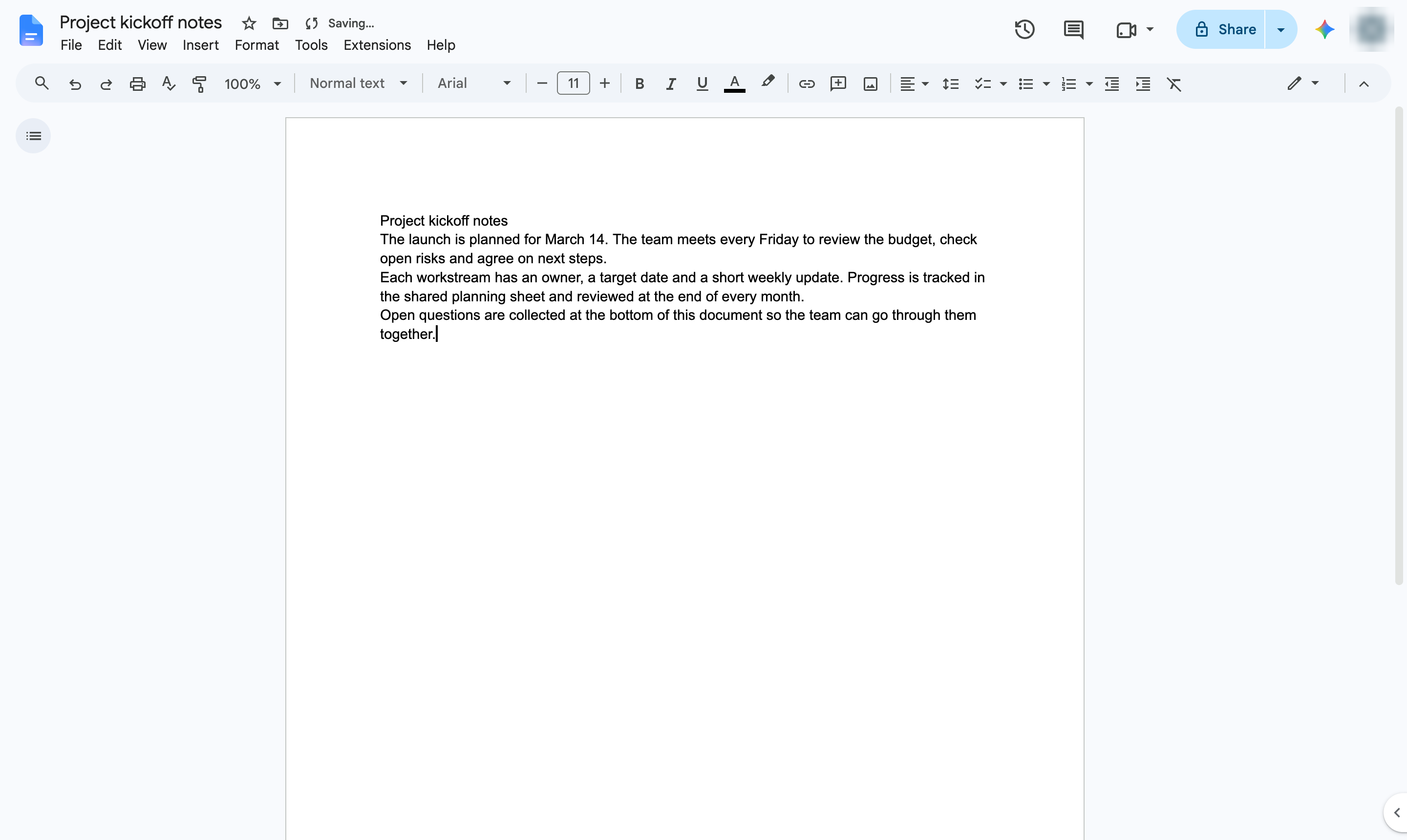

Copy text and paste it somewhere else in your document with keyboard shortcuts.
Highlight the text you want to copy.
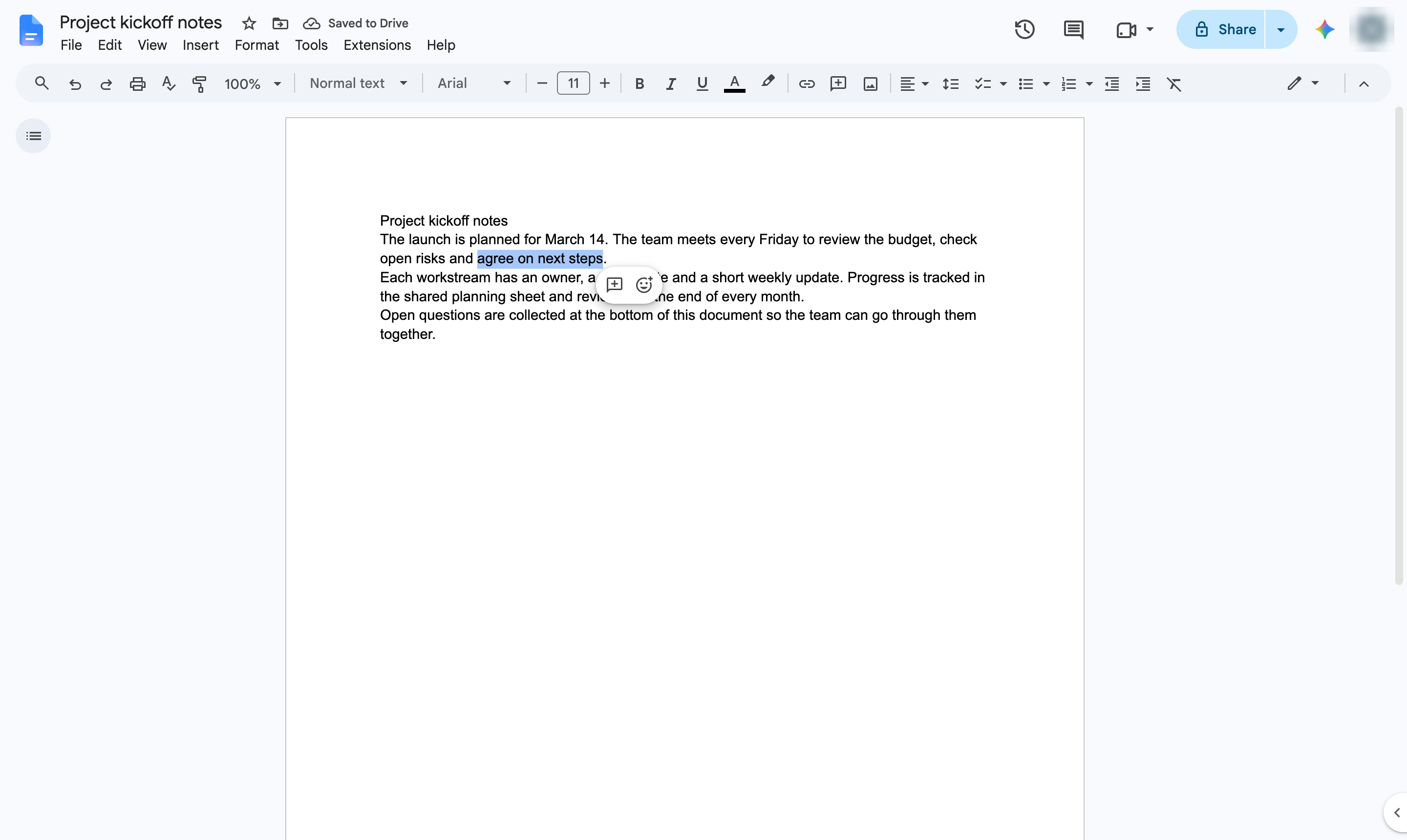
Press Ctrl + C (Cmd + C on Mac) to copy the selection.
Click where you want the copy to appear.
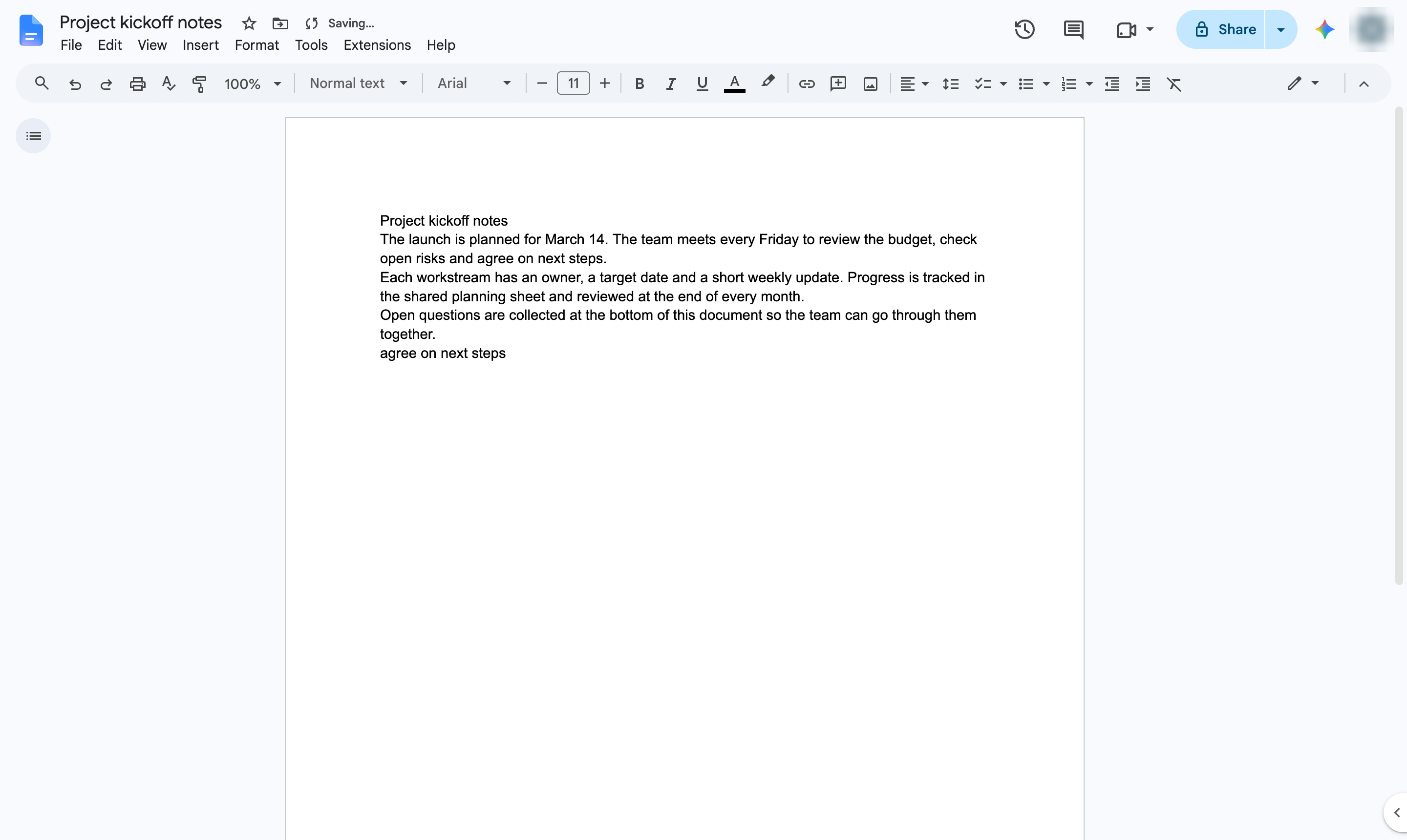
Start a new line for the pasted text.
Press Ctrl + V (Cmd + V on Mac) to paste. Use Ctrl + Shift + V to paste without formatting.
The copied text now appears in its new place.
Duplicate this template, swap in your own screens, and share it with your team. Free to start — no credit card.
Fill out the form and we'll get back to you as soon as possible.
Tell us about your team and we'll find the right plan together.