1
Click File
Open the File menu.
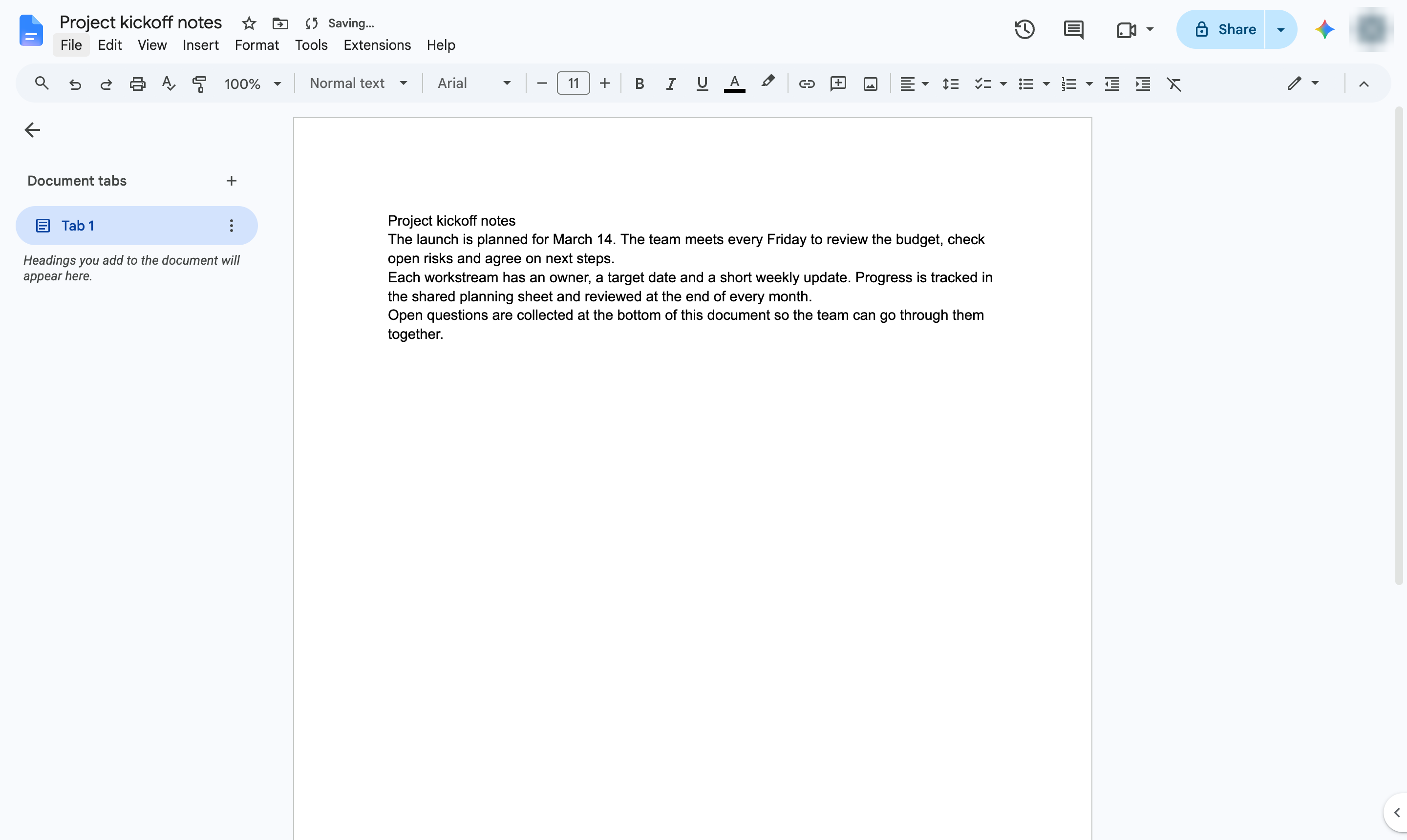

Set the top, bottom, left and right margins of your pages in Page setup.
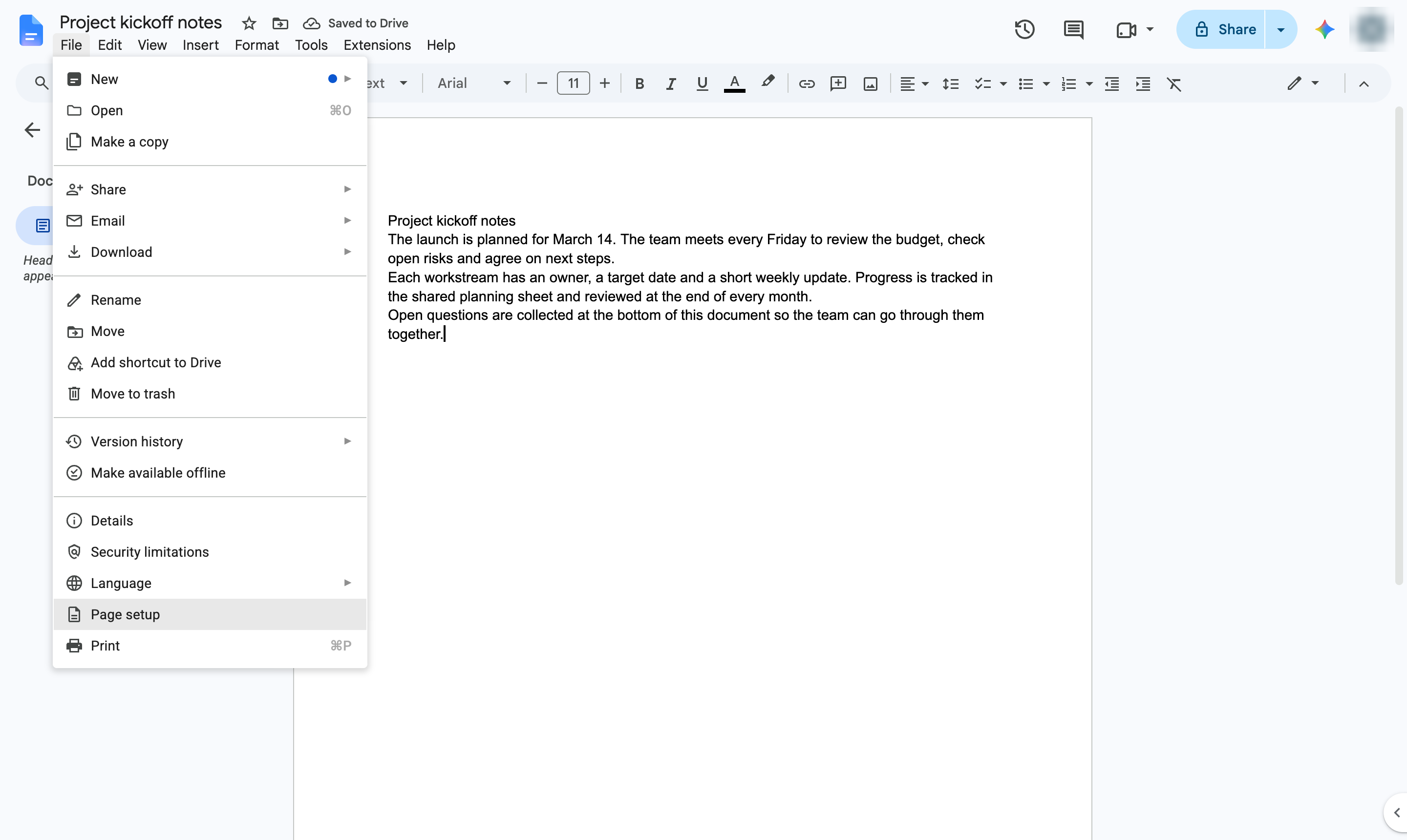
Open the File menu.
Choose Page setup.
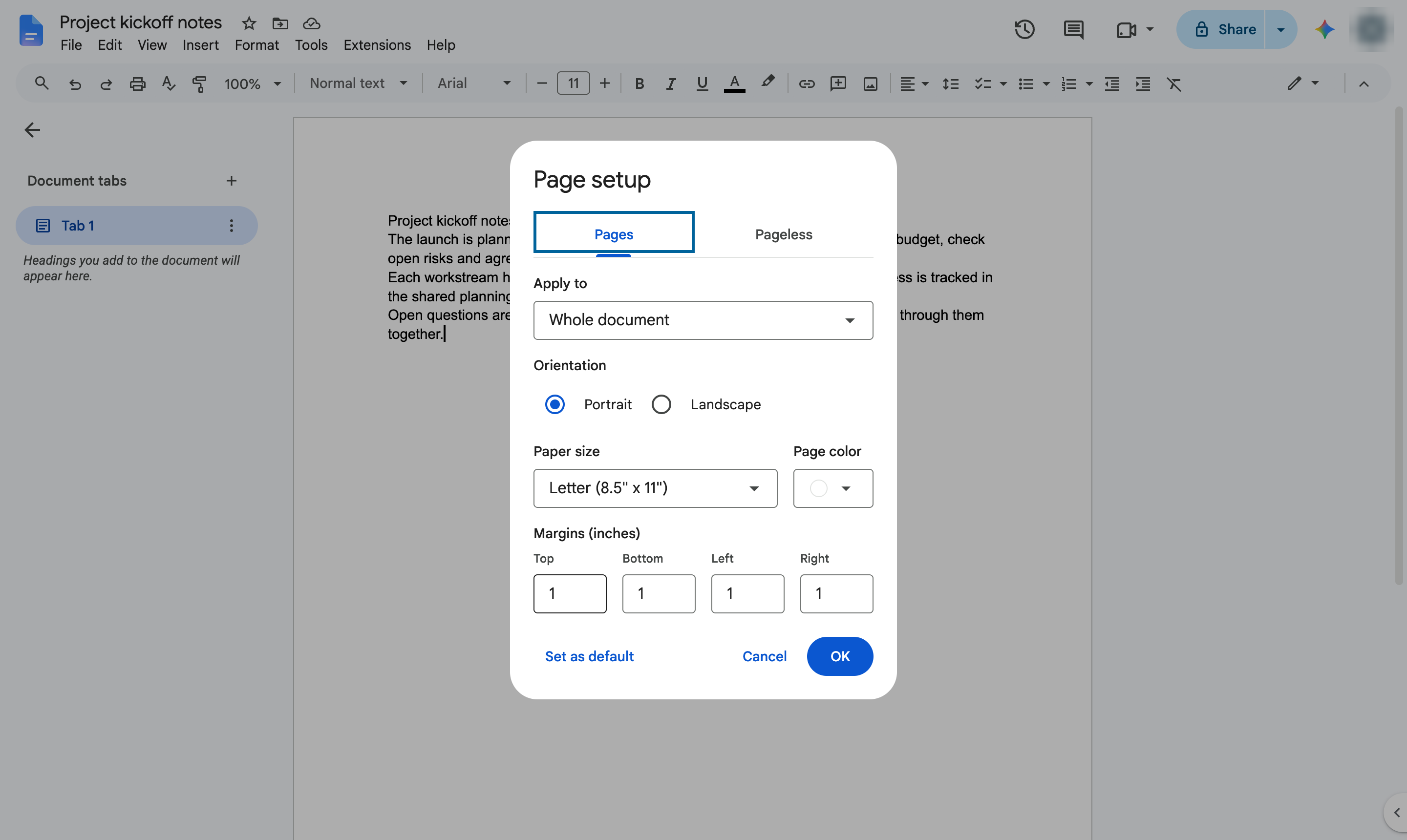
Under Margins (inches) section, enter margins needed for top, bottom, left & right
Apply the new margins.
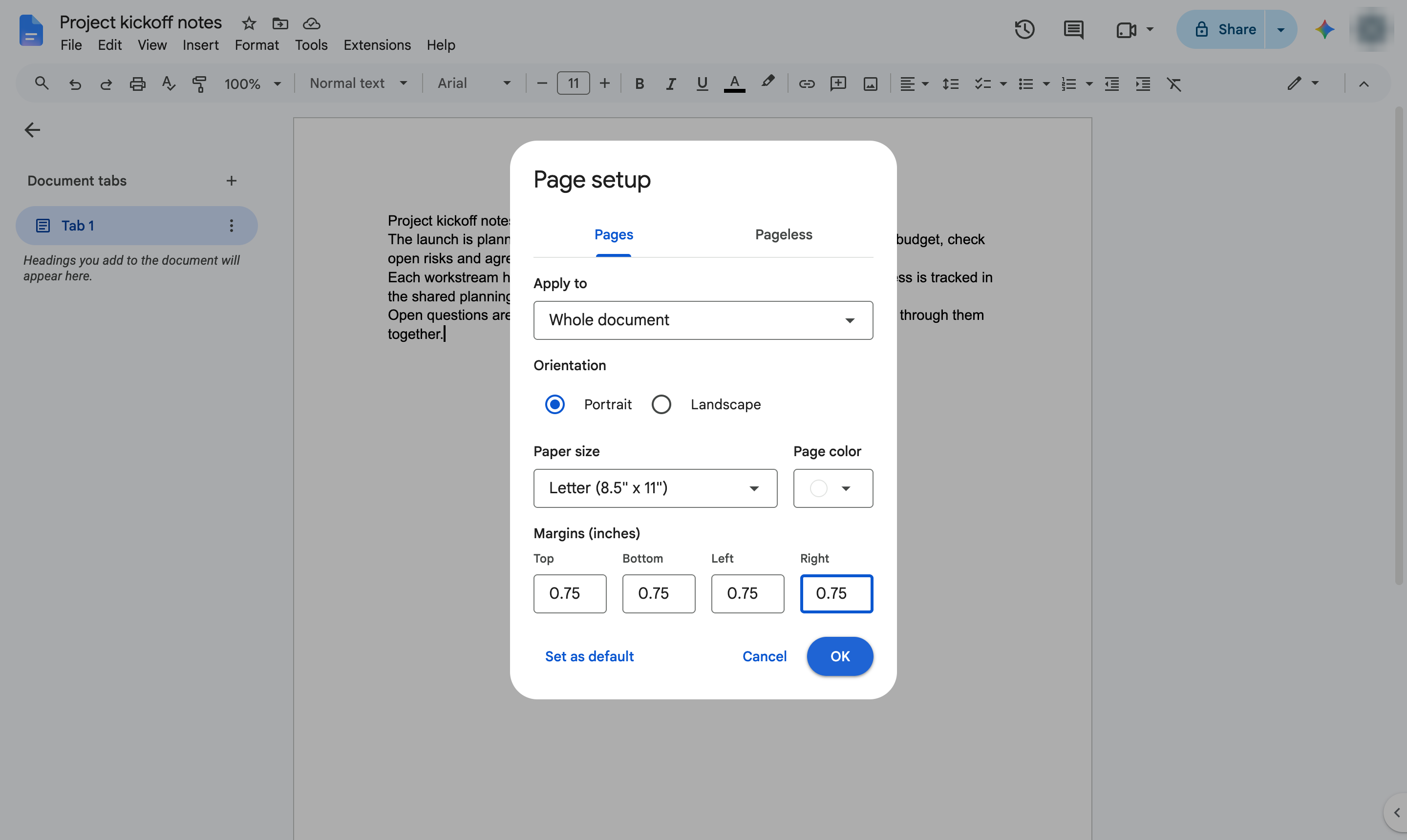
The text now sits the new distance from every edge of the page. Click Set as default in Page setup to use these margins for new documents.
Duplicate this template, swap in your own screens, and share it with your team. Free to start — no credit card.
Fill out the form and we'll get back to you as soon as possible.
Tell us about your team and we'll find the right plan together.