1
Click Insert
Open the Insert menu.
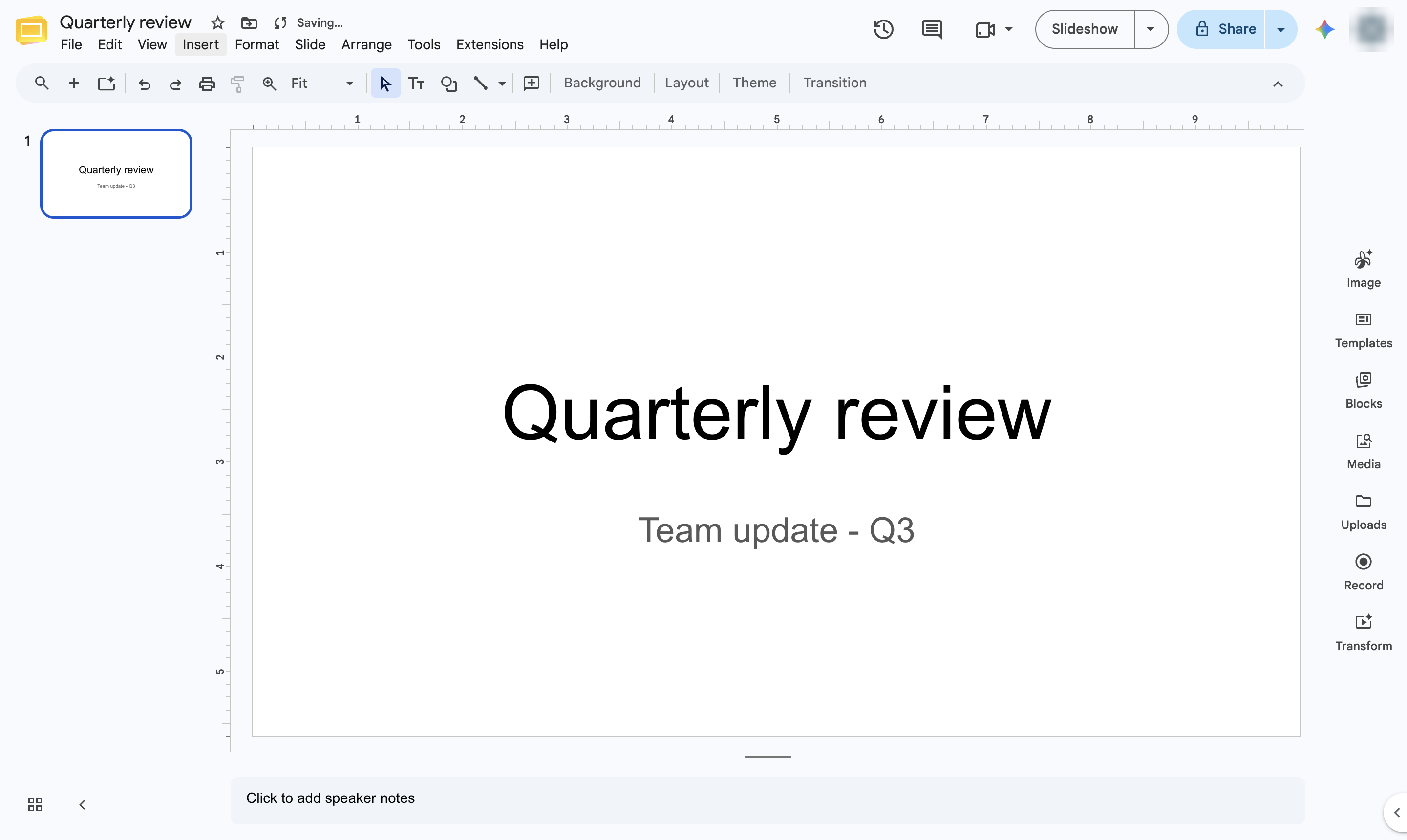

Insert an animated GIF onto a slide - it plays automatically in the editor and in the slideshow.
Open the Insert menu.
Hover over Image.
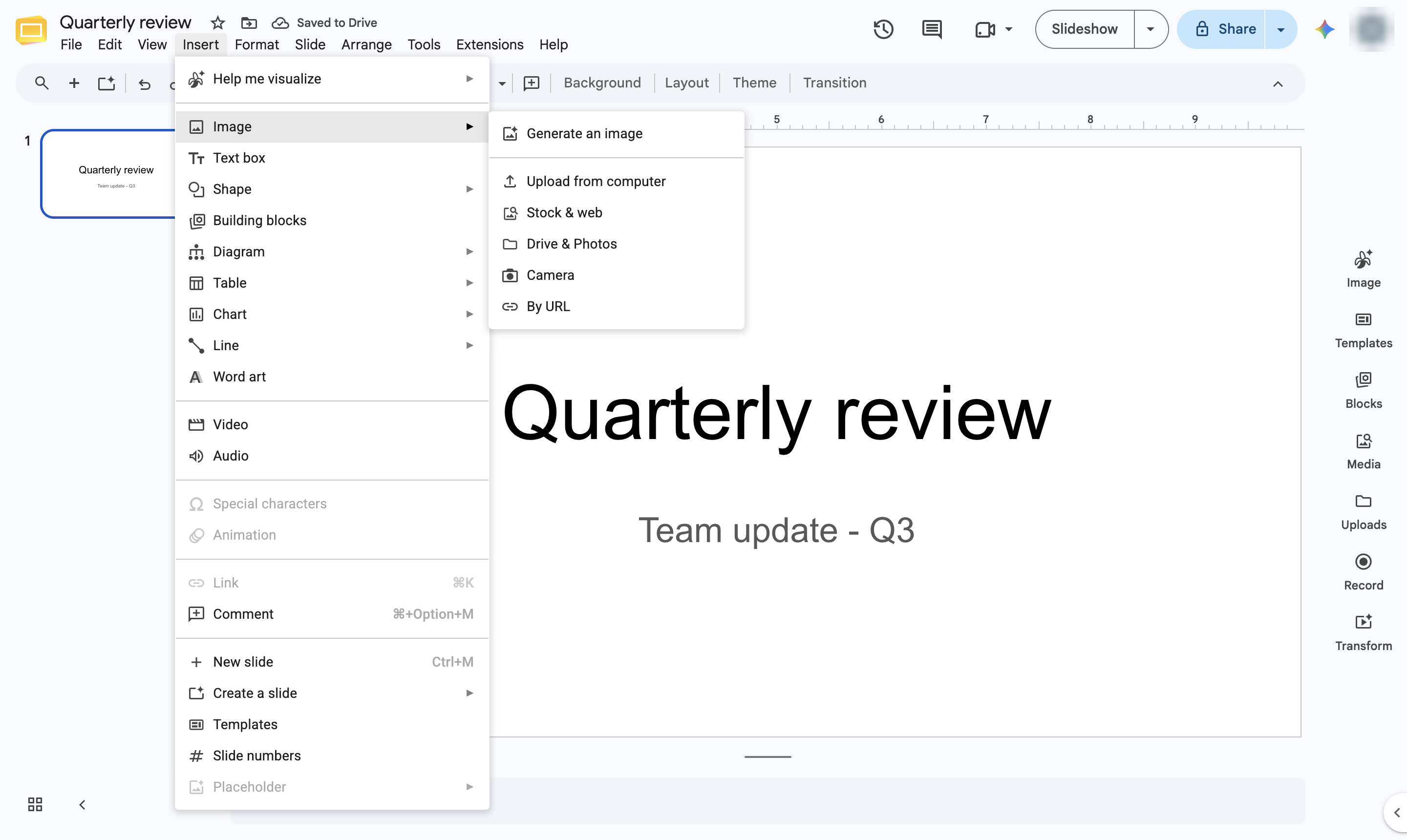
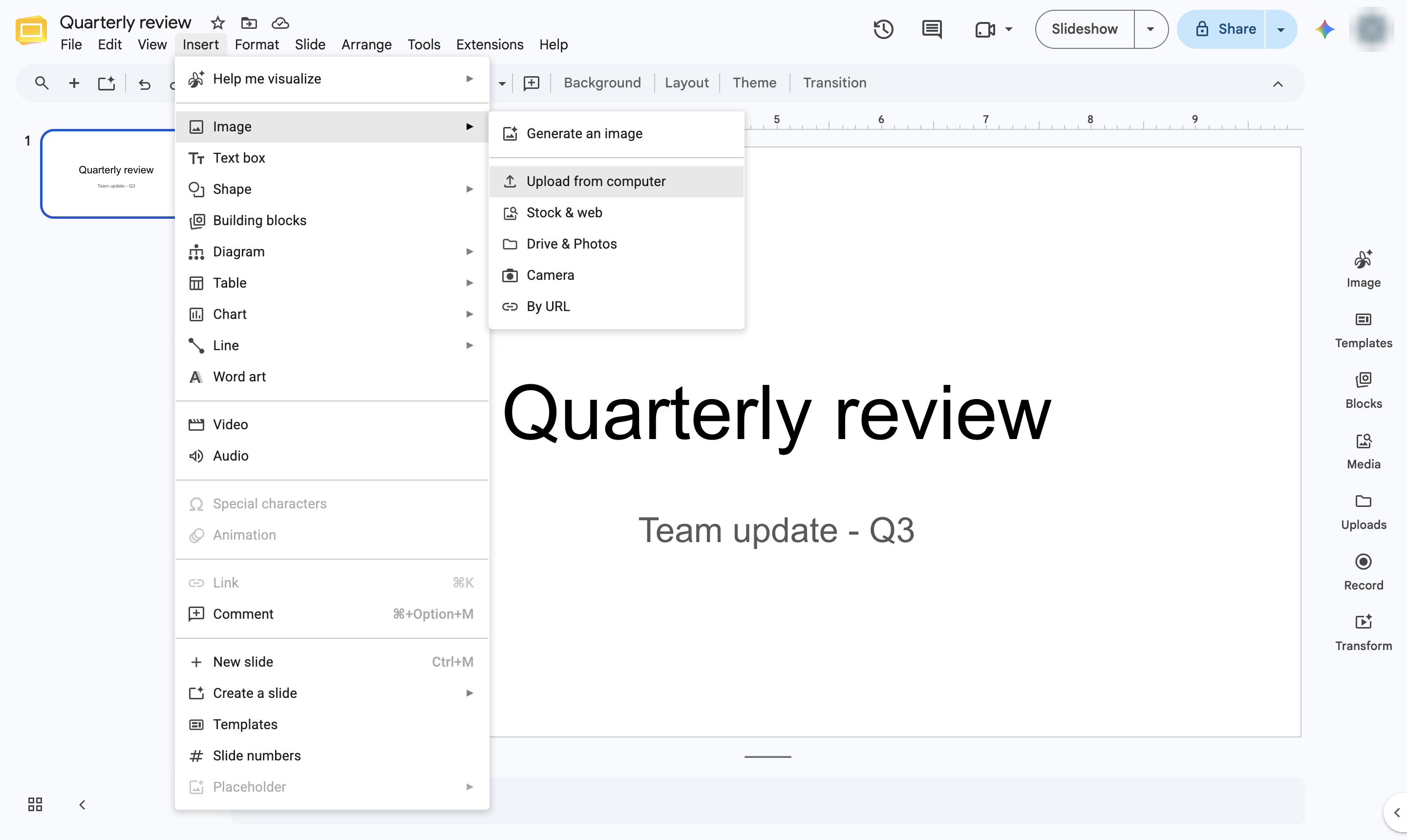
Choose Upload from computer and pick the GIF file. To use a GIF from the web, choose By URL and paste the GIF link instead.
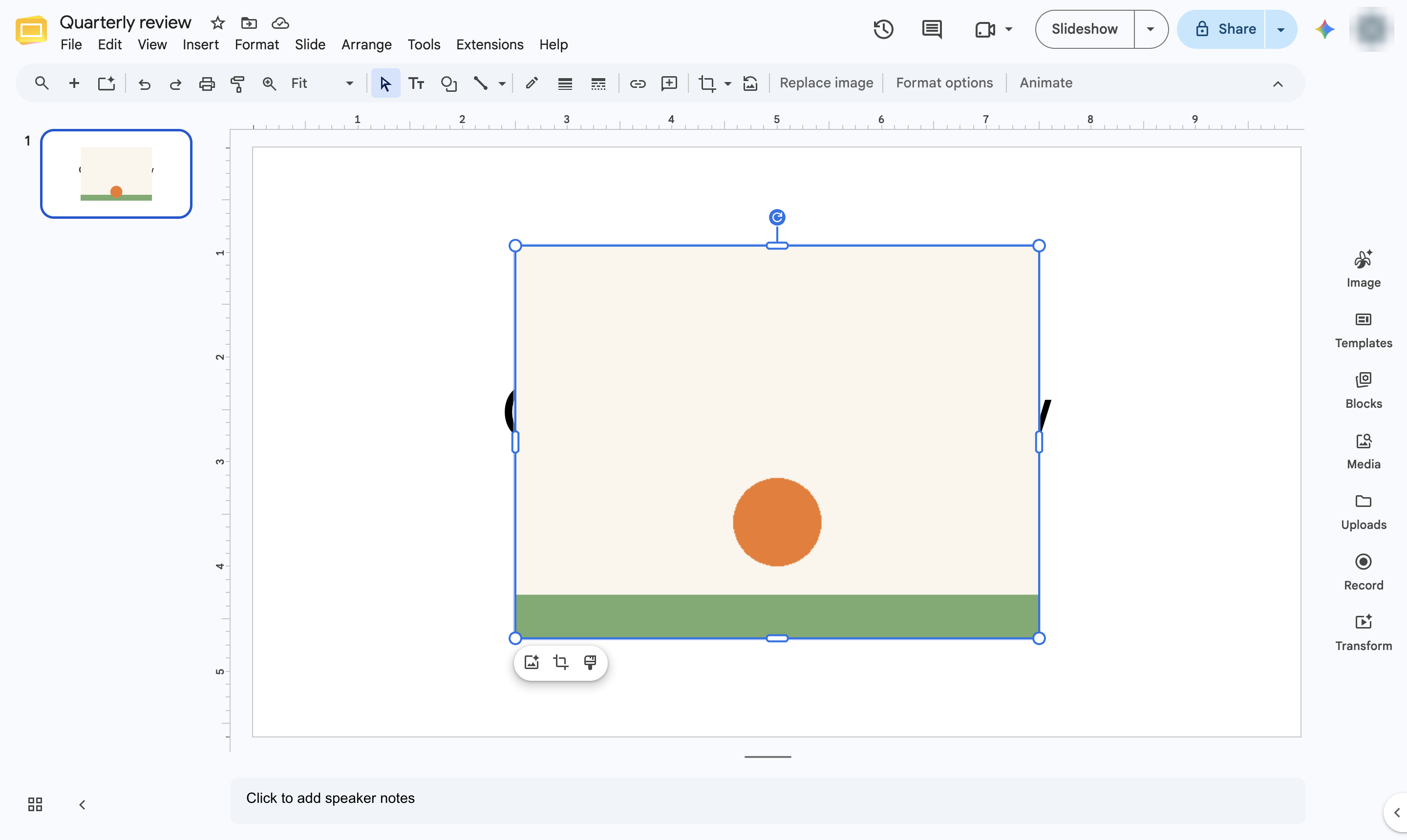
The GIF is on the slide and animates right away. Resize it with the corner handles.
Duplicate this template, swap in your own screens, and share it with your team. Free to start — no credit card.
Fill out the form and we'll get back to you as soon as possible.
Tell us about your team and we'll find the right plan together.