1
Open the Google Sheets document
Navigate to the Google Sheets document where you want to insert a drawing.
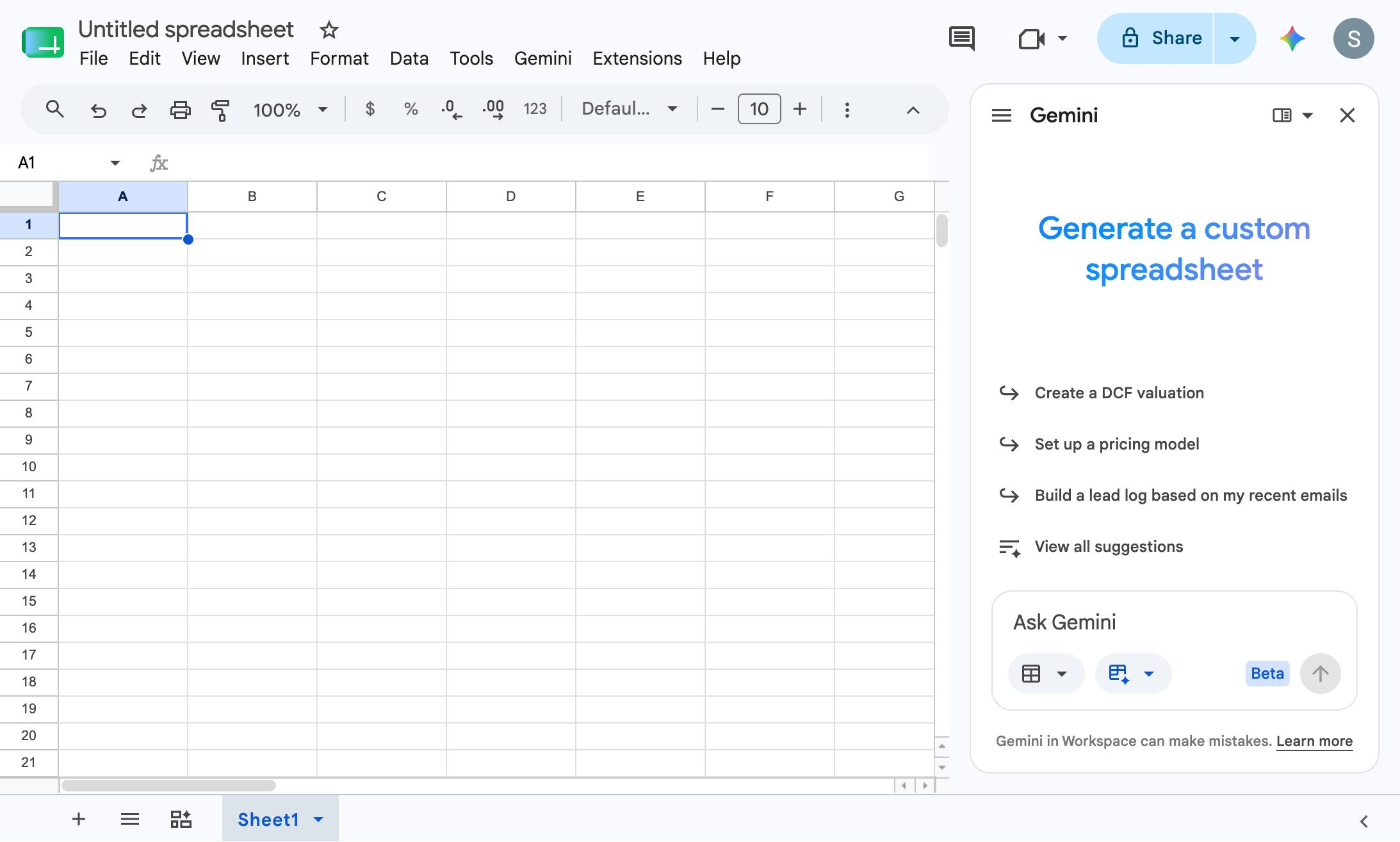

In this guide, you will learn how to insert and create a custom freehand drawing directly within a Google Sheets spreadsheet. By accessing the built-in Google Drawings tool, you will select the Scribble tool to sketch your design and then insert it seamlessly into your active worksheet. Follow these step-by-step instructions to enhance your spreadsheet with personalized visual elements.
Navigate to the Google Sheets document where you want to insert a drawing.
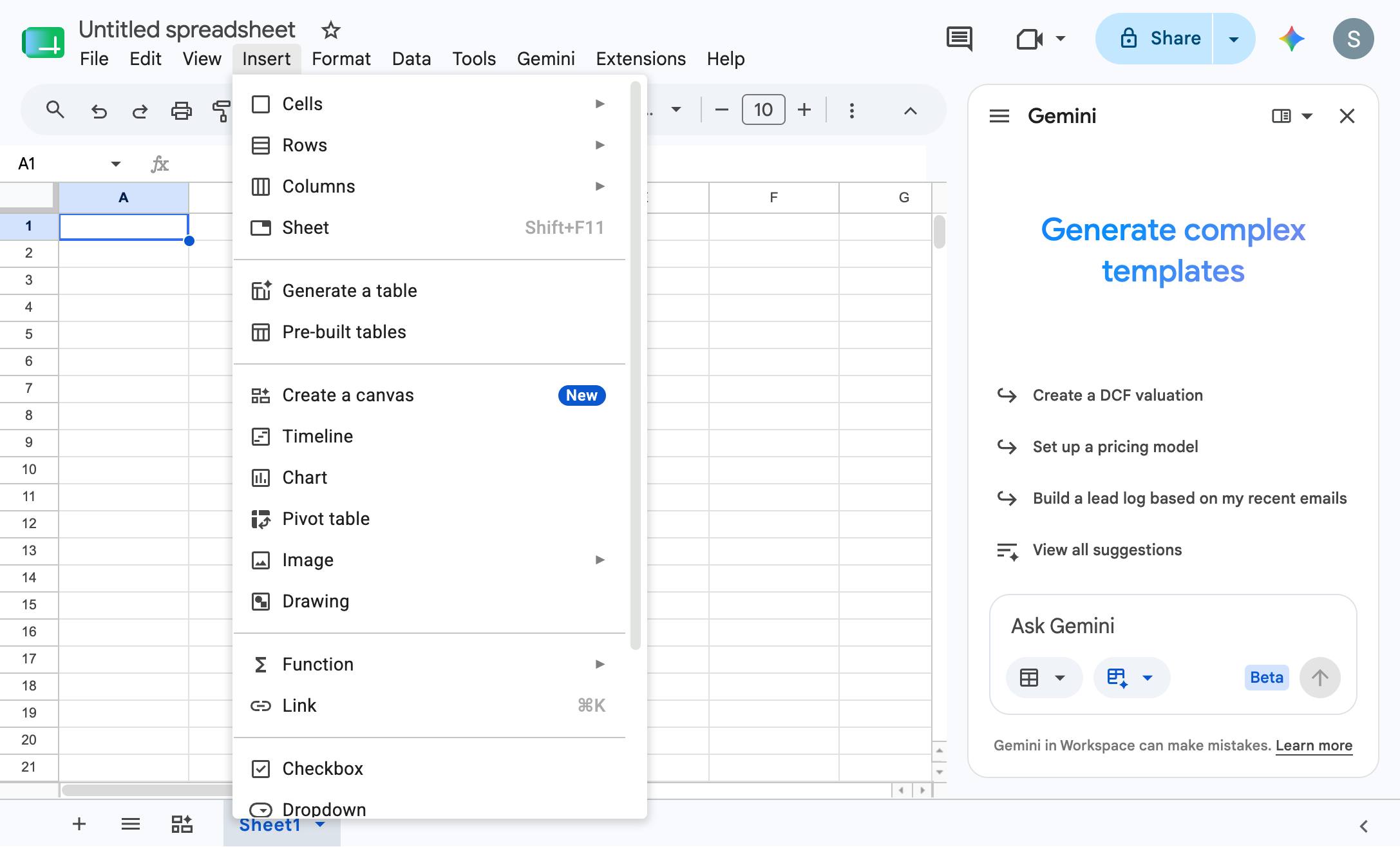
Click the Insert menu in the top toolbar to open the dropdown list of options.
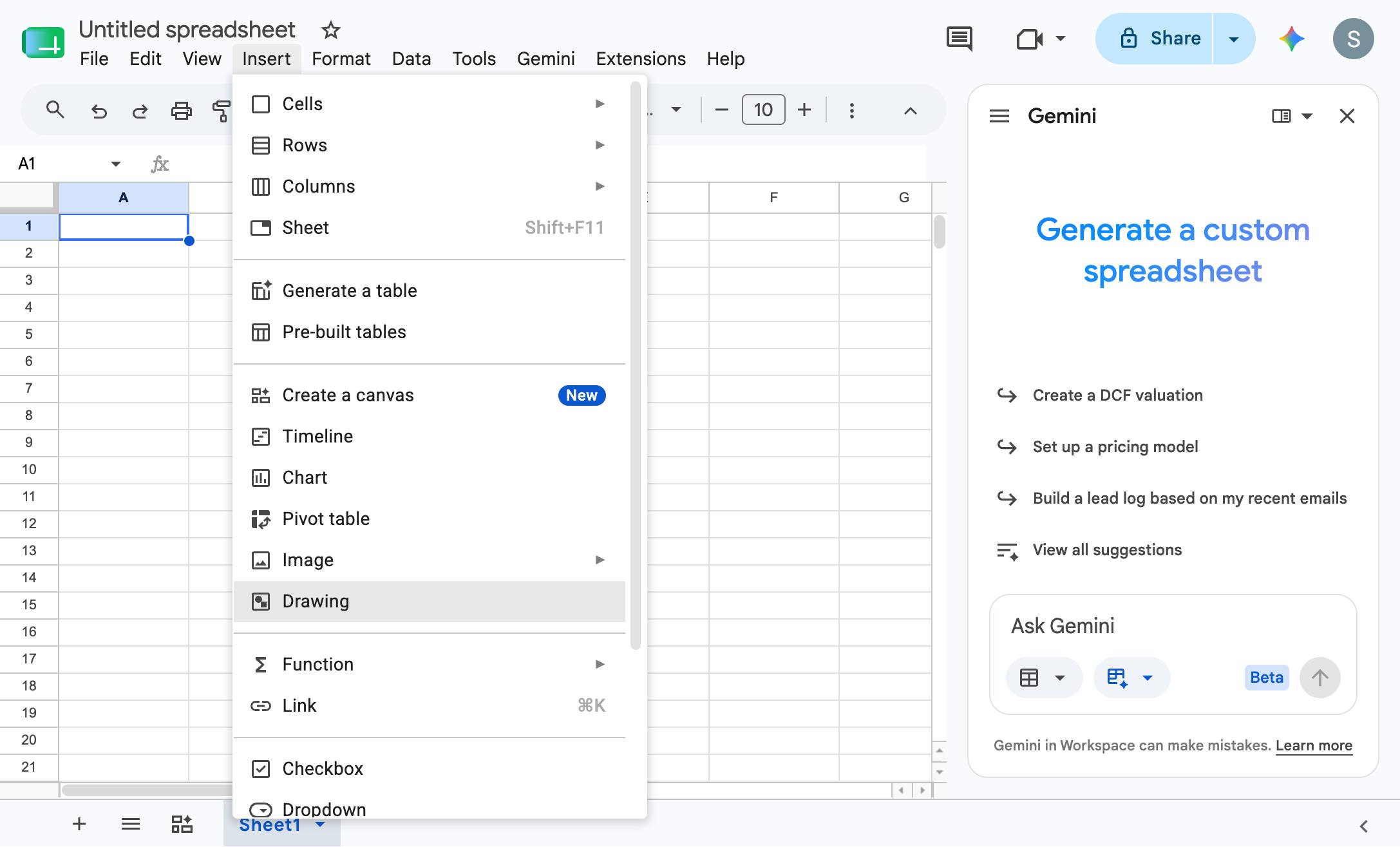
Click the Drawing option in the Insert menu to open the drawing canvas.
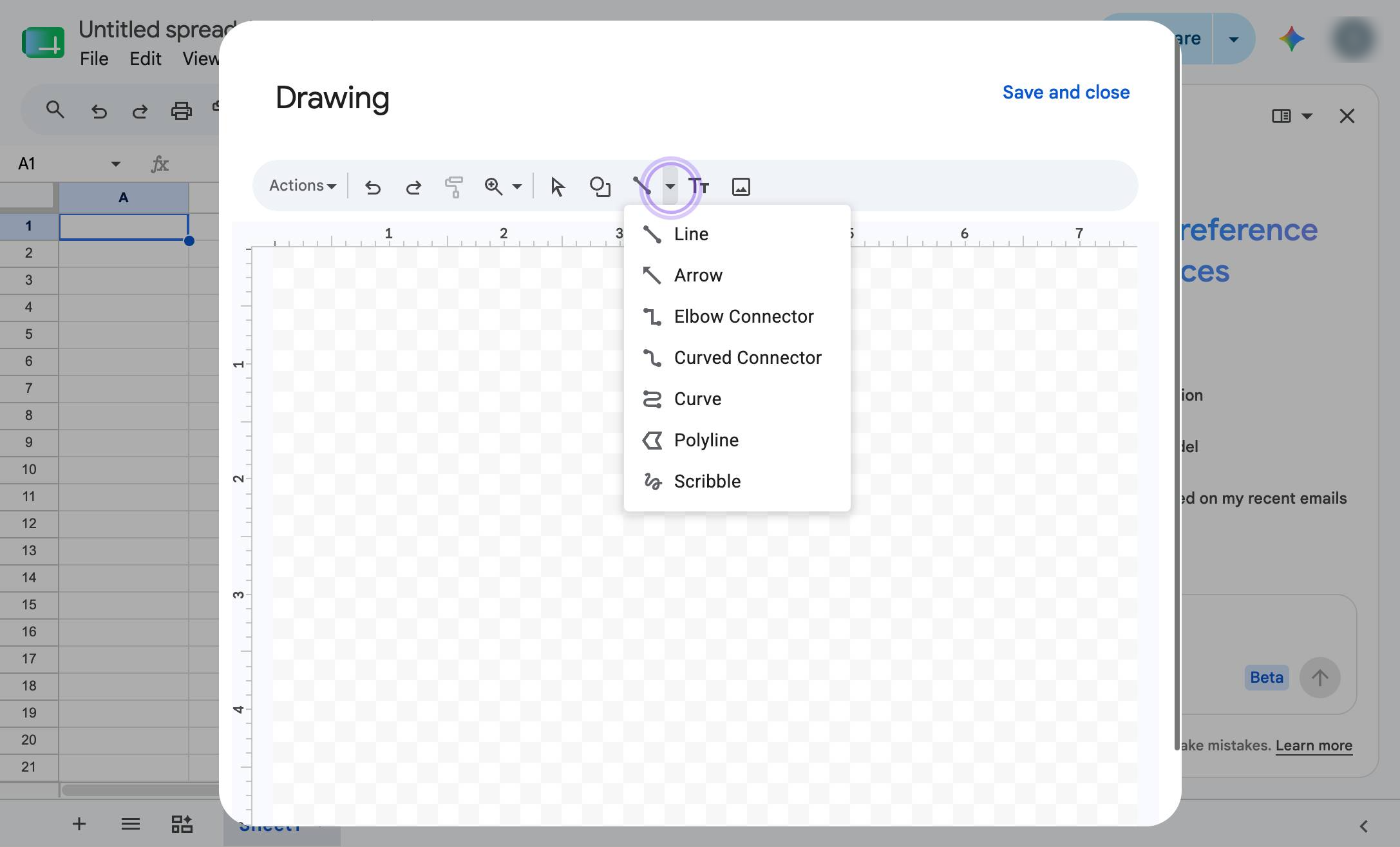
Click the downward arrow next to the line tool in the toolbar to open the line options menu.
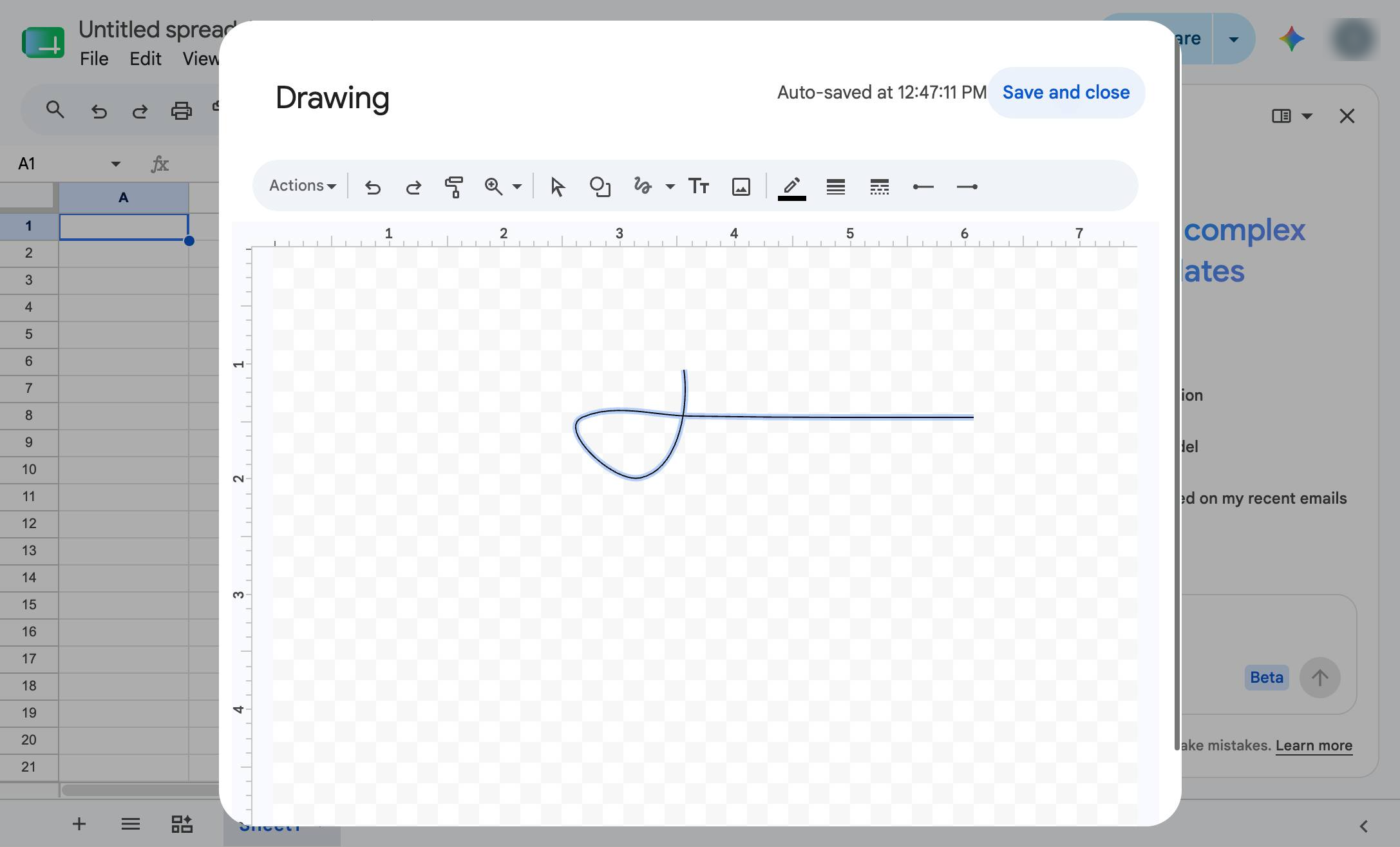
Click anywhere on the checkered drawing canvas to place your element.
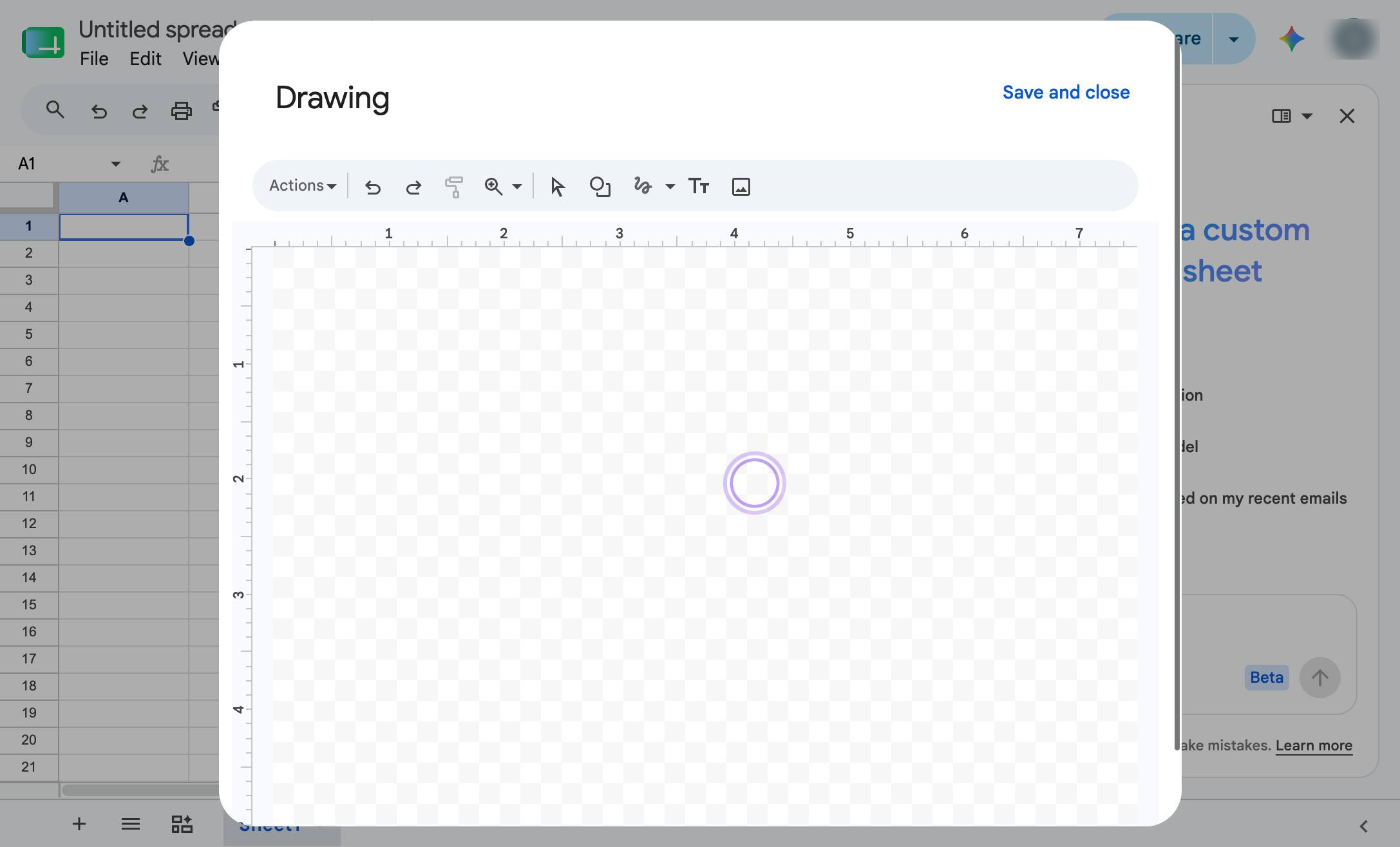
Click the "Save and close" button in the top right corner of the Drawing modal to insert your signature.
Duplicate this template, swap in your own screens, and share it with your team. Free to start — no credit card.
Fill out the form and we'll get back to you as soon as possible.
Tell us about your team and we'll find the right plan together.