Most workflow documentation never gets written. Not because teams don't care, but because the person who understands the workflow best is usually the busiest person on the team.
Capture-first workflow documentation flips that dynamic.
Key takeaways
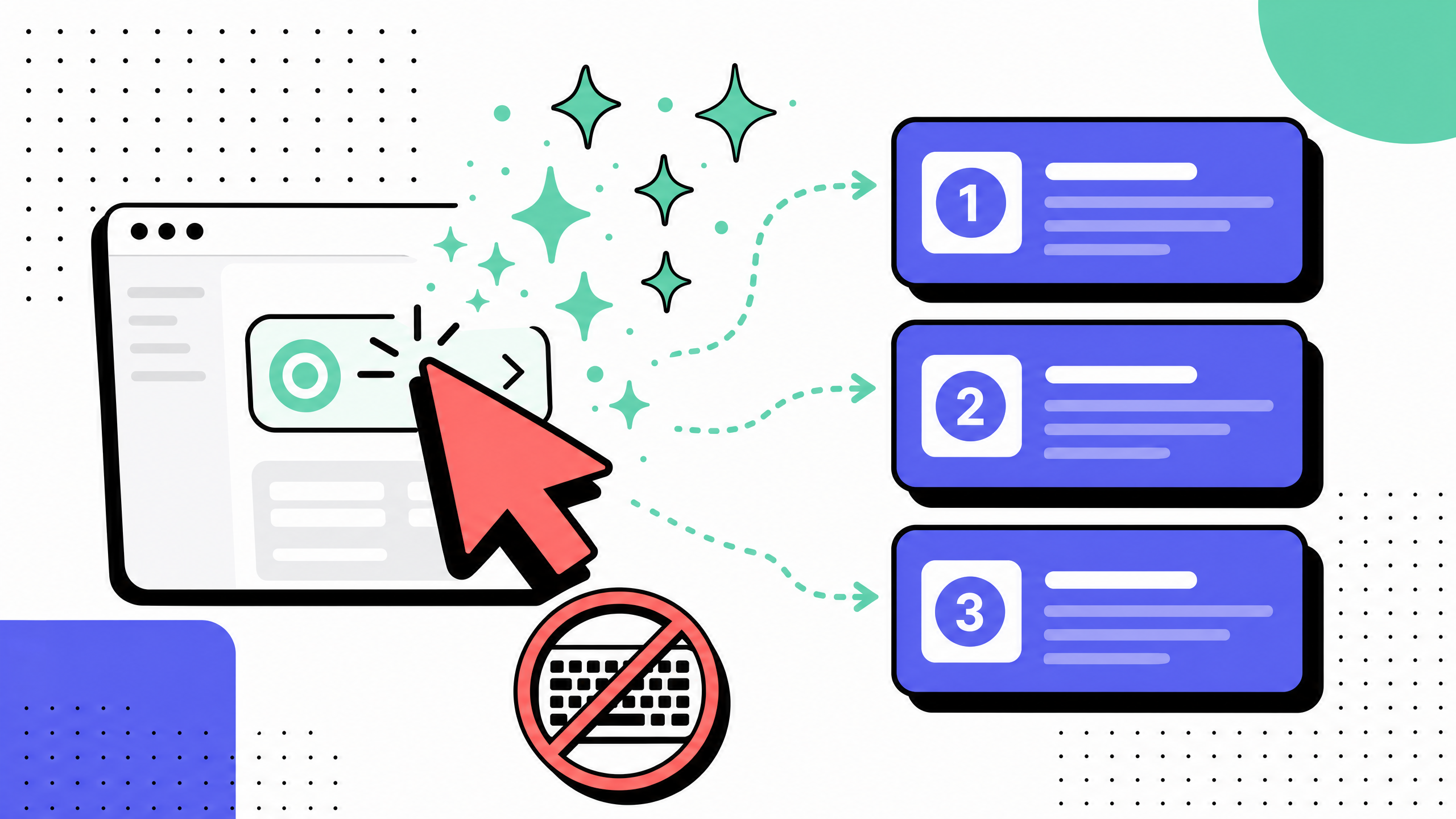
- Capture-first workflow documentation creates step-by-step guides without someone manually writing the procedure. A tool records actions, AI structures them into steps, and a human reviews the result.
- Traditional workflow docs fail because authors skip steps that feel obvious to them. Capture records everything, including those “obvious” clicks, which is why the result is easier for a new hire to follow.
- “Without writing a single word” applies to the authoring step, not the editing step. A typical workflow still needs a short review for accuracy, metadata, and redaction.
- This approach works best for IT runbooks, onboarding, support documentation, and operations SOPs — anywhere workflows live inside apps.
- It breaks down for decision-heavy workflows, real-world processes, strategy documentation, and compliance-heavy environments.
What this guide covers
Instead of asking someone to explain what they do, capture-first tools record what they actually do and turn it into a usable guide.

This guide focuses on that approach. It is not about document workflow automation (PDF routing, approvals, etc.), which is a completely different category.
We'll cover:
- What “no-typing” documentation really means
- The three layers that replace manual writing
- The capture workflow step by step
- What these tools record (and what they miss)
- Where the “no writing” promise breaks down
- There is also a short FAQ aligned with the questions Google surfaces in "People also ask" for document workflows.
A note on data. Search-volume and difficulty figures are pulled from Ahrefs Keyword Explorer for the United States, refreshed in April 2026. SERP observations come from a live US SERP review of document workflows and adjacent queries on the same date.
What "documenting workflows without writing" actually means
Documenting a workflow without writing means producing a usable step-by-step guide without manually typing the procedure into a document.
The process looks like this:
- A tool records actions (clicks, inputs, navigation, screenshots)
- AI turns those actions into structured steps
- A human reviews and publishes
- The author is still involved. They run the workflow, review the output, and fix anything that's off.
- What they don't do anymore is start from a blank page.
Why "without writing a single word" is a useful frame, with one caveat
The reason this frame matters is that traditional workflow documentation collapses on the writing step. People know how to do their job. They do not know how to write a 14-step procedure that a new hire can follow. Capture-first workflow documentation removes the writing step.
The caveat is simple: editing still exists.
Most teams will:
- Add a short intro
- Fix a mislabeled step
- Clean up screenshots
- That takes minutes, not hours. The goal isn't zero effort, it's removing the slowest, most error-prone part.
- Why teams stopped writing workflow docs by hand
- Three patterns kept breaking written workflow documentation. Capture-first tools fix two of them outright and reduce the third.
Authors skip the obvious steps
When someone documents a workflow from memory, they skip steps that feel obvious to them. That's exactly where a new hire gets stuck. Capture doesn't make that judgment. It records every click, including the ones the author would normally skip.
Workflow docs go stale on day one
The other reason hand-written workflow docs fail is drift. Apps update. Buttons move. A workflow with 12 screenshots becomes a workflow with 12 wrong screenshots. Most teams never update the doc, because rewriting from scratch costs as much as writing it the first time. Capture-first tools turn an update into a 90-second re-record, which is the only economic model that produces docs people actually trust.
One person owns the documentation backlog
In every team I have worked with, one senior person owns the workflow documentation backlog. They are the only people with both the context and the patience to write it, which means they are also the most expensive person to put on documentation work. The result is a permanent backlog. Capture-first tools redistribute the cost: the senior IC just runs the workflow, and anyone on the team can edit the AI draft into a finished doc.
Section takeaways
- People skip “obvious” steps when writing, capture doesn't
- Documentation drifts because updates are too expensive
- The documentation bottleneck is usually one overbooked person
The three software layers that replace typing
Capture-first workflow documentation is not one feature. It is three layers stacked into a single tool. Understanding the layers helps when evaluating AI process documentation tools generally and workflow capture tools specifically.
The capture layer
The capture layer is a browser extension or desktop agent that records actions while the user runs the workflow. It detects clicks, key inputs, page loads, modals, dropdowns, and tab switches. Each action becomes a discrete step with a timestamp, a target element, and a cropped screenshot. The capture layer does not interpret the workflow; it just records it.
Capture quality is the foundation of the whole stack. A bad capture layer misses clicks inside iframes, fails on single-page apps, and produces full-screen screenshots that show too much context. That extra noise becomes editing work the AI cannot fix downstream.
The AI structuring layer
This is where raw actions become a usable guide.
The AI:
- Groups actions into steps
- Writes short instructions
- Names each step
- Applies redaction where needed
- This replaces most of the manual writing.
- It's also where mistakes happen. Mislabeling and over-redaction are common, which is why review is required.
- The human review and publish layer
The third layer is editing and publishing. The author goes through the AI draft, renames steps, deletes unnecessary clicks, adds context, fixes redactions, and pushes to a knowledge base or wiki. This is where the small amount of typing happens. For a 10-step workflow, a careful review pass takes 5 to 10 minutes.
The output of the third layer is what gets shipped to readers. It is also the layer that determines whether the published doc reads like a procedure written by a human or a transcript produced by a machine.
Section takeaways
- Capture determines how much cleanup is needed
- AI removes most of the writing, but not all mistakes
- Review is short, but not optional
How to document a workflow without typing it: step by step
Here is the practical flow. It works for any web-app or desktop workflow, scales from one SOP to a library of hundreds, and assumes you have a capture-first tool installed (Haiku, Scribe, Tango, or similar).
PPick a process that is repeated regularly
Run it once with capture enabled (preferably in a test environment)
Let the AI generate the draft
Edit for clarity and accuracy
Add ownership and metadata
Review screenshots and redact if needed
Publish to your system (Notion, Confluence, etc.)
Set a trigger to re-capture when things change
A team running this flow consistently can ship 5 to 10 high-quality workflow docs in the time it used to take to write one from scratch.
What workflow capture tools record (and what they don't)
Capture-first workflow documentation works because most enterprise workflows are sequences of clicks and form inputs in a browser. That is exactly what capture layers detect well. The boundaries of what they record are worth knowing before you commit.
What capture tools record reliably
Capture tools reliably record clicks on buttons, links, and menu items; text typed into form fields (with optional redaction); navigation between URLs and page tabs; modal dialogs and dropdown selections; and uploads, downloads, and file-picker interactions. Each of these maps cleanly to a single workflow step.
What capture tools record imperfectly
Mouse hovers and tooltips are recorded inconsistently across tools. Multi-window workflows (for example, copy from Salesforce, paste into Workday) work but are sometimes split awkwardly across two captures. Drag-and-drop interactions are detected but the screenshot often does not convey what was moved. Authentication redirects can confuse step numbering.
What capture tools do not record
Capture tools do not record the reasoning behind a step. They cannot tell you why the user clicked Approve instead of Reject, what the team's policy is on edge cases, or how the workflow branches based on inputs. That work still requires human-written context. They also cannot capture phone calls, emails, or any work that happens outside the browser or desktop app being recorded.
Workflow documentation use cases by team
The capture-first flow shows up across functions, but the priorities differ. Here is what each team typically captures and why it matters.
IT and MSPs
Internal IT teams and MSPs use workflow capture for tier-1 runbooks. Password resets, license assignments, mailbox creation, access provisioning, and onboarding scripts. Capturing these once and publishing them to a help center reduces escalations and keeps senior engineers out of the ticket queue.
HR and onboarding
HR teams use workflow capture for self-serve new-hire docs. "How do I set up benefits in Workday," "how do I request PTO in BambooHR," "how do I enroll in 401(k)." A captured guide is more accurate than a written one and survives the next HRIS UI update with a 90-second re-capture.
Customer support and knowledge base
Support teams use workflow capture for both internal agent runbooks (how to handle a refund request, how to escalate a tier-2 incident) and external KB articles. The bar for redaction is higher on external articles because everything is public-facing.
Operations and SOPs
Ops teams have the longest tail of workflow docs: vendor onboarding, invoice processing, monthly close steps, data hygiene workflows. These are the docs that traditionally never get written, because the senior ops manager does not have the time. Capture-first tools are most cost-effective here, because the person doing the work is the same person who would have had to write the doc.
What to look for in workflow documentation software
If you are evaluating workflow documentation software in 2026, the category has stabilized around capture-first tooling. The criteria below separate tools that produce shippable workflow docs from tools that produce demo-quality recordings.
Capture quality
Detection of clicks, form inputs, modals, iframes, and SPA navigations should work without configuration. Screenshot scoping should default to the relevant UI region instead of the full window.
AI structuring
Step naming, instruction phrasing, automatic step grouping, and auto-redaction of personal data are the four AI features that decide how much editing you do.
Edit and governance
The output should be a fully editable document with text editing, screenshot annotation, versioning, owner metadata, and last-reviewed dates. A regulated environment will also need an explicit approval workflow.
Integrations
Native publishing to Confluence, Notion, SharePoint, your help desk, or your LMS is what moves a captured guide into the system of record. Manual export-and-paste defeats the speed advantage of capture-first.
Security
SSO, role-based access, audit logs, and redaction-by-default are non-negotiable for IT, HR, and finance documentation. If the vendor cannot explain what happens to the recording after capture, that is the answer.
Buyer's checklist takeaways
- Capture quality determines how much editing you'll need
- Redaction should be automatic, not optional
- Publishing into your existing tools matters more than extra features
- Security and data handling should be clear from the start
Where the "no typing" promise breaks down
Capture-first workflow documentation is not zero-typing. It is low-typing relative to writing from scratch. A few categories will still need meaningful human writing.
Decision-tree workflows
If a workflow branches in many directions based on inputs, a single capture only represents one path. You can capture the most common path and write prose around the branches, but the AI cannot reconstruct the decision tree from a recording.
Workflows that span the browser and the real world
Some workflow steps happen outside the browser. Phone calls, email back-and-forth, physical inspections, and work in tools the capture layer cannot reach (legacy desktop apps, mobile-only apps) all need human-written context to be complete.
Strategy and architecture documentation
Capture-first tools are for procedural documentation. They are not for explaining why a system is designed a certain way, what tradeoffs the team accepted, or how a piece of software fits into a larger architecture. That kind of writing is still a human-authored job.
Compliance-grade documentation
Regulated industries (healthcare, finance, life sciences) often require specific document structures, sign-off chains, and language that AI-generated drafts will not produce out of the box. Capture-first is still useful as a starting point, but a compliance reviewer will need to rewrite portions to meet the standard.
FAQ
What are document workflows?
A document workflow, in the sense covered in this guide, is a step-by-step procedure that describes how a team performs a task in a web or desktop application. The phrase is also used in the document management category to mean PDF routing and approval automation; that is a different category and is not what this guide is about.
What is the best way to document workflows?
For procedural workflows that happen inside a web or desktop application, the best way to document a workflow in 2026 is to capture it with a capture-first tool, let the AI produce a structured first draft, and edit the result. The captured doc is more accurate than a hand-written one and far faster to update when the underlying app changes. For a deeper walkthrough of the editing pass, see how to document a process.
What are the 5 steps of a documented workflow?
A typical captured workflow doc has five elements: a title and intro for context, a numbered list of steps with screenshots, a "what to do if something goes wrong" section, governance metadata (owner, last-reviewed date), and links to related workflows or prerequisites.
What are the four types of workflows that benefit most from capture-first documentation?
The four most common categories are IT runbooks (provisioning, password resets, account changes), HR procedures (benefits, time off, onboarding), customer support runbooks (refunds, escalations, ticket triage), and operations SOPs (vendor onboarding, monthly close, invoice processing). All four share the same shape: a sequence of clicks in a web app done by more than one person at predictable cadence.
Do I really document a workflow without typing anything?
No, but close. A typical 10-step captured workflow needs 5 to 10 minutes of editing for accuracy, governance metadata, and final screenshot redaction. The "without writing a single word" framing is about replacing the authoring step, which is the slowest and most error-prone part of traditional workflow documentation. The editing pass is fast and does not require fluent technical writing.