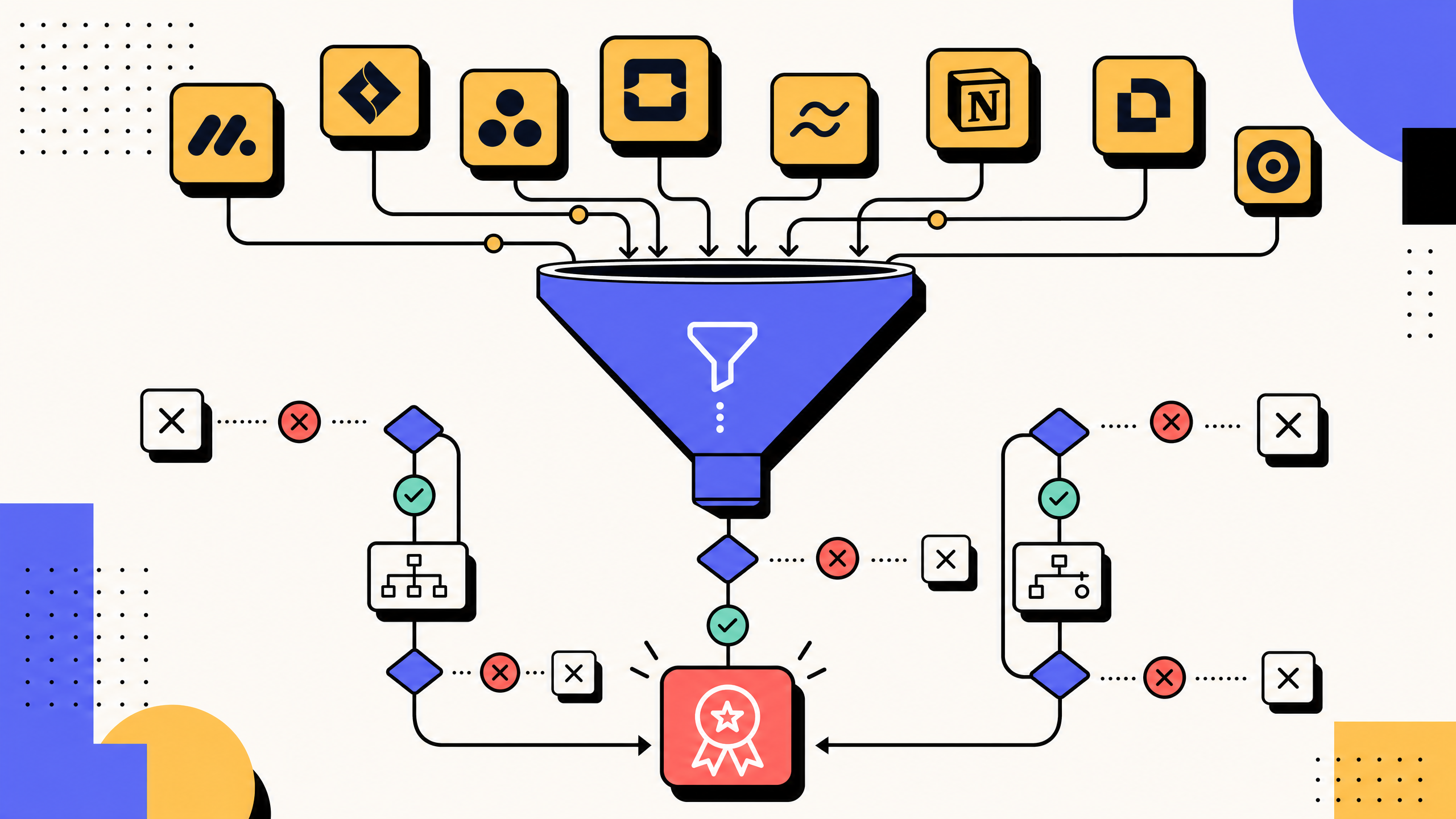
They open a comparison list, pick three vendors with familiar names, run a demo, and sign a contract. Six months later, the team is still using the old wiki, the new tool has a handful of documents, and half of them are already stale.
The mistake usually happens before the vendor choice.
“Workflow documentation software” is often confused with “document workflow software.” They sound similar, show up in the same search results, and solve completely different problems.
One helps teams document how work gets done. The other helps teams route documents through approvals, signatures, and lifecycle steps.
This guide explains the difference, the nine features to evaluate, and a five-step framework for choosing the right tool.
Key takeaways
- Workflow documentation software helps teams capture, structure, store, search, and update written records of how work gets done.
- It is not the same as document workflow software, which routes contracts, invoices, forms, or PDFs through approval and signature flows.
- The nine features split into three groups: capture and structure, freshness and maintenance, and governance/integrations.
- The right buying process starts with your actual documentation pain, not vendor feature lists.
- The most common rollout failure is buying a generic wiki and expecting it to behave like workflow documentation software.
What is workflow documentation software?
Workflow documentation software is any tool used to capture, structure, store, search, and update written records of how work gets done in a team. The audience is internal: operators running the workflow, new hires learning the workflow, and owners reviewing it on a cadence. Typical content includes step-by-step procedures, decision trees, role assignments, escalation paths, screenshots of the relevant interfaces, and links to upstream policies.
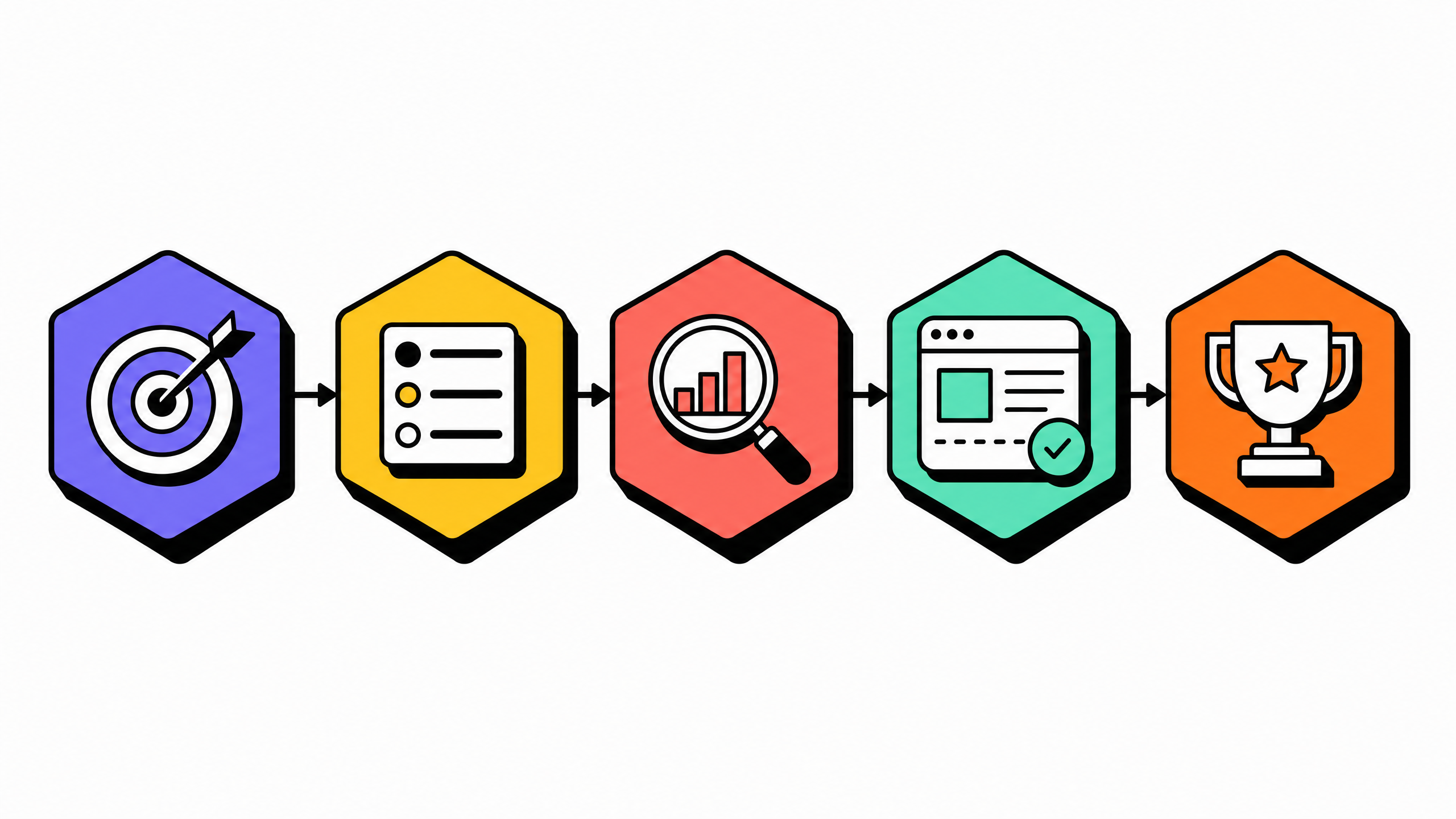
The category sits at the intersection of three older categories: wikis (Confluence, Notion), capture-first authoring tools (Scribe, Tango, Guidde), and AI-assisted SOP generators. A modern workflow documentation tool typically combines three jobs. The first is authoring: someone records or narrates the work and the tool produces a draft. The second is structure: a fixed template that the draft is fitted into. The third is maintenance: a way to flag drift when the underlying workflow changes.
For the upstream methodology of writing workflow documentation at all, with or without dedicated software, see our guide to process documentation best practices. For the AI-assisted authoring layer specifically, see how AI transforms SOP creation.
Workflow documentation software vs. document workflow software
Workflow documentation software helps a team write down how work gets done. Document workflow software helps a team move a specific document through a sequence of approvals, signatures, or lifecycle steps. The two categories share a SERP and solve different problems. The category names are nearly reversed and Google routinely surfaces both for the same query.
A simple test: if the artifact at the center of the workflow is a document (a contract, an invoice, a benefits enrollment form), you want document workflow software. Vendors in that space include Atlassian Jira workflow features, Docuware, and contract lifecycle management tools. The buying criteria are routing rules, e-signature, retention, and audit log.
If the artifact at the center of the workflow is the work itself (an onboarding process, a customer escalation, a weekly close), you want workflow documentation software. Vendors in that space include capture-first authoring tools, structured wikis, and AI SOP generators. The buying criteria are capture, template enforcement, search, and freshness tracking.
The two categories cross over in two cases only. The first case is a team using a wiki for both knowledge and document approvals (Confluence with workflow add-ons), where the line gets fuzzy. The second case is a tool that ships both capabilities natively (Notion plus a database approval flow), where one license covers both. In both cases, evaluate the two jobs separately. A tool that does one well rarely does the other well.
For deeper coverage of the adjacent buying decision in the broader category, see our guide on process documentation software.
9 features that separate workflow documentation software you keep from software you replace
The nine features below are the ones that usually determine whether a workflow documentation tool lasts past year two.
The first three answers: Can the tool capture and structure workflows?
The next three answers: Can the documentation stay useful after publication?
The last three answers: Can the tool support real governance and adoption?
1. Capture-first authoring
The fastest way to draft workflow documentation is recording, not typing. A capture-first tool lets an operator screen-record the workflow once, or narrate it out loud, and produces a structured draft from the recording. The team reviews and edits the draft instead of writing from scratch.
Capture-first authoring matters because the cost of the first draft is the largest single line item in workflow documentation work. Pre-capture, a writer spends 90 to 120 minutes on a workflow that takes the operator 8 minutes to run. With capture, the same workflow takes 15 to 30 minutes of capture plus 20 to 30 minutes of review.
For the broader pattern behind this feature, see how teams are documenting workflows without writing a single word.
2. Template enforcement and structural normalization
A workflow documentation library only works if every document has a familiar shape.
Readers should know where to find:
- Scope
- Owner
- Version
- Prerequisites
- Steps
- Exceptions
- Review date
- If every document uses a different structure, the library becomes hard to scan and harder to trust.
- A strong tool should support required fields, reusable templates, and consistent formatting across workflow types.
- AI can help fit drafts into the template, but the tool should still enforce the structure at the platform level.
- For a reference template that documentation tools should be able to fit drafts against, see our standard operating procedure template guide.
3. Branching and decision-tree handling
Real workflows are rarely perfectly linear.
A customer escalation may depend on account type. An invoice process may change above a certain dollar amount. An onboarding flow may branch by role or region.
A tool that only supports linear steps forces teams to create multiple duplicate documents.
That increases maintenance work.
A better workflow documentation tool supports branching inside the same document, so the reader can follow the path that applies to their situation.
4. Native multi-language support with glossary control
Distributed teams need documentation in the languages people actually read.
A good tool should support multiple language versions of the same workflow, flag translations when the source changes, and preserve structure across versions.
Glossary control matters.
Without it, domain-specific terms can drift from one translation to another. That creates confusion in search, onboarding, and daily execution.
Translation is useful only if the terminology stays consistent.
5. Change-detection and drift alerts
Workflow documentation decays the moment the underlying workflow changes. The team that updated the staging environment on Monday rarely remembers to update the runbook on Tuesday. By the time someone follows the runbook in three months, half of it is wrong.
A workflow documentation tool with change-detection compares recent captures, recordings, or transcripts against the published documentation and flags the steps that no longer match. The tool does not own the document. It only flags drift. A human owner confirms each change. The result is that drift gets noticed in days instead of quarters.
6. Retrieval and question-answering layer
Search is where many documentation libraries fail.
Keyword search often returns too many results or the wrong ones. People stop searching and start asking teammates instead.
A useful retrieval layer lets someone ask a question in plain language and get the relevant workflow passage back, with a link to the source.
For example: “How do I reset a customer's MFA?”
The answer should come from the approved workflow documentation, not from a guess.
This only works if the library has enough good documentation. AI search cannot retrieve what the team never wrote.
7. Workflow-aware integrations with chat, ticketing, and SDLC tools
Documentation gets used more when it appears where people already work.
Useful integrations include:
- Slack or Microsoft Teams previews
- Slash-command lookups
- Zendesk or Jira sidebars
- Help desk links
- SDLC or project management context
- The best integrations are not just links. They surface the right document in the right moment.
- For example, a support ticket about refunds should show the refund workflow. A dev ticket about a release should surface the release checklist.
- If the tool always requires a separate search in a separate tab, adoption will suffer.
8. Audit trail, version history, and rollback
Every workflow document should show who changed what, when, and why.
Version history matters when:
- A process change breaks something
- An audit asks what version was active on a certain date
- A team needs to restore an earlier version
- A reviewer wants to compare changes step by step
- Rollback is especially important when AI is involved. A clean-looking edit can accidentally remove a critical warning, exception, or safety step.
- A strong tool makes history visible and recovery simple.
9. Permissions, ownership, and approval routing
The last feature is the one most buyers ignore until renewal: who is allowed to publish what. A workflow documentation library that anyone can edit becomes a wiki. A workflow documentation library that nobody can edit becomes a graveyard. The tool needs a permissions model that supports per-document owners, per-section reviewers, and per-team approval routing for high-impact documents (security, finance, regulated workflows).
Approval routing belongs in workflow documentation software (and not in document workflow software) when the document being approved is the SOP itself, rather than a contract or invoice that the SOP describes. The two routing flows are different. Confusing them at buy time leads to teams paying for both and using neither.
9-feature framework takeaways
Features 1 to 3 — capture, templates, and branching — determine whether the tool can represent your workflows.
Features 4 to 6 — language support, change detection, and retrieval — determine whether the documentation stays useful.
Features 7 to 9 — integrations, version history, and permissions — determine whether the tool can survive real team use.
How to choose workflow documentation software for your team
Choosing the right tool is a five-step process.
The first two steps diagnose your actual documentation problem. The third narrows the shortlist. The fourth tests the tool in your environment. The fifth prevents the migration mess that derails many rollouts.
Step 1: Audit your real workflow documentation pain
Before scoring any vendor, write down the three workflows where the team currently feels documentation pain most acutely. Be specific: "the new-hire onboarding playbook is wrong in three places nobody owns" beats "we want better documentation". For each of the three, name the symptom (drift, gaps, search failure, language barriers, ownership confusion) and the cost (hours lost, mistakes shipped, escalations to senior staff).
This step is the one most teams skip. Skipping it leads to buying a tool whose flagship feature solves a problem the team does not have, while the actual pain (usually drift, ownership, or search) remains unaddressed.
Step 2: Decide the documentation depth you actually need
Not every workflow needs the same documentation depth. A weekly close run by the same finance lead for 5 years needs a 1-page checklist. A customer escalation workflow run by 30 support agents at three time zones needs a full SOP with branching, screenshots, and multi-language coverage. Decide which of your top 20 workflows belong in each tier.
The buying criteria differ by tier. Light-tier workflows do fine in a structured wiki. Mid-tier workflows need template enforcement and capture-first authoring. Heavy-tier workflows need branching, change-detection, and approval routing. Buying for the heavy tier when the team mostly runs light-tier workflows is the most common over-purchase mistake we see.
Step 3: Match the tool to team size and operational rhythm
A 5-person startup, a 50-person operations team, and a 500-person customer support organization need different tools, even if they document similar workflows. The 5-person team needs the lowest-effort capture and the loosest review cadence. The 500-person team needs role-based permissions, a retrieval layer, and a strict ownership model. Tools optimized for one size rarely fit the other.
The rhythm matters as much as the size. A team whose workflows change weekly needs change-detection more than coverage. A team whose workflows are stable for months at a time needs coverage more than change-detection. Look at the rate of change in your top three workflows, rather than the absolute count, when scoring vendors.
Step 4: Run a single-workflow pilot before standardizing
Vendor demos are designed to look good. Vendor demos run on demo data. Your environment is not demo data. The only way to find out whether a tool actually fits is to pilot it on a single real workflow, with a real operator, for at least 30 days.
Pick the workflow from step 1. Run capture, drafting, review, publication, and one round of change-detection inside the candidate tool. Compare the time to draft, the quality of the output, and the ownership clarity against your current process. If the candidate tool does not save at least 30 percent of the drafting time on a real workflow, the headline numbers in the demo were the wrong numbers.
Step 5: Plan the migration off your existing wiki
Most workflow documentation rollouts fail not on the new tool but on the migration off the old one. The team buys the new tool, copies the highest-trafficked 10 documents, and leaves 200 stale documents in the old wiki. Six months later, two thirds of the team still searches the old wiki because that is where their muscle memory lives.
Plan the migration before the contract. Decide which documents move, which get archived, and which get rewritten from a fresh capture. Set a hard cutover date for the old wiki. Communicate the cutover to the team in advance. Without the cutover, you have two documentation libraries, a 50 percent confusion tax, and no way to measure whether the new tool helped.
Decision-framework takeaways
Diagnose the pain before looking at vendors.
Match the tool to workflow depth, team size, and rate of change.
Pilot with one real workflow.
Plan migration before signing, or the old wiki will keep winning.
Common rollout failures and how to avoid them
The four failure modes below are the ones we have seen across teams that bought workflow documentation software and then quietly stopped using it. None of them are about the tool. All of them are about the rollout.
Failure 1: picking the tool before the methodology
Teams that pick a workflow documentation tool before agreeing on a methodology end up with two mismatched halves. The tool is optimized for one approach (say, capture-first). The team operates with a different one (writing from scratch). The mismatch shows up six weeks in. The fix is to agree on the methodology in step 2 of the buying process, then score tools against it. For the methodology layer specifically, see our AI process documentation guide.
Failure 2: confusing workflow documentation software with document workflow software
The single most expensive miscategorization in this market. A team that needs to document workflows buys an approval-routing tool because the SERP put both categories on the same results page. The tool ships great e-signature and routing rules, plus zero capture, no template enforcement, and no question-answering. The team uses it for invoices and writes workflows in a Google Doc. Six months in, both jobs are half-done.
Failure 3: no named owner per workflow
A workflow documentation tool with 200 documents and zero named owners is a graveyard. The change-detection layer flags drift and there is no one to confirm the change. The retrieval layer surfaces stale answers and there is no one to update the source. Every document published in the tool needs a named human owner from the day it goes live, regardless of how it was authored.
Failure 4: treating coverage as the success metric
Most teams measure their workflow documentation rollout by the number of documents published in the first quarter. That is the wrong metric. A library of 100 stale documents is worse than a library of 30 fresh ones. The right metric is the percentage of published documents whose last review or capture is within 90 days of today. Coverage without freshness is documentation theater.
Rollout-failure takeaways
The four failures above are about rollouts, not about tools. Switching vendors does not fix any of them.
Methodology before tool, owner per workflow, and freshness over coverage are the three editorial principles that survive every workflow documentation rollout we have seen succeed past month nine.
FAQ
What is workflow documentation software?
Workflow documentation software helps teams capture, structure, store, search, and update written records of how work gets done. Inputs may include screen recordings, voice transcripts, and notes. Outputs are searchable, versioned, role-aware procedure documents.
What is the difference between workflow documentation software and document workflow software?
Workflow documentation software documents how work gets done. Document workflow software routes a document, such as a contract, invoice, or form, through approvals and signatures. The names are similar, but the buying criteria are different.
What should be included in workflow documentation?
Workflow documentation should include scope, owner, version, last-reviewed date, prerequisites, numbered steps, decision branches, rollback steps, and links to related policies or procedures.
How do I document a workflow?
Capture the workflow with the person who actually performs it. Record the screen or narration, fit the draft into a template, test it with someone new, assign an owner, schedule review, and publish.
What is the best workflow documentation software for small teams?
There is no single best tool. Small teams with stable workflows may do well with a structured wiki. Small teams with changing workflows usually need capture-first authoring and review reminders.
Is Notion good for workflow documentation?
Notion can work for light workflow documentation when teams are small and workflows are stable. It is weaker for capture-first authoring, branching, change detection, and advanced retrieval.
How often should workflow documentation be updated?
Review workflow documentation at least quarterly, and update it whenever the workflow changes. For fast-changing workflows, use change detection or recapture triggers.