1
Open or Navigate to Excel window
Open Microsoft Excel or switch to the active Excel window on your taskbar to begin editing your worksheet.
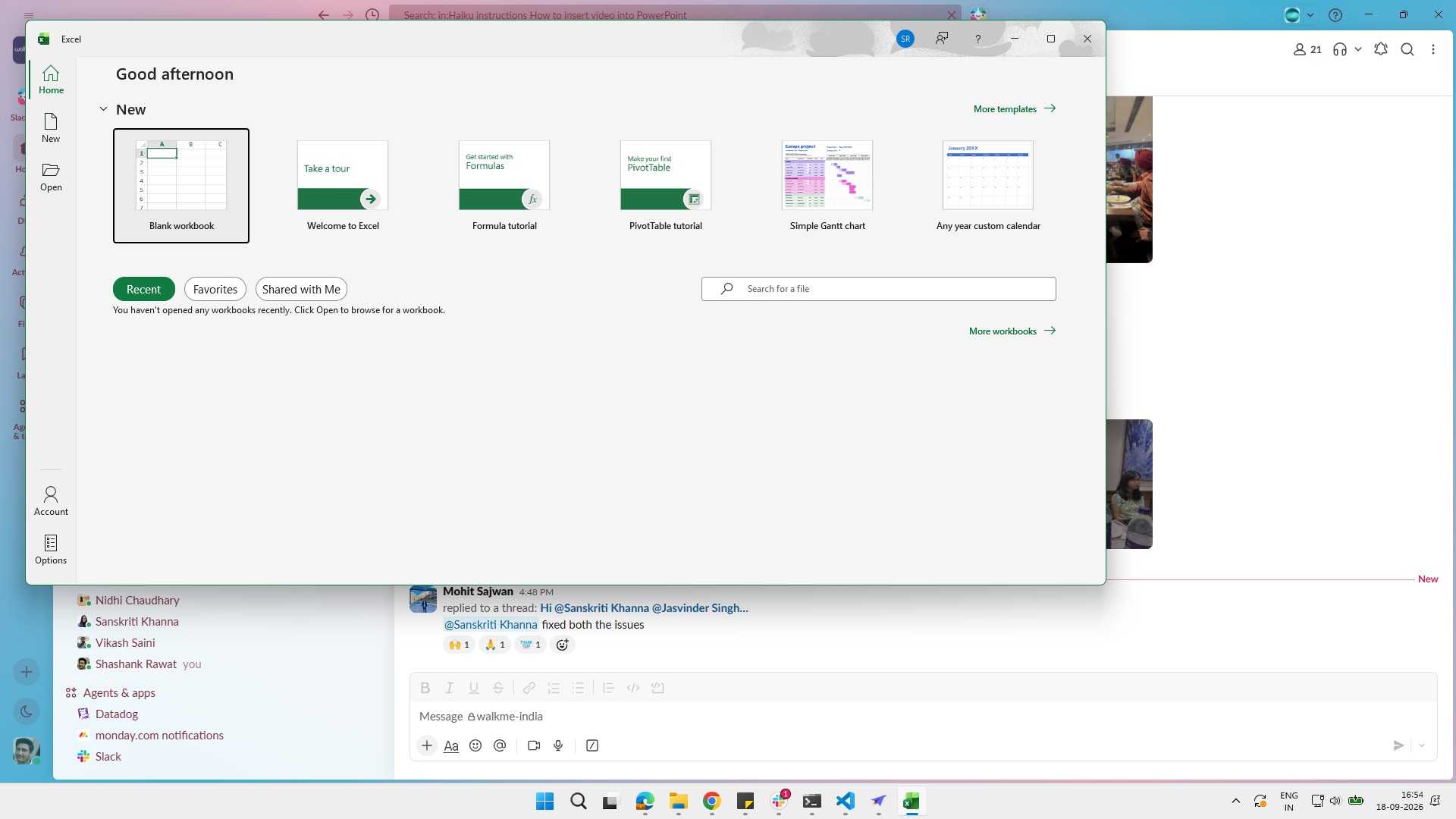

Learn how to insert and customize a column chart in Microsoft Excel. This step-by-step guide will walk you through selecting your data, inserting a chart, and applying a styled theme to visually enhance your presentation.
Open Microsoft Excel or switch to the active Excel window on your taskbar to begin editing your worksheet.
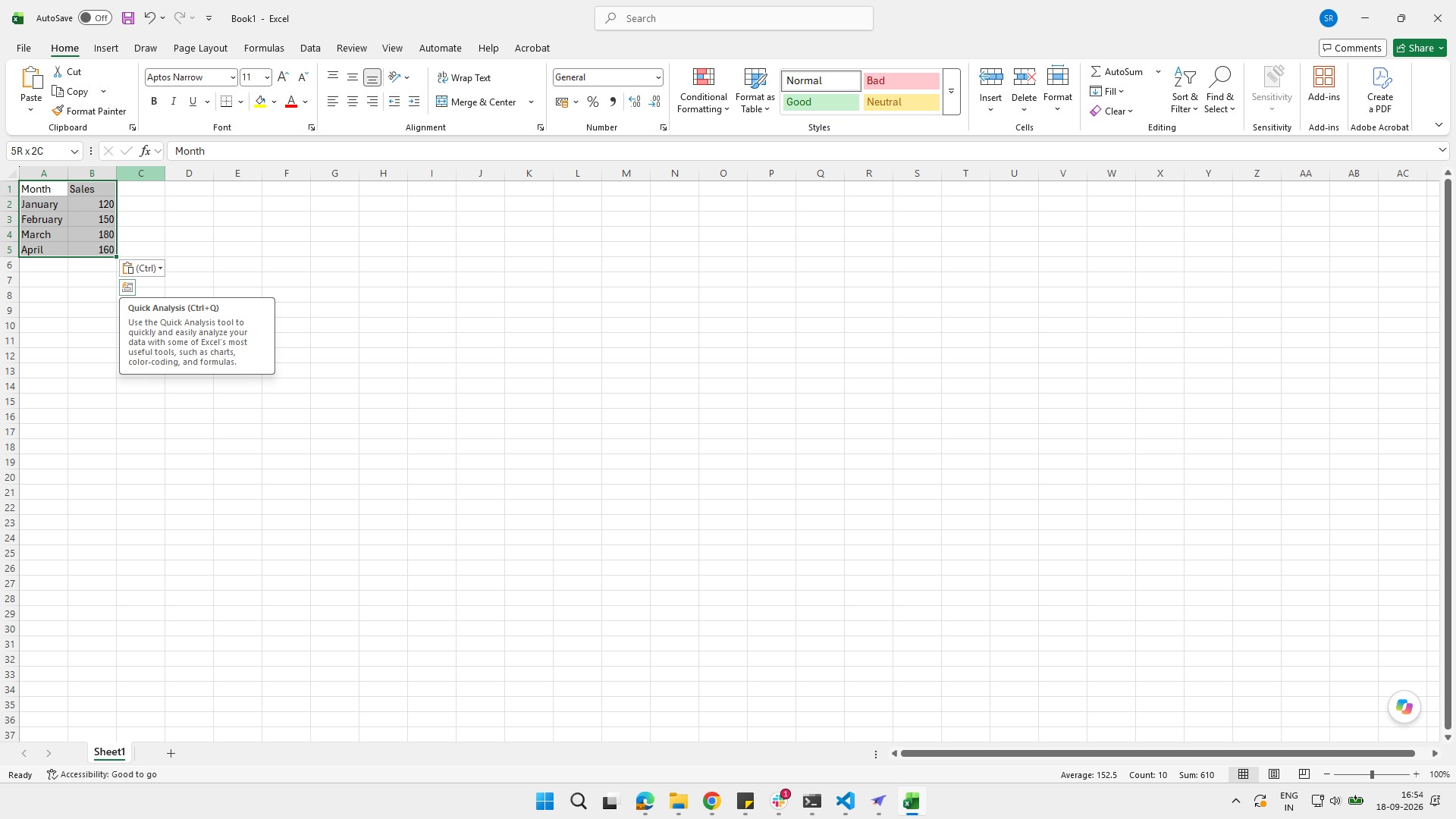
Highlight the cell range or data set you want to visualize in your spreadsheet.
Click the Insert tab in the top ribbon to access options for adding elements to your spreadsheet.
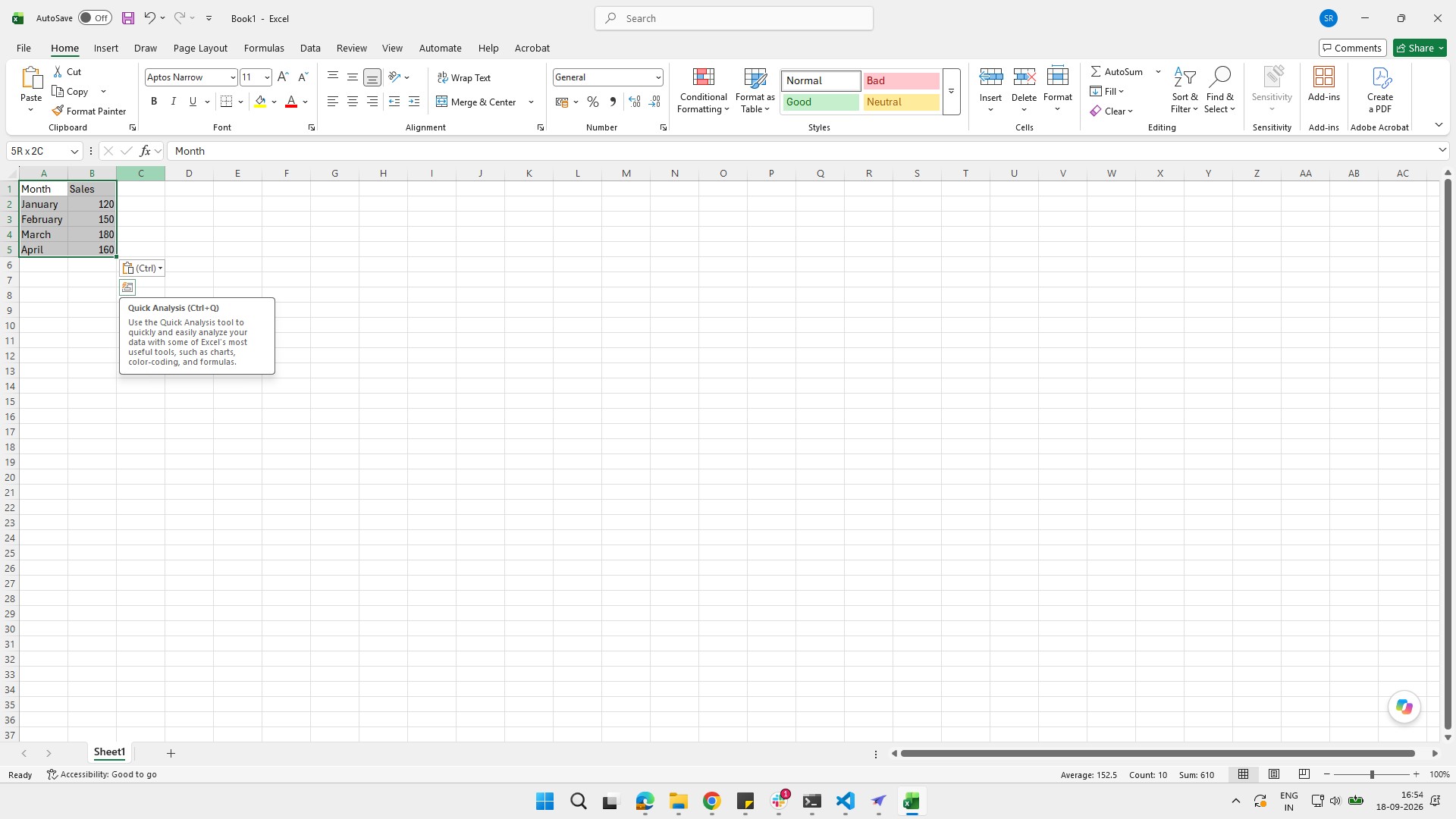
In the Charts section, choose a chart type: Column/Bar — compare categories. Line — show changes over time. Pie — show parts of a whole. Scatter — show relationships between two numerical variables
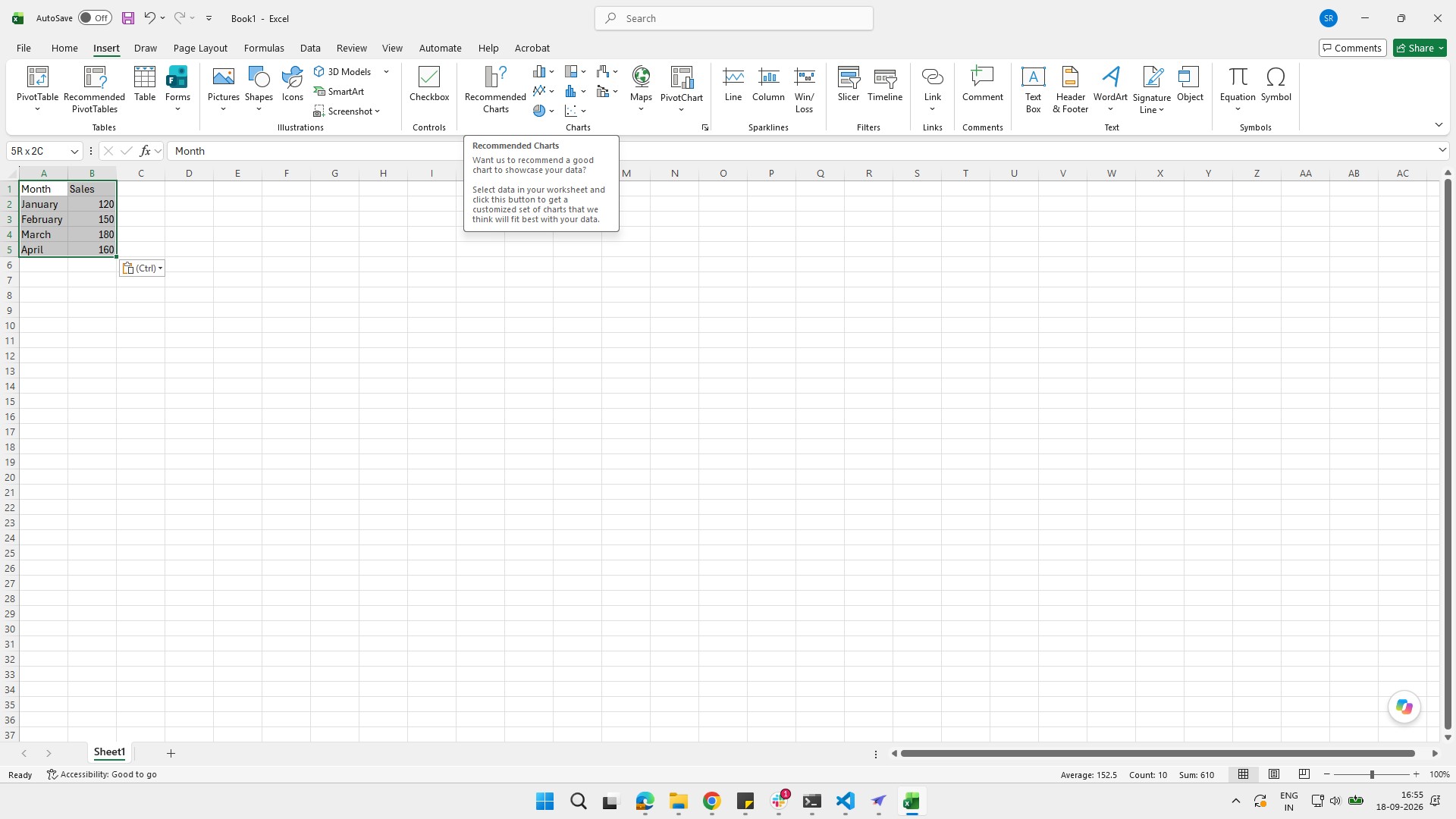
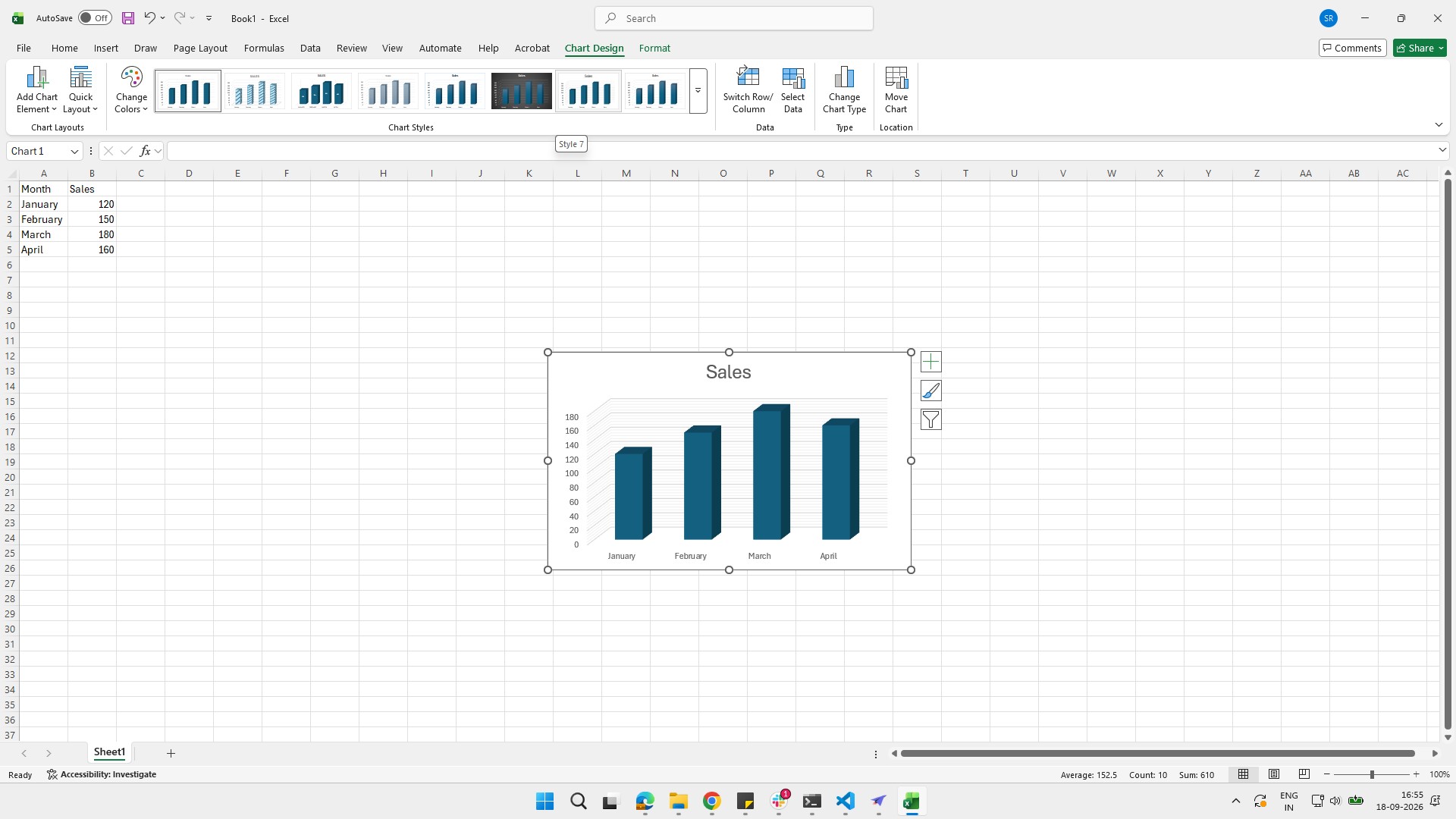
Click the second icon under the 3-D Column heading in the chart menu to apply this chart style.
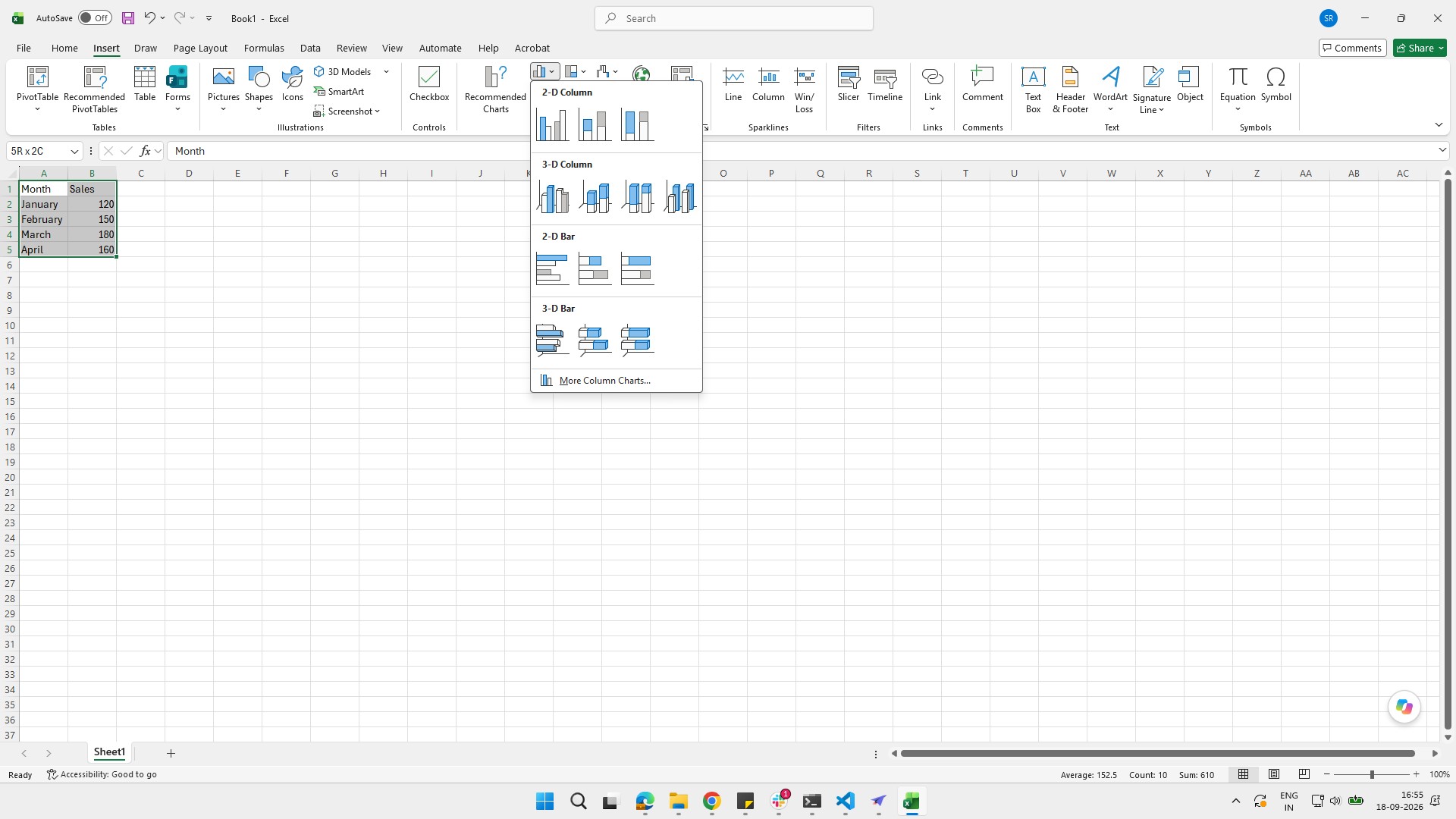
Click the chart style you want. Excel will insert the chart automatically
このテンプレートを複製し、画面を差し替えて、チームで共有しましょう。無料で始められます — クレジットカード不要。
フォームをご記入ください。折り返し、迅速にご連絡いたします。
Tell us about your team and we'll find the right plan together.